


During our years of testing WordPress features, we’ve watched the platform evolve from traditional widgets to the new block system.
While both tools help you customize your site, they work in fundamentally different ways and serve different purposes.
At WPBeginner, we know that understanding the distinction between widgets and blocks can be challenging. However, knowing when to use each can make a big difference in how effectively you manage your WordPress site.
In this guide, we’ll clear up the confusion between WordPress widgets and blocks. We’ll share practical examples of when to use each one, based on real experience helping thousands of users build and customize their WordPress sites.
💡The Short Answer: Widgets vs. Blocks
In a hurry? Here’s the key difference you need to know:
WordPress Blocks are the new, modern way to build everything. They are flexible components you use to create posts, pages, and even your entire site layout with precise control.
WordPress Widgets are the old way to add content to fixed locations in your theme, like a sidebar or footer. They have limited placement and design options.
Here is a quick overview of the topics we will cover in this article:
Let’s dive right in!
What Are WordPress Widgets?
WordPress widgets are dynamic content elements that you can add to widget-ready areas like sidebars.
Widgets were introduced in WordPress 2.2 (May 2007).
The purpose was to provide users with an easy way to add customizable elements to their website without having to repeatedly insert the same element at the end of blog posts.
For instance, they could edit their WordPress theme files to create a sidebar and manually code in something like Google AdSense tracking codes.
Users could simply insert content or features using widgets that didn’t have to be part of their overall theme files or blog posts.
Widgets made it much easier for users to create their ideal WordPress blog, letting them easily add banner ads or email sign-up forms.
Gradually, almost all WordPress themes adapted widgets by adding widget-ready areas in their design and layouts. These were most often sidebars and footers.
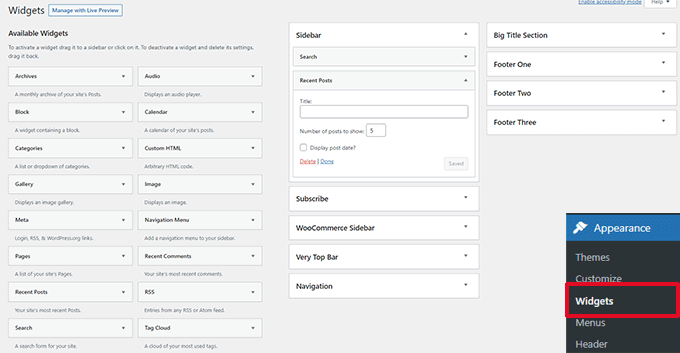
The WordPress widget editor looked like this until WordPress 5.8, which was released in 2021.
What Are Blocks in WordPress?
A WordPress block is a distinct piece of content, such as a paragraph, image, headline, or video, that you add within the editor. Think of blocks as the individual building bricks you use to create posts, pages, and even your entire site layout.
You may also see it referred to as the Gutenberg editor, which was its development code name.
Blocks are very similar to widgets because each one handles a single element of the page or post.
Unlike widgets, however, blocks were introduced only as part of the post and page editor, which means they could not be easily added to areas like the site footer or sidebar.
A block can be inserted into a post or page for any element, including a paragraph, an image, a gallery, a plugin-specific feature like email sign-ups, or a video embed.
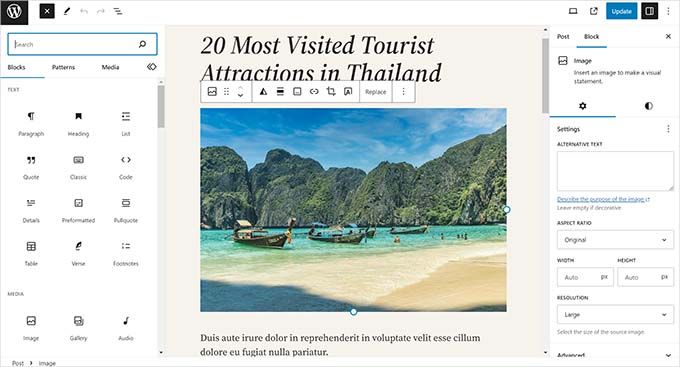
There are also blocks to add design layout elements like covers, patterns, tables, columns, groups, and more.
To learn more, see our complete WordPress block editor tutorial, which shows how to use the default editor to create beautiful content layouts.
The Difference Between Widgets vs. Blocks in WordPress
While their functions can overlap, the core distinction lies in their scope and flexibility. Here’s a breakdown of the key differences:
| Feature | Widgets (The Old Way) | Blocks (The New Way) |
|---|---|---|
| Primary Use | Adding specific content (like a calendar or search bar) to pre-defined areas. | Building all content, from simple paragraphs to entire page and site layouts. |
| Location | Restricted to theme-specific “widget areas” like sidebars and footers. | Can be used anywhere: posts, pages, headers, footers, and widget areas. |
| Editor | Managed via the classic Appearance » Widgets screen. | The core component of the modern Block Editor and the Full Site Editor. |
| Flexibility | Limited customization options, often controlled by the theme. | Highly flexible with individual controls for color, size, spacing, and more. |
The Block-Based Widget Editor
WordPress planned to adapt the block editor to edit all areas of your website, including widget-ready areas.
To make this happen, the new block-based widget editor was introduced in WordPress 5.8.
Users are now able to use blocks in widget-ready areas of their themes.
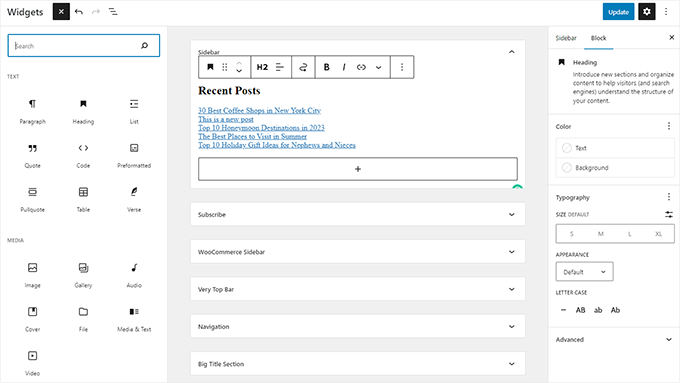
Widgets are still located under the Appearance » Widgets menu.
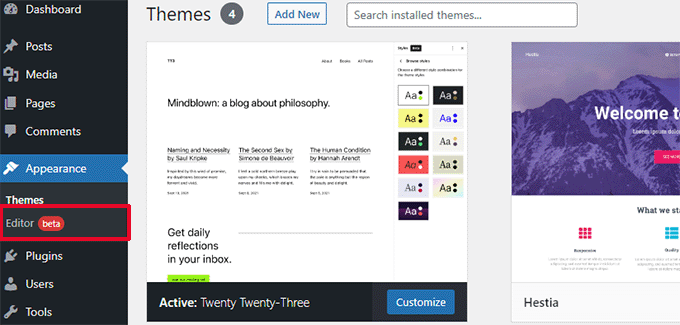
However, if you are using a block-based theme that doesn’t have any defined widget-ready areas, then you may not see it under there.
Instead, you will see the Appearance » Editor menu.
Many of the legacy WordPress widgets already have blocks that can do the same thing.
You can click on the add new block button (+) to find a bunch of blocks categorized as Widgets.
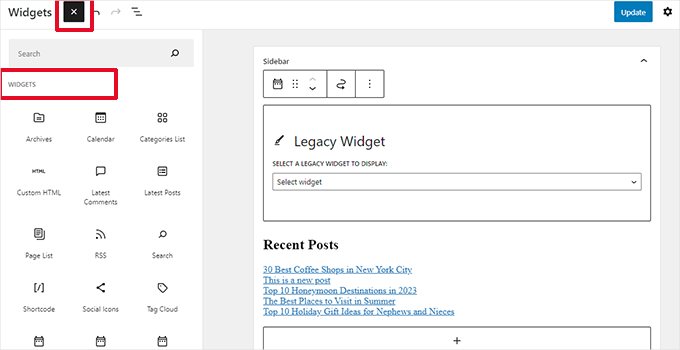
These are still blocks, but they are just categorized as widgets so that users can understand that they behave like legacy widgets.
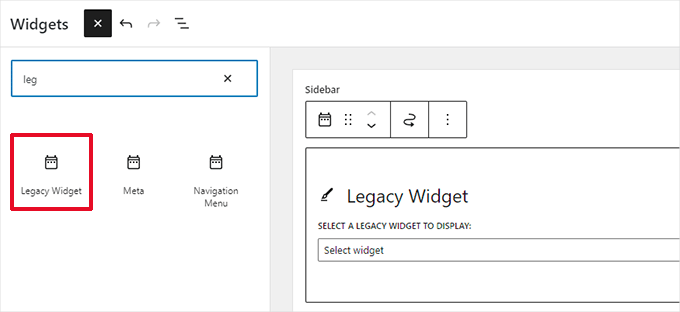
However, if a user still needs to use a legacy widget that doesn’t have an alternative block, then they can do so by using the Legacy Widgets block.
If a WordPress plugin has a block to add to the posts and pages, you can now also use the same block in widget-ready areas.
Theme developers can also create custom blocks that users can add to different areas of their websites.
The Future of WordPress Widgets
WordPress is moving towards a more intuitive and unified way of editing content on a WordPress website.
This means that while older widgets are being phased out as the primary method, they are not disappearing entirely. WordPress themes and plugin developers are already adapting and adding support for the block editor in their products.
However, many WordPress themes still use older widgets, and these themes are now called classic themes. Similarly, many WordPress plugins still use shortcodes and legacy widgets.
If you still need to use the old widgets, then you can disable block widgets in WordPress.
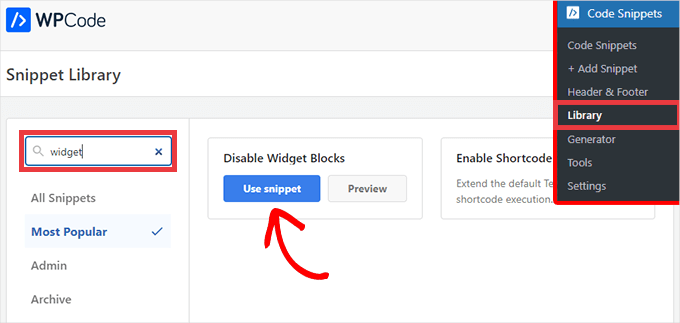
The simple way to do it would be to use use the free WPCode plugin, which allows you to customize WordPress without adding dozens of plugins.
We have used it many times and found it to be the safest option for adding code. It even has a pre-made snippet that you can use to disable block widgets.
Alternatively, you can also use the Classic Widgets plugin. For more details, you can see our step-by-step guide on how to install a WordPress plugin.
Upon activation, the plugin will simply replace the block-based widget editor with the older widget page.
Note: The planned support for the Classic Widgets plugin was scheduled to last until 2024. Since that date has passed, the plugin may not receive future updates or maintenance. This is why we recommend using WPCode to future-proof your customization, as it’s a more modern and safer long-term solution.
Blocks vs. Widgets – Which One Is Better?
For almost all users, blocks are better. We recommend you start using the new block-based system as soon as possible because that’s the direction WordPress is heading.
The block editor is easier to use, more modern, and far more flexible than the classic Widgets screen. It gives you a much better visual preview of how your content will look on the front end of your site.
If a WordPress plugin or theme on your website doesn’t support block-based widgets yet, you can reach out to the developer and ask them to convert their widgets into blocks.
If they don’t have plans to release an update, then you can usually find alternative plugins or themes to replace them.
Frequently Asked Questions: WordPress Widgets & Blocks
Here are some questions that are frequently asked by our readers about blocks and widgets.
What happens to my old widgets if I switch themes or update WordPress?
Your existing widgets will still appear in your new theme’s widget areas, assuming those areas exist. If you switch to a theme that doesn’t have the same widget areas, WordPress won’t delete your widgets.
Instead, it will move them to an ‘Inactive Widgets’ section under Appearance » Widgets. This keeps your content safe so you can move it to a new widget area later.
Can I still use widgets in newer versions of WordPress?
Yes, but they now appear in the block-based Widgets screen. If you’re using WordPress 5.8 or later, widgets are handled using blocks by default, although you can install a plugin to restore the classic widget interface if needed.
Do I need to switch all my widgets to blocks?
No, but switching to blocks gives you more control and flexibility. You can style and preview your content more easily, and many themes and plugins now offer better support for block-based layouts.
We hope this article helped you understand the difference between WordPress widgets and blocks. You may also want to see our pick of the best block plugins for WordPress or see our guide on the difference between the block editor vs. page builders.
If you liked this article, then please subscribe to our YouTube Channel for WordPress video tutorials. You can also find us on Twitter and Facebook.


David Lim
Widgets are a bit like snippets. They make it extra easy to use the functions and even look good if you design them well