


One of the scariest moments for a site owner is clicking a link and seeing an error page.
Suddenly, your hard work seems gone, which frustrates visitors and hurts your traffic. We have moved servers many times at WPBeginner, and regenerating the permalinks is usually the fastest fix for these broken links.
In this guide, we will show you how to regenerate your permalinks in WordPress to fix broken links.
Why Do I Need to Regenerate Permalinks in WordPress?
Most of the time, the URLs on your WordPress website are permanent and won’t cause any problems. They just work.
However, sometimes you may click on a link and get a 404 error. You might even get a 404 when trying to access your entire WordPress website.
This sometimes happens after moving your WordPress site to a new host or server. It could also happen after you install a new plugin.
This often happens when a plugin modifies your site’s .htaccess file to add a new feature. Sometimes, these changes can conflict with your server settings and stop your URLs from working properly.
Note: For this tutorial, you’ll need to be able to log in to the WordPress dashboard. If you can’t access your WordPress admin page, then see our step-by-step guide on what to do when you are locked out of WordPress admin.
Often, regenerating your permalinks can be a quick and easy fix for those issues. Let’s take a look at how to do that.
How to Regenerate Your Permalinks in WordPress
When you regenerate your permalinks, you are effectively refreshing the map of your website. It tells your web server exactly where to find your content after a change has occurred.
This may sound complicated, but don’t worry. You simply need to click one button, and WordPress will handle the rest.
To get started, head over to Settings » Permalinks from your WordPress admin menu.

This will take you to the WordPress Permalink Settings page. Here, you’ll see the permalink structure that you are currently using.
WordPress supports several options for permalinks. You can see our guide on how to create custom permalinks in WordPress for step-by-step instructions on how to customize them.
To reset permalinks, just scroll to the bottom of the page and click on the ‘Save Changes’ button.
After a few moments, you should see a message confirming that WordPress has updated your permalink structure.
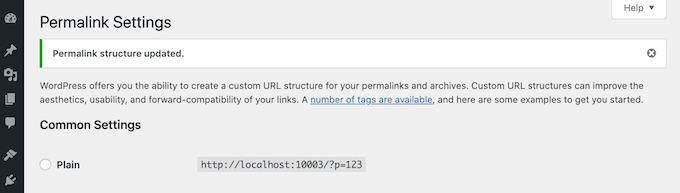
Note: If WordPress does not have permission to write to your .htaccess file, it will display a code snippet at the bottom of the page that you will need to manually copy and paste into the file.
That’s it! WordPress has now regenerated your permalinks.
To make sure it worked, head over to your site and try clicking on a few different links.
Are You Still Seeing Permalink Errors After Regenerating?
If you are still getting 404 errors, try accessing your site in an Incognito or Private browser window. If the pages load correctly there, then you simply need to clear your browser cache to fix the issue. For more details, see our guide on how to clear your browser cache.
If this doesn’t fix the problem, then you’ll need to do some troubleshooting. Think about what happened right before you started seeing these 404 messages.
If you had just installed or updated a WordPress plugin (especially a caching or security plugin), then this might have affected your links. You can try deactivating that plugin to see whether this removes the 404 error.
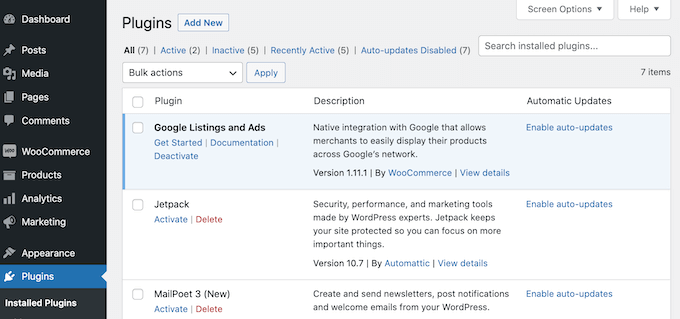
If this doesn’t work, then you can try deactivating all plugins to see whether this fixes your broken links.
This is a bit of a drastic step, so it’s smart to put your site into maintenance mode first. This will keep visitors informed while you test your plugins, giving a better impression than seeing a broken website.
If deactivating all of your plugins solves the problem, then you’ll know that at least one plugin is affecting your URLs. In this case, reactivate each plugin individually and then test how this impacts your links.
When the 404 error reappears, you’ve found the plugin that’s causing the issue. You can then delete this plugin from your site or ask the developer for support.
Your site should now be error-free and running smoothly. If not, then check our list of the most common WordPress errors and how to fix them.
How to Track and Avoid Broken Permalinks in WordPress
Broken links are bad news for visitors, conversions, and your search engine rankings. Over time, dead URLs can impact where you appear in the search engine rankings. This means less traffic to your website.
With so much at stake, you’ll want to know about any dead links as soon as possible.
The easiest way to track and fix broken links on your WordPress website is by using the All in One SEO (AIOSEO) plugin for WordPress. Over 3 million website owners use AIOSEO, including us here at WPBeginner.
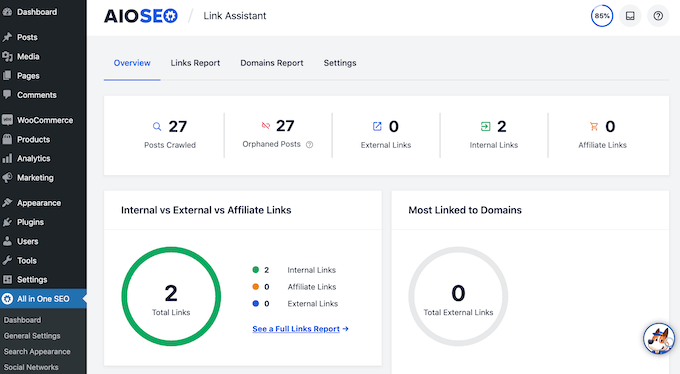
AIOSEO allows you to easily find broken links and fix them with just a few clicks using their powerful redirection manager. For more details, please see our guide on how to track 404 pages and redirect them in WordPress.
Frequently Asked Questions About Regenerating Permalinks
Here are some of the most common questions we get about regenerating permalinks in WordPress. These answers will help you troubleshoot any issues and understand when and why you might need to regenerate your permalinks.
1. What happens when I regenerate permalinks in WordPress?
When you regenerate permalinks, WordPress refreshes its URL structure and updates the rewrite rules in your .htaccess file. This process doesn’t change your actual permalink structure, it simply tells your server how to properly handle your current URLs. Your existing links will continue to work exactly as before.
2. Will regenerating permalinks affect my SEO rankings?
No, regenerating permalinks won’t hurt your SEO rankings. This process only refreshes how WordPress handles your existing URLs without changing them. Your search engine rankings and existing backlinks will remain intact. However, if you change your permalink structure itself, that’s a different story and requires proper redirects.
3. How often should I regenerate my WordPress permalinks?
You typically only need to regenerate permalinks when you’re experiencing 404 errors, have moved your site, changed hosting providers, or modified your permalink structure. It’s not something you need to do regularly as part of routine maintenance. Most WordPress sites go years without needing this fix.
4. Can regenerating permalinks break my website?
Regenerating permalinks is generally very safe and won’t break your website. However, we always recommend creating a backup before making any changes to your WordPress site. In rare cases, if you have custom rewrite rules or specific server configurations, you might need to restore those settings afterward.
5. What’s the difference between changing and regenerating permalinks?
Changing permalinks means modifying your actual URL structure (like switching from /?p=123 to /post-name/), which creates new URLs and can break existing links. Regenerating permalinks simply refreshes how WordPress processes your current URL structure without changing the URLs themselves.
6. Why are my permalinks not working after moving my WordPress site?
When you move a WordPress site to a new server or hosting provider, the .htaccess file sometimes doesn’t transfer properly, or the new server has different configurations. Regenerating permalinks creates fresh rewrite rules that work with your new hosting environment, which usually fixes the problem immediately.
We hope this article helped you learn how to regenerate your permalinks in WordPress. You may also want to see our guide on SEO-friendly URL structures in WordPress or our expert pick of the best backlink checker tools.
If you liked this article, then please subscribe to our YouTube Channel for WordPress video tutorials. You can also find us on Twitter and Facebook.




Marina
Thank you for this very much useful and nicely explained article.
WPBeginner Support
You’re welcome!
Admin
Olaf
This is a fundamental skill for anyone who owns a WordPress site. Sooner or later, this skill will come in handy. Whether it’s for a migration, broken URLs after installing a plugin, or simply occasional URL issues that everyone faces. This guide can solve about 80% of permalink problems. And once you learn it, it’s so simple, isn’t it?
David Lim
I favor AISEO, because it’s a really useful little plugin. Until now, I didn’t even know that 404 error codes can even come from permalink failures.
Jiří Vaněk
I’ve had occasional issues with permalinks. I’d like to ask if there’s a command available for automatically regenerating permalinks? For instance, using WP CLI that could be utilized through Cron. I’m interested in automating permalink regeneration for situations when the permalink structure goes down on the website.
WPBeginner Support
We do not have a specific plugin or tool we would recommend for automatically regenerating permalinks. If your site is consistently having trouble with permalinks then we would recommend checking with your hosting provider to see if there is an error log to help narrow down the cause of the issue. The permalinks should not normally need to be regenerated unless something goes wrong on your site.
Admin
Jiří Vaněk
The problem is that I am my own provider. I have a website on my own server and from the error log I can guess where the problem is, but I am not able to fix it, so far. Thanks for the reply though. I will keep looking :).