


There’s nothing more confusing than updating your website, hitting refresh, and seeing absolutely nothing change. We’ve been there, and that moment of panic is exactly why mastering your site’s cache is so important for any WordPress user.
An outdated cache can mean your visitors see old prices, miss important announcements, or can’t access new features. On a high-traffic site like WPBeginner, we know this isn’t just a small glitch. It can impact user trust and your bottom line.
We’ve tested nearly every caching plugin and hosting environment. In this guide, we’ll share our simple, step-by-step methods for clearing your cache correctly every time.
You’ll soon be able to take full control of your site and ensure everyone sees the most current version, just as you intended.
TL;DR: In a hurry? Here are the 5 ways covered in this guide:
- Browser cache: Hard refresh with Ctrl+F5 (Windows) or Cmd+Shift+R (Mac), or clear fully via Chrome menu → Delete browsing data.
- Caching plugin: Use your plugin’s one-click clear button — available in WP Rocket, WP Super Cache, and W3 Total Cache dashboards.
- Your hosting: Purge through Bluehost’s admin toolbar or SiteGround’s Site Tools under Speed → Caching.
- Firewall / security plugin: If you use Sucuri WAF, clear via Sucuri » Firewall (WAF) → Clear Cache.
What Is Caching in WordPress?
When someone visits your WordPress site, caching solutions store static versions of your pages so they don’t have to be rebuilt from scratch every time. Instead of running resource-heavy processes, WordPress can serve these pre-built pages instantly.
This process dramatically improves your WordPress speed and performance, which leads to better user experience and higher search engine rankings.
Here’s how the caching process works in practice:
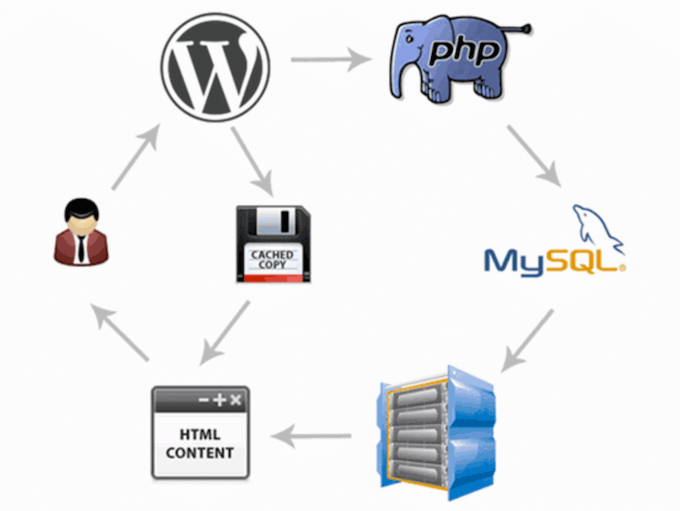
Based on our years of testing different caching methods, here are the main types you’ll encounter:
- Plugin-Based Caching: The most popular approach uses WordPress caching plugins like WP Rocket (which we use on WPBeginner) or the free WP Super Cache plugin. These give you complete control over cache settings, expiration times, and cleanup schedules.
- Server-Level Caching: Many hosting providers include built-in caching. Managed WordPress hosts like SiteGround and popular providers like Bluehost offer their own caching solutions that work automatically.
- CDN and Security Caching: Services like Sucuri and Cloudflare provide both WordPress security and global caching through their content delivery networks.
- Browser Caching: Your visitors’ web browsers also store cached versions of your pages locally, which speeds up return visits to your site.
Each of these layers is designed to optimize a different part of the process, from your web server to the visitor’s own computer. Understanding this is important because you may need to clear the cache at multiple levels to ensure your latest changes are visible to everyone.
Why Clear Your WordPress Website Cache?
We’ve all been there – you make important changes to your WordPress website, but when you check the live site, nothing looks different. This happens because your cache is still serving the old, stored version of your pages instead of recognizing that updates have been made.
Here are the most common scenarios when you’ll need to clear your cache:
- After updating content: New blog posts, page edits, or menu changes aren’t visible
- Following design changes: Theme updates, CSS modifications, or plugin installations don’t appear
- When troubleshooting: Trying to diagnose website issues or conflicts
- After plugin updates: New features or fixes aren’t working as expected
- For testing purposes: Ensuring visitors see the same version you’re working on
The frustrating part is that this affects both you and your visitors. While you might think your site is broken, your customers could be seeing outdated pricing, missing products, or old contact information, which can directly impact your business.
Regularly clearing your WordPress cache ensures everyone always sees the most current version of your website. At WPBeginner, we make cache clearing part of our standard workflow whenever we publish new content or make site changes.
The good news? Once you know the right methods, clearing your cache takes just a few clicks and can save you hours of confusion.
Let’s take a look at how to clear your cache in WordPress. Simply use the quick links below to jump straight to the method you want to use:
Method 1: Clear Your Web Browser Cache
First, you need to clear your web browser cache. Most web browsers store static website content like stylesheets, JavaScript, images, and other website files to improve load times.
Pro Tip: Before clearing your entire browser cache, you can try a ‘hard refresh’ by pressing Ctrl+F5 (on Windows/Linux) or Cmd+Shift+R (on Mac).
This forces your browser to re-download the files for the specific page you’re on and can often solve the issue instantly!
But sometimes, web browsers may fail to realize a web page has changed. Instead of fetching a fresh copy, they will load the page from the cached version stored in your browser.
To clear your browser cache in Google Chrome, click on the menu icon, then select Delete browsing data.
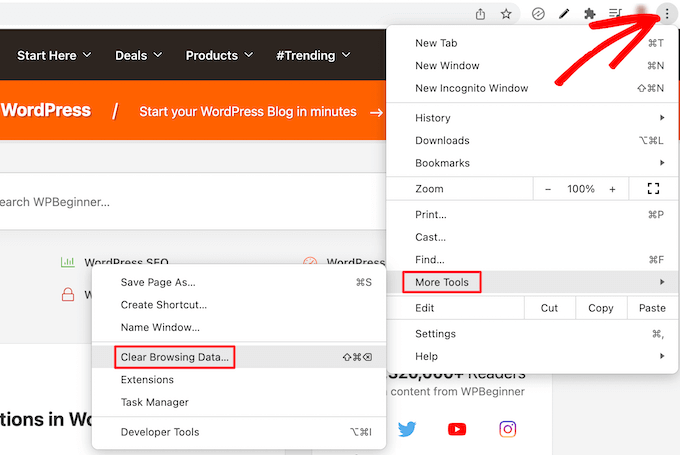
This brings up a popup where you can select the content you want to remove from the cache.
Make sure the ‘Cached images and files’ box is checked, then click the ‘Clear browsing data’ button.
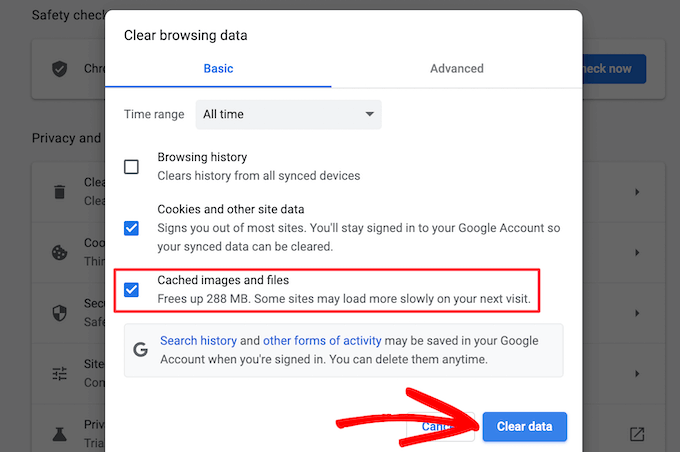
Now, you have successfully cleared your browser cache. You can visit your WordPress blog to see if it’s loading the new version of your site.
If you are still not seeing the changes you made to your website, then move on to the other methods in this article.
Method 2: Clear Cache in Your WordPress Caching Plugin
If you are using a WordPress caching plugin on your site, then you need to clear your plugin cache.
It’s good to remember that most quality caching plugins, like WP Rocket, are smart enough to automatically clear the cache for a post or page when you update it.
You typically only need to clear the entire cache manually when making site-wide changes (like with themes or plugins) or when you notice your changes aren’t showing up.
Here’s how to clear your cache with some of the most popular WordPress caching plugins.
Clear Cache in WP Rocket
WP Rocket is the best WordPress caching plugin on the market. The best part about using WP Rocket is that it proactively builds your WordPress cache in the background, so your users are always served a cached version of your site.
It also makes it very easy to clear cached files with a single click.
Simply go to the Settings » WP Rocket and click on the ‘Clear Cache’ button in the plugin dashboard.
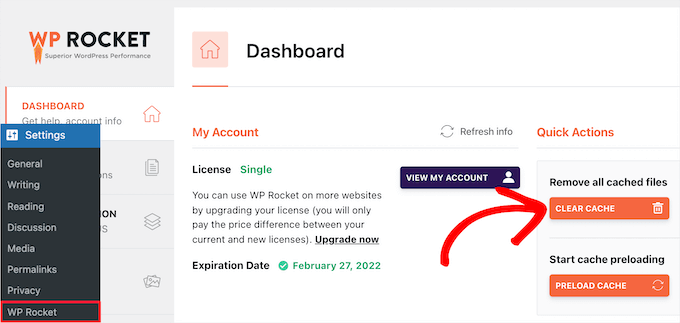
Now WP Rocket will clear all of your cached files for you.
Clear Cache in WP Super Cache
WP Super Cache is another popular WordPress caching plugin. It allows you to clear or purge all cached content with a single click.
Simply go to Settings » WP Super Cache in your WordPress dashboard, and then click the ‘Delete Cache’ button in the ‘Delete Cached Pages’ section.
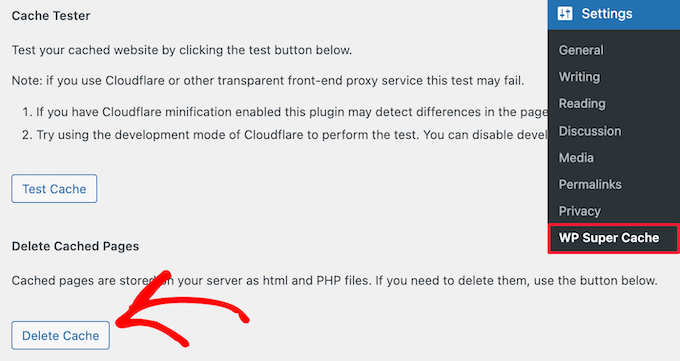
Now, WP Super Cache will delete all of the cached files from your website.
Clear Cache in W3 Total Cache
W3 Total Cache is a widely used WordPress caching plugin. Like the other plugins above, you can clear all caches with a single click.
You need to go to Performance » Dashboard and then click on the ’empty all caches’ button.
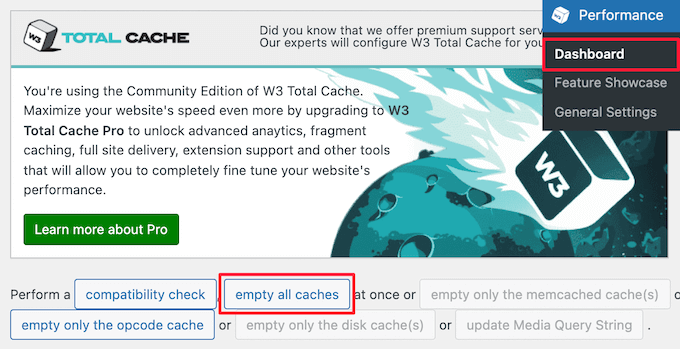
The W3 Total Cache plugin will now delete all cached content for your site.
Method 3: Clear Cache in Your WordPress Hosting
Some WordPress hosting providers have built-in caching options to help speed up WordPress.
Here’s how you can clear your web host cache in some of the most popular WordPress hosts.
Clear Cache in Bluehost
Bluehost is one of the best WordPress hosting providers and is officially recommended by WordPress. They have a built-in caching solution that instantly improves your WordPress performance and loading speed.
Bluehost makes it easy to clear your WordPress cache from your WordPress admin area.
Simply log in to your WordPress admin dashboard, and you will see a ‘Caching’ button in the top admin toolbar. Hover over this, then click the ‘Purge All’ option.
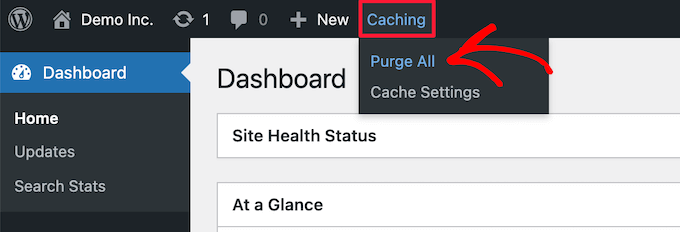
Bluehost will now clear data from your WordPress cache.
Clear Cache in SiteGround
SiteGround is a leading WordPress hosting provider that’s known for speed and top-notch customer support. They offer a built-in caching solution to improve your website performance.
You can clear the SiteGround cache from your hosting account control panel as well as the WordPress admin area.
To clear your cache from SiteGround’s hosting panel, log in to your account and navigate to ‘Site Tools’. From there, go to the Speed » Caching menu.
Then, select the ‘Dynamic Cache’ menu option. Next, click on the menu icon next to your domain name and select the ‘Flush Cache’ option from the dropdown.
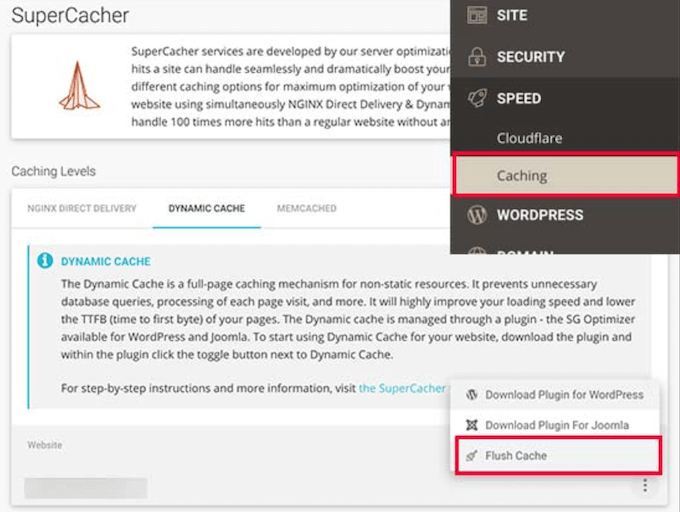
Another way you can manage your SiteGround cache is with the Speed Optimizer plugin. The first thing you need to do is install and activate the plugin. For more details, see our guide on how to install a WordPress plugin.
Upon activation, you need to click the ‘Purge SG Cache’ button in your top WordPress admin toolbar.
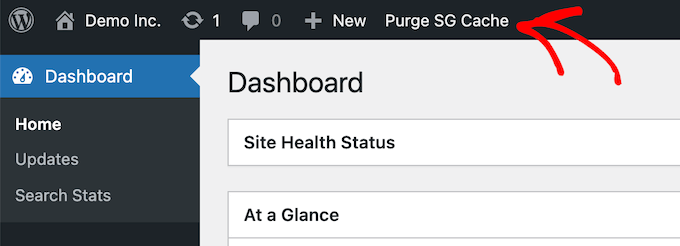
The plugin will automatically clear your SiteGround WordPress cache.
Method 4: Clear Your WordPress Firewall Plugin Cache
If you are using a WordPress firewall like Sucuri to protect your website, then there’s another layer of caching you will need to clear.
You can clear your Sucuri cache by going to Sucuri » Firewall (WAF) in your WordPress admin panel.
Then, select the ‘Clear Cache’ menu option and click the ‘Clear Cache’ button.
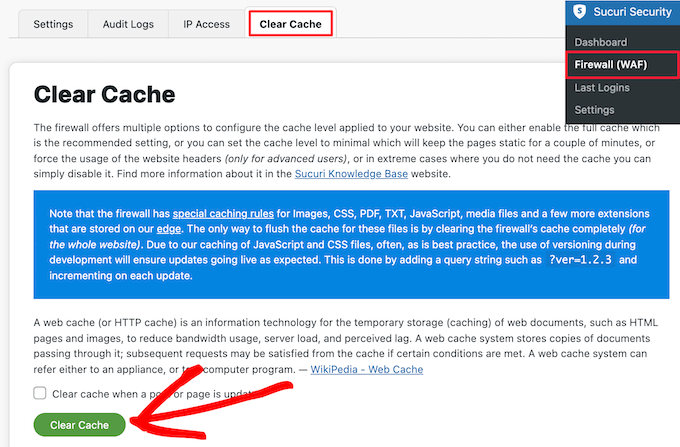
Bonus tip: If you have recently moved your WordPress site, then you may also need to clear your DNS cache. This ensures you’re getting updated DNS information and accessing the newest version of your site. For more details, see our guide on how to clear your DNS cache.
Method 5: Clear Your CDN Cache
If you use a Content Delivery Network (CDN) like Cloudflare, it stores cached copies of your site at edge servers around the world. Even after clearing your plugin and hosting cache, visitors may still see an old version if the CDN cache hasn’t been cleared.
To purge your Cloudflare cache, log in to your Cloudflare dashboard and select your domain. Then go to Caching » Configuration and click the Purge Everything button.
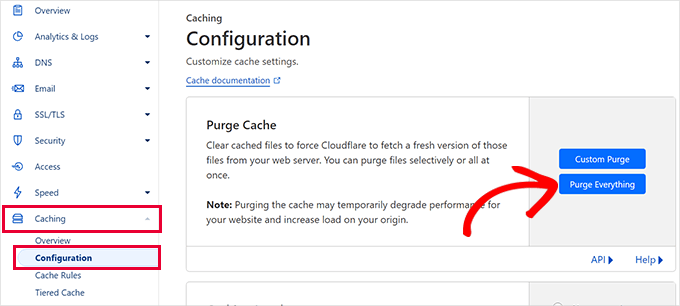
Cloudflare will immediately clear all cached files from its global network, so your visitors will see the latest version of your site.
Pro Tip: If you only need to refresh one page rather than your whole site, click Custom Purge instead and enter just that URL. This is faster and avoids a temporary slowdown for the rest of your pages while the cache rebuilds.
Video Tutorial
Frequently Asked Questions About Clearing Cache
Here are answers to some of the most common questions we get asked about clearing the WordPress cache. This can help you better understand the process and troubleshoot any issues.
1. Will clearing my cache delete my website or content?
No, clearing your cache is a completely safe and non-destructive action. It only removes temporary, stored copies of your site’s files. Your actual content, such as posts, pages, images, and settings, will not be deleted.
2. How often should I clear my WordPress cache?
You only need to clear your cache when you need to see changes right away. This is typically after you update content, modify your site’s design, install or update plugins, or when you’re troubleshooting a problem.
3. Why are changes to my site still not showing up after clearing the cache?
This usually happens because there are multiple layers of caching at play. If you cleared your plugin’s cache but not your browser or CDN cache, you might still see an old version. You need to clear the cache at every level, as shown in our guide.
4. What is the difference between browser cache and site cache?
Browser cache is stored on a visitor’s own computer to speed up their experience when they revisit your site. Site cache (from a plugin or host) is stored on your web server to deliver pages faster to all visitors by serving them pre-built static files.
Additional Resources on the WordPress Cache
We hope this article helped you learn how to clear your cache in WordPress. You may like to see some other guides relating to the WordPress cache and caching plugins:
- What Is a Page Cache in WordPress?
- How to Easily Fix Leverage Browser Caching Warning in WordPress
- Best WordPress Caching Plugins to Speed Up Your Website
- LiteSpeed Cache vs. WP Rocket – Which One is Better?
- How to Install and Setup WP Super Cache for Beginners
- How to Install and Setup W3 Total Cache for Beginners
- How to Properly Install and Setup WP Rocket in WordPress
- The Ultimate Guide to Boost WordPress Speed & Performance
If you liked this article, then please subscribe to our YouTube Channel for WordPress video tutorials. You can also find us on Twitter and Facebook.





Benjamin
I have w3 TOTAL CACHE, and when i click emty all CACHE, it dos’nt delete the cache.
I have more than 5gb cache ? Should it delete it by it self =?
WPBeginner Support
The pages would have their cache cleared and then start generating a cached version of the pages again. If there is an issue with a large size cache, we would recommend reaching out to the plugin’s support directly and they should be able to assist!
Admin
Mrteesurez
Weldone for this guide, I have had an issue where new changes I made weren’t showing up because I forgot to clear the cache. Now, I make it a point to schedule regular cache clearings for all my sites. It’s such a simple step, but it ensures everything runs smoothly and updates appear as they should. Thanks for highlighting this, and for the detailed caching guide. it’s a great guide and a remainder for me.