


Changing your WordPress password regularly is a smart security practice, but it shouldn’t be complicated.
While testing WordPress’s user management features, we’ve identified the most straightforward methods that even complete beginners can handle with confidence.
We have spent time testing various password change scenarios in WordPress, from simple updates to full recovery processes.
This experience has helped us create a foolproof guide that makes password changes accessible to everyone, regardless of technical skill.
In this beginner’s guide, we’ll share the easiest methods for changing your WordPress password.
💡Quick Answer: How to Change Your WordPress Password
The fastest way to change your password in WordPress is from your user profile.
Simply go to Users » Your Profile page in the WordPress dashboard and scroll down to the ‘Account Management’ section. Here, click the ‘Generate Password’ button.
You can use the strong password provided or create your own.
Here is what we will cover in this tutorial:
- Before You Change Your WordPress Password
- How to Change Your WordPress Password in 2 Minutes
- How to Reset Your WordPress Password When Locked Out
- How to Change the WordPress Password From Database
- How to Force Change WordPress Password for All Users
- Frequently Asked Questions About WordPress Passwords
- Expert Guides for WordPress Passwords
Before You Change Your WordPress Password
Your password is the first line of defense for your website, so it’s important to follow a few key security practices. Before you update your password, here are a few things to keep in mind:
- Use a Strong Password: Many people use weak passwords because they are easy to remember. We strongly recommend using a secure password manager to create and store complex passwords for you.
- Never Share Your Password: You should never share your login details with team members or developers. Sharing passwords creates a major security risk.
- Create Separate User Accounts: The proper way to give someone access is to create a new user account with the right user role. This allows you to manage their permissions and easily remove their access later without changing your own password.
That being said, let’s take a look at the different ways to change your WordPress password.
How to Change Your WordPress Password in 2 Minutes
This is the easiest way to change your WordPress password.
The first thing you need to do is log in to your WordPress website. You can do this by entering your WordPress login URL (for example, https://example.com/login/) in your browser.
Once you are logged in, go to Users » Your Profile from your WordPress menu.
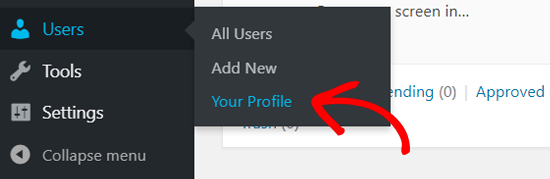
On the WordPress profile, you need to scroll down to the Account Management section.
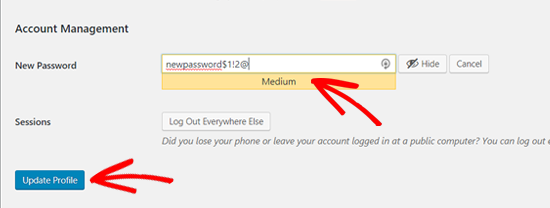
Then, scroll until you see the ‘New Password’ option.
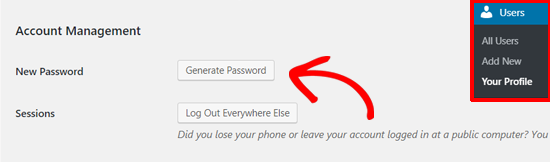
Go ahead and click on the ‘Generate Password’ to add a new password.
WordPress will automatically create a strong password for you.
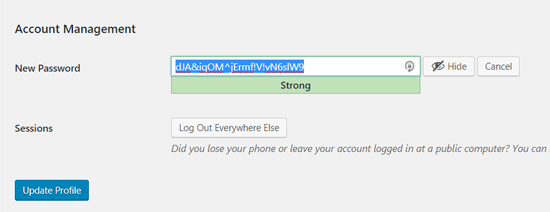
You can continue with this strong password or change it with a new password of your own.
After that, click the ‘Update Profile’ button to save your new password.
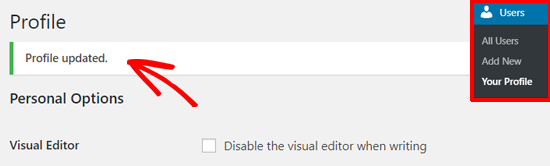
Once done, you will see a ‘Profile updated’ notification on the top.
WordPress will also send you a password change notification in your email inbox.
How to Reset Your WordPress Password When Locked Out
The above method lets you change your password when you have access to your WordPress dashboard. But what if you lost your password and cannot log in?
Don’t panic, there is a super-easy way to recover your lost password in WordPress.
You can simply go to the WordPress login page (https://example.com/wp-login.php) and click on the ‘Lost your password?’ link.
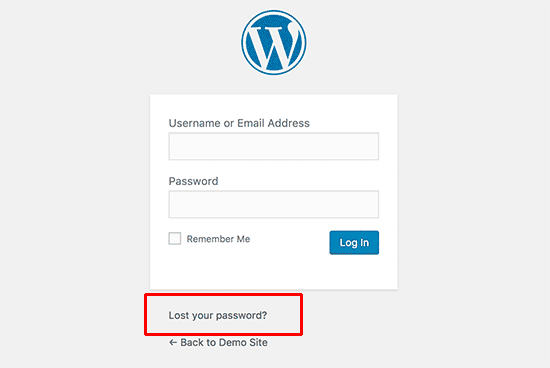
After clicking on that, it will take you to the password reset page.
You need to either enter your WordPress username or email address to reset the password on your account.
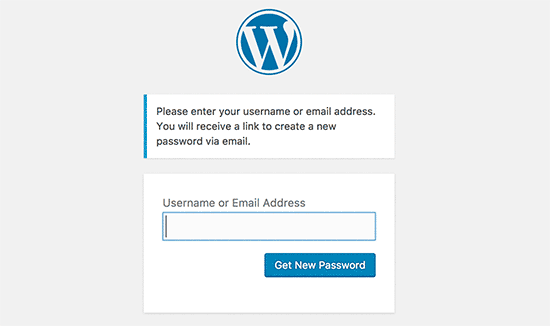
Once done, WordPress will send a password reset link to the email address associated with your user account.
For more details, see our guide on how to recover a lost password in WordPress.
How to Change the WordPress Password From Database
The ‘Lost Password’ method above is beginner-friendly, but sometimes you won’t be able to use that method if you don’t have access to the email address associated with the account or if your WordPress site fails to send an email.
If such a situation comes up, then you will need to reset your WordPress password directly in the MySQL database. The easiest way to do that is by using phpMyAdmin.
First, you need to log in to your WordPress hosting account’s control panel, such as cPanel. After that, click on the ‘phpMyAdmin’ option in the Databases section.
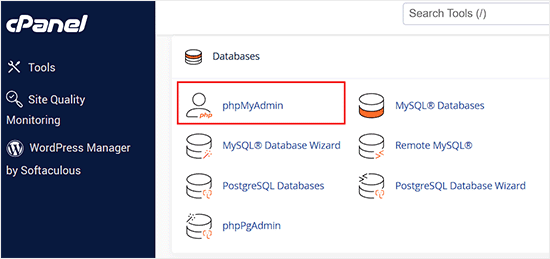
Note: Your screen might look different because each web hosting provider has its own control panel. If you are having a hard time locating the phpMyAdmin link, then contact your hosting support.
After you launch the phpMyAdmin app, you will see a list of all your databases.
You need to select the database associated with your WordPress site.
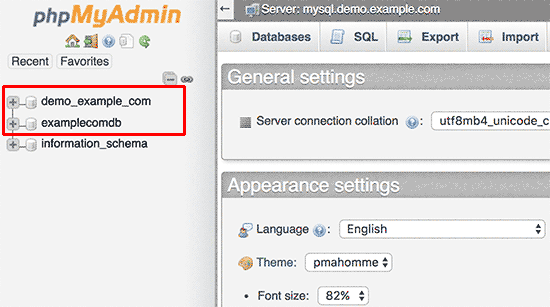
Now you will see the list of tables in your WordPress database. You need to find the one that ends in _users and click the ‘Browse’ link next to it.
Note: Your table prefix (the part before _users) might not be wp_. Many hosting setups change this for extra security, which is perfectly normal.
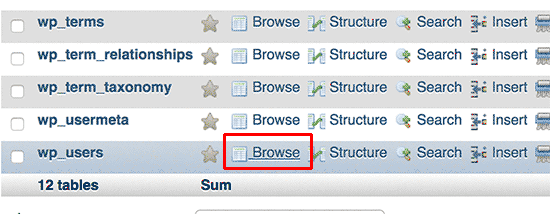
This will show you a list of all WordPress users on your site.
On this page, you need to click on the ‘Edit’ link next to your user account.
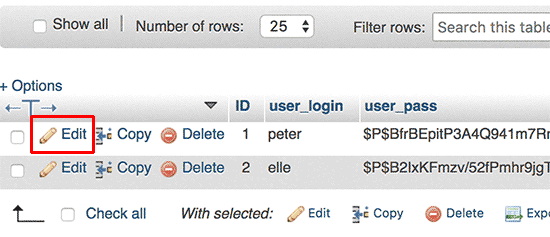
phpMyAdmin will show you a form with all the user information fields.
You will need to delete the value in the user_pass field and replace it with your new password. Under the function column, make sure you select ‘MD5’ from the drop-down menu and then click on the ‘Go’ button.
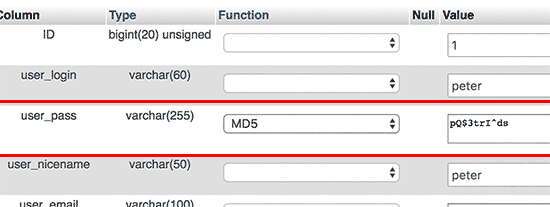
That’s all, you have successfully changed your WordPress password.
For more details, see our guide on how to reset a WordPress password from phpMyAdmin.
How to Force Change WordPress Password for All Users
In some situations, you may need to force a password reset for every user on your website.
This is a common security step after a suspected hack or to comply with data regulations in certain industries. Manually contacting every user would be impossible on a large site.
Thankfully, you can use a plugin like Password Policy Manager, which lets you set expiration rules.

This automatically requires users to create a new password after a set period, ensuring everyone’s account stays secure
For detailed instructions, see our step-by-step guide on how to force change passwords in WordPress.
Video Tutorial
If you prefer a visual walkthrough, we’ve got you covered. Our video tutorial below explains these same steps and makes it even easier to follow along.
Frequently Asked Questions About WordPress Passwords
Here are some questions that our readers frequently ask about changing and managing their WordPress passwords:
How often should I change my WordPress password?
A good security practice is to change your password every 3 to 6 months. For websites with higher security needs, like eCommerce stores, changing it more frequently is smart. The most important factor is always using a unique, strong password.
What should I do if I don’t get the password reset email?
First, check your email’s spam or junk folder. If it’s not there, your WordPress site is likely having trouble sending emails, which is a common issue.
You will need to use another method from this guide, like resetting the password directly from the database using phpMyAdmin.
Will changing my WordPress password log me out of other devices?
Yes. When you update your WordPress password, it automatically logs you out of all other active sessions on any device, like your phone or another computer. This is an important security feature to prevent unauthorized access.
Why does WordPress say my password is ‘strong’ or ‘weak’?
WordPress has a built-in password strength meter that checks if your password is easy to guess.
A ‘strong’ password usually includes a mix of uppercase and lowercase letters, numbers, and symbols. A ‘weak’ password is often short, simple, or common, making it very insecure.
What if I can’t access cPanel to use phpMyAdmin?
If you don’t have access to cPanel or can’t find phpMyAdmin, your best option is to contact your web hosting provider’s support team directly.
They have the tools to access your site’s database and can help you reset your admin password securely.
Expert Guides for WordPress Passwords
Now that you know how to change your password, you might want to explore other ways to keep your WordPress site secure.
Here are some of our other step-by-step guides on WordPress passwords:
- How to Easily and Securely Manage Passwords (Beginner’s Guide)
- Forgot Password? How to Recover a Lost Password in WordPress
- How and Why You Should Limit Login Attempts in WordPress
- How to Add Security Questions to the WordPress Login Screen
- How to Customize the WordPress Reset Password Page
- How to Remove the Password Reset/Change Option From WordPress
- How to Add a Simple User Password Generator in WordPress
- How to Force Strong Passwords on Users in WordPress
- How to Force Users to Change Passwords in WordPress – Expire Password
- How to Reset Passwords for All Users in WordPress
- How to Add Two-Factor Authentication in WordPress (Free Method)
- How to Add Passwordless Login in WordPress with Magic Links
If you liked this article, then please subscribe to our YouTube Channel for WordPress video tutorials. You can also find us on Twitter and Facebook.




Jiří Vaněk
I appreciate the guide on how to change the password using the phpMyAdmin tool. I used to do it by first generating the password hash with an online tool and then replacing the entire hash in the user’s data. You taught me a way that makes this unnecessary and much faster, which is awesome.
Lonn Holiday
Hi,
This no longer applies. There is now an account management section with a “new password” option. The interface is confusing as it says “Generate Password” and if one clicks this button they are given a single field to type a new password into. There is an indicator for password strength but no confirm field which is common on all other websites in the world today.
Pooja
Hello
please help me , how can i migrate Cpanel default email account ?
i had hosting at godaddy but now i migrated it to Bluehost ..
But the username of my wordpress and Cpanel default email both are same .. so is it pssible to migrate it ?
will it affect to my wordpress after expiry of Old hosting account ?
Jack
Rather than running MD5 generator you can just type in your password as you normally would in English then select MD5 from the drop down menu to the left when your in phpmyadmin wp-users. WP will generate it for you