


Special characters can transform your WordPress content from ordinary to professional.
At WPBeginner, we often use a special character (») in our blog posts to guide readers through specific pages or tabs, like directing them to the Plugins » Installed Plugins page.
This symbol makes instructions clearer and more visually appealing, which improves readability for our users.
We’ve also experimented with different ways of adding copyright symbols ©, trademark ™, registered ®, and other special characters. These methods are simple, reliable, and work perfectly every time you need them.
In this guide, we’ll walk you through the proven approaches that will make adding special characters easy.
💡Quick Answer: 3 Ways to Add Special Characters
Short on time? Here are the three methods we will cover in this guide:
- Method 1: Using the Block Editor – Best for users who only need to add a symbol occasionally.
- Method 2: Using the Insert Special Characters Plugin – The fastest method if you frequently use special characters in your content.
- Method 3: Using the Classic Editor – The built-in method for users who haven’t switched to the block editor yet.
Why Add Special Characters in WordPress Posts?
Adding special characters to the blog posts on your WordPress website can make your content visually appealing.
It can also help make your content easier to read by drawing the reader’s attention to key points.
For instance, if you use your company’s name in a blog post, adding a trademark character next to it will help highlight your business to readers.

Additionally, using special characters in your headlines and meta descriptions can make your listing stand out in search results. This makes your content more attractive to users. In turn, this can improve your click-through rate (CTR).
Having said that, let’s see how to easily add special characters to your WordPress posts. We will cover three different methods, and you can use the quick links below to jump to the method you want to use:
Method 1: Add Special Characters Using the WordPress Block Editor
If you are looking for a way to add special characters in the block editor using HTML entities, then this method is for you.
When you write a blog post, WordPress automatically formats it in HTML. It is the markup language used by almost all websites.
HTML entities are special character codes used in web documents to display symbols, arrows, and characters that are reserved or not found on standard keyboard layouts.
For example, if you want to add a trademark ™ symbol, then you can use the HTML entity code ™ to display it.
A wide range of special characters, including Latin letters, mathematical symbols, currency symbols, scientific measurement units, and more, are available as HTML entities.
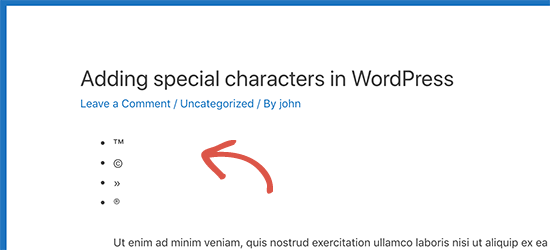
For the complete reference guide, you may want to check out W3.org’s HTML character entity reference chart.
Add Special Characters Using the Code Editor
You can also add special characters to WordPress posts by switching to the code editor.
This option in the block editor lets users view and edit the underlying HTML, CSS, or JavaScript for different blocks. This makes it easy to add HTML entities.
First, open up a new or existing WordPress post in the block editor.
Once there, click the three-dotted menu at the top right corner of the screen to open up a dropdown menu. From here, click the ‘Code Editor’ option.
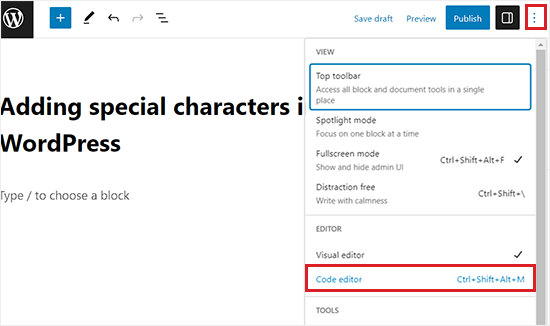
This will open up the code editor, where you can easily add the HTML entities between text.
For example, if you want to add a trademark special character next to a product or company name, then you can easily do this by switching to the code editor.
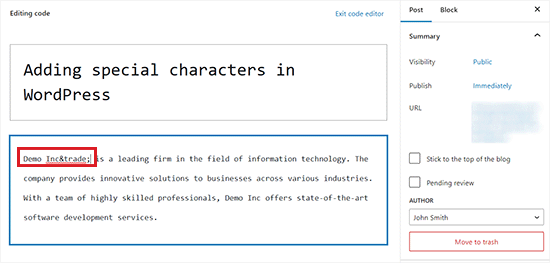
Once you are done, you can save your changes by clicking the ‘Update’ or ‘Publish’ button.
Now, you can visit your WordPress site to see the special characters in your posts.
Method 2: Add Special Characters Using a Plugin
If you frequently need to add special characters in your WordPress posts or pages, using a plugin can save you time and effort compared to looking up HTML entity codes each time.
We use the Insert Special Characters plugin at WPBeginner because it makes inserting symbols quick and effortless, right from the post editor. It’s a simple tool that saves clicks and keeps the writing flow uninterrupted.
First, you need to install and activate the Insert Special Characters plugin. For more details, see our step-by-step guide on how to install a WordPress plugin.
Upon activation, open up a post or page in the block editor to add special characters.
Once there, select a paragraph block. You will see a formatting toolbar appear where you must click the omega icon.
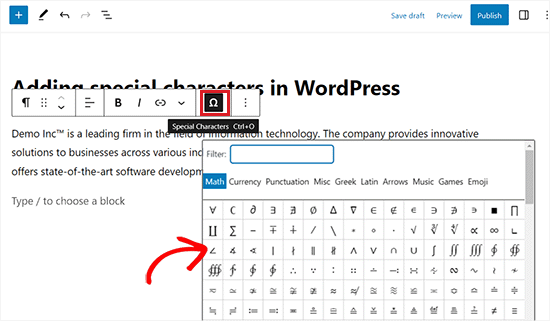
From here, simply find the special character you want to add and then click on it to insert it into the editor.
Once you are done, don’t forget to click the ‘Update’ or ‘Publish’ button to save your changes.
Method 3: Add Special Characters Using the Classic WordPress Editor
If you are still using the Classic Editor, then you can use this method to add special characters while writing blog posts.
Keep in mind that the Classic Editor comes with a built-in special characters feature.
First, open a new or existing post in the editor. Next, click on the kitchen sink button.
This will expand the second row of formatting options, where you must click the ‘Special character’ button.
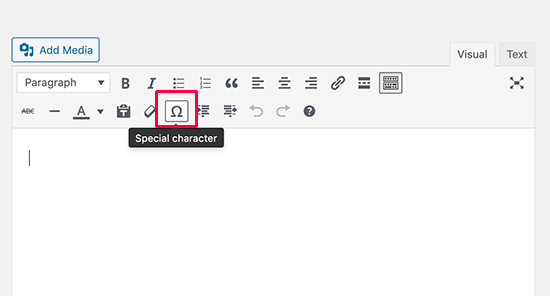
Clicking on it will open a popup window showing some commonly used special characters.
There are currency symbols, mathematical symbols, copyright, registered signs, trademark symbols, and more.
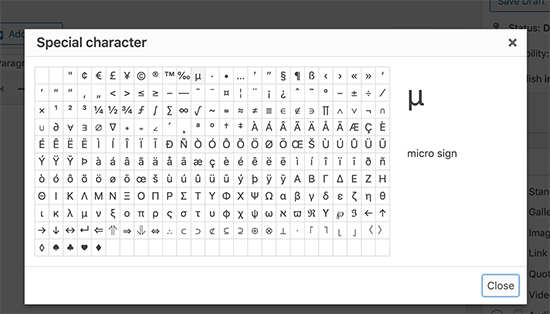
Remember, this method will only work if you are using the old post editor in WYSIWYG mode.
If you are using it in the text editor mode, then you will either need to switch to the Visual editor or use the HTML entities method described above.
From here, you can simply click on the symbol or character you want to use, and it will be added to your post.
Finally, don’t forget to click the ‘Update’ or ‘Publish’ button to save your changes.
Bonus: Add Emojis in Your WordPress Blog Posts
Apart from special characters, you may also want to add emojis to your WordPress blog posts.
Emojis are tiny image icons that can be used with text to express emotions. Inserting these icons can add a splash of personality to your content.
You can easily add emojis in the WordPress block editor using the following keyboard shortcuts:
| Operating System | Keyboard Shortcut |
|---|---|
| Windows | Windows + . (Period) |
| macOS | Command + Control + Space |
Once you press these keys, a native emoji picker will appear on your screen where you can select the emoji you want to use.
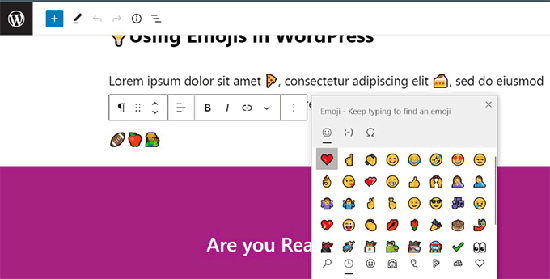
For detailed instructions, see our tutorial on how to easily add emojis to your WordPress blog.
Frequently Asked Questions About Special Characters
Here are some questions that our readers have frequently asked about adding different elements to their websites:
How do I add accents in WordPress?
The simplest way to add accents (like é, ñ, or ü) is by using your computer’s native keyboard features. On a Mac, long-press a key to see accent options. On Windows, you can use the built-in Character Map or the Touch Keyboard.
How do I add Unicode in WordPress?
You can add specific Unicode symbols by copying the character from a reference website and pasting it directly into the block editor. Alternatively, if you know the code, you can type the HTML entity (like ♥) inside the Code Editor.
How do I insert an emoji in a WordPress post?
You can insert emojis using your operating system’s native emoji picker. Press Windows + . on a PC or Command + Control + Space on a Mac to open the menu and select your emoji.
How do I type the letters å, ä, ö?
You can type these characters using HTML entities in the Code Editor, such as å for å. If you write in these languages frequently, we recommend changing your keyboard layout settings to support international characters.
How do I add icons to text in WordPress?
You can add icons by using a dedicated plugin like Font Awesome. For simpler needs, you can often use emojis or paste SVG code directly into a Custom HTML block within your content.
We hope this article helped you learn how to add special characters to WordPress posts and pages. You may also want to see our beginner’s guide on how to add underline and justify text buttons in WordPress and our beginner’s guide on how to add a link in WordPress.
If you liked this article, then please subscribe to our YouTube Channel for WordPress video tutorials. You can also find us on Twitter and Facebook.





kzain
This article is incredibly useful for anyone looking to enhance their WordPress posts with special characters! It provides clear, step-by-step instructions that are easy to follow. Incorporating special characters can truly elevate the visual appeal and readability of your content. Thanks for sharing these practical tips and tools!
Dennis Muthomi
I have a site that I write about interior design and was wondering: what is the best way to add the square feet symbol (ft2) when mentioning floor areas?
For example, if I want to note “The room has a total floor area of 64 ft2.”
I want to add a Square(2).
thanks
WPBeginner Comments
You can add this in a few different ways. There is a way to add superscript via the WordPress editor, so this is probably the easiest option. To do so, check out Method #1 here: https://www.wpbeginner.com/beginners-guide/how-to-write-math-equations-in-wordpress/#aioseo-method-1-writing-math-equations-in-wordpress-using-unicode-characters.
Jiří Vaněk
Thank you for the table of special characters, or for the link. I saved it to my favorites for personal use. Just a few weeks ago, I was looking for a special copyright symbol like this.
Roderick Young
This worked great for me, but at first, I clicked on the dropdown in the block editor, and didn’t see the Omega sign or “Special Characters”. The Omega was actually added to the toolbar just to the left of the Bold and Italic, right out in the open.
WPBeginner Support
Thanks for sharing where it moved for you
Admin
Gina Leggio
Actually, I kept playing around with your advice and it finally worked somehow. Thanks.
WPBeginner Support
Glad our recommendations were helpful
Admin
Gina Leggio
It didn’t seem to work for me. When I preview my page, it still shows ©. I tried highlighting it and then pushing the “keyboard input” button. What am I doing wrong?
WPBeginner Support
You would want to ensure you are adding it as HTML and not in a paragraph block for the most common reason.
Admin
Gina Leggio
Thanks for your response. That worked, but when I open a preview in a new tab, it didn’t show the symbol; it only showed ©. Please advise.
WPBeginner Support
If that is the case, you would want to check with the support for your specific theme to ensure a setting in your theme is not overriding how it should work.
Jur Jurr
Hey! Can i just copy the symbol from somewhere and past it on my website?
WPBeginner Support
You can certainly try that but that is not guaranteed to work every time.
Admin
amir ebadi
Thank you for this awesome article
WPBeginner Support
You’re welcome, glad you liked our article
Admin
shafique
nice to read this such great article. nicely written. very good information. Thank you
keep it up.
WPBeginner Support
Thank you, glad you liked our content
Admin
Ms. Anika Tyrone
This symbol which I’m seeking is: in a square box, in the square box is a almost complete circle, with a tiny line attached to the right side of the almost complete circle. This is found in the WordPress.com where the heading: “Subscription Management” and have 5 sites. The last one on the list is called DF Blog and prior to these words is a symbol as mentioned above. Now the others have a choice of weekly, /immediate “under delivery frequency”, but for DF Blog it’s blank and not given the chance to state my choice. Could you possibly help me in this matter? Monday, July 31, 2017 @ 1:18 pm. Waiting patiently for your response. Thank you for taking the time to read this email.
Mark Gandy
I never have an issue adding the TM within a post, it’s the Blog and Post titles where they will not show up. Any suggestions?
Marissa
So simple! Thank you for having this free, handy tool available for people like me…starting a professional site, learning step by step.
Bella
How can you bring up special characters on the WordPress app?
JMunce
Could you please do a tutorial on added a special Characters?
I can code unicode to my blog, but not everyone can view these. I can on my pc, but on my phone I don’t see them, for example.
It would be great to know how to display them to all site users.
Thanks, Justin
WPBeginner Staff
Either the font or OS you are using does not support the rupee character.
Anchit Shethia
I have already mailed to WP team to update support for Rupee character. What is the probability of it being updated?
alasdairpage
On a Mac it’s easy, press ctrl+cmd+space for emoticons and special characters (scroll right for the special character options).
On Windows it isn’t easy, but it is possible using the Character Map tool. I’ve never used Windows 8 but in Windows 7 and below it’s usually in Start, Programs, Accessories, System Tools. Use it to copy/paste characters into any application.
Anchit Shethia
Almost all special characters can be added in WP post but I want to add the official symbol of Rupee on my blog How can I add it? Even if I copy the symbol from Wikipedia and paste it, it won’t render. Help?