


If you are looking for a way to collect leads, make money, or even boost your website’s SEO and authority, then creating and offering eBook downloads could be the answer.
Ebooks serve as valuable content assets that attract organic traffic, encourage backlinks, and establish your site as a go-to resource in your niche.
We’ve experimented with a lot of different lead-generation strategies, and offering eBooks and other downloadable files has been consistently effective.
Luckily, WordPress makes it easy to upload your eBook files in PDF format and make them available for download. You can also sell your eBooks or use them to increase your subscribers.
In this article, we will show you how to add eBook downloads in WordPress, as well as how to make the most out of your eBooks.
💡 Quick Answer: How to Add Ebook Downloads in WordPress
In a hurry? Here are the 3 ways covered in this article:
- Method 1 – Direct Downloads (Free & Simple): Offer your ebook instantly using the built-in WordPress File block.
- Method 2 – Get Subscribers (Build Email List): Use OptinMonster to gate your ebook behind an email signup form.
- Method 3 – Sell Ebooks (Earn Income): Use Easy Digital Downloads to easily sell your ebooks as digital products.
Why Add eBook Downloads in WordPress?
Adding eBook downloads to your WordPress site is a simple but powerful way to grow your audience and create new income opportunities.
Because eBooks are easy to deliver and highly valuable to users, they work well for both marketing and monetization. They can help:
- Grow Your Email List: Offer eBooks as gated content to collect emails and build your subscriber base
- Sell Digital Products: Turn your expertise into a scalable revenue stream by selling eBooks directly from your site
- Boost Content Value: Use eBooks as content upgrades to support blog posts and increase engagement
In this guide, we’ll walk you through a few different methods. You can use the links below to jump straight to the approach you want to try.
Method 1: Direct Ebook Downloads in WordPress Posts
You can add free ebook downloads directly in WordPress using the built-in File block.
This allows you to upload your PDF ebook and display a download button or an inline preview within any post or page.
It makes it accessible to your visitors without requiring an email or purchase.
Step 1: Add a ‘File’ Block and Upload Your Ebook
First, you need to edit the post or page where you want to add your ebook download. You can then find the spot where you want to display your ebook and click on the ‘+’ icon to add a new block.
In the popup that appears, type in ‘File’ to find the right block.
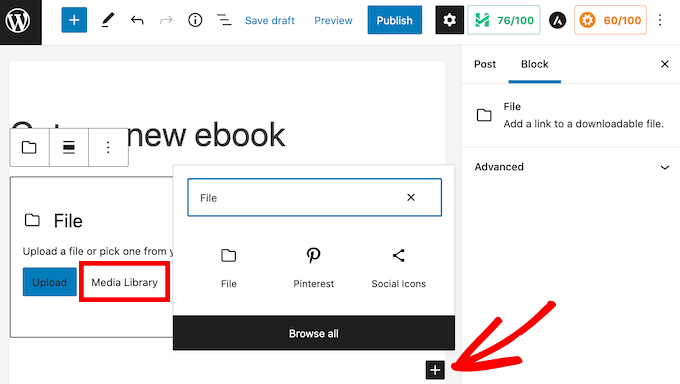
Once you click on the File block, it will add the block to your page.
In the File block, click on the ‘Media Library’ button, and a popup will appear.
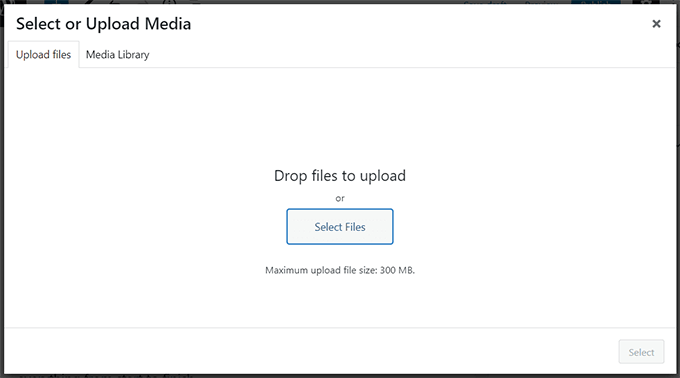
You can now select your ebook file or drag and drop the file to upload it.
Step 2: Configure Ebook Display Settings
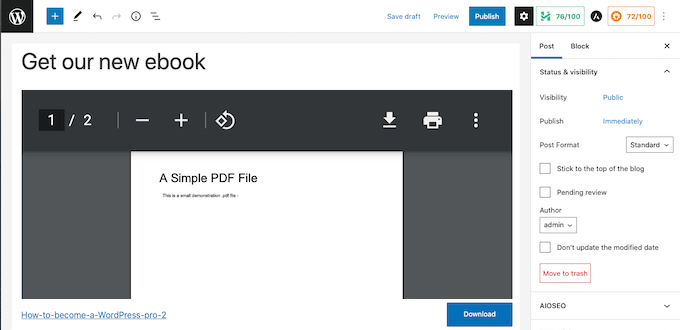
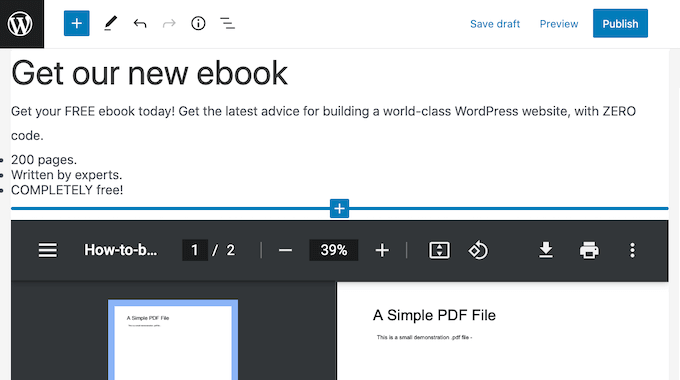
By default, the File block displays your ebook’s contents in a small PDF viewer.
It also has controls that visitors can use to scroll through your ebook, download the file, or even print your ebook.
Sometimes, you may not want to display a preview.
For example, your ebook may span lots of pages or have images that you want visitors to see fullscreen.
If you don’t want to include a preview, then you can find the PDF settings in the right sidebar of the content editor. You can then click to expand this section and turn off the ‘Show inline embed’ slider.
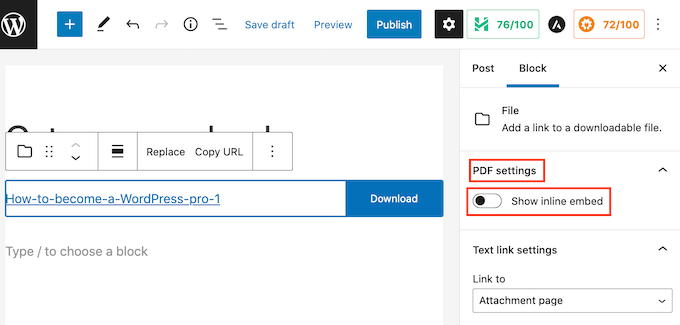
WordPress will now remove the preview and display only a Download button and a link.
Visitors can download this file to their local computer by clicking on the blue ‘Download’ button or open this ebook in a new tab by clicking on the link.
If you prefer, you can remove the Download button. To remove it, first click on the ‘Download button settings’ section in the WordPress sidebar.
You can then click on the ‘Show download button’ slider to turn this setting off.
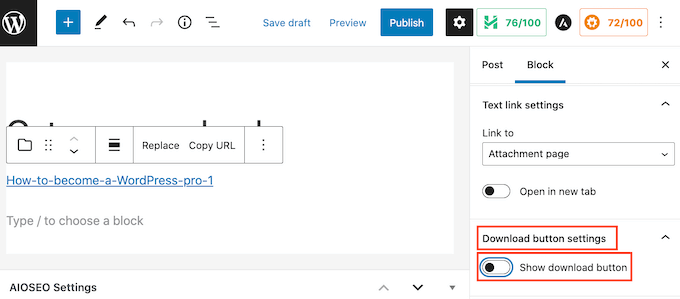
Keep in mind that visitors can still click the file link to open the ebook in a new browser tab. From there, they can use their browser’s built-in options to download or print it.
Step 3: Preview and Publish Your Changes
As you are making changes to your File block, you can see how it will appear to visitors by clicking on the ‘Preview’ button at the top of the screen.
Once you are happy with your File block, you may want to add more blocks. For example, you might write some supporting text or add a call-to-action button to encourage visitors to download your ebook.
When you are ready, don’t forget to make your changes live by clicking on the ‘Update’ or ‘Publish’ button at the top of the screen.
That’s it! You have now successfully added your ebook download to a WordPress post. You can now visit your website to see it in action.
Note: Want your visitors to be able to search for your ebook’s contents on your website? WordPress doesn’t do this by default, so we wrote a guide on how to add PDF indexing and search in WordPress.
Method 2: Use Ebook Downloads to Get More Subscribers
Uploading your ebook using the File block is an easy way to offer great content for free.
However, if you are using your ebook to grow your email list or capture leads, then you’ll want to make sure your visitors can’t access the ebook until they share their email addresses.
To set that up, you’ll need OptinMonster. It’s the best lead generation plugin for WordPress, trusted by over 1.2 million websites.
We even use it on WPBeginner and have increased our conversions by over 600% with this plugin alone. Using this tool, you can create high-converting optin forms without hiring a developer.
OptinMonster also comes with lots of ready-made templates that you can use to create high-converting popups. To learn more about it, see our OptinMonster review.
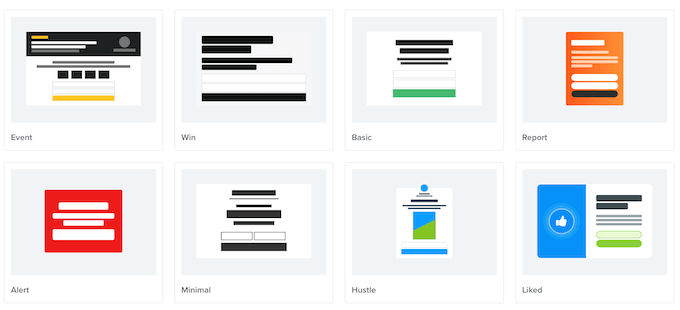
You can use these popups to ask visitors to perform an action before sending them to the ebook download. This marketing technique is sometimes referred to as offering lead magnets.
Basically, you offer free bonus content to your visitors in return for a small action like signing up to your mailing list.
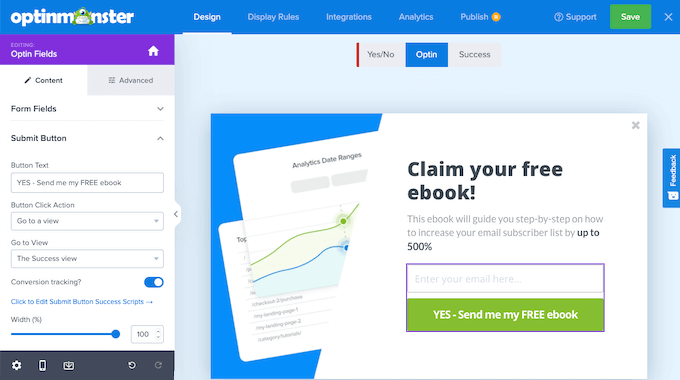
It’s a win-win for both parties. You get a new lead or subscriber, and your users get a free ebook.
OptinMonster makes delivery easy. You can automatically show the download link in the success message or send it in a follow-up email right after they sign up.
For detailed instructions, see our step-by-step guide on how to add content upgrades in WordPress.
Method 3: Sell Ebook Downloads in WordPress Using Easy Digital Downloads
There are lots of different ways to earn money from your WordPress website. One option is to sell digital products, such as ebooks.
To sell ebooks, you’ll need a plugin that lets you do this easily.
We recommend Easy Digital Downloads, which is one of the best eCommerce WordPress plugins with over 40,000 active installations and a 4.7/5 star rating on WordPress.org.
It’s super beginner-friendly because it focuses solely on digital products, streamlining the setup process compared to general eCommerce solutions. This makes it easy to sell any type of digital product, including ebooks.
Several of our partner brands are currently using it to sell their plugins and have had a great experience with it. For details, see our Easy Digital Downloads review.
Step 1: Install and Activate Easy Digital Downloads
First, you’ll need to install and activate the Easy Digital Downloads plugin. You can follow our tutorial on how to install a WordPress plugin.
Step 2: Add Your Ebook as a New Download Product
Upon activation, the first task is adding your ebook as a new product. To get started, head over to the Downloads menu item in your WordPress admin dashboard and click the ‘Add Download’ button.
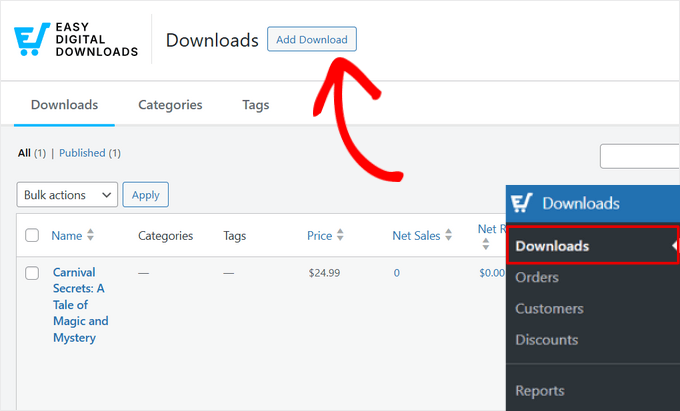
This will direct you to the block editor. Here you can type a name for your ebook into the ‘Enter download name here’ field. This will be the book’s title, but it can be anything that you want.
Next, type a description for your ebook into the main section of the post editor. You can write it like a sales pitch to promote your book, or you can use the book’s blurb or summary.
To help visitors discover your ebook, we also recommend creating some categories and tags. You can add this information from the block panel.

Then, you need to add an eye-catching product image. This can help catch the visitor’s attention and encourage them to buy your ebook.
For ebooks, you’ll typically want to use the book’s front cover as your product image. You can easily create a professional-looking cover using web design software.
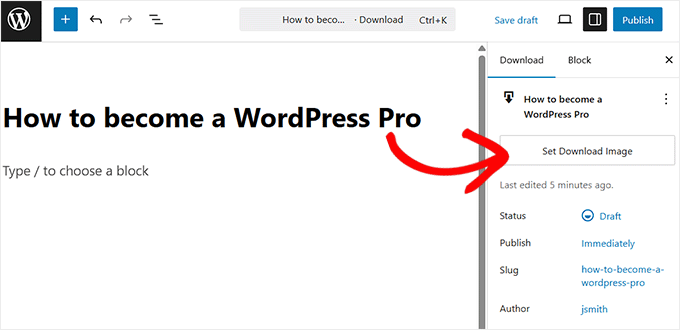
To add a product image, click the ‘Set Download Image’ button in the block panel. It will launch the WordPress media library from where you can upload an image.
Step 3: Set Your Ebook’s Pricing
After that, scroll down to the Download Details section.
Here, you can set a price for your ebook.
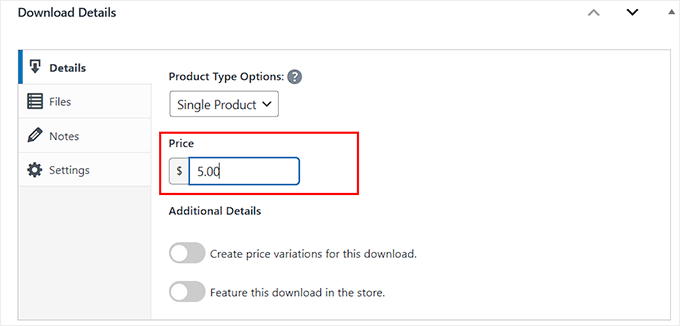
Easy Digital Downloads also supports variable pricing. You might use variable pricing to sell other products alongside your ebook.
For example, you could give customers the option to save money by preordering your next ebook at the same time.
If you want to offer variable pricing, then toggle the ‘Create price variations for this download’ switch.
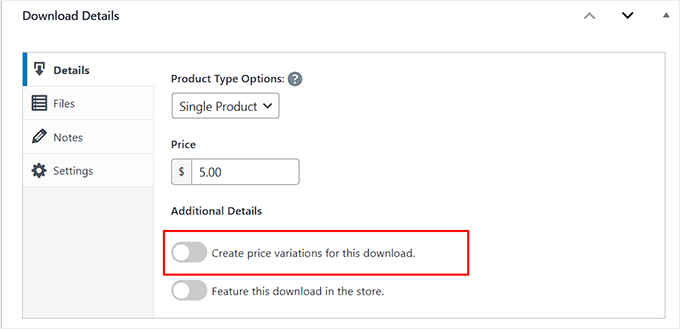
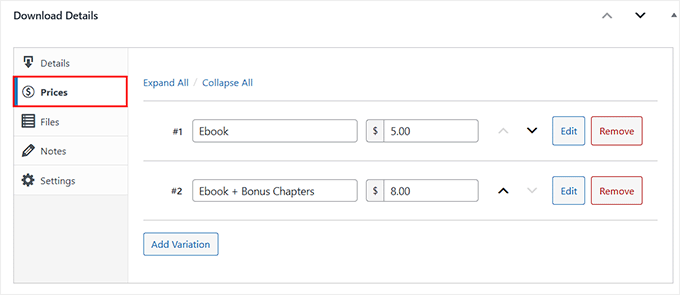
EDD will now create a separate ‘Prices’ section. Simply click on it from the left column.
After that, you can set different prices for different ebook files. For instance, you can charge $5 for a regular ebook and $10 for bonus chapters.
Step 4: Upload the Downloadable Ebook File
Next, you need to upload your downloadable file. This is the ebook that your customers will purchase.
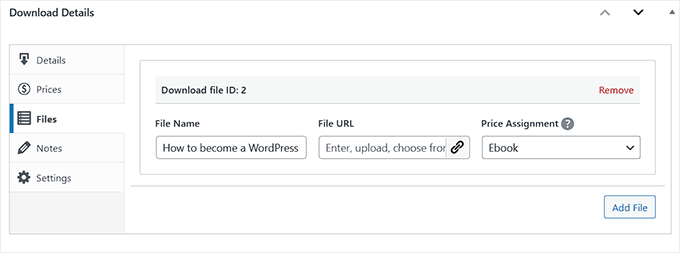
To do this, switch to the Files section.
In the File Name field, type a name for your downloadable file. You can then click on the pin icon in the File URL field. This will launch the WordPress media library, where you can upload or select a book.
Step 5: Publish and Promote Your Ebook
After that, there are some more settings that you may want to explore. However, this is all you need to do in order to create a downloadable ebook.
To see how your ebook will appear on your website, you can click on the ‘Preview’ button. When you are ready to publish your product, simply click on the ‘Publish’ button.
By default, Easy Digital Downloads publishes your ebook as a new product page. Your goal is to drive traffic to this webpage.
This might mean adding this product page to your website’s menu. You might also link to it from different areas of your website, such as a blog post or announcement bar.
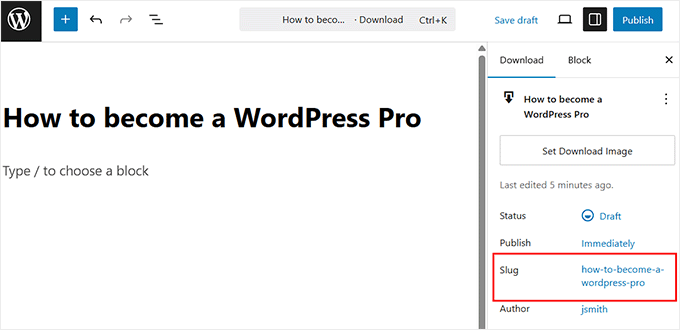
To do this, you’ll need to know the product page’s URL. You’ll find this information under slug in the block panel.
Another option is adding the product’s Buy Button Shortcode to a page, post, or widget.
This code creates a Purchase button.

Whenever a visitor clicks on this button, it’ll add the ebook to their shopping cart.
The Purchase button will then change to a Checkout button.

Clicking on this button will take the shopper to the Easy Digital Download checkout page. The Buy Button Shortcode is a great way to encourage sales from any area of your website.
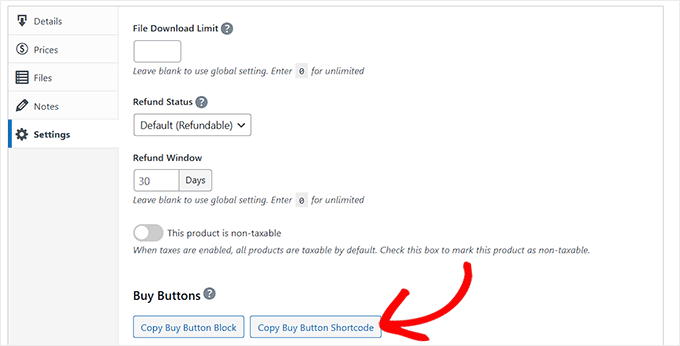
To add a Purchase button to any page, post, or widget, scroll to the ebook’s Download Details section and switch to the Settings tab.
From here, just click the ‘Copy Buy Button Shortcode’ button to copy it into your clipboard.
For more details on how to place the shortcode, you can see our guide on how to add a shortcode in WordPress.
Finally, for more information on how to sell ebooks with Easy Digital Downloads, just see our tutorial on how to create and sell ebooks in WordPress from start to finish.
Frequently Asked Questions About Ebook Downloads in WordPress
Here are some questions that our readers frequently ask about selling ebooks in WordPress:
What is the best format for an ebook?
The best and most common format for ebooks is PDF. This is because PDF files maintain their formatting across all devices, ensuring your ebook looks the same to every reader.
Plus, all modern computers and mobile devices have built-in PDF readers, making them easily accessible.
How can I track ebook downloads in WordPress?
You can easily track file downloads, including your ebooks, using MonsterInsights. It automatically tracks file downloads as events in Google Analytics, so you can see which ebooks are the most popular.
This data helps you understand what content your audience loves, so you can create more of it.
How do I protect my ebook from being shared for free?
While you can’t completely stop determined users, you can discourage casual sharing. The best method is to require an email address before providing the download link, as we showed with OptinMonster.
If you are selling your ebook with a plugin like Easy Digital Downloads, it can generate unique, time-sensitive download links for each customer to prevent link sharing.
We hope this article helped you learn how to add ebook downloads in WordPress. You may also want to see our tutorial on how to set up eCommerce tracking in WordPress and our list of easy side hustle ideas to make money online.
If you liked this article, then please subscribe to our YouTube Channel for WordPress video tutorials. You can also find us on Twitter and Facebook.


Aaron
I am looking to provide unlimited ebook downloads for one time fee. Whether I can do this with Easy Digital Download?
Thanks
WPBeginner Support
Yes, you are able to do that with Easy Digital Downloads
Admin
Marie Aldrich
Does the Easy digital downloads plugin cost or is it free?
WPBeginner Support
There is both a free and paid version of the plugin.
Admin
Marie
Hi, this is great thanks one question: how does payment work? is it through PayPal? or any other payment?
WPBeginner Support
It would depend on the methods that you set up for how payments are paid out. If your payment gateway is PayPal then you would receive your payments through PayPal.
Admin
Richard Dacker
Good to know that a ebook download from a Wordpress website is so easy now a days.
No fancy plugin required…very helpful. WPBeginner is a good resourceful website for all things on Wordpress. Keep those useful hints coming. Thank you
WPBeginner Support
We’ll be sure to keep sharing useful tutorials!
Admin
Adrean
Hi, thanks a lot for the guide.
I was wondering, does it slow down my site or my webhosting server when people download a 30mb pdf file? Would it be diffrent or better if I would link and provide the file on lets say google drive?
All the best to you and thanks a lot
WPBeginner Support
Downloading directly from the site can cause a slowdown if many users try to download at the same time. To prevent that using Google Drive or another service would be a good idea
Admin
Suhail Kakar
Really helpful, Thanks
Cassandra James
That was VERY helpful, thank you SO VERY much!!!
WPBeginner Support
You’re welcome, glad our guide was helpful
Admin
Melanie
Hello,
Is it possible to organize my site so ebooks are available to readers without downloading (a lot of photos)?
WPBeginner Support
For what it sounds like you’re wanting, you may want to take a look at our article here: https://www.wpbeginner.com/plugins/how-manage-track-control-file-downloads-wordpress/
Admin
Audrey Ryan
Really helpful, and simply stated post! Just what I was looking for. Thanks!
WPBeginner Support
You’re welcome
Admin
Troy Porter
Hello,
Wordpress don’t allow .epub or .mobi File is there a plugin or a solution to allow also epub and mobi file and want to be limited with PDF File, tanks in advance.
WPBeginner Support
Hey Troy,
Please see our article on how to allow additional file types to be uploaded in WordPress.
Admin
Troy Porter
Thank you so much it works
WPBeginner Support
We are glad you found it helpful. Don’t forget to follow us on Facebook for more WordPress tips and tutorials.
christian
this is a big help to all beginners like me..
thank you
Ifiokobng Ibanga
Thanks for this wonderful guide. I really found it useful.
I want to start selling eBooks directly on my blog instead of send traffic to gumroad or Amazon.
Thanks. It’s helpful.
Soham Pratap
I want to add ebooks and this article helps me. Before this I used to add ebooks through Google Drive.
One question too – Which is good for SEO? Adding PDFs on host or drive?