


Running a WordPress multisite network gives you complete control, but it also comes with big responsibilities. If the wrong person gets Super Admin access, they could accidentally break every site on your network.
We have managed many multisite networks and know how critical it is to set up user roles correctly. A simple mistake can lock you out or compromise your entire setup.
In this guide, we will show you how to add a Super Admin user in WordPress multisite safely.
⚡ Quick Answer: To add a Super Admin: Go to My Sites » Network Admin » Users. Click ‘Edit’ on the desired user. Check the box for ‘Grant this user super admin privileges’ and click ‘Update User’.
Here is a list of topics we will cover in this guide:
- What Is a Super Admin User Role in WordPress?
- Method 1: Adding a New Super Admin User in WordPress Multisite
- Method 2: Adding a Super Admin User in WordPress Manually
- How to Remove a Super Admin User in WordPress Multisite
- Troubleshooting Super Admin Setup (Common Issues)
- Securing Super Admin Accounts in WordPress Multisite
- FAQs About Super Admins in WordPress Multisite
- Bonus WordPress Multisite Resources
What Is a Super Admin User Role in WordPress?
WordPress comes with a built-in set of user roles. They have different permissions to do specific things on a WordPress site. For details, see our beginner’s guide on WordPress user roles and privileges.
A ‘Super Admin’ is a special user role in WordPress only available on websites that have the WordPress multisite feature turned on.
The multisite feature allows you to create multiple websites on a single WordPress installation. Each website can have its own ‘Administrator(s)’ to manage a specific website.
However, a Super Admin user can manage all websites in that WordPress multisite network. They can install plugins and themes and manage settings that affect all the sites.
Regular Administrators can only manage one site at a time. Super Admins, on the other hand, can make changes that impact every site in the network.
Be cautious when assigning the Super Admin role. Since Super Admins have access to everything, you should only give this role to people you fully trust. One wrong change can affect every site in the network.
Method 1: Adding a New Super Admin User in WordPress Multisite
This method is easy, and if you are already logged in to your WordPress multisite as a Super Admin, you can use it to add new users with the Super Admin role.
Note: If you are locked out of your admin dashboard and cannot log in, please skip to Method 2.
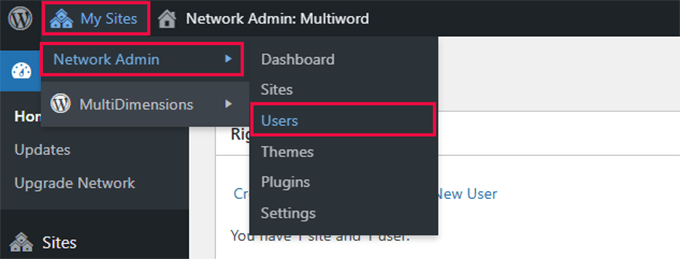
- Navigate to Network Admin Users. Simply log in to the WordPress admin area and hover over the ‘My Sites’ menu at the top left corner of the screen. From there, navigate to the Network Admin » Users page.
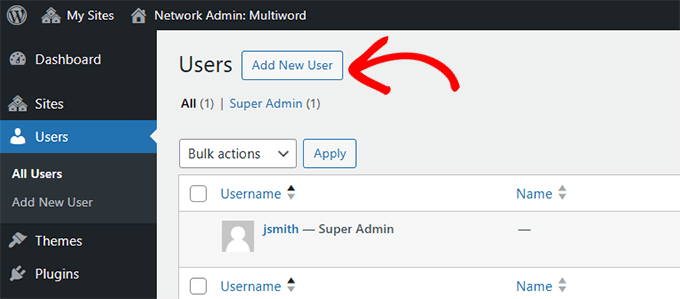
- Add a New User. Here, you can manage all the users on your site. Go ahead and click on the ‘Add New User’ button at the top.
- Enter User Details. Experienced WordPress users will notice that this page looks different from what you would see on a single site. Here, you can only add a username and email address, and there is no option to select a user role. Simply add the username and email address of the user you want to add and click the ‘Add User’ button.
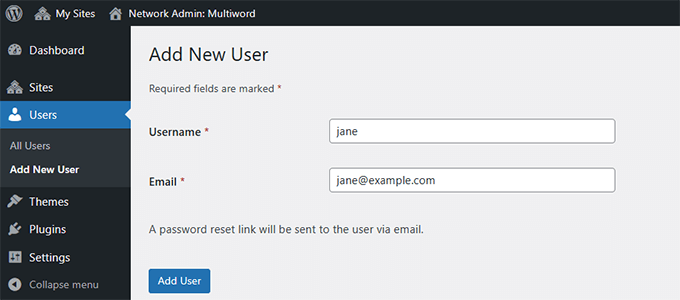
WordPress will now save the information and automatically send an email to the user to set their password.
Tip: If the user does not receive the email, ask them to check their spam folder. You can also manually set a password for them by editing their profile later.
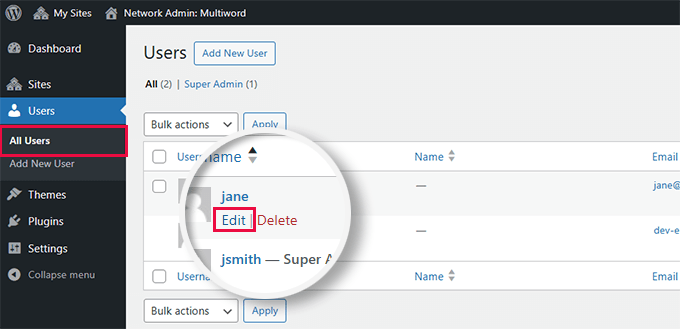
- Locate the User. Next, you need to assign this user ‘Super Admin’ privileges. To do that, head over to the Users » All Users page. Hover your mouse over the username and click the ‘Edit’ link.
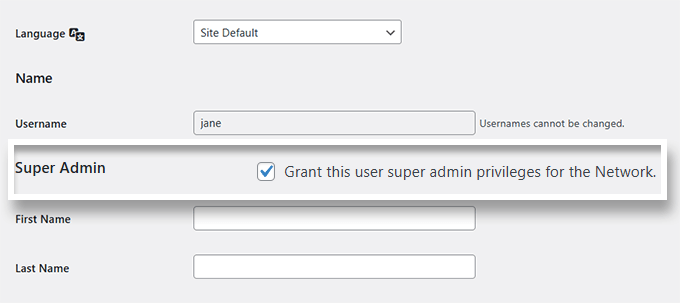
- Grant Super Admin Privileges. On the ‘Edit User’ page, scroll down to the ‘Super Admin’ section. Check the box next to the ‘Grant this user super admin privileges for the Network’ option.
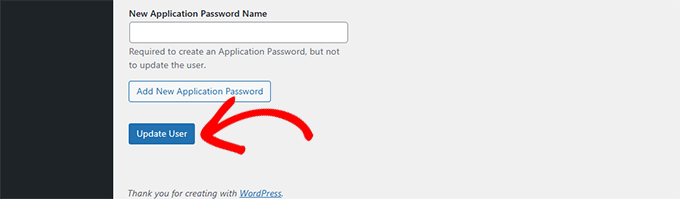
- Update the User. Finally, scroll down to the bottom of the page and click the ‘Update User’ button to save your changes.
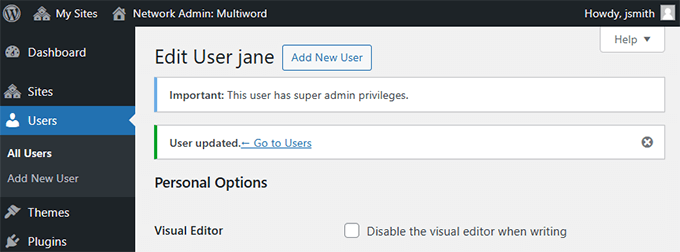
WordPress will now save the changes you made to the user account and grant them the Super Admin permissions.
You will see a success message confirming the update.
Method 2: Adding a Super Admin User in WordPress Manually
This method is recommended for users locked out of the WordPress admin area. It allows you to create a temporary ‘backdoor’ Super Admin account so you can regain access to your network.
- Connect to Your Site via FTP. First, you need to connect to your website using an FTP client or the File Manager app in your hosting control panel.
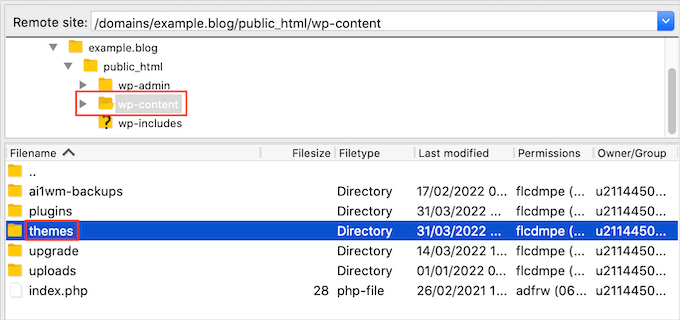
- Download the Functions File. Once connected, navigate to the
/wp-content/themes/folder and open the folder for the theme you are currently using. Locate thefunctions.phpfile and download it to your computer.
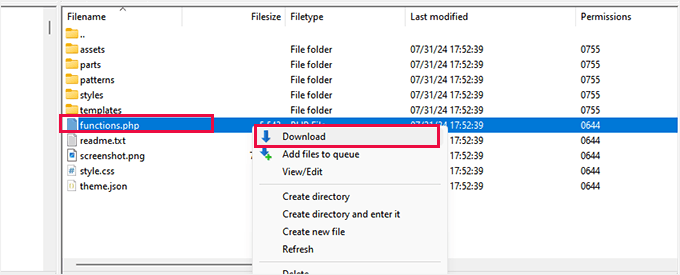
- Add the Code Snippet. Open the downloaded file using a plain text editor like Notepad. Scroll to the bottom and add the following code:
function wpb_create_super_admin() {
    $username = 'newuser';  // Replace with the desired username
    $password = 'StrongPassword123!';  // Replace with a strong password
    $email = 'newuser@example.com';  // Replace with the user's email

    if ( !username_exists( $username ) && !email_exists( $email ) ) {
        $user_id = wp_create_user( $username, $password, $email );

        if ( !is_wp_error( $user_id ) ) {
            // Assign the Super Admin role to the new user
            grant_super_admin( $user_id );
        }
    }
}
add_action( 'init', 'wpb_create_super_admin' );
Make sure to replace $username, $password, and $email with your own details.
- Upload and Test. Save the file and upload it back to your theme folder using FTP, overwriting the old file. You can now log in to your WordPress dashboard with the new credentials.
Important ⚠️: Once you have successfully logged in, you should delete this code from your functions.php file. Keeping it there is a security risk.
How to Remove a Super Admin User in WordPress Multisite
There may come a time when you need to remove Super Admin privileges from a user. For example, maybe they’ve left your team, or you want to reduce risk by limiting access.
We’ve had to do this on our own networks when cleaning up permissions.
Here is how to do it:
- Navigate to Network Users. Go to the top menu and hover over My Sites » Network Admin » Users.
- Edit the User. Find the user you want to remove Super Admin rights from and click the ‘Edit’ link under their username.
- Revoke Privileges. Scroll down to the Super Admin section. Uncheck the box that says ‘Grant this user super admin privileges for the Network’.
- Save Changes. Scroll to the bottom and click the ‘Update User’ button to save your changes.
That’s it! This user will no longer have Super Admin access. They’ll still be able to manage their assigned site(s) if they have individual roles set there.
Note: Be careful not to remove Super Admin access from all users. You should always have at least one trusted person with complete control of the network.
Troubleshooting Super Admin Setup (Common Issues)
Sometimes, even after following all the steps, things don’t work as expected. Here are some of the most common problems and how to fix them.
- The “Super Admin” checkbox is missing. This usually happens if the user hasn’t been added to the network yet. Make sure the person you want to promote already exists in the Network Admin » Users list before trying to edit their role.
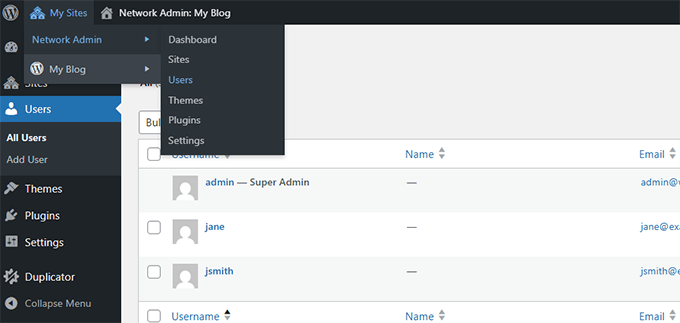
- The user doesn’t appear in the list. Double-check the email address or username you entered. If there was a typo or the user hasn’t completed the setup email yet, they might not show up right away. You can resend the invitation or recreate the user if needed.
- The “Network Admin” menu is missing entirely. This usually means that multisite hasn’t been enabled correctly. You’ll need to confirm that your
wp-config.phpfile includes the line to activate multisite, and that the network setup was completed properly. - The changes aren’t saving. Check for plugin conflicts or caching issues. Sometimes, security or membership plugins can interfere with user role changes. Temporarily disable any user management plugins and try again.
- Still not working? If none of the above helped, you can use the manual method shown earlier in this article to assign Super Admin access via FTP.
Securing Super Admin Accounts in WordPress Multisite
We have seen many beginners lose access to the Super Admin accounts of their WordPress multisites.
Some people simply forget their login credentials, and others are attacked by hackers who get access to their multisite, causing severe financial and reputational damage.
We recommend all users follow our complete WordPress security guide to protect their websites.
Here are some tips that you can implement right away.
1. Set Up Automated WordPress Backups
Make sure that you are using a WordPress backup plugin to automatically create and store backups for your WordPress site to a remote location.
We recommend Duplicator. It is easy to use and set up, creates secure backups, and safely stores them on the cloud. More importantly, it also makes it easy to restore your website with one click from a backup.
We use Duplicator on our own websites. For more details, see our complete Duplicator review.
Note: A free version of Duplicator is also available with limited features. We recommend upgrading to a paid plan to unlock all features, including multisite support.
For details, see our tutorial on how to back up your WordPress website.
2. Set Up Two-Factor Authentication
We use two-factor authentication for all user accounts. It adds an extra layer of security to your WordPress website, making it harder for unauthorized users to access your Super Admin accounts.
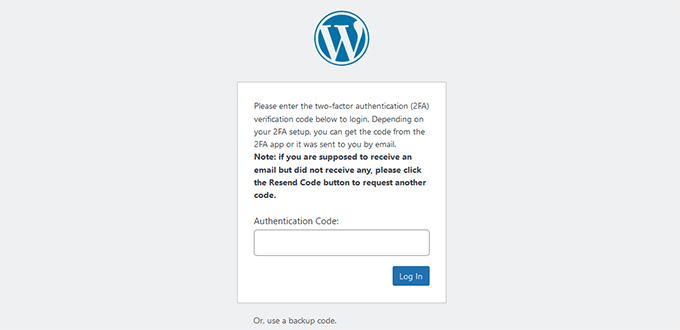
We have put together a complete step-by-step tutorial on setting up two-factor authentication in WordPress for beginners. Following it will only take a few minutes, but it will make your multisite accounts more secure.
3. Ensure WordPress Emails Are Working
We often hear from users who are unable to receive a password reset email from their WordPress websites. Their WordPress website is not set up to ensure email deliverability.
By default, WordPress sends emails using the PHP mail() function. This function can be abused to send spam, so email service providers like Gmail and Outlook consider these emails suspicious and block them.
To fix this, you need to use an SMTP service like WP Mail SMTP. It allows you to use proper SMTP protocol to send WordPress emails, ensuring all your emails are securely delivered.
Note: A free version of WP Mail SMTP is also available.
We use WP Mail SMTP on all our websites to ensure all users can get their password reset and other important emails. See our WP Mail SMTP review to learn more.
Do you need help setting it up? We have a guide that shows how to set up WP Mail SMTP in WordPress.
FAQs About Super Admins in WordPress Multisite
What’s the difference between a Super Admin and an Administrator?
A regular Administrator can only manage a single WordPress site. A Super Admin has access to the entire multisite network, meaning that they can install plugins, change themes, and manage settings across all sites.
Can I have more than one Super Admin?
Yes, you can assign Super Admin privileges to as many users as you like. Just make sure you fully trust them, since they’ll have full control of every site in the network.
Can a Super Admin remove another Super Admin?
Yes. Any user with Super Admin access can edit other users and revoke Super Admin privileges. That’s why it’s important to only grant this role to people you absolutely trust.
How do I know if I’m a Super Admin?
If you see the “Network Admin” option under the “My Sites” menu in the WordPress toolbar, that means you’re a Super Admin. If you don’t see that menu, then your account doesn’t have those privileges.
Can I revoke Super Admin access later?
Absolutely. Just go to the user’s profile in Network Admin and uncheck the Super Admin box. Don’t forget to click “Update User” to save the changes.
Bonus WordPress Multisite Resources
The following are some additional guides to help you efficiently manage your WordPress multisite network as a Super Admin:
- Best WordPress Multisite Plugins You Should Use (Expert Pick)
- How to Create a WordPress Multisite with Different Domains (4 Steps)
- How to Move a Site from WordPress Multisite to Single Install
- Should You Network Activate All Plugins on WordPress Multisite
- How to Add / Remove Default Pages in WordPress Multisite
We hope this article helped you learn how to add a Super Admin user role in WordPress multisite. You may also want to see our article on tips on customizing the WordPress admin dashboard or our pick of the best plugins to improve the WordPress admin area.
If you liked this article, then please subscribe to our YouTube Channel for WordPress video tutorials. You can also find us on Twitter and Facebook.




Have a question or suggestion? Please leave a comment to start the discussion.