


If you run a multi-author blog, work on client projects, or manage your own tasks, you may want an easy way to leave notes inside WordPress.
WordPress doesn’t include a notepad on your dashboard, but with a plugin, you can still display notes within the dashboard.
In this article, we’ll show you how to add a notepad to your dashboard.
Why Add a Notepad on Your WordPress Dashboard?
A dashboard notepad gives your team one place to share instructions, content ideas, goals, and other important notes.
It’s especially useful on multi-author blogs, where clear communication is one of the simplest ways to improve your editorial workflow.
You can keep these notes in Slack, Evernote, or Google Drive, but your team would have to switch tools to find them. A dashboard notepad puts that information where they already work.
If you are looking for the notes you leave on a block while editing a post, that is a different feature inside the editor. We cover it in our guide to document collaboration in the block editor.
How to Add a Notepad to Your WordPress Dashboard
First, install and activate the free WP Dashboard Notes plugin. It lets you create as many public and private notes as you want and use different colors to highlight important information.
Anyone who is logged in to your website can use the notepad, including Authors and Contributors. This makes it a great choice if you allow new registrants to submit posts on your site.
For more details, see our step-by-step guide on how to install a WordPress plugin.
Note: WordPress.org lists this plugin as untested with the latest versions. We have tested it on the current release, and it works fine for this purpose. For more information, see our guide on should you install plugins not tested with your WordPress version.
Upon activation, go to Dashboard from the left-hand menu, and you’ll see a new ‘+ Add note’ item in the toolbar at the top of the screen. To get started, click on it.
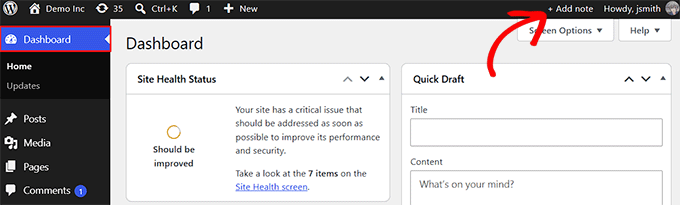
Then, scroll to the bottom of the dashboard, and you’ll see a ‘New note’ ready for you to customize. Hover over it and click the pencil icon to add a title.
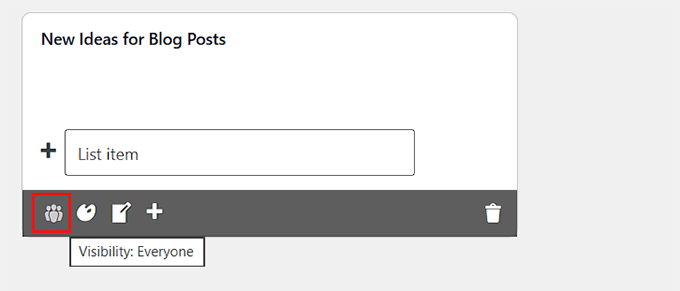
This also reveals a dark toolbar with five icons that control the note’s main actions.
The Visibility option controls who can see the note, and it only has two settings. It starts on ‘all users,’ shown as a group of people, so everyone who logs into your site can read and edit the note.
Click the icon so it shows a single figure instead, and the note becomes private to you. This is helpful if you’re creating a blog post checklist, recording references, or jotting down ideas for yourself.
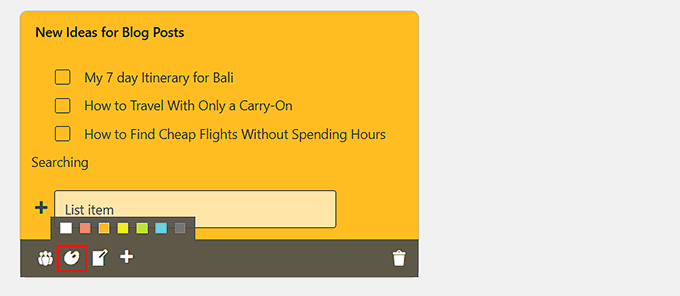
The second icon is the color palette, which changes the note’s background color. Bright colors make your most important notes stand out, so your team notices them.
For less urgent notes, you can use a white background just like the built-in dashboard widgets.
By default, the plugin displays your note as a checklist, which works well for tasks and quick reminders. If you prefer, the third icon converts it to a plain note style.
If you’ve already added list items, those items stay in the list format. Any text you type after converting appears as plain text instead.
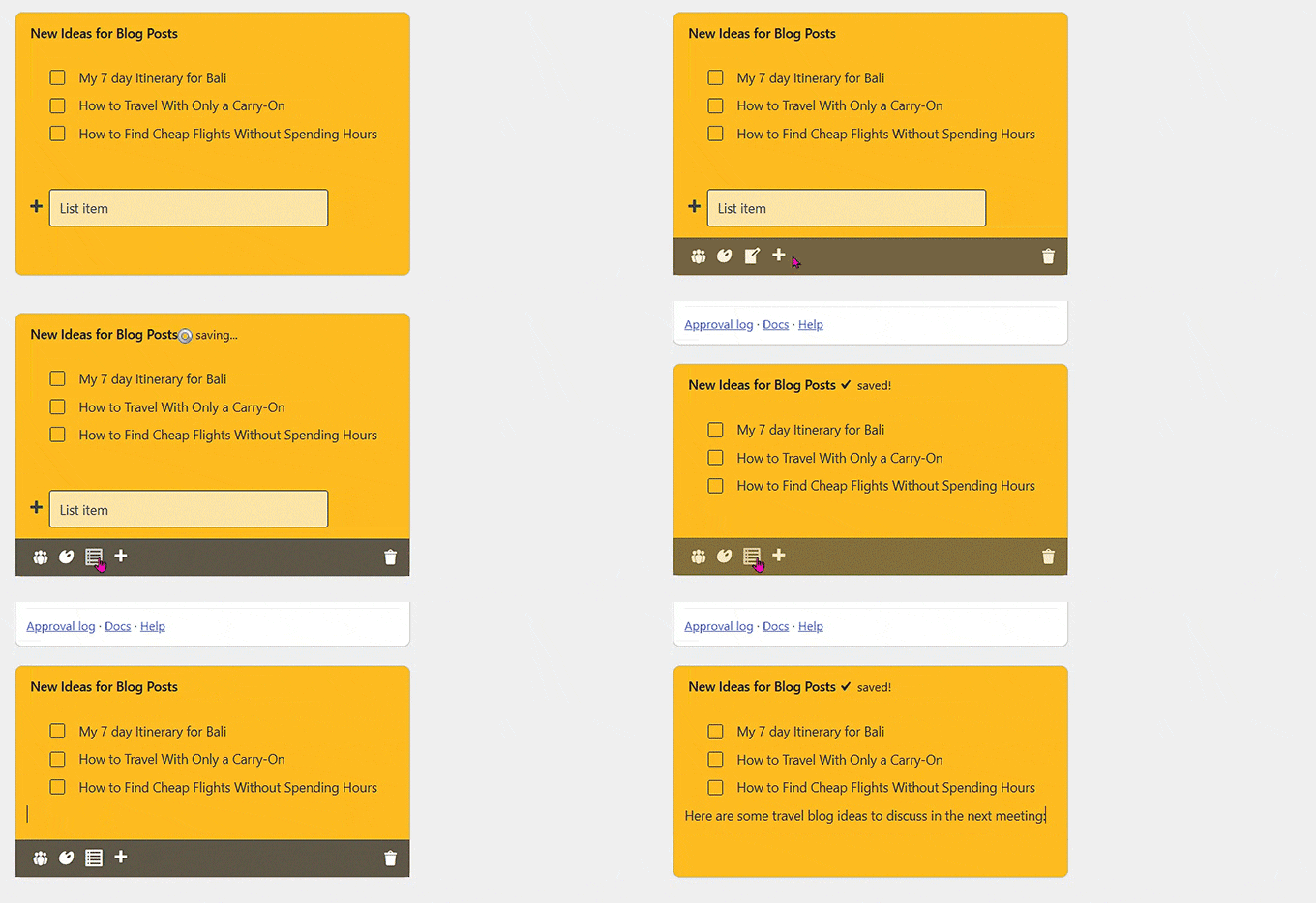
The fourth icon is ‘+,’ which creates another note. This way, you can add several notes to the dashboard without going back to the ‘Add note’ button in the toolbar.
The fifth icon is the trash can, which deletes the note without asking for confirmation. You can’t get the note back, so think carefully before deleting a note.
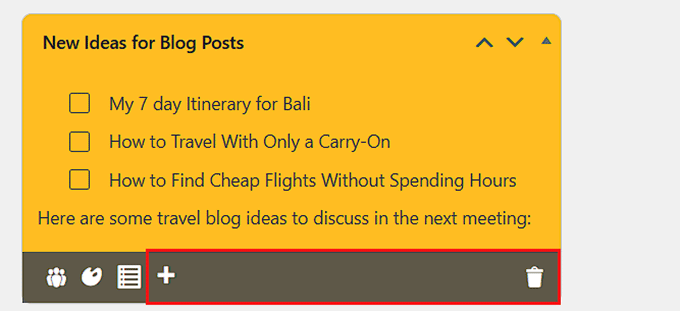
New notes appear at the bottom of the dashboard, so your team may need to scroll before they see them. Depending on how you’ve customized the WordPress admin dashboard, an important note can end up below every other widget.
Move a note up using drag and drop, or the ‘up’ and ‘down’ arrows in its header. If you don’t see the arrows, try refreshing the page.
Your notes don’t have a Save or Publish button. The plugin saves them automatically as soon as you click outside the note.
WordPress Dashboard Notepad FAQs
What is the best WordPress dashboard notes plugin?
WP Dashboard Notes is the best option for most sites. Since it’s free, it needs no setup, and every logged-in user can write their own notes. If you want something that does more than notes, take a look at our roundup of the best WordPress dashboard plugins.
How can I customize my WordPress dashboard?
You can change almost everything your team sees when they log in. If you build sites for clients, white labeling the admin dashboard replaces the WordPress branding with your own, so the back end looks like part of what you delivered.
And if your authors keep asking you the same questions, adding a help section puts those answers on the screen where they already are.
Can I share a note with only some users?
No, WP Dashboard Notes has no setting that shows a note to one role like Authors and hides it from everyone else. If only part of your team needs the information, write it as a public note and name the people it applies to inside the note.
Keep anything sensitive out of a dashboard note altogether. Every logged-in user can read, edit, and even delete a public note. That includes Subscribers, so on a membership site or an online store, your customers can change it too.
We hope this article helped you add a notepad to your WordPress dashboard. You may also want to check out our expert picks of the best WordPress activity log and tracking plugins and our list of best WordPress plugins.
If you liked this article, then please subscribe to our YouTube Channel for WordPress video tutorials. You can also find us on Twitter and Facebook.


kzain
One quick question though: is there a way to restrict permissions, so other editors or contributors can’t delete notes created by someone else? Ideally, only admins should have the ability to edit and delete notes. This would be perfect for keeping everyone on the same page and avoiding accidental deletions.
WPBeginner Support
Not at the moment.
Admin
Jiří Vaněk
I have been searching for something to create ToDo lists within the WordPress admin for a while. For a multi-user website, tools like Google Docs or note-taking apps like OneNote are not very practical. It’s great that they are online and shared, but unfortunately, they are not suitable for multiple users. I immediately tested this plugin on a demo site, and so far, it completely meets my expectations. Not only as a note-taking blog but also as a ToDo list where completed tasks can be checked off as done. It looks great. Thanks for the tip because it seems like it will finally solve the problems with creating and managing task notes.
Ben
This is nice, but is there a way to make sure that other editors or contributors can’t delete other people’s notes? I noticed other editors can edit and even delete other people’s notes. Those options should only be available to the Admin.
WPBeginner Support
That is not an option with the plugin at the moment but if you let the plugin’s developer know they should be able to set that up in the future
Admin
Glam
Hey, it appears that the editorial staff did NOT check to see that this plugin has not been updated in over a year and is not tested with the version of Wordpress as of February 20,2023.
Your readers trust you so please check that your info is current before reusing old blog post info.
Thank you.
WPBeginner Support
Thank you for your feedback, however the plugin is currently supported and not all plugins need continual updates. We would recommend taking a look at our article below for more on this
https://www.wpbeginner.com/opinion/should-you-install-plugins-not-tested-with-your-wordpress-version/
Admin
Benny V Peterson
Hey Wpbeginner, did you develop this plug-in ⁉️