


Ever seen ‘trackbacks’ and ‘pingbacks’ in WordPress and felt confused? Don’t worry, many people do. These are WordPress blogging tools that even some experienced users don’t fully understand.
We’ve worked with WordPress for a long time and are quite familiar with trackbacks and pingbacks. They can be helpful, but they can also cause problems. They were made to help blogs talk to each other, but now, spammers often misuse them.
In this guide, we’ll explain what trackbacks and pingbacks are in simple terms. We’ll show you how they work and how to use them (or turn them off if you don’t want them).
Feel free to use the quick links below to navigate through the different topics in this article:
What Is a Trackback?
A trackback in WordPress is like a friendly message between two websites. When one site mentions or links to a post on another site, it sends a trackback to let the other site know about it. Here’s how it works:
- Let’s say you are writing a WordPress post. In your post, you include a special link called a trackback URL to another post on a different WordPress website. It’s like a secret code found in the linked post’s information.
- When you publish your post, your site sends a trackback to the link you included. This trackback carries details about your post, like its title and a short piece of text.
- The other WordPress site receives your trackback and checks if it’s a valid and relevant link. It acts like a friendly check to see if your post fits well with theirs.
- If everything checks out, the trackback appears in the comments section of the linked post. It looks a bit different from regular comments, usually showing your post’s title and a snippet of its content.
What Is a Pingback?
A pingback in WordPress is an automatic message that one site sends to another when it links to its content. Here is how pingbacks work in WordPress:
- You write a post with a link to another post on a different WordPress site.
- When you publish your post, your WordPress site automatically sends a pingback to the site you linked to. This pingback includes details about your post, like its title and a little bit of text.
- The other WordPress site gets your pingback and checks if the link is good and makes sense. It’s a friendly check to see if your post fits well with theirs.
- If everything looks good, the pingback shows up in the comments section of the linked post as a link to your site.
Pingbacks also work within your site. This means that if you link to one of your own articles on the same site, then WordPress will automatically send a pingback to itself.
This is called self-ping, and once you start blogging regularly, you may find the pings annoying. Don’t worry, they can be easily turned off, as we will show you later in this article.
What Is the Difference Between Trackbacks and Pingbacks?
There isn’t really much difference between pingbacks and trackbacks. They both do the same thing but take a slightly different approach.
The first difference is that the trackbacks are manual, whereas pingbacks are automatic since they use different communication technologies.
Secondly, pingbacks do not send the post’s excerpt, while trackbacks do.
How to Send Trackbacks and Pingbacks in WordPress
Since WordPress 5.0, the ability to manually send a trackback to other blogs has been removed from the block editor screen. Not many users use this feature much, and WordPress already has enabled automatic pingbacks by default.
However, if you use the classic editor, then the functionality is still there. Simply edit a post in the classic editor, and you will find the option to send trackbacks below the edit area.
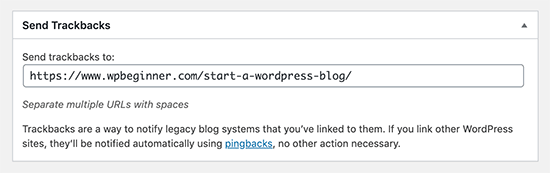
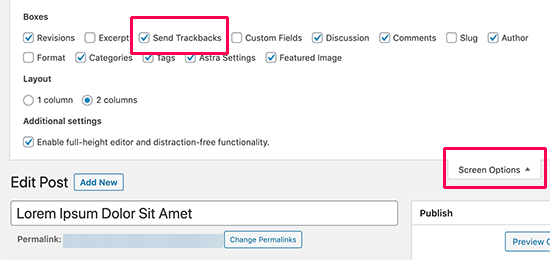
If you cannot find the trackbacks meta box in the classic editor, then click on the ‘Screen Options’ button in the top right corner of the screen.
You need to check the box next to the ‘Send trackbacks’ option, and WordPress will start showing a send trackbacks box below the edit area.
How to Moderate Pingbacks and Trackbacks in WordPress
In our experience, 99% of all trackbacks and pingbacks are spam. This is the easiest way for spammers to get a backlink from your site.
In our case, we often see pingbacks from content scrapers (content thieves) who copy our entire articles word-by-word, including all the links.
Due to those links, their blogging software automatically sends pingbacks to our articles.
The few times when we found trackbacks/pingbacks to be helpful was when legit bloggers linked to us. They actually helped us find out that we were featured in Mashable and NYTimes.
In short, we have found 99% of all trackbacks/pingbacks to be spam. This is the reason why we have disabled them entirely. It is not worth the time to moderate a ton of spam.
There are other ways to find out who linked to your articles. The easiest one is to use Google Analytics to find who links to your site.
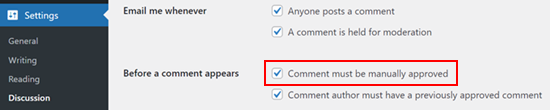
That said, if you still want to use trackbacks and pingbacks, then it’s good to moderate them for spam. What you need to do is go to the Settings » Discussion in the WordPress admin area.
Then, in the ‘Before a comment appears’ section, check the box that says, ‘Comment must be manually approved.’ This will make sure that trackbacks and pingbacks won’t show up automatically and must be checked for spam.
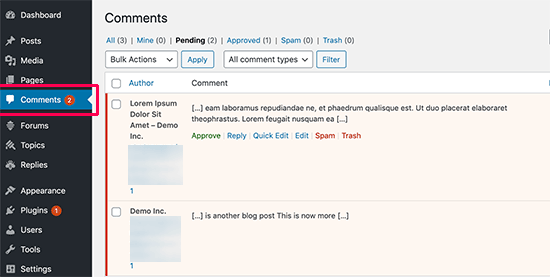
You can then go to the WordPress comment moderation area to check for pingbacks and trackbacks that are pending.
From here, you can approve, delete, or mark them as spam.
How to Disable Trackbacks, Pingbacks, and Self Pings
If you are tired of getting spammy trackbacks and pingbacks, then there is a way for you to disable them entirely.
Simply go to the Settings » Discussion page and uncheck the ‘Allow link notifications from other blogs (pingbacks and trackbacks)’ option.
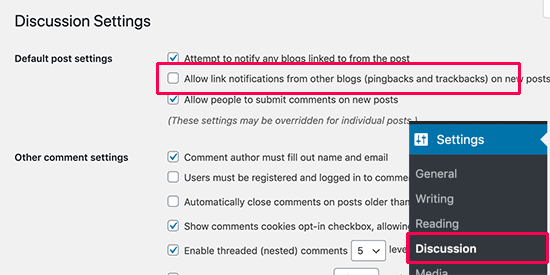
Unchecking that box will only disable trackbacks and pingbacks for future posts (not existing posts).
To disable trackbacks on existing posts, you must follow our tutorial on how to disable trackbacks and pingbacks on existing WordPress posts.
If you are tired of your blog self-pinging itself, then you can simply install and activate the No Self Pings plugin. For more details, see our step-by-step guide on how to install a WordPress plugin.
Upon activation, the plugin will disable self-pings on your WordPress site.
Bonus: Essential WordPress Skills for Beginners
While trackbacks and pingbacks are specific features, there’s a lot more to learn about WordPress basics. Here are some helpful guides to boost your WordPress knowledge:
- If you’re finding WordPress challenging, you’re not alone. Read about why WordPress can be hard and learn tips to make it easier.
- Finding your way around WordPress is crucial. Learn how to locate post, category, tag, comments, or user IDs in WordPress.
- Managing your content effectively is important. Discover how to find your saved drafts in WordPress, so you never lose your work in progress.
- Understanding site performance can help your blog run smoothly. Find out how to free up disk space and reduce inode usage in WordPress.
- Keeping your site up-to-date is vital. Learn how to test your WordPress theme against the latest standards.
We hope this article helped you learn about WordPress trackbacks and pingbacks. You may also want to see our beginner’s guide to disabling blog features in WordPress and our expert picks of the best plugins to manage a multi-author WordPress blog.
If you liked this article, then please subscribe to our YouTube Channel for WordPress video tutorials. You can also find us on Twitter and Facebook.



Muhammad Atif
Hi, There is mistake under “what is pingback”, 4th point ” we “wikk”
WPBeginner Support
Thank you for catching that, we will get that typo fixed soon!
Admin
Iftekhar Bhuiyan
Helpful post indeed. Thank you.
On a personal level though, I stopped using it for quite some time now.
Marcia
I’m curious is it weird to approve self-pings? Internal linking is still a good thing but would there be any cons//would it just look weird? Thanks!
WPBeginner Support
It’s a bit of a personal preference question. It adds more admin tasks for you to do with the links to approve and you already have an internal link to cause the pingback so most do not find value in allowing self pings.
Admin
Christopher Wilson
I am so glad I discovered this website because it make everything so crystal clear especially if you are a beginner (I guess that’s why it’s named appropiately). I love it.
WPBeginner Support
Glad you found our content helpful
Admin
Mithu A Quayium
What about the real blogger who don’t spam. Don’t you accept their trackback/pingback then , even though they are legit ?
LaShaun W
Are there any advantages to approving a trackback. I just got one and I don’t know if I should or shouldn’t approve it. If someone clicks it, I risk losing a visitor, don’t I?
WPBeginner Support
Hi,
Yes, you can delete it.
Admin
Philip
Thank you for explaining TrackBacks.
I got two but the commenters name etc looked false and immediately raized the alarm.
So, if they do copy your article word for word, no one should panick, because Google will not give that copied post good ranking and they will hurt their website rankings! Or, am I missing something more important here?
I will disable trackbacks.
Thanks.
WPBeginner Support
Hi Philip,
Yes, you got that right. However, if you notice that someone with stolen content is outranking your articles in Google, then you can file DMCA and Google will remove those results. For more information, please see our guide on how to prevent blog content scraping in WordPress.
Admin
Sherry
Thank you so much for Tweeting this article! I just last week received 6 Pingbacks and had no idea what to do about them.
I had just moved from Blogger to Wordpress.org earlier this year and I have been learning the platform and had never heard of Trackbacks and Pingbacks until last week.
I watched Your talk with Micheal Hyatt and learned so much too. I’m so glad I subscribed to Platform University and heard about your site it has been so helpful. I’m implementing a lot of the things you talked about with Micheal Hyatt.
Sherry
Editorial Staff
Thank you so much for the kind words Sherry. I’m happy to help
-Syed
Admin
Sinea
Thanks for the explanation. I would instantly stop all trackbacks and pingbacks if I were more experienced. I’ve been blogging for 7 years but only just moved from Blogger to WP. THANK GOODNESS FOR YOUR WEBSITE. Without it, I do not know what I would do!
I host two blog hops. I love meaningful comments from my guests at the parties as well as on other posts. Will disabling trackbacks or pingbacks interfere with my parties or real commentary? If it won’t, I’m disabling immediately. Another question… on existing spammy comments, is it better to mark them as spam or send them to the trash?
WPBeginner Support
Hi Sinea,
Thank you for kind words, we are glad that you find WPBeginner helpful. To answer your questions:
1. No, disabling pingbacks and trackbacks will not affect comments on your website.
2. It is better to mark spam comments as spam.
Admin
Sinea
Well, then, I will be disabling them! Thanks so much!
Sin Yee
Thanks for the explanation. Finally know what both of them are!
Janine
Thank you for addressing this! Honestly its a confusing topic. I recently had my post pinged back upon. (How on earth would one say that!?!)
I noticed that when she pinged me her post (in wordpress) automatically used my featured image for the post I had written.
I have pinged a different blogs post (not a wordpress blog) today and I don’t see if there is a way to include the image.
Is it still pinging if it is not a wordpress blog? Could that be what is different?
Thanks!
Tapiwa Zvakavapano
Greetings
I see there is an unanswered question in all this; If I do not approve a Pingback, will the link still work. I am afraid I am not as fawning as all the other people above. I run a recently launched blog; Network Bees and I have lots of links to your pages. All of them are genuine, ie, I read your articles and link to relevant, well written materials.
It worries me therefore, that all that effort is for nought because you are labeling all my links as spam. I may be confused about the whole thing, however. I think one of the comments above asked the same issue. Does disabling pingbacks and trackbacks mean that people cant link to a page? Or do the links still work nevertheless?
One of the things that I have discovered is that established bloggers tend to be a bit “detached” when it comes to interacting with new bloggers. There is this blog that allows guest posts but does not allow even a single link to the author’s blog! I mean, what would be the point? In any case, that’s a digression. My question is above….
WPBeginner Support
Hi Tapiwa,
When you link to another WordPress powered website, the link on your website will work just fine. If the site you are linking to has the pingbacks and trackbacks disabled, then they will not see the link in their moderation queue and will not be able to mark it as spam. You should keep working on your blog as you normally would.
Admin
Michelle Belanger
Thanks for this article and your site!
I got a rather generic comment with a link to a site in the UK that had content unrelated to my blog post (a garden photo post linked to a job seeking website). i approved the comment initially because I want people to read and respond to my posts. After reading this article, I went in and removed the links and left the comment by itself.
Is this method ever used as a way to break into someone’s site to hack it? Or is it just a way to get someone from another site to click their link and go to their site? Thanks again for your help with this subject.
WPBeginner Support
Hey Michelle,
Most links submitted in a comments are often spam. Some times these links can lead users to malicious websites. You need to carefully review comments before approving them. See our guide on how to deal with comment spam in WordPress for more information.
Admin
Arulmjoseph
Thanks for the information.
gumusdis
Perfect, Thanks for sharing these useful information with us.
Dattaraj
Very good article. Thanks for detailed explanation.
Liz Ziser
Great post! Thank you for sharing.
Personally, my confusion lies with moderation options. For example, if a legitimate blog links to my site, and I move it to “Trash”, is the link deactivated? i.e. It’s fine for them to link to me, but I don’t want the pingbacks displaying at the bottom of my post… so would this be the best selection?
I’d just like to better understand the consequence of each moderation selection: Approve, Unapprove, Trash, Spam, and Trash. What actually happens when each of these are selected.
Thanks a lot!!
ketul
hello i am confusion about pingback in my wordpress its affect on seo keywords?
Daren
Perfect! Been wondering about this for a while. Thanks for the focused “Don’t waster your time” advice.
Nebu John Thaliyath
Really Helpfull. Thank You
Sanjay Kumarr
Now I have good knowledge of Trackbacks and PingBacks, trackbacks are mannual with contents and pingbacks are automated / software based both will 99% spam.
Your article is very good and clearly belongs to questions that I was trying to find.
Good websites and information as well.
WPBeginner Support
Hey Sanjay, glad you found it helpful
Don’t forget to join us on Twitter for more useful WordPress tutorials.
Admin
Vasu
This was very useful. Just the information what I was looking for.
thanks
Vasu
Amit
This is very useful information for me too. Actually i was very confused before this. When i research on my website, that one trackback post show there.
After read this knowledgeable article about trackback and pingback . my problem has been solve.
Breanna
So, are pingbacks/trackbacks bad or good to get?
Chris Webb
Great Post, very thorough explanation on what these two types of linking mechanisms do.
Phil Owens
Hi,
Considering your title is what, how, why, you haven’t explained how to create a trackback. I am a complete noobie to blogging, so treat me like an idiot
Brendan Hall
I was going to use track backs on our site. We tried them for a while and we were just inundated with spamming comment (of which this comment is not lol). In the end I decided that is was not worth using track back at all.
Pushkar Kathayat
How to make a pingback for another blog?
Heather
Does disabling trackbacks and pingbacks affect my sites SEO?
WPBeginner Support
No it does not.
Admin
Luke Ward
Hi, If I disable pingbacks/trackbacks as you’ve suggested, will that also stop internal pinkbacks?
Thanks
Heike Martin
Internal pingbacks can be avoided by making sure that the url used only shows the extension of the full url. Look at the url for this post. To avoid self-pings you want the link to only read “/beginners-guide/what-why-and-how-tos-of-trackbacks-and-pingbacks-in-wordpress/”. This info is from the make.wordpress site. To do this add the link and check in text editor mode and delete the domain portion of the url
Robert
Thanks for this article on trackbacks and pingbacks. I had been thinking of the advantages of allowing trackbacks from genuine bloggers but if your experience is that 99% comes from spam then I don’t think the 1% is worth it.
I think I will place a prominent notice advising bloggers to use the Contact Me form to request a link up.
James
Have been reading the release notes on 4.0.1, specifically the XSS vulnerability in comments which launches upon moderating comments.
I don’t suppose any one would know if the trace ping backs could be exploited in the same way.
John Shea
Helpful article, been getting spam trackback notifications from someone who ran what almost appears to be a negative seo campaign
Jude Quin
I’ve been struggling with trying to understand this for years. I read the explanations over and over but it’s like a “Whos’ on first?” dialog!
So, if my post includes a link to another article on the web, that site gets the “pingback” notice? then, if they approve it, it appears as a comment under the article that I linked to? and that comment consists of a link to my article?
the track back is REALLY CONFUSING, the explanation appears to suggest that If I comment on an article on another blog, the track back links that post, with my comment, to one of my posts as a comment with title and excerpt from the other post..? whew! ..if this is correct, how is the track back sent? and how does it know which article I want my comment to link to?
Allen Underwood
It’s a little ironic – you must have gotten tired of the WordPress SPAM as well now that you’ve got Disqus! I had installed Disqus on our site CodingBlocks.NET but we were still getting a TON of SPAM which I mistakenly thought was comment SPAM. Turns out it was trackbacks – I was grepping the log files on the server and saw a large number of these trackbacks which led me to your site (in search of an answer). It’s unfortunate that I have to disable this feature because of all the dishonest people out there – one of the fake trackback’s I received was from a DENTIST!! I mean seriously…anyways, thanks for the explanation of trackbacks, pingbacks and how to disable if necessary (which I believe is probably incredibly necessary nowadays).
kuldeep
how can we get pingback reference link for non wordpress sites and for facebook page etc
WPBeginner Staff
you need to ask the site owner to remove it.
WPBeginner Staff
you will need to ask them to remove it.
Allison
Is there a way to remove a trackback on another person’s site or do they have to do it? There is a link to my site on another site and I want it deleted.
Apologies if this posted twice. I refreshed and think it disappeared.
Allison
Is there a way to remove a trackback on a site you do not maintain? There is a link to my site on a third party site that I do not want there. Is there a way for me to make it go away or do I need to ask the site it’s on to remove it?
PixieHouse
I wonder – If I deactivate track/pingbacks at my site, yes even use a plugin to prevent such, do I still ping other blogs and eventually get a backlink every now and then?
Or does the deactivation goes both ways?
Allen Underwood
On that same settings page (Settings -> Discussion) where you can deactivate the trackbacks and pingbacks, there’s another option just above that (in WP 3.9.1) called “Attempt to notify any blogs linked to from this article”. If you leave that checked then your blog will still attempt to send out pingbacks.
Clive Maloney
That was really helpful. Thanks. I’ve had a lot of spammy trackbacks and pingbacks but a recent legitimate trackback got me wondering.
Joy
If i allow a pingback that is legitimate just to see how it will look on a site, can i change y mind and delete it later?
WPBeginner Support
Yes you can.
Admin
SPFischer
JIRCAS posted a good question but it was never answered. I’m finding that a number of bloggers will post huge lists of links to “other great posts on _____.” The blank, in my case, is to posts made in response to a weekly photo challenge. I will receive a pingback and while their post will be relevant to the challenge, I really see no value in allowing the pingback. Am I correct in this assumption? While I have a number of these being held for moderation, on the various posts in question, the link to my post still appears. If I don’t approve it, does this just mean that the link won’t work or that the link will work, but the pingback won’t appear as a comment on my post? So it turns into a one-way referrer to my post but I’m not reciprocating?
WPBeginner Support
SPFischer, Does the post linking to your post is really relevant to your blog? You see there are lots of people who run auto-blogging software and RSS aggregators. You don’t need to accept those trackbacks at all. However, blogging is very much like a discussion. You write something thought provoking on your blog and some other blogger builds their original content on your thoughts thats how the discussion moves forward in the blogsphere. So if you want, you can approve those trackbacks. However, we have noticed that the number of genuine trackbacks and pingbacks almost completely disappeared recently.
Admin
yvonnew
Loved the post. Found “How to Disable Trackbacks, Pingbacks, and Self Pings” very useful thank you.
Sam Hembury
Thanks for this, really helped.
Having already put a good captcha in place I wondered why I was still getting loads of spam on my sites. Will be disabling on all.
Quick question; what do you use to tackle comment spam? I’ve been using google captcha as seen on
Ron M.
Thank you for this. I’m a new blogger and was confused on what they really do. Thanks for the clarification. I kind of had an idea but didn’t know the difference between pingbacks and trackbacks.
May I ask, whether it is good to allow them or to block them?
WPBeginner Support
If you are getting too many spam in trackbacks and pingbacks then block them. If you are getting some legitimate trackbacks from blogs and other sites in your niche then you should keep it.
Admin
Peter
I have a question if someone can answer for me please…
I unchecked Allow Link notifications from other blogs, and I also disabled trackbacks and pingbacks on existing wordpress posts…
…but do I still need to use the plugin called “No Self Pings” if I want to stop self-pinging myself? Or will the 2 actions I performed above ensure that I won;t be self-pinged?
In Many Thanks,
Peter
WPBeginner Support
You can test this by creating a new post on your site and linking to another old post.
Admin
Sven
Simple beginner question. And no, its not for any kind of spam reason. Is there any way to send trackbacks from wordpress “pages”? Posts have that feature but i need a soluton for pages.
Regards Sven
Billy P
Great article. I unchecked the allow link notification but still seem to be receiving a lot of spammy trackbacks. Are there any plugins you can recommend? We run a lacrosse pinnies site:
My other question is how do we go about gaining “legit” trackbacks/pingbacks for our site. Thanks for your time. BP
WPBeginner Support
Do you have Akismet enabled? You can approve legit trackbacks and pingbacks like you would moderate comments.
Admin