


Have you ever noticed how some tweets pop with big images while others look like boring plain text? It is frustrating when you work hard on a post, only for it to get lost in the feed because it lacks visual appeal.
At WPBeginner, we use Twitter Cards to control how our content appears on X (Twitter). This simple tool helps us grab attention and get more clicks without any extra work.
The good news is that you don’t need to be a tech wizard to set this up. In this guide, we will show you how to easily add Twitter Cards in WordPress so your links look amazing every time.

Why Use Twitter Cards in WordPress?
Twitter Cards allow you to add a title, summary, image, and video or audio file to your tweet. This way, you are more likely to get more clicks and retweets.
You can see a live example by going to our WPBeginner page on X.

The biggest advantage of having Twitter Cards is that they increase the number of people following your X accounts through content attribution. Often people tweet your links without giving you proper credit.
For example, say @syedbalkhi retweets a post from @wpbeginner without attribution, and other people retweet @syedbalkhi. Then users viewing those retweets are more likely to follow @syedbalkhi than @wpbeginner.
Often content curators do this to keep the tweet lengths short and ensure retweets of their own tweets.
With Twitter Cards, this problem is solved because you get credit to your WordPress website from every tweet that mentions your article.
Now that you know the benefits of Twitter Cards, let’s take a look at how to implement them in WordPress. We will cover two methods and show you how to test and validate your Twitter Cards:
Method 1: Using AIOSEO Plugin to Add Twitter Cards (Recommended)
The easiest way to add Twitter Cards to your website is using the All in One SEO (AIOSEO) plugin for WordPress. It is the best WordPress SEO plugin and is used by over 3 million websites.
First, you will need to install and activate the AIOSEO plugin. For more details, follow our step-by-step tutorial on how to install a WordPress plugin.
You can use the free version of AIOSEO as it offers a feature to set up Twitter Cards on your WordPress website.
After the plugin is active, go to your WordPress admin area and navigate to All in One SEO » Social Networks. Then click on the ‘X (Twitter)’ tab and make sure that the ‘Enable X Card’ option is enabled.
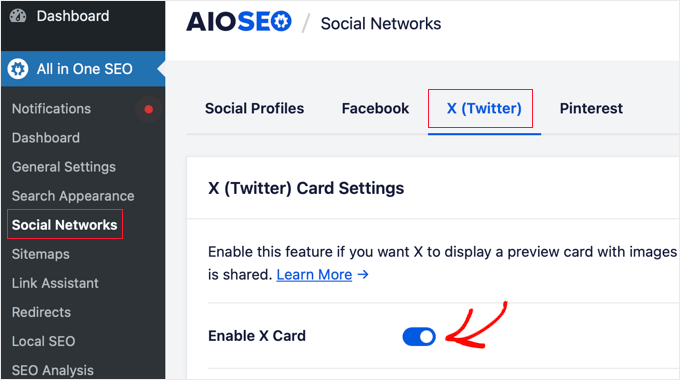
Once you enable Twitter Cards, you can change their appearance using different settings.
AIOSEO lets you select the Default Card Type for your content. The plugin will set ‘Summary’ as the default card type, which shows the title, summary, and thumbnail image for your content.
However, you can change it to ‘Summary with Large Image’ from the drop-down menu, and Twitter will show your tweet with a large image.
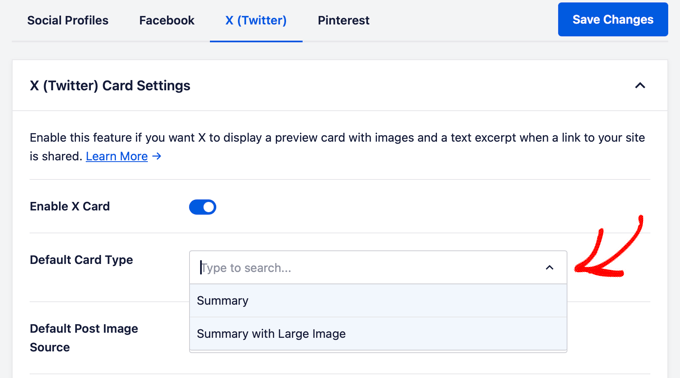
After that, you need to select the Default Post Image Source. It is the image you want to display on your Twitter Cards.
There are different options to choose from using the drop-down menu. For instance, you can upload or select a default image that will appear in the X (Twitter) Card or select the featured image, attached image, the first image in the content, and more.
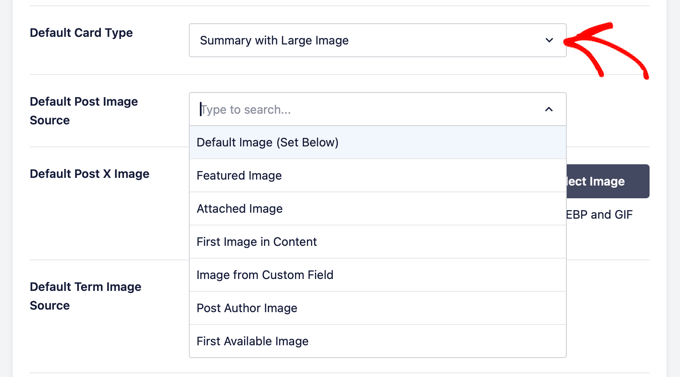
Next, add a Default Post X Image, which will be used as a backup in case your content doesn’t have an image.
For instance, if your post image source is a featured image, but the post is missing a featured image, then X will use the default image instead.
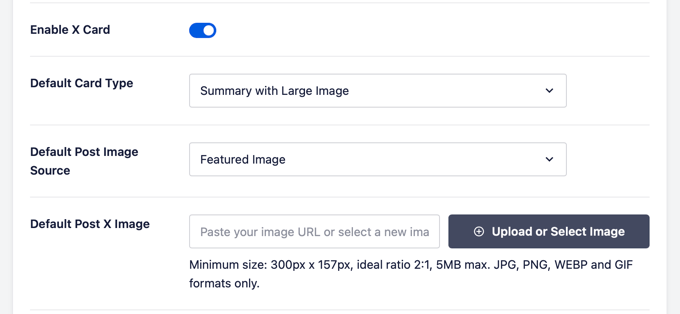
Aside from that, AIOSEO offers more options to show additional data like post author and the time it would take to read an article.
There is also an option to set the Default Term Image Source, but you will need AIOSEO Pro or a higher license to use this feature.
Now, if you scroll down, you will see the home page settings for Twitter. The plugin will show a preview of how your home page will look on a Twitter Card.

Under this section, you can change the Card Type and add a Home Page Image.
This is similar to the steps we showed earlier, but the difference is that these settings are for your home page.

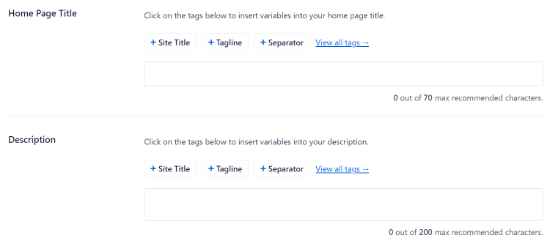
Next, enter a Home Page Title and Description that will appear on the Twitter Card.
Once that is done, click the ‘Save Changes’ button.
Aside from that, AIOSEO also lets you change the X (Twitter) Card settings for individual posts and pages.
To do that, edit any blog post or page and then scroll down to the AIOSEO Settings in the content editor. Now click on the ‘Social’ tab and select ‘X (Twitter)’.

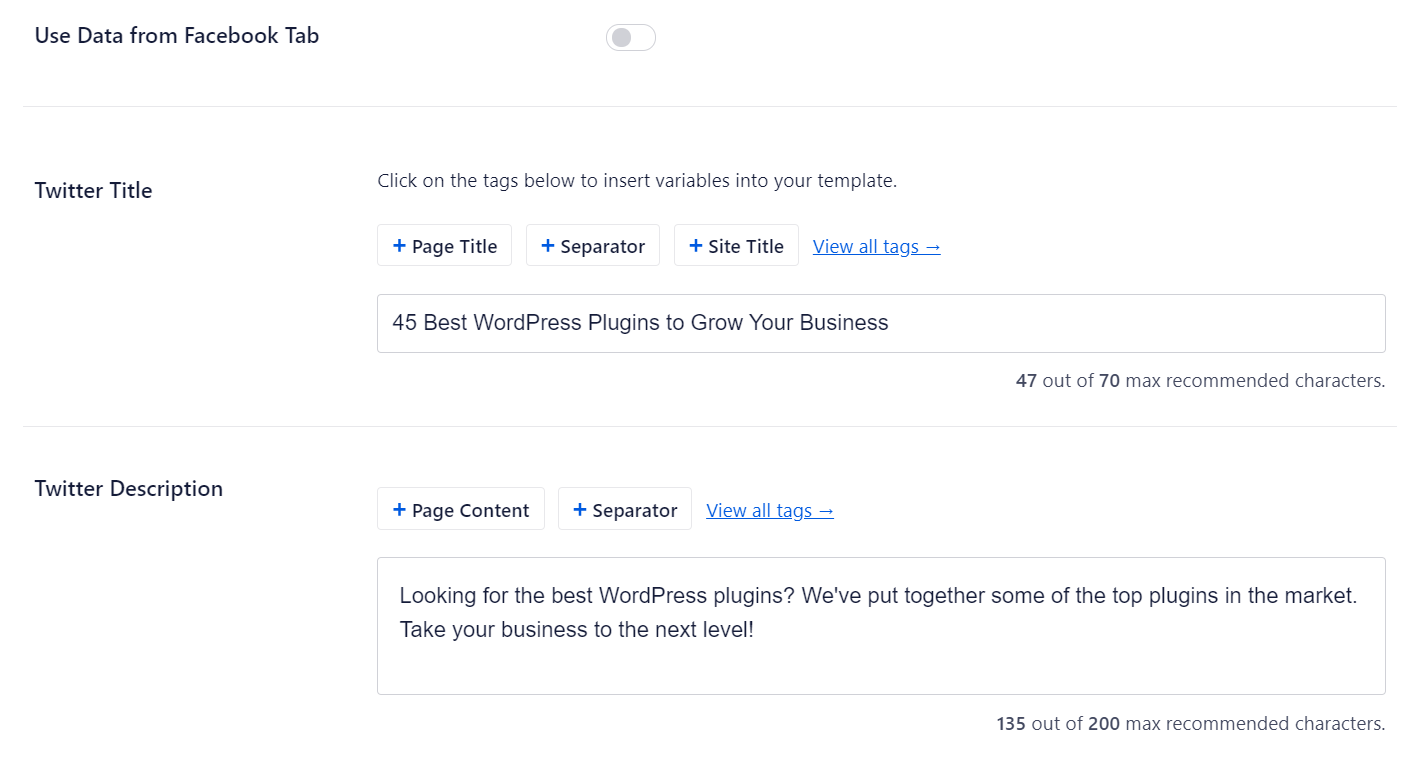
The plugin will show a preview of your post’s X Card and give you the option to use data from the Facebook tab. It also lets you edit the X title and description.
You can write a new title and description or use smart tags. For instance, if you use the ‘+ Post Title’ tag above the Twitter Title field, then AIOSEO will automatically use your post’s title in the Twitter Card.
After that, scroll down and select the Image Source for your Twitter Card. Use the drop-down menu to select the image you want to display for your post, like a featured image, attached image, first image in content, and so on.
Lastly, you can select the Twitter Card Type from the drop-down menu. By default, AIOSEO will set it to ‘Summary’, but you can change it to ‘Summary with Large Image.’

Next, update or publish your blog post. You have now successfully added Twitter Cards to your WordPress website.
Method 2: Adding Twitter Cards in WordPress (Code Method)
This method requires adding code to your WordPress theme files. We do not recommend editing files directly because the smallest mistake can break your site.
Instead, the safest way to add code is by using the WPCode free plugin. Please follow our guide on how to easily add custom code in WordPress for setup instructions.
Once WPCode is active, add the following custom PHP snippet:
<?php
#twitter cards hack
if(is_single() || is_page()) {
  $twitter_url    = get_permalink();
  $twitter_title  = get_the_title();
  $twitter_desc   = get_the_excerpt();
  $twitter_thumbs = wp_get_attachment_image_src( get_post_thumbnail_id($post->ID), 'full' );
  $twitter_thumb  = $twitter_thumbs[0];
  if(!$twitter_thumb) {
    $twitter_thumb = 'http://www.example.com/default-image.png';
  }
  $twitter_name   = str_replace('@', '', get_the_author_meta('twitter'));
?>
<meta name="twitter:card" content="summary_large_image" />
<meta name="twitter:url" content="<?php echo $twitter_url; ?>" />
<meta name="twitter:title" content="<?php echo $twitter_title; ?>" />
<meta name="twitter:description" content="<?php echo $twitter_desc; ?>" />
<meta name="twitter:image" content="<?php echo $twitter_thumb; ?>" />
<meta name="twitter:site" content="@YourSiteHandle" />
<?php
  if($twitter_name) {
?>
<meta name="twitter:creator" content="@<?php echo $twitter_name; ?>" />
<?php
  }
}
?>
You will need to replace @YourSiteHandle with your actual X (Twitter) username. Also, make sure to replace the URL in the $twitter_thumb line with a link to your own default fallback image.
We have set the card type to summary_large_image by default, as this performs better, but you can change line 14 to summary if you prefer smaller images.
If you don’t know how to work with PHP or are running into issues with Method 2, then please use Method 1.
Test and Validate Your Twitter Cards
Before links from your WordPress site start showing Twitter Cards, you need to first check it in the Twitter card validator.
Simply head over to the Card Validator page on the Twitter developers’ website. Enter the URL of any post from your WordPress site and click on the ‘Preview card’ button.
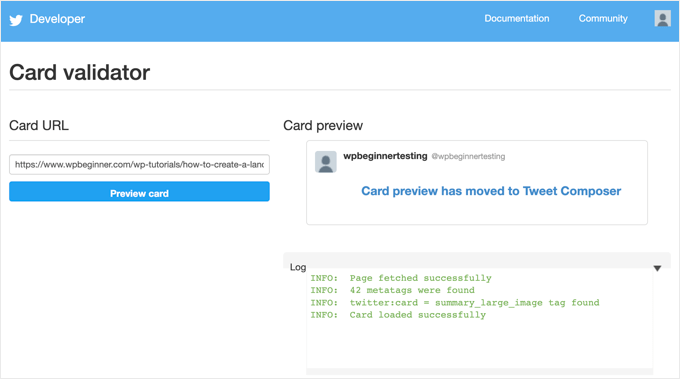
The card validator no longer displays a visual preview of the tweet. However, it is still very useful for clearing the cache.
If you update a post’s image or description but X is still showing the old version, entering the URL into the Validator tells X to fetch the newest data immediately.
Frequently Asked Questions
We’ve covered the basics of adding Twitter Cards to your WordPress site, but you might still have some questions. Below are the most common questions we get about Twitter Cards and their implementation.
1. Do Twitter Cards work automatically once I add them to my WordPress site?
Twitter Cards should work automatically once you’ve properly implemented the meta tags. However, X (Twitter) might have cached your old information. If cards aren’t showing up right away, run your URL through the Card Validator to clear the cache.
2. What’s the difference between Summary and Summary with Large Image Twitter Cards?
The main difference is the image size and layout. Summary cards display a small thumbnail image on the left side of the tweet, while Summary with Large Image cards show a large, prominent image above the text. Large image cards tend to get more engagement but take up more space in the timeline.
3. Can I use different Twitter Card types for different pages on my site?
Yes, you can absolutely use different Twitter Card types for different pages. Most SEO plugins like All in One SEO (AIOSEO) allow you to set specific Twitter Card settings for individual posts and pages. This gives you flexibility to choose the best card type for each piece of content.
4. Why aren’t my Twitter Cards showing up when I share my content?
There are several reasons why Twitter Cards might not appear: the meta tags aren’t properly implemented, Twitter hasn’t crawled your site yet, there are errors in your card markup, or your images don’t meet Twitter’s requirements. Use Twitter’s Card Validator to troubleshoot and identify any issues.
5. Do I need to approve my Twitter Cards with Twitter before using them?
No, Twitter no longer requires approval for Twitter Cards. As long as your cards are properly implemented and follow Twitter’s guidelines, they should display automatically when your content is shared.
6. What image sizes work best for Twitter Cards?
For Summary cards, use images that are at least 144×144 pixels (square format works well). For Summary with Large Image cards, use images that are at least 300×157 pixels with a 1.91:1 aspect ratio. The maximum file size for images is 5MB, and Twitter supports JPG, PNG, WebP, and GIF formats.
Additional Resources on Using Twitter With WordPress
We hope this article helped you add Twitter cards to WordPress. You may also want to see some other guides related to using X (Twitter) with WordPress.
- How to Automatically Tweet When You Publish a New Post in WordPress
- How to Add Twitter Share and Retweet Button in WordPress
- How to Embed Actual Tweets in WordPress Blog Posts
- How to Fix Broken Twitter Card Images in WordPress
- How to Display Author’s Twitter and Facebook on the Profile Page
- Best Twitter Plugins for WordPress (Compared)
- How to Display Recent Tweets in WordPress (Step by Step)
- How to Add Your Social Media Feeds to WordPress (Step by Step)
If you liked this article, then please subscribe to our YouTube Channel for WordPress video tutorials. You can also find us on Twitter and Facebook.




Aramide
You’ve been so awesome in passing great information on WordPress. Your tutorials are so great and are wonderful learning materials. Thanks for always being there for us.
WPBeginner Support
Goad you’ve found our content helpful
Admin
Dee
Hi! I have a free wordpress.com blog, and I’m not sure how to add twitter cards to that. I don’t know if I can edit the html of my theme without a plugin (if I can, I don’t know how to find the html code) (super new to WP) is there any way to add twitter cards for free
WPBeginner Support
You would need to reach out to WordPress.com for what they currently have available.
Admin
MStokely
Thank you! It took awhile for this to work I guess because cache needed to be cleared but this is the ONLY solution I found that worked.
WPBeginner Support
Glad our guide was able to help
Admin
Pierre
Question about this, when I am posting a link from my site on Twitter, the preview image is only showing the Wordpress W logo instead of what I set in Yoast. Is it just a matter of waiting it out or a, I doing something wrong?
WPBeginner Support
You may want to ensure you’ve cleared any caching on your site for twitter to get the correct image and after that, you would need to wait for Twitter’s cache to clear.
Admin
neo
thanks for the guide, adding Twiter Cards through Yoast was the easies way for me
WPBeginner Support
Glad our article could help
Admin
MIke
Hey there, very late to this article but am wondering how to amend the php code to produce the large image with summary card.
I’ve given it a shot but not managed it yet. Ideas and advice appreciated.
cheers
Mark Larson
I’m getting this error:
“Notice: Use of undefined constant full – assumed ‘full’ in”
Not sure how to get rid of it.
Ted Bergman
Thanks for this post. When I need to know how to do something on Wordpress I come here first. Your easy to understand instructions are priceless!
Sarah Bridge
I’ve done all the steps using Yoast and validated my url – but there is still no image coming up when I post my URL on Twitter? It said this:
Sarah Bridge
The card for your website will look a little something like this!
and underneath on the right hand side it has the correct words but on the left hand side where an image should be there’s nothing but a grey box with what looks like a grey scroll in it. You can click on it to get to my website but I’d like a image there rather than a grey box. Any thoughts?
Daniela
Have successfully done this in the past. However, it was always when using summary card with large image (which is set as the default in my Yoast settings). Now trying to post summary card (regular, not large image), but Yoast is overriding it to summary card large image. How do I prevent this?
As a note, I’m doing both methods: adding info to Yoast plug in and writing metadata tags in a plug in.
Chinny
This was very helpful! Thanks. Did it and the twitter cards automatically came up even for previous tweets.
Haris
ERROR: Required meta tag missing (twitter:text:description)
Getting this error
Nick Farrell
You can also just throw your meta tags right into the body of your post. Not the ideal way, since this creates empty white space where your tags are, but it’s a good workaround for those having trouble.
Laurel
If the php code above seems to break your site, it could be that your server doesn’t use php short tags (using “<?" as an opening tag instead of "<?php"). Try this version instead:
Prabs
Hi thanks for the informative post. However I did all this and when testing my site through the card validator, was told it was unable to generate image because my site isn’t whitelisted! Any idea what I can do?
Sarah
Hi,
I realise this is an old post,
IF you HARDCODE into your header.php; make sure you change the values line 10 and 19 as these point to the contributors account so be sure to change them to yours.
just sayin …
Jahmya
Hi,
I have done all the steps when I try to validate with twitter it tells me my text description meta tag is missing. I don’t know anything about code so I used the first method. Any help?
sonam
is it free ?
Tyler
Finally a helpful tutorial! You would think that Twitter would make it a little simpler to do this. Thank you so much for your help on this!
Michael
Is there a way to automatically notify the twitter validator when a post/page is updated?
I have a site that gets content published automatically from a source without a featured image so once I manually add the image I also have to manually validate the post/page again to get the cards to show on twitter.
Was hoping there could be some way to automatically ping the twitter validator when a page/post is updated.
Azita
I don’t know why the code above cut off.
Here is the code am using:
ID), full );
$twitter_thumb = $twitter_thumbs[0];
if(!$twitter_thumb) {
$twitter_thumb = ‘url of imag’;
}
$twitter_name = str_replace(‘@’, ”, get_the_author_meta(‘twitter’));
?>
<meta name="twitter:title" content="” />
<meta name="twitter:description" contente="” />
<meta name="twitter:image" content="” />
Azita
Thank you so much. I figured out. No worries. Please disregard this comment.
Thank yu again.
Adrian Robertson
Another awesome post … great stuff!
For anyone having issues with the image being display (I have Summary selected as my Twitter Card option) just make sure you are using a featured image, as this is where it pulls from.
Without this specified, what I saw was my site logo (which was way too big for the Summary image)
Nefeli D
Can’t thank you enough !
Cheo
Hi, i’ve made all steps and got the twitter card ok, but the preview image is not loading! what should i do?
WPBeginner Support
If you are using code method, then please try using the plugin method. If you are already using the plugin method, then try repeating all the steps carefully.
Admin
shamsher
i have a question that when where to upload it on all pages and post or on home page only.
bcoz when i share any link of my blog on twitter after adding this in header every time same image appears.
Adrian Robertson
Is it your site logo that appears?
Just check that you have a feature image set against your post, and it should pull from there
Roger Dunkelbarger
Found this article and followed the steps to set up Twitter Cards since we already had Yoast. We want to use the video Player Card but that doesn’t appear to be an option. Do we need to use a different plug in, or is that option available?
Amanda
I”m using twitter cards through my Yoast SEO, however when I post I have a link and a view summary button that people have to click to see my pictures. I want the pictures to be auto populated without the need for a click. How do I make that happen?
Here is my twitter account so you can see my tweets for an example
Graham
All going well with the inclusion of twitter cards. I would like to make the image that displays on twitter link able or to a link underneath to take it to a third part site any ideas?
Oh and by the way I would like to thank you guys for realizing that not everyone degree is in computer science and won at MIT !!
WPBeginner Support
The image can only be linked to the link you are sharing.
Admin
Tina Marie Ernspiker
Thank you very much! My blog is white-listed now, with Twitter Cards Whoot, whoot!
Jas
Hi,
Thanks for your tutorial. I have tried with above code. But can you please explain how to make Twitter card working for multiple accounts.
I have ten different twitter pages where same post will go out as Twitter card.
So do I need to repeat this below line 10 times with different names:
…..
…
….
….
Please suggest?
Thanks!
jas
code doesn’t shows in my previous comment I mean to say meta tag with Twitter site name need to get repeated with different names?
<meta name="twitter:creator" value="@” />
Edna
This was super helpful, thanks!
One quick thing, I noticed the validation link is no longer working. I think this is the Card Validator link now (got it from the twitter blog, seemed to work fine for me):
WPBeginner Support
Thanks, we have updated the article.
Admin
Maha
How to request to twitter for approvel my site ..please help me i tried twitter card ,the preview tool say your card is whitelisted ..
riad
hi i love your site very nice i want to asking you how to change the language of wordpress from franch to english or arabic
WPBeginner Support
You can change the language from Settings > General page in WordPress admin area.
Admin
Paul Middlebrooks
The Yoast solution did not work for me. I followed the instructions (3 times to make sure), and the Card Validator sees my metadata but tells me I have no card.
Also, neither the Preview Tool nor the “FIll out This Form” links worked:
https://dev.twitter.com/docs/cards/preview
Maybe this solution is already history?
samiOOTB
I had done this and Twitter cards were working perfectly for months. Suddenly the past few days they’ve stopped working. What can I do?
Megan Kubasch
So I have installed WP SEO by Yoast, and I have followed all of the instructions up to the point where I insert the Card URL on the Preview page for the Card Validator on Twitter. What URL am I supposed to Insert? I have used my URL for my blog, but it comes up with an error, saying No Card Found (Card Error). Any help you can provide would be greatly appreciated.
Paula
It will not do it for a main blog page. You have to enter a post page url. So something like http://www.blogname.com/title-of-blog-post not http://www.blogname.com Hope that helps!
Eric Yoffie
My twitter card has been approved, but I don’t know how to make it work. Am I supposed to fill out a form? I am a WordPress user.
Lauren Riley
This is really useful thank you.
One thing, we have enabled this using the WordPress Yoast SEO Plug-in and set up a Twitter card manually entering all of the information on the card validator for one blog post.
This worked, however when I tweet a link to my other blog posts it doesn’t pull through the Twitter card. Do you have to set up the Twitter cards for each blog post or should it do it automatically for each blog post?
Manuel Echeverry
graciass!!! thank you! finally I managed to submit my request to twitter, hopefully i will get my card approved
Ruth
Oh, and ps
Do we have to approve each post, or will that be automatic after our first post was approved… Again, thank you
Ruth
Thanks, it works great, except for one thing: I can’t get an image to be included. How would I do that,
Karan Singh
when i install this plugin then it is asking for “You’ve just installed WordPress SEO by Yoast. Please helps us improve it by allowing us to gather anonymous usage stats so we know which configurations, plugins and themes to test with” Allow Tracking or not, what should i do,
Allow tracking or not.
Sri Ganesh.M
The codings are not working for animhut blog. Showing error ! Invalid card type
Kevin
Hello there. Great guide, thanks!
I’m currently stuck trying to validate twitter:creator. When I look at the source for one of my posts, I don’t see the twitter:creator meta tag at all. Would you mind, pointing me in the right direction? I’m hard-coding it.
Gareth
Great post – i was struggling to set up twitter cards using a wordpress plug in without realising that Yoast had it in-built!
All set up and awaiting approval – thanks guys
Jason Acidre
Useful post! Been planning to add Twitter cards on my blog for ages now, and just had the time to tweak it earlier, found this guide very helpful, so thanks.
Reap3RGHS
Hello,
I having a simple problem. I going to add my twitter username to my profile settings. I just add Reap3R_GHS and turn it into http://reap3r_ghs. What can I do?
Editorial Staff
That’s weird. Did you post it in the support forum for Yoast to see?
Admin
Reap3RGHS
Isn’t in Yoast settings but in profile settings…
Julien Maury
Hi,
It’s great but because we call the excerpt outside the loop (header), people could get bad surprises for their description.
So here is a good snippet from uplifted.net that fixes the problem :
function get_excerpt_by_id($post_id){
$the_post = get_post($post_id); //Gets post ID
$the_excerpt = $the_post->post_content; //Gets post_content to be used as a basis for the excerpt
$excerpt_length = 35; //Sets excerpt length by word count
$the_excerpt = strip_tags(strip_shortcodes($the_excerpt)); //Strips tags and images
$words = explode(‘ ‘, $the_excerpt, $excerpt_length + 1);
if(count($words) > $excerpt_length) :
array_pop($words);
array_push($words, ‘…’);
$the_excerpt = implode(‘ ‘, $words);
endif;
$the_excerpt = ” . $the_excerpt . ”;
return $the_excerpt;
}
Then you might replace get_the_excerpt() with this :
get_excerpt_by_id($post_id)
Thanks.
Julien Maury
Sorry that wasn’t exactly that :
Call the function this way : get_excerpt_by_id($post->ID) otherwise you’ll get notice !
$post_id is undefined.
Plus get_the_excerpt() is deprecated.
You can also add an esc_attr() on $the_excerpt to avoid broken meta if the excerpt has quotes
Thanks !
Julien Maury
Finally made a plugin to solve this issue : http://wordpress.org/extend/plugins/jm-twitter-cards/
Main Uddin
There is no needs to use any code , simply use Wordpress SEO by Yoast as Syed Balkhi has said which is the best for Twitter card
Julien Maury
Hi,
There’s no need to use any code. But still my plugin allows you to choose which type of card you want to use on each post. Moreover you can change meta creator (guest blogging) per each post too. I think it’s worthy
Roy McKenzie
Totally Worthy!
Manuel Garcia
When I preview my twitter card, the error says:
“Internal Error. Most likely an fetcher error.”
What to do?
Sai Liou
Thank you for the article! I went with method #1. In the twitter preview, I’m only seeing the summary of the post and not the image. I’ve updated the robot.txt file to allow twitterbot. However, it’s still not showing any image in the preview. Any thoughts on this? Thank you in advance.
Editorial Staff
Look in your view:source to see if you have the image tags. The image is usually pulled from your featured image.
Admin