


When you look at the browser tab of your new blog, you might notice a tiny favicon showing the WordPress logo next to your site’s name.
Since this is the default setting for new WordPress websites, it’s a common sight, but it’s also a missed opportunity to reinforce your brand identity.
We’ve learned that many people put off adding a favicon because they think it requires design skills or coding knowledge.
The truth is, it’s much simpler than that, especially with modern WordPress features.
Today, we’ll guide you through the easiest ways to add your own favicon to your WordPress site. These methods are beginner-friendly and work across all major themes.
💡Quick Answer: How to Add a Favicon in WordPress
Here are the main methods for adding a favicon to your WordPress site:
- Method 1: WordPress Customizer – Best for beginners who want a fast, built-in solution without installing any plugins.
- Method 2: WordPress Full Site Editor – Ideal if your theme supports full site editing and you want more control over where the favicon appears.
- Method 3: WordPress Favicon Plugin – Great for users who want extra customization options or an easier way to manage favicons across multiple sites.
- Method 4: Manual Upload via Code – Best for advanced users comfortable with editing theme files or child themes, giving full control over placement and file handling.
Why Should You Add a Favicon to Your WordPress Blog?
A favicon helps visitors quickly recognize your WordPress website in browser tabs, bookmarks, and mobile devices.
It also makes your site look more professional and strengthens your brand identity. Here are some of the main benefits of adding a favicon to your WordPress blog:
- Improve Brand Recognition: Your favicon helps display your logo or brand icon across browser tabs, bookmarks, and search results.
- Make Your Site Easier to Find: Visitors can quickly identify your website when they have multiple tabs open.
- Create a More Professional Look: A custom favicon helps your website feel more polished and trustworthy.
- Improve Mobile Experience: When users save your website to their phone’s home screen, the favicon is often used as the app-style icon.
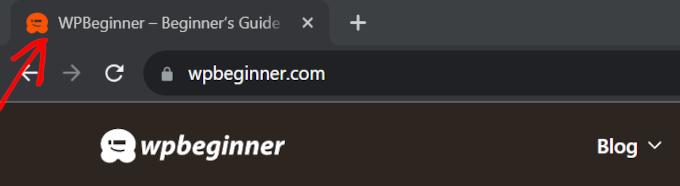
Here’s what a favicon looks like in a web browser:
How to Create a Favicon for Your WordPress Blog
First, let’s learn how to create a good favicon for your blog.
When creating your favicon, it’s crucial to consider the various sizes and formats required for different platforms and devices.
Here’s a comprehensive guide to favicon dimensions and preferred file types:
| Usage/Context | Recommended Size (Pixels) | Preferred Format(s) | Notes |
|---|---|---|---|
| WordPress Default (Site Icon) | 512×512 (minimum) | PNG, ICO, JPEG, GIF | Square image for all-purpose use by WordPress; will be scaled. |
| Browser Tab/URL Bar | 16×16 | ICO, PNG | The most common display size in browser tabs. |
| Bookmarks/Favorites | 32×32, 64×64 | ICO, PNG | For higher resolution display in bookmark menus and lists. |
| Desktop Shortcuts | 32×32, 64×64, 128×128 | ICO, PNG | For icons on desktop or file explorer. |
| Apple Touch Icon (iOS Home Screen) | 180×180 | PNG | For iPhone/iPad home screen shortcuts (no transparency). |
| Android Chrome Icon | 192×192 | PNG | For Android home screen shortcuts. |
| Windows Metro Tile | 70×70, 150×150, 310×310 | PNG, ICO | For Windows Start menu tiles (various sizes for different tile types). |
| General/Scalable | Vector (no fixed size) | SVG | Vector format for crisp display at any size (requires WordPress configuration for upload). |
SVG is also a common format for favicons, but they’re not accepted by WordPress by default. That said, you can configure WordPress to allow adding SVG files.
However, for the built-in WordPress Site Icon feature (used in the Customizer and Site Editor), you will still need to upload a 512×512 pixel raster image like PNG, JPEG, or GIF.
If you run a business blog, then you can use your brand logo as your favicon icon. If you don’t have one yet, you can check out our beginner’s guide on how to create a logo for your website.
If you have a logo ready but want to make the background transparent, then you can use Photoshop or a free image editing tool with an automatic background remover. Just make sure the file format is PNG to keep the favicon’s transparency.
Another option you can use is a popular free favicon generator like Favicon.io, trusted by millions of users. This tool lets you customize a favicon from scratch and download the files in PNG and ICO format.
With that in mind, here’s how to easily add a favicon to your WordPress blog. We will cover 4 methods, and you can click the links below to skip to the method you want to use:
- Method 1: Adding a Favicon Using the WordPress Customizer
- Method 2: Adding a Favicon Using the WordPress Site Editor
- Method 3: Adding a Favicon Using a WordPress Favicon Plugin
- Method 4: Adding a Favicon Manually to Your WordPress Blog
- Why Is My WordPress Favicon Not Showing?
- Frequently Asked Questions About Adding Favicons
Ready? Let’s get started.
Method 1: Adding a Favicon Using the WordPress Customizer
This is the easiest method to change a favicon in WordPress, and it is recommended for users with Classic Themes. All you need to do is upload your image, and WordPress handles the rest.
First, navigate to Appearance » Customize in your WordPress dashboard.
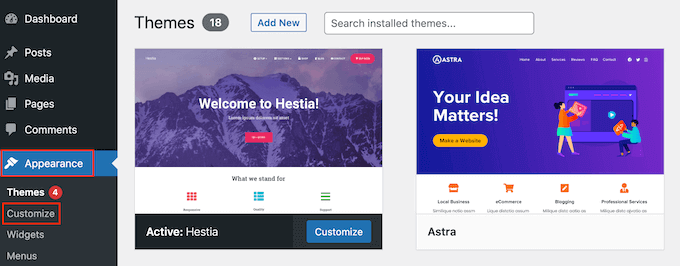
If you are using a modern block theme and cannot find the Customizer, you should skip to Method 2 below or see our guide on how to fix the missing Theme Customizer in WordPress admin.
Next, let’s click on the ‘Site Identity’ tab in the left sidebar.
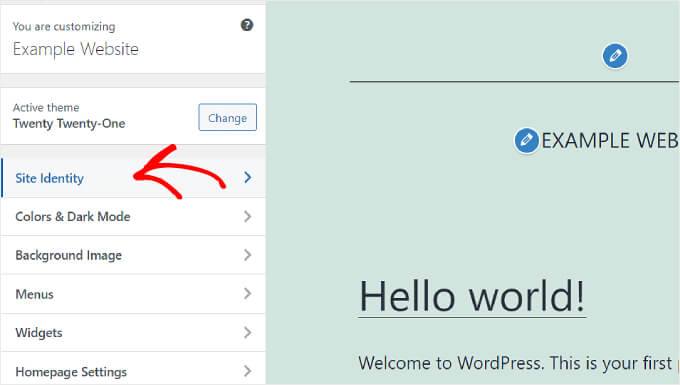
Here, you will see options to customize your ‘Site Logo,’ ‘Site Title,’ ‘Tagline,’ and ‘Site Icon.’
If you want to add a site’s favicon, you’ll need to scroll down to the ‘Site Icon’ section and click ‘Select site icon.’
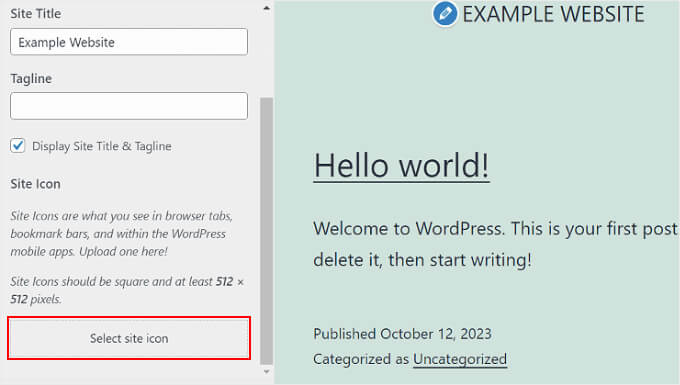
The WordPress Media Library will now appear. You can either select an existing image or upload a new custom favicon from your computer.
In this example, we will use WPBeginner’s logo as the WordPress site icon.
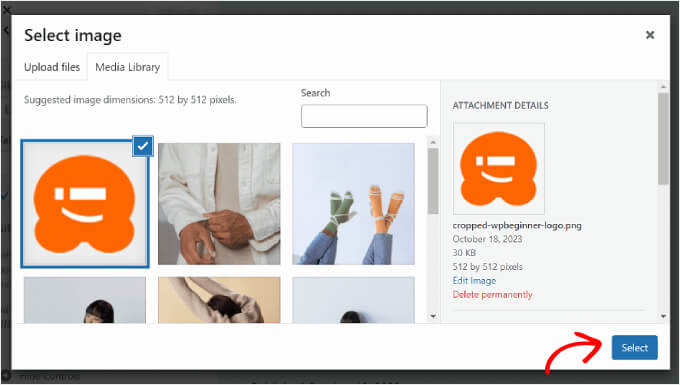
After choosing an image, click the ‘Select’ button in the bottom right corner of the window.
If the favicon is larger than the recommended size, WordPress will let you crop it. If it exactly matches the recommended size, then you can just leave it as it is.
Once the image looks good, just click ‘Crop image.’
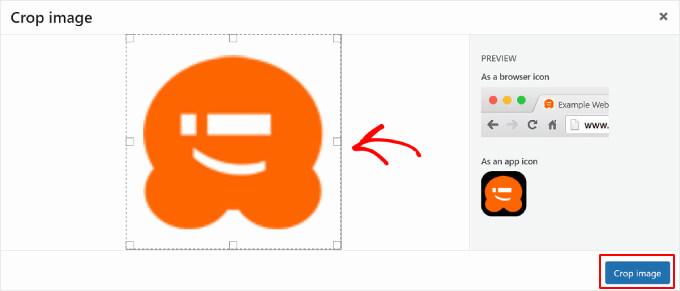
After that, you will be returned to the WordPress Customizer. Here, you can finish your favicon setup by clicking the ‘Publish’ button in the left sidebar.
That’s it! Now that you’ve uploaded your favicon, visit your WordPress website to see if it’s already live.
Method 2: Adding a Favicon Using the WordPress Site Editor
If you are using a block theme (like those common in WordPress 6.5+) and want to add your brand logo as both a part of your website header and a site icon, then this method is for you.
For this, you need to go to Appearance » Editor from the WordPress admin panel.
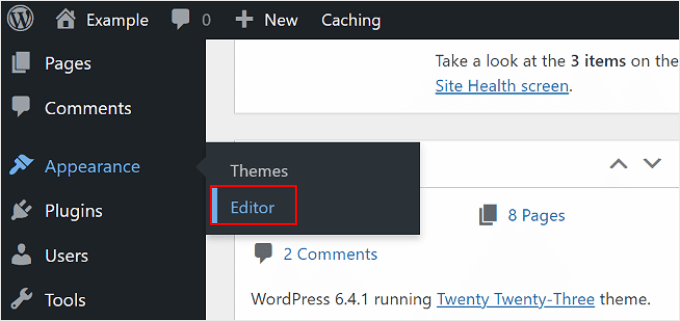
On this page, you will find several menus to customize your website, including ‘Navigation’ and ‘Styles.’
For this tutorial, you will need to click on ‘Patterns’ to access your website header block pattern.
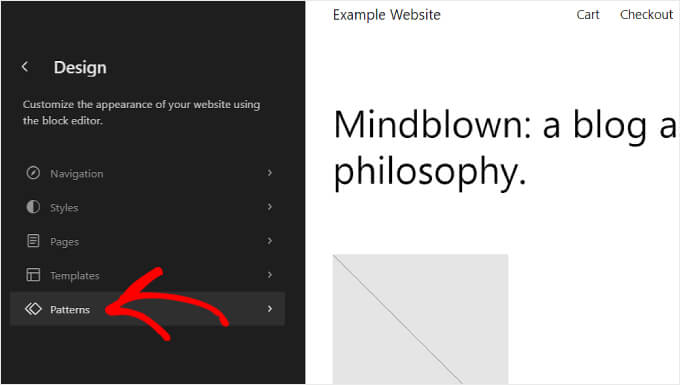
Upon scrolling down, you will see several template parts: ‘Header,’ ‘Footer,’ and ‘General.’
Just click on the ‘Header’ template to add your favicon there.
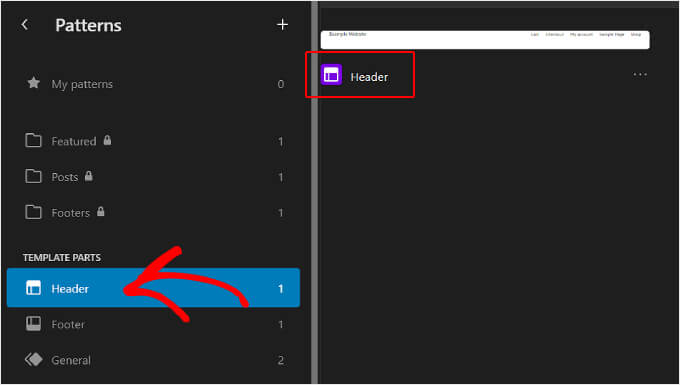
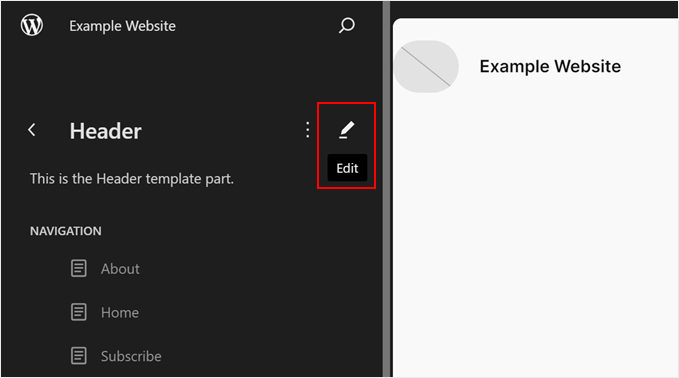
Next, simply click on the ‘Header’ entry to start editing the template part.
You are now inside the WordPress Site Editor.
From here, you can click the add block ‘+’ button and search for the ‘Site Logo’ block.
This is where you will add the image that will become your WordPress favicon.
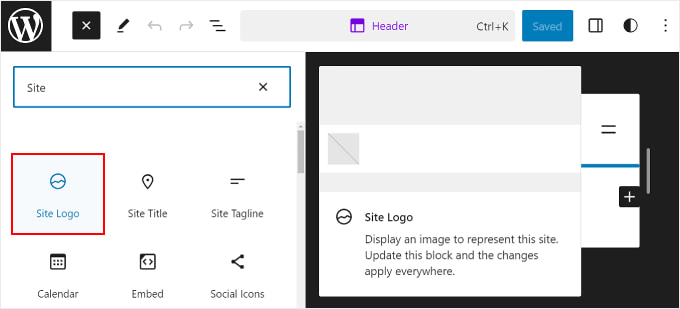
Feel free to drag and drop the block to where you want it in your header. In this example, we’ve placed it next to the website title.
The next thing you will do is click the upload icon in the ‘Site Logo’ block.
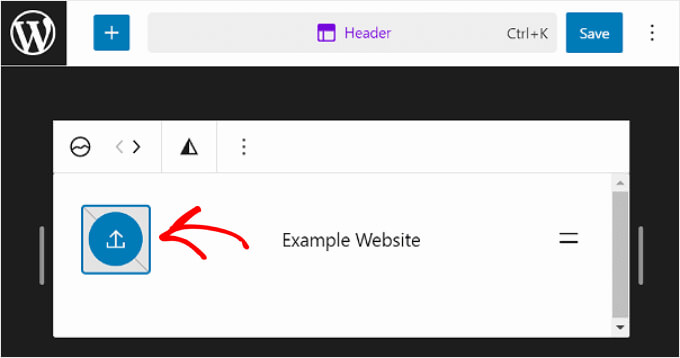
As with the previous method, you can choose an existing image or upload a new one from the WordPress Media Library.
After that, you need to navigate to the Block settings sidebar on the right side of the page. Just turn on the ‘Use as site icon’ setting to add the logo as a favicon.
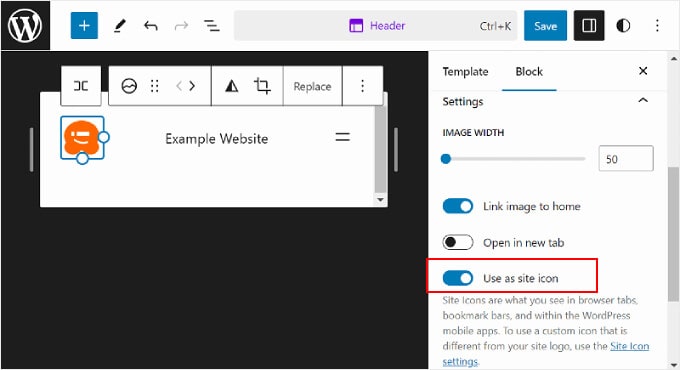
Finally, you can hit the ‘Save’ button at the top right corner of the page to publish your favicon.
You will see a warning that the change will affect the entire website. Just make sure the ‘Icon’ box is ticked, and click ‘Save’ again.
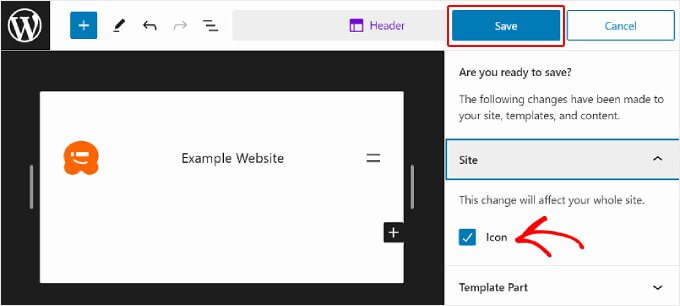
Now that you’ve gone through all the steps, you can open your website to confirm that the change was successful.
Method 3: Adding a Favicon Using a WordPress Favicon Plugin
If you prefer using a WordPress favicon plugin, then you can follow this method to use the free Favicon by RealFaviconGenerator plugin. It has over 200,000 active installations and a 4.9-star rating on WordPress.org.
First, you need to install and activate the plugin. For more details, you can follow our guide on how to install a WordPress plugin.
Once activated, you can head over to Appearance » Favicon in your WordPress dashboard.
After that, simply click the ‘Select from the Media Library’ button to upload a new image or use an existing one.
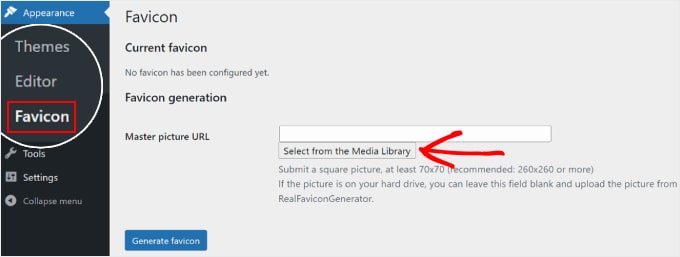
Note that you will need to use a square picture. The plugin recommends making the site icon size at least 260 pixels in both width and height, but no smaller than 70 pixels.
Once you’ve chosen an image, go ahead and hit the ‘Generate favicon’ button.
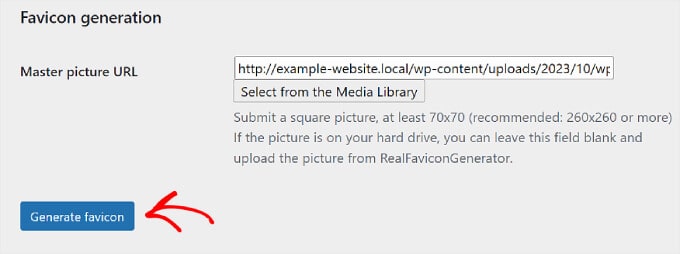
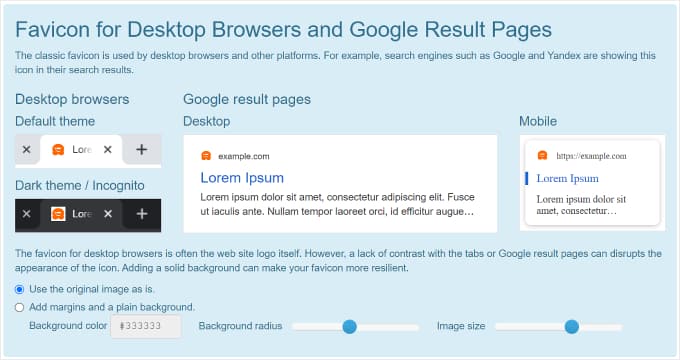
After this, the plugin will lead you to the RealFaviconGenerator website to edit the favicon.
You can customize various settings, like the background color and how it looks on Google search results pages (SERPs), iOS, Android, macOS Safari, Chrome, and Windows Metro.
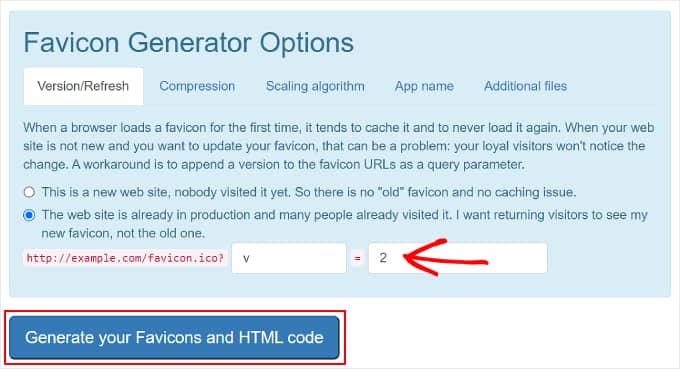
In the ‘Favicon Generator Options’ section, you can check the box to see if your website has been using a favicon before. If yes, enter the version number of your existing favicon in the second field.
This helps ensure that users who have visited your site before will see the new favicon instead of the old one due to proper cache busting.
Once everything looks good, all you need to do is click the ‘Generate your Favicons and HTML code’ button to add the favicon to your WordPress site.
Your favicon should now be live. Make sure to keep the WordPress favicon plugin active so that the favicon is always enabled.
Method 4: Adding a Favicon Manually to Your WordPress Blog
Important: Before proceeding with any manual file or code modifications, always create a complete backup of your WordPress website. This ensures you can easily restore your site if any issues arise.
Last but not least, you can add a WordPress favicon to your blog by manually editing your theme’s code files.
This is helpful if your Theme Customizer doesn’t have the ‘Site Identity’ section or you use a block theme and want a different favicon image from your site logo.
The easiest and safest way to edit your theme’s code files is with the WPCode plugin.
It is the best code snippets plugin for beginners. We’ve used it ourselves and found that it allows you to insert custom code safely, without breaking your website.
Plus, it is trusted by over 3 million websites. For details, see our complete WPCode review, where we did a deep dive into its features.
Another great thing about WPCode is that if you update your theme, then you won’t lose your code modifications, including your favicon.
Note: For this guide, you can use the free version of WPCode. However, with the Pro subscription, you get access to features like smart conditional logic and third-party integrations to manage your code more efficiently.
To start, you need to install and activate WPCode. For more information, you can see our step-by-step guide on how to install a WordPress plugin.
The next thing you need to do is prepare your favicon files. For this, you can use a free favicon generator like Favicon.io.
On the website, you can click ‘Image’ to convert an image file into a zip file and HTML code. Alternatively, you can use the ‘Emoji’ or ‘Text’ option to create a favicon using the emojis and fonts available.
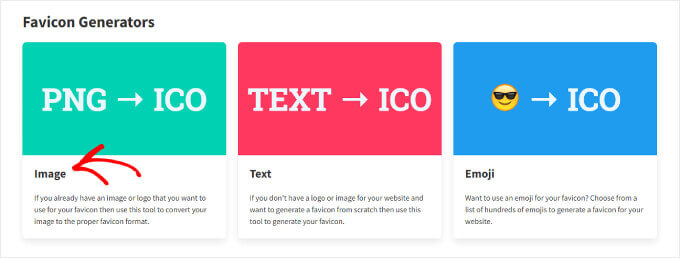
On the next page, you can upload your image.
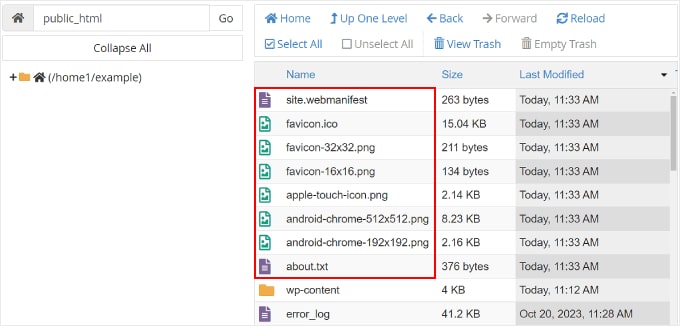
Then, go ahead and click ‘Download’ to save the favicon zip file, which contains your favicon.ico, several sized PNG files like favicon-16x16.png, favicon-32x32.png, apple-touch-icon.png, android-chrome-192x192.png, android-chrome-512x512.png, and a site.webmanifest file.
Make sure to keep this web page open as you go through the next steps.
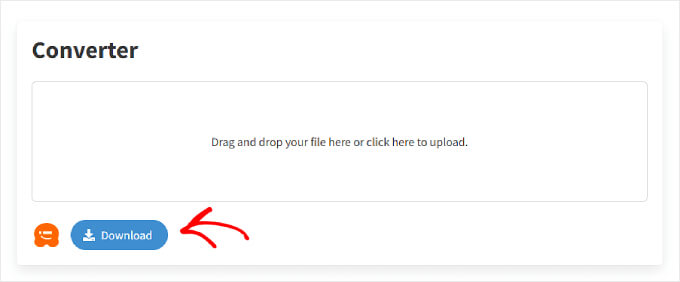
Now, you need to extract the favicon zip file on your computer first. Then, upload the extracted files, such as favicon.ico, favicon-16x16.png, favicon-32x32.png, and apple-touch-icon.png, to your site’s root directory.
Alternatively, you can do this through an FTP client like FileZilla. For more details, check out our beginner’s guide on how to use FTP to upload files to WordPress.
Once you have opened your website files via the file manager or FTP, navigate to the root directory.
The WordPress root directory is usually a folder named ‘public’ or ‘public_html,’ and it contains essential WordPress folders like wp-content and wp-admin.
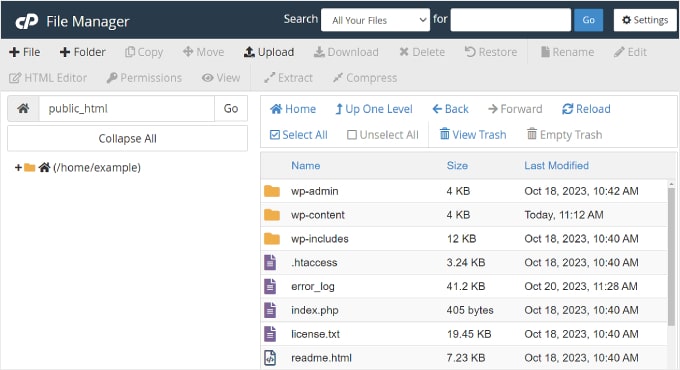
At this point, you can extract and upload all the favicon file content you previously downloaded to the root directory.
If you are using File Manager, then you can click the ‘Upload’ button near the top.

Then, a new tab will appear, asking you to upload the files.
On this page, you can click the ‘Select File’ button and choose all the favicon files.
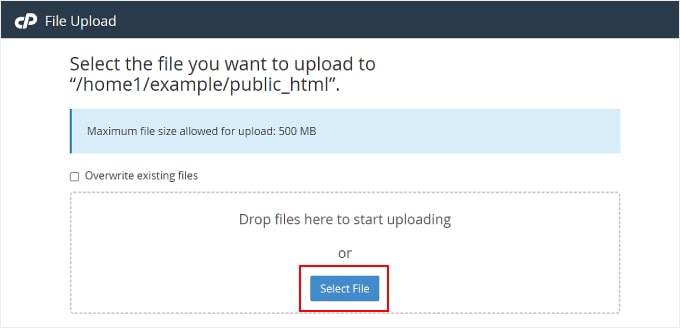
Now, simply wait for the files to be successfully uploaded.
Once done, you can go back to the file manager tab. You should now see all your favicon files in the root directory, like in the screenshot below:
Now, let’s go back to the WordPress admin panel.
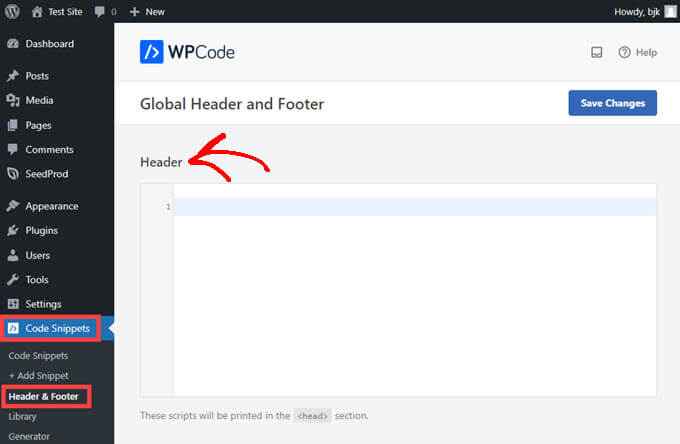
In the left sidebar, you’ll want to navigate to Code Snippets » Header & Footer.
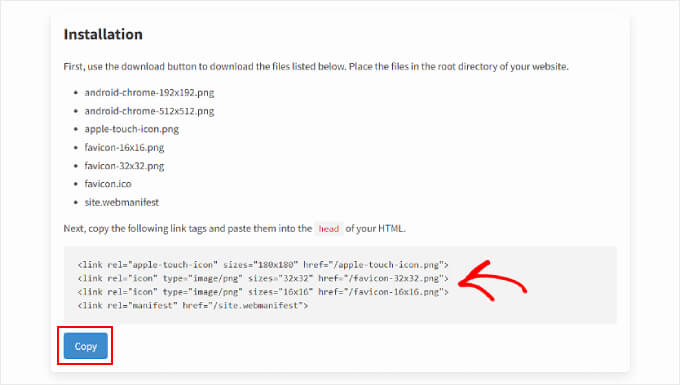
After that, return to the Favicon.io tab from earlier.
Then, you need to copy the HTML code from there. It should have 4 link rel tags in the code.
Next, you have to go back to WordPress and paste the code into the ‘Header’ section of the WPCode page.
This will inject the code into your site’s <head> section on every page via the wp_head hook, so no theme files are modified.
The HTML code from Favicon.io typically uses relative paths (e.g., href="/favicon-32x32.png"), which are correct when your favicon files are in the root directory. You generally do not need to modify these href attributes.
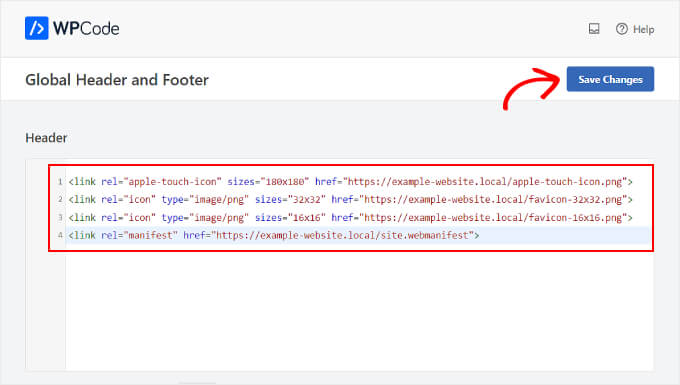
Finally, you can click the ‘Save Changes’ button in the top right corner.
And that’s it! Don’t forget to visit your website to see if the favicon change was successful.
Why Is My WordPress Favicon Not Showing?
If you’ve uploaded a favicon but it’s not appearing on your site, don’t worry—you’re not alone. This is a common issue often caused by simple favicon mistakes or caching.
It’s usually easy to fix. Here’s what to check:
- Clear your browser cache: Browsers often store old site data. Clearing your cache usually solves the problem. You can follow our guide on clearing the browser cache for step-by-step instructions.
- Purge your CDN cache: If you’re using a CDN, it might be serving the old favicon. Purging the CDN cache ensures your latest site icon is displayed.
- Check in incognito mode: Open your site in a private window to confirm the favicon is uploaded correctly.
- Re-upload with a different file name: If the installation didn’t work, renaming the favicon file and re-uploading can fix the issue.
- Fix mixed content errors: If your site has mixed HTTP and HTTPS content, the favicon might not appear. See our guide on fixing WordPress mixed content errors.
- Check hosting provider icons: Sometimes the hosting provider’s default favicon shows instead. Contact their support if this happens.
- Verify theme-specific favicon tools: Some themes have a dedicated option to upload a favicon. Make sure your theme settings don’t override the default WordPress site icon.
💡Pro Tip: Using a reliable WordPress hosting provider with strong support can save you time and frustration when troubleshooting issues like a missing favicon or other site display problems.
A good host can quickly identify server-side caching, mixed content errors, or other conflicts that might prevent changes from appearing, so you don’t have to figure it out on your own.
Check out our list of the best WordPress hosting providers to find a suitable option.
Frequently Asked Questions About Adding Favicons
Here are some questions that our readers have frequently asked about adding favicons on their WordPress sites:
Do favicons improve SEO?
Favicons don’t directly improve SEO rankings, but they improve user experience by making your site easily recognizable in browser tabs and bookmarks. This can indirectly support engagement and click-through rates.
Should favicons be 16×16 or 32×32?
Favicons are typically 16×16 pixels for browser tabs, but 32×32 or higher is recommended for higher-resolution displays and for use in bookmarks or shortcuts. Using multiple sizes ensures your favicon looks sharp everywhere.
How do I add an icon to a WordPress website?
You can add a site icon (favicon) via the WordPress Customizer, the Full Site Editor, a favicon plugin, or by manually uploading it to your theme files.
What are common favicon mistakes?
Common mistakes include using the wrong file size, not uploading a transparent PNG, ignoring high-resolution versions, and failing to clear the cache. This can prevent the favicon from appearing properly.
We hope that this article helped you add a favicon to your WordPress site. You may also want to see our expert picks of the best free logo makers to help you look like a pro and our guide on how to easily add icon fonts to your WordPress theme.
If you liked this article, then please subscribe to our YouTube Channel for WordPress video tutorials. You can also find us on Twitter and Facebook.




Suman Sourabh
I added a Favicon Using the 1st method via the “WordPress Customizer”. It was super easy indeed. But I think we shouldn’t use a plugin for doing these kinds of smaller tasks as having too many plugins can be a challenge to maintain. What do you think?
WPBeginner Support
It depends on the specific plugin and it’s use case. The below article explains our opinion on how many plugins a site should have
https://www.wpbeginner.com/opinion/how-many-wordpress-plugins-should-you-install-on-your-site/
Admin
Hajjalah
This article was so helpful for me because I was wondering why other websites logos are present in search results while mine wasn’t there. When I used “Method 1: Adding a Favicon Using the WordPress Customizer” Google was the only engine showing up, I also used “Method 3: Adding a Favicon Using a WordPress Favicon Plugin” and then Yandex search started showing up but, Bing search results failed to show my Favicon. I don’t know why?
WPBeginner Support
If you did a search recently after changing your Favicon, the most likely reason would be that the search engine had yet to recrawl your site.
Admin
mohadese esmaeeli
In my opinion, having a favicon can attract the audience’s attention and add a stylish and aesthetic touch to the website in the browser. Perhaps it can capture the viewer’s gaze and be a distinctive feature.
Jiří Vaněk
It’s exactly as you say. A favicon is really about personalization and capturing user attention. When you have multiple tabs open in your browser, you can easily identify a website by its favicon. It’s like a personal stamp for the website, making it easy to remember. Also, when you bookmark a website, it saves with its favicon, which greatly aids in navigating among many bookmarks, especially if they aren’t well organized. Considering how small a favicon is, it’s extremely important for a website in my opinion.
mohadese esmaeeli
Hello. The favicon section of my website is not working. Even when I provide the url in the theme settings, it doesn’t show. I also tried from the site ID part, but it gives an error of not processing the image. Can you please guide me on this?
WPBeginner Support
If you are using the built-in option for your theme then we would first recommend reaching out to your theme’s support as they may have a specific requirement for the favicon image using their tool.
Admin
Jiří Vaněk
The last time I uploaded a favicon to a website, I struggled for a really long time with the icon not showing up on the website. I cleared the browser cache and wordpress itself and it didn’t help. She didn’t show up on her own until a few hours later. If someone is having trouble with it, the cache can be in many places. CDN, on the network element at home, on the server. So sometimes it’s good to just wait a while and not stress right away. Otherwise, the Favicon is a small thing, but it is a great way to customize your own page.
WPBeginner Support
Having a favicon can help with your SEO as well as to help users remember your site but it is not required and the first favicon you set can be changed to a different one later on.
Admin
Peter Iriogbe
Now I see why site owners stick to using Favicon which looks the same as their site logo.
Peter Iriogbe
Is it a must to upload a favicon or does it influence ranking on search?
Jiří Vaněk
Favicon is not necessary and does not affect SEO and search in any way. It is the personalization of the page. A favicon is great in two ways. If someone adds your page to their favorites, they will immediately recognize it by the favicon and do not have to search for a long time. The second great thing is when you have multiple pages open in your browser. You can also recognize the given page immediately by the favicon. So I definitely recommend having it, even if it doesn’t really affect SEO and search itself.
mohadese esmaeeli
Exactly, I agree. I’ve experienced the same issue. Often, when searching, I open various websites, and after an hour, I realize I have many tabs open in the Chrome browser, right in front of my eyes! However, having a favicon helps me quickly locate my desired site among the numerous tabs.
Javi
second alternative worked, thanks
WPBeginner Support
Glad to hear it worked
Admin
Meer Hamza
Is it manadatory to upload favicon at wordpress website in ICO file format.
WPBeginner Support
No, it does not need to be an ico format.
Admin
Meer Hamza
1-Is it ok to just upload site Icon from theme>customize>site Icon. Will it show as favicon?
2-I upload site Icon on wordpress website. Is it necessary to show Favicon at URL website.com/favicon
WPBeginner Support
1. Yes it is fine to upload it from there
2. It is not necessary but it can be helpful for finding the favicon later.
Admin
Alex Perry
Thanks, after 2 hours of searching I finally found it. How to change the site icon…
WPBeginner Support
Glad our guide allowed you to add it instead of needing to search further
Admin
Ben
I think this needs an update. I tried this and there’s no “Site Identity” tab under Appearance > Customize
WPBeginner Support
Your specific theme may have a custom editor or if you are using the block editor you could add the site logo block, set an image, and in the block’s settings have that set as the site’s favicon.
Admin
FAIZ
what a great guide, really it’s very helpful
WPBeginner Support
Happy to hear our guide was helpful
Admin
Max Anderson
What does the WPBeginner favicon represent?
WPBeginner Support
Our blob is a simple design of a face smiling using an exclamation point and parenthesis
Admin
AL
Hi, what to do when Favicon is not showing on chromium-based browser and shows up in Firefox.
WPBeginner Support
You would normally want to clear your site’s cache as well as try setting the favicon again for a common reason.
Admin
John
I’m new to this so would appreciate some guidance with favicon. The website I’m trying to look after needs the favicon changing. Can I load a new image as a favicon that will overwrite the favicon currently on the pages or must i delete the current one then load a new image?
Thanks for any reply
WPBeginner Support
You would want to reach out to the support for your specific theme for if your theme has this option.
Admin
Ray
I was fine on the video until you said “click on site identity”… there is no such tab on my version. The first option is “Global” then Header, Breadcrumb, UberMenu{main], Blog, etc. No “Site Identity”…so obviously without being to get to that screen I’m not going anywhere. Is there another way in?
WPBeginner Support
If your theme has different settings and you are unable to find the favicon in the customization settings, you would want to reach out to the support for your specific theme to see if they have it located in a theme-specific area.
Admin
Krishna
Hii Wpbeginner!
I’m using Astra theme my website Favicon is working every one except Google search results. How can I fixed it?
WPBeginner Support
You would need to wait for Google at the moment.
Admin
Soul sultan
This is the awesome guide about how to add favicon on wodpress blog
WPBeginner Support
Thank you, glad you found our content helpful
Admin
Shomirul Islam Bonny
Thanks! It helped me!
WPBeginner Support
You’re welcome, glad it helped
Admin
Munendra Singh
all helpful post,, thanks
WPBeginner Support
Glad you found our post helpful
Admin
Raj
Great ! I always go through from your tutorials when ever i get stuck in any kind of issue. Thanks for it.
WPBeginner Support
Thanks, glad our articles could help
Admin
John Barson
Can’t Add a Favicon to Your WordPress Website? That was my problem. I did a fair bit of research where I finally found my issue. It was because the PHP GD Library was not enabled. Fortunately, I control my own server. I had upgraded the server PHP to v7.2 but I forgot to enable the PHP GD library. So…if you find when you try to add the site icon in the appearances section of your wordpress admin and the image you upload/select is not being accepted or you can’t use the crop image feature it is most likely because your webserver host has not enabled the GD Library.
WPBeginner Support
Thanks for sharing this information should someone else run into that issue
Admin
Cean Herzfield
Thank you so much! You saved me a lot of frustration because I’m working on Xampp and it was disabled by default. Now wouldn’t it have been nice if they had mentioned it in the article.
Pritam
Favicon of my website was visible before I changed DNS for Cloudflare. Now it is visible in the admin side but not on the website. How to solve this problem. you can check on my website
Michele A
This tutorial was wonderful! Thank you so much for the great work!
Jacques
My Favicon is updating in ADMIN side, but not on user side
Tracy
Were you able to figure out how to fix it?
RAJ
“When I go to the “Site Identity” tab, there is no place to upload a site icon. The only option I have is the “Site Title”. That’s ALL!
I am using WordPress 4.7.3.”
Bekzat Sadykov
I guess, the WP theme you are using doesn’t have favicon implemented. So, if it is not declared in theme functions.php file, it won’t appear in admin/editor side.
You can hardcode it to header.php or use third-part plugins.
jacob
scroll down a little you will see the place to upload your favicon
Eleanor
Hi, I recently updated my website from HTTP to HTTPS and when that happened, the site icon stopped working. Does this mean that somewhere along the line I’ve missed a step? I’ve tried changing the image and reuploading a new one and that hasn’t worked. If someone types in the website URL using http then the old favicon (and not site icon) shows up, but the minute it’s https, then it disappears. The site icon though is visible when I’m logged into the dashboard.
Matt Parker
Eleanor
I’m on HTTPS and I have the same issue, did you find a solution?
Favicon only shows when I’m logged in in admin mode!
Jimmy
When I go to the “Site Identity” tab, there is no place to upload a site icon. The only option I have is the “Site Title”. That’s ALL!
I am using WordPress 4.7.3.
Please help!
Ahmed Akeem
I guess, the WP theme you are using doesn’t have favicon implemented. So, if it is not declared in theme functions.php file, it won’t appear in admin/editor side.
You can hardcode it to header.php or use third-part plugins.
Abubakar Sahabi Rafi
It really helped, more grease to our elbow.
Tim
Can anyone tell me how this new “Site Icon” feature is supposed to work? I get to the point where the file is uploaded and I get a dialog box that offers to crop the image. The problem is 1) my image doesn’t need to be cropped and 2) there’s no “Save” button (or “Done” or anything similar), only a “Crop” button and the upper right corner X to close the dialog. If I click “Crop” I get an error (Error cropping this image, bla bla bla) and if I hit the X it closes. Either way, my image is not saved as a Site Icon (even though it is saved in the media library. After deleting the image, resizing it to exactly 512×512, I upload it again. This time, no crop dialog, just the “Select” image dialog. I click select, the image has a box around it and a check mark and nothing else happens. No Save, etc. When I close the dialog, there’s still “No image selected.” This happens in Chrome AND Firefox. I’m ready to throw WordPress away and hand code everything. I haven’t used WordPress in a couple of years and I’m frustrated with what seems like buggy, poor design and feature bloat.
Brian
code easy to interpret, it worked out. thanks…
Jason
Why does it need to be 512 pixels for an icon? I’m hoping it’s converted somewhere inside Wordpress, once and done, and not on every load. 512×512 is crazy for something that would very rarely be bigger than 32X32, unless I am missing something?
John Krawczyk
Article not useful. Everyone tells you to make a path to your favicon & that’s it.
However do you include http: www http do you specify .ico .png?
Nobody says anything in detail.
WPBeginner Support
Hi John,
Yes you need to include full URL like this:
https://www.wpbeginner.com/favicon.pngAdmin
Joe
Using WP4.7 and the Site Icon functionality works, but it just seems off to me. The result is 4 links in the section:
But it creates 10 different versions of the site icon image in addition to the original at sizes of 32×32, 100×100, 150×150, 180×180, 192×192, 250×250, 270×270, 300×300, 360×360, 500×310.
Why so many cropped images if only 4 linked to?
Also, I submit an icon image sized 512×512 as recommended, but the 500×310 version is always cropped so the top and bottom of the icon is cut off. Is there any way around this and/or is it a big deal?
What browser support does this WP Site Icon cover (mostly in respect to how far back in IE)?
Thanks!
Marieke
In Whatsapp, the image which appears left to a link address if you send a link: is that the same icon? Because I don’t see it there.
Sunil
Marieke, It’s featured image, you upload to a particular post.
Cos
The ICO Format plugin for Adobe Photoshop does not allow images more than 256 pixels high or wide. So how do you create one that’s 512px???
Marieke
It doesn’t need to be made an .ico. Just a plain .png or .lpg will do when you work in Wordpress.
Salim Ahmed
Informative instruction. Now i following your tips and tricks. Thanks for sharing it.
Taimoor Ahmed
Kindly tell me any website or a software from where I can make an effective favicon for my site in a quick time????
Kirstie
Thank you for another simple to follow tutorial. I’m a true beginner and y’all do a great job explaining things in a way I can understand.
WPBeginner Support
Thanks, glad you find our tutorials helpful.
Admin
Nelson
thanks good tut easy and works
c
the add logo in some themes isn’t for favicon its for the header logo
ccstacyline
how come my side identity menu doesn’t have the service for site icon? I am so frustrated… can you help ?
John Davis Frain
Are the instructions you give here theme-specific? I’m using the Delicacy theme, and it doesn’t give me that option to alter Site Identity and insert a Favicon.
WPBeginner Support
No it is not theme specific. Make sure you are using the latest version of your theme.
Admin
Mad Dog Malcs
Hi There, I also don’t see the site identity tab, I am using the sketch theme, how do I update a theme?
Thanks in advance, Malcs
shashi
i may go to theme custimztion..there u see the option of uploading the favicon icon easliy…
Antonios
You might not see the word “favicon” probably site icon. If you see a scrow bar you might have to scrow all the way down to see the select image box.
a
You can add favicon by WordPress’ “Costumize” editor, which can be found in every wordpress site.
Alan
I upload a PNG file that is exactly 512×512 pixels, WordPress saves it, and then I end up with a cropped image in my media library. Super annoying! WordPress 4.4.
Alan
I should add that the new, cropped image is exactly the same dimensions as the original I uploaded, but now I have two in my library (albeit one has been processed twice, and has actually increased two kilobytes in file size!).
Katherine Johnston
I have gone through the directory, exactly as you described, but my Site Identity tab only has “Site Title”, “Tagline”, and a checkbox for displaying header text. How can I fix that? Or do I have to go the FTP route?
Thanks for the help!
Rahul Thakur
thank you so much, very simple way love it.
Liz
Excellent instructions, took me about 32 seconds to do it. Fabulous! Thank you
Erin
Thanks! This was very helpful.
Marie Bock
Wow! That was so easy with the newer version of WordPress.