


Organizing your WordPress content is easy with categories and tags. But through years of building WordPress sites, we’ve learned that the default categories and tags aren’t always enough to create the perfect content structure.
That’s where custom taxonomies come in. With custom taxonomies, you can create your own ways to sort and group content.
We’ve used them to organize everything from recipe ingredients to real estate listings, and they provide incredible control and flexibility over how your posts, products, or any other content are categorized.
In this guide, we’ll walk you through how to create custom taxonomies in WordPress, whether you use a plugin or prefer to do it manually.
What is a WordPress Taxonomy?
A WordPress taxonomy is a way to organize groups of posts and custom post types.
By default, WordPress comes with 2 taxonomies called categories and tags. You can use them to organize your blog posts.
However, if you use a custom post type, then categories and tags may not look suitable for all content.
For instance, you can create a custom post type called ‘Books’ and sort it using a custom taxonomy called ‘Topics.’ Then, you can add topic terms like ‘Adventure,’ ‘Romance,’ ‘Horror,’ and other book topics you want.
This would allow you and your readers to easily sort and filter books by each topic.
Taxonomies can also be hierarchical, meaning that you can have main or parent topics like ‘Fiction’ and ‘Nonfiction.’ Then, you’d have subtopics, or children, under each category.
For example, the parent category ‘Fiction’ could have ‘Adventure,’ ‘Romance,’ and ‘Horror’ as children.
Now that you know what a custom taxonomy is, let’s learn how to create custom taxonomies in WordPress.
While creating custom taxonomies is powerful, there’s a lot to cover. To help you set this up properly, we have created an easy table of contents below:
Ready? Let’s get started!
Creating Custom Taxonomies With A Plugin (The Easy Way)
The first thing you need to do is install and activate the Custom Post Type UI plugin. For details, see our guide on how to install a WordPress plugin.
In this tutorial, we’ve already created a custom post type and called it ‘Books.’ So make sure you have a custom post type created before you begin creating your taxonomies.
Next, let’s head over to CPT UI » Add/Edit Taxonomies in the WordPress admin area to create your first taxonomy.
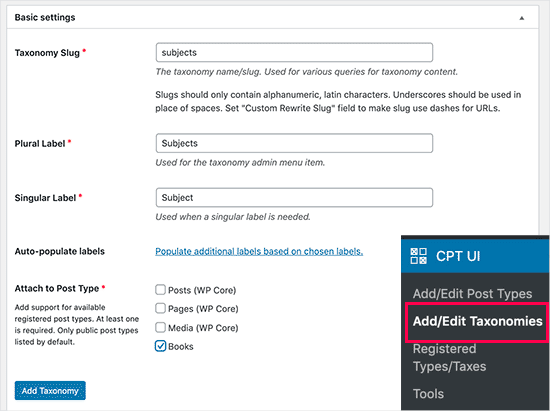
On this screen, you will need to do the following:
- Create your taxonomy slug (this will go in your URL)
- Create the plural label
- Create the singular label
- Auto-populate labels
Your first step is to create a slug for the taxonomy to use in the URL and in WordPress search queries. Do note that a slug can only contain letters and numbers, and it will automatically be converted to lowercase letters.
Next, you will fill in the plural and singular names for your custom taxonomy.
From there, you have the option to click on the link ‘Populate additional labels based on chosen labels.’ If you do this, then the plugin will auto-fill in the rest of the label fields for you.
Now, you can scroll down to the ‘Additional Labels’ section.
In this area, you can provide a description of your post type.
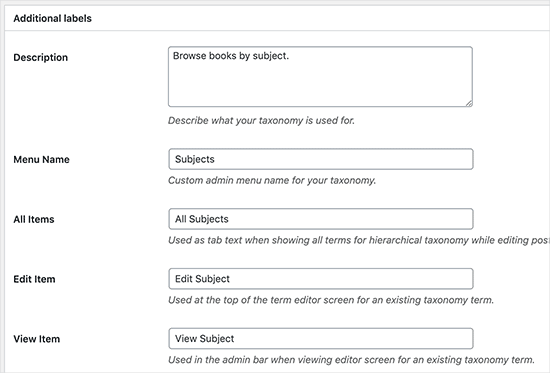
These labels are used in your WordPress dashboard when you edit and manage content for that particular custom taxonomy.
Next up, we have the settings option. In this area, you can set up different attributes for each taxonomy you create. Each option has a description detailing what it does.
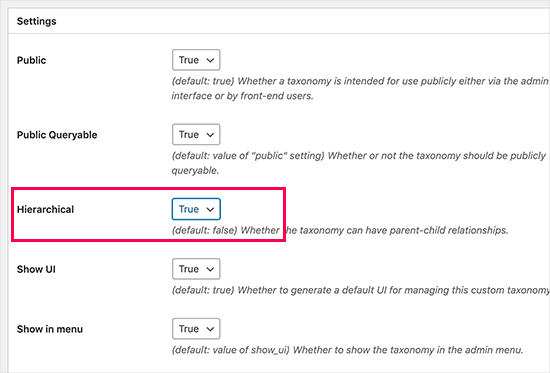
In the screenshot above, you’ll see we chose to make this taxonomy hierarchical.
This means our taxonomy ‘Subjects’ can have sub-topics. For instance, a subject called ‘Fiction’ can have sub-topics like ‘Fantasy,’ ‘Thriller,’ ‘Mystery,’ and more.
There are many other settings further down your screen in your WordPress dashboard, but you can leave them as-is for this tutorial.
You can now click on the ‘Add Taxonomy’ button at the bottom to save your custom taxonomy.
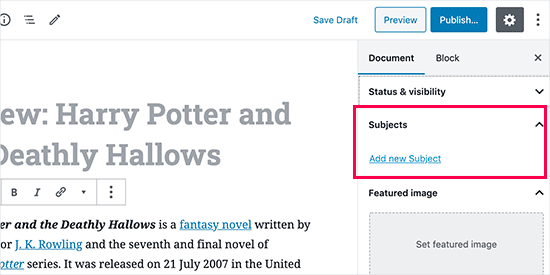
After that, you can edit the post type associated with this taxonomy in the WordPress content editor to start using it.
Creating Custom Taxonomies Manually (with Code)
This method requires you to add code to your WordPress website. If you have not done it before, then we recommend reading our guide on how to easily add code snippets in WordPress.
We don’t recommend directly editing your WordPress files because any tiny mistake can break your entire site. That’s why we recommend that everyone use WPCode, the easiest and safest code snippet plugin available.
To begin, you will need to install and activate the free WPCode plugin. For detailed instructions, see our step-by-step guide on how to install a WordPress plugin.
1. Creating a Hierarchical Taxonomy
Let’s start with a hierarchical taxonomy that works like categories and can have parent and child terms.
Once you’ve installed and activated WPCode, you can navigate to Code Snippets » + Add Snippet in your WordPress dashboard.
From here, you can hover your mouse over ‘Add Your Custom Code (New Snippet)’ and click the ‘+ Add Custom Snippet’ button.
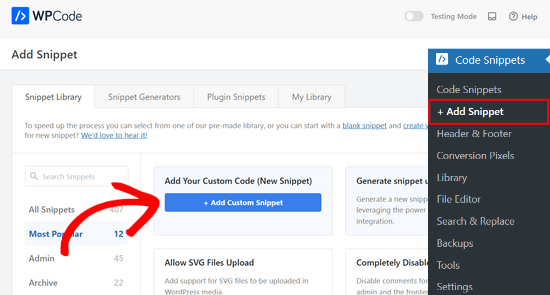
Then, you need to select a code type from the list of options that appear on the screen.
For this tutorial, choose ‘PHP Snippet.’
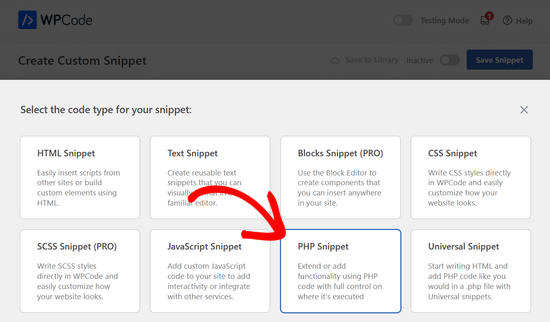
Next, you will be taken to the ‘Create Custom Snippet’ page.
Start by entering a name your new code snippet, which can be anything to help you remember what the code is for.
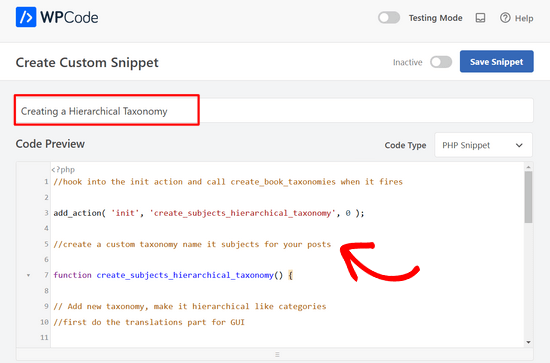
After that, simply paste the following code into the ‘Code Preview’ area:
//hook into the init action and call create_book_taxonomies when it fires

add_action( 'init', 'create_subjects_hierarchical_taxonomy', 0 );

//create a custom taxonomy name it subjects for your posts

function create_subjects_hierarchical_taxonomy() {

// Add new taxonomy, make it hierarchical like categories
//first do the translations part for GUI

  $labels = array(
    'name' => _x( 'Subjects', 'taxonomy general name' ),
    'singular_name' => _x( 'Subject', 'taxonomy singular name' ),
    'search_items' =>  __( 'Search Subjects' ),
    'all_items' => __( 'All Subjects' ),
    'parent_item' => __( 'Parent Subject' ),
    'parent_item_colon' => __( 'Parent Subject:' ),
    'edit_item' => __( 'Edit Subject' ),
    'update_item' => __( 'Update Subject' ),
    'add_new_item' => __( 'Add New Subject' ),
    'new_item_name' => __( 'New Subject Name' ),
    'menu_name' => __( 'Subjects' ),
  );

// Now register the taxonomy
  register_taxonomy('subjects',array('books'), array(
    'hierarchical' => true,
    'labels' => $labels,
    'show_ui' => true,
    'show_in_rest' => true,
    'show_admin_column' => true,
    'query_var' => true,
    'rewrite' => array( 'slug' => 'subject' ),
  ));

}
Don’t forget to replace the taxonomy name and labels in the snippet with your own taxonomy labels. You will also notice that this taxonomy is associated with the Books post type. You’ll need to change that to whatever post type you want to use it with.
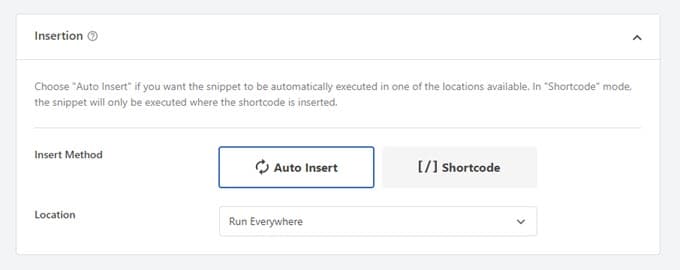
Next, you’ll want to scroll down and be sure that ‘Auto Insert’ and ‘Run Everywhere’ are selected in the Insertion box.
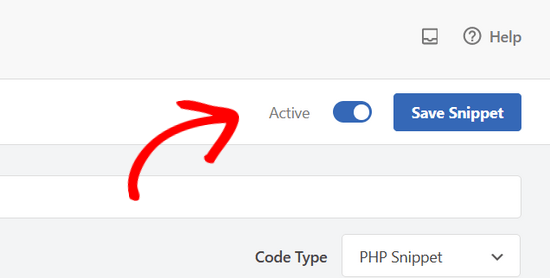
Now, you can scroll back up to the top of the page and toggle the switch from ‘Inactive’ to ‘Active.’
Lastly, go ahead and click the ‘Save Snippet’ button to push your changes live.
2. Creating a Non-hierarchical Taxonomy
To create a non-hierarchical custom taxonomy like tags, you will use WPCode and follow the exact same steps as above.
Only, you will use this code instead:
//hook into the init action and call create_topics_nonhierarchical_taxonomy when it fires

add_action( 'init', 'create_topics_nonhierarchical_taxonomy', 0 );

function create_topics_nonhierarchical_taxonomy() {

// Labels part for the GUI

  $labels = array(
    'name' => _x( 'Topics', 'taxonomy general name' ),
    'singular_name' => _x( 'Topic', 'taxonomy singular name' ),
    'search_items' =>  __( 'Search Topics' ),
    'popular_items' => __( 'Popular Topics' ),
    'all_items' => __( 'All Topics' ),
    'parent_item' => null,
    'parent_item_colon' => null,
    'edit_item' => __( 'Edit Topic' ),
    'update_item' => __( 'Update Topic' ),
    'add_new_item' => __( 'Add New Topic' ),
    'new_item_name' => __( 'New Topic Name' ),
    'separate_items_with_commas' => __( 'Separate topics with commas' ),
    'add_or_remove_items' => __( 'Add or remove topics' ),
    'choose_from_most_used' => __( 'Choose from the most used topics' ),
    'menu_name' => __( 'Topics' ),
  );

// Now register the non-hierarchical taxonomy like tag

  register_taxonomy('topics','books',array(
    'hierarchical' => false,
    'labels' => $labels,
    'show_ui' => true,
    'show_in_rest' => true,
    'show_admin_column' => true,
    'update_count_callback' => '_update_post_term_count',
    'query_var' => true,
    'rewrite' => array( 'slug' => 'topic' ),
  ));
}
Notice the difference between the 2 code snippets. Under the register_taxonomy() function, the value for the hierarchical argument is set to true for the category-like taxonomy and false for tags-like taxonomies.
Also, in the labels array for non-hierarchical taxonomies, we have added null for the parent_item and parent_item_colon arguments, which means that nothing will be shown in the UI to create a parent item or taxonomy that can have sub-topics.
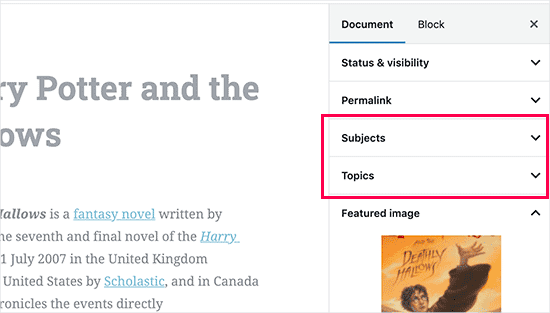
Again, be sure to edit the code to include your own custom taxonomy labels.
Displaying Custom Taxonomies
Now that we have created custom taxonomies and have added a few terms, your WordPress theme will still not display them.
To display them, you’ll need to add code to your WordPress theme or child theme. Specifically, this code must be added to template files where you want to display the terms.
You can manually add this snippet to your theme files, such as single.php, content.php, archive.php, or index.php. To figure out which file you need to edit, you can see our guide to WordPress template hierarchy for step-by-step instructions.
However, if not done correctly, this can break your site, so we once again recommend using the free WPCode plugin.
You will need to add the following code where you want to display the terms:
<?php the_terms( $post->ID, 'topics', 'Topics: ', ', ', ' ' ); ?>
Then, you can simply follow the steps above to paste the snippet into WPCode.
But under Insertion, you want to click the dropdown next to ‘Location’ and select where you want to display the taxonomy, such as before the post, after it, or even between paragraphs.
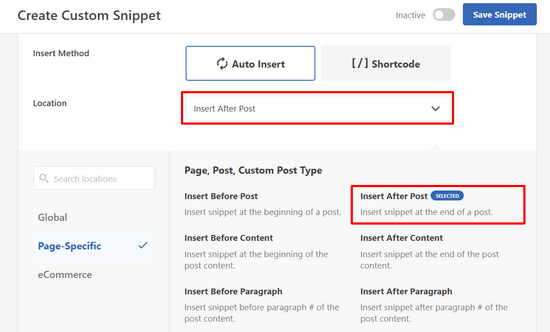
For this tutorial, we will select ‘Insert After Post.’
You can see in the image below how it will appear on your live site.

Adding Taxonomies For Custom Posts
Now that you know how to create custom taxonomies, let’s put them to use with an example.
We’re going to create a taxonomy and call it ‘Non-fiction.’ Since we have a custom post type named ‘Books,’ it’s similar to how you’d create a regular blog post.
In your WordPress dashboard, you can navigate to Books » Subjects to add a term or subject.
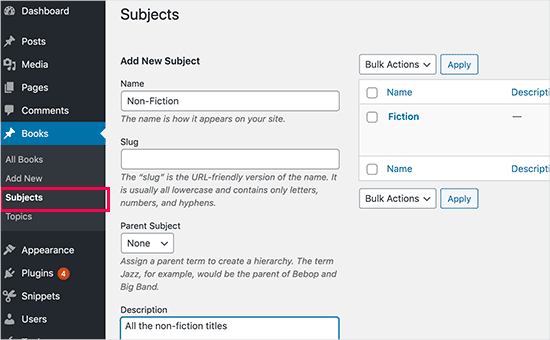
On this screen, you’ll see 4 areas:
- Name
- Slug
- Parent
- Description
In the name field, you’ll write out the term you want to add. You can skip the slug part and provide a description for this particular term.
Lastly, click the ‘Add New Subject’ button to create your new taxonomy.
Your newly added term should then appear in the right column.
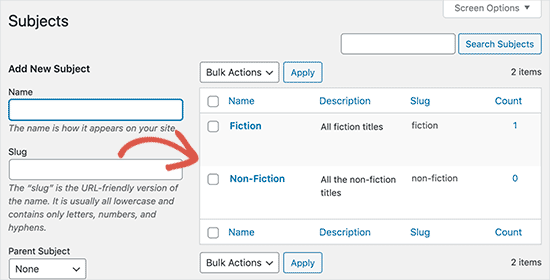
Now, you have a new term that you can use in your blog posts. You can also add terms directly while editing or writing content under that particular post type.
Simply go to Books » Add New to create a post.
In the post editor, you’ll find the option to select or create new terms from the right column.
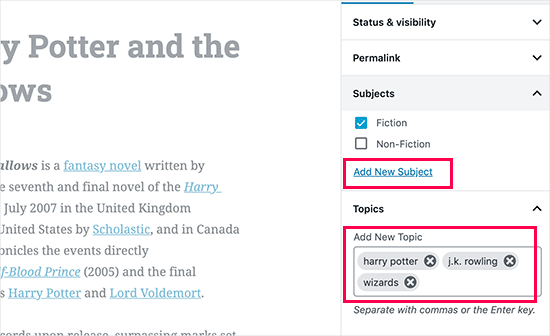
After adding terms, you can go ahead and publish that content.
All your posts filed under that term will be accessible on your website using their own URL. For instance, posts filed under the ‘Fiction’ subject would appear at the following URL:
https://example.com/subject/fiction/

Adding Custom Taxonomies to the Navigation Menu
Now that you have created custom taxonomies, you may want to display them in your website’s navigation menu.
You’ll want to head over to Appearance » Menus and select the terms you wish to add under your custom taxonomy tab that appears on the left side of the screen.
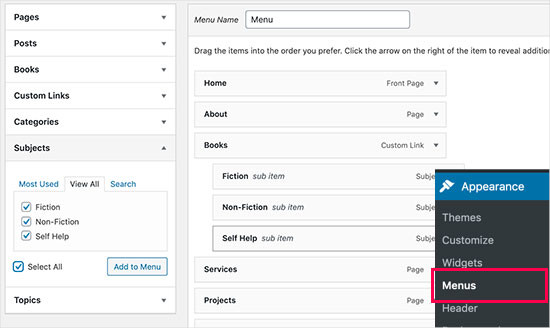
Don’t forget to click on the ‘Save Menu’ button to save your settings.
You can now visit your website to see your menu in action.

For more details, you can refer to our step-by-step guide on how to create a dropdown menu in WordPress.
Video Tutorial
If you prefer to watch and learn how to create custom taxonomies, check out our video tutorial:
Bonus: Take WordPress Taxonomies Further
Custom taxonomies allow you to do tons of things. For instance, you can show them in a sidebar widget or add image icons for each term.
You can also for custom taxonomies and allow users to subscribe to individual terms. That way, your readers will only receive updates about the specific content that matters to them.
If you want to customize the layout of your custom taxonomy pages, then you can check out SeedProd. It’s the best drag-and-drop WordPress page builder and theme builder that allows you to create custom layouts without any coding.
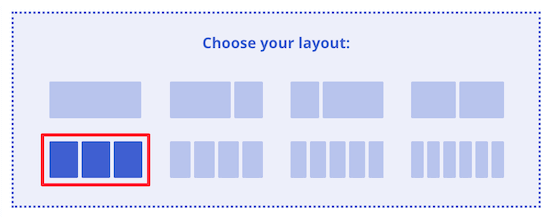
To learn more, you can check out our article on how to create a custom page in WordPress.
We hope this article helped you learn how to create custom taxonomies in WordPress. You may also want to see our guides on how to add taxonomy images (category icons) in WordPress and how to properly change, move, and delete WordPress categories.
If you liked this article, then please subscribe to our YouTube Channel for WordPress video tutorials. You can also find us on Twitter and Facebook.


Konstantin
Great plugin! You really help to solve my problem!!!
Jiří Vaněk
Thank you for the clear instructions. I would like to make my own taxonomy for tutorials on the site. This tutorial is great and clear, thanks.
WPBeginner Support
Glad it was helpful
Admin
Kira
Hello.
I don’t understand this part:
ID, ‘topics’, ‘Topics: ‘, ‘, ‘, ‘ ‘ ); ?>
I mean, should I paste exactly that part into my loop-single.php?
I’m using a taxonomy called “writer”
WPBeginner Support
It would depend on where you want to display the terms, normally it would be added to the single.php.
Admin
Wolfgang
Hi,
I used your article to create a CPT with a hierarchical and a non-hierarchical taxonomy attached to it. I created a few entries and it all seems to be working fine. Both taxonomies display fine in their respective archive pages. One thing I noticed though when I tried to add the taxonomies to the menu was that the non-hierarchical taxonomy was available in the “Add menu item” column but the hierarchical taxonomy was NOT.
Is that an expected behavior? If not what could be going wrong?
Thanks
WPBeginner Support
The most common issues you could check would be that you have published content in the taxonomy and you may want to test adding a different content type to test if it is an issue with the taxonomy or something else.
Admin
mb
what does this line do
‘menu_name’ => __( ‘Subjects’ ),
is this in order to add taxonomies to the menu
aditya
hii i try everything but i taxonomy not showing in product. please help me.
WPBeginner Support
You would want to check under your preferences to ensure it is not hidden for your user.
Admin
Gina Wilson
This tutorial and specifically the part of how to display the custom taxonomy was a lifesaver! I’m very much a beginner and this was very helpful in understanding where I went wrong in my coding.
Thank you!!!
WPBeginner Support
Glad our guide was helpful
Admin
fengquanli
this is very confident with the custom post ui, thanks very much ,it’s very useful for get them.
WPBeginner Support
Glad our guide was helpful
Admin
Bruno Oliveira
Awesome tutorial! i have one question. how do i use my new taxonomy slug as permalink like category (/%category%/%year%/%monthnum%/%day%/%postname%/)
I want something like /%custom_taxonomy%/%year%/%monthnum%/%day%/%postname%/
i keep getting 404 error
WPBeginner Support
That is not something WordPress would allow by default and would require some custom coding to set up.
Admin
vikas
i tried the plugin method , it sucessfully created a new category in custom post type but it is not showing on my posts like tags and other categoties. can you help me with that?
WPBeginner Support
You would want to reach out to the support for your specific theme for customizing the display to include your taxonomy.
Admin
Richard
I am creating a podcast network where I have multiple podcasts on a single site with episodes under each individual podcast. Would something like this work for that? I really don’t want to go the multi site route.
WPBeginner Support
You can certainly use this should you want or another option would be to create a custom post type depending on your preference.
Admin
Maria
Hello is possible add the custom taxonomies to a custom product type?
I create a custom product call drinks and i have several taxonomies like country, material and etc
I want when the user click in drinks then only apperas those taxonomies, is this posiible?
WPBeginner Support
You should be able to using the plugin method.
Admin
Parveen Kaushik
Hi,
Thanks for this article, I am getting 404 page after using this code, can you help me
WPBeginner Support
If you haven’t done so yet, resave your permalinks for the most common solution
Admin
Mike Smith
this code works great on my site for work. Can you tell me how to add the custom taxonomy into the site’s rss feed?
WPBeginner Support
It would depend on what you are looking for, for a starting point you would want to take a look at our article below:
https://www.wpbeginner.com/wp-tutorials/how-to-make-a-separate-rss-feed-for-each-custom-post-type-in-wordpress/
Admin
angela
thank you for taking the time to post this, this was the first site that actually explained this and it made sense, haha. im a happy camper now
WPBeginner Support
You’re welcome, glad our guide could help simplify the process
Admin
Jem
How to show custom taxonomy (checkbox list) in Post editor page like category and tag?
WPBeginner Support
It would depend on which method you used to create the custom taxonomy, if you’re using the plugin you would want to reach out to the plugin’s support to make sure they have show_in_rest set to true for seeing it in the block editor.
Admin
Jem
No, I am not using any plugin. I have just copy paste your snippet. Its create new taxonomy. But it is not display in post editor page like category, tags display on rightside panel.
Can you please guide me how can I show custom taxonomy in post editor page?
WPBeginner Support
In the register_taxonomy array, you would want to first try adding a new line with the code below:
‘show_in_rest’ => true,
Jim Gersetich
The first half of this post is completely useless. the Simple Taxonomy plugin doesn’t work with the current WordPress version, and it hasn’t been updated in four years.
Please try to find another plugin and change that section to go with the new one.
WPBeginner Support
Thank you for letting us know, we’ll certainly take a look at updating this article.
Admin
joe barrett
Don’t forget to add ‘show_in_rest’ => true,
if you want to use your custom items in rest api to $args
WPBeginner Support
Thanks for sharing this for those wanting to add this functionality.
Admin
Michael Morad-McCoy
I tried putting this in a site-specfic plug-in and get the following in a box at the top:
y() expects parameter 1 to be a valid callback, function ‘create_topics_hierarchical_taxonomy’ not found or invalid function name in /home2/kaibabpr/public_html/wp-includes/class-wp-hook.php on line 286
Warning: Cannot modify header information – headers already sent by (output started at /home2/kaibabpr/public_html/wp-includes/class-wp-hook.php:286) in /home2/kaibabpr/public_html/wp-admin/includes/misc.php on line 1198
as this is the first time I tried this, I’m at a loss.
WPBeginner Support
You may want to ensure your site-specific plugin is a php file after you added the code as sometimes your operating system can try to edit the file type.
Admin
Naji Boutros
Do you have a different plugin to recommend?
Ajeet singh
this is very helpful tutorial …..thnks a lot.
Suresh
Thanks for sharing this code. I used non-hierarchy code, and admin part is working fine. I have created a separate template as well like taxonomy-[taxoName]-.php But while trying to access the URL, giving HTTP error 500. I have tried multiple things, like new cache starts, permalink re-save, new .htaccess and memory increase. even then page is not working. kindly help
Rabby
WOW, Amazing and helpful details. I’ve created my custom taxonomy using manual rules. Thanks
Joseph Peter
Hi,
than you for this useful information, iam new to wordpress and i wanted to know the meaning thats i landed here, it was actually helpful.
Best Regards
Joseph Peter
Cindi Gay
I used the code for adding a tag to a custom post type. Luckily Topics is exactly the label I needed so all I needed to change was post to lesson (I am modifying the LifterLMS lesson post type).
Now I want to display the tags. I tried using the default Wordpress Tag Cloud but it does not change to the newly added tag. It continues to show all my post tags even when I choose Topics
Is there a step I am missing? How do I display the new tag: Topics?
Ero
Taxonomies don’t behave exactly like default posts’ categories. They don’t appear in the URL (especially for nested taxonomies). Is there any way to set a custom taxonomy associated to a custom post type to behave like posts’ categories ?
Rangan Roy
I have used this code in my gallery custom post type for category support. It shows the name of the category but when i click on the category name it shows 404:error not found. Please help me to solve it. I want the category posts to show on my archive.php page.
Utshab Roy
I got this same problem that you are facing. The way I solved it is very easy. Go to your permalink settings and click the save button. Refresh the page. This simple step will save the issue.
Carol
This worked! Thank you so much.
Russell
Hi, I created custom meta box with new category. I can also show it to the post page. But when I click to the newly created category item it gives a 404 page. I wan it to work like tags, default category or author. So that If I click it shows all the post under that category.
Olivier
Hello,
I am new to WordPress and coding in general. This tutorial is very well explained, thank you.
However I don’t understand how to display the terms of my taxonomy on my pages.
Where do I have to go to “Add this single line of code in your single.php file within the loop” ?
Thank you for your help
Best,
Olivier
Azamat
Thank you so much for this great tutorial!
I created custom taxanomy on my website dedicated to books and now I’m able to filter books by authors!
James Angel
The trouble with some plugins is that they may not be compatible with all themes. I have found that it pays to have a qualified developer do his/her part and test and troubleshoot any Web site alteration after adding a plugin or updating Wordpress to a newer version to ensure everything works as it should.
paul
Man you are a legend,
i struggled 3 days to get this, which i found in many websites, but not as clear as this.
Thanks!
WPBeginner Support
Hey Paul, glad you found it helpful. Don’t forget to follow us on Facebook for more WordPress tips and tutorials.
Admin
Rangan Roy
I have used this code in my gallery custom post type for category support. It shows the name of the category but when i click on the category name it shows 404.php page. Please help me to solve it. I want the category posts to show on my archive.php page.
Ayla
I’ve created a custom post type and a taxonomy to go with it, but when I create a custom post and add tags to it they don’t show up like normal tags do on normal posts. How do I get them to display at the bottom of the post like normal so people can click on them and find more like it?
Thank you!
-Ayla
WPBeginner Support
You will need to create a new template to display your custom post type and edit that template to show your custom taxonomy.
Admin
Giulia
Hi everybody! First of all thank you for this article!
I’ve found that “Simple Taxonomies” plugin is kind of out of date, since it hasn’t been updated since 2 years…. do you have any other plugin to suggest to create custom taxonomies?
thanks
Giulia
Mario
I’m not the author of this post, but I use “Custom Post Type UI” to create custom taxonomies. With 300k installs, I’m pretty sure this plugin is as close as you can get to industry standard.
Hope this helps!
Ryan Hall
Amazing. thank you!
Ryan
How do you disassociate the posts with the “regular” categories?
WPBeginner Support
Please see our guide on how to merge and bulk edit categories and tags in WordPress.
Admin
Sunny
Hello,
The description is not prominent by default; however, some themes may show it. But still show on front.
How to hide taxonomy description from front ?
I want to add description on taxonomy but i don’t want they show on front .
Please tell me about what i can do.
Thank You
ajax
How do one automate the population of the taxonomy value with the value in a custom field.
Charles Hall
The article is OK, but the video is very poor. The sound quality is bad, she talks way too fast, obvious things are elaborated on but the explanation of what you’re doing and why is missing, as is the other content in the lower portion of the article.
Jennifer
I am working on a WordPress website. I created categories using a plugin called “Categories Images”. One of the categories is named “Videos” so there is one folder/category that is supposed to show videos but images. The problem is, because the plugin is designed to upload images only, the YouTube videos do not show up. How can I edit the PHP files (create a custom taxonomy, edit single.php, edit taxonomy-{taxonomy-slug}.php, etc.) so that the post can show and play YouTube videos??
Jamie Wallace
If you want more control over how things are pulled from the backend to the frontend look into using the Advanced Custom Fields plugin. This is a plugin for developers (so some code is involved) but its very powerful for things like what you ask
Muhammad
Hi I have followed the manual way of creating custom taxonomy and i just used Ads/Ad instead of Topics/Topic . But i don’t see any custom taxonomy in post editor though i checked the custom taxonomy form Screen Options.
though the custom taxonomy(Ads) is showing in admin submenu under Posts.
Muhammad
Here is my code snipped in functions.php file
_x( ‘Ads’, ‘taxonomy general name’ ),
‘singular_name’ => _x( ‘Ad’, ‘taxonomy singular name’ ),
‘search_items’ => __( ‘Search Ads’ ),
‘all_items’ => __( ‘All Ads’ ),
‘parent_item’ => __( ‘Parent Ad’ ),
‘parent_item_colon’ => __( ‘Parent Ad:’ ),
‘edit_item’ => __( ‘Edit Ad’ ),
‘update_item’ => __( ‘Update Ad’ ),
‘add_new_item’ => __( ‘Add New Ad’ ),
‘new_item_name’ => __( ‘New Ad Name’ ),
‘menu_name’ => __( ‘Ads’ ),
);
// Now register the taxonomy
register_taxonomy(‘ads’,array(‘post’), array(
‘hierarchical’ => true,
‘labels’ => $labels,
‘show_ui’ => true,
‘show_admin_column’ => true,
‘query_var’ => true,
‘rewrite’ => array( ‘slug’ => ‘ad’ ),
));
}
?>
Robert Herold
How to show the number of posts on taxonomy-{taxonomy-slug}.php?
Robert Herold
How can I display my custom taxonomies list like the category list
WPBeginner Support
Please see our guide How to display custom taxonomy terms in WordPress sidebar widgets.
Admin
Robert Herold
Wow! Thanx! Superb!!!!!! :))
Abdul Rauf Bhatti
Hy Dear WPBEGINNER SUPPORT,
I have learned many things in this tutorial next time will you please elaborate functions parameter which you have used some time i got in trouble or confused with parameters.
Thanks a lot Nice tutorial 5 rating
WPBeginner Support
Thanks for the feedback, we will try to improve our code explanation in the future.
Admin
lee
Is there a way to get multiple custom taxonomy to use the same slug or same url? Please show us how if you or anyone knows.
pdepmcp
It may sound obvious, but…remember to refresh the permalink cache or you can waste some hours trying to figure out why archive pages don’t work…
Ilya
Thank you very much!!!
I wasted hours in debug mode, but cannot determine why my permalink redirects to 404 page! But after flushing “permalink cache” all works fine.
Thank you again!
winson
Hello.
How can I get a different Posts Link? I mean I want to get 2 different links after I published a New Post.
E.G:
Category Name – > Facebook (theme template A)
Topic Name – > Twitter (theme template B)
Then I submit a post to these 2 Categories. I want get 1 link for “Facebook” and 1 Link for “Twitter”.
Best Regards
foolish coder
how to create single pages / templates for taxonomies?
I mean like single.php not like category.php
Alex
Try taxonomy.php ()
WPBeginner Staff
Yes, you can do that.
fatima
what if we want to create more than 2 taxonomies, categories style (hierarchy true)