


Displaying featured posts in your WordPress sidebar is a great way to highlight important content, engage visitors, and increase page views.
For example, at WPBeginner, we display our latest posts, helpful guides, and coupon pages in our sidebar.
This motivates users to explore more of our content and helps improve our traffic.
In this article, we’ll show you how to easily display featured posts in the WordPress sidebar, step by step.
Expert Tip: If you are using a block theme, you’ll first need to create a sidebar on your website using the full site editor to be able to follow this tutorial. For step-by-step instructions, check out our guide on WordPress sidebar tricks to get maximum results.
Why Add Featured Posts in the WordPress Sidebar?
Sidebars are columns placed on the left or right of the content area on your WordPress website. Most website owners use this space by adding an email newsletter form, social media buttons, banner ads, or other kinds of content.
Another way you can use the sidebar is by displaying your top articles as featured posts. This helps you get more traffic to those articles and helps your users to be able to discover your best content without looking for it.
And if you monetize your website through affiliate marketing or sponsored content, featuring certain posts can drive more page views to those revenue-generating pages.
It’s best to feature high-converting posts in the sidebar that would help drive more newsletter signups or sales conversions.
Here is how we feature our top articles on WPBeginner. This sidebar widget appears on all posts on our website.
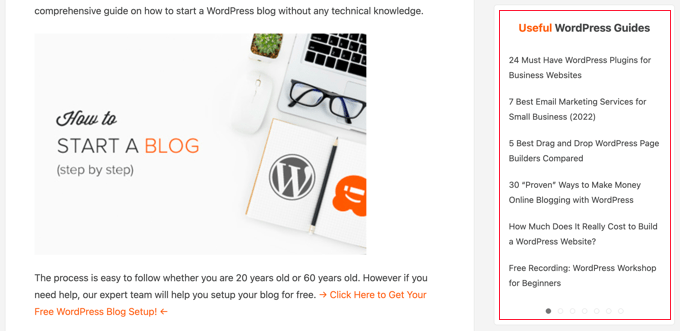
That being said, let’s take a look at how to add featured posts in the WordPress sidebar to boost your pageviews and user engagement. We’ll cover four methods, and you can use the list below to quickly navigate through the article.
Method 1. Featuring Posts in WordPress Sidebar Without a Plugin
This method is straightforward and does not require you to install any plugin on your website.
Simply go to Appearance » Widgets page and add a List widget to your WordPress sidebar using drag and drop.
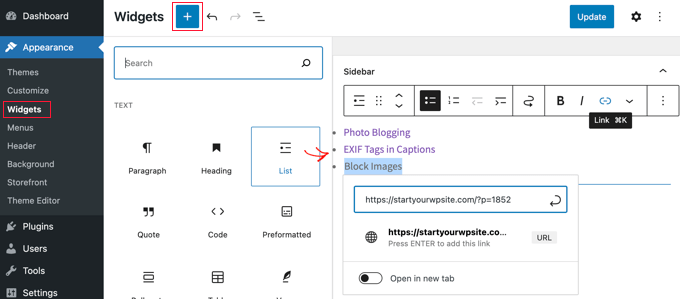
This widget has a visual editor at the top equipped with a few formatting buttons. You can simply add the titles of the posts you want to feature as a bulleted list.
To add your featured posts as list items, select the post title and then click on the link button to add a link to the blog post.
You can add a heading to the featured list by adding a Heading widget just above the list.
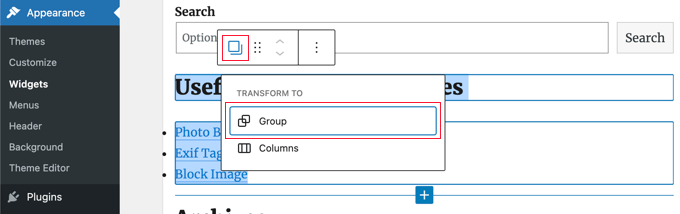
You can make the Heading and List widgets act as a single block by creating a group. Simply select both widgets and then click the Group icon. After that, you should select ‘Group’ from the dropdown menu.
Don’t forget to click on the ‘Update’ button to store your changes.
You can now visit your website to see your featured posts in action. This is how it looked on our demo site.
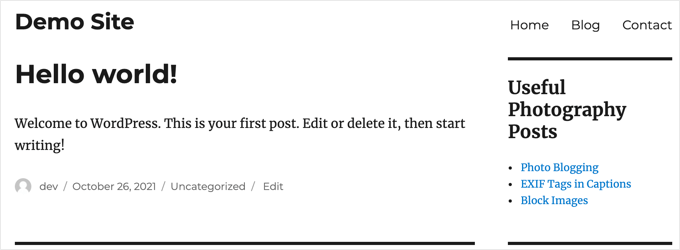
However, if you are using a block theme, then the above method won’t work for you.
In that case, visit the Appearance » Editor page from the WordPress dashboard. Once the full site editor opens up, choose the ‘Templates’ option from the left column.
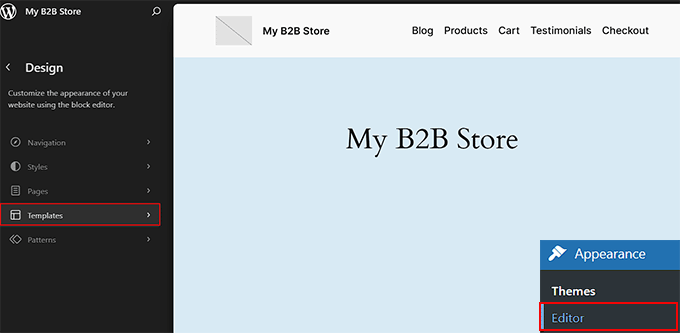
This will open a new page. Here, choose the template part where you have created and added your sidebar.
If you haven’t created one in the block theme yet, then see our tutorial on WordPress sidebar tricks to maximize results.
For instance, we have added the sidebar to the ‘Blog’ page and will be choosing that option.
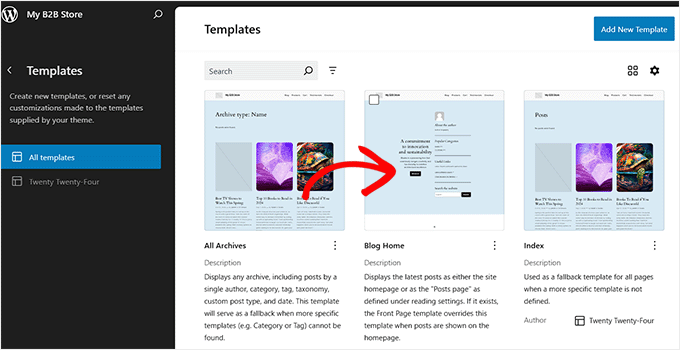
The template will now open up in the full site editor.
Go ahead and click the ‘Edit’ link in your sidebar’s toolbar at the top.
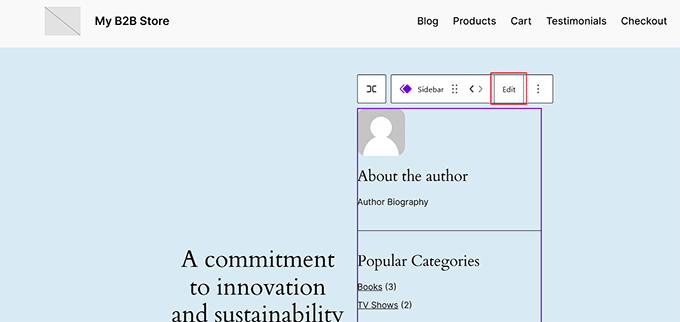
You can now add and customize blocks from the block menu in the left column. From here, add the ‘List’ block to the sidebar.
Then, add the post titles for your featured posts. You can also add a link to these posts by selecting the text and clicking on the ‘Add Link’ button in the block toolbar.
Additionally, you can add a heading for your featured posts using the block menu.
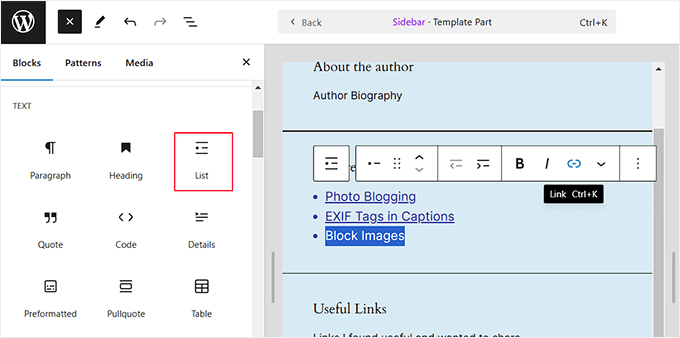
Once you are done, just click the ‘Save’ button to store your settings. For more detailed instructions, see our ultimate guide on full side editing.
Now, visit your WordPress site to view the featured posts list in the sidebar.
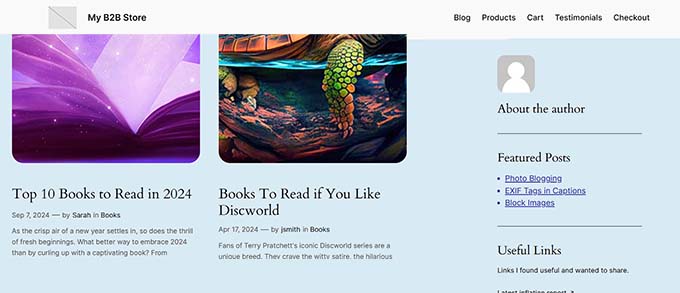
Method 2. Feature Posts in WordPress Sidebar Using Menus
This method is less direct but lets you manage your featured posts more effectively.
Instead of adding the featured post list in a list widget, we will create a navigation menu and then display it in the sidebar.
This method has the advantage that you can easily add new posts without editing the widget and reorganize the list with a drag-and-drop interface. You’ll also be able to use the menu in multiple places on your website without having to create a new list each time.
Creating a Featured Posts Menu
First, you need to visit the Appearance » Menus page and click the ‘create a new menu’ link.
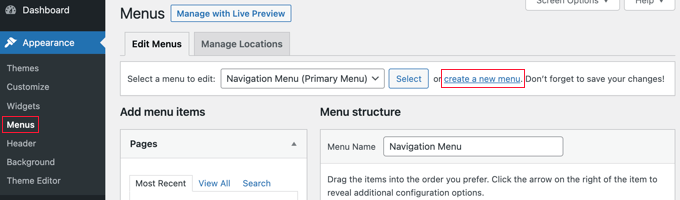
Next, you need to enter a name for your menu that helps you easily identify it whenever you need to add it somewhere.
After you’ve added a name, click on the ‘Create Menu’ button to continue.
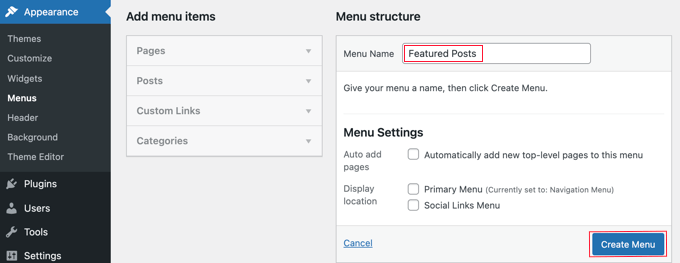
WordPress will now create a new blank menu for you.
Now, you need to click on the ‘Posts’ tab from the left column to expand it. From here, you need to select the posts you want to feature. You can find them under Recent, All, or use the search option to locate and select them.
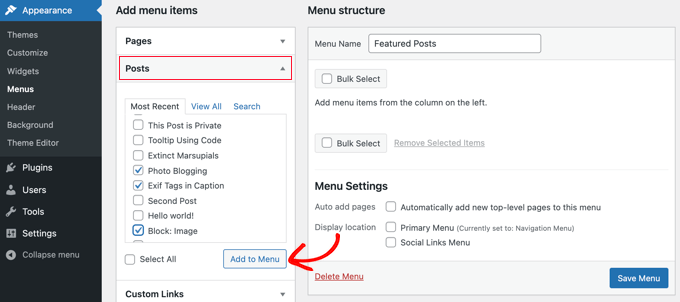
After choosing the posts you want to add, click on the ‘Add to Menu’ button.
Your posts will now appear in the right column, and you can edit each one of their titles by clicking on it. You can also rearrange them by simply dragging them up or down.
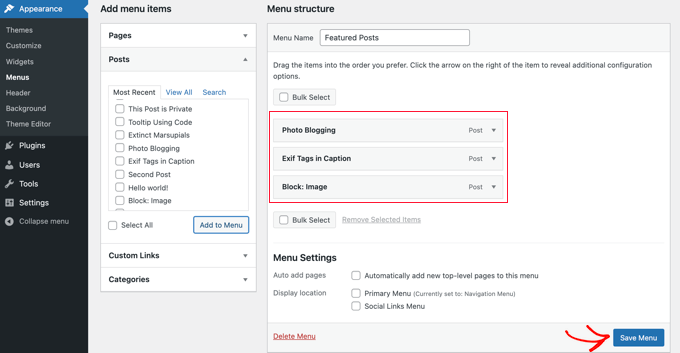
Once you are satisfied, click on the ‘Save Menu’ button to store your changes.
Your menu is now ready to be used.
Tip: If you are using a block theme, then head to the Appearance » Editor page from the WordPress dashboard and expand the ‘Navigation’ tab to create a menu. For more details, see our tutorial on how to add a navigation menu in WordPress.
Adding the Featured Posts Menu to the Sidebar
Simply go to the Appearance » Widgets page and add the ‘Navigation Menu’ widget to your sidebar using drag and drop.
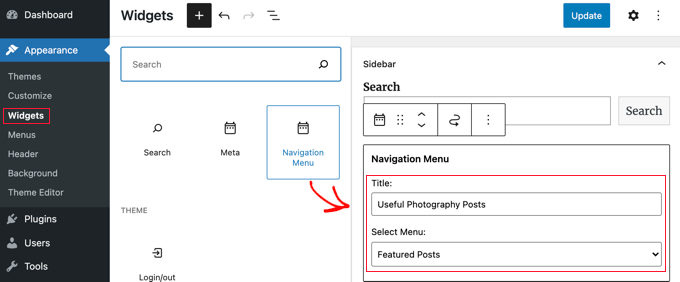
Next, you need to provide a title for your sidebar menu widget and then select the featured posts menu you created earlier from the dropdown menu.
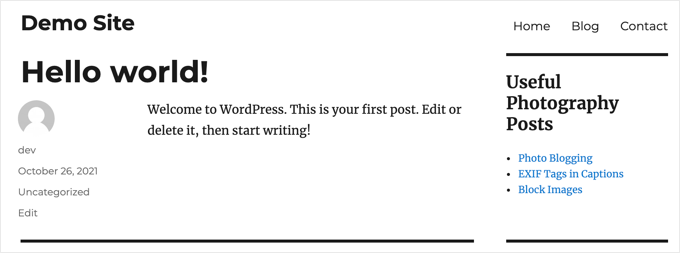
Don’t forget to click on the ‘Update’ button to store your widget settings. You can now visit your website to see your featured posts list in action.
Method 3. Adding Featured Posts in WordPress Using Blocks
Alternatively, you may want to display your feature posts inside a WordPress post or page. This is a good option if you’re using the page editor to create a custom homepage layout, or your theme may not have a sidebar.
This method is similar to Method 1 but allows you to feature posts in your WordPress posts and pages rather than the sidebar.
Simply edit a WordPress post or page where you want to showcase your featured posts. On the post edit screen, you should click on the add new block button (+) at the top and then add the List block to your content area.
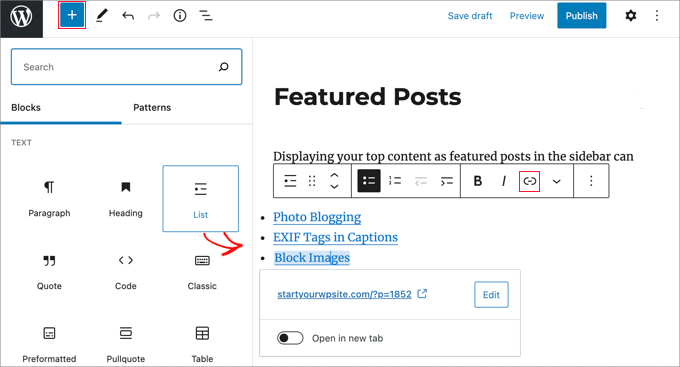
Now, you need to add the title of each blog post you want to feature as an item on the list. Then, select the text and click on the link button in the toolbar to create a link to the article.
Once you are done, you can save your changes and update or publish the post.
How to Make the Featured Posts Block a Pattern
One great feature of the block editor is that you can save a block as a ‘Pattern’ and then add the same block to any posts or pages you want.
To create a pattern for your featured posts block, click on the three-dot menu icon in the toolbar and select ‘Create Pattern.’
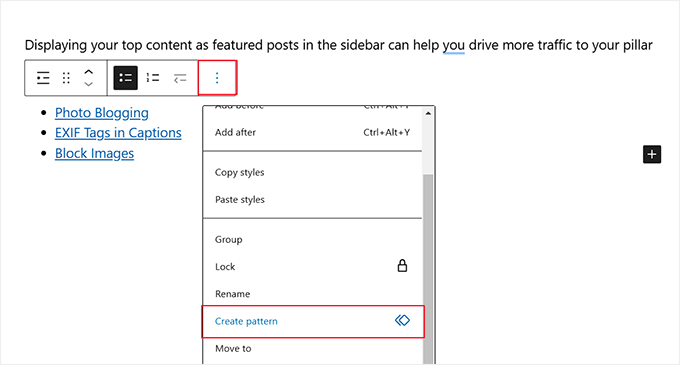
Next, you’ll be asked to provide a name for your pattern. Give it a name that helps you easily identify it later.
You can also choose a category if you like.
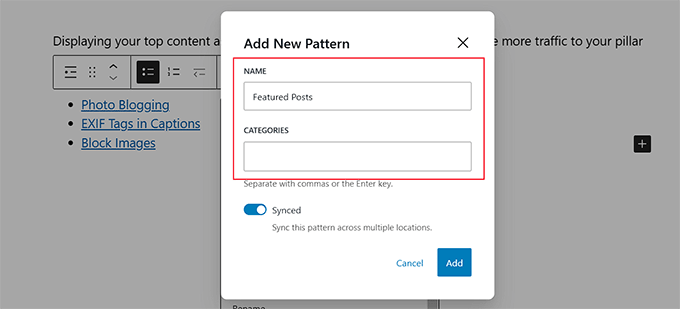
Once you are done, click on the ‘Add’ button.
Now, you can easily add the featured posts block whenever you edit a post or page. Simply click on the ‘Add New Block’ (+) button and switch to the ‘Patterns’ tab. Then, type your pattern’s name to find it.
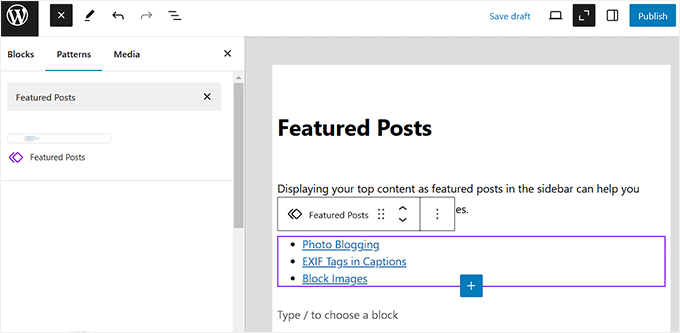
You can also edit these patterns, and it will automatically get updated everywhere. For more details, see our article on how to add reusable blocks in WordPress.
Method 4. Display Featured Posts in WordPress With Thumbnails
A simple, plain list of links may often go unnoticed by your users. Using a plugin to display thumbnails with your featured posts will help users notice them more easily.
First, you need to install and activate the MonsterInsights plugin. For more details, see our step-by-step guide on how to install a WordPress plugin.
Expert Tip: At WPBeginner, we use the MonsterInsights plugin to monitor our site traffic, and it has been invaluable in helping us develop content strategies that drive conversions. For details, see our MonsterInsights review.
You’ll need a MonsterInsights Plus account or higher to display featured posts and access advanced tracking features. There is also a MonsterInsights Lite version that lets you get started with analytics on your site.
Upon activation, you’ll be taken to the MonsterInsights welcome screen inside your WordPress dashboard. Go ahead and click the ‘Launch the Wizard’ button to configure the plugin and connect Google Analytics with WordPress.

You can follow our step-by-step guide on how to add Google Analytics to WordPress.
Once the plugin is set up, you’ll need to head over to Insights » Popular Posts in your WordPress admin area. Here, you can select a theme for your popular posts widget.
You should start by clicking on the ‘Popular Posts Widget’ tab at the top of the page. However, if you want to display the list of featured posts in a post or page, then you should choose the ‘Inline Popular Posts’ tab instead.
Next, you should select a theme by clicking it.
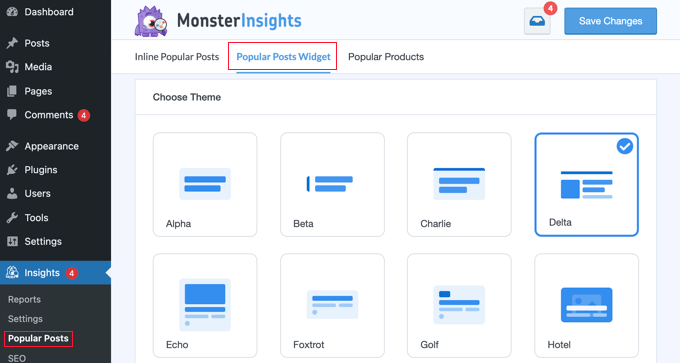
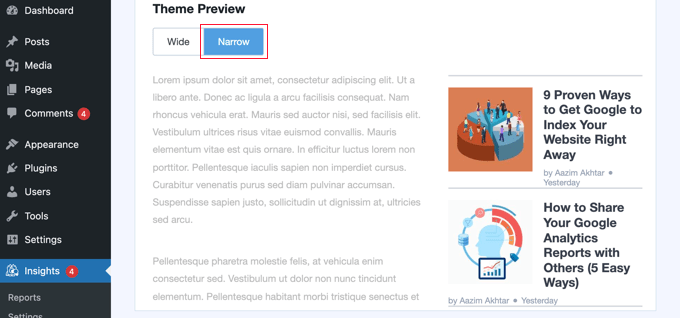
You will immediately see a preview of that theme in the Theme Preview area underneath. You will need to click the Narrow option to view the list as a widget.
Not all themes display thumbnails with the post title, so make sure you choose one that does. You will have to select the theme again when adding the widget to your WordPress sidebar, so make a note of it.
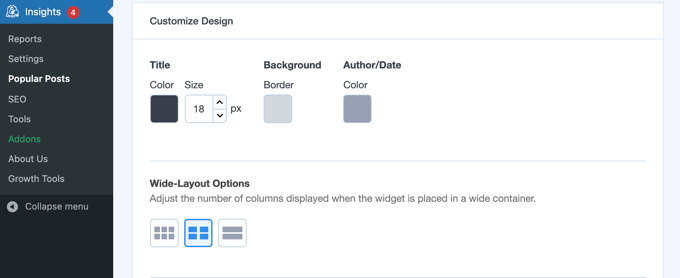
You can now scroll down to the ‘Customize Design’ section.
Here, you can adjust the color, size, and background of the title, author, and date. If you are placing the list in a post or page, then you can also choose the number of columns that will be used.
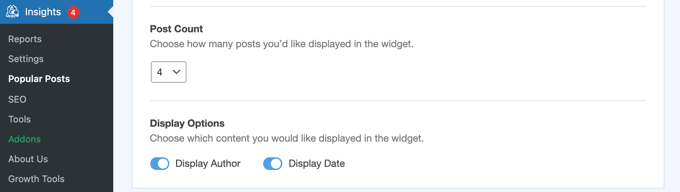
The Post Count setting lets you choose how many posts to display in the widget. The fewest posts you can display is 2, and the most is 10.
You can also choose which information will be displayed with the post title and thumbnail. By default, the author and date of the post will also be shown, but you can turn these settings off using the toggle buttons.
Next, you’ll need to scroll down to the Behavior section of the settings.
The Widget Styling option allows advanced users to style the featured post list using custom CSS code. For this tutorial, we’ll stay with the default styles.
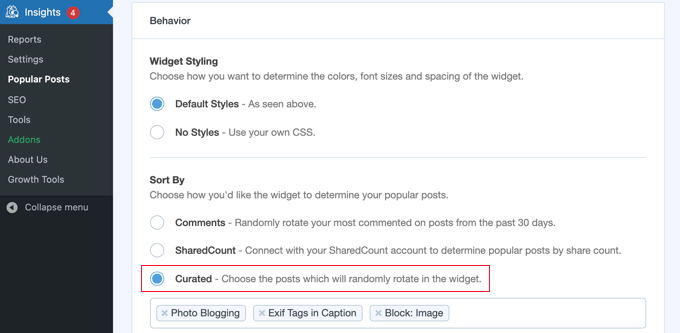
You should sort the list using the Curated option. This allows you to select the posts that will be featured. Alternatively, you can have popular posts chosen automatically by clicking the Comments or SharedCount options instead.
To add a post to the list, simply start typing its title. A list of matching posts will be displayed, and you can click on the right one.
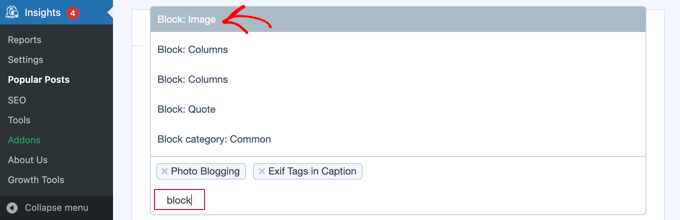
Make sure to include at least the same number of posts as the Post Count setting above. If you include more posts, then the widget will randomly rotate between them.
The Automated + Curated setting automatically includes your five most popular posts in the rotation. To turn it on, just toggle the settings.
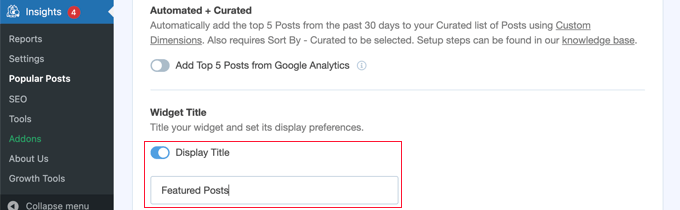
The Widget Title allows you to display a title at the top of the widget. Feel free to add a title here, but you’ll have to type it again when you add the widget to your sidebar.
There are plenty of other settings for the MonsterInsights Popular Posts widget. For this tutorial, we’ll go with the default settings for the remaining options.
When you’ve finished, scroll back to the top of the page and click the ‘Save Changes’ button to make the new widget available on your website.

Now you need to navigate to Appearance » Widgets.
Here, add the ‘Popular Posts – MonsterInsights’ widget to your sidebar using drag and drop.
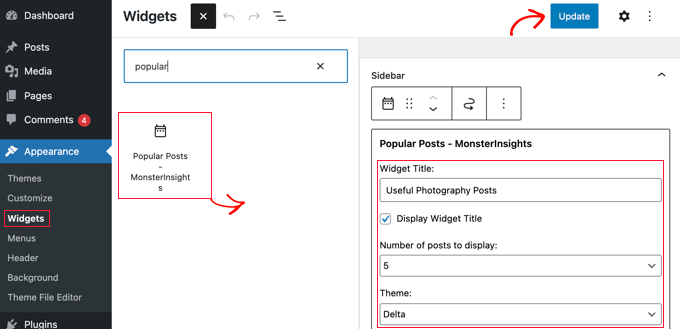
You will need to enter a title for the widget, select the number of posts to display, and choose the same theme as earlier in the tutorial. When you’ve finished, don’t forget to click the ‘Update’ button to store your widget settings.
Bonus: The ‘Popular Posts MonsterInsights’ block will also be available in the full site editor if you are using a block theme.
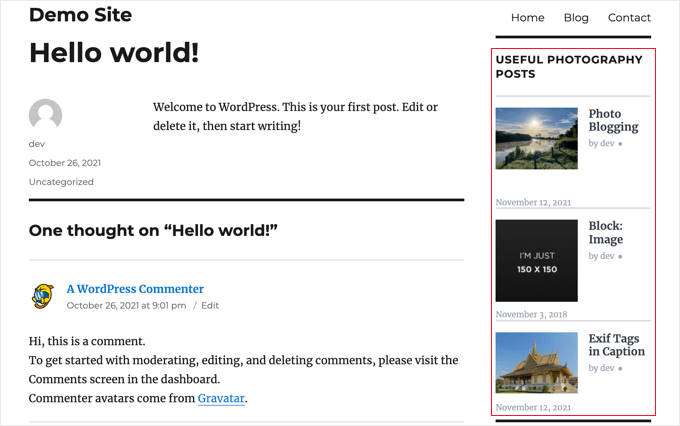
Feel free to visit your website to see your featured posts with thumbnails. This is how it looked on our demo website.
We hope this article helped you learn how to easily feature posts in the WordPress sidebar. You may also want to see our guide on website marketing data that you must track and our expert picks for the best related posts plugins for WordPress.
If you liked this article, then please subscribe to our YouTube Channel for WordPress video tutorials. You can also find us on Twitter and Facebook.


Shubham Davey
How are you guys having dotted menu pagination in the featured posts box?
WPBeginner Support
If you mean our useful guides widget, you would want to take a look at our article below:
https://www.wpbeginner.com/wp-tutorials/how-to-add-jquery-tabber-widget-in-wordpress/
Admin