


Although we don’t personally show Pinterest pins on our websites, we know that some of our readers are looking for this option.
Sharing your Pinterest activity on your WordPress website can make it more engaging and also help to grow your social media followers.
Luckily, we found a pretty easy way to show Pinterest pins in WordPress. You can do this either with a free plugin or the default Pinterest block.
In this article, we will show you how to add your latest Pinterest pins to your WordPress sidebar widgets, step by step.
Why Show Your Latest Pinterest Pins in Your WordPress Sidebar?
Pinterest is one of the most popular visual social media platforms. If you want to grow your Pinterest boards or bring attention to a specific pin, then displaying them on your own website can help to drive more views and shares.
As your Pinterest board grows in popularity, it will attract more users back to your website and increase your traffic even further.
With that said, let’s show you how to display your latest Pinterest pins in your WordPress sidebar widget areas. Simply use the quick links below to go straight to the method you want to use:
Method 1: Show Latest Pinterest Pins in Your WordPress Sidebar Widgets Automatically
The easiest way to display your latest pins in your WordPress sidebar widget areas is by using the GS Pinterest Portfolio plugin.
This plugin makes it easy to add your Pinterest pins to any widget area of your WordPress website. Plus, it will automatically show new Pinterest pins as they’re added to your boards.
The first thing you need to do is install and activate the GS Pinterest Portfolio plugin. For more details, see our step-by-step guide on how to install a WordPress plugin.
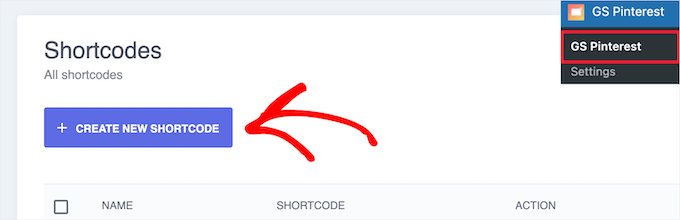
Upon activation, you need to go to GS Pinterest » GS Pinterest and then click the ‘Create New Shortcode’ button.
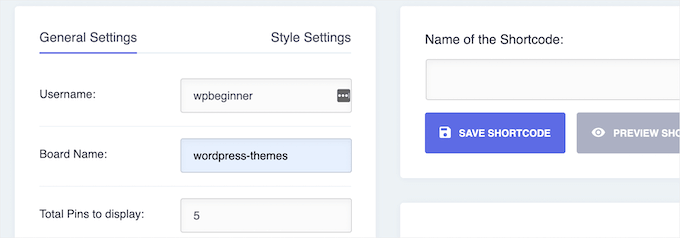
Then, you need to enter your Pinterest username into the ‘Username’ box and the name of the Pinterest board you want to display in the ‘Board Name’ box.
Next, choose the number of pins you want to show. You can go as high as 25 pins.
Below that, you can choose whether you want the links to open in a new tab when clicked in the ‘Pins Link Target’ box. You can also turn on the option to display the pin title.
Then, click the ‘Save Shortcode’ button.

After that, click the’ Style Settings’ menu option at the top of the page.
This gives you a few different options for your pin layouts. You can customize how they will display on desktop, tablet, portrait mode, and mobile devices.
Simply choose the number of columns from each dropdown.
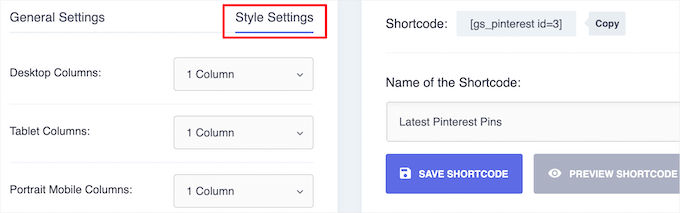
Next, give your shortcode a name in the ‘Name of the Shortcode’ box and click the ‘Save Shortcode’ button.
The plugin will automatically generate a preview so you can make changes before moving forward.

To add your Pinterest pins to a sidebar widget, simply go to Appearance » Widgets and click the ‘+’ add block icon.
Your available widget areas might be different depending on the WordPress theme you are using.
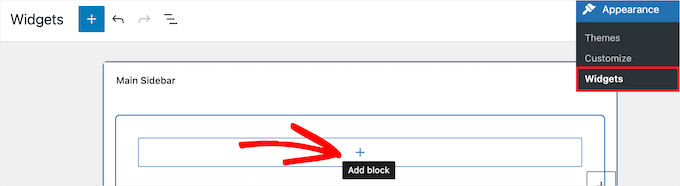
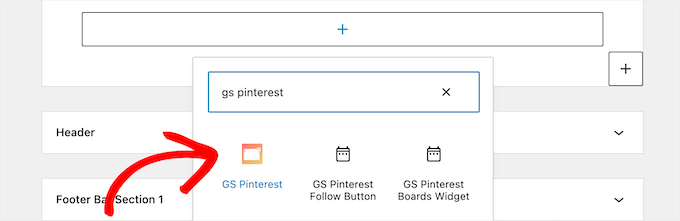
Next, search for ‘GS Pinterest’.
Then, click on the GS Pinterest block.
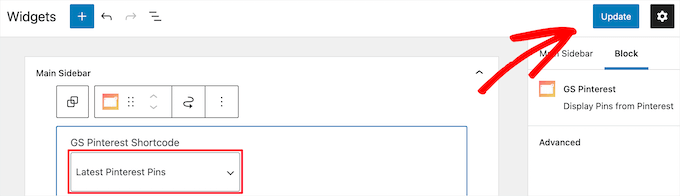
After that, the shortcode you created will automatically be listed.
If you created multiple Pinterest pin shortcodes, then select the one you want to use from the ‘GS Pinterest Shortcode’ dropdown.
Then, click the ‘Update’ button to save your changes.
To learn more about widgets, see our guide on how to add and use widgets in WordPress.
Note: If you are using a block theme, then you will need to go to Appearance » Editor and use the full site editor to add the GS Pinterest block to the sidebar of your website page templates.
For more details, please see our complete guide to WordPress full site editing.
Now, you can visit your site to see your latest Pinterest pins.

Method 2: Manually Show a Single Pinterest Pin in Your WordPress Sidebar Widgets
This method allows you to show a single Pinterest pin on your site. If you have a popular pin that you want to display and send more traffic to, then this is a good option.
To do this, simply go to Appearance » Widgets and click the ‘+’ add block icon.
Note: If you are using a block theme, then you can go to Appearance » Editor instead and choose the page template you want to edit. Then, you can add blocks to it. For details, see our guide to WordPress full site editing.
Now, search for ‘Pinterest’ and add the block.
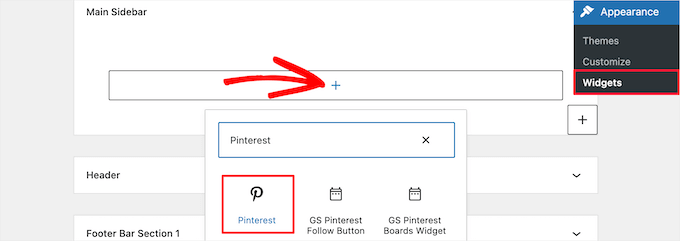
Next, enter the URL for the Pinterest pin or board that you want to display and click the ‘Embed’ button.
Then, click the ‘Update’ button to save your changes.
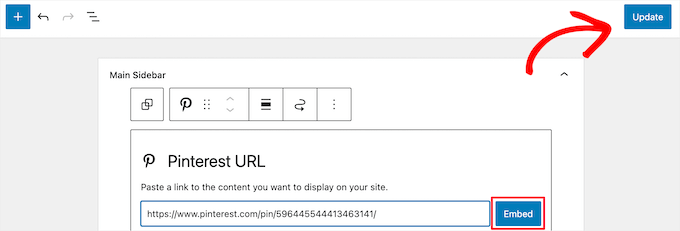
Now, you can visit your WordPress blog to see your Pinterest pin live.
Note: This Pinterest pin will not update automatically. To display a new pin, you’ll need to repeat the same process above.

We hope this article helped you learn how to show your latest Pinterest pins in your WordPress sidebar widgets. You may also want to see our guide on how to verify your WordPress site on Pinterest or how to add a Pinterest “Pin It” button in WordPress.
If you liked this article, then please subscribe to our YouTube Channel for WordPress video tutorials. You can also find us on Twitter and Facebook.




Dennis Muthomi
The GS Pinterest Portfolio plugin is amazing for lifestyle and food sites. It’s been super helpful for my clients!
One IMPORTANT thing that I would really share is when adding Pinterest widgets to sidebars, put them below email forms and main CTAs. This keeps the focus on what really matters – converting visitors.
Ed Seid
Thanks for introducing me to this plugin. As a photographer of beautiful women in Hawaii, I use Pinterest to get inspired. I use the widget to share my ideas with my website audience. Mahalo from Hawaii!
Editorial Staff
Sure thing. Just sent it to ya.
Admin
Bstar0306
I installed it but for some reason there is a bullet by each pin! Any reason why?
wpbeginner
@Bstar0306 Yes, the reason why there is a bullet next to it is because of your stylesheet. The plugin outputs it in the list. Sometimes in the stylesheet you may have a general #sidebar li or something similar that has a list-style-type: square etc.
bkmacdaddy
@Bstar0306 I answered your question when you asked it on my blog. Here’s what I wrote:
It’s an issue with your theme’s CSS. Simply add the following code at the end of your theme’s style.css file (you can do this in the WordPress admin under Appearance > Editor):
.widget-area ul li.pins-feed-item {list-style-type:none;}
Let me know if this helps you out.
bkmacdaddy
Thanks for sharing about my plugin! Hope everyone enjoys using it. If anyone ever needs any assistance with it, feel free to contact me via the plugin’s page on my blog: http://www.bkmacdaddy.com/pinterest-rss-widget-a-wordpress-plugin-to-display-your-latest-pins/
Adam W. Warner
I was just looking for a useful Pinterest widget the other day, thanks @wpbeginner for posting this and also a HUGE thanks to @bkmacdaddy for creating this plugin and making it available. Nice work on taking advantage of the Pinterest momentum;)