


Do you want to add a Google Calendar to your WordPress site?
If you use Google Calendar to manage your business’s public events and schedule, then you may want to embed it on your website. This way, you won’t have to create a new calendar from scratch, and every event you add will be automatically displayed.
In this article, we will show you how to add a Google Calendar in WordPress, step by step.
Why Add Google Calendar to WordPress?
If you use Google Calendar to schedule your public events, then you may want to display it right on your website for your visitors to see. Whenever you add a new event, the calendar will update itself and immediately show the new event to your users.
Here’s one example of when adding a Google Calendar can be useful. If you run a gym website, then you might add all your fitness classes, free trials, coaching sessions, and other fitness events to the calendar.
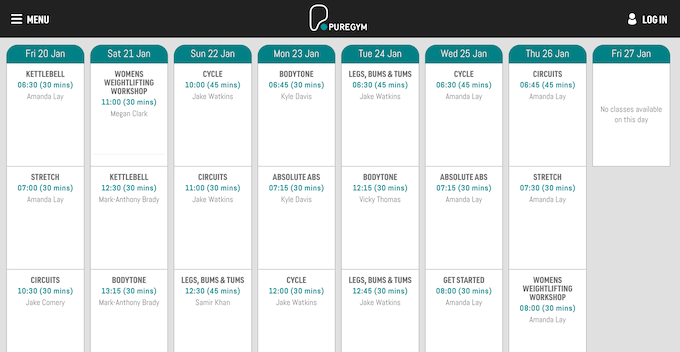
When creating an event, you can add all the information visitors need to know.
This might include anything attendees need to bring to the event, whether refreshments are provided, the price, and directions to the venue.

This will help visitors decide whether the event is right for them without having to ask a ton of questions via your site’s contact form.
You can also use Google Calendar to schedule virtual events like webinars and online sermons. In the event description, you can add a link to the conference call (if the event is free), allowing visitors to easily attend the event.
That being said, let’s see how to add a Google Calendar to your WordPress website. You can use the quick links below to navigate through this article:
Step 1: Install a Google Calendar Plugin
The best way to add a calendar to your WordPress website is by using the Pretty Google Calendar plugin. It is one of the best WordPress calendar plugins and allows you to show events from a public calendar in a mobile-responsive layout.
This means the calendar will look just as good on smartphones and tablets as it does on desktop devices.
The first thing you need to do is install and activate the Pretty Google Calendar plugin. For more details, see our step-by-step guide on how to install a WordPress plugin.
Upon activation, go to Settings » Pretty Google Calendar Settings.
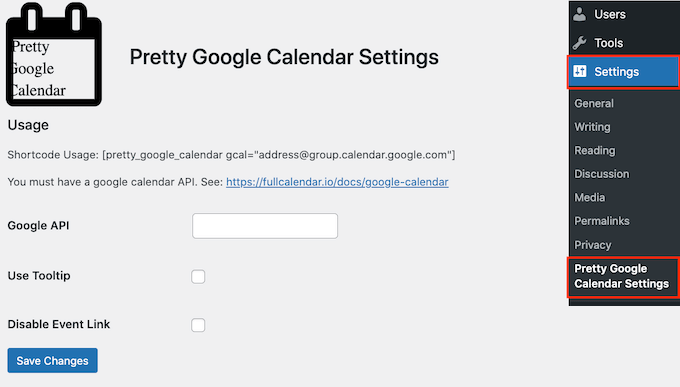
Here, you will need to enter a Google API key, which you will do in the next step.
Step 2: Create a Google API Key
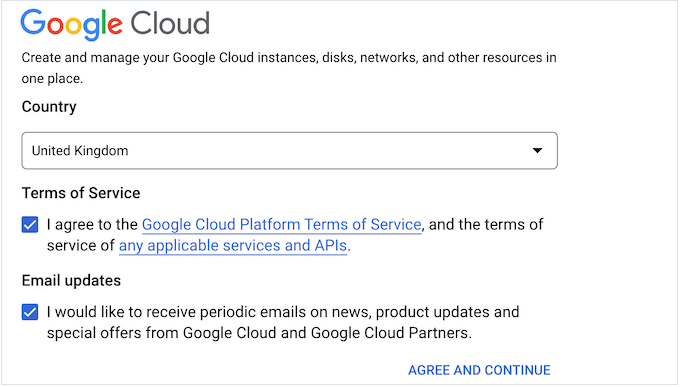
To create the Google API key, head over to the Google Cloud Console. If this is your first time visiting the console, then you’ll need to accept the terms and conditions and choose whether you want to get email updates.
With that done, click on ‘Agree and Continue.’
This takes you to the Google Cloud Console.
We’re going to create a new project for our Google Calendar API, so click on ‘Select a project.’
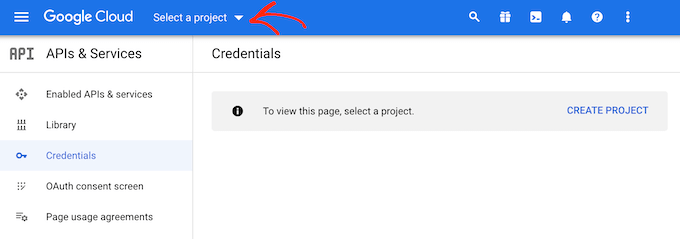
In the popup that appears, select ‘New Project.’
You can now type in a name for the project. This is just for your reference, so you can use anything you want.
On this screen, you can also add an optional organization to the API key and change the location where Google Cloud Console will create your project.
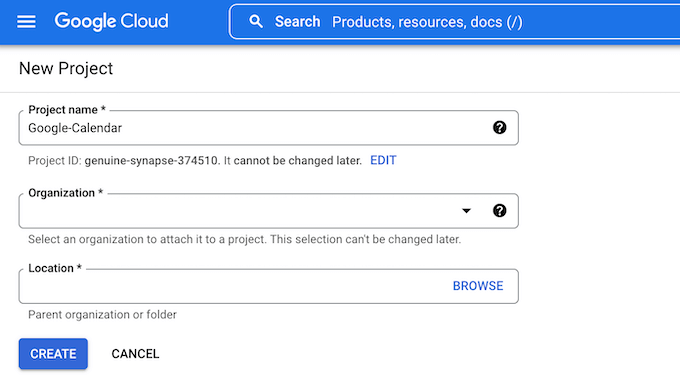
When you are happy with the information you’ve entered, click on ‘Create.’
After that, select ‘Enabled APIs & Services’ from the left-hand menu and then click on ‘Enable APIs and Services.’
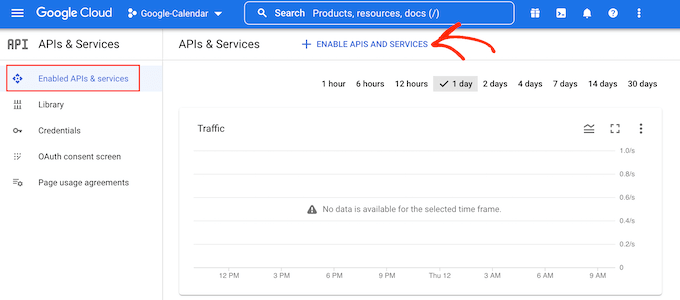
This screen shows all the different APIs you can enable. For example, if you want to show the latest videos from your YouTube channel, then you’ll need to enable the YouTube Data API.
Since we want to add a Google Calendar in WordPress, scroll to the ‘Google Workspace’ section and click on ‘Google Calendar API.’
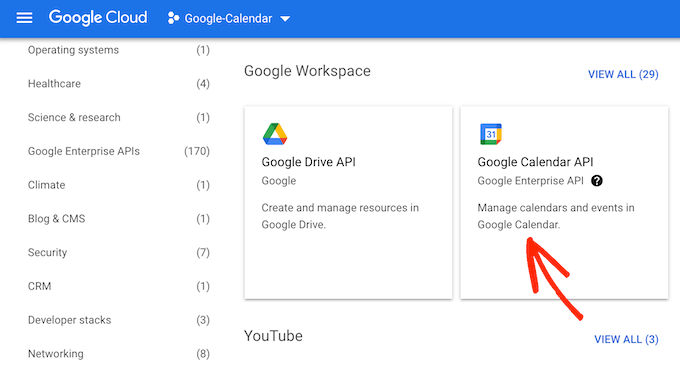
This takes you to a screen where you can activate the key for managing and changing events in the Google Calendar.
To do this, simply click on the ‘Enable’ button.
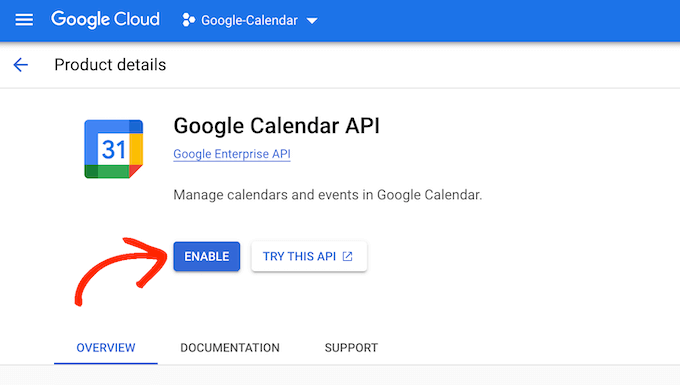
With that done, you are ready to create a Google Calendar API key.
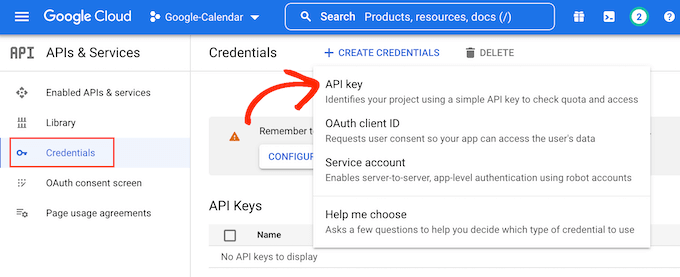
In the left-hand menu, click on ‘Credentials’ and then select ‘Create Credentials.’ In the dropdown that appears, you need to click on the ‘API key’ option.
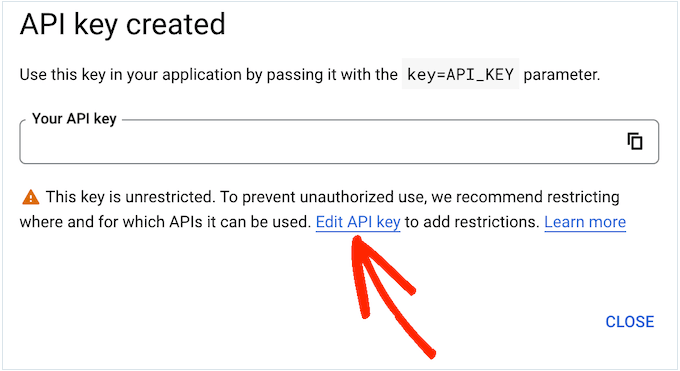
After a few moments, you’ll see an ‘API key created’ popup. You’ll need to add this information to the plugin, so make a note of it.
By default, the Google Calendar API key is unrestricted. To stop other people from using the API key, it’s smart to restrict it by clicking the ‘Edit API Key’ link inside the popup.
This opens a screen showing all your Google API keys. Simply find the key you just created and give it a click.
If you closed the popup by accident, then don’t worry. You can simply select ‘Credentials’ in the left-hand menu and then select the API key you created in the previous step.
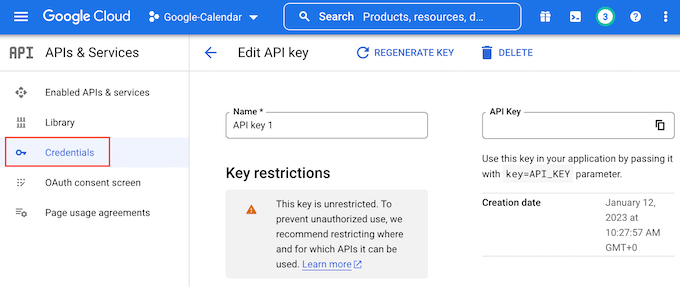
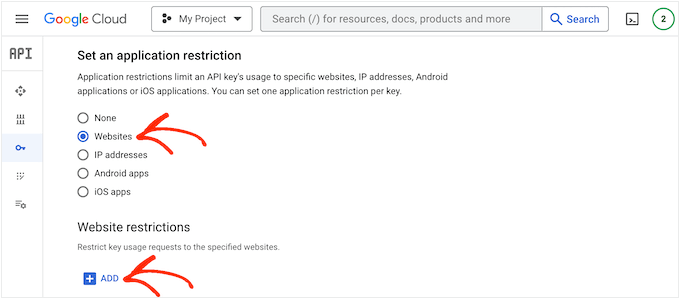
Now, scroll to ‘Application Restrictions’ and then click on ‘Websites.’
Under ‘Website Restrictions,’ you need to click on ‘Add.’
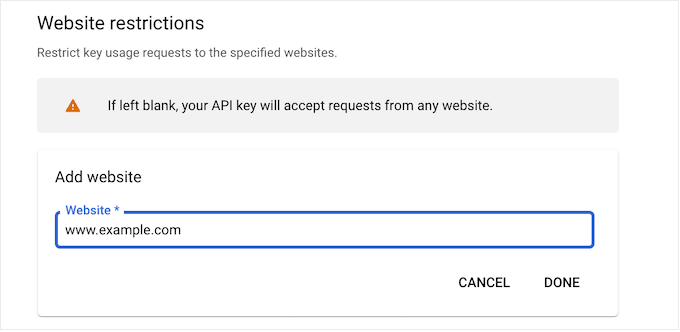
In the ‘Add Website’ field, type in your website’s address.
Then, click on ‘Done.’
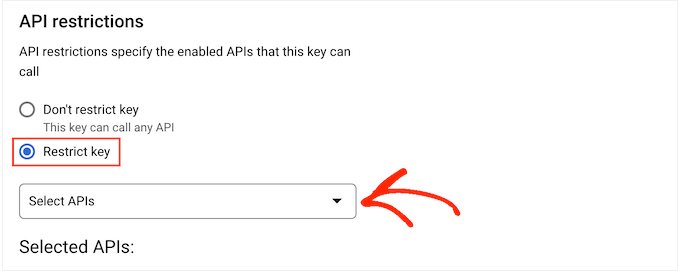
Under ‘API restrictions,’ you need to select the button next to ‘Restrict key.’
With that done, just click on the ‘Select APIs’ dropdown menu.
In the dropdown, check the box next to ‘Google Calendar APIs.’
Then, simply click on ‘OK.’
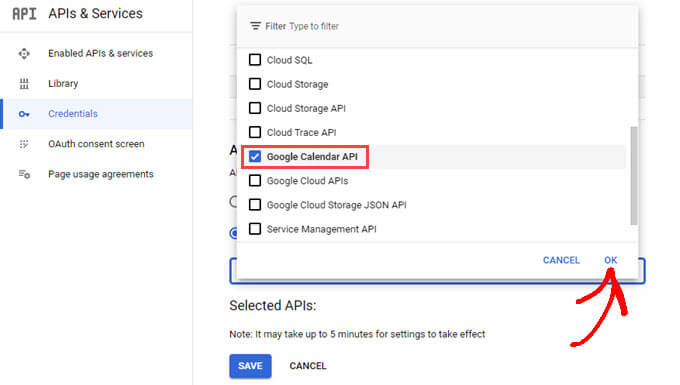
With that done, click on ‘Save’ to store your settings.
You are now ready to add the Google Calendar API key to your WordPress website. Switch back to the WordPress dashboard and add the API key to the ‘Google API’ field.
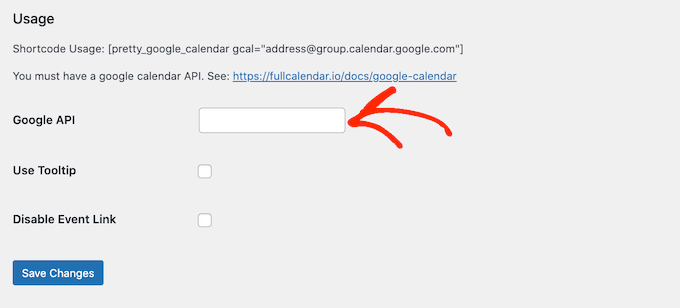
With that done, click on ‘Save Changes’ to store the API key.
Step 3: Make Your Google Calendar Public
Before you can add a Google Calendar in WordPress, you’ll need to change the calendar’s settings to make it public. You also need to get the calendar ID.
To do that, open the Google Calendar that you want to add to your WordPress website. Then, click the ‘Gear’ icon and select ‘Settings’ from the dropdown menu.
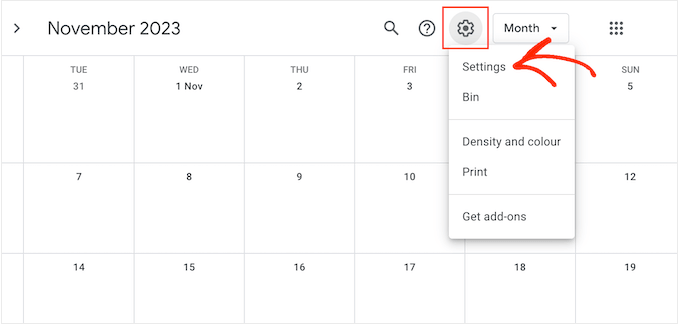
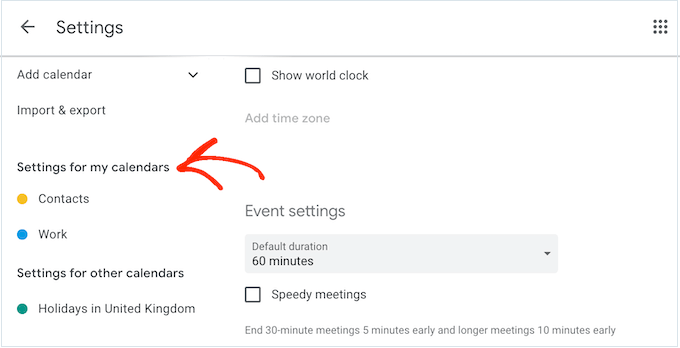
In the left-hand menu, find the ‘Settings for my calendars’ section.
Here, click on the name of the calendar that you want to share. This will open up the settings for that specific calendar.
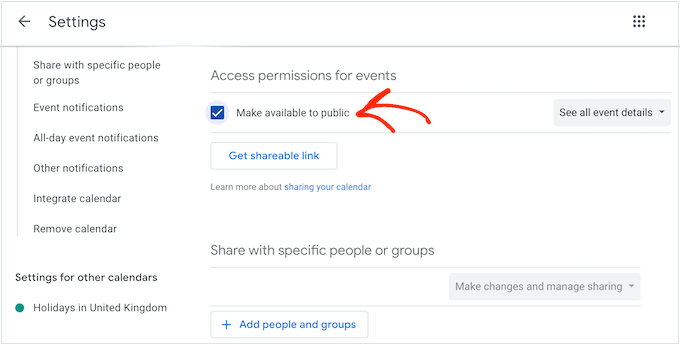
Now, you need to find the ‘Access permissions for events.’
Under this heading, simply check the box next to ‘Make available to public.’
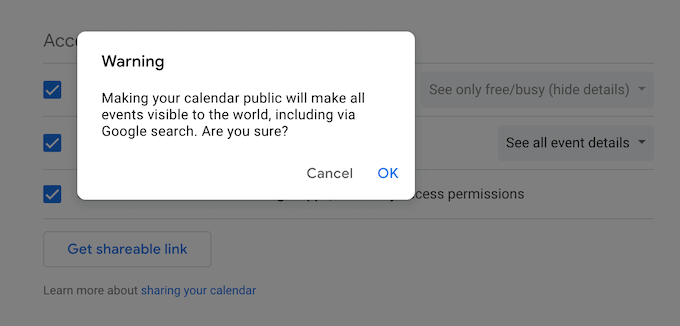
A popup will warn you that these events will be visible to other people and may even appear in the Google search results.
If you are happy to go ahead, then click on ‘OK.’
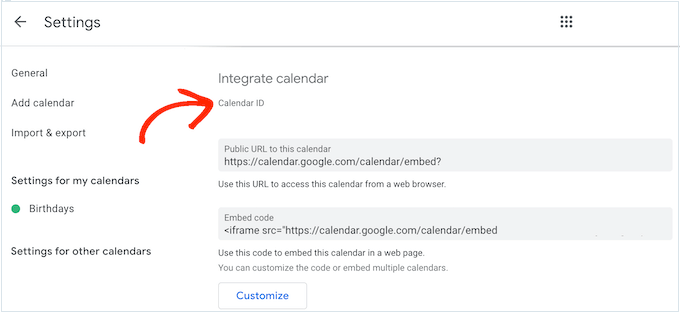
With that done, scroll to the ‘Integrate calendar’ section and find the ‘Calendar ID.’
You’ll need to use this value in your shortcode, so either make a note of it or leave this screen open in a separate tab.
Step 4: Display Your Google Calendar on Your WordPress Site
With that done, you are ready to add the Google Calendar to your WordPress blog or website using a shortcode.
Method 1: Add Your Google Calendar to a Page or Post
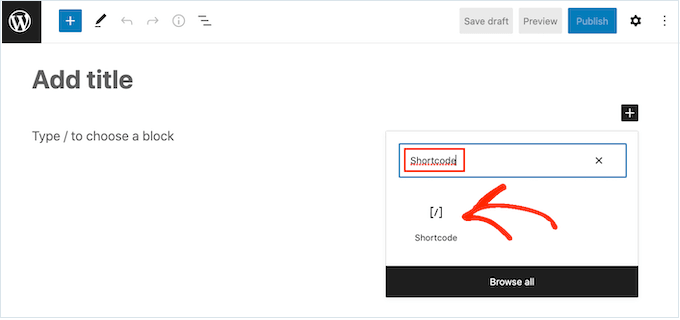
Simply go to the page or post where you want to show the calendar, and then click on the ‘+ Add Block’ button.
In the popup, just type in ‘Shortcode’ and then click on the right block when it appears.
Inside the shortcode block, add the following shortcode:
[pretty_google_calendar gcal= "calendar-id"]
You’ll need to replace “calendar-id” with the ID you got in the previous section.
With that done, you can add any other content to the page, such as images, text, and categories and tags. When you are ready to make the calendar live, click on the ‘Publish’ or ‘Update’ button.
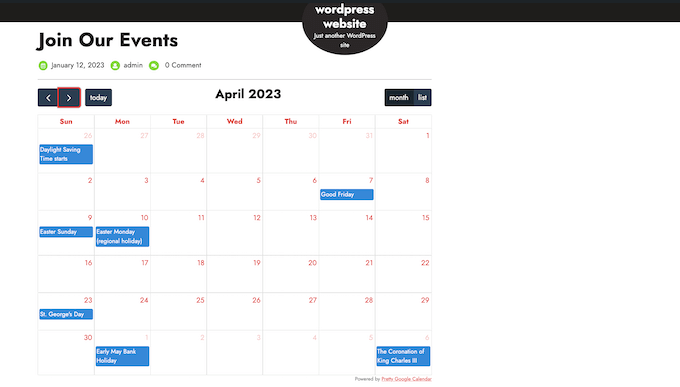
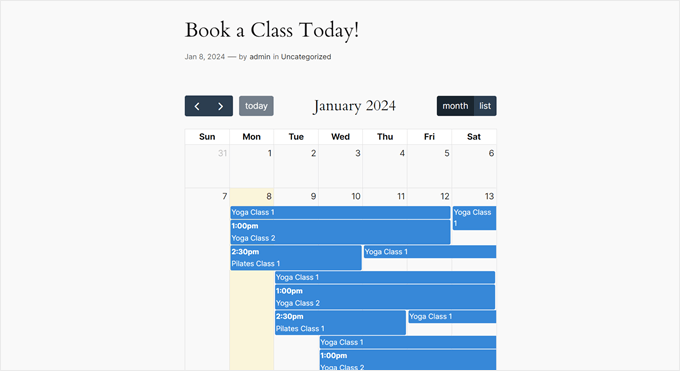
Now, if you visit your website, you’ll see the Google Calendar in action. Here’s what ours looks like:
Method 2: Add Your Google Calendar to a Sidebar
Sometimes, you may want to promote your events across every page of your WordPress website. To do this, simply add the shortcode to any widget-ready area.
This allows visitors to see the calendar and learn about your events from any page of your WordPress website.
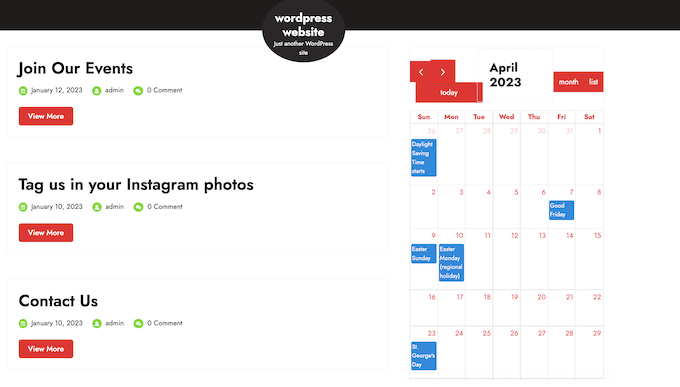
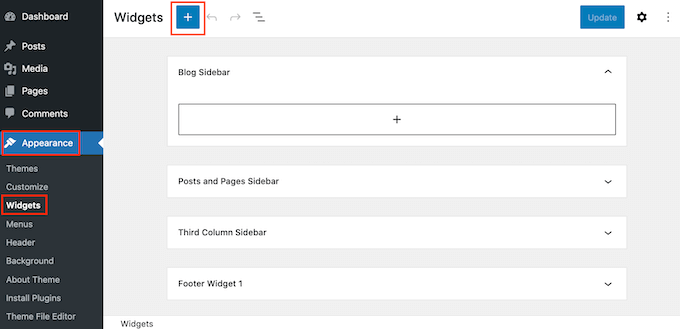
To add the Google Calendar to a sidebar or similar section, go to Appearance » Widgets in the left-hand menu.
You can now click on the blue ‘+’ icon.
In the search field that appears, type in ‘Shortcode.’
When the right block shows up, simply click to add it to the sidebar.
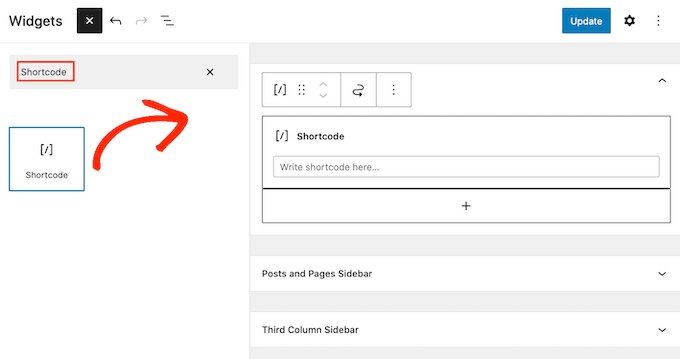
You can also drag the Shortcode block to the area where you want to show the calendar.
After that, paste the Pretty Google Calendar shortcode and calendar ID into the block. You can get this information by following the same process described above.
Finally, go ahead and click on the ‘Update’ button. When you visit your WordPress website, you’ll see the Google Calendar live.
If you are using one of the newer block-enabled themes, then you’ll need to add the widget using the full site editor.
To get started, head over to Appearance » Editor in the WordPress dashboard.
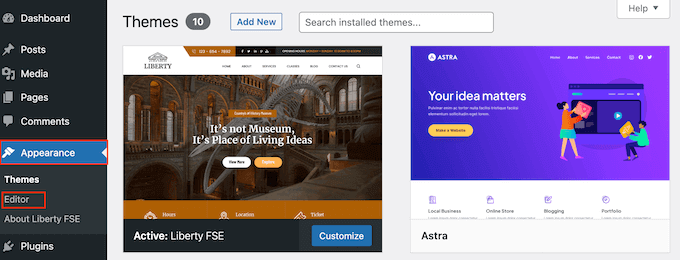
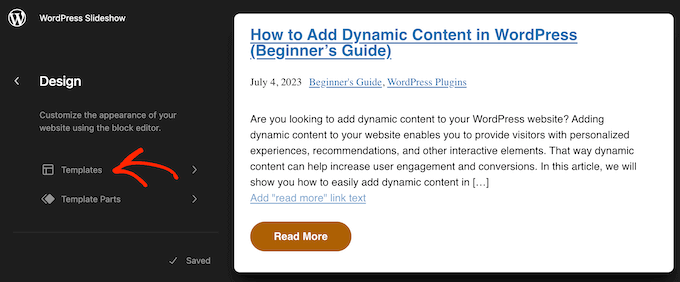
In the left-hand menu, choose the template or template part that you want to edit.
For example, you might add the calendar to your site’s sidebar or similar section.
After choosing a template or template part, you can add a shortcode block by following the same process described above.
With that done, add the shortcode and ID for the calendar you want to show.
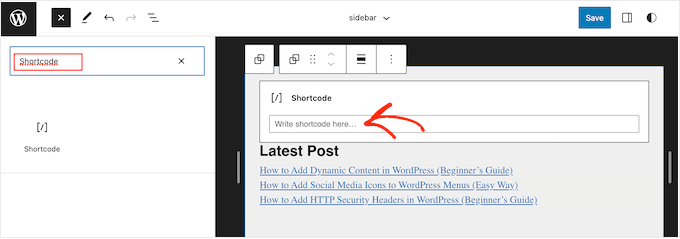
Finally, click on the ‘Save’ button to make the calendar live.
Bonus Tip: Add an Event or Appointment Booking Form
Now that you’ve added a Google Calendar to WordPress, you should consider allowing visitors to book an event right from your website.
The easiest way to do this is with a form plugin like WPForms. This WordPress form builder makes it easy to create simple and user-friendly booking forms, so users will have no problem completing them.
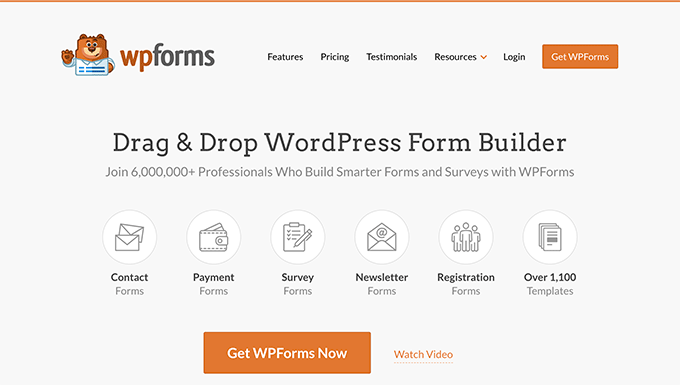
What’s great about WPForms is it has 1300+ pre-made templates to choose from. This means that you can create a booking form for virtually any type of site.
To learn more about WPForms, you can read our in-depth WPForms review. Also, see WPForms in action in these guides:
- How to Add Google Calendar Events From Your WordPress Contact Form
- How to Create an Event Registration Page in WordPress
- How to Create a Booking Form in WordPress
We hope this article helped you learn how to add Google Calendar in WordPress. You may also want to see our expert picks for the best email marketing services for small businesses or our guide on how to create a contact form in WordPress.
If you liked this article, then please subscribe to our YouTube Channel for WordPress video tutorials. You can also find us on Twitter and Facebook.




Syed Balkhi says
Hey WPBeginner readers,
Did you know you can win exciting prizes by commenting on WPBeginner?
Every month, our top blog commenters will win HUGE rewards, including premium WordPress plugin licenses and cash prizes.
You can get more details about the contest from here.
Start sharing your thoughts below to stand a chance to win!
Mrteesurez says
I want to implement this but having questions:
1) Is the calendar conneted to my own calendar attached to my Google account or just a google calendar ?
2) Concerning the events, where am I or users going to add it ?
3) Or is it only for just an online calendar ?
Thanks.
WPBeginner Comments says
Adding a Google calendar adds an online calendar to your site. The calendar would be connected to your Google account.
You would normally need to add the events yourself, but to submit events from a contact form to Google Calendar, check out: https://www.wpbeginner.com/wp-tutorials/how-to-add-google-calendar-events-from-your-wordpress-contact-form/
Simon Adams says
*Please note – error in instructions*
Hi All
I hope I can save people the many hours I have spent trying to get this to work. In the instructions it talks about restricting the API to “Google Cloud APIs”. If you do that you don’t get any calendar entries coming through.
The answer is obvious and I thought it strange at the time (but assumed the instructions were right! Instead you should restrict the API to “Google Calendar API”.
WPBeginner Support says
Thank you for sharing this, we’ll look into instructions as well and update them as needed!
Admin
Mike McNamara says
I’m confused, is this for WordPress.org pages or for WordPress.com pages?
WPBeginner Support says
Our guides are for WordPress.org sites, you can see the differences between WordPress.com and WordPress.org in our article below!
https://www.wpbeginner.com/beginners-guide/self-hosted-wordpress-org-vs-free-wordpress-com-infograph/
Admin
Elizabeth says
Instructions were clear and I was able to get my calendar into my website but no events are showing up on the website calendar that i enter into my google calendar. I’ve made the calendar public. any suggestions?
WPBeginner Support says
If the events are not appearing we would recommend reaching out to the plugin’s support and they can look into and assist with those errors. You may also want to try disabling your other plugins to check if there is a conflict with one of your other plugins.
Admin
Elizabeth says
Thanks, I’ll give that a try.
Adriana says
hi, thanks for giving this guide! i successfully added this to my website. my question, Is it possible to give people the option to sync our calendar to theirs?
thank you!
WPBeginner Support says
Unless we hear otherwise, not the entire calendar at the moment but if you check with the plugin’s support and they can look to add that feature
Admin
Anna says
Hi
Is there a way to create Event Schema for this calendar?
Thanks in advance
Anna
WPBeginner Support says
Not at the moment, the plugin’s developer may look to add this markup in the future.
Admin
Lindsay Braud says
The plugin for Simple Calendar has not been updated in 9 months and has not been tested on the last three major WordPress updates. Are you sure this is still the best option? Would doing an embed be better?
WPBeginner Support says
While the plugin should currently be working, we’ll certainly take a look at it, for that not tested warning we cover what to expect when you see it in our article below:
https://www.wpbeginner.com/opinion/should-you-install-plugins-not-tested-with-your-wordpress-version
Admin
Vik says
Can you disable the “See more details” for individual events?
I tried deleting the short code [link newwindow=”yes”]See more details[/link] and saving the calendar but it doesn’t work.
Do I need to recreate a new calendar, remove the above short code and publish it from scratch?
WPBeginner Support says
If there are no changes then you would want to ensure your cache is not the root of the issue as well as check with the plugin’s support to see if how you are wanting to set it up is supported or if it would need custom code.
Admin
April says
For anyone who, like me, needed this article’s instructions but found Google has updated their Cloud Platform and this article isn’t updated to match, here’s how I got it to work (11/8/2021):
Follow the article instructions through: “Here, you need to click the ‘Enable APIs and Services’ option.”
Next: Scroll down until you see “Google Calendar API” under Google Workspace and enable it.
– You should be on the overview page, and there will be a button on the right side that says “create credentials.” Click it.
– Which API are you using? > Google Calendar API
– What data will you be accessing? > Application data (if you, like me, are trying to make visible a public Google Calendar and aren’t collecting any user information)
– Are you planning to use this API with Compute Engine, Kubernetes Engine, App Engine, or Cloud Functions? > Yes.
– Click next (it’ll say you don’t need anything else), then done.
– You’ll be on your credentials page and there will be a new API key. Name it whatever you want. Then click the pencil/edit icon on the far right of it (hover text: Edit API Key).
– Application restrictions > None
– API restrictions > Don’t restrict key
– Submit and you’ll be sent back to your credentials page. Click the “copy API key” button to copy to clipboard.
– Continue following the instructions on this page from: “You need to copy this and paste it into your favorite text editor.”
Hope that helps save you the time it took me trying to figure it out!
Joelene Mills says
Would there be an updated tutorial for this widget/plugin? I tried following along but Google has changed SO much – I was unable to figure it out.
WPBeginner Support says
We work on keeping our content as up to date as we can, we’ll be sure to look at updating this article as we are able
Admin
Leonie says
I can’t find the Simple Calender – Google calender plugin. Which plugin can be used to sync my google Calender with my WordPress site
WPBeginner Support says
This is an older article but we link in the article itself where you can download the plugin where we mention the Simple Calendar plugin.
Admin
Wanda Lancaster says
My Google calendar no longer displays on my website. It displays on the back end but, not on the website. Is there Plugin other than, the Simple Calendar, that I can use to display my client’s Google calender?
WPBeginner Support says
Unless I hear otherwise, we do not have a recommended alternative at the moment but we will keep an eye out for alternatives we would recommend.
Admin
Annie Sloan says
Is there a way to import multiple Google calendars for use on different pages? I am looking at this plugin to use for a school who has separate calendars that need to be displayed on different pages. Please let me know if that’s possible. Thanks!
WPBeginner Support says
Unless I hear otherwise, you should be able to embed multiple calendars with this.
Admin
Kathleen Mathieu says
I’ve added Simple Google calendar to my web site on the SideBar. All works okay except each item shows a bullet and then the item on the next line. Multiple events on the same day show a bullet, line break & description for each event. If I put it on the Footer widget, the bullets don’t appear. How can I get rid of the bullets to make it more compact?
WPBeginner Support says
That sounds like there may be a styling issue either from your theme or the plugin itself. If you reach out to the plugin’s support they should be able to let you know how to remove those.
Admin
Alberto says
Hello, the Google API configuration is totally different now. Can you update the guide?
WPBeginner Support says
We will certainly take a look at updating the article
Admin
carlos says
hello
I need a plugin that let’s the users (using a form) to choose a date to do a meeting in the availables dates in my calendar.
Do you know something like that?
WPBeginner Support says
You would want to take a look at appointment and booking plugins which we show in our article here: https://www.wpbeginner.com/plugins/5-best-wordpress-appointment-and-booking-plugins/
Admin
Rachel says
Is there a way to add a search function to the Simple Calendar on my WordPress site? I read something about a search query function, but did not see how I can add this function.
Marie says
Did you ever get any feedback on this? I am also interested in learning how to add a search in wordpress for my google calendar.
Fay says
I am not able to navigate back to view previous months on the calendar. Is there a setting i can change to allow this?
Abrahim says
My Simple Calendar just stopped synchronizing some time ago. I can’t get it to work anymore.
Any suggestions?
Youssef says
Hi,
Is there a way to add an event directly from the WordPress back office (with syncing with Google Calendar) or should I add all the events in Google Calendar? Thank you.
Javier says
It doesnt work. Any suggestion?
Error calling GET https://www.googleapis.com/calendar/v3/calendars (...) (400) Bad RequestPlease ensure that both your Google Calendar ID and API Key are valid and that the Google Calendar you want to display is public.
Laura says
I am not sure why it isn’t working. The instructions seem so easy. i WISH it was that easy… Frustrating!!!
Kelly says
I’ve got the calendar set up on my web page and it looks great. The only problem is that I can’t scroll to another month. When I click on the arrows, nothing happens. I’m assuming this is a simple button click in my settings that I’m missing?
Tina says
I have everything set up for the google calendar and it shows on my website. When I add a new event on my google calendar it doesn’t update on the website. What am I missing?
Julian Cleak says
I have installed the Calendar with no problem but I am trying to attach a file from Google Drive. The calendar is public and the file.pdf is visible but when I click on it I am requested to sign into my google account. I am trying to make this file public and have set everything to share to public but it doesn’t seem to work. any advice would be appreciated.
Richard Moore says
I added the google calendar properly, tested it and looks good, i copied the short-code on the last step to a new page as instructed and it only says ” Calendar Placeholder”
Richard Moore says
I’m not sure what I did wrong or how to fix it. I doubled check and the calendar is set to public.
WPBeginner Support says
Hi Richard,
Please check to make sure that the calendar you are trying to add is public.
Admin
Fernando says
Everything’s installed and working, except my bubbles don’t consistently work. If I toggle between list/grid view I can get them to work for in preview mode but not when I go to the web page.
Tom Rodeck says
Awesome tutorial! Made this very easy to install!
Lisa says
I have implemented the Simple Calendar and it works great. However, I would like to pull from more than one calendar at a time. Is there a way to show calendar events from more than one calendar within the same page/widget?
Lin Sakai says
I have followed the set up instructions more than once, but the “Calendar ID” field does not appear after I click on “Google Calendar” in calendar settings . Help! Thanks!
Nathalie says
I have google’s simple calendar plug in working. How do I synchronize it w/ my Google Calendar, and also the appearance of the calendar in my wordpress site is way too small. How do I make it bigger?
Lauren H says
I have successfully added the google calendar to my wordpress website, wahoo! However, the font is really small on the actual calander… any way to make the font bigger or change the color?
Stuart says
Add this to your stylesheet
.simcal-default-calendar-grid ul.simcal-events {
font-size: 1em;
}
Jen says
Seemed easy enough but I am getting this error.
Error calling GET …
I double checked that my calendar is public and created a new APi and I get the same thing.
Brooke Jackson says
Very informative! However, I do not have a plug-in icon on my left tab when in my dashboard. In fact, I can’t find the Plug-in option anywhere under my admin log-in.
Help?
WPBeginner Support says
You are probably using WordPress.com. Please see our guide on the difference between self hosted WordPress.org vs free WordPress.com blog.
Admin
Barry Goldstein says
I installed the app, and of course in the beginning it did not run. For the calendar’s id I had installed the URL – without the double quotes. But that’s wrong! I was being too technical when all it needed was the over all name – in our case
The page, looks great – vastly superior to inserting the HTML code from Google’s calendar.
This will give the client a great start. Later on I’m sure they’ll upgrade to the pro version. Many thanks
Judy says
Is there a way to eliminate the ‘created by’ field when printing the agenda view from an embedded Google Calendar?
Maggie says
I did all the steps and it worked perfeclty, but the events are shown uber tinny, almost ilegibles. Is there a way to change this? Thanks!
jane says
cant access g google calandar under settings
Heather says
Some of my events are showing on the wrong day/time on my website even though they are correct on google.
Kami says
I added the plugin and set up the Google calendar following these directions. I don’t think I’ve missed anything. Still the events added on the public Google calendar don’t show up on my web page. Any suggestions?
Paul Appleby says
Kami, it’s probably a cache issue. Have a look at the “Why the event I just added on a Google Calendar doesn’t show up in Simple Calendar?” page at:
So any events you add or edit will not show up in the Simple Calendar until the amount of time in the plugin’s cache setting has elapsed.
Hope that helps.
Samuel says
helped a lot, thank you!
btw if anyone can tell me how to change the calendar start day from Monday to Sunday that would be great!
Steven Sanchez says
Not sure if you found the answer but I had the same problem. On your dashboard if you go to settings-general-scroll down to the bottom and you will see “week starts on” then you can change it to sunday or whatever you like. I thought it was in the plugin settings but it’s in the WP general settings.
stephie says
Your tutorial helps me but I just one step left to complete to share to my readers!
Couldn’t get the “add calendar” button at the page
Same Problem says
Just ran into the same problem. I found the fix though! On the main menu go to Calendars->Settings->’Calendars’ Tab -> Attach Calendars. Select ‘Pages’ and the button will magically appear as described in this tutorial.
Niki says
Thank you so much for the work around! I was about to give up in despair after I got everything else to work! So glad I thought to check the comments!
Malak says
How to add the event to the user local calender?
Carlos says
I really wanted to use this app as I maintain a full Google calendar.
But every time I try to activate it gives me a server error and I am no longer able to access my plugins pages in dashboard. If I go into cpanel and remove plugin it fixes things but I have no clue why this would do this…
Thoughts?
WPBeginner Support says
Please contact plugin author through support tab on the plugin’s page.
Admin