


Do you want to learn how to use FTP to upload files to your WordPress website?
FTP, or File Transfer Protocol, is a fast and simple way to upload files from your computer to your website.
In this article, we will show you how to use FTP to upload files to WordPress.
Here is a quick overview of the topics we will cover in this post:
What Is FTP?
FTP is short for File Transfer Protocol. It’s a standard way of transferring files from your computer to your website hosting account. You can think of it as file management for the internet.
If you have created a WordPress website, then you may have heard about FTP and wondered whether you should be using it.
You use an FTP client software package to connect to your website’s FTP server.
Once the connection has been made, you can access the files on your website and upload files from your computer.
You might wonder why you need FTP when you can transfer files to your site without it.
You can upload media files from your WordPress admin area. You can also upload plugins and themes using WordPress.
FTP is helpful because you can use it even when there is a problem with your WordPress site. For example, you can use it to upload a plugin or theme file manually when you are troubleshooting WordPress problems.
Choosing FTP Software
First, you will need to download and install an FTP client on your computer. An FTP client is an application that helps you connect to your website and transfer files using the FTP protocol.
There are many FTP clients to choose from. If you would like help choosing one that works on your computer, then you might like to check out our list of the best FTP clients for Mac and Windows.
Some popular free programs are WinSCP for Windows, Cyberduck for Mac, and the cross-platform FileZilla.
We will use FileZilla in this tutorial, but the basic concepts are the same regardless of the software you choose.
Connecting to Your WordPress Site Using FTP
To keep your files secure, FTP requires a username and password. So, when you open your FTP software, you’ll need to enter your FTP login credentials.
Your FTP login credentials were sent to you via email when you signed up for your WordPress hosting account.
You can also find your FTP account information in your hosting account’s cPanel dashboard.
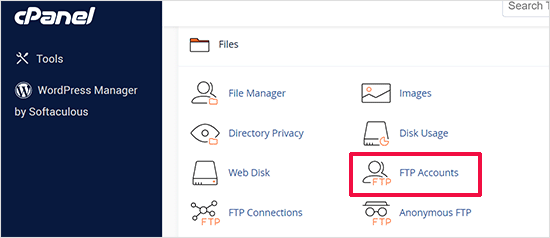
If you can’t find your login credentials, then you can contact your hosting provider to get that information.
Once you have the login information, open FileZilla and select the File » Site Manager option from the top menu.
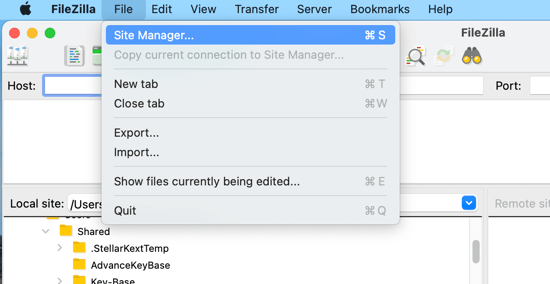
This will open a popup window where you can add your website information.
You should click on the ‘New Site’ button and provide a title for your website.
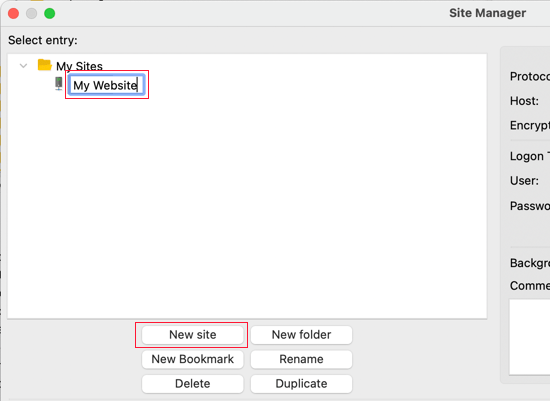
Now it’s time to enter the login details you found earlier. In the protocol section, you should select SFTP if your hosting provider supports it. Otherwise, leave it as FTP.
You’ll be asked to enter your host. This is usually your domain name, but sometimes you need to add ‘ftp.’ at the beginning.
Next, you should select ‘Normal’ for the Logon Type and then enter your FTP username and password.
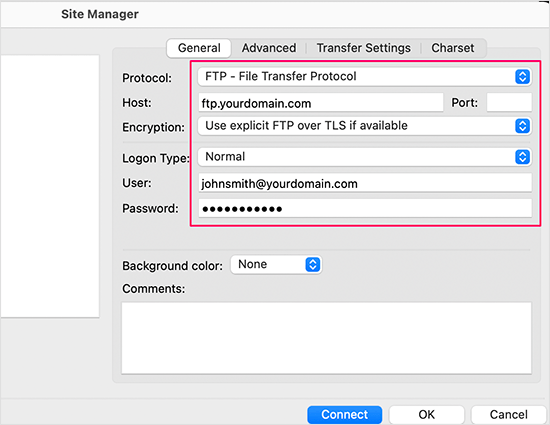
Once you’ve entered those details, click the ‘Connect’ button to continue. FileZilla will save your website settings for future logins and open a new FTP connection to your website.
If this is your first time connecting to your website from this computer, then FileZilla may show you a certificate popup.
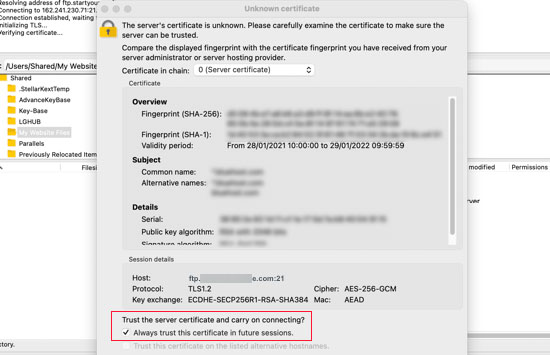
You can stop this popping up by checking the ‘Always trust certificate for future sessions.’ Then, you should click on the ‘OK’ button to continue.
FileZilla will now attempt to log in to your website using the credentials you entered. Once connected, you will see two columns of files and folders.
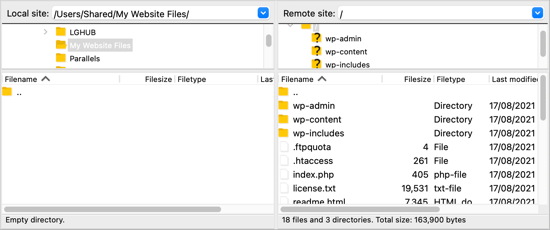
The left column lists the Local files on your computer. The right column lists the Remote files on your website. This layout lets you easily transfer files to and from your website.
Uploading Files to Your WordPress Site Using FTP
Now, you are ready to upload files to your website. Let’s start with something easy. We will upload a test file to the main folder on our website.
Open Notepad or TextEdit on your computer and save a blank file. You can name it test-upload.txt.
Next, switch to your FTP client. Under the Local Site column, navigate to the folder that contains the test file on your computer.
Ensure that you can see the folder you want to upload to in the Remote site column on the right.
After that, you should right-click the file and select ‘Upload’ from the menu.
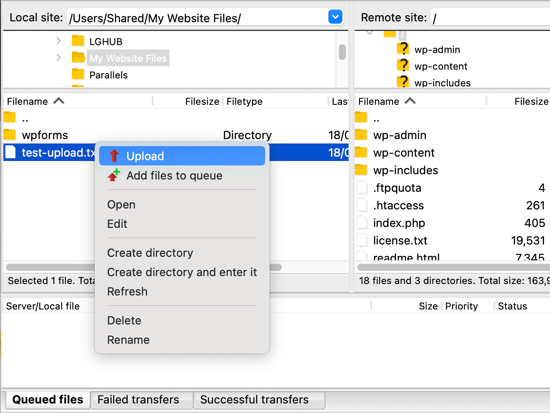
FileZilla will upload the file from your computer to your WordPress site. It creates a copy of the file and leaves the original on your computer.
We don’t recommend uploading files using drag and drop because it’s less reliable. For example, if you accidentally drag the file onto a folder, then you may upload it to the wrong place on your website.
That’s important because WordPress expects to find certain files and folders in specific locations. Uploading a file to the wrong folder may cause a problem.
For example, when you upload media files using FTP, they belong in a folder inside /wp-content/uploads/. Themes should be uploaded to /wp-content/themes/ and plugins to the /wp-content/plugins/ folder.
To see how this works, you can manually upload a plugin to your WordPress website.
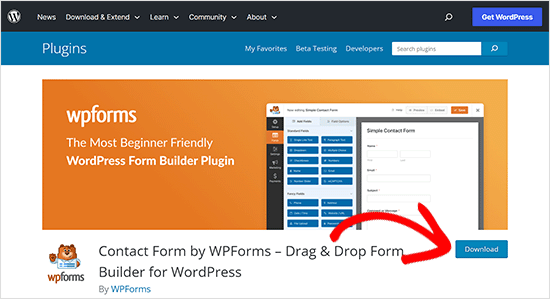
First, you need to download the plugin and then unzip it. You’ll find a folder that contains the plugin.
Tip: You can download free WordPress plugins by visiting the Plugins directory on the WordPress.org website.
Ensure you can see that folder in the left column of your FTP client. Then, navigate to the wp-content/plugins/ folder in the Remote column.
After that, you can upload the plugin folder from your computer to your website.
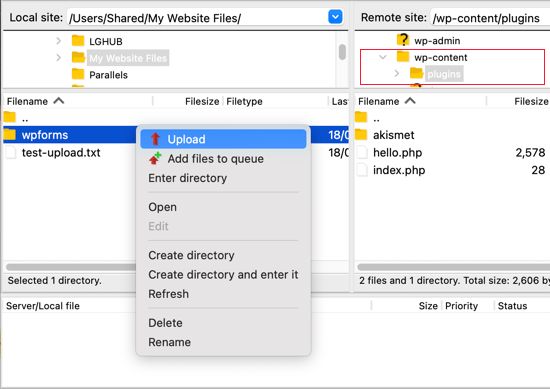
The plugin will take longer to load than our test file.
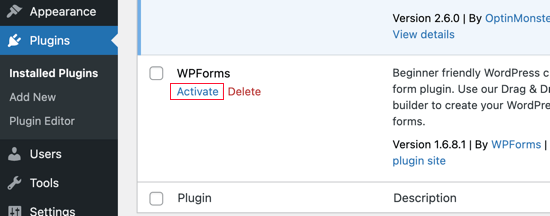
Once it has finished uploading, you need to visit the plugins page inside your WordPress admin area to activate the plugin.
Uploading a premium theme is similar. First, you need to download and unzip the theme folder on your computer. After that, you can upload it to the/wp-content/themes/ folder on your website.
Downloading Files from Your WordPress Site Using FTP
FTP isn’t just used to upload files from your computer to your WordPress website. It can also be used to download files so that you can edit them.
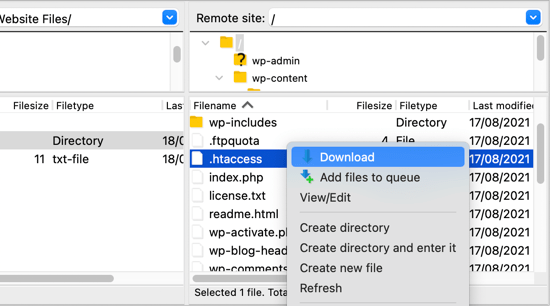
Simply right-click the file you want to download in the Remote site column and select ‘Download’ from the menu. The file will be transferred to the folder you are viewing in the left Local column.
You can also use FTP to back up your WordPress files. Simply select all files and folders and download them to your computer.
But remember that this is not a complete backup of your WordPress site. All of your content is stored in a database, not the files that you downloaded.
If you want to back up your content as well, you can do so by creating a manual backup of your WordPress database.
💡Tip: The best way to back up WordPress is by using a WordPress backup plugin. We recommend using Duplicator because it comes with scheduled backups that you can securely save on the cloud and restore your website with 1-click when needed.
We hope this tutorial helped you learn how to use FTP to upload files to your WordPress website.
You may also want to see our step-by-step WordPress security guide for beginners or check out our list of must-have WordPress plugins to grow your site.
If you liked this article, then please subscribe to our YouTube Channel for WordPress video tutorials. You can also find us on Twitter and Facebook.




Syed Balkhi says
Hey WPBeginner readers,
Did you know you can win exciting prizes by commenting on WPBeginner?
Every month, our top blog commenters will win HUGE rewards, including premium WordPress plugin licenses and cash prizes.
You can get more details about the contest from here.
Start sharing your thoughts below to stand a chance to win!
Moinuddin Waheed says
I have used FileZilla for uploading website through ftp lately but have not used for years.
Ever since then I have made many almost all the websites on live server and for waiting time period kept the website behind coming soon page.
Nevertheless, using ftp to upload websites is a good way and has been in good practice since long.
Thanks for the detailed step by step guide.
Owen says
How do you then access the files from your WordPress side of things?
WPBeginner Support says
It would depend on the files you uploaded, this would normally be used to add plugins or fix files that had an issue, but if you wanted to upload media files using FTP then we would recommend taking a look at our guide below:
https://www.wpbeginner.com/plugins/how-to-bulk-upload-wordpress-media-files-using-ftp/
Admin
Jay says
Hello,
I’ve successfully uploaded an mp3 file to my wordpress “uploads” folder via the ftp client Transmit, however, the file doesn’t show up in the media browser in the site’s dashboard. Is there another step I need to take for it to appear there? Thanks
WPBeginner Support says
For media specific files, you would want to take a look at our guide below:
https://www.wpbeginner.com/plugins/how-to-bulk-upload-wordpress-media-files-using-ftp/
Admin
Gabriel says
Rather hard to explain the problem (if it even is a problem) but I manage to connect using a personally created FTP acc in the control panel of my website. What seems to be throwing me off is that under the “remote site: /” bar all that appears is a “/” folder, and that’s it. Am I missing something here? From videos, I’ve seen additional folders pop-up like “.htaccess” and such.
WPBeginner Support says
You would want to reach out to your hosting provider to help fix the FTP account and where it is pointing on their hosting.
Admin
Gabriel says
Appreciate the response. You guys seriously have such an awesome team to reply to comments.
Anna says
If I have my site developed locally on my computer using MAMP, what is the process of uploading it to my site using FTP? The site does not have WordPress installed yet . Can I just upload all files ? Thanks for your help.
WPBeginner Support says
For that, you would want to take a look at our guide below:
https://www.wpbeginner.com/wp-tutorials/how-to-move-wordpress-from-local-server-to-live-site/
Admin
Jonathan says
The link you gave for Filezilla download was not direct to download page (there was some note about moving it, likely since you wrote this article).
WPBeginner Support says
Thank you for letting us know, the link should be updated
Admin
Eneh Stanley says
Please after following the step in your guide, with a theme and I decided to change my theme, will the setting work right or not
WPBeginner Support says
FTP is not affected by the theme active on your site or changing themes.
Admin
Tania Miller says
This weekend I discovered my website was offline. My website is offline again this morning so I downloaded Filezilla as recommended. Having attempted to log-in this morning using Filezilla, the message is coming up “cannot connect to server” so I’m guessing this is their server error and not an issue on my website?
WPBeginner Support says
You would likely need to check with your hosting as that would be the most likely issue.
Admin
ALEXA says
HI
Greetings
i want to ask from you that, i am a biginner i have domain and host and how could i install wordpress, the website was live before but now its not
how could i start?
thanks
WPBeginner Support says
For installing WordPress you would want to take a look at our guide below:
https://www.wpbeginner.com/how-to-install-wordpress/
Admin
Kelly H says
Do you have any insight – I successfully connected through FileZilla but my Remote Site is blank. What am I doing wrong?
WPBeginner Support says
You would want to check with your hosting provider to ensure you’re connecting to the correct folder
Admin
Jokine54 says
Will I be able to edit and customize a template I uploaded with filezilla in my WordPress ?
Let me put it this way: after uploading a template to my WordPress with filezilla, will I be able to find it the template in my WordPress so that I can customize it?
I hope my question was clear a bit
WPBeginner Support says
As long as you placed the theme in the themes folder you should be able to edit it the same as any other theme
Admin
Rishav Raj says
I can’t see a public_html folder in Filezilla for my website. Also, when I uploaded a sitemap, and copied the url to the search console, it shows invalid and ‘couldn’t fetch’. Plus, Google is useless about this. I’m so lost, help me out here please?
WPBeginner Support says
Depending on your host, where you connect initially could be your public_html folder. To add your site to Google Search Console, we would recommend taking a look at our article here:
https://www.wpbeginner.com/beginners-guide/google-search-console-ultimate-guide/
Admin
Laura says
Thank you so much for posting this!! I did have one question, when trying to upload my site to wordpress, does the wordpress site itself have to be live in order to connect via filezilla? I keep receiving connection timed out and can’t connect to server…
WPBeginner Support says
The site shouldn’t need to be live, you may want to reach out to your hosting provider to ensure there are no errors with your connection or from their end.
Admin
Okiki Adebajo says
Thanks alot, this really helped me. I watched the video and understood it more better.
WPBeginner Support says
Glad our video and article could be helpful
Admin
Miguel Bentivegna says
I really found this helpful! and not only this but most of your other blog posts and articles! Thanks!
WPBeginner Support says
Glad our content could be helpful
Admin
Kiki says
Hello! Not sure if you have made a post about it before, but I’m wondering about what to do if you close yourself out of wordpress dash. I once made changes to a file within wp dash editor and i could’nt access it anymore, it also left my site with an error.
For that I had to contact my hosting provider.
If something happens where not even the hosting company can help access wp dash again, is there something specific we would have to do?
Thanks!
WPBeginner Support says
Hi Kiki,
Please see our article on what to do when you are locked out of WordPress admin area.
Admin
Atta Ul Monim says
I have designed a WordPress website on localhost. Can I upload it to WordPress.com (Having purchased hosting plan), with all of my settings and customizations? Please guide. Thanks
WPBeginner Support says
Hi Atta,
Please see our guide on the difference between self hosted WordPress.org vs free WordPress.com blog.
Admin
Abraham says
Hey your post is really fantastic and useful. but what i need to know is in my case I am not trying to upload a plugin or a theme. I am trying to upload a couple pages together in a folder that can be opened directly with a URL. And I am completely lost. because my files in the folder were uploaded already besides the folders like wp-admin or wp-content. but when I try to type in a browser mydomainname.com/foldername (you understand what I mean i hope), I get nothing. So I don’t know what to do. And those pages are html pages that I want to upload so that they could be seen exactly as in my Kompozer and not as my other wordpress pages.
Could you help me please?
WPBeginner Support says
Hi Abraham,
Please see our article on how to upload a html page to WordPress without 404 errors
Admin
Christi says
This was fantastic!! I barely know what I’m doing and had updated plugins and then received a parse error. Through these instructions I have my website back!! Thanks!
Ryan Hellyer says
This is horrendous advice. Why on earth would recommend anyone use FTP to upload files to their website?
The gods invented SFTP for a reason. Use that instead.
WPBeginner Support says
Hey Ryan,
Our audiences are beginners and we didn’t want to confuse them with the jargon. We feel that many FTP clients support FTP over TLS and many hosting providers support it as well. But you are right, we should have mentioned that users should select SFTP when available. We have updated the article to let users know that it’s best to use SFTP when possible.
Admin
saravanan says
hi i am having a parse error in my site i tried using filezilla and followed your steps but i couldn’t login into the server please help me and save my life team i am in very critical situation.
WPBeginner Support says
Hi Saravanan,
You can try accessing files using File Manager in cPanel dashboard.
Admin
Rachel Vetter says
Thanks so much! This seriously saved my life, and only took me a little while with the help of this video. Much appreciated
Mike says
Thanks.
My blog vanished when I updated one of the plugins.
You saved my butt – and my blog
Fanios says
I recently built WordPress site on xampp server for my company which have its own data center.They want the site to be hosted on windows server 2012 in this data center by buying domain name from ISP.So,can you please guide me how to do this.Thanks in advance and a really appreciation all your tutorials and efforts.
Tom Josef Guban says
I would like to ask. is it possible to import an entire folder from ftp server to wordpress instead of importing a single file? If so, how is this possible? Thank you.
sachin says
how to upload local server wordpress files to live server???
can you upload some video?
Armando says
thanks for this excellent video, I would like to ask you about videos, what happened if you have a video that you cannot uploaded from wordpress and instead you need to use FTP (where is the Media folder) to drop this file?
Thanks a lot
WPBeginner Support says
Hi Armando,
You can upload it to /wp-content/uploads/ folder.
However, the video will not appear in your WordPress media library inside admin area. You can still manually add the video by entering its URL.
Admin
Alvaro says
I love you so much! I really appreciate your help, you just saved my life.
David Komarnicki says
Your voice is clear. You delivery, for me. a beginner, was so fast -along with your speed of mouse movement, your presentation became- because of the speed – was impossible for me to follow. Is there a way for me to slow down your Delivery?
Sincerely,
David
Darran says
Hi, I locked myself out of my site after I changed the url’s when attempting to move from ,wp, sub directory to public_html for live site. If I have a back-up of before I altered the home and site url’s can I upload it using ftp, or do I need to make changes in phpmyadmin first? Thankyou in advance.
Dwaynethewriter says
So everything is perfect when i use the Edit tool but as soon as I publish, there are no spaces between paragraphs. I tried looking for the Editor in Appearance but my WP Admin page does not have that feature. How do I fix this?
WPBeginner Support says
Hi Dwayne,
If you are adding text to a PHP or HTML file, then you need to wrap it around paragraph tag <p> and </p> tags.
Admin
Luis says
Hello this is a really great tutorial; but i have a question, i dont have much experience, so im trying to set the winSCP, but it gave me this error message conecting to (my host name) acces denied, and ask me to put the pasword again, if some one can help me i will be really happy.
Rachel says
Thank you. This video saved me! Clear information for someone who would not even call themselves a beginner yet! Much Appreciated
Amálka says
I installed and connected filezilla to my site, but in Remote site section appear nothing…. What can I do?
John Young says
Hi,
In order do use FTP do i have to download one of the FTP clients?
Thanks for you help in advance
WPBeginner Support says
Yes. See our list of best FTP clients.
Admin
LindaLisha says
You are a life saver…was terrified of losing the site over one plugin
Frankl says
hi….am using a local host ISS7 and web matrix to power up my word press. and i have absolutely no idea of using file zilla to upload my files into wordpress. please i need help… thanks
Barbara says
You definitely saved my life
I’m one of those people trying to do all by themselves, and got locked out by my site.
Thank you so much for sharing this!
Patricia says
@Barabra,
Same here, I’m doing my own business set up. I love this plug-in! Once you understand the structure of WordPress, it’s a blast to use.
I love their plug-ins and the ease of the design.
Asad says
I am yet to buy the domain from any hosting provider. I am new to WP. How to configure filezilla for hostname: ***.worpress.com? is it possible?
WPBeginner Support says
Please see our guide on the difference between self hosted WordPress.org vs free WordPress.com blog.
Admin
Carl John Carolino says
Please help me. After editing the functions.php of my site, this appeared: Parse error: syntax error, unexpected ‘<' in /home/carljohn/public_html/wp/wp-content/themes/blog-start/functions.php on line 83. How will I resolve this problem?
WPBeginner Support says
Please see our guide on how to fix syntax error in WordPress.
Admin
Priscilla says
Hi!!
Hmm… So I’m new at this whole FTP programs thing.. And as I have to completely change and update my company’s website, I wanted to use the domain but switch everything else to WordPress… Do you have any tutorial about this switch?
Thank you!
Heike says
Just signed up to WordPress, but unfortunately I have not received an email yet telling me the ftp details. Where can I request them? Is it possible to upload an entire website to WordPress? Thanks for ur help…
WPBeginner Support says
Please see our guide on the difference between self hosted WordPress.org vs free WordPress.com blog.
If you are sure that you are using WordPress.org, then please ask your hosting provider for help.
Admin
Sarah says
Blah, blah, blah. What the heck is the WordPress FTP server? I know how to use ftp but I don’t know the wordpress server?!?!
WPBeginner Support says
Your WordPress server is the computer where your WordPress site is stored by your web hosting company. An FTP client allows you to connect to that computer and upload or download files. Please contact your web hosting service provider for your FTP login credentials.
Admin
Amit Bhuttan says
Thank You!! This was very useful info & saved a lot of time in restoring the corrupt php file and now my website is up and running again…. saved me a great amount of time in redoing hell lot of development……. I appreciate you.
Mario M. says
I am a new webmaster, and was sent Login Info for WordPress and the FTP.
There was also a link and so I clicked on the link and it sent me to a login dialog box. I entered the login info and password then nothing happened. Why???
Dee says
Great video. The issue I have is I wanted to upload a video file into the media folder using FTP, I followed these steps and could not locate de media folder, how can I do tha?
Brenda Young says
Thank god for you guys! I got no help from my theme provider, or wordpress.org to fix my problem I locked myself out with Error 500 editing functions.php file and you nailed it down for me!!! Hours spent previously trying to figure out what to do and you saved the day—- YOU ROCK
jeff says
Can you tell me if I can use wordpress.org as a store? I have a dropship company that can give me FTP files of their products and upload to a website. I have to build a new website so maybe wordpress.org??
WPBeginner Support says
Yes you can use WordPress to build your website.
Admin
Erica says
Thank you so much! This post was a life saver.
Saadiya says
Hi,
I have purchased my domain from wordpress itself. Now, I am trying to migrate from wordpress.com to wordpress.org. I do not find any control panel in my wordpress account. How do I do it? I am already going through your tutorial on https://www.wpbeginner.com/how-to-install-wordpress/#installftp, but am not sure which is suitable. Please suggest.