


WordPress automatically adds a shake animation to the login form whenever someone enters the wrong credentials.
While this feature helps accessibility by providing a visual cue, many site owners find it creates a jarring experience and prefer something more subtle and professional instead.
If you’re looking to create a more polished login experience, then removing the shake effect is one of those small touches that can make a big difference.
It’s especially popular among business owners and membership site creators who want their login process to feel as refined as the rest of their site experience.
Here’s the great news: you don’t need to be a developer to make this change. We’ll walk you through the easiest way to disable the login shake effect, step by step.
💡Quick Answer: How to Remove the Login Shake Effect in WordPress
The easiest way to disable the login shake effect is by using the WPCode plugin. Simply search for the ‘Remove Login Shake Animation’ snippet in the library and switch it to ‘Active’ to stop the animation.
What Is the WordPress Login Shake Effect?
If you make a mistake when trying to log in to your WordPress website, then the login box will shake, and an error message will be displayed.
This lets you know that the username or password you entered is incorrect.
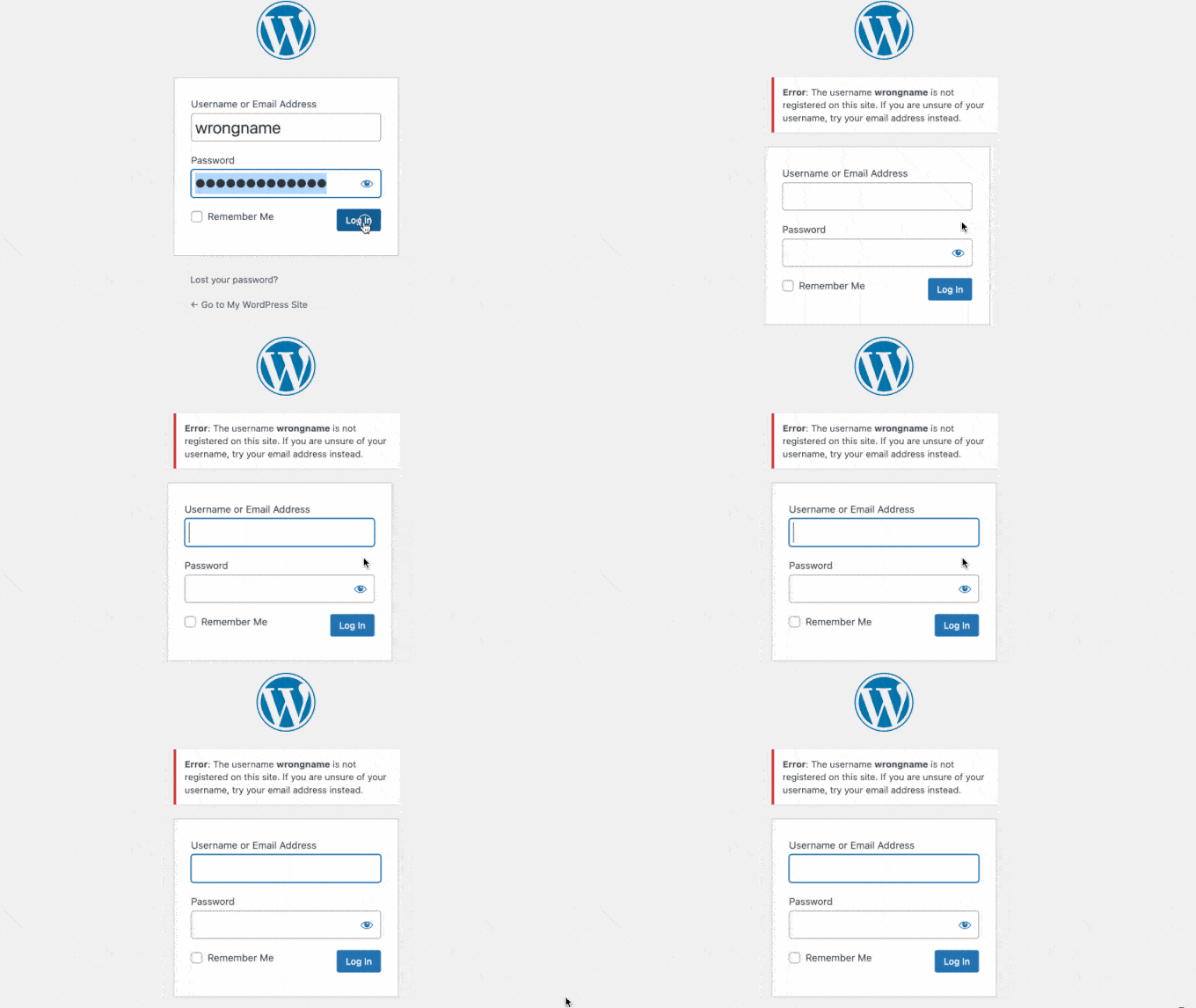
This is designed to alert the user so they notice that the login was unsuccessful.
However, some users may find it annoying or unprofessional, or want to reduce unnecessary animation scripts on their websites.
Removing the login shake effect is a decision based on personal preference. In our opinion, it helps get users’ attention and lets them know that there is a login error. That’s why on our sites, we do not remove the login shake effect.
With that being said, let’s look at how to remove the login shake effect in WordPress
How to Remove the Login Shake Effect in WordPress
The login shake feature is added with a JavaScript file that WordPress includes with every login page. All we need to do to disable the effect is remove the JavaScript.
The safest and easiest way to do that is with the WPCode plugin since it already includes a script to remove the login shake effect in its snippet library.
We have thoroughly tested the tool and have found it to be the safest and easiest way to add custom code to your website. If you want to learn more about our experience, you can take a look at our detailed WPCode review.
First, you need to install the WPCode free plugin. If you need help, then you can see our step-by-step guide on how to install a WordPress plugin.
Note: WPCode has a free plan that you can use for this tutorial. However, upgrading to the pro plan will give you access to features like a cloud library of code snippets, smart conditional logic, block snippets, and more.
Upon activation, you can navigate to the Code Snippets » + Add Snippet page.
Once there, you can use the plugin’s search feature to find the ‘Remove Login Shake Animation’ snippet.
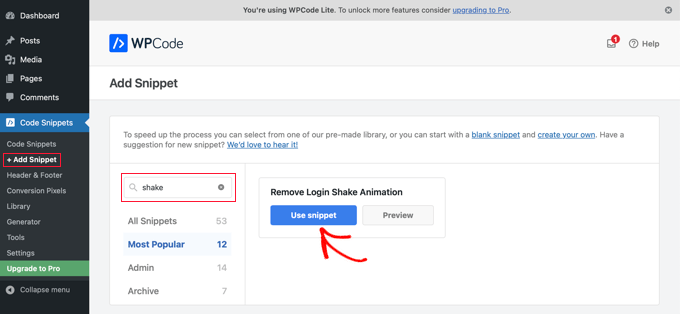
Next, when you hover your mouse over the snippet, you will see a ‘Use snippet’ button. Clicking that button will open a new window where the snippet is already set up for you.
All you need to do is toggle the ‘Active’ button on and then click the ‘Update’ button.
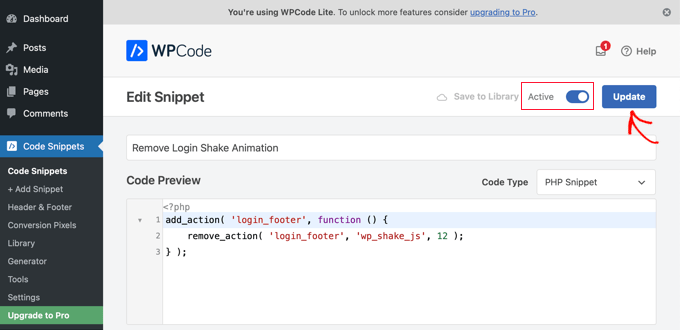
Alternatively, advanced users can copy and paste the code snippet manually.
Simply add this code to your child theme’s functions.php file:
function wpb_remove_loginshake() {
    remove_action('login_footer', 'wp_shake_js', 12);
}
add_action('login_footer', 'wpb_remove_loginshake');
Once you have saved the file or activated the snippet, the login shake effect will be disabled.
Frequently Asked Questions About the WordPress Login Shake Effect
Here are some questions that are frequently asked by our readers about the WordPress login shake effect:
Why would someone want to remove the login shake effect?
If you’re building a custom login page or managing a client site, the shake effect can feel unpolished or unwanted.
Some brands prefer a simpler login flow with less animation or visual noise. Removing it can make the login page feel smoother and more refined.
Also, if you’re auditing unused scripts, removing unnecessary JavaScript (like wp_shake_js) helps keep your site code clean and minimal.
Will the snippet to remove the login shake effect work with all versions of WordPress?
Yes, the code snippet provided above uses standard WordPress hooks and is compatible with all modern versions of WordPress.
Can I undo the change later if I want to bring back the login shake effect?
Yes, the customization is completely reversible. Whether you used a plugin like WPCode to insert the snippet or manually added it to your functions.php file, you can remove it at any time.
Just deactivate or delete the snippet, then clear any caches to make sure changes reflect on the login page.
This gives you flexibility to experiment without risk. If you later install a custom login plugin or decide you prefer the shake animation after all, WordPress will automatically revert to showing it when login errors occur—as long as the removal code is no longer active.
Expert Guides on WordPress Login
We hope this article helped you remove the login shake effect in WordPress.
You may also want to see some other articles related to the WordPress login page:
- How to Create a Custom WordPress Login Page (Ultimate Guide)
- How to Allow User Registration on Your WordPress Site
- How to Create a WordPress Login Popup Modal (Step by Step)
- How to Add One-Click Login With Google in WordPress
- How to Add CAPTCHA in WordPress Login and Registration Form
- How to Add Passwordless Login in WordPress with Magic Links
- How to Create Temporary Login for WordPress (No Passwords)
- Best WordPress Login Page Plugins (Secure & Customizable)
If you liked this article, then please subscribe to our YouTube Channel for WordPress video tutorials. You can also find us on Twitter and Facebook.





wpstooni
When i login with InfiniteWP,i haven’t the Problem. But Thanks for these Tip!