


Hitting a broken link often causes visitors to leave a website immediately. This increases bounce rates and wastes the traffic you worked hard to build.
Redirecting these 404 errors to the home page is a simple way to keep users engaged. It gives them a clear path back to your best content rather than a dead end.
This approach effectively retains visitors and improves the overall user experience. It is a strategy we often recommend for simple sites or when you are fixing a lot of broken links at once.
In this guide, we will show you how to redirect your 404 page to the home page in WordPress.

Why Redirect Your 404 Page to Your WordPress Home Page?
When a user tries to visit a page that doesn’t exist on your WordPress website, WordPress will show them a 404 error page instead.
The wording and appearance of this page can vary depending on the theme you are using.

Most users who land on the default 404 page will leave your site quickly. This can increase your overall bounce rate and negatively impact your search engine rankings.
That’s why you should take the time to create a custom 404 page. However, until you do that, you can take the shortcut in this tutorial and redirect users to the homepage.
Ideally, you should redirect specific 404 error requests to the most relevant pages. This is better for SEO because it tells Google exactly where the content has moved.
That being said, let’s look at how to redirect all 404 errors to your home page. We will cover two methods and also show you how to create custom redirects for individual pages:
Method 1: Redirect All 404 Errors to the Home Page in WordPress
For this method, we will be using All in One SEO for WordPress (AIOSEO). It is the best WordPress SEO plugin that allows you to set up redirects, optimize your content for search engines, and more.
The first thing you need to do is install and activate All in One SEO Pro. While there is a free version, the Redirection Manager is a Pro feature that we will need for this tutorial.
For more details, see our step-by-step guide on how to install a WordPress plugin.
Once the plugin is activated, you need to go to All in One SEO » Redirects.
If you haven’t set up redirects yet, then you must click the ‘Activate Redirects’ button.
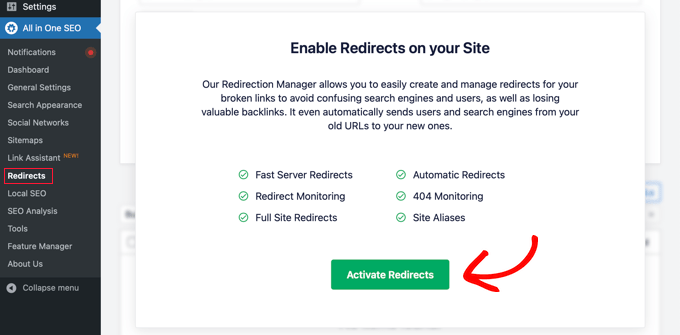
This will install All in One SEO’s Redirects module.
Next, you will need to click on the ‘Settings’ tab at the top of the page. This page allows you to configure redirects in AIOSEO.
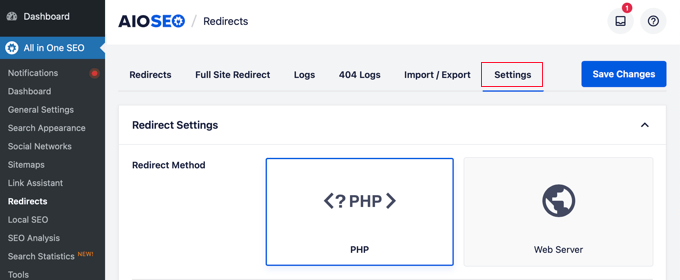
You need to scroll down the page until you find the ‘Advanced 404 Settings’ section. Enable this section by simply clicking the toggle button so that it turns blue.
Now you will be able to see some more settings. You should toggle the ‘Enable default 404 redirect’ button to the on position. After that, make sure that the ‘Home Page’ option is selected.
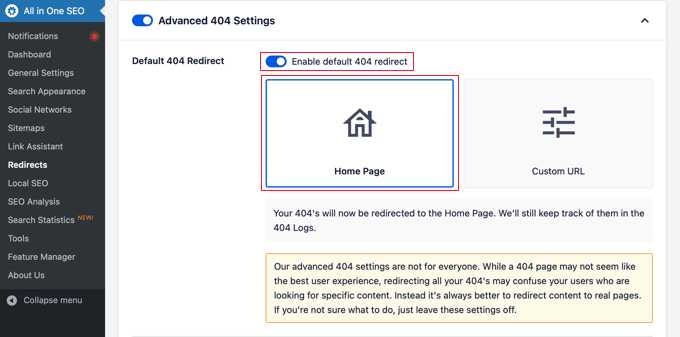
Notice that there’s also a ‘Custom URL’ option. This allows you to redirect 404 errors to any post or page. Don’t forget to click the ‘Save Changes’ button at the top or bottom of the page to store your settings.
Now when your visitors try to visit a URL on your website that doesn’t exist, they will be taken to the home page instead of seeing the default 404 page.
Method 2: Redirect All 404 Errors to the Home Page Using Code
For this method, we’ll be using WPCode, which makes it safe and easy to add custom code in WordPress. Plus, it comes with a huge library of useful code snippets, including one that automatically redirects 404 pages to the home page.
To get started, you need to install and activate the free WPCode plugin. If you need help, you can follow our tutorial on how to install a WordPress plugin.
Once the plugin is activated, go to Code Snippets » + Add Snippet from the WordPress dashboard.
From there, search for the ‘Redirect 404 to Homepage’ snippet in the library, hover over it, and click on the ‘Use snippet’ button.
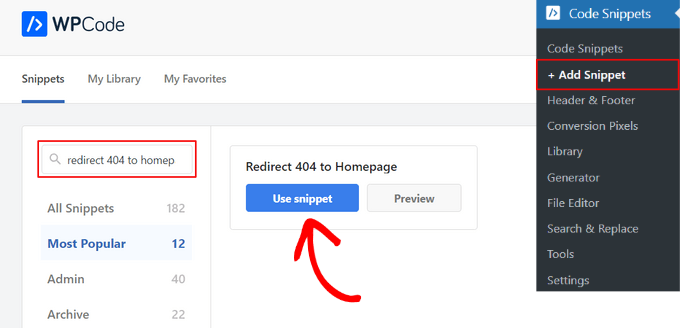
WPCode will then automatically add the code for you, as well as select the proper insertion method.
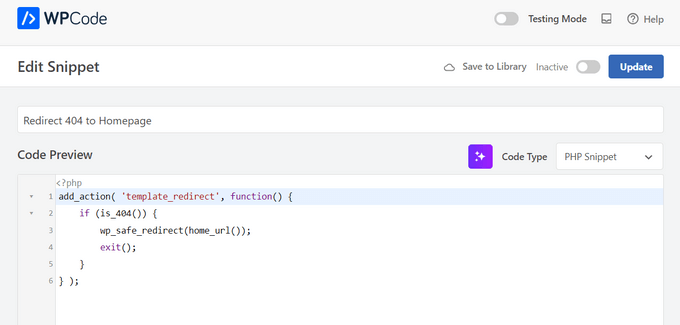
After that, all you need to do is toggle the switch from ‘Inactive’ to ‘Active’ and click the ‘Update’ button.
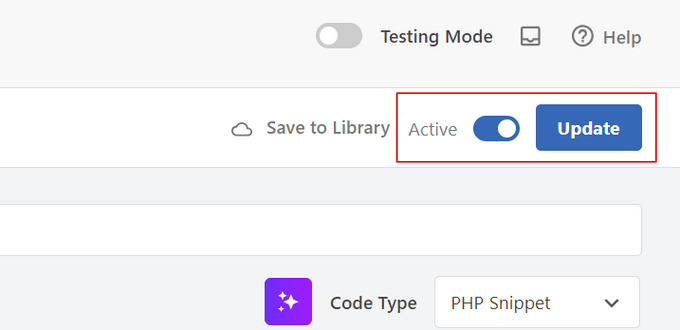
Now, when a page is not found, instead of seeing a 404 page, visitors will be redirected to your WordPress home page.
If you prefer not to use a plugin, then you can use a simple code snippet to redirect all 404 pages to the homepage.
In this method, you need to add code to your WordPress files. If you haven’t done this before, then see our beginner’s guide on pasting snippets from the web into WordPress. You may also like to see our guide to the WordPress theme template hierarchy.
First, you will need to create a new file in your WordPress theme folder and name it 404.php. If your theme already has a 404.php file, then you must edit that file instead.
To edit this file, you need to connect to your WordPress hosting account with an FTP client or their file manager tool.
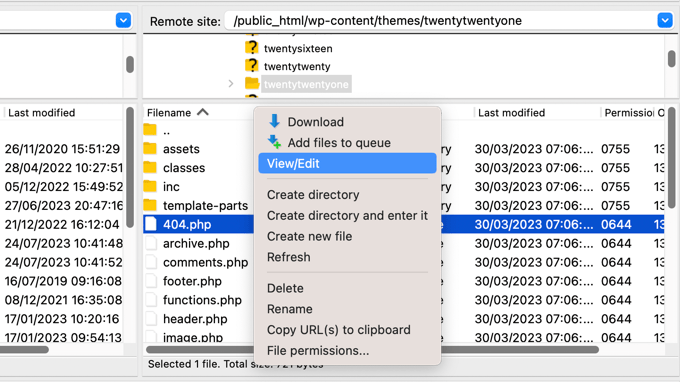
Once you are connected to your website, you will be able to see the 404.php file in your WordPress themes folder.
You need to add the following code as the first line in your 404.php file:
<?php
header("HTTP/1.1 301 Moved Permanently");
header("Location: ".get_bloginfo('url'));
exit();
?>
Next, save the 404.php file and reupload it to your theme directory using FTP or your hosting control panel. Then, your 404 errors will be redirected to your homepage.
Note: Since you are editing a theme file directly, this change will be overwritten if you update your theme. We recommend using the WPCode method mentioned above or a child theme to prevent this.
Bonus: Set Up Custom 404 Page Redirects With AIOSEO
The best and most SEO-friendly way of handling 404 errors is to redirect visitors to the most relevant page, not just your homepage.
The All in One SEO plugin’s Redirects feature can also track all 404-page errors and let you set up smart 404-page redirects in WordPress.
If you installed and activated AIOSEO when you followed Method 1, then all you need to do is navigate back to the All in One SEO » Redirects page and click on the ‘Settings’ tab.
Next, scroll down until you see the ‘Logs’ section. Your 404 logs are a record of URLs that your visitors have tried to use to visit pages that no longer exist on your site.
Make sure the ‘404 Logs’ is toggled on so that it looks blue. You can also choose how long you want the plugin to record your logs by selecting the time period from the dropdown menu.
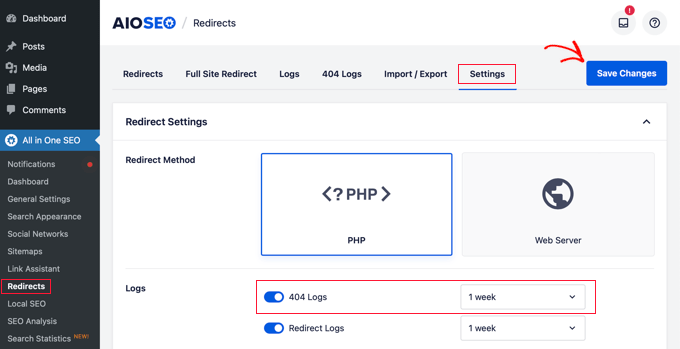
Don’t forget to click ‘Save Changes’ before moving on.
After that, you can click the ‘404 Logs’ menu option to see the last accessed 404 page.
Remember, since you just enabled logging, it may not display anything right away. You might need to wait up to 24 hours before you see any useful insights there.
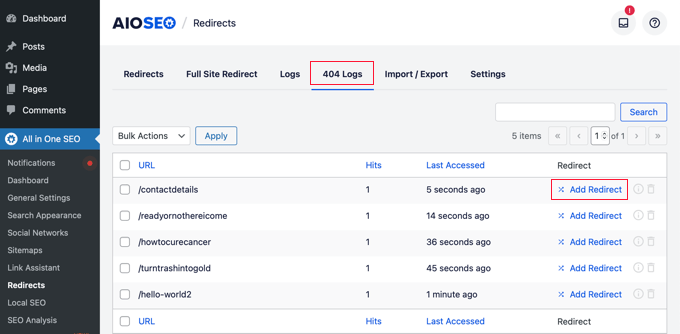
The ‘URL’ column will show you the pages users tried to visit but don’t exist.
You can redirect any of these URLs to an existing page by clicking the ‘Add Redirect’ link in the ‘Redirect’ column. This will open a dropdown where you can enter your redirect information.
For best results, you need to enter the most relevant page for the original query in the ‘Target URL’ box and then click ‘Add Redirect’.
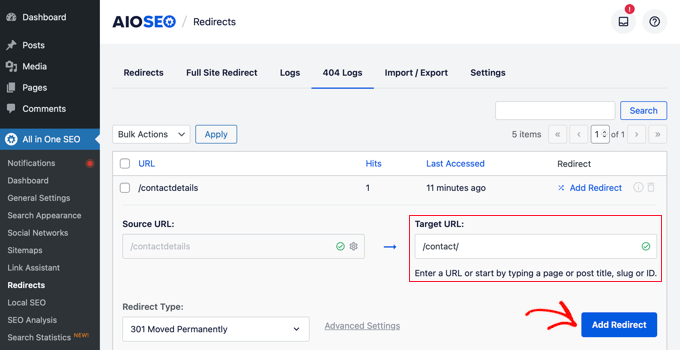
For example, if you deleted a tutorial on how to start a WordPress blog and then wrote a new one, then it’s best to redirect that old URL to the new blog post rather than your homepage.
To add multiple 404-page redirects, simply follow the same steps as above.
Remember, generally, you don’t want to redirect your 404 page to your home page forever. It’s a great temporary solution until you create a custom 404 page design that will convert better or set up individual redirects that take users to a relevant page that does exist.
FAQs About Redirecting 404 Pages to the Home Page
Below are some of the most common questions we get about redirecting 404 pages to the home page in WordPress. These should help clear up any confusion you might have about using this strategy on your site.
1. Will redirecting 404 pages to my home page hurt my SEO?
Redirecting 404 pages to your home page is treated by Google as a ‘Soft 404’. This means that while it helps users find their way, Google may not pass ranking authority from the old link to your homepage.
Because of this, it is much better for SEO to use 301 redirects to point users to specific, relevant content. Redirecting to the home page should be used as a temporary fix or for low-priority links.
2. What’s the difference between a 301 and 302 redirect for 404 pages?
A 301 redirect tells search engines the move is permanent, while a 302 redirect indicates it’s temporary. For 404 page redirects, you typically want to use a 301 redirect since the original page is gone permanently. This helps preserve any SEO value from the broken link.
See our guide on 302 redirects vs 301 redirects for best practices.
3. Can I customize my 404 page instead of redirecting it?
Yes, and this is often a better approach. A custom 404 page can include helpful navigation, search functionality, and links to your most popular content. This gives visitors options while keeping them on your site, and it’s generally better for SEO than automatic redirects.
4. How do I know if my 404 redirects are working properly?
You can test your redirects by trying to access a non-existent page on your site (like yoursite.com/random-page-that-doesnt-exist). You should be automatically redirected to your home page. You can also use tools like AIOSEO to monitor 404 errors and redirect responses.
5. Will redirecting 404 pages affect my website’s loading speed?
Properly configured redirects should have minimal impact on your site’s loading speed. However, having too many redirect chains (where one redirect leads to another) can slow things down. Make sure your redirects go directly to the final destination without multiple hops.
Expert Guides on 404 Errors in WordPress
We hope this article helped you learn how to redirect your 404 page in WordPress. You may also want to see some other guides related to how to handle 404 errors:
- Beginner’s Guide to Creating 301 Redirects in WordPress
- How to Fix WordPress Posts Returning 404 Error (Step by Step)
- How to Easily Track 404 Pages and Redirect Them in WordPress
- How to Find and Fix Broken Links in WordPress (Step by Step)
- How to Improve Your 404 Page Template in WordPress
- Best WordPress 404 Error Page Design Examples
- Best WordPress Redirect Plugins (Compared)
- Best Free 404 Redirect Plugins for WordPress
- Crucial WordPress Maintenance Tasks to Perform Regularly
- Most Common WordPress Errors and How to Fix Them
If you liked this article, then please subscribe to our YouTube Channel for WordPress video tutorials. You can also find us on Twitter and Facebook.




Dennis Muthomi
The AIOSEO method to be very user friendly for non techy people and I use it for my client’s sites. In my experience having a custom 404 page with links has reduced bounce rates on my site big time. One more thing I would suggest is to regularly review your 404 logs to see patterns in user behavior and create specific redirects for commonly requested non existent pages. This has helped me to improve user experience and retain more visitors on my WordPress site.
Mrteesurez
I appreciate your approach to handling 404 errors, and I agree that redirecting 404 error page to homepage can be a smart move especially to retain traffic. I’ve had a similar situation where I noticed that sending users to a customized 404 page with a search bar and helpful links kept them engaged on my site. While redirecting to the homepage can be useful, especially for deleted content, I’ve found that a well-crafted 404 page often turns a potential dead end into a positive user experience. It shows visitors you care about their journey on your site and offers them a way to find what they’re looking for, which can build trust and keep them coming back.
Ralph
I have 2 or 3 blog posts that had to be deleted, but the urls are still present on Pinterest, forums, etc., so I redirected 404 to my homepage in hosting settings to not lose traffic. However, for any other non deleted 404 I have my own “sorry” info and search bar.
I really appreciate good 404s on people’s websites, as this often indicates that they really care. Redirecting to the homepage has its uses, but not every time I think.
WPBeginner Support
That is an option if you prefer it
Admin
Jiří Vaněk
I think, but it’s just my personal opinion, that redirecting people to the homepage isn’t good. Instead, it’s better to create a humorous 404 with an apology that reduces visitor frustration and offers interesting content in the form of a 404 page where the latest content of the website or blog can be automatically inserted. This way, the visitor realizes the page no longer exists but also gets the opportunity to laugh at a well-crafted 404 page and receives alternative content as an option for what to do next.
WPBeginner Support
That is another option, it depends on the site and what type of content but both are valid options
Admin
Mrteesurez
This idea is good, I personally see a 404 page as an avenue to deliver some messages to the visitors and present some exciting contents and link as alternative. Your idea is great by including a humorous elements or image. thanks.
Although it is generally depends on site type but this your idea is still good.
Jiří Vaněk
My primary goal is to reduce user frustration when they can’t find what they’re looking for. That’s why I chose to use humor, which can alleviate frustration (at least partially), and to offer an alternative, like different content. I know I’ve come across several websites that redirected me to the homepage, and I was always confused about why I couldn’t see the article and instead saw the homepage. This usually just frustrated me more and ultimately made me leave. By offering users alternative content, there’s still a chance they’ll stay on the site. Those are my observations. I’m glad you found them helpful and might use them on your website. This is my subjective opinion on what works for me.
Shamsher Khan
Thanks for sharing this amazing tutorial.
WPBeginner Support
You’re welcome!
Admin
Mbah Chinedu
Hello, the 301 redirect you do at php file in ftp, can’t I use a text to inform user that the page is going to redirect in some seconds and then allow it redirect. At least bounce rate still reduces, because google has no issue with soft 404 or 404 pages
WPBeginner Support
You can create a page like that if you wanted but we do not have a beginner-friendly method for creating that with PHP.
Admin
Mark Cavallo
very quick and easy trick – saved me a heap of time manualy redirecting with new website. thank you.
WPBeginner Support
Glad our guide could help
Admin
Dave
Please what if I don’t want it to go to the homepage, how do I set it to another custom page please?
WPBeginner Support
We would recommend taking a look at our guide on tracking and redirecting 404s for other links below:
https://www.wpbeginner.com/plugins/how-to-track-404-pages-and-redirect-them-in-wordpress/
Admin
Mudassir
Hello WPbeginner team,
I am using Astra Pro and have already some code in my 404.php. Now my question is, where do I add the above code exactly? Should I remove all that existing code and add yours or how?
Please help!
WPBeginner Support
For this tutorial, you would replace the code in your 404 page with this code normally. As we state in the article, this should only be done in very specific cases
Admin
Mudassir
Thank you, I replaced it and it works!
WPBeginner Support
Glad it worked
Adeola
Your posts are always very helpful. Thank you
Peter
Is this going still to be shown as a 404 in the Google Search Console ?!
WPBeginner Support
Hi Peter,
No, it will send 301 header message to crawlers telling them that the content has moved permanently.
Admin
Noble A. Ozogbuda
Hello please how can i modify this code to redirect all my 404s pages to a specific page, not homepage?
Mentik
Work Perfect … thanks
Jack
It worked perfectly ! Thanks Syed
Mohan
I have just installed it and did some redirection. I hope it works the way I expect. Anyway, its a nice plugin. Thanks for the helpful post about it.
Jeffrey Asamoah
worked thanks!
Jitendra Mahato
hi… i want to know that how to redirect the 404 page to a custom page.I want to do that in my blog. Thank you. Hoping your answer. I used this code and doing well.
Drake Bliss
If you only want to redirect a specific url path, try this code below. First create a child theme if you do not have one and move 404.php to the the child theme.
Edit the 404.php page in the child theme and paste this code into the very top of the 404.php page. You can insert more check for other paths you want to redirect,.
yudi cahyadi
hi there…i’m using chid theme but it doesn’t exist 404 file,, how to creat 404.php file using child theme not in main theme to insert code ..
thank you..
umer tanveer
Insert code to Main Theme
eray
thank u so much. it works ..
Kaizur Ahmed
Great! This code work fine.
Liem Hoang
Work perfectly! Thank admin so much, you have been saved my life. My website will no longer get error win WMT.
Malindo My Id
wow thankyou so much,, did you know thats my site have been redirect from spammer, makes my eror page 404 found until 1240 not found url. and now I was redirect to my home age.. you are good boys.. thankyou.. I like this page,, so useful for many blogger ..
Malindo My Id from Indonesia
Shoaib
i read anywhere on web that 404s should not be redirected globally to the home page.
whats your view ???
WPBeginner Support
We agree that it is not the best practice. However, sometimes it may become necessary for some websites to do that.
Admin
Sanjar
Thanks alot
Sid
Is there any way that I can redirect specific 404 pages. Like I created a custom post type and I just want to redirect 404 pages on that post type. Will that be possible?
WPBeginner Support
Yes, it is possible. See plugins in our list of 6 best free 404 redirect plugins for WordPress.
Admin
Jaswinder
Good and valuable information, this is what I was looking for.
Thanks.
Kumar
This code is causing problem, when i post something new permalink gets shorten and does not contain complete post title.
What shld i do?
Miguel Guzman
I have 1,500 404’s that is because i started using dates on the url at the beginning when i started using WordPress. I changed the permalinks and that’s when the 404 started. is really hard when you have so many redirect to map them individually. its easier to re direct then all to home page.
Riccardo
How can you redirect depending on the language the site is displaying?
My website is in french and english, but when I use your code it goes only to one page for both languages.
Thank you for your help!
Riccardo
slango20
this is bad practice, very bad. If you have time to set up a wordpress site, you have time to put 404 Not Found into a 404.php at *least* instead of redirecting to the homepage with no explanation whatsoever
jhelum
fantastic… thanks a lot
dcaryll
Appreciate the quick explanation and answer. Thanks for the post.
Roy
I am very grateful for this. You saved me doing 200+ redirects. Worked a treat.
P.D.
Does anyone know if the code works as well for multisite installations?
If so, does the 404 page bounce to the subdomain / subfolder / subsite or the main or root domain / folder / site?
Vishal
Thanks dude….
Prasanna
I really thank full to you. My website here after won’t get crawl errors.
Thanks a lot.
slango20
those crawl “errors” are perfectly normal and don’t affect your site’s ranking, just like it’s not a good idea to reply to all sms with the same response just because you received a few spam sms
marco
Thanks that help a lot.
Dilpreet Bhatia Music
Wow – That Was easy!!
Filip Hajek
There is a cool WP plugin “404 Redirected”, whoch captures 404s for you and let’s you redirect them easily.
Eric
Thanks for the comment! That helped me out a lot! The article’s has a good solution too but I don’t like messing with my code. Thanks again for the suggestion Flip!
-Eric Out-
Nikole
What if I want t redirect to a specific page not the homepage?
Editorial Staff
You can change line 3. Or better use the redirection plugin like we mentioned in the article.
Admin
Rakesh
It rocks!!! I used the code ( previously my theme given me a custom 404 page template, but I replaced with your few lines). Thank you.
ud
Thanks for your very useful information
Arslanh
I did this but it doesn’t seem to work. I have no knowledge of coding so please help me!
Editorial Staff
It should work just fine if you follow the article how it is. This is not a very complicated piece of code.
Admin
Julien
I am really not convinced by the relevance of this. 404 means the page doesn’t exist anymore, 301 is a permanent redirect. Those 2 errors do not mean the same for search engines.
Rootpak
I agree. I would not recommend redirecting all 404 pages to the home page. From SEO point of view it is not accepyable. It means that every not existing page was moved to home page. It can simply lead to problems how google sees your site.
Andy Feliciotti
I use smart 404 extension and I must say it’s amazing, it’ll find a post with a similar URL and redirect to it
Editorial Staff
What is this extension called?
Admin
Clark Wimberly
I should know better, but one time I created an infinite loop using something close to this. It was a site with few pages for mostly logged-in users, so I made my 404 template redirect to the user page. What I had forgotten is that I made my user page redirect to the 404 if you weren’t signed in. Totally my fault, and barely relevant, but there you go.
Editorial Staff
Hah that’s funny. The only reason why we wrote this code was for a small one-page site which where we didn’t want users to peek around too much. Some folks are just curious and they start running search or checking out feeds etc. So we disabled search, feeds, and redirected 404 to the homepage.
Admin