


Everyone wants a faster website to rank higher in search results. However, Google AMP isn’t always the magic bullet that people think it is.
We have tested countless performance strategies at WPBeginner. In our experience, rushing into AMP without a plan can actually break your site design.
If you decide this technology is right for you, we can help you get started safely.
In this guide, we will show you how to properly set up Google AMP on your WordPress site.
What Is Google AMP?
Google AMP (Accelerated Mobile Pages) is an open-source framework launched by Google in October 2015 to address slow mobile web loading times. The technology creates stripped-down versions of web pages that load almost instantly on mobile devices.
Here’s how it works: AMP uses a simplified version of HTML (called AMP HTML), restricts JavaScript usage, and stores your content on Google’s global cache network.
When someone clicks on your AMP link from search results, Google serves the cached version directly from their servers, eliminating the usual loading delays.
The reality today: AMP adoption has significantly declined since its peak popularity. Major platforms like Twitter, LinkedIn, and Reddit have all discontinued their AMP implementations.
More importantly, Google no longer gives AMP pages preferential treatment in search rankings, which was one of the main reasons websites adopted it initially.
Based on our experience running WPBeginner, we’ve never implemented AMP on our own site. Instead, we recommend focusing your optimization efforts on improving Core Web Vitals, which delivers better long-term results for both user experience and search performance.
That said, if you’ve decided that AMP fits your business goals and technical requirements, the official AMP plugin remains available and functional. This guide will walk you through the complete setup process so you can implement it correctly.
Setting Up Accelerated Mobile Pages or AMP in WordPress
The first thing you need to do is install and activate the AMP plugin. For more details, see our step-by-step guide on how to install a WordPress plugin.
Upon activation, simply click the link at the top of the Plugins page to open the onboarding wizard.
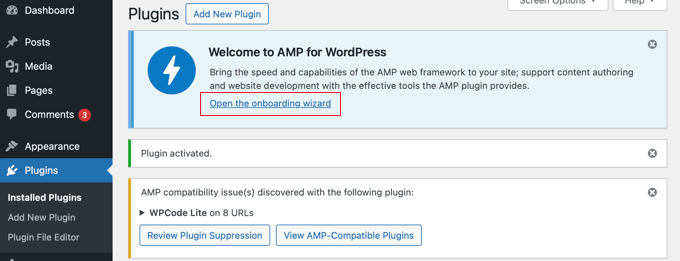
Note: The AMP plugin has compatibility issues with some popular WordPress plugins, such as WPCode, the leading code snippet plugin. You will be notified of any incompatible active plugins at the top of the page.
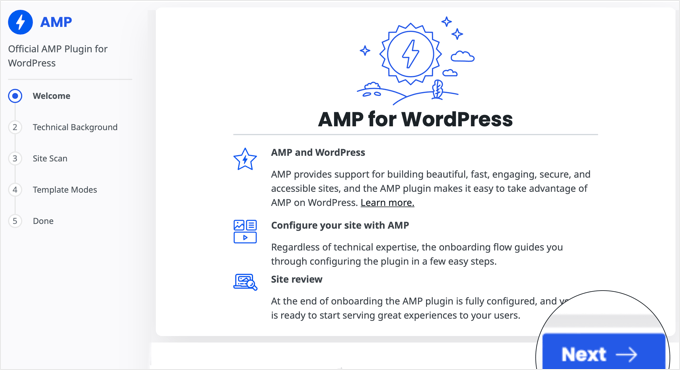
The first page gives you an overview of what the plugin does. Once you read this, you can click the ‘Next’ button to continue.
The second page of the wizard lets you choose your technical background.
Advanced users who understand PHP, JavaScript, HTML, and CSS code can click the first option. However, we recommend most users choose the second ‘non-technical’ option because it makes setting up Google AMP much simpler.
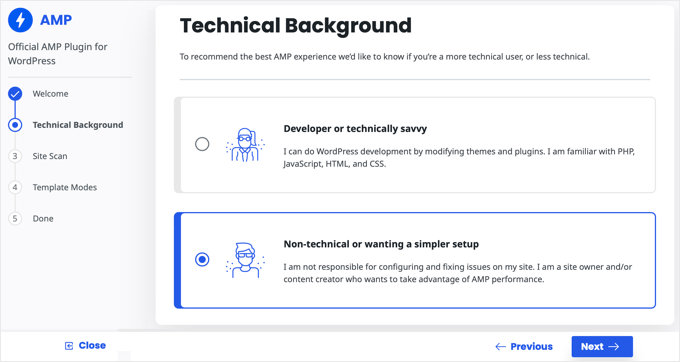
Once you have chosen a technical background, click the ‘Next’ button to continue.
The plugin will now scan your site for compatibility issues with your active theme and plugins. Once the scan is complete, you will be notified of any issues.
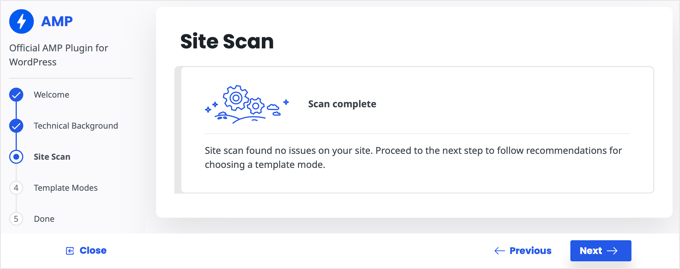
In the next step of the onboarding wizard, you need to choose a template mode. We recommend choosing the Transitional option.
This setting makes sure your desktop site keeps its original design and branding, while creating a separate, fast-loading AMP version specifically for mobile users.
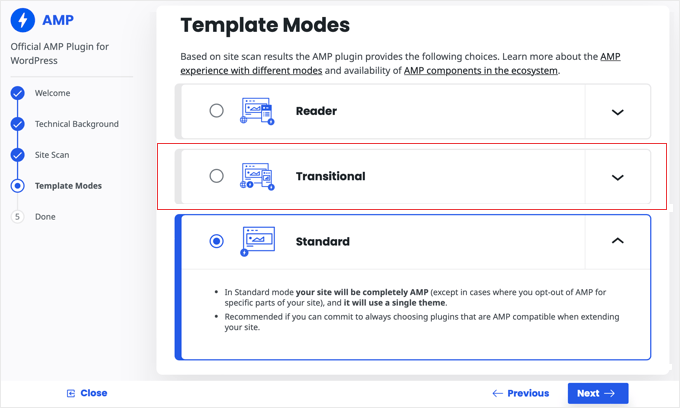
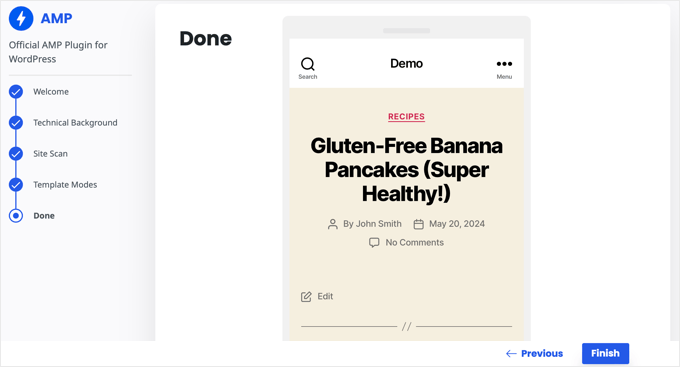
Next, click the ‘Next’ button. You will now see a preview of how your site looks in AMP format.
Make sure you click the ‘Finish’ button to store your settings.
If you chose Transitional or Reader mode, you can visit any post on your website and add /amp/ to the end of the URL to see the AMP version.
https://example.com/my-blog-post/amp/
This will be automatically displayed on mobile devices.
Getting Accurate Analytics on AMP Pages
One of the major issues with AMP is that it can skew your Google Analytics data. Visitors to your AMP pages aren’t tracked accurately and can even be double-counted.
For the most accurate analytics, we recommend using MonsterInsights. It’s the best Google Analytics plugin for WordPress.
The MonsterInsights AMP addon will automatically fix your tracking so that you get the real stats on your visitors.
You can learn how to set up MonsterInsights in our beginner’s guide on how to install Google Analytics in WordPress.
Frequently Asked Questions About Google AMP
Here are some of the most common questions our readers ask about setting up Google AMP on WordPress.
1. Is Google AMP still necessary for WordPress?
No, it is not strictly necessary. In the past, Google required AMP for certain mobile search features like the Top Stories carousel. That is no longer the case.
Today, most modern responsive WordPress themes are fast enough on their own. We recommend focusing on passing Core Web Vitals instead of maintaining a separate AMP version of your site.
2. Will installing AMP hurt my site’s SEO?
Installing it correctly usually helps mobile speed, which is a ranking factor. However, a poor setup can hurt your SEO. If your AMP pages miss important internal links or navigation menus, user engagement signals might drop. This can negatively impact your rankings over time.
3. Does AMP work with plugins like WPForms or OptinMonster?
Yes, but there are limitations. Since AMP restricts JavaScript, standard forms and popups often stop working. You must use the specific AMP integrations provided by tools like WPForms and OptinMonster. Without these specific settings, your lead generation tools may not appear on mobile devices.
4. Can I easily remove AMP if I don’t like it?
You can remove it, but you must be careful. If you simply deactivate the plugin, Google may still try to send visitors to the AMP versions of your pages, resulting in 404 errors.
To fix this, you will need to set up proper redirects to send mobile traffic back to your standard mobile site. We recommend using the Redirection Manager in All in One SEO (AIOSEO) to easily handle this.
5. What is the difference between mobile-friendly and AMP?
A mobile-friendly site is your regular website design that adjusts its layout to fit small screens. It keeps all your branding, styles, and scripts. AMP is a completely separate version of your page. It strips away most heavy code to load instantly, often sacrificing your specific design elements in the process.
Additional Resources on WordPress Performance
Google AMP is one way to improve website performance on mobile. You may like to see some articles on our preferred methods for speeding up your WordPress website.
- The Ultimate Guide to Boost WordPress Speed & Performance
- How to Speed Up Your eCommerce Website (Proven Tips)
- Why Do You Need a CDN for Your WordPress Blog? [Infographic]
- How to Optimize Core Web Vitals for WordPress (Ultimate Guide)
- What Is Google’s INP Score and How to Improve It in WordPress
- How to Optimize Images for Web Performance Without Losing Quality
- How to Use GTmetrix Plugin to Improve WordPress Site Performance
- How We Boost Page Load Speed on WPBeginner
- How to Properly Run a Website Speed Test (Best Tools)
We hope this article helped you learn how to set up Accelerated Mobile Pages (AMP) in WordPress. You may also want to see our guide on how to improve your WordPress site health or our expert picks on the fastest WordPress hosting.
If you liked this article, then please subscribe to our YouTube Channel for WordPress video tutorials. You can also find us on Twitter and Facebook.


tfk, the5krunner
the AMP pluigin disables JS scripts.
therefore things like
1. Wordpress outbound click stats are disabled
and
2. Google adwords conversion tracking is disabled.
so think carefully before using it
WPBeginner Support
Thanks for sharing these concerns!
Admin
ToTemat
I tested AMP on the website for over 6 months. My conclusions are like this. The website worked faster on a mobile basis, but it had no effect on its position. Additionally, plug-in conflicts appeared from time to time. Also, fewer people on AMP pages accessed subsequent pages of the website. That’s why I believe responsive pages are better and more relevant than using AMP. I turned off AMP completely by myself some time ago.
WPBeginner Support
Thank you for sharing your experience with AMP!
Admin
Ali Abdoli
Do I have to index the /amp version of each page in google search console?
WPBeginner Support
You do not need to specifically index the pages
Admin