


Did you know that around half of all websites are in a language other than English?
If you’re not a native English speaker, then you shouldn’t have to struggle through an English interface just to build your website.
The good news is that WordPress makes it incredibly easy to work in your own language. With translations for over 200 languages (and about 130 fully translated), you can install, set up, and manage your entire WordPress site in your native language.
In this guide, we’ll show you exactly how to install WordPress in other languages, step by step.
We’ll cover everything from choosing your language during installation, changing it later, manually installing translation files, and even creating a full multilingual website that reaches a global audience.
Quick summary: WordPress lets you choose your language during installation. You can also manually install language packs via FTP, set per-user admin languages, and use plugins like Universally or WPML to create full multilingual websites.
Since this is a comprehensive step-by-step tutorial, feel free to use the navigation links below to get to the appropriate section:
- Set Up WordPress Hosting for Your Non-English Site
- Choose Your Language During WordPress Installation
- Change the Site Language in WordPress Settings
- Manually Install WordPress Translation Files via FTP
- Set a Per-User Admin Language in WordPress
- Enable Right-to-Left (RTL) Language Support in WordPress
- Creating a Multilingual WordPress Website
- Contribute to WordPress Translations in Your Language
- Frequently Asked Questions About Installing WordPress in Other Languages
Set Up WordPress Hosting for Your Non-English Site
To start a blog or website, the first thing you’ll need is WordPress hosting.
We recommend Bluehost, as they are one of the largest WordPress hosting providers in the world and an officially recommended provider.
They offer WPBeginner users a generous discount on hosting along with a free domain name and SSL certificate. This makes it an affordable way to start a WordPress site in any language.
If you’d like to explore other options, you can also check out Hostinger or SiteGround. Both are excellent WordPress hosting providers that support multilingual WordPress sites.
After signing up with a WordPress host, the next step is to install WordPress. We have a complete step-by-step tutorial on how to install WordPress properly.
As part of this process, you can choose your preferred language following the steps below.
Choose Your Language During WordPress Installation
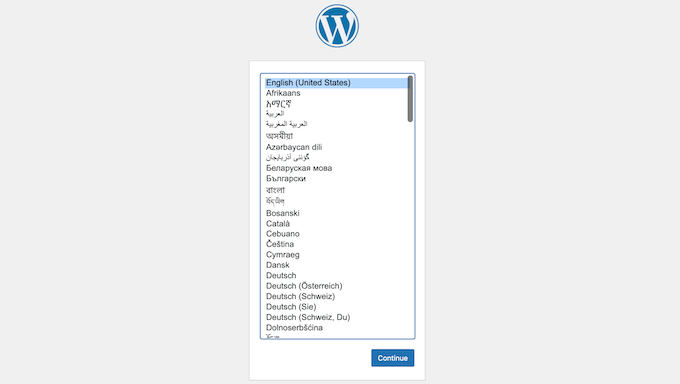
Since WordPress 4.0, the installer has included a built-in language selection screen as the very first step. This means the entire installation process, including all on-screen instructions, will appear in your chosen language.
When prompted, simply click to select your preferred language.
However, don’t worry if you missed this step. You can change the language at any time in your website’s settings.
Change the Site Language in WordPress Settings
WordPress makes it super-easy to change the language on your website.
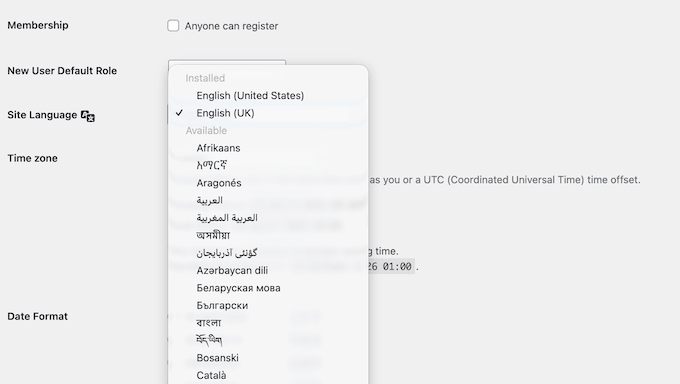
Simply go to Settings » General in your WordPress dashboard and scroll to the bottom of the page. There, you’ll see the option to select Site Language.
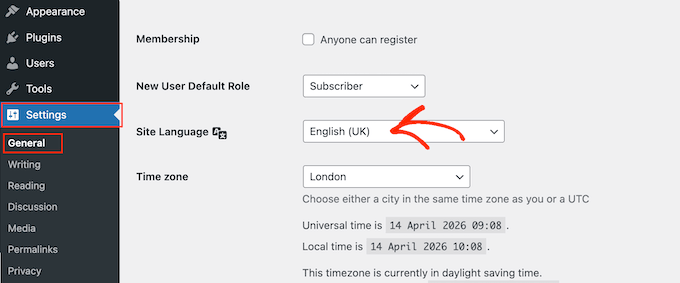
While WordPress has translations for over 200 languages, you’ll only see languages that are fully translated (60+).
⚠️ If your language is not in the list, this doesn’t mean it’s unavailable, or that you cannot use it. We’ll show you how to manually install language packs in WordPress in the next step.
When you select a new language, WordPress will automatically download the latest translation files for that language. It also updates the date format, time format, and text direction to match your locale.
Manually Install WordPress Translation Files via FTP
WordPress uses a gettext system for translations (localization and internationalization).
Volunteer users from around the world use a main .pot template file to translate WordPress into their languages. This results in two files for each language: Portable Object format file with .po extension and Machine Object file with .mo extension.
If your preferred language isn’t available in the WordPress dashboard, then you’ll need a .mo file for that language. To see whether one is available, go to the WordPress translation teams page.
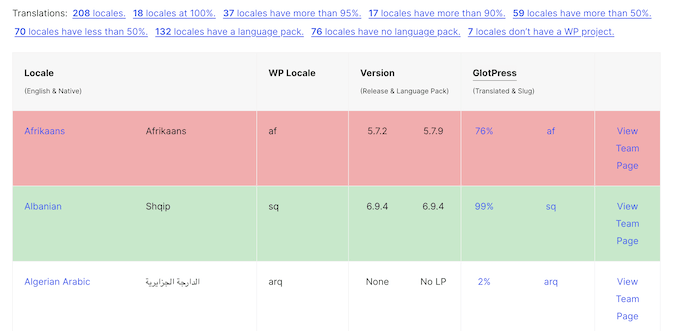
If you spot the language you want to use, click its accompanying ‘View Team Page’ link.
On the next page, you’ll see the team’s progress and translation status. To continue, click on the ‘Download language pack’ button.
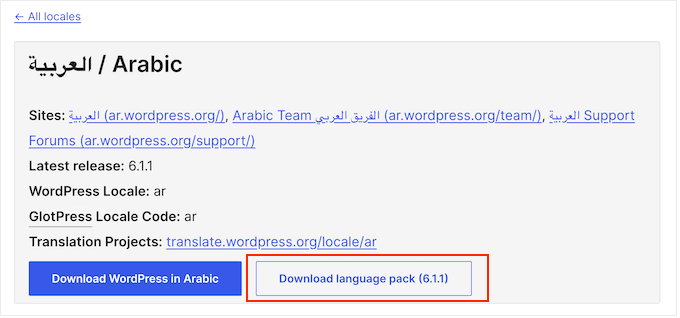
Your browser will now download a zip file to your computer.
Simply extract the zip file, and inside you’ll find the WordPress translation files for your language.
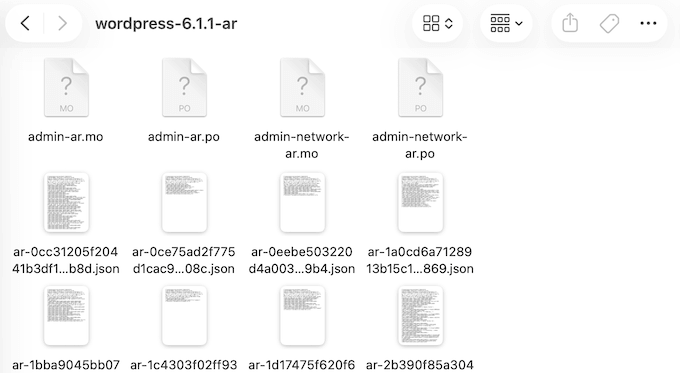
After downloading and unzipping the language pack on your computer, the next step is connecting to your website using an FTP client.
💡 If you’re not familiar with FTP, check out our beginner’s guide on how to use FTP to upload files to WordPress.
Once connected, upload the language files to the /wp-content/languages folder.
After that, switch back to the WordPress admin area. Then, go to Settings » General and scroll down to the Site Language option.
Simply open the Site Language dropdown menu and select the language you just uploaded.
Set a Per-User Admin Language in WordPress
If you’re working with an international team, WordPress makes it easy for every user to choose their own preferred language for the dashboard.
This setting is unique to each account, so one person can use the admin area in a specific language (like Spanish) without affecting anyone else on the team.
To change your language, simply head over to Users » Profile and open the Language dropdown.
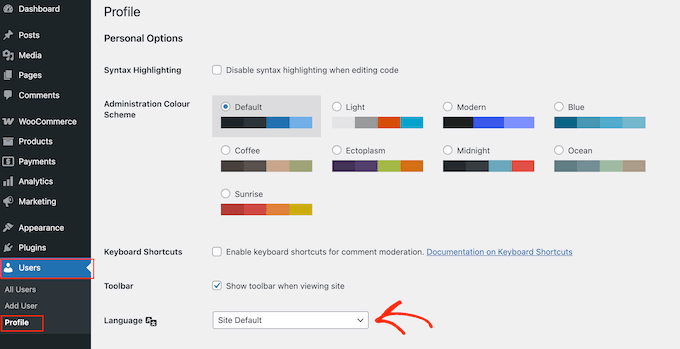
Finally, click the ‘Save Changes’ button to store your settings.
Other users can then go to their profile and choose a different language if needed. For a more detailed walkthrough, see our guide on how to use English WordPress admin on a multilingual site.
Enable Right-to-Left (RTL) Language Support in WordPress
If you’re installing WordPress in a right-to-left (RTL) language like Arabic, Hebrew, Persian, or Urdu, then you’ll be happy to learn that WordPress has built-in RTL support.
When you select an RTL language in Settings » General » Site Language, the admin dashboard automatically switches its layout to flow from right to left.
However, your WordPress theme must also support RTL.
Most popular themes include an rtl.css stylesheet that handles the front-end RTL display. To check if your theme has this stylesheet, look for the rtl.css file inside your theme’s folder at /wp-content/themes/your-theme/.
When choosing a theme for an RTL website, we recommend testing it thoroughly with your language before going live. In particular, you should make sure all elements like navigation menus, widgets, and form layouts display correctly.
Creating a Multilingual WordPress Website
You can use WordPress in many different languages, but creating content in multiple languages is not easy by default.
Luckily, several plugins allow you to create and manage multilingual WordPress sites. These plugins let you create content in multiple languages, and give visitors the option to switch between these different languages.
When it comes to creating a multilingual website, we recommend using Universally because it’s one of the best WordPress translation plugins on the market.
It’s an AI-powered translation plugin that automatically translates your pages, posts, image alt text, menus, and more, and pushes updates to every language version whenever you publish new content.
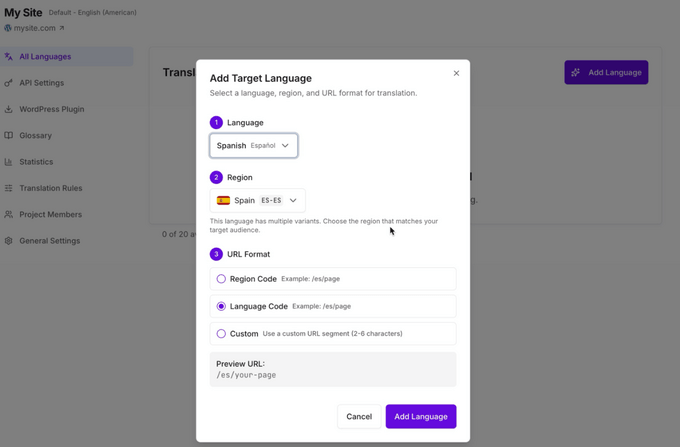
If you’re looking for an alternative, we also recommend the WPML (WordPress Multi Language) plugin.
Another popular free option is TranslatePress, which lets you translate your site visually from the front-end. It’s a great choice for beginners who want an intuitive translation workflow.
For a complete walkthrough, please see our guide on how to create a WordPress multilingual site.
Contribute to WordPress Translations in Your Language
If you can’t find a translation for WordPress in your language, you can actually help create one.
WordPress is an open-source project driven entirely by volunteers. In fact, the WordPress Polyglots team has over 1,700 contributors who translate the WordPress core, themes, and plugins for users around the world.
You can check out the Translating WordPress website for more information on how you can contribute.
You can also learn how to translate a WordPress plugin into your language to help make the ecosystem more accessible to international users.
Frequently Asked Questions About Installing WordPress in Other Languages
Will changing the WordPress language affect my content?
No, changing the site language only changes the WordPress interface (menus, buttons, and default text). Your existing posts, pages, and other content will remain exactly as you wrote them.
Do I need to reinstall WordPress to change the language?
No, you don’t need to reinstall WordPress.
You can change the language at any time from the Settings » General page in your WordPress dashboard. WordPress will automatically download the necessary translation files.
What is the best multilingual plugin for WordPress?
We recommend Universally for automatic translations and ease of use. For more fine-grained control, WPML is the most established option.
How do I translate my WordPress theme?
Most modern WordPress themes are translation-ready. When you change the site language, the theme’s interface elements will automatically switch if a translation is available.
For more details, see our guide on finding a translation-ready WordPress theme.
Does changing the language affect my SEO?
Changing the language of a single-language site won’t hurt your SEO.
However, if you’re creating a multilingual site, you should use hreflang tags to help search engines understand your language versions.
Can I translate my WooCommerce store into other languages?
Yes. Both Universally and WPML offer deep WooCommerce integration for translating product pages, the checkout process, and emails.
For more information, see our guide on how to translate your WooCommerce store.
Is the WPLANG constant still used in WordPress?
No, the WPLANG constant was deprecated in WordPress 4.0. The modern way to change your site language is through the Settings » General page.
If you still have the WPLANG line in your wp-config.php file, it’s safe to remove it.
We hope that this article helped you install WordPress in other languages. You may also want to take a look at our list of essential WordPress plugins for all websites and our guide on how to easily create a multilingual sitemap.
If you liked this article, then please subscribe to our YouTube Channel for WordPress video tutorials. You can also find us on Twitter and Facebook.



Moinuddin Waheed
This is very useful for me as I wanted to make one for a client who wish to have the website in Arabic language.
Its good that the wordpress admin area is available in the chosen language and we can have English version as well with the help of a plugin.
This is invaluable resource for me.
I will definitely give experimentation to this for different languages that I know.
Dayo Olobayo
Kudos to the WPBeginner team for putting together such a comprehensive guide on multilingual WordPress installations. The tips on manually installing translation files and using an English admin interface were invaluable. Highly recommended for anyone looking to go global with their website.
Alexa
I am trying to install a multi language plug-in on my word press page, I was looking for a drop down box option where users could select the translation they would like for the entire site. I have downloaded polylang and other multi language plug-ins and followed wp tutorials to assist in setting it up but i havent had success with setting it up to work properly on the web page. Can you maybe give me any information or tips to help me get it set up correctly.
Ali
Hi
When my customers want to register to my wordpress site, they can’t use their current language in username text box and unfortunately they must just use English language in username text box. Could you guide me how can I change this case?
Thanks
Pagio
Hi there,
The link to your guide “on creating multilingual WordPress site with Polylang” isn’t working.
It takes me to “How to Create a Multilingual WordPress Site with WPML” page.
WPBeginner Support
Hey Pagio,
Thank you for notifying us. We have fixed the link.
Admin
Mark Klinefelter
I use gtranslate off of the wp.org plugin page. It is free. Excellent translations. I speak fluent Spanish and the translation is excellent. I use it as a widget and pages where I do not have a sidebar I throw the shortcode in wherever i want the language selector to be located. Give it a try. It translates EVERYTHING: menu, header, footer, all content, all everything.
Robin Gray
I’m translating instructions into German (and subsequently into French) for someone working in the social media field who uses WordPress. Where can I find English-German and English-French glossaries of typical WordPress dashboard expressions?
junaid shahid
thanks for your support admin but it’s not work
as you said define(‘WPLANG’,’ur_PK’);
please check the domain and suggets me whats to do for RTL
Regards
Junaid Shahid
WPBeginner Support
Does your WordPress theme supports RTL? Please contact your theme developer and ask them how to add RTL support.
Admin
junaid shahid
it’s sahifa wordpress theme and support RTL in arabic but there is no option of urdu
junaid shahid
i want to create my website based on urdu language, international code of urdu is ur so the given code is some like this define (‘WPLANG’, ‘ur’);
but i do not effect the website, actually i want to change the website from RTL so what i do now
regards:
WPBeginner Support
Try this line:
define(‘WPLANG’,’ur_PK’);
Admin
Prabhakar Shelke
Hi,
I have developed my website in bydefault english language. Now I need to change the bydefault language as a French. and admin should be in english only. How could I do this. Could you please suggest the solution for it or suggest any plug in which working like this…
Many Many Thanks…
WPBeginner Support
Please see: how to use english WordPress admin on a multilingual WordPress site
Admin
Sameh
How can I keep the admin page in English and convert the site to a right to left language (Arabic)?
WPBeginner Support
You can try a plugin like English WordPress Admin.
Admin
Jack Praker
Is the description of “Manually Installing WordPress Translation Files For Other Languages” still valid? Isn’t the ‘WPLANG’-string in the new version of WP deprecated? – Same with the WP Native Dashboard plugin, which seems outdated.
Perhaps you will find time to update how to install translations files? It is an important issue and people like need such information.
Ajay Singh
is there any plugin for multilanguage site English and Hindi??
WPBeginner Support
See our tutorial on how to easily create a multilingual WordPress site.
Admin
Chana
Hi, where are those folders? Sorry about this stupid question… [/wp-content/languages/ OR /wp-includes/languages/ folder]
WPBeginner Staff
Please see our guide on how to find and translate a translation ready WordPress theme.
Manuel Echeverry
yea it worked, tank you alot!
Manuel Echeverry
now that i have installed Spanish pack how do i translate to Spanish the parts of my theme (Crangasi) that are in English?
sanjiv kumar
I have a question: i want to know that my site difault language on system in german and same site open in phone by default language is english .how can i do ?
WPBeginner Staff
Yes you can. We will try to cover this in an upcoming tutorial. Thanks.
Smiley
Thank you very much on your tutorial ….
I have a question : I want to know if I can translate the front page and keep my admin page in English , especially for my RTL , like arabic
Sameh
Hello Smiley,
Did you figure out a way to maintain the admin page in English while converitng the site to RTL?
I’d like to do the same.
Arifur Rahman
Thanks for the tutorial. I was searching for this tutorial for a long time and today I got it. I am grateful to you.
Piet
Good tutorial and I think it is very important that people understand how it is done manually.
For people that don’t have a lot of time or just cannot be bothered, there is an alternative method to localize your WordPress install by using the plugin WordPress Language (by the same developers as WPML – http://wordpress.org/plugins/wordpress-language/)
Leo
Thanks so much, this cannot be more helpful!
Mathew Porter
Nice article, might be able to deploy this for a wp project we did that is being handed over to a french distributer. thanks.
Faiz Alam
wow!! its great to see, how to install wp in other language…
galaxyes
I want to keep the WP admin in English, but show a lang=”ES” in the code, because the content is in Spanish. How can I change that in the whole site?
Kris
Nice tut.
DSchragg
This is great for translating the backend, but what about the front?
I’ve used WPML in the past and was wondering if there were any better options out there…?
Piet
Important to keep in mind that if you want to use WPML that you do NOT need a localized WordPress install ever.
WPML needs the default (US English) WordPress install.
Chaim
Thank you very much for this post, it was very helpful.
Can you please publish a post about how to translate WordPress themes to a right-to-left language? If it is too complicated, can you please write some guide lines?
Thank you very much,
chaim
Zimbrul
Didn’t know about this method. I use another one instead.
I use the WordPress install zip file in the language I desire (mostly Romanian) and the whole installation is in Romanian. Now, I’ve got the whole site in Romanian but I cannot stand the admin area so I use “Admin in English” plugin to convert the Dashboard in English, the language of choice for me when using the Dashboard.
Obviously, I use the manual install of the WordPress as I can set up the database and the password to my liking (and I think any blogger should know at any time how to install WordPress manually).