


Custom fields let you add extra details to your WordPress posts and pages. They open up new possibilities, allowing you to store and display additional information without needing complex plugins.
Many WordPress users, especially those exploring customizations, wonder why they can’t find the ‘Custom Fields’ option in their admin area. The solution is actually quite simple.
WordPress hides the custom fields meta box by default, but you can bring it back with just a few clicks. No coding or technical skills are required.
In this guide, we’ll show you step-by-step how to make custom fields visible again, so you can start using them right away.
Quick Answer: How to Fix Custom Fields Not Showing in WordPress
Open any post in the block editor, click the three-dot menu in the top right corner, then click Preferences, then click Panels and toggle on “Custom Fields.” Click “Enable & Reload,” and the custom fields meta box will appear at the bottom of the editor.
How to Fix Custom Fields Not Showing in WordPress
Custom fields let you add extra details to WordPress posts and pages. Think of them like hidden notes that store important information behind the scenes. They’re often used for special settings, extra metadata, or even custom layouts.
If you’ve been following WordPress tutorials, you may have seen mentions of custom fields. But when you go to your site, they’re nowhere to be found. That can be confusing, especially if you just started using WordPress.
Custom fields used to be right there on the post-edit screen. But now, WordPress hides the custom fields meta box by default for new users.
The good news? You don’t need any coding or technical tricks to bring them back. WordPress has a built-in way to turn them on with just a few clicks.
Step 1: Open a Post and Access Preferences
First, open any post or page in the editor. Then, click the three-dot menu in the top right corner.
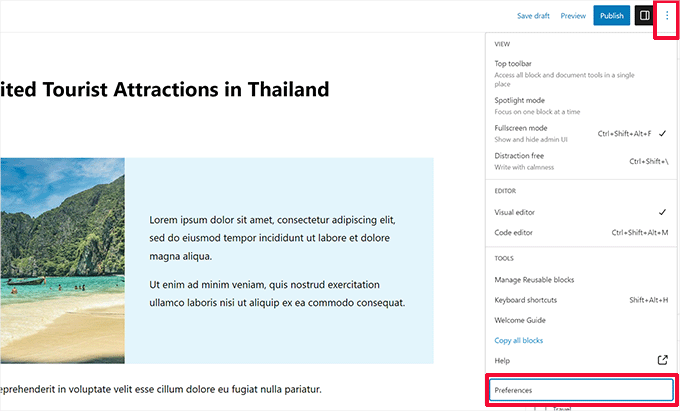
Scroll down and click ‘Preferences.’ This opens a settings panel for the editor.
Step 2: Enable Custom Fields in the Panels Tab
Now, switch to the ‘Panels’ tab. Here, you’ll find a toggle for ‘Custom Fields.’ Turn it on.
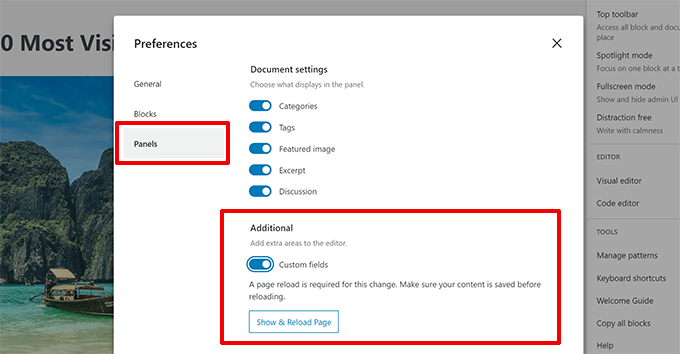
Note: If you don’t see this option, don’t worry. We cover troubleshooting steps below.
Step 3: Reload the Page and Start Using Custom Fields
Once you enable custom fields, WordPress will ask you to reload the page. Click ‘Enable & Reload.’
After the page refreshes, scroll to the bottom of the editor. You’ll see the ‘Custom Fields’ meta box waiting for you.
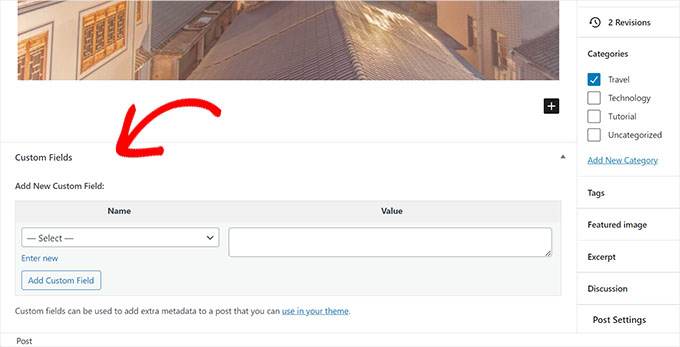
The best part? WordPress remembers this setting. The custom fields meta box will stay visible every time you edit a post or page.
Now, you can start adding, editing, and managing custom fields with ease.
Why Use Custom Fields in WordPress?
Custom fields let you store extra post metadata beyond your regular post content — like ratings, prices, or special settings.
- Extend your content — display extra data without editing theme files or writing complex code
- Power up plugins — many plugins like All in One SEO use custom fields to store settings for each post
If you’re curious about what you can do with them, check out our beginner’s guide to WordPress custom fields. It’s packed with examples, tips, and ideas.
We use custom fields in different areas of WPBeginner. For example, you can see them in action in our WordPress solution center, where we use them to store additional data about each product review.
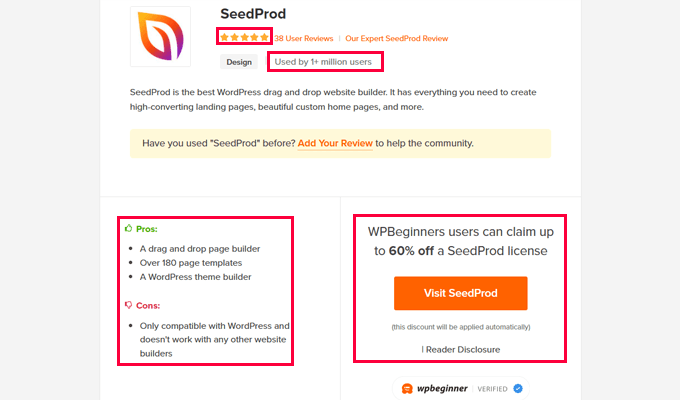
Custom fields are also widely used by many top WordPress plugins. This allows plugins to store metadata using the existing WordPress database structure instead of creating their own database tables.
For example, the All in One SEO plugin stores your SEO settings for individual posts using custom fields.
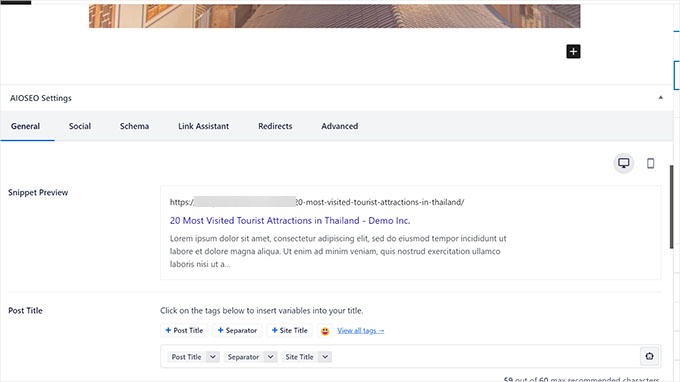
You’ll also notice that instead of using the default custom fields meta box, many plugins create custom meta boxes. These provide a cleaner way for users to enter information.
Want to build your own custom meta box? Check out our step-by-step guide on adding custom meta boxes in WordPress.
Troubleshooting Custom Fields in WordPress
Recently, one of our readers encountered a problem where the Custom Fields option was missing from the block editor preferences. After some investigation, we found the cause of the issue.
If your WordPress site does not have the Custom Fields option under the ‘Preferences’ menu, you need to check whether you have the Advanced Custom Fields (ACF) plugin installed and activated.
ACF is a popular WordPress plugin that developers use to create custom meta boxes.
ACF version 5.5.13 added a setting to remove the default WordPress custom fields meta box. This speeds up the load times on the post-editing page. The idea is that you shouldn’t need the default meta box since you are using ACF.
However, if you want to enable the default WordPress custom fields meta box, then you need to add the following code to your WordPress theme using the functions.php file or WPCode:
add_filter('acf/settings/remove_wp_meta_box', '__return_false');
For more details, please see our guide on how to easily add custom code in WordPress.
Frequently Asked Questions
Why are custom fields not showing in my WordPress block editor?
WordPress hides the custom fields meta box by default. To enable it, click the three-dot menu in the block editor, then click Preferences, switch to the Panels tab, and toggle on “Custom Fields.”
Can I use custom fields with the Classic Editor?
Yes. In the Classic Editor, click “Screen Options” at the top of the post edit screen. Then check the “Custom Fields” box to make the meta box visible below your content.
Why did custom fields disappear after installing Advanced Custom Fields (ACF)?
ACF hides the default WordPress custom fields meta box to improve page load speed. To bring it back, add add_filter('acf/settings/remove_wp_meta_box', '__return_false'); to your functions.php.
Are custom fields the same as post meta?
Yes, custom fields are a user-friendly way to view and edit post meta data. Behind the scenes, WordPress stores custom field values in the postmeta database table as key-value pairs.
Do custom fields slow down my WordPress site?
No, custom fields themselves don’t slow down your site. However, loading many custom fields on the post edit screen can slightly increase editor load time, which is why ACF hides the default meta box.
Bonus Tips on Using Custom Fields in WordPress
Using custom fields may sound a bit complicated and advanced. However, with a little help, even beginner users can use them easily.
Following are some additional resources that you can use to explore creative ways of using custom fields on your WordPress website.
- How to Make Custom Fields Searchable in WordPress (Easy Way)
- How to Add Custom Fields Automatically on Post Publish in WordPress
- How to Add Custom Fields to Comments Form in WordPress
- How to Rewrite Guest Author Name with Custom Fields in WordPress
- How to Display a WordPress Post Only if It Has a Specific Custom Field
We hope this article helped you locate the missing custom fields option on your WordPress site. You may also want to see our guide on fixing common WordPress errors or learn how to set up error logs in WordPress.
If you liked this article, then please subscribe to our YouTube Channel for WordPress video tutorials. You can also find us on Twitter and Facebook.


Graeme Coles-Andrew
Likewise my ACF-configured custom fields had disappeared, however the above troubleshooting method involving functions.php was unsatisfactory. It failed to restore all the fields I’d created, such as lists of options, and anyway I wanted ACF to work properly.
On the ACF forum, user optryc posted a solution which I’ll expand on: in short, refresh the ACF location rule which determines where the custom fields are shown.
Go to ACF / Field Groups and Edit the field group that’s missing. On the edit page, under Settings / Location Rules change the rule for ‘show this field group if’ by selecting a different post type. Save Changes, then put it back to the original post type and Save Changes again.
In my case the full rule was “Show this field group if post type is equal to XYZ.”
The full ACF field are now shown as normal on my ‘XYZ post-type’ edit screen. This solution seems to reset the association of an ACF field group with a custom post type. Hope it helps some people. Tx again to optryc.
Amirhosein Taheri
The troubleshooting part was useful. TNX
WPBeginner Support
You’re welcome, glad our guide was helpful
Admin
Ralph
If this is in additional section is it really worth it to put information there? Does this benefit SEO in any important way? Or is it more for us? I don’t really understand the benefit here.
WPBeginner Support
It would depend on what custom fields weren’t showing for you. Sometimes the section for a plugin would disappear and following this guide would have the section reappear for you.
Admin
Keith Stanfield
Custom fields are not showing under product data with this plugin, I added the function code and enable the custom fields checkbox but nothing shows up.
WPBeginner Support
If you are using the block editor, we would recommend checking under preferences to ensure the custom fields are not hidden based on those settings.
Admin
GD
You saved my life! Thought it was a bug, but just had to modify screen options
WPBeginner Support
Glad our guide was helpful!
Admin
Dalia Sued
Custom fields disappear from WordPress 6.1, since the new WordPress update, all plugins that have custom fields have disappeared from all posts type, including posts and pages.
WPBeginner Support
Custom fields are still available, you may have them disabled in your editor. If you go to the top-right and click the three dots, then go to preferences you should find the option to enable custom fields.
Admin
Litbea
Great!! Thanks for the function, it was ACF indeed in my case…
WPBeginner Support
Glad our guide could help
Admin
Diego
Thank you very much!
This article solve my problem!
Reguards!
WPBeginner Support
Glad our article could solve your problem
Admin
will
i have ACFs that dont display on my home page. i know the ACF pro plug in needs to be updated. Would this result in why my fields aren’t displaying on my homepage?
WPBeginner Support
That could be part of the issue. If you reach out to the plugin’s support they should be able to assist.
Admin
Alfredo
Hi!
great article. I’m becoming crazy. Found The Solutions!:)
Thanks.
WPBeginner Support
Glad our article was helpful
Admin
Ushir Shah
Thank you! Adding the filter to the functions file because of ACF was my issue, what a great help!
WPBeginner Support
Glad our recommendation could help
Admin
Cedric Shaw
So we have ACF running and have the “fix” in our functions.php file. The issue we are having is that the drop down field is only showing 148 entries and not displaying all of the custom fields. Is there something that is preventing them from not displaying all of the custom fields?
WPBeginner Support
For that, you would want to reach out to ACF’s support to see possible reasons for this issue.
Admin
Poul
I spend a couple hours to solve this problem (find out why i don’t see that option in “Screen Options” menu).
Thanks!
WPBeginner Support
Glad our guide could help
Admin
Luke
Hello,
Thanks for your tip.
I’ve installed ACF, however still don’t see custom field checkbox.
When I tried to paste the code I got following error message: syntax error, unexpected ‘add_filter’ (T_STRING)
Could you please advise?
Many Thanks!
WPBeginner Support
If you reach out to ACF they may have a more recent workaround that you can use
Admin
SK
Hi. I have re-instated the custom fields. I can add new, but original fields are not showing in the back end (still displayed on website) so I cannot edit my content. Any ideas? Thanks
WPBeginner Support
It would depend on how the fields were added, if they were visible in the classic editor then you could revert to that editor temporarily using: https://www.wpbeginner.com/plugins/how-to-disable-gutenberg-and-keep-the-classic-editor-in-wordpress/
Admin
Ali Rashidy
Thanks a lot! you saved me!
WPBeginner Support
You’re welcome, glad our guide could help
Admin
Matthew Warner
Thank you!
WPBeginner Support
You’re welcome
Admin
Serge
Super. We were looking for the setting that was hiding the custom fields. We knew it was a setting but could find where. Thanks also for the bit of code, could come handy eventually.
merci,
Serge.
WPBeginner Support
Glad our article could help
Admin
Dave Combs
Sadly, the add_filter code for the functions.php file did not work, so I’m off to find to try to solve the problem.
WPBeginner Support
Thank you for letting us know, we’ll certainly keep an eye out for other solutions to recommend.
Admin
David
I lost a day of work trying to figure out why my custom metabox wasn’t showing. Then I checked the source code and it was there with the ‘hide’ class suffix. Thanks a lot ACF
Thank you for the fix
WPBeginner Support
Thanks for sharing your solution, glad our article could help
Admin
Robbie
Just wanted to say thanks for the add_filter() trick in the troubleshooting section. A new client needed me to fix something on a site I’d never seen and this was what I finally needed.
Eric
Thank you so much ! It is not really good for ACF to have hidden these custom fields.
Kash
Thank you!
ACF should add this as an options in the settings! Not cool!
ALU
thanks for the code. stupid change in ACF…
Pace
Thank you! Such a silly change ACF!
Kai Dickas
Hi,
thanks for the code. That´s what i´m looking for for hours. It helped me a lot.
Julia Moss
Thank you so much – this problem has been driving me mad! Your code for the functions file worked.