


Have you ever seen a random tag like [gallery_shortcode] pop up in the middle of a blog post? That’s an unused shortcode – leftover code from old plugins or themes that you no longer use.
Here’s something that many WordPress users don’t realize: when you deactivate a plugin or switch themes, those shortcodes don’t just disappear.
Instead, they stay in your content and show up as broken text. They won’t slow your site down, but they look unprofessional and can confuse visitors.
At WPBeginner, we’ve seen this happen a lot on many different WordPress sites, and the good news is that cleaning them up is easy.
In this guide, we’ll show you how to quickly find and remove unused shortcodes in WordPress, so your site looks polished and gives visitors a smooth experience. 🧹
What Is a Shortcode in WordPress?
A shortcode is a small, reusable snippet of code, enclosed in square brackets like [this], that performs a specific function on your site. Plugins and themes use them to easily add complex features anywhere in your content, without you having to write any code yourself.
They make it simple to add dynamic content to your WordPress site. And while many plugins and themes now use blocks, shortcodes are still widely used for adding specialized elements, such as:
- Contact forms – For example, WPForms lets you embed forms within posts and pages using shortcodes.
- Image galleries – Display visually appealing photo collections with, for example, Envira Gallery.
- Sliders – Soliloquy offers the option to add beautiful, responsive sliders for images, videos, or both using shortcodes.
- Social media feeds – Embed feeds from Instagram, X (formerly Twitter), or Facebook with Smash Balloon.
- Page builder elements – Create custom sections and layouts.
In general, you’ll add a shortcode in WordPress by typing or pasting a set keyword in square brackets into a post or page. Here’s what it might look like:
[some-random-shortcode]
You can see our beginner’s guide on how to add a shortcode in WordPress to learn more.
The problem happens when you deactivate the plugin or switch away from the theme that the shortcode relies on. When that happens, the shortcode becomes inactive, and your readers will see the plain text tag instead of the content it was supposed to display. 😓
In the following sections, we’ll show you how to find and remove these unused shortcodes. Here’s a quick overview of the methods we’ll share in this guide:
- Method 1: Removing Unused Shortcodes from the WordPress Back End
- Method 2: Hiding Unused Shortcodes on the WordPress Front End
- Safely Manage Your WordPress Site's Code
- Bonus Tip: How to Do Search and Replace in WordPress 🔍
- Frequently Asked Questions About Unused Shortcodes
- Additional Resources for WordPress Admin and Site Management
Ready? Let’s jump right in!
Removing Unused Shortcodes from the WordPress Back End
Our first method allows you to remove unused shortcodes from your website’s posts and pages by locating and deleting them.
The first thing you need to do is install and activate the free Shortcodes Finder plugin. You can learn more in our step-by-step guide on how to install a WordPress plugin.
Finding Unused Shortcodes
Upon activation, you’ll want to navigate to Tools » Shortcodes Finder. Once there, you should click on the ‘Find unused Shortcodes’ tab.
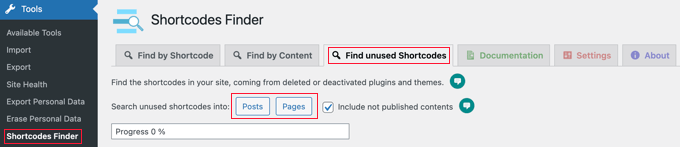
By default, the plugin will only search published content. If you also want to search drafts and scheduled posts, then you should check the ‘Include not published contents’ box.
Now, you can click either the ‘Posts’ or ‘Pages’ buttons to search for unused shortcodes in your content.
For this tutorial, we’ll click on ‘Posts.’
A progress bar is displayed while the plugin searches your posts, and then a list of unused shortcodes is displayed. This is how it looks on our demo website:
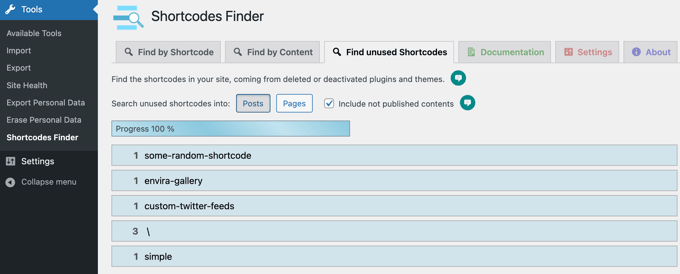
The first 3 search results are unused shortcodes: [some-random-shortcode], [envira-gallery] and [custom-twitter-feeds].
From here, we know that the plugins that these shortcodes rely on have been deactivated or deleted on our demo site. For example, one of the unused shortcodes comes from the Envira Gallery plugin.
Do note that the final 2 search results are false positives and are not shortcodes at all.
The \ result comes from a post that lists special characters, such as [\]^_`. Meanwhile, the ‘simple’ result is from a post that has the words ‘simple boat’ in square brackets.
This can happen because the plugin searches for any text inside square brackets [ ]. Sometimes, it might flag regular text that isn’t a shortcode. That’s why manually checking each result is so important.
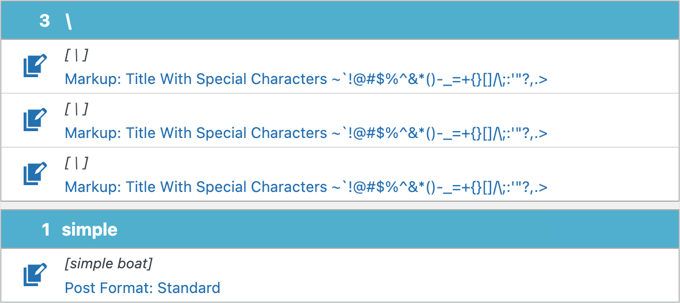
When you search your own WordPress website, you’ll want to make sure that you only remove true unused shortcodes and not false positives.
Removing Unused Shortcodes
The best and safest way to remove unused shortcodes from your posts is to manually edit each post or page containing the shortcode.
This will allow you to check for false positives and decide the best way to edit the post.
Besides just deleting the shortcode, you might also need to edit the surrounding text.
For example, let’s say your post said, ‘Check out our awesome photo gallery below!’ followed by the [envira-gallery] shortcode.
If you only delete the shortcode, that sentence will be left pointing to nothing. So, you’ll want to delete that introductory sentence as well to avoid confusing your readers.
When you click on a blue shortcode line, you will see a list of posts that contain the shortcode. To edit a post, you need to click its ‘Edit Content’ icon.
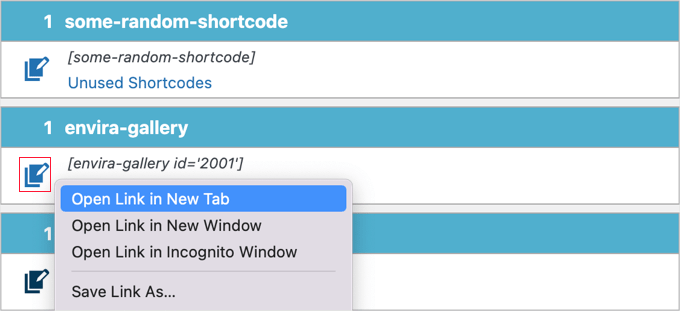
🧑💻 Expert Tip: You might find it easier to edit each post in a different browser tab. Simply right-click each icon and choose ‘Open Link in New Tab’ from the menu, or you could also Ctrl-Click the icon (Windows) or Command-Click it (Mac).
When the WordPress editor opens, you can delete the shortcode from the post.
In the example below, the paragraph before the shortcode should also be deleted or edited because it refers to a photo gallery that is no longer visible.

Once you’ve removed unused shortcodes from your posts, it’s time to clean up your pages. Simply click the ‘Pages’ button and repeat the process.
Hiding Unused Shortcodes on the WordPress Front End
If you have lots of shortcodes to clean up, you may want a faster way to hide them from visitors. This doesn’t delete them, but it makes them invisible on the front end.
The easiest way is with the free WPCode plugin. WPCode is the best custom code plugin for WordPress. It lets you safely add and manage code snippets without editing your theme files, so you don’t have to worry about breaking your site.
On some of our partner brands’ websites, we use WPCode to create and manage custom code snippets. It’s been working really well for us, and you can see our detailed WPCode review to learn more about it.

To do this, start by installing and activating the WPCode plugin. For more details, you can see our step-by-step guide on how to install a WordPress plugin.
📝 Note: You can use the free WPCode plugin to follow along with this guide. If you’d like more advanced features, like access to the full snippet library, scheduling updates, or viewing revision history, then you can upgrade to WPCode Pro.
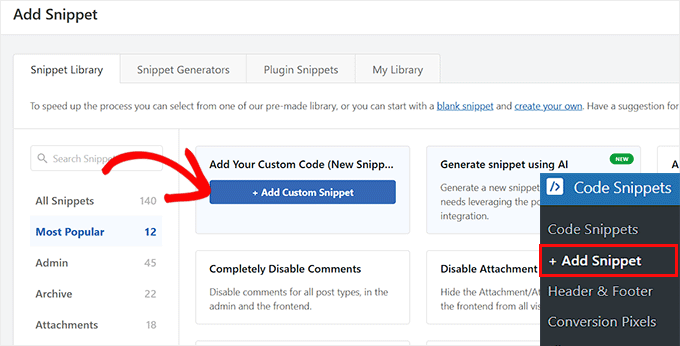
Upon activation, head over to Code Snippets » + Add Snippet and hover over the Add Your Custom Code (New Snippet) box.
Then, go ahead and click ‘+ Add Custom Snippet.’
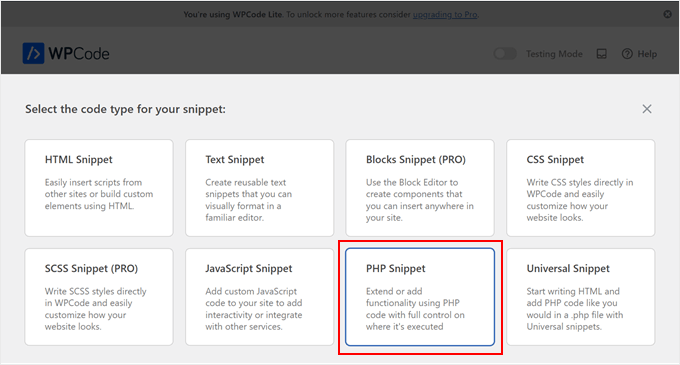
In the popup that appears, WPCode asks you to choose the code type.
For this guide, let’s set the code type to ‘PHP Snippet.’
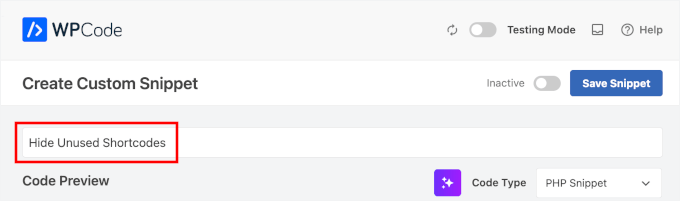
This will open the code editor.
Here, you give your snippet a title like “Hide Unused Shortcodes.”
Then, in the ‘Code Preview’ box, you can add:
add_shortcode( 'shortcode_name_here', '__return_empty_string' );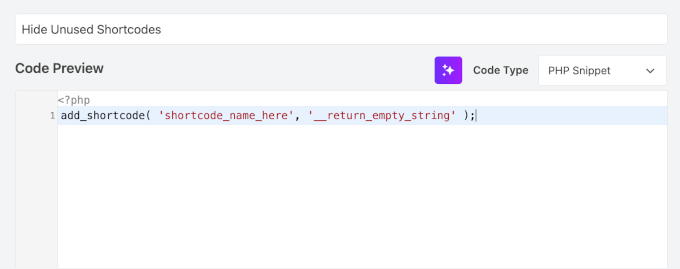
Don’t forget to replace shortcode_name_here with the name of the shortcode you want to hide, without the square brackets. For our example, [envira-gallery], you would just use envira-gallery in the code.
And to hide multiple shortcodes, you can simply add a new line for each one.
Finally, toggle the snippet to ‘Active’ and click ‘Save Snippet.’
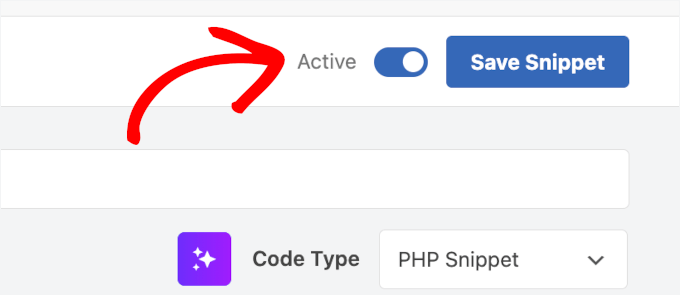
The shortcode will immediately be hidden from your visitors.
Before the custom code snippet was activated, an unused shortcode could be seen on our site’s front end:
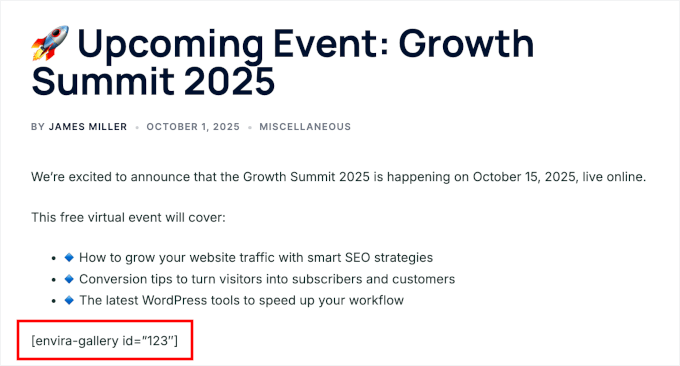
After, the shortcode is no longer visible to our website visitors.
Here’s what it looks like:

Safely Manage Your WordPress Site’s Code

WPCode is the safest and easiest way to add custom code snippets to WordPress without editing your theme’s functions.php. It comes with a built-in code library, smart conditional logic, and error handling to prevent common mistakes.
Bonus Tip: How to Do Search and Replace in WordPress 🔍
There are many times when you’ll need to search and replace content on your WordPress site. For example, if you change your site’s domain name or switch to HTTPS, you’ll need to update URLs. It’s also useful for fixing old info, typos, or broken shortcodes.
If you rebrand or need to replace a frequently used image, search-and-replace makes it easy to update everything quickly. This saves time and keeps your content consistent across your site.
Search & Replace Everything, made by the WPCode team, is the best tool for searching and replacing content on WordPress. You can use it for text, images, and even specific database content.
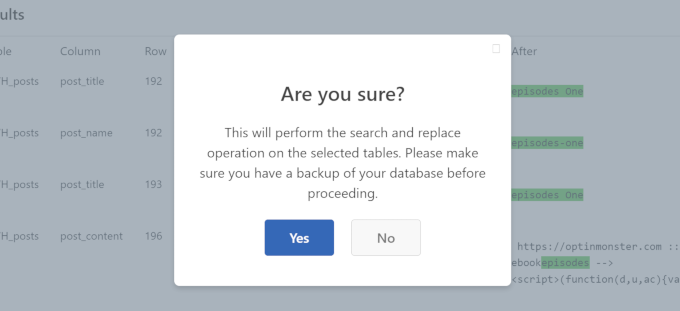
But, before starting, make sure to back up your WordPress site to avoid any issues.
For more details, you can check out our guide on how to do a search-and-replace in WordPress.
Frequently Asked Questions About Unused Shortcodes
Here are answers to some common questions about unused shortcodes.
Do unused shortcodes slow down my site?
No, unused shortcodes are just text and don’t run code. They won’t slow your WordPress site, but they can look unprofessional.
Is it better to hide or delete unused shortcodes?
If you’ll never use the WordPress plugin or theme again, we recommend deleting them. If you might use them again or have lots to clean up, hiding is a quick option.
Can I remove shortcodes without a plugin?
Yes, you can manually delete them in your posts and pages. Advanced users can also run a search-and-replace in the database, but this is risky. For most users, plugins are safest.
Additional Resources for WordPress Admin and Site Management
We hope this article helped you remove unused shortcodes from your WordPress site. Next, you may also want to read our guides on:
- How to Remove Inactive Widgets in WordPress
- How to Limit Dashboard Access in WordPress
- How to Automatically Empty Your WordPress Trash
- How to Easily Find and Remove Stolen Content in WordPress
- Vital Tips to Protect Your WordPress Admin Area
- WordPress Database Maintenance for Beginners
If you liked this article, then please subscribe to our YouTube Channel for WordPress video tutorials. You can also find us on Twitter and Facebook.


Leroy
didn’t work as the shortcode doesn’t even show up on the draft page, but sticks to the front page on website.
WPBeginner Support
If the plugin did not find the shortcode then it likely is not in your content but could be set by your theme. We would recommend checking with the support for your specific theme and they should be able to assist.
Admin
John E
Thanks for this article. It helped me fix a big problem and save a bunch of time!
Alex Standiford
I used this, but made one small change. I set the WP_Query to also look for any post type instead of just posts.
$args = array(

  's' => $string,

  'post_type' => 'any'

)
Simon Kelly
What a tip! I’m moving a site from Canvas to Beaver Builder and this is just what I needed to find the Woothemes shortcodes without getting into the database. Easy. Thanks!
WPBeginner Support
Glad you found it helpful
Admin
Catherine Argyros
Parse error: syntax error, unexpected ‘ob_start’ (T_STRING), expecting ‘{‘ in /home2/archtyp3/public_html/wp-content/plugins/archtypesandcircles/archtypesandcircles.com-plugin.php on line 8
I put this in my a site-specific plugin but got the above error message. please help.
i think ive got ti
i just went back in and removed all the spaces, and its WORKING! thanks again for your time and energy. I really am an absolute beginner, but with this great support Im slowly getting it…
Nehat
Hello, my website is and i used before the Shortcodes Ultimate plugin, but now i don’t use that plugin and i want to remove all shortcode from that plugin leave in posts. Can you tell me for any plugin twhich can find the unused shortcode and delete automaticaly?
yuvaraj
is anyways to find it on pages in-spite of posts
Giochi MMO
There is a way to delete a specific shortcode, maintaining the text inside?
For example: in this case [dropcap]A[/dropcap] I would like to eliminate the shortcode maintaining the “A”, or any other letter inside.
Thanks!
emeraldwave
It would be helpful if you could also add how to bulk replace the old shortcodes found to the new shortcodes used in the new theme, rather than just removing.
I think most people who migrate themes will be looking to replace like me.
Regex replace plugin is useful but does not replace shortcodes in custom post types. So we still need some kind of bulk find and replace shortcodes solution.
Paul Oyler
Does this method still work w/ WP 4.0.1? If the shortcode we wanted to find was pb_carousel group=”x” what would be the shortcodefinder to use?
Bill
If the plugin is reactivated, should the shortcodes become functional again?
WPBeginner Support
Yes.
Admin
Karen
Very helpful. But a simple Search Regex search finds the shortcode for me. That seems far less intrusive than editing the function file?
Paul
This seems like it will be a really good idea to place in the plugin deactivation action, and not allow the user to deactivate the plugin until the shortcodes have been removed or just warn the user of which posts still have these shortcodes.
raymond
Why not write a filter for the_content that runs a regex looking for all short codes in the post then checks their name against the array of shortcode hooks to see if it had any hooked functions and if not remove them from being displayed. Theyre still there but then readers don’t see them if you need to edit a lot of posts. You could put that same funcrionality in a plugin to list all posts with all unhooked shortcodes in one location so the user doesn’t have to know the exact shortcode name when needing to edit out unused shortcodes.
WPBeginner Support
Most of our beginner level users find it difficult to work with regex.
Admin
Brad Dalton
Another solution is to run a SQL query. http://www.wprecipes.com/wordpress-tip-get-rid-of-unused-shortcodes
WPBeginner Support
We do not recommend our beginner level users to run direct SQL queries on their WordPress database unless it is critical.
Admin
omid
sorry i forgot to mention that we can get list all available shortcodesby global $shortcode_tags variable.
omid
i think there might be a way.as you used the loop to find post with shortcode we can take the id of each post and with some help from wpdb class and php regex probably the goal is achivable.