


When WordPress 5.5 introduced its own XML sitemap, we thought it was a helpful feature. We quickly realized it could create confusion for sites like ours that already use an SEO plugin.
Having two different sitemaps can send mixed signals to search engines and hurt your website’s SEO. It’s a frustrating issue we’ve seen cause unnecessary stress for many website owners.
That’s why we created this simple guide to show you how to disable the default WordPress sitemap. We’ll walk you through a couple of easy methods, one with a plugin and another with a code snippet.
The good news? If you’re already using a comprehensive SEO plugin like All in One SEO, this issue is usually fixed for you automatically. In this guide, we’ll show you how to confirm that and how to disable it manually if needed.
This will leave your site with a single, optimized sitemap that helps search engines find your content. First, let’s explore why this is so important for your site.
Why Should You Disable WordPress Sitemap
An XML sitemap is a file that lists all your website content in an XML format, which makes it easy for search engines to discover and index your content.
Sitemaps are very beneficial for your website as they bring more traffic and improve the SEO rankings of your site.
However, numerous WordPress SEO plugins like All in One SEO, Yoast SEO, and XML Sitemaps already implement sitemaps on your website, which results in WordPress pages having two sets of sitemaps.
Having duplicate sitemaps can send confusing signals to search engines. This isn’t ideal for SEO because it can lead to inefficient crawling or delays in indexing your new content.
If you are not using a search engine optimization plugin for your sitemap, then you are missing out on advanced features. For example, many popular WordPress SEO plugins offer features like a Video Sitemap, News Sitemap, and RSS Sitemap to help you outrank your competitors in SEO.
With that being said, let’s see how you can easily disable the default WordPress sitemap:
Method 1: Disable WordPress Sitemap Using WordPress SEO Plugin
If you are using any of the popular WordPress SEO plugins, then it will automatically disable the default WordPress sitemap feature and replace it with a more powerful solution.
For the sake of this tutorial, we will be demonstrating the AIOSEO plugin because that’s the plugin we use on WPBeginner.
All in One SEO is the best WordPress SEO plugin that allows you to easily optimize your WordPress website for search engines and social media platforms. Over 3 million websites use AIOSEO, including our own.
When you activate All in One SEO, its sitemap feature is enabled by default. This automatically disables the core WordPress sitemap to prevent any conflicts and creates its own, more powerful sitemap for your site.
The first thing you need to do is install and activate the free AIOSEO plugin. For more details, please see our guide on how to install a WordPress plugin.
Once activated, you will need to configure the AIOSEO plugin. If you need help, then you can follow our step-by-step guide on how to set up All in One SEO in WordPress correctly.
After that, head over to the All in One SEO » Sitemaps page from the WordPress admin dashboard to review your sitemap settings.
Next, click on the ‘General Sitemap’ tab. By ensuring that the ‘Enable Sitemap’ toggle is active, you are telling AIOSEO to handle your sitemaps. This action automatically disables the default WordPress sitemap for you.
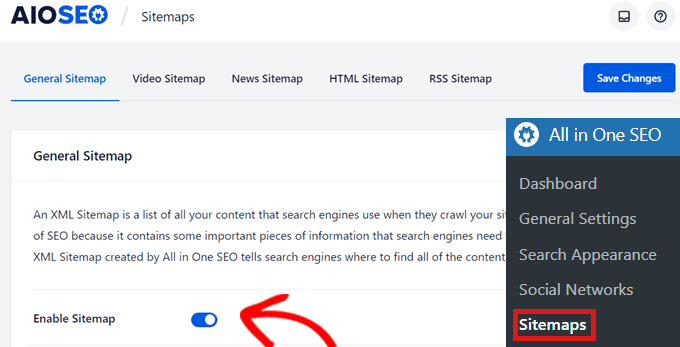
Aside from the General Sitemap, we recommend that you enable the video sitemap, news sitemap, and RSS sitemap on your site to maximize your SEO rankings.
You can typically view your new AIOSEO sitemap by going to yourwebsite.com/sitemap.xml. This is the URL you’ll want to submit to Google Search Console.
Method 2: Disable WordPress Sitemap Using Code Snippet
You can also easily deactivate the default WordPress XML sitemap using code, too. You can add the code snippet in your theme’s functions.php file.
However, the biggest problem in adding code to your functions.php file is that even a tiny mistake can break your WordPress site.
That is why we recommend using WPCode to add custom code to WordPress. This free plugin makes it easy to add code snippets in WordPress without having to edit your theme’s functions.php file.
First, you need to install and activate the WPCode Free Plugin. For further instructions, check out our guide on how to install a WordPress plugin.
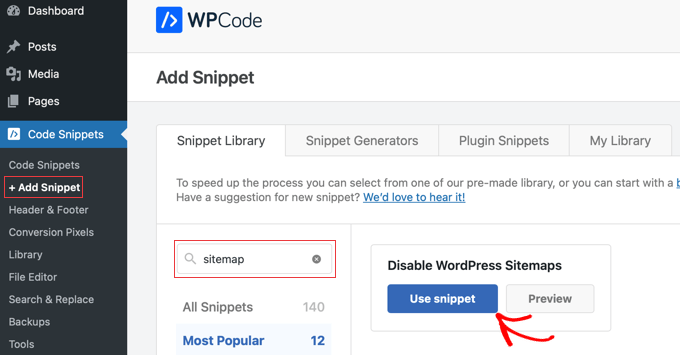
Next, go to Code Snippets » + Add Snippet in the left-hand menu of your WordPress dashboard. WPCode will then take you to the ‘Add Snippet’ page.
Now you need to search for WPCode’s built-in snippet for disabling WordPress sitemaps. Once you find it, simply hover your mouse over the entry and then click the ‘Use snippet’ button.
You will be directed to the ‘Edit Snippet’ page, where you can see that the code and other details of the snippet have already been completed for you.
All you need to do is toggle the switch from ‘Inactive’ to ‘Active’ at the top right corner, and then click the ‘Save Snippet’ button.
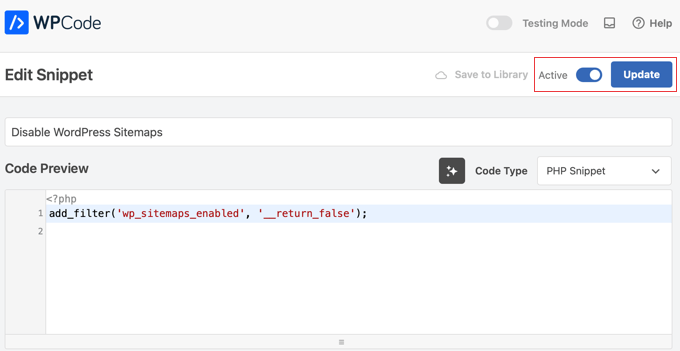
Once you have saved and activated the code snippet, it will be active, and the default WordPress sitemap will be disabled.
Frequently Asked Questions About Disabling WordPress Sitemaps
Here are some of the most common questions we get asked about managing the default WordPress sitemap and how it affects your site’s SEO.
1. What is the purpose of the default WordPress XML sitemap?
WordPress added a basic XML sitemap feature in version 5.5 to help search engines find and index your content. It’s a core feature designed to ensure even brand-new sites have a sitemap without needing a plugin.
2. Is it bad to have two XML sitemaps on one website?
Yes, having two or more sitemaps can be a problem. It can confuse search engine crawlers, which may lead to indexing delays or other unexpected SEO issues.
3. Do I still need the default sitemap if I use an SEO plugin like All in One SEO?
No, you do not. SEO plugins like All in One SEO automatically disable the default sitemap. They replace it with their own advanced sitemap that offers far more control and features.
4. Will disabling the default sitemap hurt my SEO?
Disabling the default sitemap will not hurt your SEO as long as you have another one active from an SEO plugin. The goal is to have a single, high-quality sitemap, which actually improves your site’s SEO.
Additional Resources for Managing Your Sitemap and SEO
If you found this guide helpful, you might want to check out these other articles on sitemaps and WordPress SEO. They will help you further improve your website’s search engine rankings.
- What is an XML Sitemap? How to Create a Sitemap in WordPress? – A deep dive into what sitemaps are and why they are so important for your site.
- How to Submit Your Website to Search Engines – Learn how to properly submit your new sitemap to Google and Bing for faster indexing.
- Ultimate WordPress SEO Guide for Beginners – Our comprehensive guide that covers all the essential steps to optimize your entire website for search engines.
- Best WordPress SEO Plugins and Tools That You Should Use – See our expert picks for the best tools to help you manage your site’s SEO, including sitemaps, keywords, and more.
If you liked this article, then please subscribe to our YouTube Channel for WordPress video tutorials. You can also find us on Twitter and Facebook.


Have a question or suggestion? Please leave a comment to start the discussion.