


If your site uses custom post types, a standard search box often isn’t enough. Visitors may know what they’re looking for, but without a focused search, that content can be surprisingly hard to find.
Adding a search form that targets specific post types makes it easier for users to get straight to the content they care about, instead of digging through unrelated results.
At WPBeginner, we use custom post types to organize different kinds of content, and adding dedicated search forms helped surface posts that were previously buried. The result is a smoother browsing experience and stronger engagement overall.
In this article, we’ll show you how to create an advanced search form for custom post types in WordPress, step by step.

Why Create an Advanced Search Form for Custom Post Types?
Custom post types allow you to go beyond posts and pages to make different content types for your website. For example, we use custom post types here at WPBeginner to organize our Deals and Glossary sections.
However, WordPress doesn’t include custom post types in its search results by default. As a result, visitors may miss out on important content, and you will miss out on pageviews.
Thankfully, you can include custom post types in your search results using a WordPress search plugin. You can even go one step further and create an advanced form that searches custom post types only.
For instance, at WPBeginner, we have created custom post type search forms on our Deals and Glossary pages.

Often, this kind of advanced search form helps visitors find what they are looking for faster, improving the visitor experience and reducing bounce rate.
First, you can see our guide on how to make custom post types in WordPress. Then, you can jump into our tutorial on how to create an advanced WordPress search form for custom post types below:
- Create a New WordPress Search Algorithm With a WordPress Plugin
- Create an Advanced Search Form for Custom Post Types
- How to Add Custom Post Types to WordPress
- Bonus Tip: Add Custom Post Types to Your RSS Feed
- FAQs: Create an Advanced Search Form for Custom Post Types
- Next Steps to Improve Your WordPress Search
Create a New WordPress Search Algorithm With a WordPress Plugin
The easiest way to create an advanced search form for custom post types is by using the SearchWP plugin. It’s the best search plugin and allows you to search content that WordPress ignores by default.
For example, you can make blog comments searchable and add PDF indexing and searching to your website.
We’ve used it several times ourselves, and to learn more about the plugin, please see our complete SearchWP review.
Setting Up SearchWP
To get started, you’ll first need to create a SearchWP account. On the SearchWP website, click the ‘Get SearchWP Now’ button, choose a plan, and complete the signup process.

📝 Note: SearchWP is a premium plugin. But, there’s also a free plugin called SearchWP Live Ajax Search that adds live search results to your site. It’s a nice option if you only need to improve the search experience and don’t need advanced search controls.
Once you’ve signed up, you’ll be taken to your SearchWP account dashboard. This is where you can find the plugin’s ZIP file and copy your license key.
Now you’re ready to install the plugin on your WordPress site. From your admin dashboard, go to Plugins » Add New Plugin.

On the next screen, click the ‘Upload Plugin’ button at the top of the screen.
Then click ‘Choose File,’ select the SearchWP ZIP file on your computer, and click ‘Install Now.’
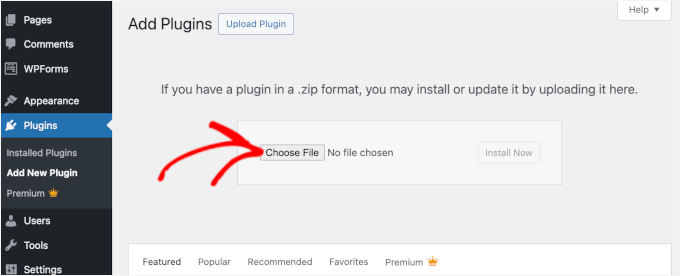
When the installation finishes, click ‘Activate’ to turn the plugin on. For more details, see our step-by-step guide on how to install a WordPress plugin.
Upon activation, you must go to SearchWP » Settings and click on the ‘General’ tab.
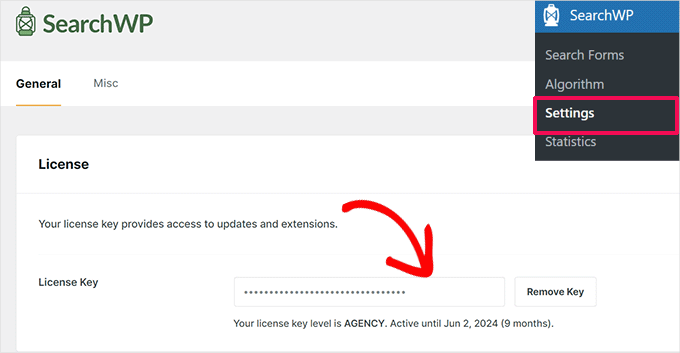
You now need to enter your license in the ‘License Key’ box. You can find this information in your account on the SearchWP site.
Once you are done, make sure to click the ‘Verify Key’ button.
Creating a Custom Search Algorithm
Your next task is to configure the search algorithm. Configuring the search algorithm. allows you to specify exactly which content SearchWP includes in results, such as pages, posts, media, and custom post types.
Think of it as the “brain” that finds your content, while the search form is just the box visitors type into.
To get started, you need to go to SearchWP » Algorithm in your WordPress admin area.

Here, you will see a section for every content type that SearchWP includes in its search results.
To add your custom post type, just click the ‘Sources & Settings’ button.
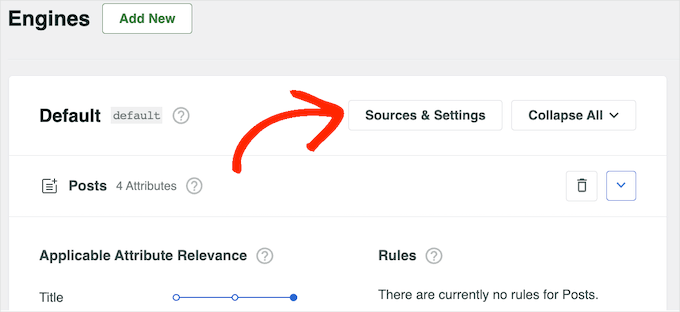
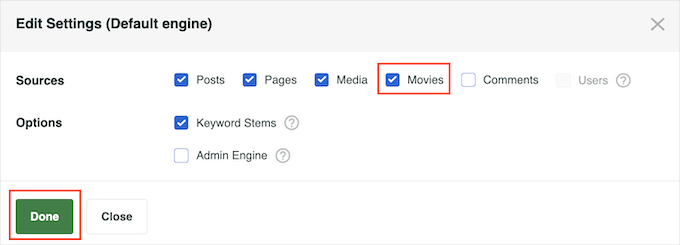
In the popup that appears, check the box next to each custom post type that you want to include in the search results.
After that, click on ‘Done’.
SearchWP will add a new section for each custom post type. Each section shows all the attributes that SearchWP will include in its searches, such as the title, slug, and excerpt.
If you want to add or remove attributes, then simply click on ‘Add/Remove Attributes’.
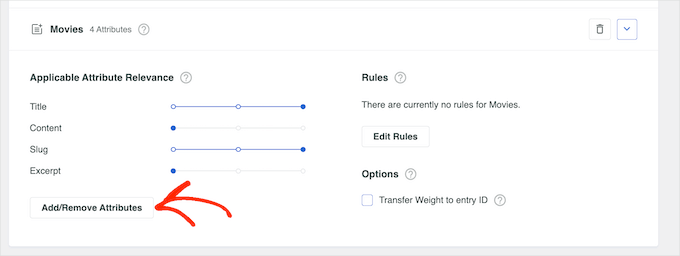
In the popup, check the box next to each attribute you want to include in the search results.
To remove an attribute, you can uncheck its box instead.
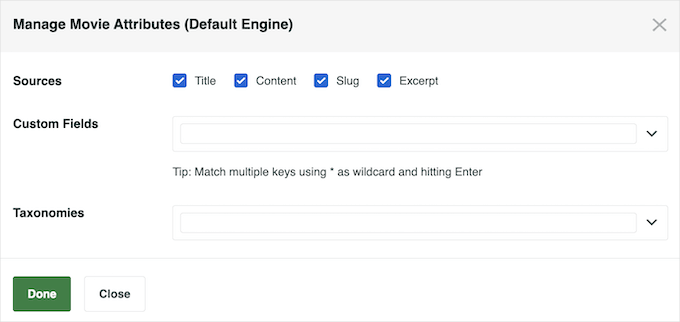
In this popup, you can also make custom fields searchable in WordPress.
When you are happy with the changes you have made, go ahead and click on ‘Done’.
You will notice that each attribute also has an Application Attribute Relevance slider. This controls how SearchWP ranks the content when building its search results page in WordPress.
If an attribute has high relevance, then it will have a bigger impact on the search results. By contrast, content that matches an attribute with lower relevance will appear lower in search results.
For example, if you move the ‘Title’ slider to the right and the ‘Content’ slider to the left, then a post’s title will carry more weight than the content.
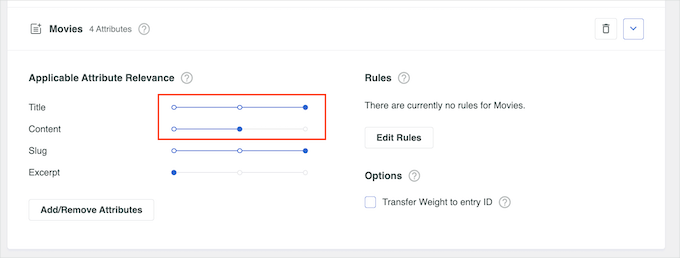
Every WordPress website is unique, so you may want to try different relevancy settings to see what gives you the most accurate and helpful search results.
For example, if you have created a ‘customer reviews’ custom post type for your online store, then this is important content, so you may want to give it a high relevance.
When you are happy with how the search feature is set up, just scroll to the top of the screen and click the ‘Save’ button.
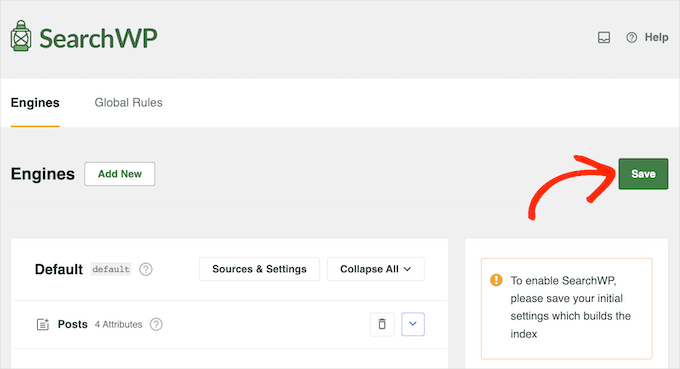
SearchWP will now rebuild the index automatically. Depending on the speed of your Internet connection and your WordPress hosting provider, this may take a few minutes.
As soon as you see ‘Index Status 100%’, you will know that SearchWP has added your custom post types to its search index.
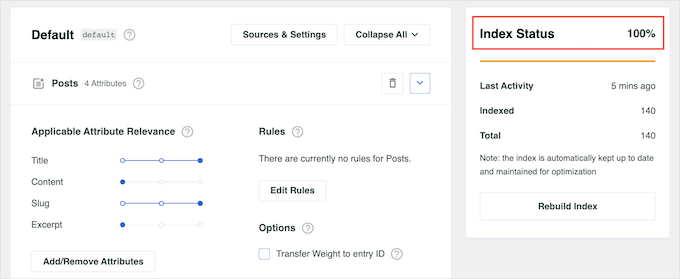
Your WordPress blog, website, or online marketplace will now include custom post types in its search results.
Create an Advanced Search Form for Custom Post Types
With that done, you are ready to create an advanced form that searches only your custom post types.
To get started, head over to SearchWP » Search Forms and click the ‘Add New’ button.
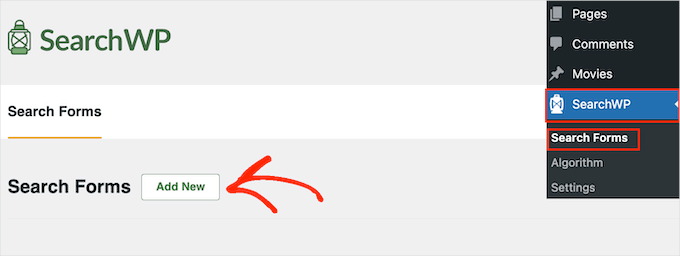
This creates a new form, ready for you to customize.
To give this form a unique name, click on the small pencil icon next to ‘Search Form 1’.
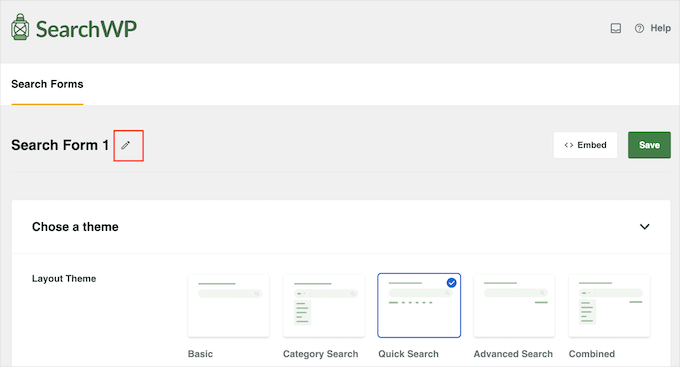
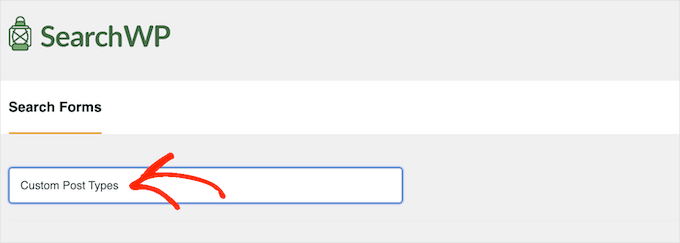
You can now type in a name for the custom search form.
This is just for your reference, so you can use anything that helps you identify the form in your WordPress dashboard. This is particularly important if you plan to create multiple search forms in WordPress.
After that, you can choose the layout you want to use using the ‘Layout Theme’ thumbnails.
Simply click on the different themes to see a preview of how this style will look on your WordPress website.

To create a search form for custom post types, you will typically want to use either ‘Basic’ or ‘Quick Search.’
These styles don’t allow visitors to search by category, which helps to keep them focused on custom post types.

After making your decision, scroll to the ‘Custom Styling’ section.
The settings you see may vary depending on your theme layout. For example, if you selected ‘Quick Search’, then the ‘Quick Search’ setting will be enabled by default.
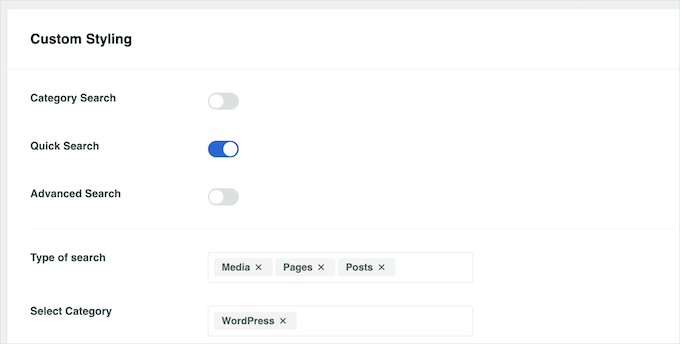
You can disable and enable the different options using their toggles.
The live preview will update automatically as you make changes, so you can try different settings to see what works best.
By default, the form searches media, pages, and posts and ignores custom post types. To include custom post types, you need to find the ‘Type of search’ field and click it.
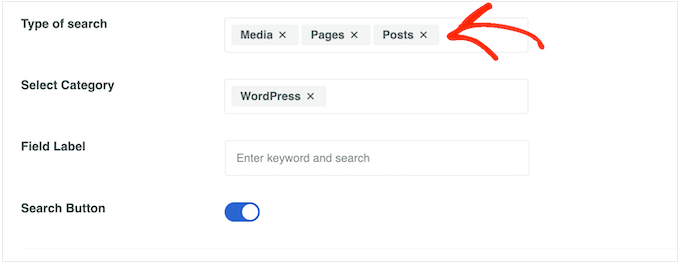
You can now type in the name of each custom post type.
When the right post type appears, give it a click to add it to the search.
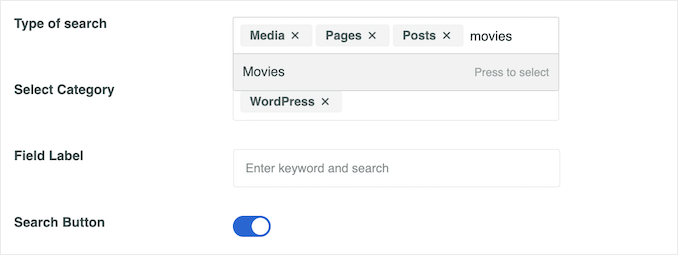
Do you want to search for custom post types only and ignore all other content?
Then just click the small ‘X’ next to ‘Media’, ‘Pages’, and ‘Posts’.

With that done, the form will search your custom post types only.
When you are happy with how the form is set up, scroll to the ‘Form Style’ section. Here, you can choose between different form styles, add a border, change the font size, and more.
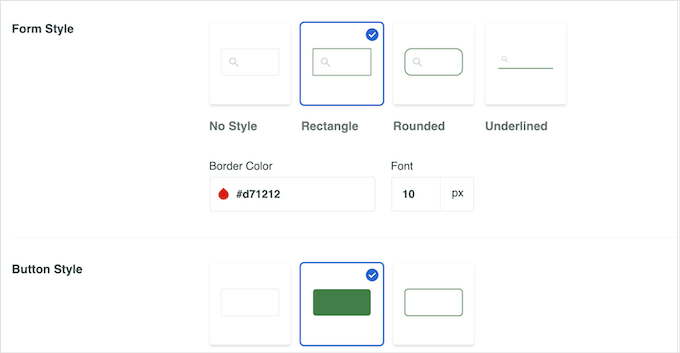
Under ‘Button Style’, you can customize the ‘Search’ button that appears in the form.
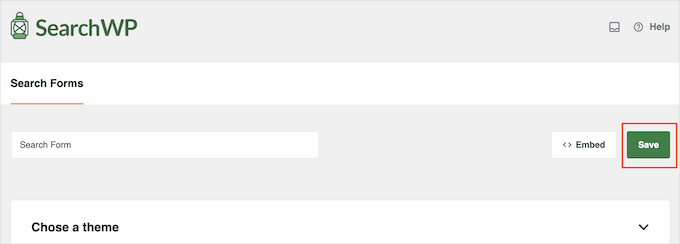
When you are happy with how the form is set up, scroll to the top of the screen and click on ‘Save’ to store your settings.
How to Add Custom Post Types to WordPress
Now, you are ready to add the search form to WordPress using either a shortcode or a block.
The easiest method is to use a block, so head over to the page or post where you want to add the custom post type form.
You can then click on the ‘+’ icon and type in ‘Search Form’.

When the right block appears, give it a click.
Next, open the ‘Select a Form’ dropdown menu and choose the search form you made during this tutorial.
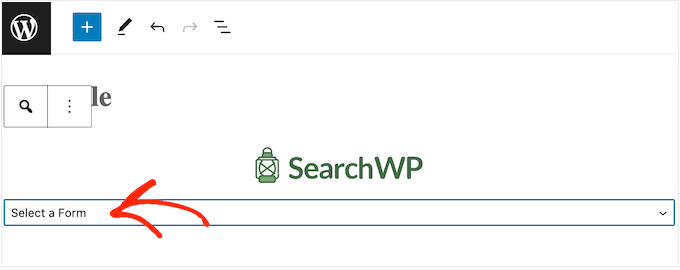
When you are ready to make the search form live, simply click on either ‘Update’ or ‘Publish’. Now, you can visit your website to see the search form in action.
Another option is to add the search form using a shortcode.
To get the shortcode, you need to head over to SearchWP » Search Forms. Here, find the search form that you want to show and copy the value in the ‘Shortcode’ column.

You can now add the shortcode to any page, post, or widget-ready area. For step-by-step instructions, please see our guide on how to add a shortcode in WordPress.
Bonus Tip: Add Custom Post Types to Your RSS Feed
Now that you have created a search form for custom post types, you can also add them to your main RSS feed. This will make it easier for users to discover more content on your website and subscribe to it.
Plus, allowing custom post types in the main RSS feed can boost your site’s SEO.
To do this, you will need to add the following custom code to your functions.php file. Keep in mind that this can be risky because even the smallest error can break your website.
function myfeed_request( $query_vars ) {

	// If this is a feed request and post_type is not set, include all public post types
	if ( isset( $query_vars['feed'] ) && empty( $query_vars['post_type'] ) ) {
		$query_vars['post_type'] = get_post_types( array(
			'public' => true,
		) );
	}

	return $query_vars;
}

add_filter( 'request', 'myfeed_request' );
That is why we recommend using WPCode. It is the best WordPress code snippet plugin and the safest way to add custom code.
Some of our partner brands use WPCode to easily add custom code snippets to their WordPress sites, and it’s been working exceptionally well for them. We’ve also explored all its features in detail, which you can check out in our complete WPCode review.
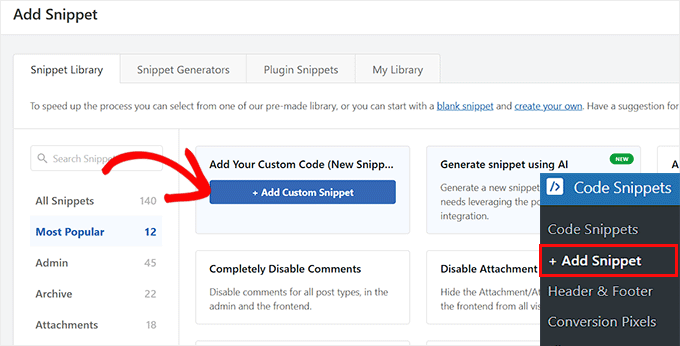
Upon plugin activation, just visit the Code Snippets » + Add Snippet page and choose the ‘Add Your Custom Code (New Snippet)’ option.
This will direct you to the ‘Create Custom Snippet’ page, where you must add a snippet name and choose ‘PHP Snippet’ as the code type.
After that, you can add the code and toggle the ‘Inactive’ switch to ‘Active’.
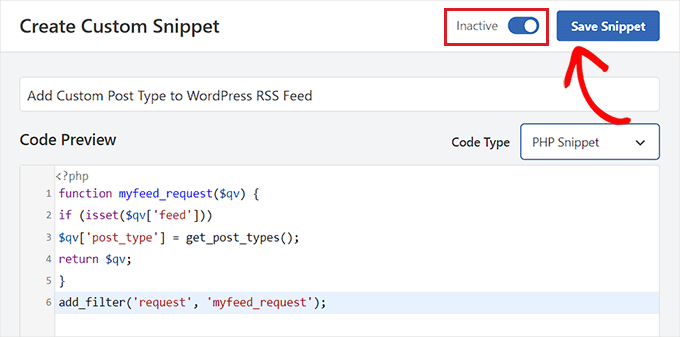
Then, click the ‘Save Snippet’ button to store your settings. Your custom post types have now been added to the main WordPress RSS feed.
For details, see our tutorial on how to add custom post types to your main WordPress RSS feed.
FAQs: Create an Advanced Search Form for Custom Post Types
Below are answers to some common questions you might have when working with custom post types and search forms in WordPress.
Can I add a custom post type to search results?
Yes. You just need to tell WordPress (or your search plugin) to include that post type in search. Most advanced search plugins let you pick which post types should appear in the results with a simple checkbox.
How do I know if a custom post type exists?
You can check this in a few ways. In your WordPress admin area, look for custom menus like Projects, Movies, or ‘Courses.’ Or, you can use a plugin like WPCode to view registered post types. If it shows up in the admin menu, it exists.
How do I register a taxonomy for a custom post type?
You register it using code or a plugin.
- With code, you use
register_taxonomy()and link it to your custom post type. - With a plugin, you can create and assign taxonomies using a visual interface.
Once registered, you can use that taxonomy as a filter in your search form.
Why use custom post type in WordPress?
Custom post types help you organize your content better. They keep different types of content separate instead of mixing everything into regular Posts or Pages. For example, you can create custom post types for things like properties, events, online courses, or products.
This makes your site easier to manage behind the scenes, easier to search through, and easier for visitors to find exactly what they’re looking for.
Next Steps to Improve Your WordPress Search
We hope this article helped you learn how to create an advanced search form in WordPress for custom post types.
If you found this helpful, you may also want to see our tutorials on:
- How to Customize the Search Results Page in WordPress
- How to Make Blog Post Comments Searchable in WordPress
- How to Use Multiple Search Forms in WordPress
- How to Exclude Specific Pages, Authors, and More from WordPress Search
- How to Add Fuzzy Search in WordPress (and Improve Results)
If you liked this article, then please subscribe to our YouTube Channel for WordPress video tutorials. You can also find us on Twitter and Facebook.



Jiří Vaněk
I tried to set up Advanced Custom Fields and custom post types for reviews on my website so that everything is personalized and has its own structure. It was only thanks to this article that I learned there might be a problem with searching content for custom post types. This is new information for me. Since Search WP caught my attention in many of your other articles, it’s evidently a very handy search tool that I definitely want to try. After all, it can also solve many other search-related issues discussed here. Thanks for the great tip.
tinhbeng
Hi,
How to me can add product post type in here?
Thank,
vijay
Thanks for the information, I want to know whether there is any way I can have dropdown style of search forms, as I have large number of post types, it would make it look ugly if I put all of them below search bar.
Penguin
Hi, Thanks a lot. This works pretty good for me. I am using dropdown instead of checkbox. But how can I style it to make it smilar to the one in LinkedIn header search section? Does that requires javascript? Do I use font icons for that? I am using fontawesome in my header. But I don’t know how to integrate this with fontawesome in a dropdown.
mayur
Sir.. can you plz attach screenshot with tutorials afterwords?? i think it’s more helpful for us..
Sean
Check out WP Advanced Search: http://wpadvancedsearch.com/
We’ve got support for taxonomies, custom fields, and just about everything else that WP_Query supports.
Thad
Thanks for sharing Sean, I also found this plugin that works fairly well for those not comfortable with diving into the PHP: http://wordpress.org/plugins/advance-wp-query-search-filter/
Brad
How could I use this to search a custom table of data. This is for a sports team site, and basically, I need a search box where someone can “Search by”: Last name, First name, or Team.
So how can I search by a field name?
Darren
This is an awesome tutorial, thank you.
Is there a way that I could mix this with categories? So that I could have both custom post types and categories selectable?
Thanks again :).
Jonathan Stevens
Hi Darren,
I had the same problem. Ended up with this messy solution, but it worked:
http://antimatterdesign.com/how-to-create-a-wordpress-advanced-search-form-from-scratch/
ONEEEZY
Dang.. still nothing. . .
Marie
Hi, there isn’t a way to tell the engine to automatically list all terms or tags or custom field? thanks
Editorial Staff
Not yet.
Admin
Paul
This is an aspect of WordPress that could be improved, I agree.
If you don’t want to code, you can try Pippin’s search plugin:
http://pippinsplugins.com/advanced-search-shortcode/
Elliott
Nice tutorial… Am designing a custom search for my new site at the moment.
Curious why you don’t think searching on pages is a good idea?
Editorial Staff
You can search pages except in most cases your about page, contact page, legal page, privacy policy page are mostly irrelevant.
Admin
Fakeuser
I’m getting this error after changing the name of the input fields to s[]
Warning: stripslashes() expects parameter 1 to be string, array given in wp-includes\query.php on line 2179
I’ve changed the call to stripslashes() call to stripslashes_deep() but it broke other thigs… any sugestions?
Benjamin Wilde
I’m looking for a way to have a form with separate controls for location AND category, both in dropdown boxes. Obviously I can do this, but I have no idea how to do a multiple-query search in Wordpress. Any ideas?
Aldo Valverde
Do you think is it possible to do the same but including Post Type Categories as well….
…I mean, the same Post Type checkboxes and when user select an specific checkbox that appear-down other checkboxes but as categories and filter even more the Search of Wordpress ?
Rocky Ouprasith
Awesome! thanks for the help!
there is one thing though…
my post types are all styled differently.
how can I assign the template of a post type with the correct post types?
thanks!
Editorial Staff
Use CSS classes. Each post outputs its own post classes i.e categories, post types etc.
Admin
Merianos Nikos
Very nice article
SDesign
Great tutorial! One question though: What would the syntax be for making the checkboxes in the form use taxonomies rather than post types?
Would something like this work?:
Perhaps this is worthy of another tutorial. Any additional help is greatly appreciated.
Thad
Ever come across anything that explains this?
SDESIGN
No, I decided to go with custom post types instead.
If anyone has any insight, on this it would be greatly appreciated.
The specific question is how to make something like this work using taxonomies instead of post types?
CathieHeart
Hi, you wouldn’t happen to also have a section to add maybe for those of us wanting to a dropdown menu search form interface rather than checkboxes?
Thanks.
wpbeginner
@CathieHeart That can be accomplished using the similar technique.
mainaPlus
Does this work with a buddypress enabled site?
wpbeginner
@mainaPlus Haven’t tried it with BuddyPress so not sure
Robin
Would this be able to work with a buddypress enabled site?
Editorial Staff
Not sure about that. We don’t have much experience with BuddyPress.
Admin
wpbeginner
Haven’t tried it with BuddyPress so not sure.
Abdelhadi Touil
Very nice tutorial! Thanks.
Herny Louis
Thanks Syed and David. Need to test it on one of my websites. Definitely this kind of categorization will help visitors to do narrow search.
zachshallbetter1
I would love to see a way to do this with custom fields as well.
oneeezy
Yes!
What Zach said…
It would be ideal to have this “Advanced Form” be able to search through custom fields. You could make the ultimate search form this way. Any takers??? C’mon WP Beginner!!