


It can be frustrating to pour your heart into creating great content, only to feel like your website is invisible on Google. We felt that exact same way when we launched our very first blog.
We quickly learned that the secret wasn’t just about writing, but about making sure search engines could easily find and understand our pages. This process is called search engine optimization, or SEO.
Here at WPBeginner, we rely on tools like All in One SEO to stay on top of our site’s health, and we’ve discovered you don’t need to be a tech wizard to do it. The best part is that you can get started without expensive tools or deep technical knowledge.
In this guide, we’ll walk you through the simple, beginner-friendly methods we use to check if a website is properly optimized.
Why Check if Your Website Is SEO Optimized?
At WPBeginner, we’ve learned that optimizing your website for search engines isn’t just a technical task. It’s about making your content easily discoverable by those who need it most.
When you check if your website is SEO optimized, you gain insights into potential improvements. This can lead to increased search engine traffic and better visibility.
Search engines often drive more traffic than any other source. This makes SEO optimization crucial for your WordPress business website.
SEO is full of technical terms and processes. It can seem overwhelming at first, but with the right tools, you can simplify the process and see substantial results.
Luckily, there are many SEO tools available to check your site’s optimization. These tools help pinpoint areas of improvement and guide you through the steps to enhance your site’s SEO.
In this guide, we’ll explore two powerful and beginner-friendly methods. The first uses a plugin to check your site’s health directly within WordPress, and the second uses an online tool to get a deeper look at your rankings and competitors.
Method 1: Use AIOSEO to Check and Optimize Your WordPress SEO
All in One SEO is the best WordPress SEO plugin in the market, used by over 3 million website owners. It lets you easily improve your search engine rankings and optimize your site without having to learn the ins and outs of SEO.
The first thing you need to do is install and activate the plugin. For more details, see our step-by-step guide on how to install a WordPress plugin.
Note: There is a free version of AIOSEO available, but we’ll use the pro version of AIOSEO since it gives us even more SEO optimization features.
Upon activation, you’ll have a new menu item called ‘All in One SEO’. You need to go to All in One SEO » Dashboard, and it will take you to the main settings panel.
After that, click the ‘Launch the Setup Wizard’ button.
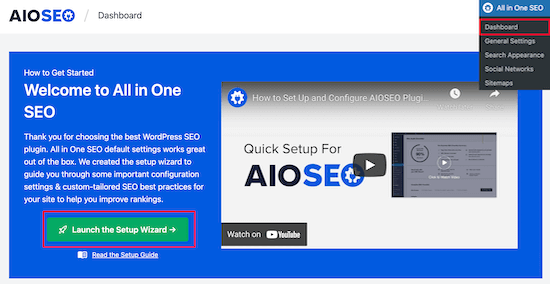
This will walk you through the process of setting up the plugin for your website.
For more details, see our guide on how to set up All in One SEO for WordPress correctly.
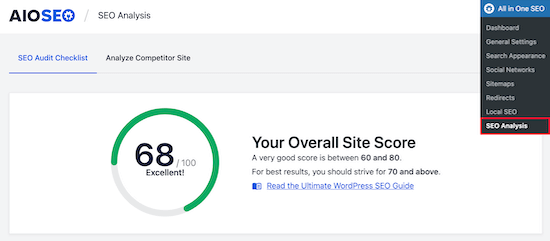
Once the plugin is set up, navigate to All in One SEO » SEO Analysis.
The ‘SEO Audit Checklist’ tab will give you a breakdown of your overall SEO score.
Under that, you’ll see the ‘Complete SEO Checklist’.
You can think of this as your checklist for properly optimizing your WordPress website.
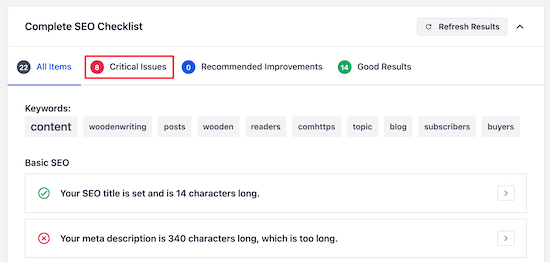
The ‘Critical Issues’ are what you need to fix first because they will have the biggest impact on your SEO score.
Simply click the ‘Arrow’ to the right of an SEO issue, and a box will drop down that explains the problem, and what you can do to fix it.
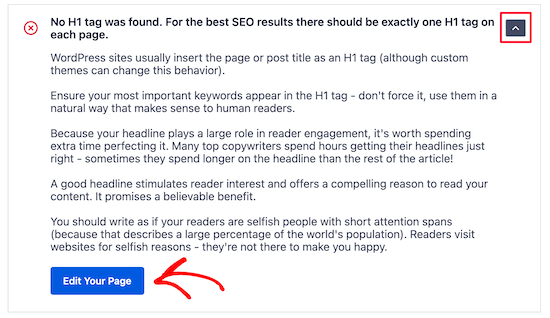
In this case, clicking the blue ‘Edit Your Page’ button will take you to the page where the change needs to be made.
After you make the changes, you need to navigate back to the ‘SEO Analysis’ page and click the ‘Refresh Results’ button.
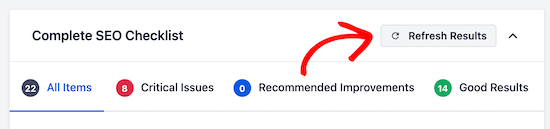
This will update your results and reflect the positive SEO improvements you have made.
You can see here the red ‘Critical Issue’ has now changed into a green ‘Checkbox’.
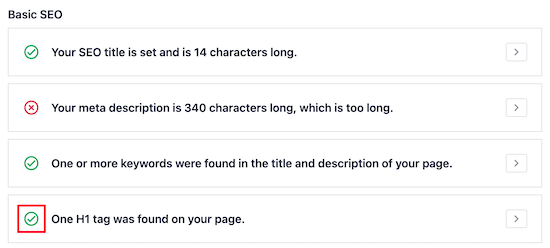
Now, you need to follow the same steps for any of the ‘Critical Issues’ found by the plugin and make the ‘Recommended Improvements’ if there are any suggestions.
See How Your SEO Stacks Up Against Competitors
Another great feature is the competitor analyzer, which shows you how well-optimized your competitors’ websites are.
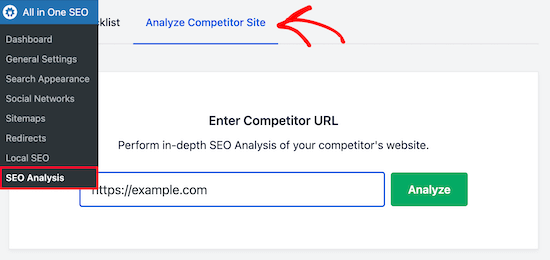
To use this, you need to go to All in One SEO » SEO Analysis and click the ‘Analyze Competitor Site’ menu item.
Simply enter the competitor URL into the box and click ‘Analyze’.
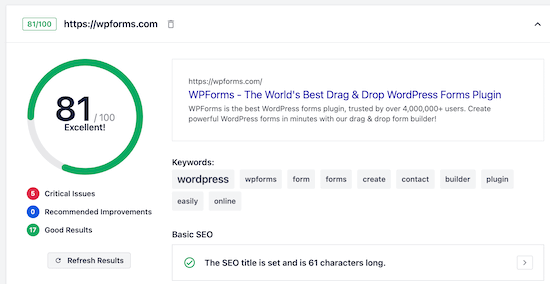
The results you’ll get for your competition are similar to the SEO analysis results for your website.
By seeing what they’re doing right and wrong, you can easily outrank your competition in the search engine results pages.
Improve Your Individual Page SEO with TruSEO
Now that you’ve improved your site’s overall technical health (often called ‘onsite SEO’), the next step is to optimize your individual posts and pages using the TruSEO analysis feature.
Simply open up the post or page that you want to optimize and scroll down to the bottom of the content editor. There you will see the SEO settings area.
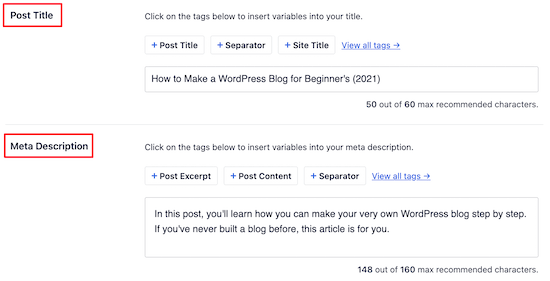
First, you can optimize your ‘Post Title’ and ‘Meta Description’. This is what will be displayed in the search results.
There’s a built-in headline analyzer that will help you maximize your click-through rates to get more traffic.
Next, you can enter your ‘Focus Keyphrase’ into the box.
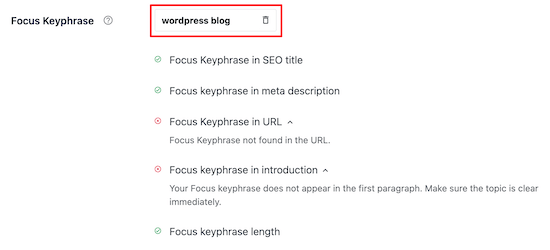
This keyword is what you want the post or page to rank for.
After you enter the keyword, the plugin will analyze your content and give you tips to improve.
You can also enter multiple keywords into the ‘Additional Keyphrases’ box.
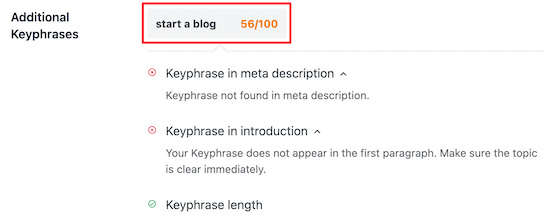
This is great for targeting closely related search terms and bringing in even more traffic. For example, if your focus keyphrase is ‘best dog food’, your additional keyphrases could be ‘healthy dog food brands’ and ‘top-rated puppy food’.
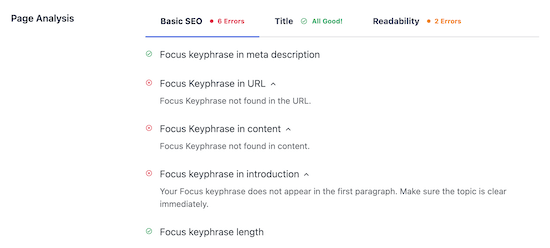
After that, you’ll get a detailed ‘Page Analysis’ that will tell you how well your page is SEO optimized.
The ‘Basic SEO’ tab will tell you how well your content is optimized for common SEO guidelines.
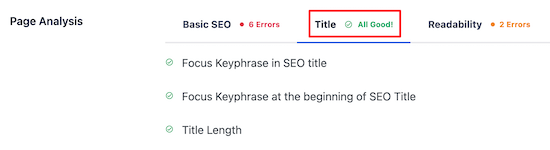
The ‘Title’ tab will tell you how well your title is optimized for search engines.
Click this tab to see how well your title is performing.
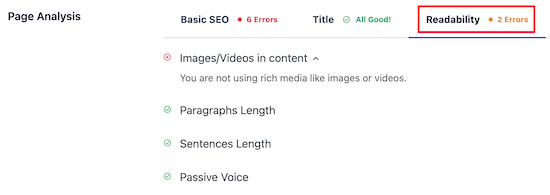
Next, you have the ‘Readability’ tab.
This gives you a detailed breakdown of how easy your content is to read. It offers you suggestions to improve your content and tells you what you’re doing well.
After you’ve finished making changes to optimize your content, make sure you click ‘Update’ or ‘Publish’.
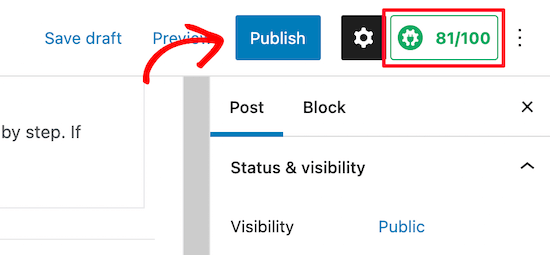
You’ll also notice your TruSEO score in the upper right corner of the page. The higher this number, the better your content is optimized for search engines.
View Search Insights and Track Keywords Inside WordPress
After your WordPress site is SEO-optimized, you’ll want to see if your SEO strategy is working.
Luckily, AIOSEO has recently released a Search Statistics addon that lets you easily view SEO statistics, track your keywords, discover your top-performing content, and more, right from WordPress.
Once you connect Search Statistics with Google Search Console, click on ‘Search Statistics’ under the AIOSEO menu in the WordPress admin dashboard.
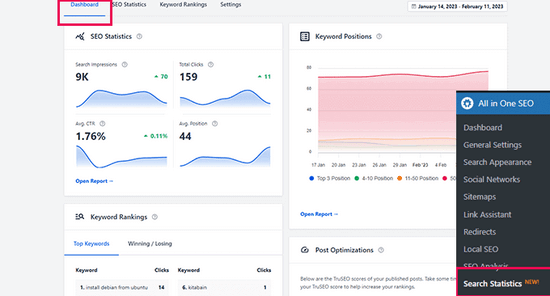
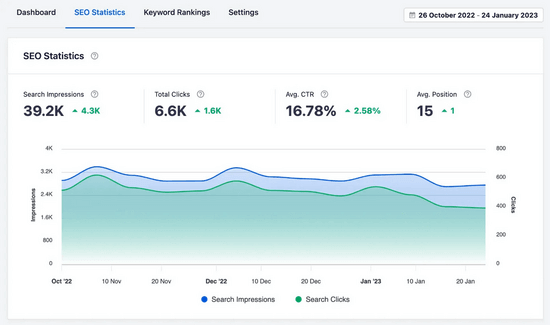
From the Search Statistics dashboard, you can view insights like impressions, total clicks, average click-through rate, and the average position of all your content for the date range you have set.
You can also set simple SEO goals, like getting 1-3 articles in the Top 10, and track your progress using easy-to-read reports.
Plus, you can find out what your top-performing keywords are, which can help you come up with ideas for new content to create.
It even shows your ‘top winning’ and ‘top losing’ keywords, which are the keywords that have seen the biggest position changes in search results.
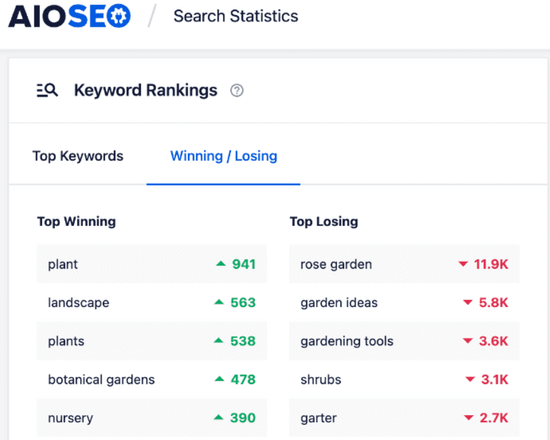
Using this information, you can adjust your SEO strategy to bring your losing keywords back to the top of search results, as well as ensure your winning content continues to rank well.
Remember, SEO is a marathon, not a sprint! 🏃 After you make these improvements, it can take some time for search engines like Google to re-evaluate your site. Keep creating great content and checking your site’s health, and your efforts will pay off.
Method 2: Use Semrush to Get Advanced WordPress SEO Data

Semrush is one of the most popular SEO tools, and they offer the best keyword research tool in the market.
This is the tool we use here at WPBeginner. While a plugin like AIOSEO is perfect for managing SEO inside your WordPress dashboard, Semrush gives you powerful insights about your competitors and keyword rankings across the entire web. Using them together gives you a complete SEO toolkit.
With the help of Semrush, you can see, in great detail, how well your SEO strategy is working.
The first thing you need to do is visit the Semrush website and click ‘Sign Up’ to create an account.
You can create a free account that will give you a limited amount of website SEO data. You will need to sign up for a paid Semrush subscription to get all the features (it’s totally worth it).
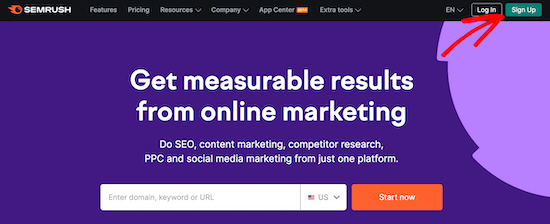
Next, you’ll be asked to provide an email address, password, and phone number.
After that, you’ll be taken to your SEO Dashboard, where you can start checking if your WordPress site is optimized.
The first tool we’ll use is the ‘Site Audit’ feature. This will give you a detailed breakdown of any SEO errors that exist on your website or WordPress blog.
Click on ‘Site Audit’ under the On Page & Tech SEO menu option and then enter your website domain name and click ‘Start Audit’.
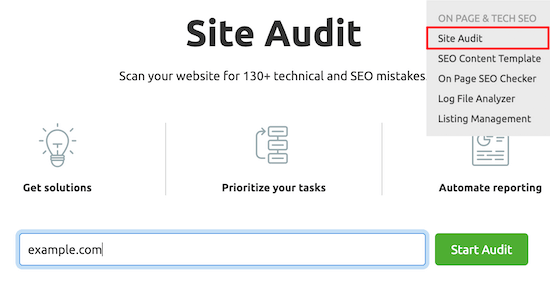
The report will run automatically.
After it’s complete, you’ll get a detailed breakdown of any SEO errors your site has.
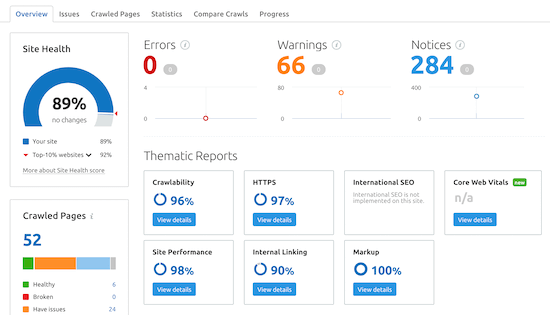
Scroll down until you see the ‘Top Issues’ category, and this will show you the main issues your website has.
You can click to expand any of these areas, and it will show you all the pages that have that issue.
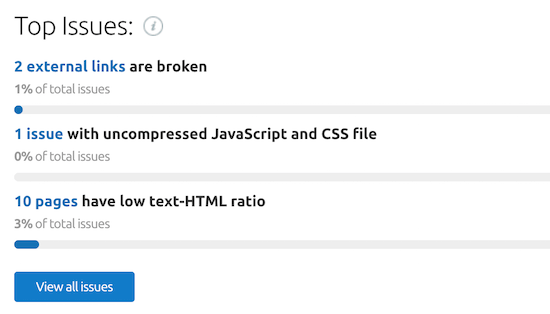
For example, on this website, 2 external links are broken.
If you’re not sure what the problem is or how to fix it, then click the ‘Why and how to fix it’ link.
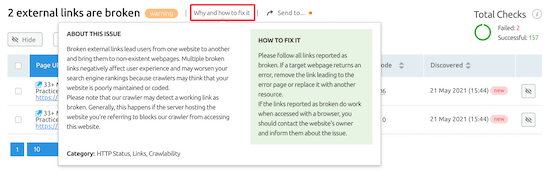
This will bring up a popup that will describe the issue in-depth.
It’s important to fix all of the ‘Errors’ and ‘Warnings’ that your site has. Fixing these issues alone will go a long way toward improving your SEO.
Uncover Your Backlinks and Advanced Website Analytics
Beyond helping you find and fix technical SEO errors, Semrush is one of the best backlink checker tools.
To use this feature, select ‘Backlink Analytics’ from your SEMRush dashboard and then enter your website URL and click ‘Check it’.
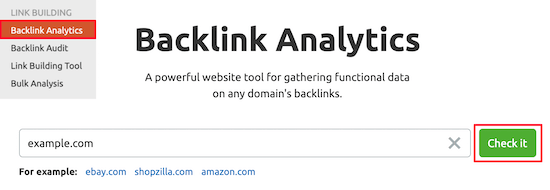
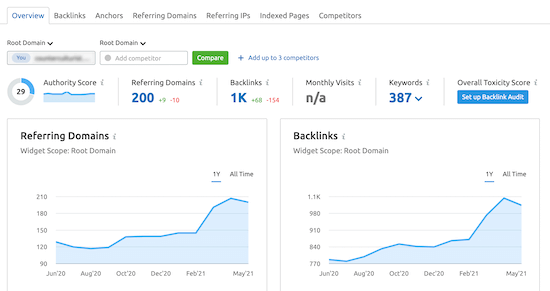
This will bring up lots of information about your domain name and your backlinks.
Think of backlinks like votes of confidence from other websites. In general, the more ‘votes’ you get from high-quality, relevant sites, the more trustworthy your website appears to search engines, which helps you rank higher.
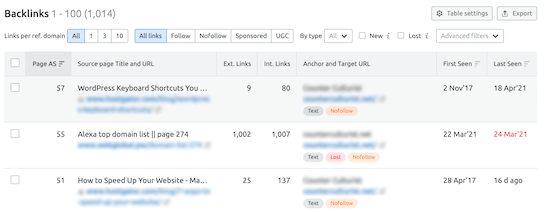
If you click the ‘Backlinks’ menu option, then you’ll see a detailed breakdown of the domain names that are linking to your website.
This can be useful because it can help you pinpoint any issues, such as low-quality links.
For instance, you can see how many other websites a page linking to you is also linking out to. If a page has very little content but hundreds of outgoing links, it might be a low-quality or spammy site, which could hurt your SEO.
Track Your Traffic and Keyword Rankings Over Time
Another very useful tool is the keyword rank tracking feature. This will let you know if your SEO optimization changes are helping you get more traffic.
Navigate to ‘Organic Research’ in the Competitive Research section of your SEMrush dashboard.
Then, enter your domain name and click ‘Search’.
This screen will give you detailed information about the performance of your website.
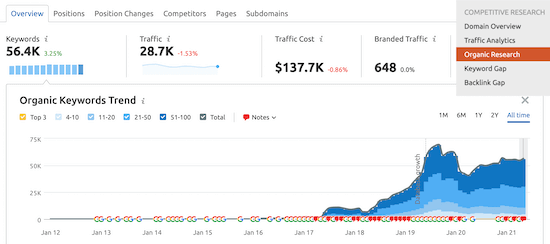
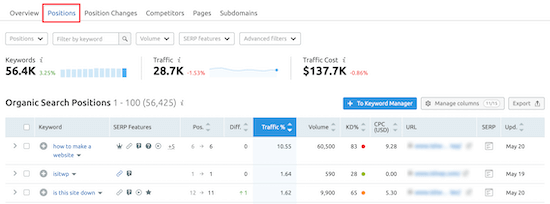
You can click on the ‘Positions’ tab to get an overview of what keywords bring your website the most traffic.
These keywords are the most valuable to your website.
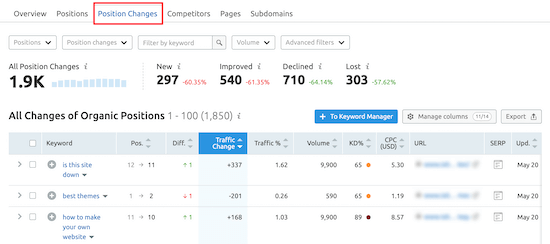
As you optimize your WordPress SEO, you’ll want to pay attention to the ‘Position Changes’ tab.
This will tell you the changes that are happening in the organic search results. As you optimize your website, you should see your website ranking higher for certain keywords and getting more traffic.
Another useful SEO tool from Semrush is called the SEO Writing Assistant.
This can help you write SEO-optimized content, format your articles, write in a casual tone, and more.
For more details, see our guide on how to use the SEO Writing Assistant in WordPress to improve SEO.
An added bonus is that Semrush seamlessly integrates with AIOSEO to help you find additional related keyphrases right from WordPress.
Simply click on the ‘Get Additional Keyphrases’ button in the AIOSEO settings area of your post or page.
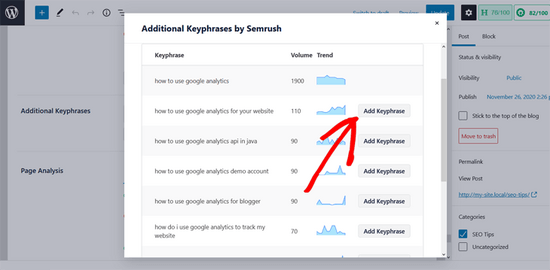
In the popup window, you’ll be prompted to sign in to your Semrush account. Then, you can see a list of additional keywords along with the search volume and trend. You can add any of the keyphrases to your content in 1-click.
Video Tutorial
If you’d prefer written instructions, just keep reading.
Frequently Asked Questions About Checking Your Website’s SEO
We often get questions about the best ways to check and improve website SEO. Below are the answers to some of the most common ones we receive.
1. What is a good SEO score?
Most SEO tools provide a score to help you quickly gauge your site’s health. While the number can vary, a score above 80 out of 100 in a tool like All in One SEO is generally considered good.
However, it’s more important to focus on fixing the specific ‘Critical Issues’ the tool finds rather than just chasing a perfect score.
Think of your score as a helpful guide, not a final grade. Every issue you fix is a step toward better rankings! 👍
2. Can I check my website’s SEO for free?
Yes, you absolutely can. Many of the best SEO tools, including All in One SEO and Semrush, offer free versions or limited free trials. These are perfect for running a basic audit to find and fix the most common SEO errors on your website without any cost.
3. How often should I perform an SEO check on my site?
It’s a good practice to run a full site audit at least once a quarter to catch any site-wide technical issues. For individual posts and pages, you should check the on-page SEO every time you publish new content or make significant updates to an existing article to ensure it remains well-optimized.
4. What are the most important things to check for SEO?
The most important areas to check include on-page elements like your page titles, meta descriptions, and keyword usage.
You should also look for technical issues such as broken links, site speed, and whether you have an XML sitemap. Finally, check that your content is easy to read for your visitors.
Additional Resources to Boost Your Website’s SEO
We hope this guide helped you learn how to check if your website is SEO-optimized. Now that you have the tools to analyze your site, you might want to explore these other guides to further improve your rankings:
- How to Increase Your Blog Traffic – Simple, actionable steps you can take to grow your audience and get more visitors to your site.
- Best SEO Rank Tracker Tools – A detailed comparison of the best tools to help you monitor your keyword rankings in search engines.
- How to Do Keyword Research for Your Blog – Learn how to find the right keywords that your customers are actually searching for on Google.
- Ultimate WordPress SEO Guide for Beginners – Our complete, step-by-step guide covers all the essential aspects of WordPress SEO from start to finish.
If you liked this article, then please subscribe to our YouTube Channel for WordPress video tutorials. You can also find us on Twitter and Facebook.




Olaf
I use the lite version of AIO SEO, which offers a relatively good range of tools for basic SEO audits. The browser extension is excellent as it can also provide similar basic information. Semrush is then a secondary tool for extensive SEO audits, offering a wide variety of tools, from keyword analysis to many others. The ability to export results to CSV is fantastic, as we can perform further data analysis to gain additional valuable insights. Semrush is simply a top choice that I love.
Jiří Vaněk
For a quick overview of your SEO on the page, the AIO SEO extension is also great, for example for the Chrome browser. I use this extension now on a daily basis and it’s great.
Teresa Grant
This is great info. thank you. I have Yoast. I try to follow that. Is this info and these plug ins redundant? thank you
WPBeginner Support
AIOSEO is a Yoast alternative that we prefer and SEMRush is not something that Yoast would replace at the moment.
Admin