


One of the first things I do when setting up any WordPress site is change the database prefix from the default wp_ to something unique. It’s a simple security step that many website owners overlook, but it can make a real difference in protecting your site.
Most WordPress sites use the same default database structure, which makes them easy targets for hackers. Customizing your database prefix makes it much harder for automated attacks to succeed and adds an important layer of security to your site.
Whether you’re securing an existing WordPress site or want to learn this best practice for future projects, I’ll show you multiple ways to safely change your database prefix.
This guide covers how to do it using a user-friendly plugin as well as a manual method, so you can choose the approach that works best for your situation.

TL;DR: Changing your WordPress database prefix is a simple but effective security step that can protect your site from many automated attacks. It won’t make your site completely hack-proof, but it does add an important layer of security that costs nothing to implement.
The Solid Security plugin method is the safest approach for beginners, while the manual phpMyAdmin method gives you more control if you’re comfortable working with databases. Create a backup and take your time to make sure everything works correctly.
You can use the quick links below to navigate through the article:
Why Change the WordPress Database Prefix?
The WordPress database prefix might seem like a small technical detail, but it plays an important role in your website’s security setup. Every WordPress installation uses this prefix to organize your site’s data in the database.
By default, WordPress uses wp_ as the prefix for all database tables. This means your posts are stored in a table called wp_posts, your users in wp_users and so on.
The problem is that hackers know this default structure.
Security reports from top security companies show that a huge number of automated attacks are designed to specifically target the default wp_ prefix. When hackers can easily guess your database table names, it makes their attacks much more likely to succeed.
Here are the key benefits of changing your database prefix:
- Adds security through obscurity: While not a complete security solution on its own, a custom prefix is an important part of a layered security strategy. It makes your site a much harder target for low-effort, automated attacks that rely on default settings.
- Protects against SQL injection attempts: Many automated SQL injection attacks are programmed to target the default
wp_prefix. By changing it, you make your site invisible to these common, automated bots, forcing them to move on to an easier target. - Reduces targeted scanning: Bots that scan for vulnerable WordPress sites often look for default database patterns that won’t match your customized setup.
- Provides peace of mind: Knowing your database structure is unique gives you an extra layer of confidence in your site’s security.
I always change the database prefix on new WordPress installations because it’s such a simple step that can prevent so many common attack methods.
Important: Changing your database prefix is an advanced operation. Before you do anything suggested in this tutorial, it is absolutely essential that you back up your WordPress database.
One mistake can make your site inaccessible, and a backup is your only safety net. I recommend using a plugin like Duplicator to keep daily backups.
Method 1: Using Solid Security Plugin (Easier for Beginners)
The easiest way to change your WordPress database prefix is by using the free Solid Security plugin, which is a security plugin that protects your website from various threats.
I recommend this approach for beginners because the plugin automatically updates all the necessary database tables and configuration files. You don’t need to touch any code or work directly with your database.
To learn more about this popular security plugin, see our detailed Solid Security review.
Step 1: Install and Configure the Solid Security Plugin
First, you need to install and activate the free Solid Security plugin. For more details, you can see our step-by-step guide on how to install a WordPress plugin.
Upon activation, you will need to configure the plugin using a setup wizard. Go to Security » Setup in your WordPress dashboard to begin.
The wizard will walk you through the basic configuration for your website.
You’ll be prompted to choose the type of website you have, run a scan on your site, and more.
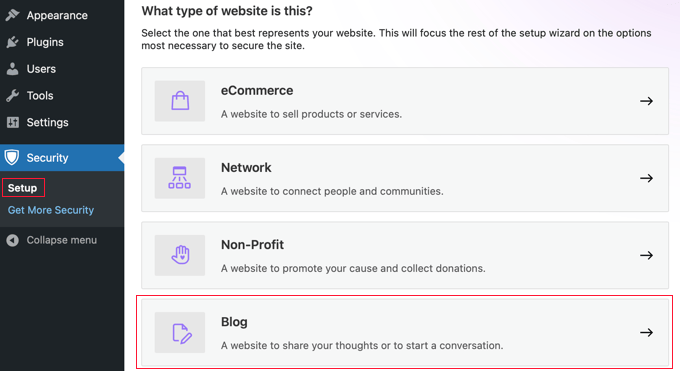
Make sure to read each page of the wizard carefully. The default settings will work for most websites.
In my experience, the onboarding wizard should take less than 10 minutes. Once you finish the wizard, the basic security features will be active.
Step 2: Change the Database Prefix
Now that the plugin is configured, you can change your database prefix. From your WordPress dashboard, navigate to Security » Tools.
On this screen, you will see a tool labeled ‘Change Database Table Prefix’.

Simply click the ‘Run’ button to proceed.
The plugin will automatically choose a random prefix. Next, it will automatically put your site into maintenance mode, change the prefix for all your WordPress tables, update your wp-config.php file, and then take the site out of maintenance mode.
This all happens very quickly, and you can watch the process as each table is renamed.
Step 3: Verify Your Site is Working
That’s it. The plugin has done all the hard work for you. As a final check, it’s always a good idea to make sure everything is running smoothly.
Visit your website’s homepage to ensure it loads correctly. After that, try logging out and logging back into your WordPress admin area. If both of those actions work, then your new database prefix is functional. 🎉
Method 2: Manual Method via phpMyAdmin
If you prefer to change the database prefix manually or don’t want to use a plugin, you can do it yourself through phpMyAdmin. This method gives you complete control but requires more technical steps and carries a higher risk of error.
Before you get started, it’s a good idea to put your WordPress site in maintenance mode (the plugin in Method 1 does this automatically). Otherwise, you could cause a bad user experience for visitors to your website.
For most users, especially beginners, I strongly recommend using the plugin method.
Note for Advanced Users: Some plugins store settings in a special format (called serialized data). Running a direct SQL query can sometimes break this data. This is another key reason we strongly recommend the plugin method, as it contains safeguards to prevent these types of errors.
Step 1: Change the Table Prefix in wp-config.php
First, you will need to connect to your website using FTP or the File Manager app in your WordPress hosting account.
You then need to open your wp-config.php file, which is located in your WordPress root directory. Here, you can change the table prefix line from wp_ to something else, like this wp_a123456_
So the line would look like this:
$table_prefix = 'wp_a123456_';
Note: You can only change the table prefix using numbers, letters, and underscores.
Step 2: Change All Database Table Names
Next, you need to connect to your database using the phpMyAdmin tool.
If your host uses the cPanel dashboard, then you can easily find phpMyAdmin there.
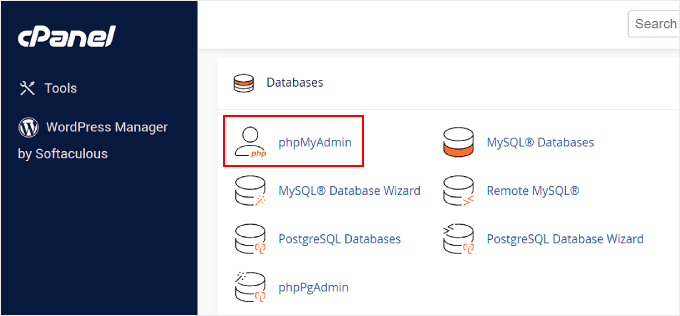
There are 12 default WordPress tables, so changing them manually would be a pain.
Instead, you should click on the ‘SQL’ tab at the top.
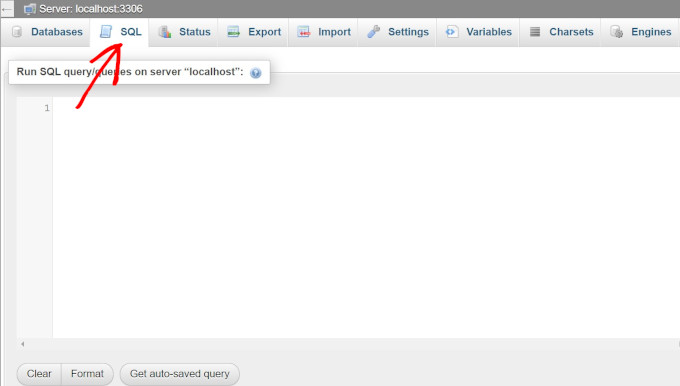
Then, you can enter the following SQL query:
RENAME table `wp_commentmeta` TO `wp_a123456_commentmeta`;
RENAME table `wp_comments` TO `wp_a123456_comments`;
RENAME table `wp_links` TO `wp_a123456_links`;
RENAME table `wp_options` TO `wp_a123456_options`;
RENAME table `wp_postmeta` TO `wp_a123456_postmeta`;
RENAME table `wp_posts` TO `wp_a123456_posts`;
RENAME table `wp_terms` TO `wp_a123456_terms`;
RENAME table `wp_termmeta` TO `wp_a123456_termmeta`;
RENAME table `wp_term_relationships` TO `wp_a123456_term_relationships`;
RENAME table `wp_term_taxonomy` TO `wp_a123456_term_taxonomy`;
RENAME table `wp_usermeta` TO `wp_a123456_usermeta`;
RENAME table `wp_users` TO `wp_a123456_users`;
Remember to change the database prefix to the one that you picked when editing the wp-config.php file.
Important: This query only renames the 12 core WordPress tables. Many plugins create their own database tables that also use the default wp_ prefix.
You will need to identify these tables (they often contain the plugin’s name in the table name) and add a RENAME line for each one to the SQL query above.
Forgetting this step will break your plugins.
For example, if you see a table named wp_yoast_indexable, you would need to add this line to your SQL query:
RENAME table `wp_yoast_indexable TO wp_a123456_yoast_indexable`;
Step 3: Update the Options Table
Next, you need to search the options table for any fields that still use the old wp_ prefix. The most critical entry is wp_user_roles, which controls user permissions. If this isn’t updated, users won’t be able to log in correctly.
To update all relevant entries automatically, you can use the following SQL query. Remember to replace wp_a123456_ with your new prefix:
UPDATE `wp_a123456_options` SET `option_name` = REPLACE(`option_name`, 'wp_', 'wp_a123456_') WHERE `option_name` LIKE 'wp_%';
This query finds all entries in the option_name column that start with wp_ and replaces that part with your new prefix.
Step 4: Update the UserMeta Table
Similarly, you need to update the usermeta table, which stores user capabilities and settings. Keys like wp_capabilities and wp_user_level must be updated.
Run the following query to find and replace all old prefixes in the meta_key column. Make sure you use your new prefix in the query:
UPDATE `wp_a123456_usermeta` SET `meta_key` = REPLACE(`meta_key`, 'wp_', 'wp_a123456_') WHERE `meta_key` LIKE 'wp_%';
This makes sure that all users retain their correct permissions and settings.
You are now ready to test your site. If you followed the steps above, everything should be working fine. But if you need help with troubleshooting, please read on.
Troubleshooting Issues With Changing the Database Prefix
Even when you follow the steps carefully, sometimes issues can occur after changing your WordPress database prefix. Here are the most common problems and how to fix them.
Login Problems
If you can’t log in to your WordPress admin after changing the prefix, it’s usually because some database entries weren’t updated correctly. This most commonly happens with the manual method when you miss updating entries in the options or usermeta tables.
To fix this, go back to phpMyAdmin.
Specifically, check the options table for an entry named wp_user_roles (using your old prefix) and make sure it has been renamed to your new prefix (e.g., wp_a123456_user_roles).
Also, search the usermeta table for meta_key entries like wp_capabilities and ensure they have been properly updated.
Database Connection Errors
Sometimes you might see an ‘Error establishing a database connection’ message. This typically means there’s a mismatch between your wp-config.php file and your database table names.
Check that the prefix in your wp-config.php file exactly matches the prefixes of your database tables, including any underscores.
Seeing the WordPress Installation Screen
This is a scary but fixable problem. It almost always means that your wp-config.php file was updated with the new prefix, but your database tables were not successfully renamed.
When WordPress can’t find tables matching the prefix in your config file, it thinks it needs to be installed.
To fix it, you need to manually edit your wp-config.php file and change the prefix back to the original one:
- Connect to your website using an FTP client or your hosting provider’s File Manager.
- Locate the
wp-config.phpfile in the main folder of your site. - Find the line that specifies the table prefix. It will have your new (and incorrect) prefix:
$table_prefix = 'wp_a1b2c3_'. - Change it back to your original prefix (which is usually
wp_):$table_prefix = 'wp_'. - Save the file and upload it back to your server.
Your website should now load correctly. This issue can sometimes happen on hosting environments with strict file permissions that prevent a plugin from renaming database tables.
Solutions and Support Resources
If you’re still experiencing issues, here are some steps that can help.
First, restore your backup and try the process again more carefully. This is why creating a backup before starting is so important.
Second, if you used the manual method, consider switching to the Solid Security plugin method instead. It handles many edge cases automatically that are easy to miss when doing it manually.
Finally, if problems persist, contact your web hosting support team. They can often help identify database-related issues and may be able to assist with the prefix change process.
FAQs About Changing the WordPress Database Prefix
I know that changing your database prefix can feel scary, especially if you’re new to WordPress.
These are the questions I get asked most often about the process, along with clear answers to help you feel more confident.
What is the default WordPress database prefix?
The default WordPress database prefix is wp_ and it’s used for all database tables like wp_posts, wp_users, and wp_options. This prefix is the same on every WordPress installation unless it’s been manually changed.
Can changing the WordPress database prefix break my website?
Yes, changing the WordPress database prefix can break your website if not done correctly. That’s why it’s essential to create a complete backup before starting and follow the steps carefully to ensure all database references are updated properly.
What should I do if I can’t log in after changing the database prefix?
If you can’t log in after changing the prefix, it usually means some database entries weren’t updated correctly. Restore your backup and try the process again, or use the Solid Security plugin method, which handles these updates automatically.
Additional Resources for Improving WordPress Security
I hope this article helped you learn how to change the WordPress database prefix. This is just one part of securing your WordPress website. There are many other steps you can take to make your site even more secure and better protected against various types of attacks.
Here are some additional security measures I recommend setting up:
- Set up more hardening techniques, such as using strong passwords and two-factor authentication. See our guide on improving WordPress security.
- Enable security plugins or settings. Refer to our best WordPress security plugins article.
- Regular updates and monitoring. See our step-by-step guide on how to safely update WordPress.
If you liked this article, then please subscribe to our YouTube Channel for WordPress video tutorials. You can also find us on Twitter and Facebook.


Jiří Vaněk
Thank you for the guide. Before I started getting into WordPress, I used the default installations where the user was, of course, ‘admin’ and the prefix was ‘wp_’. It was only later that I read it isn’t good from a security standpoint and that it’s much better to have a custom prefix. I was a bit afraid to start changing things on an already functioning website, and I also didn’t have enough knowledge for it. I tried changing the prefix on a small site according to this guide, and it really worked great. So, I’ll probably do the same for my other websites to ensure a bit better security. Great.
Mrteesurez
Thanks your encouragement and sharing your experience on how it worked for you. I have decided to changing it on new WordPress site, I still don’t have courage to change it on an established site. I too will follow this guide and try it on a small website to know if it will work.
enel lee
You need to adjust the query to, ‘wp\_%’ – this escapes the underscore character which has a value of ‘one character’ in SQL otherwise, as many will find out following your advise, you will get anything with ‘wp’ in the name! You also don’t need the first ‘%’ char as we are looking for names that BEGIN WITH ‘wp’ meaning nothing in front of it. The inner occurrences in the options table is great advice though for those who may use the built in phpMyAdmin feature to change prefix; this only changes the main table names and doesn’t look within the table fields
WPBeginner Support
Thank you for your feedback, we will look into this code again, as this was for a search only and not a replace it was set up to have a broader search to be safe
Admin
Moinuddin Waheed
This is an eye opener for wordpress security.
I never felt the need to change the database prefix for its simplicity and never knew that leaving it as it is can be dangerous.
I think most of the beginners leave database prefix as it is and never change it.
I will definitely keep this in mind while installing every new wordpress website.
Mrteesurez
Yes most beginner bloggers including me, leave it without changing because we didn’t know the implications therein. It is best and easier to change during new WP installation while is challenging for an established blog.
Dayo Olobayo
You’re right Moinuddin. Many beginners (myself included) often overlook this step. The “default” nature of the prefix can lull one into a false sense of security. Changing it adds an extra hurdle for attackers using automated scripts. It’s a simple security measure that can make a big difference.
mohadese esmaeeli
Hello. Changing the prefix of WordPress tables is very, very important because this prefix is the default, and most people don’t change it, making it susceptible to testing by any hacker. So, it makes sense to alter it, and I recommend this to all my friends. If we change the prefix during the WordPress installation, it’s much better. However, even after installation, it is possible to change the table prefix.
Ka Khaliq
Hi there,
I’m referring to this article to update my WordPress website database prefix.
I have a confusion about updating the Options and Usermeta tables. Upon running the respective SQL queries, the results obtained, also contains some rows something like transient_wp_cloudflare OR dismissed_wp_pointers OR tlwp_feedback_data OR wpseo_social etc.
So do I need to update such rows too where wp_ is present in the middle/end OR do I just need to update rows that has the wp_ prefix at the start like wp_page_for_privacy_policy etc.
I understand that by prefix means, something at the start but still want to solve this confusion.
WPBeginner Support
No, you would want to leave those tables as they are as those are used by plugins and other tools that are looking for those specific titles.
Admin
Eka
you save my time, thanks alot bro.
i do test password and the problem has been detect
thanks !
WPBeginner Support
Glad our guide was helpful
Admin
Barry Richardson
A plugin developer told me that you cannot have a Wordpress blog without a database prefix. This is very confusing because I have had an active Wordpress blog for 5 years – and it has no database prefix. So, can you have a Wordpress site without a database prefix?
WPBeginner Support
WordPress has a database prefix by default without you needing to make any changes, this is a way to customize the prefix.
Admin
Emily
Hi there, I was following another tutorial to look at the database files and noticed mine have names like “wphy_users” … is this possibly an extension of the thing described here, just without the _ before?
Look forward to your reply!
WPBeginner Support
Correct, from the sound of it your database was created with a different prefix
Admin
Izzy
Hi, I changed my table prefix names ia while a go. I found out there where some new maps added with the old name + the main folder (database I think) also has the old name. Now I also found out my folders already HAD a different name than the standard “wp” prefix name, so the change wasn’t even needed in the first place. The only thing now is that half of the tables has 1 certain name and the other ones have another name. Because everything works fine now I don’t want to change things again, but my only question now is: is it a problem that the tables have different names? Do they all need to be named the same, or does it not matter?
WPBeginner Support
The extra tables may have been created by a plugin, we would recommend your site using the same prefix for all of your content.
Admin
Akhilesh
I am multi domain hosting. at the time of installation of WP what have to put in table prefix (as wp_ written by default.)??
Please suggest me as early as possible…
WPBeginner Support
You would choose what you want the prefix to be if you’re changing your site’s database prefix
Admin
Mainak Ghosh
After changing database prefix i am getting “Sorry, you are not allowed to access this page” this error when i visit WordPress admin dashboard.
WPBeginner Support
You may want to ensure you updated all of the links in your tables and you may want to check your wp-config file for another location. To see if it is more than one error you could enable wp debug: https://www.wpbeginner.com/wp-tutorials/how-to-set-up-wordpress-error-logs-in-wp-config/
Admin
Kid Max
Hi, I’m using wordpess multisite. I want to use home site’s database prefix and folder for media attachment for all of subsite including home site. Any idea?
WPBeginner Support
You could upload your images to the home site’s media library and embed the images on your subsites to do something like that.
Admin
Kid Max
I know about that, but featured images not support for that, so I want to use home site’s media database prefix for all site.
WPBeginner Support
Sadly, at the moment we don’t have a recommended method for that.
Mike
I tried it and then I couldn’t login. Probably because I have a security plugin.
If I disable and delete all my plugins and just leave my installation with the core WP, and then I make the change, would that probably eliminate the need to change anything in usermeta or the options tables? i.e. Would that probably be the safest way to make the table change and not break anything.
Then, I’ll just re-install my plugins.
Mishel
According to this article, Changing the WordPress table prefix does absolutely nothing to enhance the site security.
Even if we have changed the table prefix, a hacker can find the table prefix by running this code:
SELECT DISTINCT SUBSTRING(`TABLE_NAME` FROM 1 FOR ( LENGTH(`TABLE_NAME`)-8 ) )
2
FROM information_schema.TABLES WHERE
3
`TABLE_NAME` LIKE ‘%postmeta’;
WPBeginner Support
Hi Mishel,
We don’t agree with that. Every security step that obscures something can be uncovered by a experienced hacker. These steps just add a difficulty layer to make your overall security harder to crack. Changing table prefix certainly has no downside to it and if it can block some automated and obvious hacking attempts, then its totally worth it.
Admin
Sayeed
Yes I agree.
Daniel
Just what I was looking for. Thanks.
Mehdi
The queries in both wp_options and wp_usermeta return datas that is contained wp should I rename them too?
ex: wpseo_title, _yoast_wpseo_
rado
I made really silly mistake, in my wp-config file i assign the variable $table-prefix without the underscore at the end. Something like “wp_12345”, it should be “wp_12345_”.
Molly
this broke my files, none of my files are accessible on the local or live sites, thankfully this is all learning and a test site, but what went wrong?
Josch
Works fine, thank you very much! Except: I get the following warning in the backend after changing prefix. Tried it two times:
Warning: Cannot modify header information – headers already sent by (output started at /myurl/wp-config.php:1) in /myurl/wp-includes/option.php on line 837
Warning: Cannot modify header information – headers already sent by (output started at /myurl/wp-config.php:1) in /myurl/wp-includes/option.php on line 838
Can you help me?
WPBeginner Support
Hi Josch,
This error can be caused by an empty space or an extra line at the end of wp-config.php file. Deleting it can solve the issue.
Admin
Mehdi
Hi, thank you for your article. I have a question about that. If you have some plugins which are installed in your wordpress, is this method that you mentioned above the same? or maybe we need to other things to complete this step?
I appreciate if you guide me about that because I have more than 20 install plugin in my wordpress sit.
Thank you for your help
Asterix
Won’t I have issues when updating plugins etc in the future?
I tried to use iThemes Security built in advanced features for this, but got the error: An “invalid format” error prevented the request from completing as expected. The format of data returned could not be recognized. This could be due to a plugin/theme conflict or a server configuration issue.
So I am not sure if I dare to do this manually either…
Joe
Hello Team
thanks for sharing this.
All steps went well except for the last one: UserMeta Table.
MySql doesn’t let me change the prefix for it.
That’s the error message I get:
#1054 – Unknown column ‘wp_new_usermeta.umeta_id’ in ‘where clause’
Please, any advise?
Many thanks,
Joe
Shivam Pandey
How to change the database prefix while installing WordPress.
Vipul Parekh
There’s an option it asked to enter db prefix while installation. so you can give prefix whatever you wish to!!
Tom B.
Is it necessary to still include the”wp_” as part of the new prefix I want to create? Can I just use any alpha numeric string to reduce the chance of any type of hack?
Thanks,
Tom
WPBeginner Support
Yes, you can use alpha-numeric string.
Admin
Chad Mowery
Nice article. I think the query on the Options and UserMeta table will throw off less savvy individuals. Not sure how but it would help if you could provide more detail on those steps.
I followed the guide and have successfully changed my DB table prefix!
blade
This does not add really any kind of security.
If I can inject SQL, I can query against information_schema.tables and get info about tables, whatever fancy prefix you put in front of names
thomas
very true. a good htaaccess will block sql injections too. on top of that, my wordpress install only gives full database access to very select users by assigning those credentials based on certain things gathered long before a db connection. everybody else gets the very very basic access.
i also stopped most hacking attempts cold by hiding the wpzlogin.php and further password protecting access to wp admin in cpanel. it takes a login just to get to the wp login page.
John
@Shivi
This is all you need to do to change table.prefix ? even when live?
shivi
Hi , Nice article ! Thought of simplifying replacing table prefix.
In Phpmyadmin once u select the database, you can see the list of tables.
1. Enable the checkbox check all
2. select Replace table prefix in the dropdown ‘with selected’
3. Enter the existing prefix in from option: ‘wp_’ as mentioned in the article.
4. Enter the new prefix in to option: ‘wp_a123456_’ as mentioned in the article.
5. Click submit
This helps to change table prefix for all tables including that of the plugin.
You can check these articles if you need support on dehack your site
john
So…. @SHIVI
All I need to do, to change the table.prefix is go into my config.file change the prefix and then proceed to your steps 1-5 and the table.prefix will be changed everywhere (plugins etc..)
And that’s it?
Dana Nourie
Sweet! This was great.
Matt Boden
You’ll still need to manually update the prefix on the options and usermeta tables.
Fahim
Should i run Sql for every table? i mean i have 15 table. or only change two tables you described will fix the problem.
WPBeginner Support
All tables. You would want to change table prefix from all your existing WordPress tables.
Admin
Alph
Hi guys,
Thanks for these instructions. They helped me resolve my uppercase issues.
As a beginner, some guidance as to the how to change the table names manually would have been appreciated. I would have felt more comfortable doing it that way.
Also, for a beginner like me, some instruction on how to make the changes in the Options and Usermeta tables would been helpful.
Thanks again. Could not have done it without you!
Chris A
Thanks for the instruction. I needed to remove an UPPER case letter from a prefix and this showed that exact records I needed to touch!
TIP: with phpMyAdmin you can check all records at the bottom and select ‘replace table prefix’ this will bring up a standard replace box with ‘from’ and ‘to’ values.
It will also save a lot of typing in step one – especially if it’s a large database.
Prabhakar
You made it !
Thanks
Igor
Hi guys,
when I made these changes it don’t give me to sign in as current user but it tells me to install wordpress again…
Igor
WPBeginner Support
This usually happens when the database you connected to is empty. Please recheck your database name.
Admin
Alan P
wp_termmeta is missing from the list of tables to rename.
WPBeginner Support
Thank you for notifying us. We have updated the article.
Admin
Rick
My SQl DB have no table prefix so got error sometimes on wordpress Wpconfig.php without $table_prefix = ”;.
how to add table prefix,
when i try to add in config file and rename all table with same prefix
and login in to wp got error “you don’t have permission to access”
Sameer Panda
Worked as a charm, thanks for sharing.
Dave van Hoorn
Update the SQL for renaming the prefixes please. WordPress adds the ‘wp_termmeta’ table now. It’s included in the SQL below.
RENAME table `wp_commentmeta` TO `wp_yoursitename_commentmeta`;
RENAME table `wp_comments` TO `wp_yoursitename_comments`;
RENAME table `wp_links` TO `wp_yoursitename_links`;
RENAME table `wp_options` TO `wp_yoursitename_options`;
RENAME table `wp_postmeta` TO `wp_yoursitename_postmeta`;
RENAME table `wp_posts` TO `wp_yoursitename_posts`;
RENAME table `wp_termmeta` TO `wp_yoursitename_termmeta`;
RENAME table `wp_terms` TO `wp_yoursitename_terms`;
RENAME table `wp_term_relationships` TO `wp_yoursitename_term_relationships`;
RENAME table `wp_term_taxonomy` TO `wp_yoursitename_term_taxonomy`;
RENAME table `wp_usermeta` TO `wp_yoursitename_usermeta`;
RENAME table `wp_users` TO `wp_yoursitename_users`;
Prabhudatta Sahoo
When I am renaming my tables in the database all the images in the gallery are going away, I do not understand the reason. Could anyone please help me fixing this issue?
Terry Thorson
This issue will occur if you do not update the serialized data strings (used for your gallery images) correctly in the database. A good way to do this is to use the plugin WP Migrate DB. There is an excellent tutorial for this on Lynda.com (although be sure to use the same prefix for your target database as your source database).
I learned this the hard way. Trying to start afresh, I discovered my backup was faulty as well. Luckily my webhost had an older backup I could use to restart my migration. WP Migrate DB did the trick.
Cameron Jones
I can’t find any fields in the _usermeta or _options tables that would require updating. Unless they are specifically referencing a table, they shouldn’t need to be updated. It’s a table prefix, not a variable prefix.
Cameron Jones
Actually, I stand corrected. There are a couple that will be part of a default WordPress install:
In prefix_options
prefix_user_roles
In prefix_usermeta
prefix_capabilities
prefix_user_level
prefix_dashboard_quick_press_last_post_id
prefix_user-settings
prefix_user-settings-time
You should be careful regarding updating any other fields. Plugins may either use the defined prefix or `wp_` as a prefix. Always make a backup and test on a dev or staging environment.
kapil
hi,
i have a query. assume that i have changed all my prefix from wp_something to some other name. these changes will be done to the existing fields in the database only. but wont the codes in my wordpress .php files remain the same??? so next time for any new user registration or some other registration, the entities will again be saved as wp_something as the main code in the .php files remains unchanged… ???
thanks….
tech
UPDATE `wp_a123456_options` SET `option_name`=REPLACE(`option_name`,’wp_’,’wp_a123456_’) WHERE `option_name` LIKE ‘%wp_%’;
UPDATE `wp_a123456_usermeta` SET `meta_key`=REPLACE(`meta_key`,’wp_’,’wp_a123456_’) WHERE `meta_key` LIKE ‘%wp_%’;
I do changes but after doing this i again run following query it shows prefix not changed
SELECT * FROM `wp_a123456_options` WHERE `option_name` LIKE ‘%wp_%’
Wiem
Thank you for the queries
Nathan WHite
This post and the responses to the comments leaves out a very important component. Does the table need to begin with wp_ ?
Coming upon another discussion in wordpress.org indicated that it indeed did not need to. It would have helped me if this question was answered by the moderator.
Also, dismissed_wp_pointers questions were not clearly answered. I changed mine.
Clare Wood
Hi guys,
I followed these steps, now when I try to see the back-end or front-end of my site I get this:
ERROR: $table_prefix in wp-config.php can only contain numbers, letters, and underscores.
I’m positive I only have lowercase letters and an underscore as my table prefix.
Any ideas? The site is on localhost.
Cheers.
Paul
Fantastic and logically prepared article on Wp security.
Thomas
Thanx a bunch! I tried to restore my old database, but to no avail. Then I figured out that my new database prefix was different from old. Made all that you recommended and vuala!
Divyesh
Thanks a Lot!!!
It worked like a charm
Nikhil
I am getting this error…….”You do not have sufficient permissions to access this page” after implementing above procedure…..how to solve it?????
Saz
These instructions have been followed but now role assignment for new users has disappeared…
Tom
Thanks for a great tips .
I have a question.
Do I need to change “wp_ ….” used in post_meta table as well?
johnny
or this plugin http://wordpress.org/plugins/db-prefix-change/