


LinkedIn users are highly engaged and quick to share valuable content. So if you publish business-focused articles, adding LinkedIn sharing is a must for tapping into that traffic.📈
The good news is that WordPress makes it simple to add LinkedIn sharing.
You can either use LinkedIn’s official share button for a clean, professional look or choose a plugin that lets you display LinkedIn alongside platforms like Facebook, Twitter, and WhatsApp.
I’ve tested both methods on different WordPress sites, and each comes with its own strengths and trade-offs. 🏆
In this guide, I’ll show you two great ways to add the official LinkedIn share button to your WordPress site. I’ll cover both a code snippet method and a plugin method, so you can pick the one that’s best for you.
Why Add the Official LinkedIn Share Button?
By adding a LinkedIn share button to your WordPress site, you make it easy for readers to share your posts with their network, helping you reach more of the right people.
Now, you might wonder: why go with the official LinkedIn share button instead of a social sharing plugin?
The official button has some big advantages:
- Clean and Focused: It adds just the one button you need, so your layout stays uncluttered and professional.
- Recognizable and Trustworthy: The official LinkedIn branding makes it more familiar to visitors, which can increase the likelihood of clicks and shares.
- Lightweight: It’s a single, streamlined script from LinkedIn, meaning it won’t slow your site down with code for other platforms you’re not using.
That said, not every site owner wants to paste code or deal with snippets.
Sometimes, you may want to include multiple sharing options, like Facebook, Twitter, or WhatsApp, alongside LinkedIn.
This way, you’re not limiting your audience to a single network and can maximize your reach.
In that case, a plugin like AddToAny Share Buttons makes things easier by letting you add LinkedIn, plus other platforms, in just a few clicks.
Which Method Is Right for You?
In this tutorial, I’ll show you two different ways to add a LinkedIn share button in WordPress.
Both work well. The right choice just depends on what you want for your site:
- Code Snippet (WPCode) Method – Best if you want the official LinkedIn button in its clean, branded style. This method is lightweight and fast. But requires pasting a small code snippet, so it’s better suited for those comfortable with simple setup steps.
- Social Plugin (AddToAny Share Buttons) Method – Ideal if you want a no-code option that gives you more flexibility. You can add LinkedIn along with Facebook, Twitter, WhatsApp, and many others. Plus, you can customize the button’s placement and design, and manage everything from a settings screen.
👉 Use these quick links to jump to the method you prefer:
Method 1: Add the LinkedIn Share Button With a Code Snippet
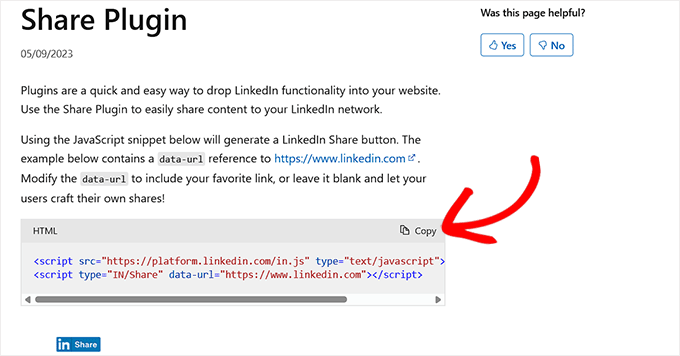
LinkedIn has an official Share plugin that lets you add a share button to your site using a simple code snippet. It loads a small JavaScript file from LinkedIn’s servers and displays the button on your page.
You can get this code directly from LinkedIn’s Share Plugin and paste it into any post where you want the button to appear.
It works great, but doing this manually for every single article can quickly become tedious.
Instead, you can use a simple PHP snippet that automatically adds the LinkedIn share button to all your blog posts.
This snippet includes LinkedIn’s official JavaScript code, so you don’t need to paste anything manually. It’s all handled for you.
Step 1: Install and Activate the WPCode Plugin
Normally, you’d need to place this snippet in your theme’s functions.php file.
But that comes with risks. A small typo can break your site and trigger the WordPress White Screen of Death error, which locks you out of your website.
That’s why I recommend using the WPCode plugin. It lets you safely run PHP snippets without touching your theme files.
This way, you can add the LinkedIn share button site-wide with just a few clicks.
I’ve tested WPCode across multiple demo environments, and it’s by far the safest and easiest way to add custom code without touching your theme files.
In fact, we’ve even published a detailed WPCode review based on our experience. It’s beginner-friendly, reliable, and perfect for something like this.
First, you need to install and activate the WPCode plugin. For step-by-step instructions, see our tutorial on how to install a WordPress plugin.
Note: WPCode also has a free version that you can use for this tutorial. However, upgrading to the pro plan will unlock features like a cloud library of code snippets, smart conditional logic, block snippets, and more.
Step 2: Choose PHP Snippet as The Code Type
Once you do that, head over to the Code Snippets » + Add Snippet page from the WordPress dashboard and choose the ‘Add Your Custom Code (New Snippet)’ option.
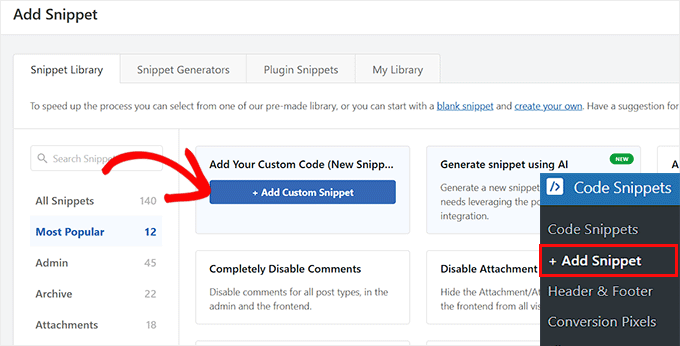
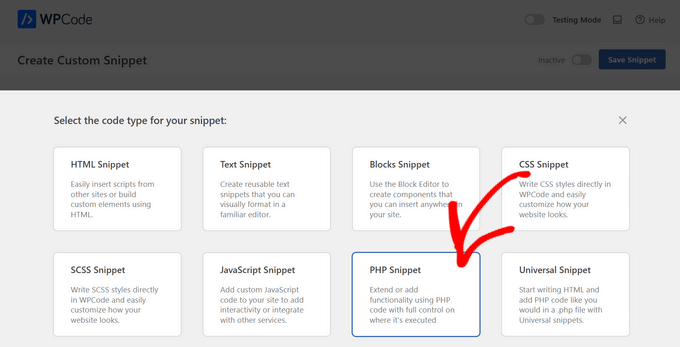
This will take you to a new screen, where you must select ‘PHP Snippet’ as your code type.
Next, give your snippet a title. This is just for your reference, so I recommend something like ‘Add the Official LinkedIn Share Button.’
It’ll make it easier to find later if you ever want to update or turn it off.
Step 3: Add the Share Button Code Snippet
Now it’s time to add the custom code snippet that will display the official LinkedIn share button on your site. There are two versions of the code you can use, depending on where you want the button to appear:
- If you want the LinkedIn share button to show at the top of your posts (before the content), use the first snippet below.
- If you’d rather place it at the bottom of your posts (after the content), I’ve included an alternate version too.
Personally, I recommend showing the button at the top. That way, it’s visible right away when someone starts reading, which increases the chances of getting shares.
But if your audience tends to read through the full post before deciding to share, adding it at the bottom can work just as well.
Let’s start with the version that displays the button before the content:
function add_linkedin_share_button_before($content) {
    if (is_single()) {
        ob_start();
        ?>
        <script src="https://platform.linkedin.com/in.js" type="text/javascript">lang: en_US</script>
        <script type="IN/Share" data-url="<?php echo esc_url(get_permalink()); ?>"></script>
        <?php
        $button = ob_get_clean();
        return $button . $content;
    }
    return $content;
}
add_filter('the_content', 'add_linkedin_share_button_before');
You can paste this code directly into the ‘Code Preview’ box in WPCode.
In lines 5 and 6, I’ve added LinkedIn’s official share plugin JavaScript. But instead of using a fixed URL like this:
<script type="IN/Share" data-url="https://www.linkedin.com"></script>
I’ve used:
<script type="IN/Share" data-url="<?php echo esc_url(get_permalink()); ?>"></script>
Think of get_permalink() as a handy WordPress shortcut. It automatically grabs the correct URL for the post someone is reading.
This ensures the share button always links to the right article, without you having to manually update the code for every post.
Since the LinkedIn JavaScript is the same for everyone, you can copy and use this exact code as-is. But if you prefer to use the embed code you copied from LinkedIn’s site, that works too.

Just make sure to update lines 5 and 6. And don’t forget to replace the hardcoded URL with get_permalink() so it shares the right post.
If you’d rather place the share button after the post content instead, use this version instead:
function add_linkedin_share_button_after($content) {
    if (is_single()) {
        ob_start();
        ?>
        <script src="https://platform.linkedin.com/in.js" type="text/javascript">lang: en_US</script>
        <script type="IN/Share" data-url="<?php echo esc_url( get_permalink() ); ?>"></script>
        <?php
        $button = ob_get_clean();
        return $content . $button;
    }
    return $content;
}
add_filter('the_content', 'add_linkedin_share_button_after');
This works the same, just in reverse order. The share button will appear after your content, which can feel more natural for readers who finish the article before deciding to share it.
Either way, WPCode makes the process easy and safe.
Step 4: Activate the Snippet and Check Your Site
Once you are done, just toggle the ‘Inactive’ switch to ‘Active’ and click the ‘Save Snippet’ button to store your settings.

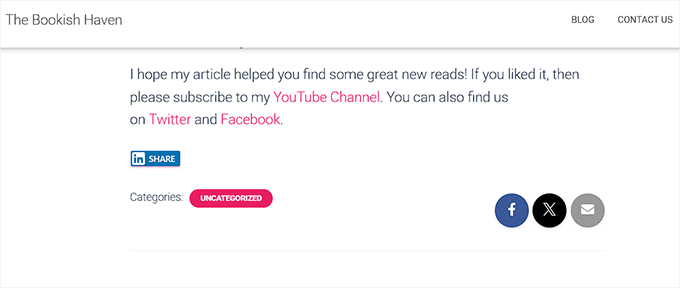
Finally, visit your WordPress site to see the official LinkedIn share button in action.
If you used the first version of the snippet, you’ll see the button appear right at the top of your post, just before the content starts.

If you went with the second version, scroll down to the bottom of the post, and you’ll find the LinkedIn share button displayed there.
Here is a preview of how that will look on your website:
Method 2: Add LinkedIn and Other Share Buttons With a Plugin
If you prefer a no-code setup or want to add multiple social sharing buttons, then using a plugin is an excellent alternative.
For this, I often recommend using the free AddToAny Share Buttons plugin. With this tool, you can add LinkedIn, email, Pinterest, and many other share buttons to your posts in just a few clicks.
The best part is, you don’t have to manage or paste code anywhere on your site. Everything is done from the plugin’s settings screen.
Step 1: Install and Activate the AddToAny Share Buttons Plugin
To get started, simply install and activate the AddToAny Share Buttons plugin on your website. If you don’t know how to do that, you can follow our beginner’s guide on installing a WordPress plugin.
Once the plugin is active, go to Settings » AddToAny in your WordPress dashboard.

Here, you can choose the icon size for your share buttons. Simply enter the size in pixels to make the button as small or as prominent as you want on your site.
After that, you can adjust the icon style. The plugin lets you pick custom background and foreground colors, make the background transparent, or simply leave the default settings.
Personally, I recommend keeping the original blue color for the LinkedIn button.
This makes it easier for visitors to instantly recognize the LinkedIn logo.
Step 2: Add LinkedIn to Your Share Buttons
Then, scroll down to the ‘Share Buttons’ section and click the ‘Add/Remove Services’ button. This will open up a full list of all the services supported by the plugin.
These are the platforms your readers can use to share your content. From here, just find and select the ‘LinkedIn’ option.
I also suggest selecting a few other services from this list so you can create a complete social sharing bar on your website.
For example, you might want to add Facebook, WhatsApp, Instagram, or even Gmail alongside LinkedIn. This gives your readers more options to share your content.

Step 3: Set the Placement for Your Share Buttons
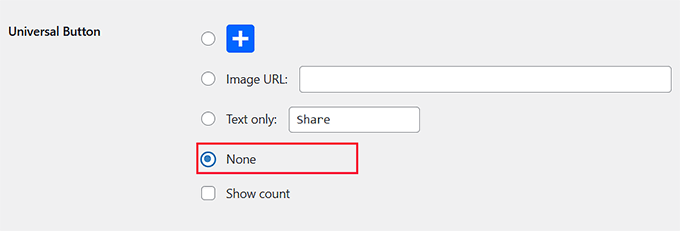
Next, move down to the ‘Universal Button’ section and turn it off by selecting the ‘None’ option.
By default, the AddToAny Share Buttons plugin shows a little plus (+) icon next to your other sharing buttons. This lets users open a menu of extra services you didn’t specifically add.
For example, even if you didn’t include a WhatsApp share button, readers could still send your posts to one of their contacts by clicking the plus icon.
While this sounds useful, giving readers too many choices can sometimes be overwhelming.
I recommend turning it off. This helps keep your share buttons looking clean and simple, showing only the platforms you have picked.
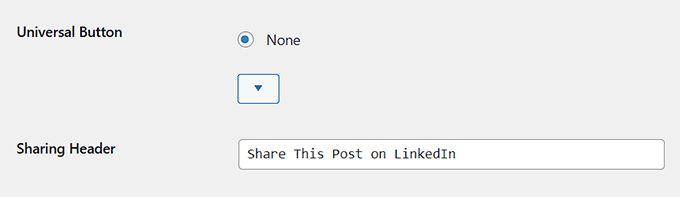
After that, expand the ‘Sharing Header’ section. Here, you can add a heading that appears above your social sharing bar.
If you’ve only added LinkedIn, you can use something specific like: “Share this post on LinkedIn.”
Or, if you’ve created a full social sharing bar with multiple options, then a more general heading like: “Share this post with your friends” works better.
Now, you’ll need to choose a location for your LinkedIn share button.
By default, the plugin shows icons on posts, pages, excerpts, media pages, your site feed, and even the front page. You can also choose multiple positions if you like.
However, I recommend selecting ‘Display at the top of posts.’
This is one of the best placements because readers see the share buttons right away. That’s why, at WPBeginner, we also display our share icons right at the top of every article.

Step 4: Save Changes and Preview the Button
Once you’re happy with the settings, click the ‘Save Changes’ button to apply them.
Now, open any post on your WordPress site. You should see the LinkedIn share button exactly where you placed it.
If you chose the top of the post, it will appear just above your content, making it easy for readers to spot and click.

Frequently Asked Questions: LinkedIn Share Buttons in WordPress
Here are some questions frequently asked by our readers about adding the LinkedIn share button.
Is the LinkedIn share button mobile-friendly?
Yes, the official LinkedIn share button is fully responsive and works well on mobile devices. It scales to fit smaller screens, loads quickly, and stays easy to click, even on phones and tablets.
So you don’t need to make any extra adjustments or use a separate plugin to get mobile compatibility.
Can I customize the appearance of the LinkedIn share button?
LinkedIn doesn’t currently offer much customization for the official button’s design. It comes in a standard format, and options like button size or layout aren’t available.
However, if you’re comfortable with CSS, you can style the container around the button to adjust spacing or alignment. Just keep in mind that the button is like a mini web page from LinkedIn’s servers that’s embedded on your site.
Because it’s controlled by LinkedIn, you can’t change its internal appearance like the color or shape using your own website’s CSS.
Can I add a floating LinkedIn share button that stays visible while scrolling?
Yes, you can! While this won’t use the official LinkedIn share button, you can still add a floating social bar that includes LinkedIn, along with other platforms like Facebook, Twitter, and Pinterest.
Floating social bars are great for keeping your share buttons visible as users scroll through your content. They’re especially useful on long blog posts or tutorials where readers may not scroll back to the top or bottom to find share buttons.
If you are interested, you can check out our article on how to add a floating social share bar in WordPress.
I hope this article helped you learn how to easily add the official LinkedIn share button in WordPress. You may also want to see our guide on how to add your LinkedIn profile to WordPress and our expert picks for the best free social media icon sets for WordPress
If you liked this article, then please subscribe to our YouTube Channel for WordPress video tutorials. You can also find us on Twitter and Facebook.




Sanket Bhardwaj
Hey, Thanks for providing this code. I have added this button on my website but now when i want to remove this It came back again and again. I have removed the code from functions.php but it came again and again.
Please help Me.
WPBeginner Support
Hi Sanket,
Please clear your caches and then try again.
Admin
Gabriela
Anyone know why when you share your blog here in Wordpress to LinkedIn, there is no picture attached? I do have one but it disappears when I try to share it to LinkedIn. I shared it in Facebook and Twitter and it works good but not in LinkedIn, The text appears good but no picture. I don’t get it. Tips? Thank you!
Emily
Does anyone know of a way to add the LinkedIn share button to a “free” wordpress, for which I own the domaine? Not sure if this matters, but I think maybe the other company is “hosting” the wordpress page. Anyway, I’ve tried the text widget and adding the html to the end of a blog post. Don’t think either is working because I just get a weird looking hyperlink that takes someone to a page of text….
Electra Ford
Hi,
I’ve added the code but it’s not showing for me. Any new updates on how to get the LinkedIn share button to display?
Thanks
sinhrakesh
I used below codes in the Custom Codes section to add Google+ and Linkedin Share buttons on my WP Blog (www.maintec.com/blog):
Google+
<div class=”sharer”><script type=”text/javascript” src=”https://apis.google.com/js/plusone.js”></script> <g:plusone size=”tall”></g:plusone></div>
Linkedin
<div class=”sharer”><script type=”text/javascript” src=”http://platform.linkedin.com/in.js”></script><script type=”in/share” data-url=”<?php the_permalink(); ?>” data-counter=”top”></script></div>
Google+ Button is working fine but Linkedin Share isn’t getting the desired result upon clicking… Can you please advise whats wrong where?
wpbeginner
@ThomasRand-Nash No you cannot.
ThomasRand-Nash
can you change the sizing of the like button?
Crysislevel
buttons tutorials are my fav. unfortunately i dont use linkedin that much!
wpbeginner
@SJCParis No you cannot use this on free WordPress.com sites…
SJCParis
Can I put this button on a free wordpress blog?
wpbeginner
You are welcome. Yes horizontal one works great, but if you have a floating share box like ours, then the vertical share box is good too.
Kavita
Thanks for the code. I like the horizontal with count ideal for my blog.
Jeremy Victor
can you tell me how to add this LinkedIn share button to your Smart Sharing plugin?
Thanks
Editorial Staff
Copy and paste the LinkedIn script code that we share in this article in the custom code section…
Admin
Holly
Thanks for this. I pasted the code in the custom code section, but it’s not working…says “there’s a problem performing this action.” Any help would be greatly appreciated.
Editorial Staff
Which custom code section?
Keith Aul
I’m not to sure what you mean by the following?
To add the Official Linkedin Share button simply open up a theme file of your choice (single.php etc) and add the following code within the Post Loop
I don’t want to break anything on my site so I want to be sure I’m able to find the right file and open/edit it. Where would I find the theme file in my dashboard and where in the file do I post the code?
Editorial Staff
You will find the theme file in your theme’s folder wp-content/themes/yourthemename/ < Editor and edit single.php file. If you have no knowledge regarding WordPress, then we recommend that you wait till a plugin comes out.
Admin
brad dalton
How long do you think it will take to build a plugin?
Editorial Staff
Plugins are probably built and are in the review process to get live in the repository.
Admin
Dana
Thanks, great article! Where’s your share button?
Editorial Staff
We will be adding it soon on the site
Admin
Piet
Finally LinkedIn did this, a week too late though, but I managed to make something similar for myself.
Next time I need it, I will just grab your code, thanks!
Eleanor
I am not a developer, but I found this plugin a few minutes ago. Thank you for the tutorial!
http://wordpress.org/extend/plugins/linkedin-share-button/
Editorial Staff
This plugin does not have the count option available.
Admin
Jose Joel
The Share This Plugin have the option to add the LinkedIn Button as simple as writing linkedin the editing section of the plugin…and this one have count…
Note: I’m not the developer of this plugin, neither work for them, I’m only a regular user…
Jon Bishop
I’m happy LinkedIn finally did this. I tried to use their API to make my own for the Socialize plugin but it ended up being a pain. I was able to finally use this code to update the plugin with the new LinkedIn button.