


Ever wonder why some online stores seem to know exactly which products to show you based on where you live?
That’s country restriction working behind the scenes – and it’s something every serious WooCommerce store owner should consider setting up.
Maybe you have products that can only ship to certain regions, or digital items with licensing restrictions. Whatever your reason, geographic restrictions help you stay organized while giving customers a cleaner shopping experience.
In this guide, we’ll walk you through the most reliable methods to add country restrictions to your WooCommerce products.
From simple built-in settings to more advanced plugin solutions, you’ll have everything you need to control your product availability by location.
Why Set Country Restrictions for WooCommerce?
Setting up country restrictions in WooCommerce is essential for offering a smooth customer experience and protecting your business. It prevents situations where a customer adds an item to their cart, only to find out at checkout that they can’t complete the purchase.
Here are the primary reasons why online store owners use these rules:
- Legal and Licensing Compliance: Some products, especially digital goods, may be illegal to sell in certain countries or have specific licensing agreements that limit distribution.
- Shipping and Logistics: You may face extremely high shipping costs, complex customs regulations, or unreliable delivery services in some parts of the world, making fulfillment impractical.
- Payment Gateway Issues: Your chosen payment processors might not be supported in all countries, which would block transactions from customers in those locations.
- Business Strategy: You may want to sell exclusively to specific markets due to logistical reasons, supplier agreements, or a targeted marketing focus.
By proactively restricting countries, you avoid customer frustration and prevent them from abandoning your site for good.
With that in mind, we’ll share the steps to easily restrict your products in specific countries.
Here’s a quick overview of the 2 methods we’ll cover. You can jump to either method by clicking the links below:
Ready? Let’s get started.
Method 1. Restricting Countries Using WooCommerce Settings
You can easily hide your online store in specific countries using the WooCommerce default settings.
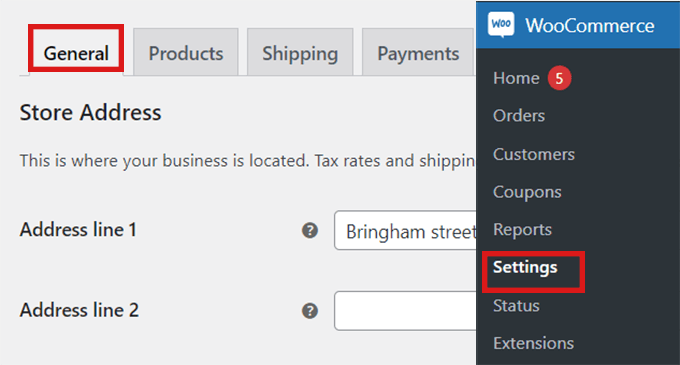
To do this, let’s visit the WooCommerce » Settings page from the WordPress dashboard and switch to the ‘General’ tab.
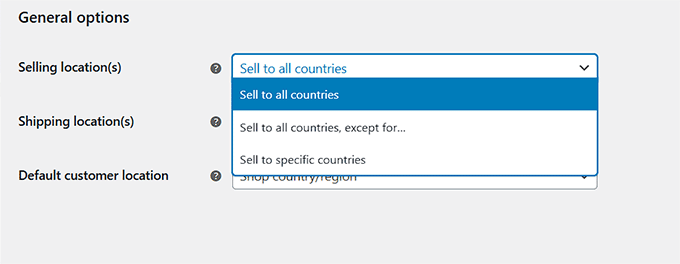
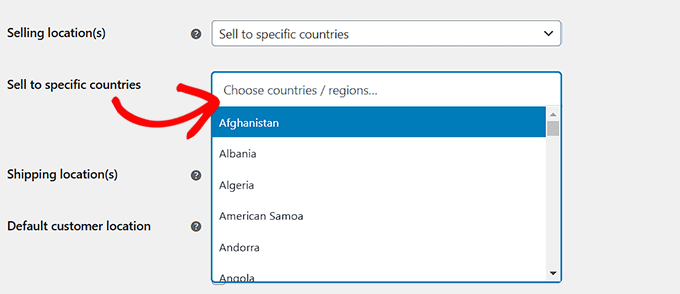
Once there, you’ll want to scroll down to the ‘General Options.’ Here you will find the ‘Selling Location’ section. Then, simply click on the dropdown menu in the field, where you will find three options.
You can either select the ‘Sell to specific countries, except for…’ option or choose the ‘ Sell to specific countries’ option.
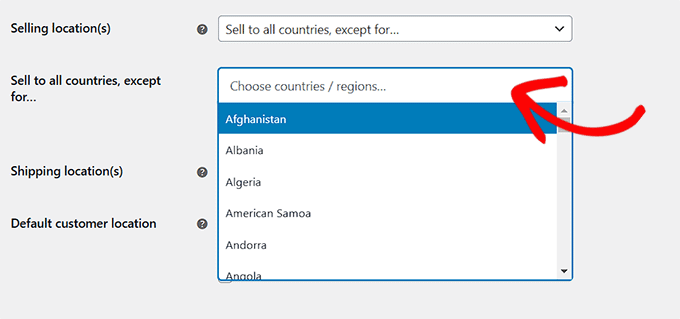
When you choose the ‘Sell to specific countries, except for…’ option, a new field will open.
In this field, you can select any countries where you don’t want to sell your products.
If you choose the ‘Sell to specific countries’ option, a ‘Sell to specific countries’ field will appear instead.
Now you can select all the countries where your store will be available.
This method is very easy to use, and you don’t need to install any additional WooCommerce plugins.
However, the downside is that restrictions apply to your entire store. Customers in restricted countries will still see your products, but they won’t be able to purchase them.
When a restricted customer tries to check out, WooCommerce shows a notice saying that there are no shipping options available for their location.
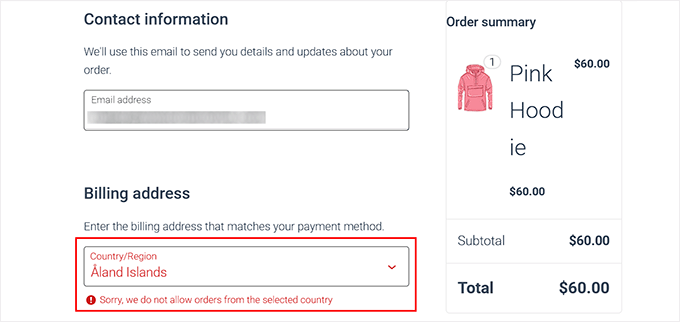
This effectively blocks the purchase, but it doesn’t hide the products themselves. If you only want to hide certain products in specific countries, then you’ll need to use a plugin.
Plugins let you remove products entirely from view, which is different from the default WooCommerce settings.
Method 2. Add Country-Based Restrictions for WooCommerce Products
If you want to hide specific products in some countries, then this method is for you.
To get started, you will need a dedicated plugin. We recommend the free Country-Based Restrictions For WooCommerce plugin, which is a popular choice from the official WordPress repository.
For more details, you can take a look at our guide on how to install a WordPress plugin.
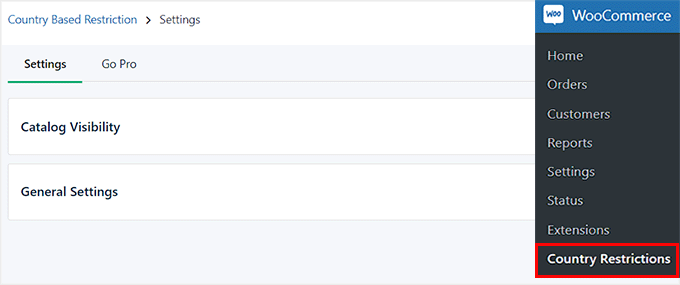
Upon activation, you can head over to WooCommerce » Country Restrictions from the WordPress admin sidebar.
Then, you’ll want to expand the ‘Catalog Visibility’ tab.
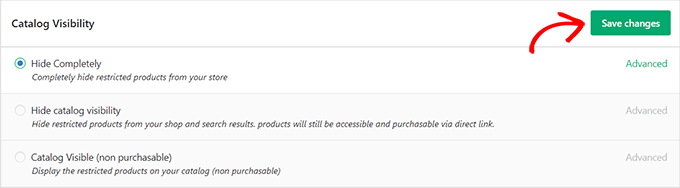
This will open 3 choices for product visibility:
- Hide Completely – Restricted products will not appear anywhere in your store for visitors from blocked countries. This is the best option if you want to avoid any confusion.
- Hide Catalog Visibility – Restricted products won’t show up on shop pages or in search results, but they can still be accessed with a direct link. This is useful if you need to share a product page with specific distributors or partners in a restricted region.
- Catalog Visible (non-purchasable) – Products will appear as normal, but the ‘Add to Cart’ button will be disabled. This is a great choice if you want to showcase your full product line globally, even in areas where you don’t sell.
Once you’ve chosen an option, go ahead and click the ‘Save Changes’ button.
Next, go to WooCommerce » All Products in your WordPress dashboard.
Locate the product that you want to restrict and simply click on the ‘Edit’ link.
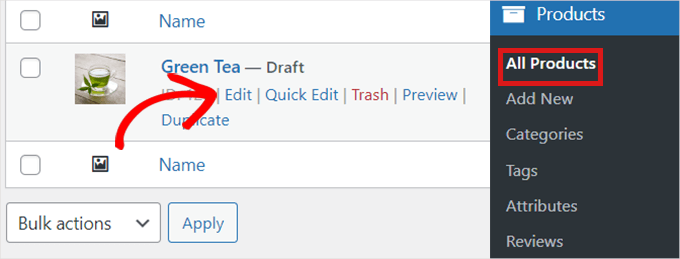
This will open the ‘Edit Product’ page, where you must scroll down to the ‘Product Data’ section.
Then, you can locate and click the ‘Country Restrictions’ tab to the left.
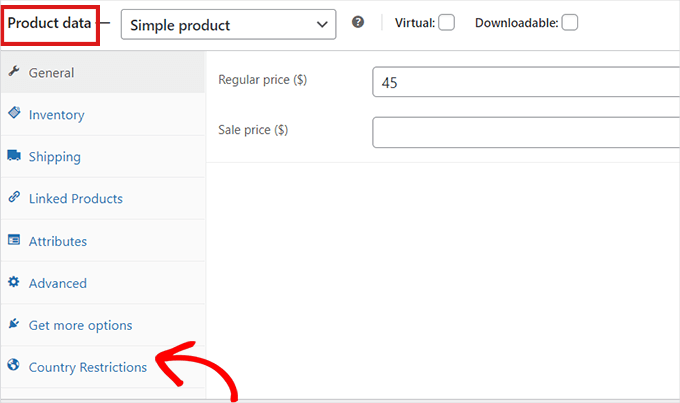
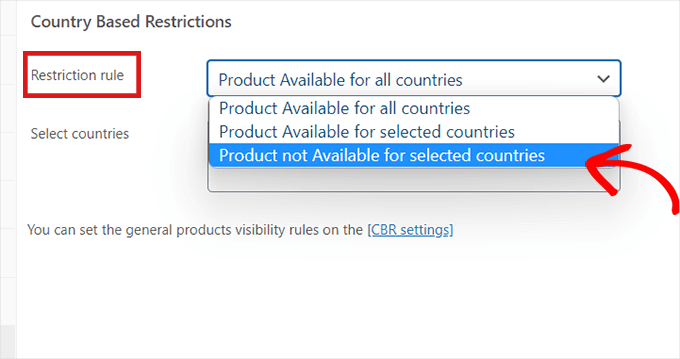
After you’ve clicked on the ‘Country Restrictions’ option, you’ll see a ‘Restriction Rule’ field.
Simply click on the dropdown menu beside the field and select the ‘Product Not Available For Selected Countries’ option.
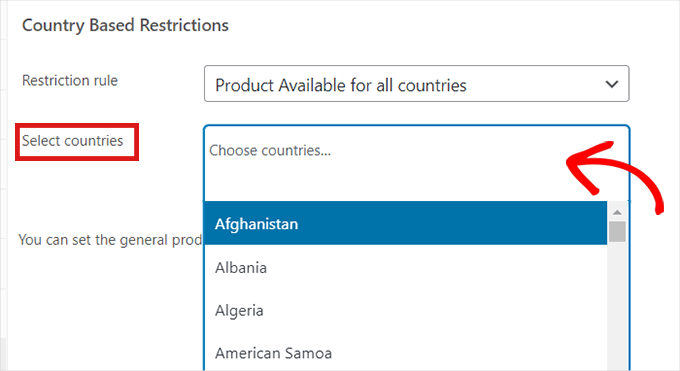
After that, you’ll want to go to the ‘Select Countries’ field and click on the dropdown beside it.
Then, go ahead and choose the countries where your product won’t be available for purchase.
Once you’re happy with your choice, don’t forget to click on the ‘Publish button.’ You can now repeat the process to hide products.
Now, if a customer from the chosen country visits your store, the product you’ve restricted won’t appear.
A Quick Note on VPNs and Geolocation
It’s important to understand that both methods described in this guide rely on IP-based geolocation. This means they check the visitor’s IP address to determine their country.
While this works for the vast majority of users, it is not 100% foolproof. A determined user can use a VPN (Virtual Private Network) to mask their real location and make it appear as though they are browsing from an allowed country.
This is a small fraction of users, but it’s a technical limitation worth knowing about.
Bonus Tip: Geolocation Targeting for WooCommerce to Grow Sales
Did you know that geotargeting in WooCommerce can help you grow sales? Instead of just restricting content, you can show personalized offers to visitors based on their location.
You can do this with a powerful tool like OptinMonster. Its display rules let you target or exclude campaigns from specific countries, states, or even cities.
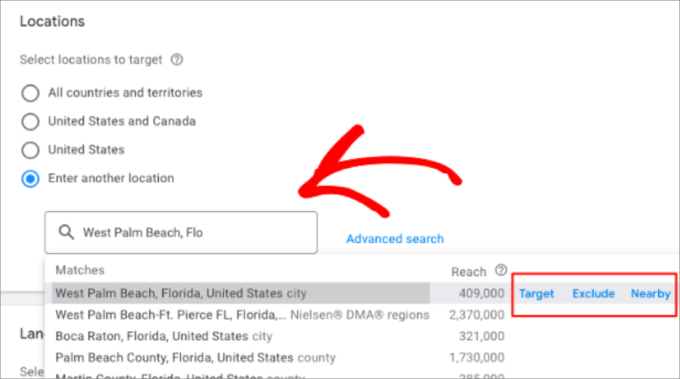
For example, you could create a floating bar campaign that only appears to visitors from the United States.
This campaign could offer them a special deal, like ‘Free Shipping on All US Orders!’ to encourage sales.
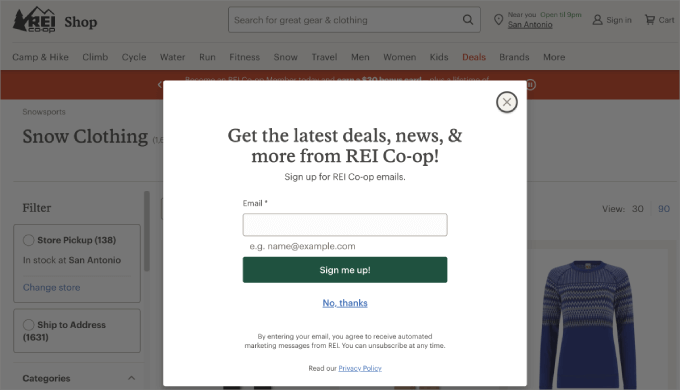
For more ideas, we’ve created an ultimate guide to geolocation targeting in WordPress.
It will show you how to use various tools to create personalized content and offers for users in specific countries.
Frequently Asked Questions About Country Restriction in WooCommerce
Here are some questions that our readers frequently ask before restricting countries in their WooCommerce store:
Can I restrict an entire product category by country?
Yes, the Country-Based Restrictions For WooCommerce plugin allows you to apply restrictions to entire product categories. This is useful if you have a group of products that are only available in specific regions.
Will restricting countries negatively affect my SEO?
No, it should not negatively impact your SEO. Country restrictions are a standard practice for international eCommerce stores.
It can even improve user experience by ensuring visitors only see products they can actually purchase.
What is the difference between hiding a product and making it non-purchasable?
Hiding a product removes it completely from your shop pages and search results for visitors from restricted countries.
Making it non-purchasable keeps the product visible, but the ‘Add to Cart’ button will be disabled, preventing a sale.
Can I show different prices for products based on the user’s country?
Yes, this is possible with geolocation targeting.
While the methods in this guide focus on restricting access, tools like OptinMonster or dynamic pricing plugins allow you to display different currencies and prices based on the customer’s location.
We hope this article helped you learn how to restrict countries in your WooCommerce store. You may also want to see our guide on how to disable payment methods in WooCommerce and how to limit purchase quantity in WordPress.
If you liked this article, then please subscribe to our YouTube Channel for WordPress video tutorials. You can also find us on Twitter and Facebook.




Dennis Muthomi
QUICK QUESTION:- If theres a customer from a restricted country tries to access a product, is there a way to redirect them to a custom page that says “Sorry, this product is not available in your country” but then displays some related or recommended products that they could purchase?
WPBeginner Support
Not at the moment but possibly something that the plugin author can add in the future!
Admin
Dennis Muthomi
I appreciate your quick response, that feature is something that would really help make things smoother for customers.
Olivia
Thanks for a great instructional article!
On method #1 – how will it look to the user in the restricted country? Will the ‘Shop’ tab on the primary menu still be shown? If so, where will it take the user if they click on it? When they click on a ‘Shop now’ button anywhere in the site is it just deactivated for them or do they get an error message?
WPBeginner Support
For method 1 it would limit the options on the shipping section during checkout.
Admin