


“Where did my original content go?” That’s a panic-filled message we often get from WordPress users who have made unwanted changes to their posts.
What many don’t realize is that WordPress automatically saves previous versions of their content. They just need to know where to look.
At WPBeginner, we regularly use the WordPress Revisions feature to recover deleted content, fix mistakes, and restore earlier versions of our posts.
We’ve also helped many users understand how powerful this tool really is. It’s not just about bringing back lost content, but about giving you the freedom to edit confidently, knowing you can always revert to a previous version if needed.
In this step-by-step guide, we’ll show you how to easily undo changes in WordPress with post revisions. You will learn how to recover old versions of your posts, compare changes, and manage revisions effectively.
Here is an overview of the topics we will cover in this guide:
- What Is the Post Revisions Feature?
- Why Should You Use Post Revisions?
- How to Use Post Revisions to Undo Changes in WordPress
- Limiting Post Revisions in WordPress
- How to Delete Old Post Revisions in WordPress
- How to Completely Disable WordPress Post Revisions
- Frequently Asked Questions About WordPress Revisions
What Is the Post Revisions Feature?
Post revisions is a built-in WordPress feature that saves previous versions of your posts and pages. It allows you to undo changes, compare different drafts, and restore an earlier version if you make a mistake.
WordPress saves your work in two different ways:
- Autosaves: These are temporary backups that WordPress saves automatically every 60 seconds as you write. Their main purpose is to restore your work if your browser crashes or you lose your internet connection before you can save.
- Revisions: These are permanent versions that are created every time you manually click the ‘Save Draft,’ ‘Update,’ or ‘Publish’ button. These are stored in your WordPress database and allow you to track the history of your content.
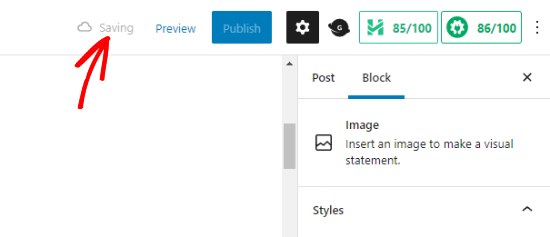
You can locate, browse, and revert to any of these saved versions from the post editor screen.
Why Should You Use Post Revisions?
Almost every WordPress user can benefit from post revisions. Writing great content requires a lot of tweaking and editing. WordPress revisions allow you to see your process and take a bird’s eye view of how your post has evolved.
You can then switch between different states of your draft, make changes, and make your article perfect for publishing.
For multi-author WordPress sites, post revisions allow editors to easily manage the work of multiple authors. You can see who made changes to an article, what changes they made, and so on.
That being said, let’s take a look at how to use post revisions to improve your WordPress posts and pages.
How to Use Post Revisions to Undo Changes in WordPress
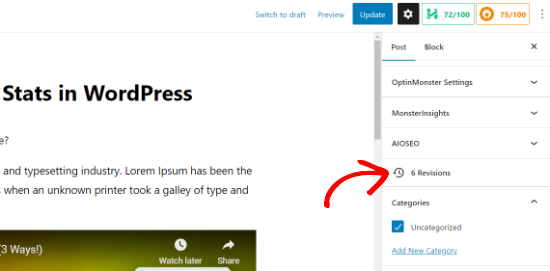
WordPress displays the number of revisions under the ‘Post’ section in the Settings panel on the right.
You can find that on the right-hand side of your post editor screen. Clicking on the ‘Revisions’ will take you to the post revisions screen.
The post revision screen will show you the latest revision of the post, with a scrollbar at the top.
Sliding the button on the scroll bar will take you to earlier revisions of the post.
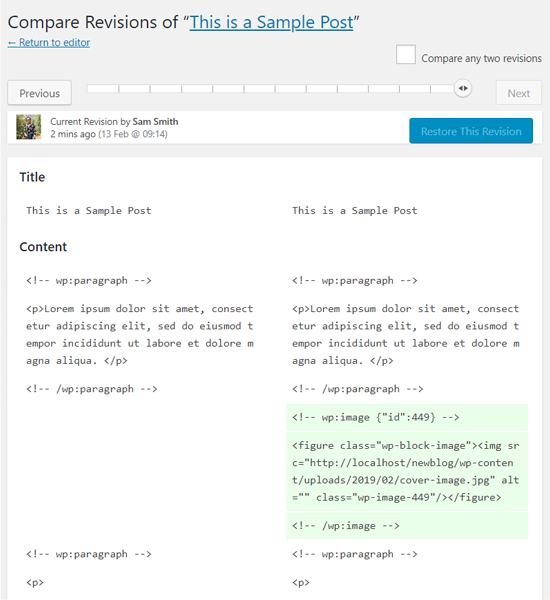
Changes made in each revision will be highlighted in green and pink colors. On top, you can see the user who made these changes, the time, and other information.
WordPress will also let you know if a revision is an autosave or a draft.
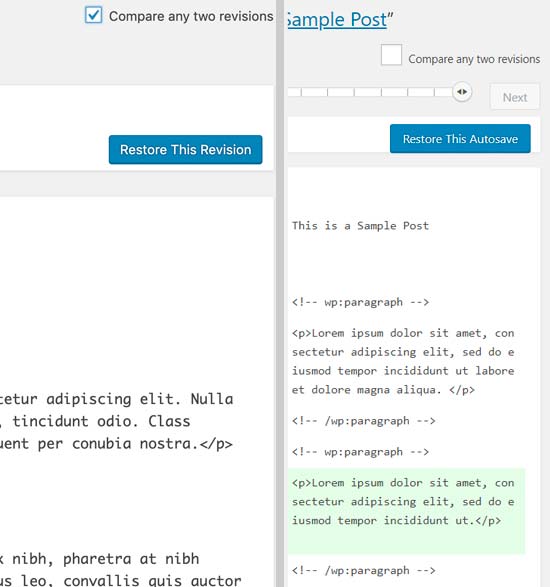
You can use the next and previous buttons to move around revisions.
Plus, you can check the box at the top that says ‘Compare any two revisions.’ Doing so will split the scrollbar button into two, and you can take each button to a different revision and compare the differences between them.
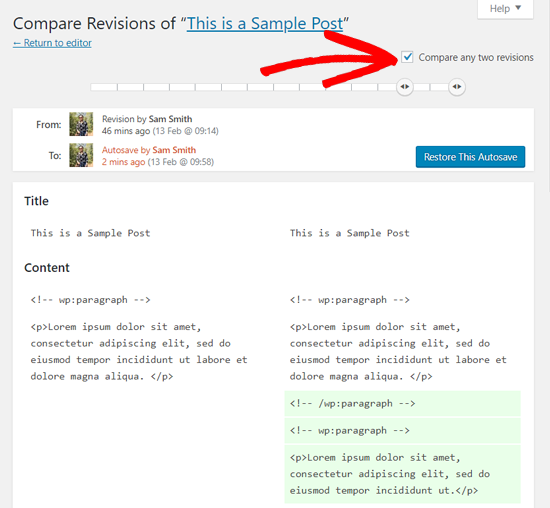
To restore a revision, you can simply click on the ‘Restore This Revision’ or ‘Restore This Autosave’ button.
WordPress will restore the selected revision as your current post revision, and you can then save it as a draft.
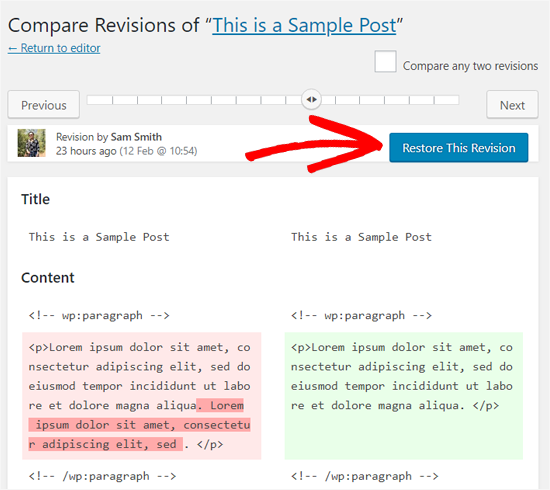
Keep in mind that reverting to an earlier revision will not delete the latest version of your post. Instead, WordPress will store it in the database as another revision.
Using Post Revisions with Classic WordPress Editor
In case you haven’t upgraded your WordPress to Gutenberg and are still using the Classic Editor, then you’ll find the post revisions in the publish meta box on the right panel of the post/page edit screen.
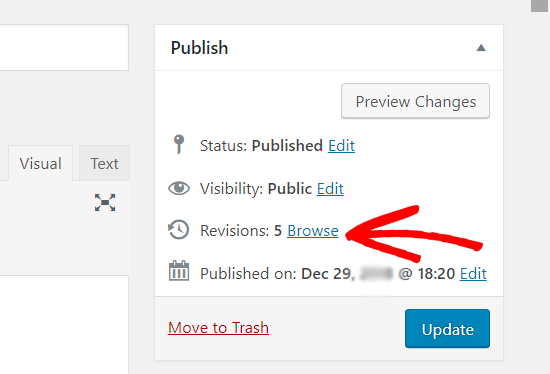
To view the post revisions, you can simply click the ‘Browse’ link next to the number of revisions. Apart from this, the post revisions work similarly in both the Classic Editor and Gutenberg.
Limiting Post Revisions in WordPress
All post revisions are stored in your WordPress database. While they don’t slow down the front-end of your site for visitors, they can increase your database size.
This can lead to slower backup processes and take up more storage space on your hosting account.
For this reason, many smart website owners choose to limit the number of revisions stored for each post. Think of it like regular housekeeping for your site.
We’ll show you two different methods, and you can choose the one that best suits you.
1. Limit Post Revisions in WordPress Using a Plugin
The easiest way to manage WordPress post revisions is by using a plugin. This allows you to control revisions from the WordPress admin area.
The first thing you need to do is install and activate the WP Revisions Control plugin. For more details, see our step-by-step guide on how to install a WordPress plugin.
Upon activation, you need to visit the Settings » Writing page and scroll down to the WP Revisions Control section.
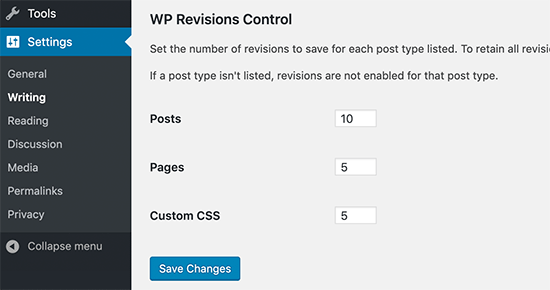
From here, you need to enter the number of revisions you want to store for each post type and then click on the ‘Save Changes’ button to store your settings.
WP Revisions Control will now limit the post revisions stored in your WordPress database.
The plugin also allows you to delete revisions for an individual post. Simply edit the post where you want to delete revisions and scroll down below the editor.
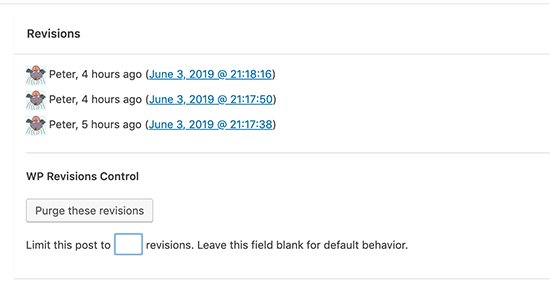
You can limit the revisions for this post only or delete them by clicking on the ‘Purge these revisions’ button.
2. Limit WordPress Post Revisions Manually
WordPress allows you to control how many revisions you want to keep for an article. To limit post revisions, you can add this code to your WordPress site’s wp-config.php file:
define( 'WP_POST_REVISIONS', 10 );
Don’t forget to replace 10 with the number of revisions you want to keep for each post.
To make it easier, you can use WPCode. It is the best code snippet plugin for WordPress, and it helps you add custom code without risking breaking your site.
During testing, we found that it also has a library of 2000+ ready-made code snippets, including one for limiting post revisions. To learn more, see our WPCode review.
First, you need to install and activate the free WPCode plugin. If you need help, you can follow our tutorial on how to install a WordPress plugin.
Note: WPCode also has a free plan that you can use for this tutorial. However, upgrading to the pro version will give you access to many more features like a cloud library of code snippets, smart conditional logic, a block snippet feature, and more.
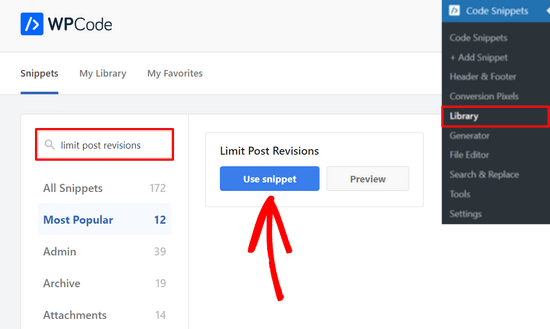
Upon activation, go to Code Snippets » Library from the WordPress admin dashboard.
Then, search for the ‘Limit Post Revisions’ snippet. Once you find it, hover over it, and click the ‘Use snippet’ button.
From there, WPCode will automatically add the code and set it to limit the number of revisions stored for each post to 4.
However, you can replace 4 with the number of your choice.
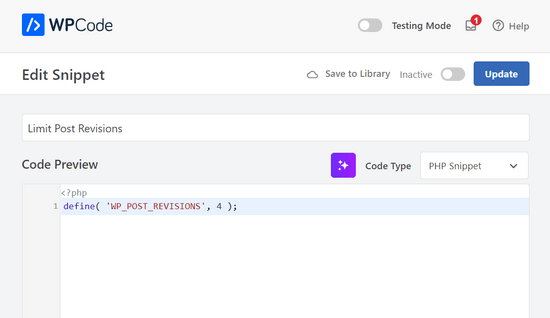
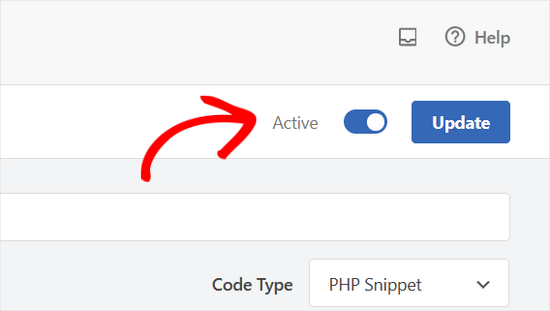
After that, simply toggle the switch at the top of the page from ‘Inactive’ to ‘Active’.
Then, hit the ‘Update’ button.
That’s it. You’ve now successfully limited how many post revisions WordPress will store.
How to Delete Old Post Revisions in WordPress
While old post revisions don’t affect how fast your site loads for visitors, they do take up space in your WordPress database. For most small websites, this isn’t a major issue.
However, if you have a very large website with thousands of articles, then deleting old post revisions is good practice for database maintenance and can help reduce your backup sizes.
1. Delete Revisions Using the WP-Optimize Plugin
First, you’ll need to install and activate the WP-Optimize plugin. For more details, see our step-by-step guide on how to install a WordPress plugin.
Upon activation, go to the WP-Optimize » Database page and check the box next to the ‘Clean all post revisions’ option.
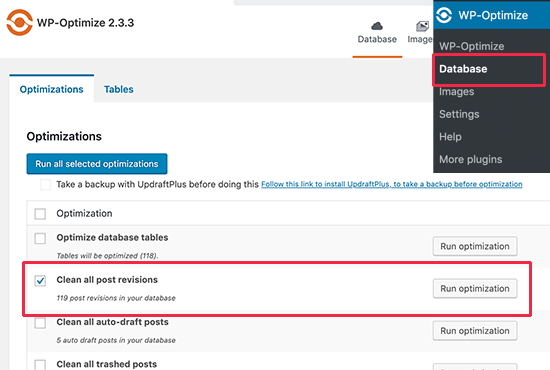
Now, click on the ‘Run optimization’ button to delete all post revisions. Once you have cleaned up the revisions, feel free to uninstall and delete the plugin.
To learn more about this plugin, see our detailed WP-Optimize review.
2. Delete WordPress Post Revisions via phpMyAdmin
Advanced users can also delete WordPress post revisions via phpMyAdmin.
First, make sure that you have created a complete WordPress database backup.
After that, simply log in to your WordPress hosting control panel and click on the phpMyAdmin icon.
Next, you need to select your WordPress database from the left column. phpMyAdmin will now display tables in your WordPress database.
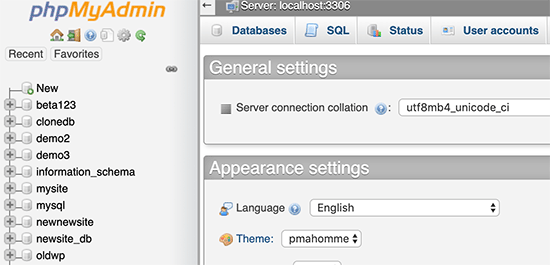
After that, you need to click on the SQL tab from the top menu.
This will load phpMyAdmin’s SQL interface. From here, you can manually run commands on your WordPress database.
You need to enter the following code:
DELETE FROM wp_posts WHERE post_type = "revision";
Don’t forget to replace wp_ with your own WordPress database prefix. After that, click on the ‘Go’ button to run the command.
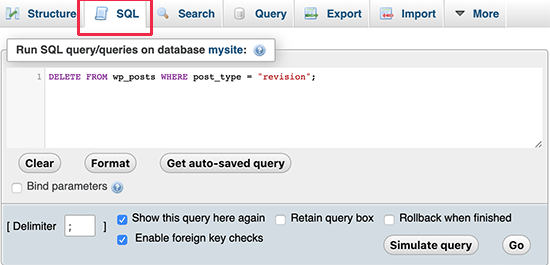
phpMyAdmin will now delete all revisions from your WordPress database.
Note: Deleting revisions will not stop WordPress from saving revisions for your future posts.
How to Completely Disable WordPress Post Revisions
We don’t recommend disabling WordPress post revisions. However, some users may want to disable revisions to reduce their WordPress database size.
The easiest way to do this is by installing the Disable Post Revision plugin. For more details, see our step-by-step guide on how to install a WordPress plugin.
Upon activation, go to the Settings » Writing page and select the post types where you want to disable the revisions feature.
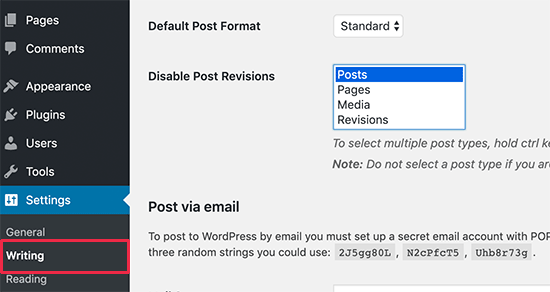
Don’t forget to click on the ‘Save changes’ button to store your settings.
If you don’t want to use the plugin, then you can also do the same thing manually by adding this code to your wp-config.php file:
define('WP_POST_REVISIONS', false );
This code disables the database revision feature on your website. However, WordPress will still use its separate autosave feature to help prevent you from losing work if your browser crashes or you lose your internet connection.
Frequently Asked Questions About WordPress Revisions
Here are some questions that our readers frequently ask about using WordPress post revisions:
1. Will restoring an old revision delete my images or featured image?
No. The revisions feature primarily tracks changes to the text and content within the WordPress editor. It does not create versions of your media library files.
If you restore an older version of a post, the text will revert, but the currently set featured image and any images already uploaded to your media library will remain unchanged.
2. If I limit post revisions, which ones does WordPress delete?
When you set a limit on post revisions (for example, to 10), WordPress will always keep the most recent ones. As you continue to update the post and a new revision is saved, the oldest one beyond your limit is automatically deleted.
3. Does deleting old revisions affect the currently published version of my post?
No, it is perfectly safe to delete old revisions. This process only removes the historical backup versions from your database. The content that is currently live and published on your website will not be affected at all.
4. Are changes from page builders or custom fields saved in revisions?
It depends on the tool. By default, WordPress revisions are focused on the standard content fields. Some third-party plugins and page builders integrate with the revisions system to save their own history, but many do not.
It is best to check the documentation for your specific page builder or plugin to see how it handles version history.
We hope this article helped you learn how to use WordPress post revisions to undo changes and how to manage post revisions for larger sites. You may also want to see our beginner guide on how to restore the post edit screen in WordPress and our comparison of WordPress widgets vs. blocks – what’s the difference.
If you liked this article, then please subscribe to our YouTube Channel for WordPress video tutorials. You can also find us on Twitter and Facebook.


GarC
So there are no other orphaned records in other tables if I delete revisions from wp_posts WHERE post_type = “revision” ?
Because these are not posts, but revisions (children) of actual posts. Correct?
Nice!!
Thank you for this post!
WPBeginner Support
You’re welcome, glad our guide was helpful!
Admin
Dennis Muthomi
Using post revisions to undo changes has saved me countless times when collaborating with team members.
One tip I’d add from personal experience: for larger sites, using the WP-Optimize plugin (as mentioned in the article) in combination with a caching plugin like WP Rocket can significantly improve database performance. This combo has worked wonders for my clients’ sites, especially those with extensive revision histories.
Thanks for another informative guide, WPBeginner team!
Jiří Vaněk
This is a great article. On the one hand, revisions are a great thing, on the other hand, I really come across almost daily people complaining that their WordPress is slow. And very often revisions are to blame. For example, on a website with Elementor and a larger number of articles, revisions can grow to thousands. And then you can tell. I’m using the sweep plugin, but I’ll definitely look into your recommendations.
vibhakar
is there any way to get back my post revisions after optimizing ?
WPBeginner Support
If you mean you deleted your old revisions then you would not be able to get them back.
Admin
Jiří Vaněk
There is a way. Revisions are stored in the database like everything else. If you have a database backup and restore the database from the backup, the revision will be returned to you. If you don’t have a database backup, you’ve lost revisions permanently.
Steven
Hi there,
I tried to change the wp-config.php file and added the code: define( ‘WP_POST_REVISIONS’, 10 );
Then I emptied the revisions but still regularly see more than 10 revisions. How is this possible?
WPBeginner Support
You would want to ensure your wp-config does not have it set in another part of the file for one common reason.
Admin
Stacy
Hi, is there a way to limit the amount of revisions by time/date? For example, I want my website to only keep revisions that are 1 year old, is that possible?
WPBeginner Support
We do not have a recommended method for that at the moment but if we find a method we would recommend we will be sure to share.
Admin
Stacy
Thank you so much for checking, your team is doing great work and I appreciate every article you publish. Keep it up!
Jintu
I put the code on wp-config.php and 5 post revisions but still, it increases on my new article.
WPBeginner Support
You would want to ensure it is not set elsewhere in your file and you properly saved your changes for the most common reasosns.
Admin
Adnan
How to disable revisions of Elementor ?
WPBeginner Support
You would use the same method as in this article.
Admin
Amarachi
This was very helpful for me. I got tired seeing 20+ revisions in my posts! The plugins were easy to use and very straightforward!
WPBeginner Support
Glad our guide could be helpful
Admin