


There’s something powerful about the right quote at the right moment. A simple inspirational message can boost engagement, keep visitors browsing longer, and make your site more memorable.
For example, at WPBeginner, we display user reviews across our brand websites to build trust and keep visitors engaged.
Similarly, adding rotating quotes to your sidebar adds personality and variety. This gives visitors a reason to stay longer or come back for more!
Over the years, we’ve tested different methods for showing random quotes in the WordPress sidebar and helped thousands of WordPress users add this feature to their sites. In this guide, we’ll show you how – no coding needed, and setup takes just a few minutes. 🙌

Why Should You Show Random Quotes on Your WordPress Site?
Adding random quotes to your WordPress site can add personality to your content. Whether you display customer testimonials, motivational sayings, or fun facts, these quotes can add value and keep your audience interested.
For small business sites, showing testimonials builds trust. Potential customers are more likely to make a purchase when they see positive reviews from others.
If you’re running a blog, inspirational or thought-provoking quotes can make your site more memorable and enjoyable.
Random quotes can also encourage repeat visits to your site. Visitors might return just to see what new quote pops up.
Plus, it’s an easy way to make your site feel fresh and dynamic without constantly updating content. That’s one of the things that keeps people coming back.
With that in mind, we’ll show you how to show random quotes on your WordPress sidebar. Here’s a quick overview of all the steps we’ll cover in this article:
- Installing a Plugin to Show Random Quotes on Your Sidebar
- Configuring Your Quotes and Tips Settings
- Displaying a Random Quote on Your WordPress Sidebar
- Displaying Random Quotes From a Specific Category
- Styling Your Random Quotes to Match With Your Brand
- Bonus Tip: Adding, Editing, and Deleting Quote Categories
- FAQs About Showing Random Quotes in WordPress
Let’s jump right in!
Step 1. Installing a Plugin to Show Random Quotes on Your Sidebar
You can show random quotes in the WordPress sidebar using the Quotes and Tips plugin.
This plugin allows you to add an unlimited number of quotes to your site and display them on any page, post, or widget area, including your WordPress sidebar.
First, you’ll need to install and activate the plugin. If you need help, then please see our guide on how to install a WordPress plugin.
After activating the plugin, you can start adding quotes. To add your first quote, go to Quotes » Add New Post.
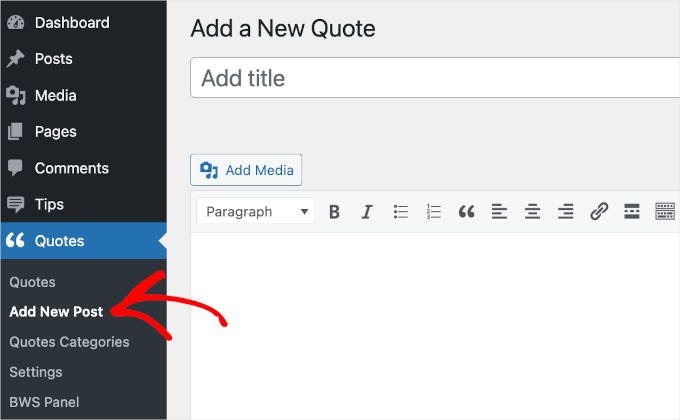
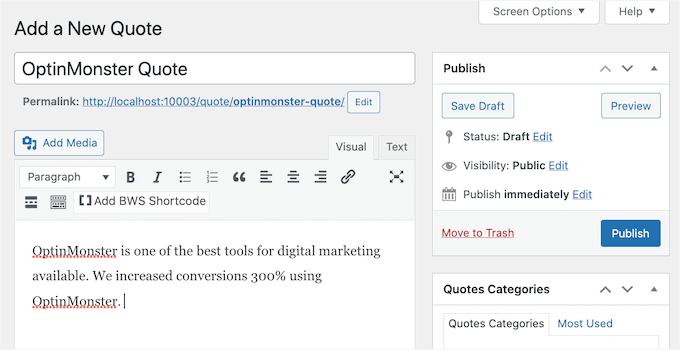
First, you’ll need to type a title for your quote into the ‘Add title’ field. In a later step, we’ll show you how to choose whether to display the quote’s title to your visitors or use it for internal reference only.
Next, type your quote into the text editor. In our example, we’re using a quote from a case study.
You may want to organize your quotes into categories. This becomes important when it’s time to display your quotes.
Basically, you have 2 options.
The Quotes and Tips plugin can select a random quote from all of the quotes you’ve added. Or, it can select a random quote from a specific quote category.
For example, if you have an online store, you might want to display quotes about a specific product on that product page only.
If you already have some categories in mind, then it makes sense to organize your quotes into these categories now. But you can always add, remove, and edit your categories later. We’ll be covering that at the end of the post.
If you do want to create a quote category now, then you can find the ‘Quotes Categories’ box on the right side of the page.
To add your category, first click on the ‘Add New Quotes Category’ link.
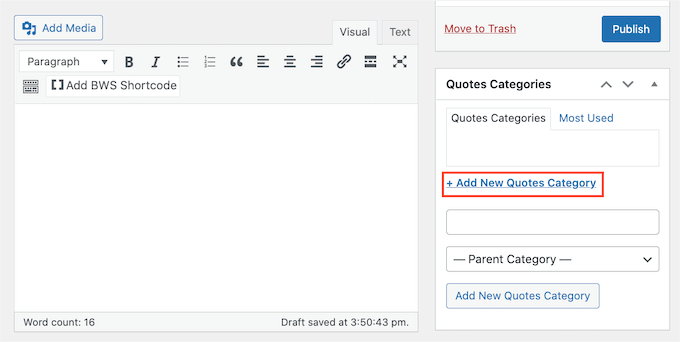
A field will display where you can type your category name. The category won’t appear to your visitors, so it’s just for your reference.
After you type it in, click on the ‘Add New Quotes Category’ button.
This category will now appear in the ‘Quotes Category’ tab. To add the current quote to this category, simply select the category’s checkbox.
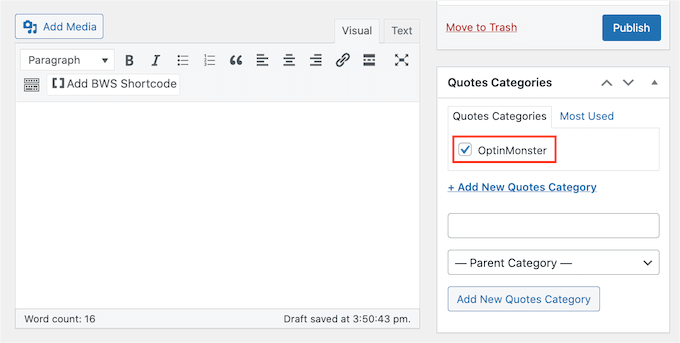
You can keep repeating these steps to create more quote categories.
Next, you’ll typically want to show where a quote comes from. This might be a valued customer, a famous brand, or even a celebrity.
To assign your quote to a person or company, you can scroll down to the ‘Name and Official Position’ section. Then, simply type the person or company’s name into the ‘Name’ field.
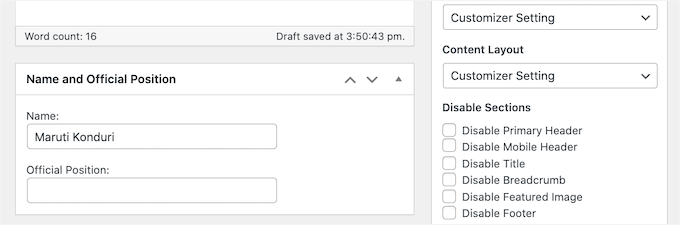
You might also want to add this person’s job title or information that explains why they’re qualified to make this statement. You can type this information into the ‘Official Position’ field.
When you’re happy with your quote, click on the ‘Publish’ button.
You can now repeat these steps to create all the quotes you want to show in your WordPress sidebar.
Step 2. Configuring Your Quotes and Tips Settings
After creating your quotes, it’s time to take a look at the Quotes and Tips settings. This contains some important settings that control how and when your WordPress site displays a random quote.
To take a look at these settings, you can go to Tips » Settings.
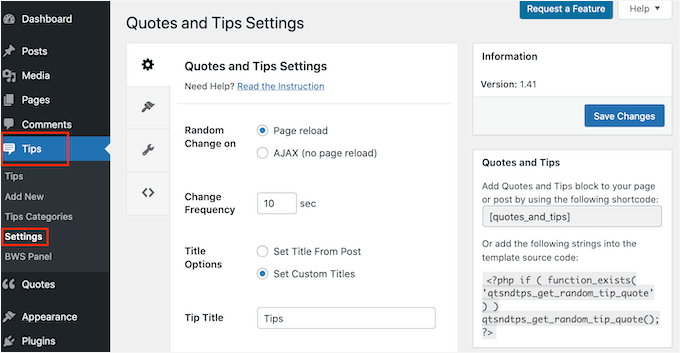
By default, Quotes and Tips will display a new quote every time the page reloads. This means visitors will see a new quote every time they visit a new page or press the ‘Refresh’ button in their web browser.
If you prefer, you can display a new quote automatically every few seconds or minutes. The visitor doesn’t even have to refresh their web browser.
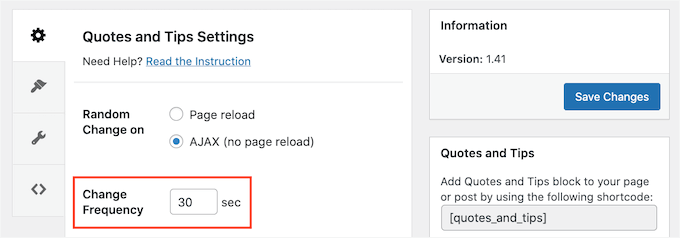
To do this, select ‘AJAX (no page reload) and then find the ‘Change Frequency’ field.
Here, simply type how frequently WordPress should display a new quote in seconds.
Next, it’s time to choose the title that will appear above your quote.
The default setting is ‘Set Title From Post.’ This will display the title you entered when adding the quote to your WordPress website.
Another option is creating a title that WordPress will use for all of your quotes. This might be something such as ‘Words of Wisdom’ or ‘Don’t take our word for it! Here’s what our customers think’ for testimonials.
To use the same title for all your quotes, click on ‘Set Custom Titles.’ You can now type your title into the ‘Quote Title’ field.
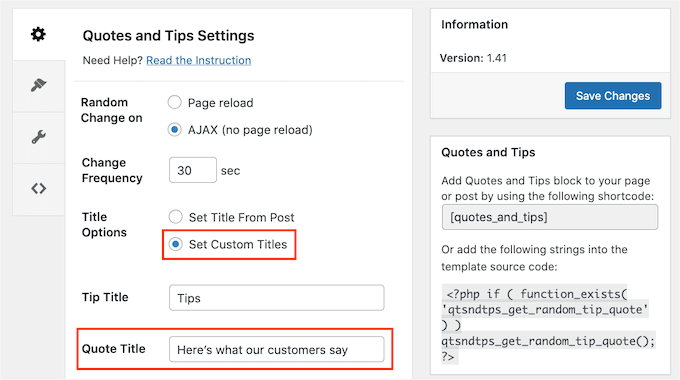
When you’re finished, don’t forget to click on the ‘Save Changes’ button.
Step 3. Displaying a Random Quote on Your WordPress Sidebar
Now, it’s time to display your quotes.
Let’s start by showing a random quote from your entire quote collection. If you’ve created multiple categories, this method will ignore all of them.
You can add your quote to any page, post, or widget using the Quotes and Tips shortcode. To get this shortcode, go to Quotes » Settings.
Now, copy the shortcode in the ‘Quotes and Tips’ section.
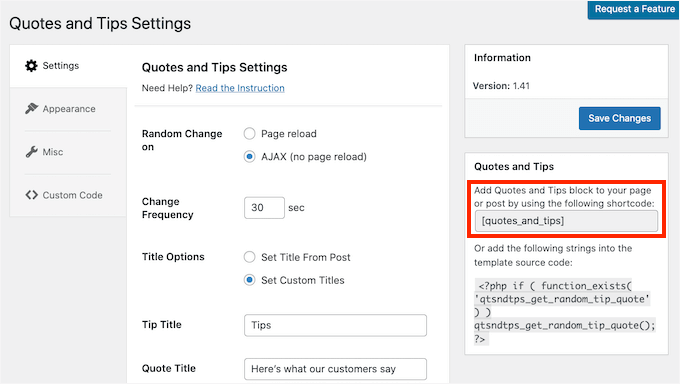
Another option is to simply copy the following: [quotes_and_tips]
Since we want to show random quotes in the WordPress sidebar, you’ll need to go to Appearance » Widgets. This shows all the areas of your site that support widgets.
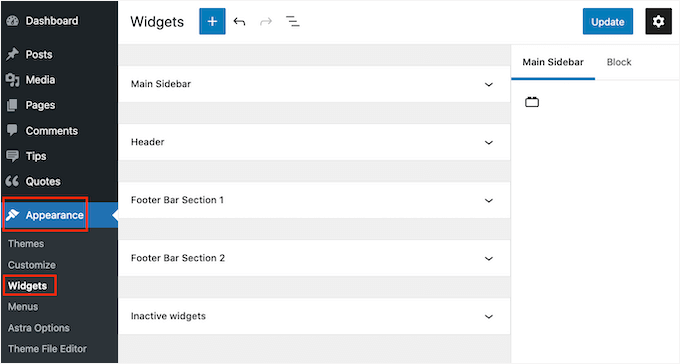
This screen may look slightly different depending on your WordPress theme. However, most modern WordPress themes have a sidebar.
Find the ‘Main Sidebar’ or similar section, and give it a click. This section will now expand.
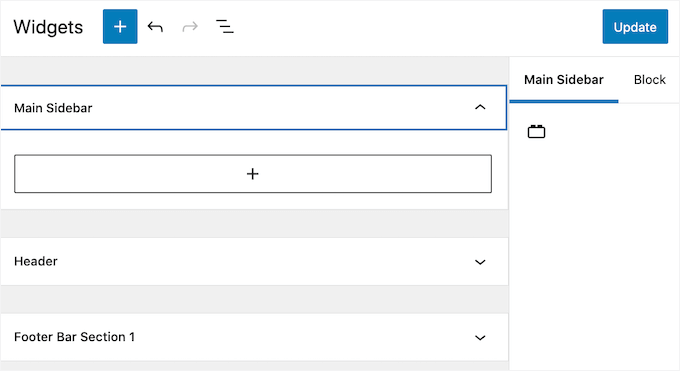
You need to add a Shortcode block to this widget, so click on the ‘+’ button. In the search field, type ‘Shortcode.’
You can now select the Shortcode block when it appears. Next, either paste or type the shortcode into this block.
Finally, click on the blue ‘Update’ button at the top of the screen. Now, if you visit your website, you should see a random quote on your WordPress sidebar.
For step-by-step instructions, you can follow our guide on how to add a shortcode in WordPress.
Step 4. Displaying Random Quotes From a Specific Category
Another option is to display a quote from a specific quote category. You’ll need to use a different shortcode to display a random quote from a particular category.
To get this code, head over to Quotes » Quote Category.
Here, you’ll find a list of all the categories you’ve created. Each category has its own shortcode.
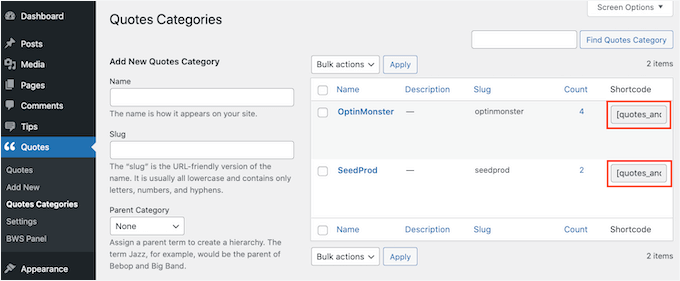
Simply find the category you want to use and copy its shortcode. Then, following the same process above, paste this shortcode into any page, post, or widget.
Step 5. Styling Your Random Quotes to Match With Your Brand
By default, the Quotes and Tips plugin adds a blue background to the quote area. It also uses a background image of silhouettes.
You can change this default styling to better match the rest of your website’s design or even remove it completely.
To change the background color, text color, or background image, go to Quotes » Settings.
In the left menu, click on the ‘Appearance’ tab.
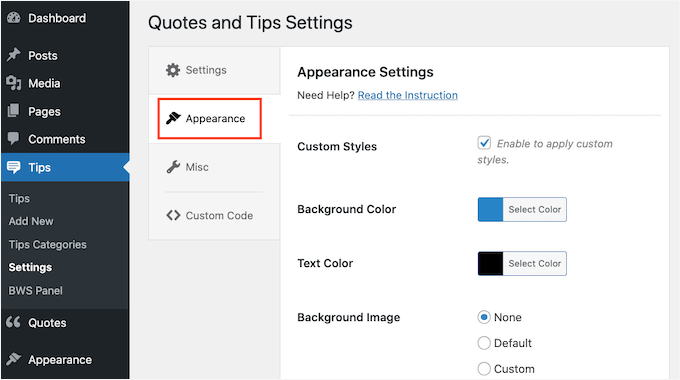
You can now change the background color and text color by clicking on the ‘Select Color’ button.
This will open a color picker where you can select your perfect color.
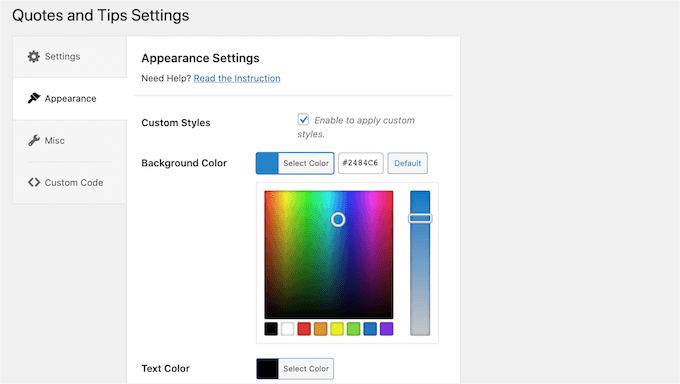
If you change your mind, you can restore the plugin’s default colors at any point by clicking on the ‘Default’ button.
You can also change the background image.
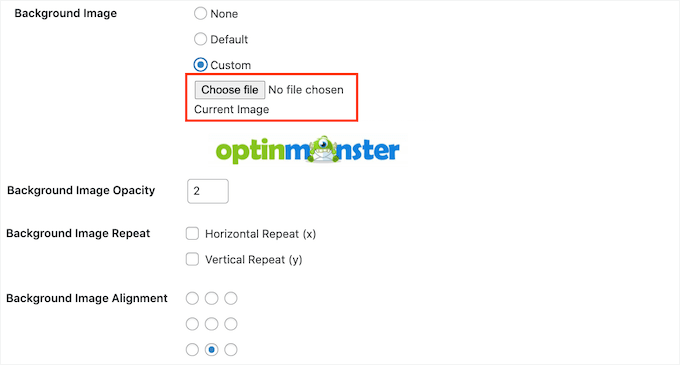
To remove the default background image, go ahead and scroll to ‘Background Image.’ Then, simply click the ‘None’ button.
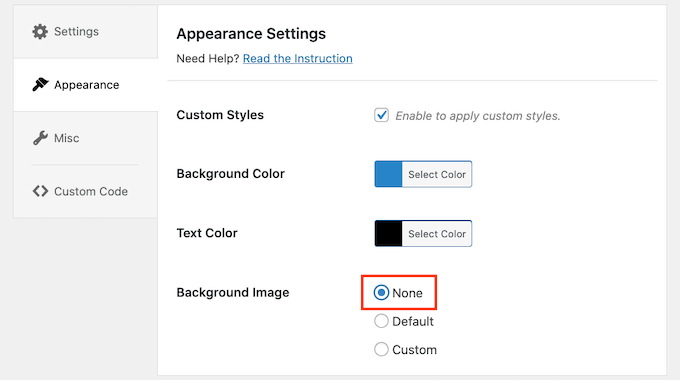
You can also add your own background image.
Using your company or product logo as a background image can be a great way to brand your quotes.
To upload a new background image, click on the ‘Custom’ button. This will trigger the ‘Choose File’ button to appear.
Now, all you have to do is click the ‘Choose File’ button. In the pop-up window that appears, simply select the file you want to use as your background image.
After making your choice, you can customize how this image looks on your site.
This includes changing the background image alignment and the opacity, which is how transparent the background image is.
In this area, you can experiment to see the different effects you can create.
Bonus Tip: Adding, Editing, and Deleting Quote Categories
Sometimes, you may want Quotes and Tips to display a completely random quote. Other times, you may need more control over the kind of quotes that it displays.
You can do this using quote categories. We’ve already seen how to create a category when adding a new quote. However, Quotes and Tips has an entire menu where you can make changes to these categories and create new ones.
To see these settings, go to Quotes » Quotes Categories.
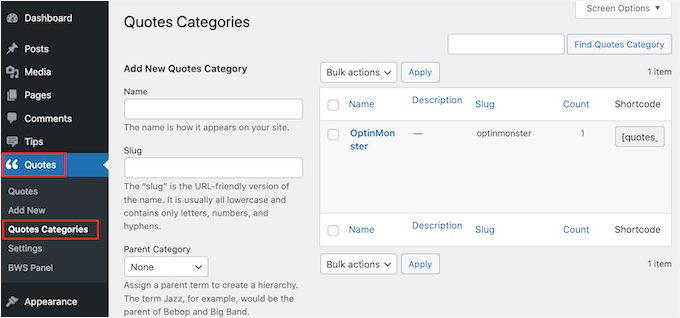
Here, you can quickly and easily create quote categories. To add a new category, type a name for your category into the ‘Name’ field.
This plugin creates each quote category as a parent category by default. However, another option is to create a subcategory.
For example, you might have an OptinMonster parent category and then create subcategories for your different promotions, such as ‘OptinMonster summer sale’ and ‘OptinMonster holiday promotion.’
To create a quote subcategory, you’ll need to select a parent category from the dropdown menu.
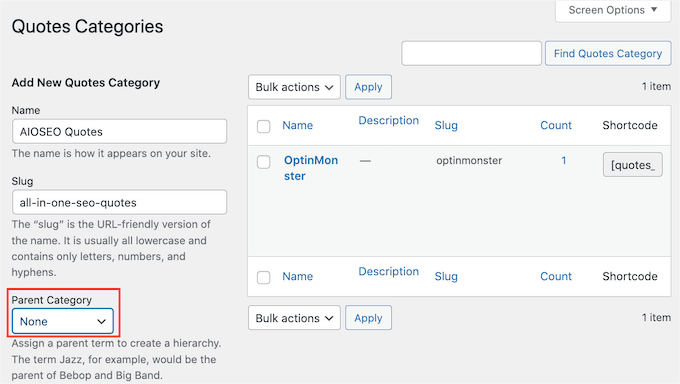
When you’re happy with your quote category, click on the blue ‘Add New Quotes Category’ button.
And done, you just created a new quote subcategory!
For any of the categories you created earlier, you can edit them. To edit a category, hover over it. Then, simply click on the ‘Edit’ link when it appears.
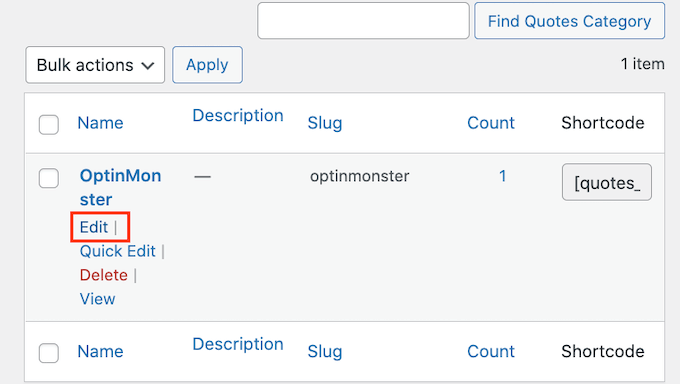
This will launch a new page where you can make changes to this category, including editing its name and choosing a new parent.
FAQs About Showing Random Quotes in WordPress
Curious about how random quotes work on your site or what customization options are available? Here are some common questions we often get from readers:
Can I use multiple quote categories at the same time on my site?
Yes, you can display quotes from multiple categories on different parts of your website by using specific shortcodes for each category.
Do I need to know coding to add random quotes to WordPress?
No. The Quotes and Tips plugin requires no coding knowledge. Just install the WordPress plugin and follow our guide to start displaying quotes easily.
Can I customize the appearance of the quotes to match my site?
Absolutely. The Quotes and Tips plugin lets you change background colors, text colors, and even add custom images to match your brand’s style.
How often can the quotes change on my website?
You control the frequency. You can show a new quote on every page reload or use AJAX to rotate quotes automatically without refreshing the page.
Why aren’t my quotes displaying as expected?
Make sure the plugin is installed and activated correctly. Double-check your shortcode placement and review the settings in the Quotes and Tips configuration panel.
If the issue persists, you may want to check out the plugin’s documentation, go to the community forum, or contact the support team for further assistance.
We hope this article helped you learn how to show random quotes in the WordPress sidebar. Next, you can see our guide on how to show the weather forecast on your site or see our expert pick of the best fun WordPress plugins you’re missing out on.
If you liked this article, then please subscribe to our YouTube Channel for WordPress video tutorials. You can also find us on Twitter and Facebook.


kzain
This is a super idea for adding a dynamic element to my sidebar!
I like the concept of using random quotes to keep things fresh for visitors. While manually adding quotes seems straightforward, using a plugin like ‘Quotes & Sayings’ offers more flexibility
Moinuddin Waheed
it is nice idea to have random quotes on the sidebars.
everytime the page gets refreshed a new quote gets appeared and it helps the users to have attention on that.
can we add custom random quotes for instance quotes regarding our positive reviews by customers?
or something on these lines which keeps the visitors interest on the blog or website intact?
WPBeginner Support
If you wanted to include reviews on your site then we would recommend taking a look at some of the plugins from our list below!
https://www.wpbeginner.com/showcase/best-customer-reviews-plugins-for-wordpress-compared/
Admin
Nicoleta Nicolau Nicoleta Mihaela
Thank you so much! Great tip and it helped me add my quotes on my site.
WPBeginner Support
Glad our guide was helpful!
Admin
Emma
Hiya! It seems this plugin is no longer available or supported, do you know of another that will do the same thing?
Mumbi
Thank you very much for your articles. You always solve my problems.
WPBeginner Support
You’re welcome, glad our articles were helpful
Admin
Valerie Rayne
I’ve been using this plugin on my website for a couple of weeks now and I absolutely adore it. I’ve got a special category to be able to highlight quotes from my own posts and it’s just perfect!
However, I was thinking today that I would like readers to be able to not only browse through my quotes but also click to share them. I thought maybe downloading another plugin, such as a Click-To-Tweet plugin, would give me the option to make these quotes shareable – but that doesn’t seem to have worked.
Is there a way that I can edit backend files to achieve shareable quotes or is there another plugin or option that would work better? My site is located at ValerieRayne.com and you can find my use of the plugin in my header and also on my quotes page if that helps with an answer
Deb Gallegos
Great idea for a plugin! Any thoughts on another random quote plugin or a way to make this plugin work so as to have visitors click to reveal who the quote was from?
Thanks!
Jennifer
I’m getting an error when clicking on the link to the Wordpress plugin directory. Do you know of any similar plugins for displaying our own quotes? This one looks perfect.
Angela
Plug in appears to no longer be available.
Vivek Moyal
I also have one more quote widget which we can use using the iframe. You can check here at
Daily a new quote is there.
Ogochukwu
Hi! Please is there a plugin that displays something like random facts….Like ‘DID YOU KNOW?”, with the answers down below?
Stevie
All of a sudden it stopped rotating the quotes in my sidebar widget, and it always only shows one particular quote.
No matter what I do I can’t get it to rotate or even show a different quote to begin with.
Please advise.
Nicole
Exactly what I needed and I didn’t even know it until I saw this in my inbox. Thank you!
Mona
Thank you very much for this information. I’ve been collecting quotes, knowing that, at some point, how to insert them into my site would become available to me.
Marge Burkell
Thanks! I am a firm believer in visualization, setting goals, etc. so this is a natural addition to my site’s sidebar. Adding it now.
Maha
Nice Article? How did you know i was exploring this very same topic
I hope you can guide me in my particular scenario …. What about in the case where you want to categorize the quote and display different set of quote in different category ?
WPBeginner Support
Quotes Collection allows you to use tags and you can display quotes with tags.
Admin
Maha
Thank you so much !