


Have you spent hours getting your WordPress theme to look just right, only to realize you have to do it all over again for another website?
Trust us, we’ve been there! It’s a problem we see all the time while helping people with their WordPress sites.
But don’t worry, you don’t have to rebuild everything from scratch.
Since we spend our days tinkering with WordPress themes and helping beginners like you, we’ve discovered some helpful techniques.
We’ll show you the easy way to save your theme settings and use them on any site you want.
💡Quick Answer: How to Import / Export WordPress Theme Customizer Settings
The easiest way to transfer theme settings is with the free Customize Export/Import plugin.
Simply install the plugin on both sites. Then, go to Appearance » Customize » Export/Import to download your settings as a .dat file and upload it to the new site.
Why Import / Export Customizer Settings in WordPress?
The main reason to export customizer settings is to save time. Instead of manually configuring colors and layouts on a new site, you can simply upload a file to apply the exact same design instantly.
Here are the most common situations where this comes in handy:
- Moving Local to Live: If you designed your site on a local server (localhost), you can easily move those settings to your live website.
- Site Migrations: When moving a WordPress site to a new domain, this ensures your theme settings transfer correctly without data loss.
- Creating Backups: It allows you to save a snapshot of your current design before making major changes or updates.
- Sharing Designs: If you created a custom child theme, you can export the settings to share your design with other developers or users.
That being said, let’s take a look at how to easily import / export theme customizer settings in WordPress.
How to Import / Export WordPress Customizer Settings
First, you need to install and activate the Customize Export/Import plugin on both sites where you want to export/import. For more details, see our step-by-step guide on how to install a WordPress plugin.
💡Important: This process will only work if both websites are using the exact same WordPress theme. The settings are theme-specific, so you cannot transfer them from one theme to another.
Think of it like car parts. You cannot take parts from a Toyota and expect them to fit into a Honda. In the same way, settings from one theme usually won’t fit into the code of a different theme.
Upon activation, visit the Appearance » Customize page from the WordPress dashboard of the website you want to export from.
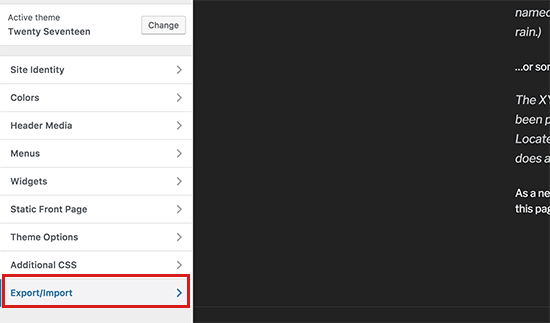
From here, click on the ‘Export/Import’ panel in the left column to open further settings.
Next, click the ‘Export’ button to download your customizer settings and send them to your browser in a .dat file.
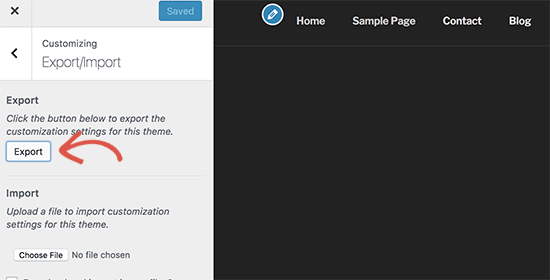
The plugin will export your core theme settings, such as colors, layout options, and header media.
However, it’s important to know what is not included in the export file. You will need to set up the following items separately:
- Navigation Menus
- Widgets
- Site Title and Tagline
- Content like posts and pages
Now, to import customizer settings, head over to the WordPress site where you want to import these settings.
From here, visit the Appearance » Customize page from the WordPress admin sidebar and click on the Export/Import panel.
After that, click on the ‘Choose file’ button under the ‘Import’ section to select the file you exported earlier.
You also need to check the box next to the ‘Download and import image files?’ option to import the header and other image files.
Important: If you are moving from a local site (localhost) to a live site, image downloading may fail. The live site cannot reach back to your private computer to get the files.
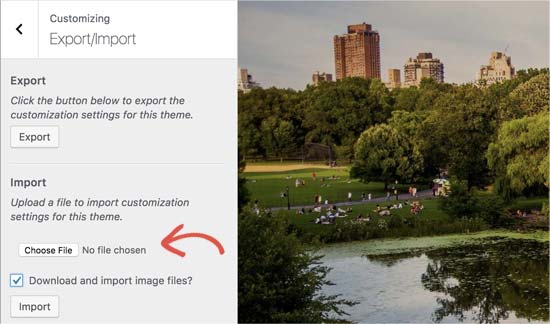
Next, click on the ‘Import’ button to start uploading the customizer settings from your export file.
Once it is finished, you can review your changes in the customizer and then click on the ‘Save & Publish’ button to make those changes live.
Bonus Tip: How to Separately Import / Export Navigation Menus
If you have multiple WordPress sites, then you may want to transfer the navigation menu from one site to the other. You can easily do this using the WPS Menu Exporter plugin.
Upon plugin installation, visit the Tools » Export page from the WordPress dashboard. Here, simply check the ‘Navigation Menu Items’ option and click the ‘Download Export File’ button.
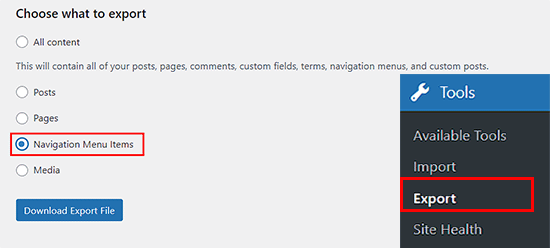
Once you do that, your navigation menu will be stored as an .xml file on your computer. You can then import the navigation menu to the new site by visiting the Tools » Import page.
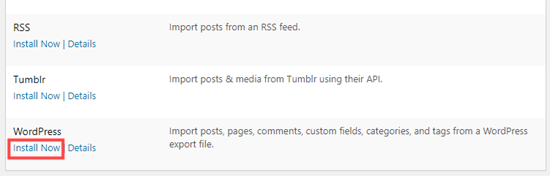
Under the ‘WordPress’ option, you will first need to click the ‘Install Now’ link. After a moment, the link will change to ‘Run Importer.’ Go ahead and click ‘Run Importer’ to proceed.
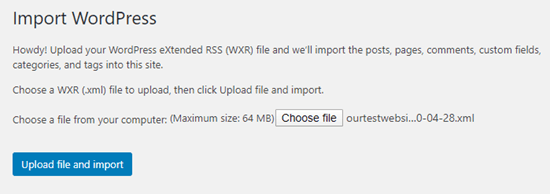
This will take you to a new screen where you can import the navigation menu file.
Simply click the ‘Choose File’ button and select the .xml file you downloaded earlier. Then, click the ‘Upload file and import’ button.
You have now successfully imported and exported a navigation menu on your new WordPress site.
For detailed instructions, see our tutorial on how to import/export the navigation menu in WordPress.
Frequently Asked Questions About Importing/Exporting WordPress Theme Customizer Settings
Having helped thousands of WordPress users, we’ve heard just about every question there is about moving theme settings. Here are the answers to some of the most common ones.
Does the Customize Export/Import plugin work with all WordPress themes?
Yes, this plugin works with most classic themes that use the standard WordPress Theme Customization API.
However, it may not work with modern Block Themes (FSE). These themes typically use the Site Editor and theme.json file instead of the Customizer API.
Will importing theme settings affect my posts, pages, or widgets?
No, the plugin is built to only handle settings saved within the Theme Customizer. It will not alter your website’s content, such as posts, pages, navigation menus, or widgets.
Can I use this plugin to create a backup of my theme settings?
Absolutely. Exporting your settings is a great way to create a quick backup before you make significant changes or update your theme.
If something goes wrong, you can just import the .dat file to restore your previous configuration.
What’s the difference between exporting customizer settings and using a full backup plugin?
Exporting customizer settings only saves your theme’s appearance options, like colors and layouts.
A full backup plugin like Duplicator saves your entire site, including posts, plugins, and the database, which is vital for complete site restoration.
We hope this article helped you learn how to import/export theme customizer settings in WordPress. You may also want to see our beginner’s guide on how to use the WordPress theme customizer like a pro and our comparison of Thrive Architect vs Divi vs Elementor.
If you liked this article, then please subscribe to our YouTube Channel for WordPress video tutorials. You can also find us on Twitter and Facebook.


Dayo Olobayo
This is a great tip. I’m always worried about losing my customization settings when I switch to a new theme. I’ll definitely be looking into the Customize Export/Import plugin. But please, does this plugin work with all WordPress themes or are there any specific themes that it’s compatible with?
WPBeginner Support
It is limited to WordPress themes using the customizer
Admin
Dennis Muthomi
if I export the theme customizer settings from one site and then import them to another site that has a different theme installed, will the imported settings still apply properly?
Or does this import/export process only work if I’m using the exact same theme on both sites? Having the ability to transfer settings between different themes would be really valuable
WPBeginner Comments
This is designed to use with the same theme or child theme of the original theme.
Dennis Muthomi
Wow, thanks for the reply! good to know it only works for the same theme or child themes.Appreciate you clarifying
Ram E.
Thanks! Although I don’t think this would work for block themes–from default WP 2023 to the recently released 2024 theme with WordPress 6.4. I am trying to install a staging environment for my website today to configure the new WP default theme before pushing the changes to live but the staging feature of the Bluehost plugin s*cks. This is how I ended up in this article. (Sigh) Looking for some staging alternatives as I only need to update the theme.
WPBeginner Support
For staging alternatives we would recommend taking a look at our article below:
https://www.wpbeginner.com/wp-tutorials/how-to-create-staging-environment-for-a-wordpress-site/
You’re correct that the plugin from this guide is more for the settings in the customizer itself
Admin
Teresa E Langston
This plugin does not work with child of 2022 theme.
Export works fine. Error on import:
Error importing settings! The settings you uploaded are not for the current theme.
There does not seem to be a way to get past this situation. Have scanned faqs/support forums
WPBeginner Support
You would want to ensure the folder names are the same for your child theme to prevent that specific error. You can also reach out to the plugin’s support and they may be able to assist further.
Admin
Saurabh
Please tell: How to export plugins settings and import on another site
WPBeginner Support
You would want to check with the support for the plugin whose settings you are looking to transfer for if they have a tool for that purpose.
Admin
eosteknologi
Nice information …
WPBeginner Support
Glad you like our content
Admin
Mail fo Family
i cant find Export/Import option from the customization list
WPBeginner Support
If you reach out to the plugin’s support and let them know your specific theme and they should be able to help
Admin
Salman Saleem
Thank you so much for saving my day. Was thinking to migrate the whole site but this plugin is a saviour.
WPBeginner Support
Glad our recommendation was helpful
Admin
Dan Norcott
Thanks – very useful!
WPBeginner Support
You’re welcome
Admin
Fejiro
Please a search bar is showing in my customize theme page. Its blocking the save button. How do I remove it.
Ted
I used this plugin to export customizer settings from one site and import them to another site using the same theme. Worked without a hitch and even imported background and header images. One thing I noticed is the current version (0.8) automatically saves the changes, which may be an issue if somebody just wants to see how it looks without committing to the changes. The unwary user will inadvertently overwrite any settings they may currently have saved.
WPBeginner Support
Hi Ted,
Please share your feedback with plugin authors via support forum. May be they have something in work to remedy this.
Admin
NazakatMunawar
Wordpress themes are easily imported and export as all the content and images will get transformed into any themes accordingly but still, I suggest to make a back up before making any changes to the themes.
Ousman Faal
This post was really helpful. I just used it and it worked like a charm.
Thanks a lot.