


A basic like button doesn’t always tell the full story. Facebook style reactions give your audience the emotional vocabulary to show they love, laugh, or feel amazement at your content.
This simple addition makes readers feel connected and boosts engagement without requiring them to write a full comment.
I tested a few popular reaction plugins on a demo site to see how they work and which one offers the best balance of features and ease of use. After comparing them, one stood out as the clear winner. 🏆
In this guide, I’ll show you the easiest way to add Facebook style reaction buttons to your WordPress posts so your readers can engage in a more expressive, meaningful way. Let’s get started!
💡Quick Answer: How to Add Facebook Style Reactions in WordPress
To add Facebook-style reactions in WordPress, simply install and activate the ShareThis Reaction Buttons plugin. Navigate to the ShareThis page and click the ‘Enable Tool’ button to add Facebook like reactions to your content.
Why Facebook Like Reactions Are Better Than a Basic Like Button
With Facebook like reactions, you give your audience a more expressive way to respond, without needing to leave a comment.
A basic like button doesn’t tell the full story. Did your reader love the post? Did it make them laugh? Were they surprised or even confused?
Think of them as a mini emotional feedback system.
You’ve probably seen them on Facebook, those floating emojis like ❤️ 😂 😮 😢 😡 that you can tap to show how you really feel.
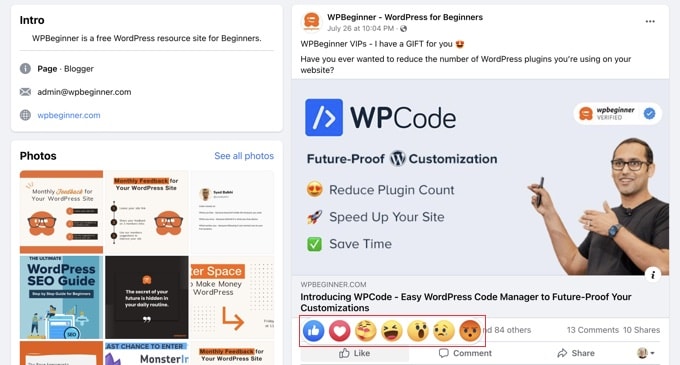
Now, you can bring that same kind of interaction to your WordPress posts.
I tested this on a demo site, and even without real traffic, the difference was noticeable. It immediately felt more dynamic, like readers would have a reason to pause and respond, not just scroll past.
Adding reactions makes your blog feel more interactive and gives readers a quick, low-effort way to engage. And from my experience running blogs, that kind of engagement often leads to more comments, more shares, and a stronger connection with your audience.
Having said that, let’s take a look at how to easily add Facebook like reactions to your WordPress blog posts.
How to Add Facebook Like Reactions to Your WordPress Blog Posts
You can easily add Facebook like reactions to your WordPress posts using the ShareThis Reaction Buttons plugin.
I’ve tested it on a demo site, and while it does require a bit of configuration, the setup process is straightforward and beginner-friendly.
It offers a clean design and flexible options that let you tailor the reactions to match your site’s style. That’s why I believe it’s the best option for the job.
Keep reading to see how you can set it up in 3 easy steps.
Step 1: Install and Enable the ShareThis Reaction Buttons plugin
First, you need to install and activate the ShareThis Reaction Buttons plugin. For detailed instructions on how to do that, take a look at our guide on how to install a WordPress plugin.
After activating the plugin, head over to the ‘ShareThis’ page from your WordPress dashboard and click the ‘Enable Tool’ button.
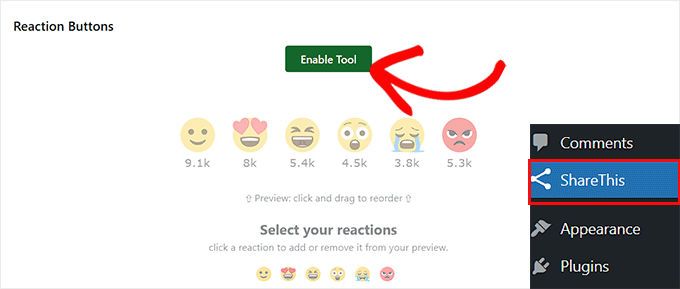
Once you do that, you’ll be able to configure the plugin settings and choose which reaction emojis to show on your blog posts.
Step 2: Choose and Configure Your Emoji Reactions
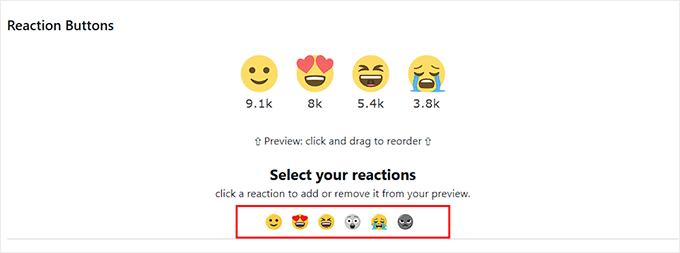
By default, the plugin includes six Facebook like reactions: Like, Love, Laugh, Wow, Sad, and Angry, and all of them will be turned on automatically.
If you want to remove any of them, just click on the emoji. It will turn gray in the ‘Select your reactions’ section and disappear from the preview above. That means it won’t show up on your site.
Now, scroll down and choose an alignment for your Facebook like reactions. You can place them on the left, right, or center of your blog post.
I recommend using the center alignment because it immediately draws attention to the reactions. If the buttons are placed on the side, some readers might overlook them.
Next, choose a language for your emojis from the dropdown menu. This is important because when users hover over an emoji, they’ll see a small label explaining what it means.
For example, if someone hovers over 😍, they’ll see the word “Love.”
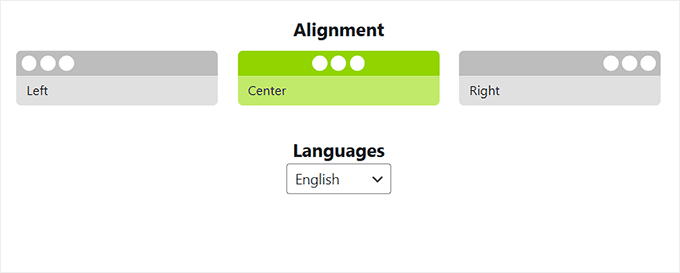
The language you select here will be used for those reaction labels, so make sure to pick the one that matches your audience.
Step 3: Decide Where to Show Emoji Reactions
Next, it’s time to configure where your emojis will appear across your site.
The plugin gives you the option to automatically show or restrict the reaction buttons on specific content types. Besides blog posts, you can also display them on WordPress pages and even excerpts.
You’ll also be able to choose the position of the reactions — whether they appear at the top or bottom of your content.
I recommend starting with the placement below posts since this feels most natural to readers. You can always adjust the positioning later once you see how your audience responds to the reactions.
If you want to maximize visibility, you can even toggle multiple options to show the reaction buttons at both the top and bottom of posts, pages, and excerpts at the same time.

Finally, simply click the ‘Update’ button to store your settings.
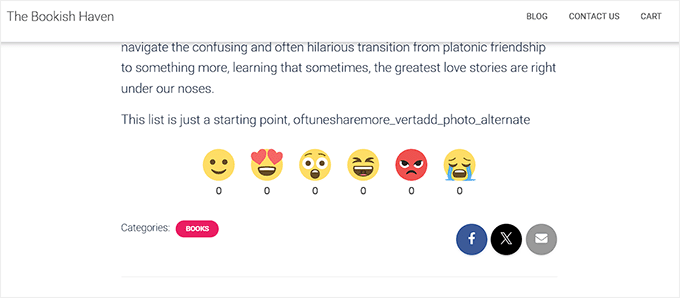
Once that’s done, head over to your WordPress site and open any blog post. You’ll now see the Facebook like reaction buttons added to your content.
🎯Bonus Tip: Create a Custom Facebook Feed in WordPress
Now that visitors are engaging with your content via reactions, keep the momentum going by displaying your social proof from Facebook.
A custom Facebook feed shows your latest posts, photos, and videos directly on your website. This encourages visitors to follow your page and grows your social presence.
I recommend using the Smash Balloon Facebook Feed plugin. It is the best social media feed plugin for WordPress and lets you display your Facebook content in a beautiful layout without writing any code.

Here’s a quick breakdown of the process:
- Install and Activate – Get the plugin set up on your WordPress site. It’s straightforward, even if you’re a beginner.
- Connect to Facebook – Link your Facebook page or group to your WordPress installation. This connection allows for seamless content sharing.
- Customize Your Feed – Choose how your feed looks and operates. With options to adjust layouts, colors, and shown content, your feed can fit perfectly with your site’s theme.
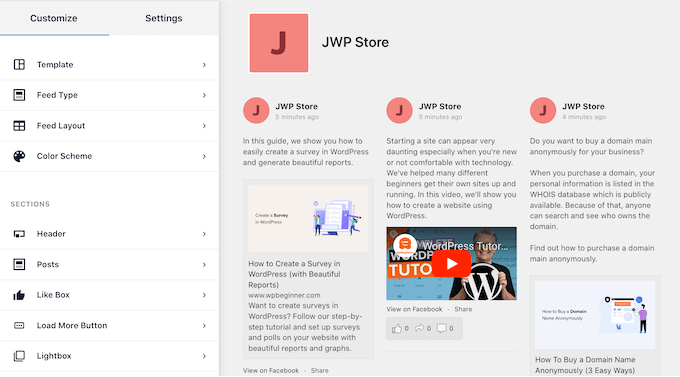
To follow along step-by-step, you can read our tutorial on how to create a custom Facebook feed in WordPress.
Frequently Answered Questions About Facebook Like Reactions in WordPress
Here are some questions frequently asked by our readers about adding Facebook like reactions to WordPress.
Do I need coding skills to add reaction buttons in WordPress?
No, you do not need coding skills. The plugin handles all the technical work for you automatically.
Can I customize the emojis used in the reaction buttons?
It depends on the plugin you’re using. With ShareThis Reaction Buttons, you get a default set of six reactions, which you can enable or disable individually. While you can’t upload custom emoji in this plugin, the built-in options cover most common reactions.
If you need more advanced customization, like using your own icons or adding new emotion types, you might want to explore premium plugins that offer extended features.
Will these reactions slow down my website?
Most modern reaction plugins like ShareThis are designed to load asynchronously, meaning they won’t block the rest of your site from loading. However, since the plugin adds new scripts, it is always a good practice to test your site speed after installation
To get started, you can see our ultimate guide on WordPress speed and performance.
Is my data private when using reaction buttons?
Reaction plugins often store data (like vote counts) in your own database, but some may connect to external servers for analytics. We recommend updating your Privacy Policy to inform users if any third-party data tracking is involved.
I hope this article helped you learn how to easily add Facebook like reactions to your WordPress blog posts. You may also want to see our step-by-step tutorial on how to add a points system in WordPress to ignite user engagement and our top picks for the best social media plugins.
If you liked this article, then please subscribe to our YouTube Channel for WordPress video tutorials. You can also find us on Twitter and Facebook.



Maison Solutions
Hi, how to turn on WP Reactions Lite Manual Mode (how to choose pages or posts to apply it on)?
WPBeginner Comments
To turn reactions off for a certain page/post, edit the page or post and then scroll past the content. There should be a section for WP Reactions. Open it with the down arrow on the right, and then you can turn off reactions for that page.
Jiří Vaněk
It’s a very interesting form of feedback from users. I use something similar on the web, like a star rating system from the worst (1 star) to the best (5 stars). I just wanted to ask, is it possible to add descriptions to emojis to better understand what they express? For example, adding a caption like “I like it” to a smiling emoji, and “I don’t like it” to a frowning one? This way, the feedback from readers would be a bit more specific.
WPBeginner Support
Not in the free version but it looks like that feature may be a part of their Pro version.
Admin
Jiří Vaněk
Good. Because that’s the feature I’d probably miss there for a better context and understanding of what the emoticon is expressing. But it’s good to know, it can be solved using the paid version. Thank you for answer.
Zay Nge
when a user give certain reaction, like haha or like then it would automatically appear on my Facebook Page too?
WPBeginner Support
Hi Zay,
No, they wouldn’t. It just works on your WordPress site.
Admin
YOGRAJ SHARMA
is my genesis theme premium or not please can you tell me
Chris
Yikes! Wanted the plugin but seems like a ton of work simply for an emoticon for a post… guess I’m stuck with my wordpress.com account…
Rachel
This plugin works GREAT on my laptop and PC but it only gives the Like icon on tablet and mobile – both android. Is this the case or do I need to adjust a setting? Help would be appreciated. Thanks
tush
can i use plugins on blog. also my blog has domain name. thanks
Dawn Cunnane
I’ve just installed this after reading your post, this will go will with my facbook comments plugin – Thank you!
Tuhinshubhra
We can make it visible in all posts by adding do short code at the single.php isn’t it ???
Arun Basil Lal
You can use the dw_reactions() function instead of the shortcode.
LISA
Thanks! Works great…love the easy instructions as usual
WPBeginner Support
Glad you found it useful.
Admin
Janakee
At the top of the post the one about 1/5 of the reaction icons are viable. At the bottom the post the icons are not appearing. When you hover over the icon it quick appears and then goes to blank white again.
Love the idea – would love it to work properly.
WPBeginner Support
May be conflicting with your theme or some other plugin. Contact plugin author for support or try deactivating all other WordPress plugins and switching to a default theme. Then activate all plugins one by one until you find the one causing the conflict.
Admin
Manas Mitra
Thanks for sharing the information about DW Reactions plugin. Shall try in an upcoming site.
Michelle
That’s a really cool idea, thanks! It would probably be really cool if the reactions would show on the blog overview page – I guess you could insert something in the theme to achieve that?
WPBeginner Support
In the plugin settings you can enable reactions on home page, and archives. Try enabling both of them.
Admin
Viklin Naijaknowhow
Great post, will give it a try
Nas
This is nice. Will do it later to my blog
Alessandro Marengo
Hi!
The only issue this plugin has is that you cannot click on a reaction because hover doesn’t work at all
WPBeginner Support
Make sure that you have unchecked the option that makes it only visible to logged in and registered users.
Admin
Shohag Islam Sourav
thanks Balkhi for sharing this plugin
Syed Hamza
Amazing….!!!!!!!!
Arjun Sharma
really great post but it is possible to genesis theme check my site please and tell me if possible