WPBeginner WordPress tutorials help you learn WordPress, so you can improve your website. Our step by step WordPress tutorials are easy to understand and will help you follow the WordPress best practices. Don't waste your time buying WordPress books or outdated WordPress tutorial PDFs that cover just the basics. Our WordPress tutorials are written by experts with 15+ years of WordPress experience, and it contains real-life examples and tips that allows you to learn WordPress faster. We also keep our tutorials up to date.
You can find our other latest free WordPress tutorials below, and you can always use the search feature on our site to find helpful WordPress tutorials faster.
If you don't see a WordPress tutorial that you're looking for, then please reach out to your team and let us know. All our WordPress tutorial ideas are suggested by our users over the last 13+ years.
Have you ever lost an important file that someone submitted through your WordPress site? Maybe it got buried in your email inbox or accidentally deleted from your downloads folder. It’s frustrating. Especially when those files are job applications, client documents, or contest entries that you… Read More »
Adding dark mode to WordPress websites has become a hot topic among our readers. 🌙 It’s not just about following trends. Research shows that dark mode can reduce eye strain for nighttime readers and potentially save battery life on mobile devices. While many site owners… Read More »
Sometimes, spam bots fill in your newsletter signup forms and add dummy email addresses to your email list. When this happens, it can cost you money, and email service providers might mark your emails as spam. So, we weren’t surprised when one of our readers… Read More »
If you work with WordPress, you probably know how important it is to test things before making changes to your live site. At WPBeginner, we often create test websites on our computers to try out new themes and plugins. This allows us to explore new… Read More »
Have you ever reached the bottom of your website and thought, “There has to be more I can do with this space”? We’ve noticed that the footer is often an overlooked area of many WordPress websites, but it holds so much potential. There are several… Read More »
Running an online store once meant investing heavily in inventory, storage, and shipping. But with print on demand, that barrier has been removed. After trying platforms like Printful across our test WordPress site, we’ve seen how easy it is to launch a store without managing… Read More »
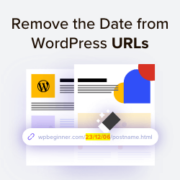
Do your WordPress URLs include dates that make your content look outdated? Long, dated URLs can clutter your site structure and make evergreen posts seem old to search engines. Many site owners want to switch to a cleaner link format, but worry about breaking their… Read More »
If you’ve ever tried collecting RSVPs through regular email, you know how quickly it can turn into complete chaos. Duplicate responses, missed messages, and zero organization; it’s enough to make anyone want to cancel their event before it even starts. You end up spending more… Read More »
Have you ever had people submit a form that was never meant to be public? Maybe it was a private client intake form, a beta signup for a plugin you’re building, or a members-only form that somehow attracted random submissions. When that happens, the issue… Read More »
Many website owners don’t realize they can run multiple WordPress installations on their domain. Whether you want to test new designs, create a staging site, or start a new project without buying another domain, a subdirectory installation can be incredibly helpful. This approach has saved… Read More »
Used to store interaction and conversion data for campaigns in conjunction with Revenue Attribution.
1 year
_gat_omTracker*
Set, controlled and used by Google Analytics to collect and store data and then send that data to Google Analytics. OptinMonster provides the name if there is no existing tracker found on that page.
-
omCountdown-{id}-{elementId}
Used for countdown elements {elementId} in campaigns {id} to determine when it should complete.
-
om-{id}-closed / omSlideClosed-{id}
Used specifically with slide-in campaigns {id} to determine if it has been closed or not by a visitor.
30 days
om-success-cookie / omSuccessCookie
Used to determine if a visitor has successfully opted in to any campaign on your site to unlock content when using our Content Locking feature.
365 days
om-success-{id} / omSuccess-{id}
Used to determine if a visitor has successfully opted in to a campaign with the ID of {id} on your site.
365 days
omSeen-{id}
Used to determine if a visitor has been shown a campaign by the slug.
30 days
om-{id}
Used to determine if a visitor has interacted with a campaign ID of {id} on your site.
30 days
_omappvs
Used to determine when a new visitor becomes a returning visitor.