


Have you ever hired a team member or contract and just handed them full admin access to your WordPress site? It’s the quick option, but it’s a bit like giving someone the keys to your entire house when they only needed the garage.
The safer approach is built right into WordPress. User roles and permissions let you control exactly what each person can do, whether they’re writing posts, tweaking settings, or handling customer orders.
In this beginner’s guide, we’ll explain each WordPress user role and its permissions, plus show you how to customize roles to match your team’s needs.
Here’s everything we’ll cover in this guide:
- What Are WordPress User Roles and Permissions?
- How to Add a New WordPress User With the Right Role
- How to Customize WordPress Roles u0026 Capabilities
- How to Create a Custom WordPress User Role
- WordPress Security u0026 User Role Best Practices for a Multi-Author Site
- FAQs About WordPress Roles and Permissions
What Are WordPress User Roles and Permissions?
In WordPress, a user role is a labeled bundle of capabilities, which are the individual permissions that control what someone can do on your website. Assigning a role hands someone a pre-set list of what they can touch.
WordPress comes with these built-in user roles:
- Subscriber – Can manage their own profile and read content. They can’t make any changes to your website. This is the default role for new user registrations and membership sites.
- Contributor – Can write posts and save them as drafts for review, but they can’t publish posts, upload media files, or edit published content. This role works well for guest bloggers.
- Author – Can write, upload media, and publish their own posts. They can also delete their own published posts, but they can’t edit other users’ content or moderate comments. This is the right role for a trusted staff writer.
- Editor – Can publish, edit, and delete any posts or pages on the website, including content created by other users. They can also moderate comments and manage categories and tags, but they can’t install plugins, change settings, or manage user accounts. This role works well for a managing editor.
- Administrator – Has complete control over a single WordPress website, including plugins, themes, settings, and user accounts. This role should only be given to site owners or people you trust completely.
- Super Admin (Multisite only) – Has full control over all websites in a WordPress multisite network, including plugins, themes, and user management. This role is for the person managing the entire network.
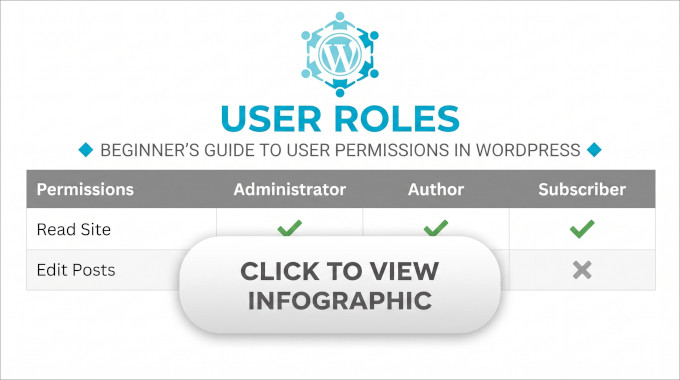
Need a quick way to compare WordPress user roles and permissions? Click on our infographic below:
We recommend choosing the lowest level of access that works for your needs. For example, you should avoid giving new users the Editor or Administrator role unless they truly need it.
Custom User Roles Added by Different WordPress Plugins
Beyond the built-in roles, popular WordPress plugins can add their own custom user roles and capabilities.
A few of the most common:
- WooCommerce – Adds a ‘Customer’ role for shoppers who register an account, plus a ‘Shop Manager’ role that can run the store without full administrator access.
- Membership plugins – Tools like MemberPress and others add their own member tiers, so paying members can reach protected content without any editing permissions.
- SEO plugins – Tools like AIOSEO or Yoast add ‘SEO Manager’ and ‘SEO Editor’ roles, so you can delegate SEO work without full site access.
How to Add a New WordPress User With the Right Role
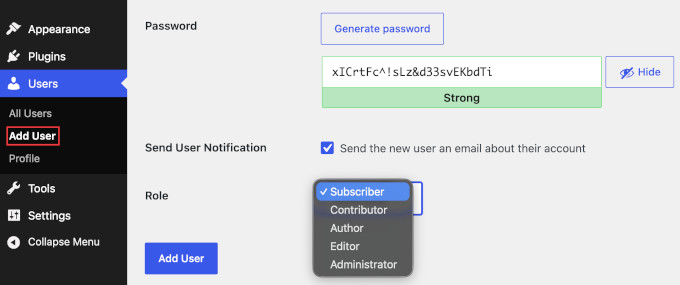
First, go to Users » Add New User in your WordPress dashboard, then enter the user’s username, email address, and name. You can create a password yourself or let WordPress generate a secure one for you.
Next, scroll down to the ‘Role’ dropdown menu, select the appropriate user role, and click ‘Add User.’
WordPress will then email the new user a link to set their own password, along with a link to log in to your website.
Keep in mind that these steps only cover users you add yourself.
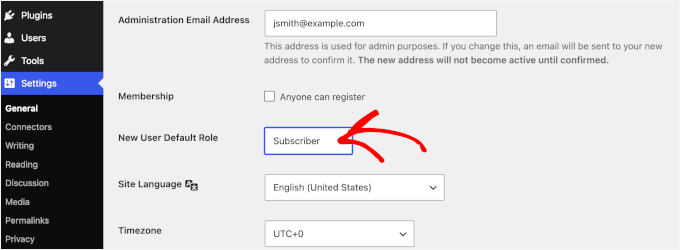
If you allow open registration, then anyone who signs up gets whatever role is set under ‘New User Default Role’ at Settings » General. Keep that on Subscriber so that an open signup form never puts a stranger on a higher role.
Changing an existing user’s role also works with a dropdown menu.
At Users » All Users, click the ‘Edit’ link under the person you want to update. Then, choose their new role from the ‘Role’ dropdown menu and click ‘Update User’ at the bottom of the page to save the change.
How to Customize WordPress Roles & Capabilities
The default WordPress user roles work well for most websites, but there may be times when you need more control over what users can do.
For example, you might want an Author to be able to edit posts without being able to delete the published ones or allow Contributors to upload media files.
The easiest way to customize WordPress user roles and permissions without writing code is to use a free plugin like Members. We recommend this method because it gives you a simple visual interface for managing capabilities. It also supports custom roles created by other plugins and includes all of its features for free.
First, install and activate the plugin. See our guide on how to install a WordPress plugin for details.
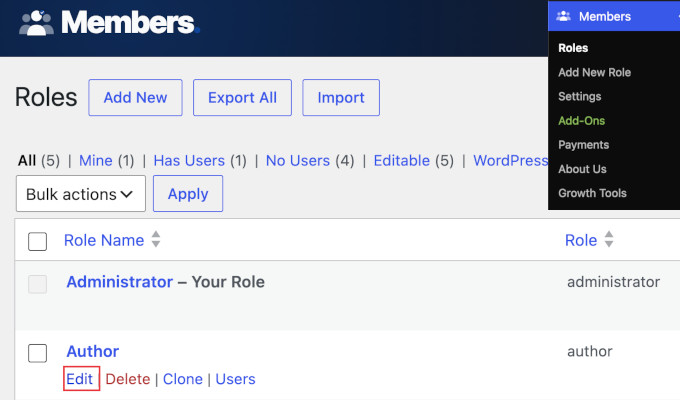
Once activated, you’ll see a new ‘Members’ menu in your WordPress admin area. Go to Members » Roles, then click the ‘Edit’ link under the role you’d like to change, such as ‘Author.’
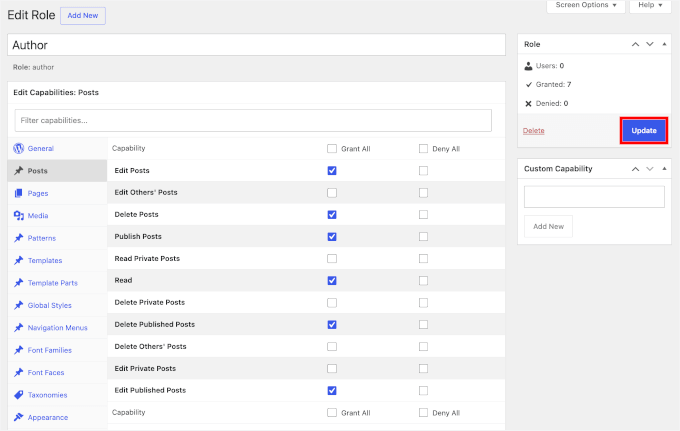
Select the permissions you want to grant or remove.
If you want to change your own role or the Administrator role, make sure to keep one Administrator account untouched and test the change on a spare account or a staging site first. Removing a core permission like managing settings from a role that you use can lock you out of parts of the dashboard, so it’s safer to try it somewhere you can undo it.
Once you’re done, click ‘Update’ to save your changes.
How to Create a Custom WordPress User Role
If the built-in WordPress user roles don’t meet your needs, then you can create your own custom role. This is useful if you want to give someone access to specific tasks without granting them too many permissions.
To create a custom role, go to Members » Add New Role and enter a name, such as “Virtual Assistant.”
Next, select the capabilities you want to give that role by checking the appropriate boxes, then click ‘Add Role’ to save.
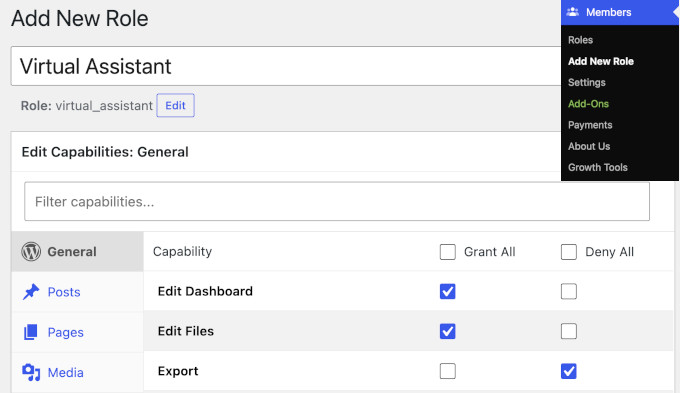
Your new custom role will then appear in the list of user roles whenever you add a new user or edit an existing one.
Note: For developers, WordPress also exposes add_role(), add_cap(), and remove_cap() functions for programmatic role and capability management. See the WordPress Plugin Developer Handbook for details.
For example, this snippet creates a Virtual Assistant role, then adjusts its capabilities:
// Create a custom role with two starter capabilities
$role = add_role( 'virtual_assistant', 'Virtual Assistant', array( 'read' => true, 'edit_posts' => true ) );

// Add or remove individual capabilities on that role later
$role->add_cap( 'upload_files' );
$role->remove_cap( 'delete_posts' );
WordPress Security & User Role Best Practices for a Multi-Author Site
The golden rule in security is to always use the least privilege necessary. Give each team member the smallest role that lets them do their job.
Here are more ways to manage WordPress user permissions:
- Keep Administrator accounts to a minimum. Ideally, just one or two. Avoid making new team members administrators by default. If an admin account is compromised, then your entire site could be at risk.
- Audit your user list regularly. Remove accounts that are no longer needed, because old or inactive accounts are an easy way for hackers to get in.
- Require strong authentication on privileged accounts. Enable two-factor authentication (2FA) on every Editor and Administrator account. Passkeys are an even stronger option that’s becoming the new standard.
- Don’t share logins. Give each person their own account so you can see who made changes and quickly remove access if someone leaves the team. Shared accounts make it impossible to track activity.
- Keep an activity log. One account per person only helps if you can actually see what each person did, so install an activity log plugin to record logins, post edits, role changes, and plugin or settings changes. Our guide to the best WordPress activity log plugins compares options so you can choose the right fit.
FAQs About WordPress Roles and Permissions
Why can’t my contributor upload images?
Contributors don’t have the upload_files capability by default. You have two options:
- Promote them to Author. Authors have full upload access.
- Grant the capability. Use the Members plugin to add the
upload_filescapability to the Contributor role.
How do I limit authors’ ability to edit published posts?
By default, Authors can edit their own live posts (including after publish). To remove this ability, use the Members plugin to deny the edit_published_posts capability to the Author role. Authors will still be able to edit their drafts but not published posts.
How can I accept guest posts without providing WordPress admin access?
Assign each guest writer a Contributor role in WordPress. This lets them log in, write posts, and submit drafts for your review, without the ability to publish, upload media, or reach your admin settings.
If you’d rather not create user accounts in WordPress, then a front-end form plugin is the way to go and is often used by top publications. It lets guest writers submit posts from a page on your site, with no login needed.
Form plugins like WPForms or Gravity Forms both let you build a form that creates a draft post assigned to an admin account for review and publishing.
What if I accidentally lock myself out of the admin area?
Don’t worry, this is almost always recoverable. If you still have a second Administrator account, log in with it and set your own role back to Administrator at Users » All Users. Click ‘Edit’ under your name, pick ‘Administrator’ from the ‘Role’ dropdown, and click ‘Update User’.
If you don’t have another admin login, ask a teammate who does to change your role from that same screen.
If no one can log in as an Administrator at all, the fix has to happen at the database or hosting level, so the easiest path is to ask your host’s support team to restore your access.
We hope this guide has helped you learn more about WordPress user roles and permissions. For more tips, see our guide to WordPress security best practices, or our pick of the best WordPress user registration plugins.
If you liked this article, then please subscribe to our YouTube Channel for WordPress video tutorials. You can also find us on Twitter and Facebook.



Oyatogun Oluwaseun Samuel
This is a great article. very simple and easy to understand. I want to ask that is there no way one can add user that has more attribute than what is currently available on registration? Let’s say you want to add users that you need to know their “Age” or “Date of Birth” is there no way one can go about it.
WPBeginner Comments
In this case yo will likely want to customize the user registration. Check out this guide on how to add fields to the user sign-up form: https://www.wpbeginner.com/plugins/how-to-add-additional-user-profile-fields-in-wordpress-registration/
Mrteesurez
This is a detail article that nailed out all what user roles entail and give best practices to assign each to specific users.
My question:
By default, Does a contributor role can see an admin bar ?
I know of athour role.
WPBeginner Support
Unless you disable it for the user role, all user roles would see the admin bar when logged in.
Admin
Jiří Vaněk
I need to add a user to the website who will only have specific rights to what he can do on the website and what he must not have access to. Thank you for the instructions on how to create exactly such a user in WordPress. It saved me a lot of time looking for instructions on how to achieve this.
Muhammad Afzal Qureshi
Very nice explain in detail, I have a great experience after reading out.
WPBeginner Support
Glad you found our article helpful!
Admin
Waqar
Your blog is really awesome, especially when ever I need to learn something about WordPress in deep dive.
WPBeginner Support
Glad you find our content helpful!
Admin
Jen
Hi WPB, how many “admin” roles can a website have? On my site, the original admin has full rights. But new admin usernames don’t. Is that normal?
WPBeginner Support
You can have as many admin users as you like on a WordPress site, if you do not have the default admin privileges then either a plugin may have modified the privileges as the most common reason.
Admin
Sam
Hi – I’m wondering if I can set a default for subscribers that doesn’t allow them access to the dashboard. I have subscribers through a free online course. I want to automatically eliminate the dashboard access so I don’t have to manually uncheck the box “Show Toolbar when viewing site ” Is there a way to do that?
WPBeginner Support
If you only want to hide the admin bar then we have a guide below that for hiding it:
wpbeginner.com/wp-tutorials/how-to-disable-wordpress-admin-bar-for-all-users-except-administrators
We also have a guide for redirecting users after they log into your site below that can help achieve what you’re looking for:
https://www.wpbeginner.com/plugins/how-to-redirect-users-after-successful-login-in-wordpress/
Admin