


Whenever I sit down to write a blog post, my web browser often becomes my biggest distraction. With multiple tabs open for research and emails, losing focus happens far too quickly.
That is exactly why I started using the WordPress desktop app for my writing workflow. It provides a clean, dedicated space to manage my site away from a cluttered screen.
I have found this tool completely changes how I draft content by blocking out the noise. You get the familiar WordPress interface without the constant urge to check other tabs.
In this guide, I will show you exactly how to set up and use the desktop app for your self-hosted website. We will walk through the entire process step by step.
Tip: If you only want a distraction-free writing screen and don’t want to connect extra plugins, you can simply use the Fullscreen mode already built right into the standard WordPress block editor!
What Is the WordPress Desktop App? An Overview
The WordPress desktop app gives you a clean, dedicated space to write and manage your self-hosted WordPress.org website, away from browser distractions. It’s a great tool if you want a focused writing experience or need to manage multiple sites.
For those who may have tried this app in the past, the best new feature is that it now loads your website’s familiar, native WordPress admin dashboard.
For me, this was the update that made the app an essential part of my workflow because there’s no new interface to learn.
It is important to know that the app requires the Jetpack plugin to connect to your site. Because your website is self-hosted on your own server, the desktop app cannot access your database directly.
Think of Jetpack and a free WordPress.com account as the secure bridge that allows the desktop app to safely communicate with your self-hosted website.
Pros of the Desktop App
- A Truly Distraction-Free Writing Zone: For me, this is the app’s biggest selling point. It creates a dedicated space that helps me get into a state of deep work. I find I write faster and produce better content when I’m in the app.
- Seamless Auto-Saving: I love that my drafts are saved and synced to my site instantly. While you do need the internet to publish, the editor’s auto-save feature ensures you won’t lose your exact place if your Wi-Fi connection briefly flickers.
- Convenient Site Management: You can perform quick tasks, such as updating plugins and replying to comments, without opening a browser.
- Manage Multiple Sites: You can add all your WordPress sites to the app and switch between them easily.
Cons of the Desktop App
- No Offline Mode: The app requires an active internet connection. You can’t write a post offline and sync it later.
- Jetpack is Required: The app relies on the Jetpack plugin and a WordPress.com account to connect to your self-hosted site.
Now, let’s dive into how to get it set up and working with your self-hosted WordPress.org site.
How to Use the WordPress Desktop App
To get started, we first need to build the bridge between your website and the desktop app.
This is done using the Jetpack plugin.
Note: Jetpack requires your website to be live on the internet. If you are building your site on a local server on your computer (like LocalWP or XAMPP), you will not be able to connect Jetpack to WordPress.com.
Step 1: Install and Connect the Jetpack Plugin
The first thing you need to do is install and activate the free Jetpack plugin on your website. The app uses Jetpack to securely communicate with your self-hosted site through the WordPress.com system.
For more details, you can see my step-by-step guide on how to install a WordPress plugin.
Upon activation, Jetpack will guide you through its setup wizard to connect your site to a WordPress.com account.
Just click the large button to continue. Depending on your version of Jetpack, this button is usually labeled ‘Set up Jetpack’ or ‘Connect to WordPress.com’.
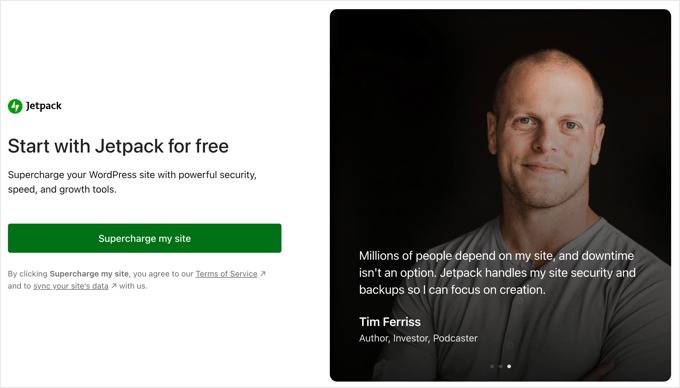
The next page will ask you to connect the plugin to your WordPress.com account. If you already have an account (it’s free), then you can log in. Otherwise, you can create a new one.
Once you’re signed in, click the ‘Connect account’ button to authorize the connection.
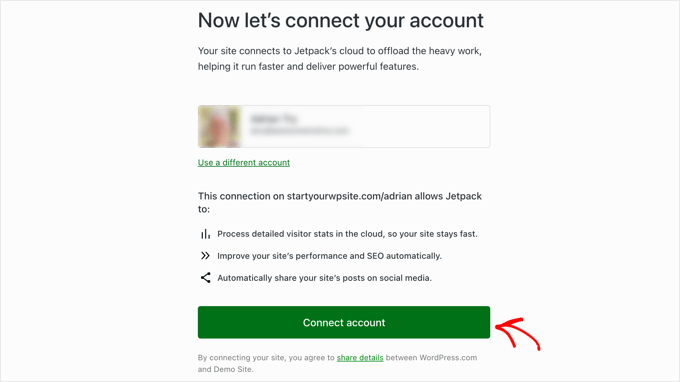
After a moment, you’ll be redirected back to your website’s dashboard, and a popup will appear, introducing you to Jetpack’s features. Your site is now connected!
For this tutorial, I’ve shown you how to install Jetpack only to connect your site with your WordPress.com account, which is required by the WordPress desktop app.
But if you would like to learn about the plugin’s features, then you can read about our experiences in our detailed Jetpack review.
Step 2: Install and Log in to the WordPress Desktop App
Next, you need to head over to the official download page and install the WordPress Desktop App for your operating system (Windows, Mac, or Linux).
Once it’s installed, launch the app.
You’ll see a login screen. Here, you need to enter the username and password for the same WordPress.com account you just connected to Jetpack.
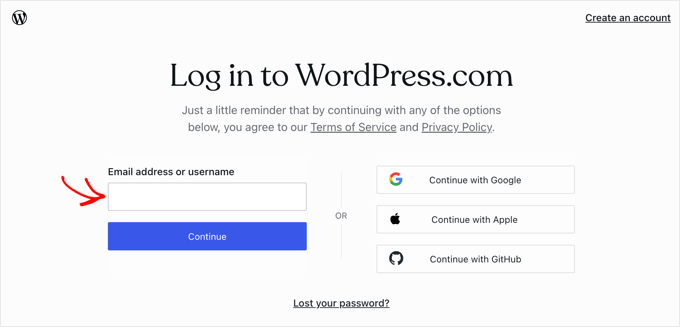
After logging in, you’ll see the WordPress desktop app’s dashboard
To manage your site, you need to click on the WordPress logo in the top left corner and then click on ‘Sites’ in the dropdown menu.
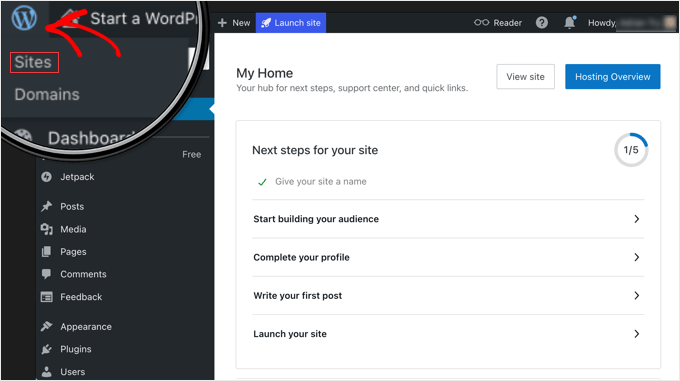
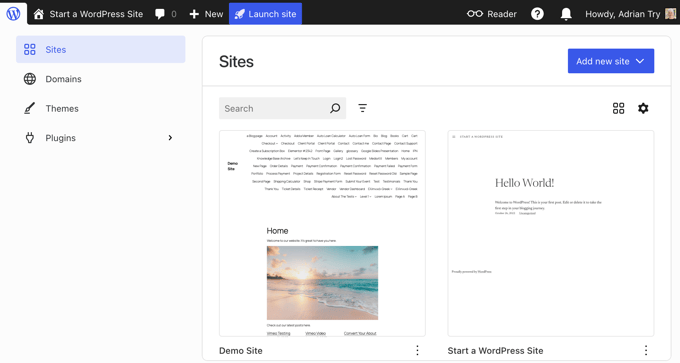
This will show all of the websites that are associated with your WordPress.com account.
Simply click the site you want to work on and log in.
Step 3: Managing Your Website in the App
Now that you’re in, you can manage your site using the familiar WordPress admin area.
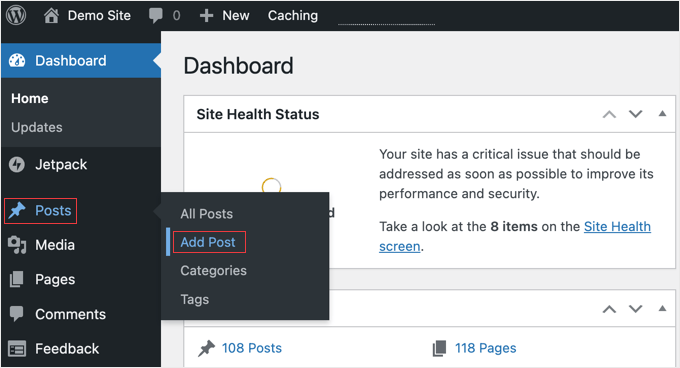
For example, you can write a new blog post by navigating to Posts » New Posts.
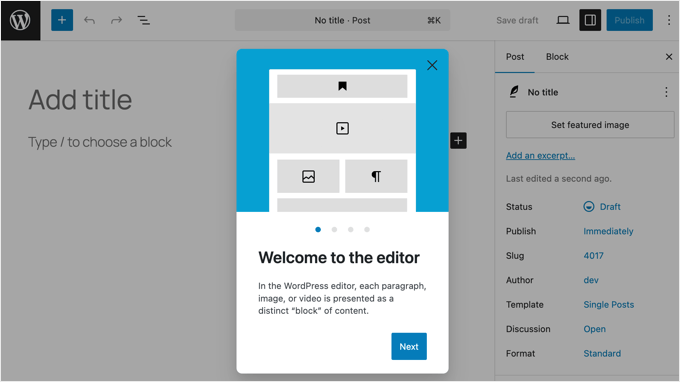
The app will then load the familiar WordPress block editor right inside the desktop application. This means you don’t have to learn a new interface. All the blocks and tools you use in your browser are available right here.
This is where the distraction-free experience really shines. It’s the full editor you’re used to, but without any browser tabs to pull your attention away.
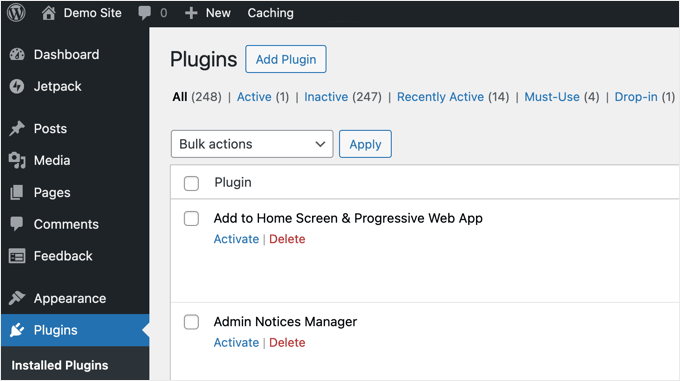
You can even manage your plugins and themes.
I find this incredibly handy for running quick security updates or activating a plugin I need for a post, all without having to open a separate browser window and log in again.
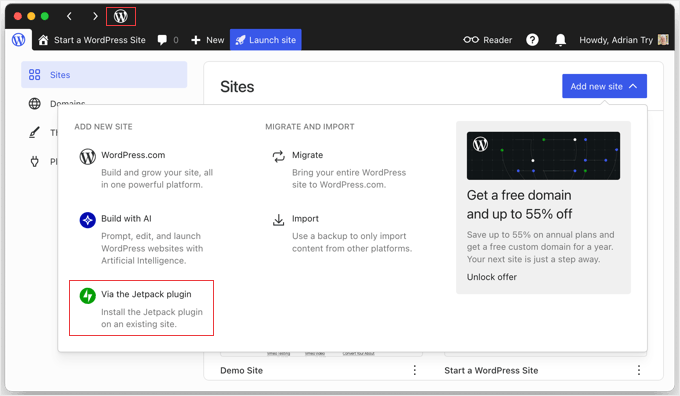
If you manage multiple WordPress sites, then you can add them by installing the Jetpack plugin and connecting it to your WordPress.com account.
Then they will appear in the list of sites when you click on the WordPress logo in the app’s title bar.
Are There Alternatives to the WordPress Desktop App?
While the desktop app is my personal go-to for focused writing on my main computer, it’s not the only solution.
Depending on your needs, especially if you absolutely require an offline mode, one of these excellent alternatives might be a better fit:
- Browser Distraction-Free Mode: Most modern browsers and the WordPress editor itself have a full-screen or distraction-free mode that hides all menus and toolbars, which can help you focus without needing a separate app.
- Third-Party Writing Apps: Tools like Scrivener (Windows, Mac, iOS) and Ulysses (Mac, iOS) offer built-in features to publish your work directly to your WordPress site. Others, like Google Docs, provide a clean space for offline writing, and you can then copy and paste your content into the WordPress editor when you’re back online.
- Jetpack Mobile App: If you like the idea of managing WordPress from an app, then the official Jetpack mobile app for iOS and Android is excellent and very actively developed. It allows you to write, edit, check stats, and manage your site from your phone or tablet.
Frequently Asked Questions About the WordPress Desktop App
Is the WordPress desktop app free?
Yes, the app itself is completely free to download and use. You will also need the free Jetpack plugin and a free WordPress.com account to connect it to your self-hosted site.
Can I use the WordPress desktop app without Jetpack?
No, the app requires the Jetpack plugin to connect a self-hosted WordPress.org site to the WordPress.com infrastructure that powers the app.
Can I write posts offline with the WordPress desktop app?
Unfortunately, no. The app requires a constant internet connection to function and does not support offline writing and syncing.
If you need to work offline, we recommend using a tool like Google Docs or a dedicated writing app like Scrivener, and then copying your text into WordPress once you are back online.
Final Thoughts and Related Guides
I hope this article helped you learn how to use the WordPress desktop app for your self-hosted website. It can be a great tool for focused writing and quick site management.
You may also want to check out some of our other guides to help you grow your website:
- Must-Have WordPress Plugins for Business Websites
- How to Use the WordPress App on Your iPhone, iPad, and Android
- How to Choose the Best WordPress Hosting (Compared)
If you liked this article, then please subscribe to our YouTube Channel for WordPress video tutorials. You can also find us on Twitter and Facebook.


Olaf
I tried the application after reading this guide, but in the end, I found that it didn’t offer any advantages over working in the admin panel, which is also much more comprehensive. Offline writing is missing, and Jetpack needs to be installed. I just don’t see the benefits that would make me want to use the app. But it was a good experience. Maybe if the developers worked on the details I mentioned above, it would be a great app. As it is, though, it’s just missing the most important aspects.
Oyatogun Oluwaseun Samuel
With all the requirements to use wordpress desktop app it seems to me that there not much edge in using it over actually going to your browser and type in your wordpress admin URL and login to do your chore. For me the desktop app is a no. thanks anyway.
Jiří Vaněk
The app seems to be a good alternative to the mobile app. But its disadvantage for me is the jetpack plugin. I had it on the website for a long time, but in the end it didn’t quite fit with the autoptimize and wp-rocket plugins. So it’s quite a shame that it can’t be done without a jetpack.
Mrteesurez
That’s also need to be addressed by the Community. Maybe there will be a standalone app that will not rely on any external plugin. An app that will be built solely for WordPress core.
But in your case, I think Jetpack also have both optimization and security modules/functionalities, You can just disable those plugins and used Jetpack’s.
Jiří Vaněk
Overall, the Jetpack plugin caused me problems with the current configuration of the website, and for that reason I assume it is unusable for me and for other people. In the end, I solved the problem by writing notes in a text editor so that nothing disturbs me and then I put it into Wordpress. As long as Jetpack is mandatory, the app is unfortunately unusable for me.
Mrteesurez
Although, I have not used WordPress Desktop App on my PC.
But when I used it on mobile, I am able to write post and save it while I’m offline. The post will be saved as draft till I connect to the internet.
Is it only the Desktop App that requires internet connection as you have mentioned in the Pros & Cos.
Also, is there any way I can write a post offline and after posting to WordPress, it will retain all the styles, alignment, heading and links therein.
WPBeginner Support
We do not have an alternative for writing offline like you are wanting at the moment that we would recommend. The closest would be to create a local installation and export the post from the local installation and import it onto your live site. If you wanted to do that then we would recommend taking a look at our article below:
https://www.wpbeginner.com/wp-tutorials/how-to-install-wordpress-on-your-windows-computer-using-wamp/
Admin
Mrteesurez
That would be better I think so, because the post in local area will show almost full potential of the posts and likely to retain those style on a live site.
I think WordPress community will work on that by making it possible to write post while offline on Desktop App. I think this will be possible so far it’s achieved on mobile.
Moinuddin Waheed
Thanks for the detailed article about desktop app for the WordPress self hosted guide.
I have seen people having reservations about jetpack plugin as one need to install and give access to information to wordpress.com
is it safe to use jetpack plugin and anything related to wordpress.com?
WPBeginner Support
WordPress.com is a safe site to be connected to, we would recommend taking a look at our article below that goes over who owns WordPress.com
https://www.wpbeginner.com/beginners-guide/who-owns-wordpress-and-how-does-wordpress-make-money/
Admin
ali
thank you for this valuable information but the problem is when you add a self hosted website and when you try to write post it loads the site in the browser and to let you post from there it word for simple wordpress.com site but never for a self hosted website. is there a way to post from the desktop app in a self hosted website?
WPBeginner Support
For modifications to the app and what is available, you would want to reach out to the support for the app and recommend possible changes and they should be able to help.
Admin
Uzair
First, you should check your site’s permissions and settings. Make sure everything’s up to date—WordPress, themes, and plugins.
Then, dive into the app settings for your site. See if tweaking connection settings helps. You could also try installing the Jetpack plugin; It often helps bridge the gap between self-hosted sites and the app.
If things still aren’t working, clear your browser’s cache and cookies, and also check if the same thing happens when you use a different browser.
And if all else fails, reach out for support.