


Have you ever found the perfect image for your site but hesitated to hit publish? You might worry about breaking copyright rules or getting sued.
Scary legal notices and takedown requests are real threats for website owners. The good news is that avoiding these penalties is easy once you know the rules.
At WPBeginner, we manage thousands of images across our blogs. We have a simple process for adding credits that keeps us safe and respects creators.
In this guide, we will show you how to add image credits in WordPress. We will also explain why it matters and how to find free images.
- Understanding Image Copyright: Why It Matters for Your Website
- How to Properly Add Image Credits in WordPress
- How to Find the Image Credit and License Information
- How to Find Images That Don't Require Credit
- Bonus: Use Artificial Intelligence to Generate Images
- Frequently Asked Questions About Image Credits
- Additional Resources for Managing Images
Understanding Image Copyright: Why It Matters for Your Website
Images make your blog posts more engaging and visually appealing. However, you can’t just copy an image you find online and add it to your WordPress blog.
All images on the internet are protected by copyright laws, even if you don’t see a copyright notice. This means you need permission from the creator before you can use their work.
Many creators use Creative Commons (CC) licenses to let others use their work for free. However, there are different types of CC licenses. Some require you to give credit (attribution), while others may have rules about not using the image for commercial purposes.
Always click on the license link to understand the specific rules before you use the image.
Giving credit is not just a polite gesture. It’s a legal requirement that shows respect for the creator and protects you from serious consequences.
What Happens If You Don’t Give Credit?
In the past, it may have seemed that using an image without permission would go unnoticed. However, technology now makes it easy for creators and legal firms to track where their images are used online.
Failing to give proper credit can lead to:
- Legal Action: You could receive a demand letter from a lawyer and be sued for copyright infringement, which can cost hundreds or even thousands of dollars in damages for a single image.
- DMCA Takedown Notices: The copyright owner can file a DMCA complaint with search engines like Google, forcing them to remove your content from search results. They can also file one with your web hosting company, which may suspend your account.
- Damage to Your Reputation: Ignoring copyright law can damage the reputation of your business and brand.
If you’re serious about growing your business online, you need to take copyright laws seriously from day one.
How to Properly Add Image Credits in WordPress
WordPress lets you easily add image credits under an image.
First, you need to open up a WordPress post or page in the block editor using the admin sidebar.
Once there, click the add block ‘+’ button in the top left corner of the screen to open up the block menu.
From here, find and add an Image block to the post or page. After that, just click the ‘Upload’ button to select an image from your computer.
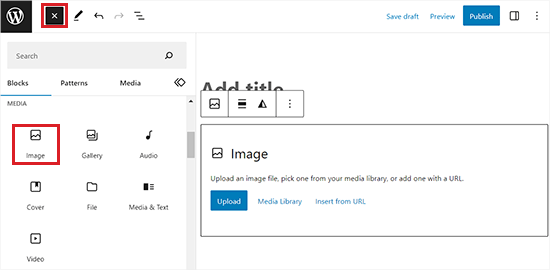
You can also select a previously uploaded image by clicking on the media library button.
Once you have done that, the image will automatically appear in the block editor.
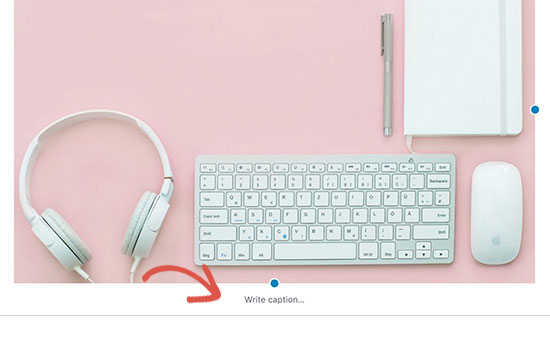
You will now see a prompt to ‘Write a caption’ below the image. These captions can be used to describe the photograph.
They can also be used to add image credit and give proper attribution to the original copyright owner.
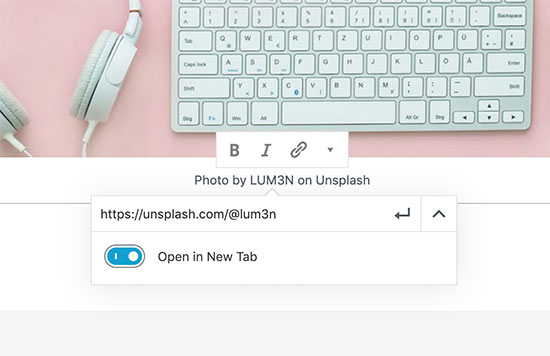
You can add image credit text in the caption field. Some copyright owners may require you to also add a link back to the original source of the image.
If they do, simply click on the Insert Link button and add the URL to the original file.
Pro Tip: We recommend setting the link to ‘Open in new tab’ so users stay on your website while checking the source.
Once you are done, you can go ahead and save your changes.
To learn more about using captions, see our article on how to add captions to images in WordPress.
How to Find the Image Credit and License Information
Most images that you find on the internet do not have licensing information. This means that you don’t have permission to use those images.
Luckily, there are many websites where you can find images to use. However, some of these image websites may require you to provide attribution or image credit.
You can find this information on the image download page. For example, this is how Flickr shows licensing information on the image page.
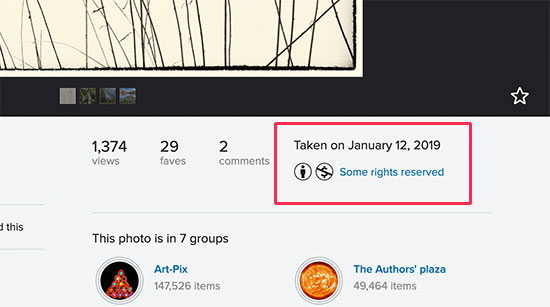
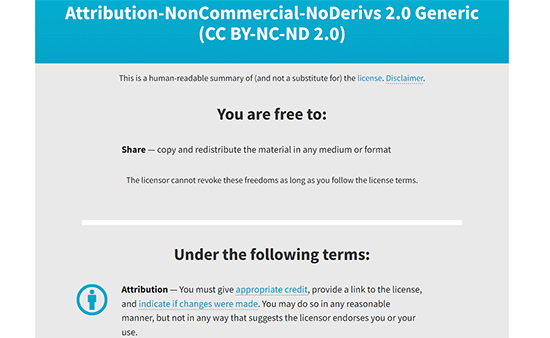
By clicking on this link, you will be able to see more details about the license.
It will also describe if you need to give credit and how to properly do that.
How to Find Images That Don’t Require Credit
You need to carefully read the license to understand how you are required to provide the image credit.
Most such licenses will explicitly require you to provide a link to the original source.
Some users worry that adding external links might send visitors away from their site. To prevent this, simply set your credit links to open in a new tab. This way, you give proper credit without losing your readers.
This is why we recommend using royalty-free stock photo websites.
These websites curate photographs, images, and illustrations that do not require image credit. You can also use these images on business websites.
The following are our top picks for free stock photo websites:
- Unsplash – A large collection of royalty-free photographs neatly organized in categories and tags
- Pixabay – One of the largest and most popular license-free images and photos
- Pexels – A huge library of high-quality, free stock photos and videos that are easy to search
- Picjumbo – Another large collection of royalty-free images
- New Old Stock – A collection of vintage photographs that are now available under a public domain
For more options, see our complete list of the best places to find free stock photos.
The problem with stock images, though, is that they are already used on thousands of websites. You may also struggle with finding the right image to accompany your articles.
The simplest way to fix this is by using your original photographs and graphics. The challenge is that most users are not graphic designers.
Luckily, some websites allow you to easily create graphics to use on your website. These image editors come with drag-and-drop tools and ready-made templates to give you a good starting point.
Here are some of the best online graphic editing tools for beginners:
- Canva – An easy-to-use graphic design tool for beginners to create custom logos, banners, images, infographics, charts, and more.
- Piktochart – Easy-to-use tool to make beautiful presentations, banners, charts, and graphics
- Adobe Express – A powerful free tool for creating social graphics, flyers, and logos with professional templates.
- Snappa – A fast and easy design tool made specifically for non-designers to create online graphics.
Bonus: Use Artificial Intelligence to Generate Images
Apart from using stock images or creating your own using different tools, you can also use artificial intelligence to generate unique images for your website.
This can be helpful if you have a small business and cannot afford to hire a professional photographer or designer.
Plus, you won’t have to worry about image credits, either. You are free to use these images for your blog posts, articles, and even landing pages.
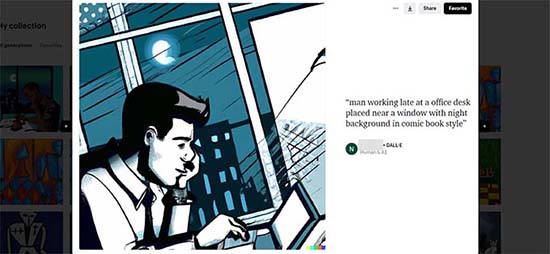
You can easily create unique images for your website using powerful AI tools like DALL-E by OpenAI.
These tools use artificial intelligence to generate completely new images based on simple text descriptions (called prompts) that you provide. It’s like describing a picture to a digital artist who creates it for you instantly.
Built on the GPT-3 framework, it is a text-to-image model using deep learning technologies to generate images from natural language descriptions.
You can access DALL-E through ChatGPT Plus or use the free Microsoft Designer (formerly Bing Image Creator). Simply type a description of the image you want, and the AI will generate it for you in seconds.
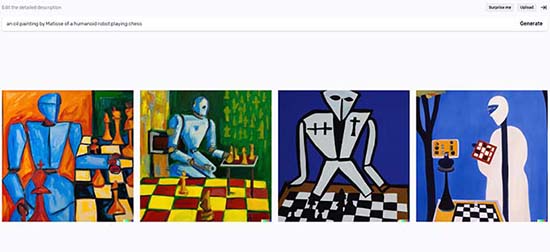
You can then download these photographs on your computer and upload them on your WordPress site.
For detailed instructions, see our tutorial on how to use AI to generate images in WordPress.
Frequently Asked Questions About Image Credits
Here are some common questions we get asked about using images and giving proper credit.
What is the difference between royalty-free and public domain?
Royalty-free means you can use an image multiple times without paying ongoing fees (royalties) for each use.
Think of ‘Royalty-Free’ like buying a physical book. You pay for it once and can read it as many times as you want, but you don’t own the copyright to the story. Similarly, you might pay a one-time fee for a royalty-free image, but you don’t own the image itself.
Public domain images have no copyright restrictions. You can use them for any purpose without permission or attribution because their copyrights have expired or been waived.
Can I just credit the source as ‘Image via Google’?
No, this is not proper credit. Google Images is a search engine that displays images from across the web, not the original creator.
You must trace the image back to its original source to find the copyright owner and the specific licensing rules they have set.
Do I need to credit images I create with AI tools?
Generally, you do not need to credit the AI tool. The terms of service for most AI image generators state that you own the rights to the images you create.
This allows you to use them freely on your website without needing to provide attribution. However, it’s always a good practice to check the current terms of service for the specific AI tool you’re using, as policies can differ and may change.
What is the best format for an image credit line?
A good, clear format is best. A common standard is: ‘Photo by [Creator’s Name] via [Source Website] / [License Type]’.
A helpful way to remember the key components is the TASL model: Title of the work, Author (the creator’s name), Source (a link back to where you found it), and License (such as CC BY 2.0).
For example: ‘Photo by Jane Smith via Unsplash / CC0’. Linking the creator’s name and the source website is a great practice.
Additional Resources for Managing Images
Now that you know how to properly credit images, you can take your website’s visual content to the next level. We also recommend checking out these guides to get more traffic and improve performance:
- Beginner’s Guide to Image SEO – Learn how to optimize your images for search engines to attract more visitors to your site.
- Best Image Compression Plugins – Discover the best tools to reduce your image file sizes, which will make your website load much faster.
- Sources for Free Stock Photos – Here is our complete list of the best places to find high-quality, free images for your website.
If you liked this article, then please subscribe to our YouTube Channel for WordPress video tutorials. You can also find us on Twitter and Facebook.


Mark
I have a Wordpress site where there is generally a single photographer who has supplied all the photos for the post. Are you able to suggest a method or plugin that will allow me to show a second byline *specifically* for the photographer? The only plugins I have found so far allow me to add more authors, but there’s no distinction between their roles… it’s just “By Dave, Steve, and Rob”… what I’d like is “By Dave | Photos by Steve”.
Thanks!
WPBeginner Support
For what it sounds like, you could create a reusable block that has the photographer’s information to manually include the bio for your photographer.
Admin
Sebastian Chukwu
Thank you so much for this great piece
WPBeginner Support
Glad you liked our article
Admin
Tahir shah
Can we use Amazon products images into our websites.
WPBeginner Support
If you mean for an Amazon affiliate site, you would want to take a look at our article below:
https://www.wpbeginner.com/wp-tutorials/how-to-build-an-amazon-affiliate-store-using-wordpress/
Admin
Joisuchan
Shall i always put links on the photos?
WPBeginner Support
If the image requires credit then yes.
Admin
Mathukutty P V
These days Pixabay shows an attribution link, but it is a request only. I have a doubt now. If I create using wikimedia images and create a new image in Canva adding text, is that against copyright? If not, after that who will have the copyright of the new image (photo is from wikimedia and text (title/quote) added in canva or other editor)
WPBeginner Support
It would depend on the specific copyright of the image for how you are able to change it and if you need to attribute the image once changed
Admin
Abhinav pratap
Thanks for telling about copyright law, this great article is very helpful for me.
WPBeginner Support
Glad our article was helpful
Admin