


Adding a post in WordPress takes just a few clicks, but knowing what all the different editor options do can be confusing for beginners.
In this guide, you’ll learn how to add a new post in WordPress, what every option in the editor does, and how to get your post ready to publish.
Here’s a quick overview of what we’ll cover:
- How to Add a New Post in WordPress (Quick Guide)
- Understanding Blocks in Your WordPress Post Editor
- Other Default Options in the WordPress Post Editor
- Options Added by WordPress Plugins
- Publishing Options (Save, Preview, Schedule, Visibility)
- Options That Make Writing a Post Easy
- Using the Classic Editor Instead
- Troubleshooting: Can't Add a New Post?
- Other Ways to Add Posts (Phone and Email)
- Video Tutorial
- Adding Posts in WordPress FAQs
How to Add a New Post in WordPress (Quick Guide)
To add a new post in WordPress, log in to your admin area and go to Posts » Add Post.
You can also click the ‘+ New’ button in the toolbar at the top of any admin screen and choose Post, since both open the same editor.
The editor opens with the cursor already in the title field, so type your headline there and then write your content in the area underneath it.
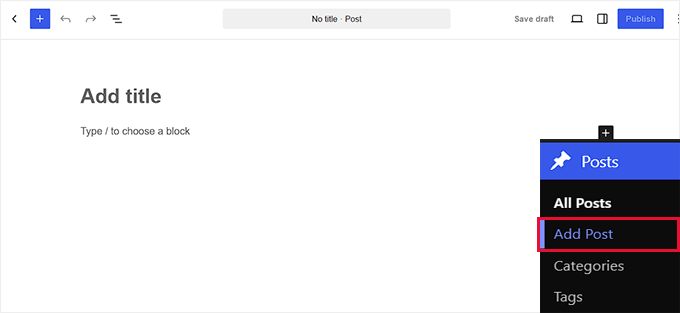
When the post is ready, click the Publish button in the top right corner and confirm it. Your post is now live on your website.
Understanding Blocks in Your WordPress Post Editor
Your WordPress post editor, also widely known as Block Editor, lets you build content by adding blocks. Every single content element that you use in your editor is built with a block. There are blocks for paragraphs, headings, images, galleries, and plenty more. When you type in content, you’re using a Paragraph block, which is the default one.
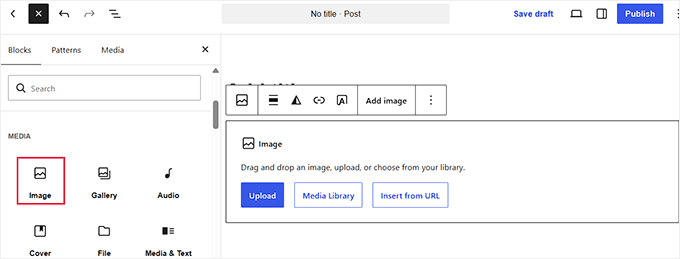
To add a new block, let’s say Image, or Header, you’ll first need to click the Block Inserter button (+) at the top left of the editor. It lets you choose a block that’s available on your site.
For example, to add an image, insert the Image block and then upload an image file or pick one from your media library.
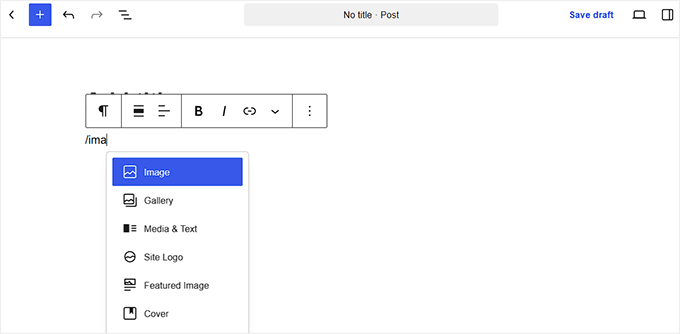
Alternatively, you can type / on a new line and followed by the name of the block you want like ‘Image’. It enables you to place an image placeholder in your post.
Some WordPress plugins add their own blocks to this list. For example, a contact form plugin adds a form block, which lets you embed any form you create with that plugin on your page. Similarly, a Table of Contents plugin can let you add ‘Table of Contents’ block and so on.
Here are some essential blocks that you’ll need to know:
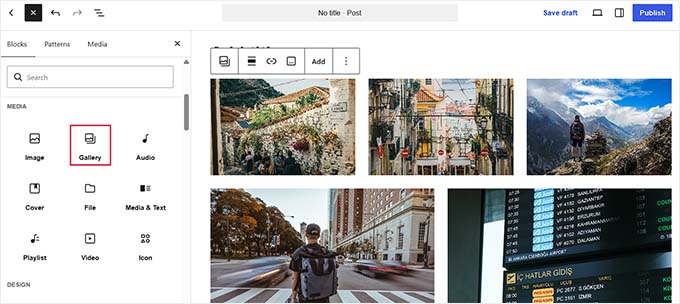
Gallery block: Display your image gallery in a grid. If you turn on ‘Enlarge on click’, then readers can see any image in a larger lightbox view.
For advanced gallery, you’ll have to use a WordPress gallery plugin.
Video block: To embed a video from a streaming service, like YouTube, Vimeo, or other popular services, no need to select a block from the list. Simply paste the video URL straight into a paragraph block, and the video will be embedded automatically.
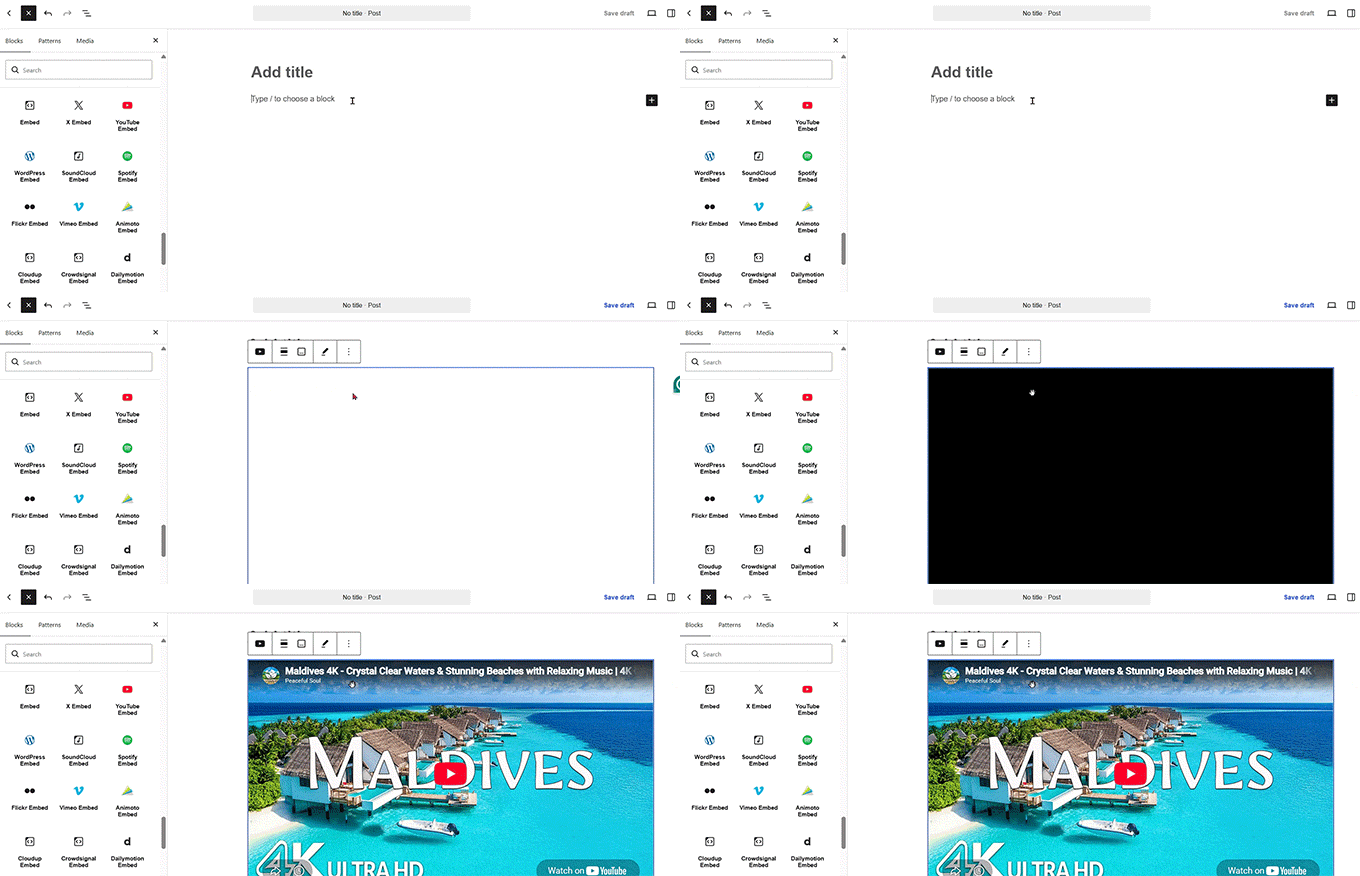
Only choose the Video block if you’re planning to upload video files directly to your site.
Keep in mind that serving videos from your own server can slow down your WordPress site. It’s recommended to choose a service like YouTube or Vimeo and then embed it by pasting its URL.
Understanding Other Options in the WordPress Post Editor
Now that you know how blocks work in the WordPress post editor, it’s time to look at all the different options that are shipped with the post editor, like categories, tags, URLs, and more.
Adding Categories and Tags
Categories and tags sort your posts into sections and topics. That helps readers find related content, and it gives search engines a clearer picture of how you have organized your site.
You will find both in the Post tab of the settings sidebar on the right.
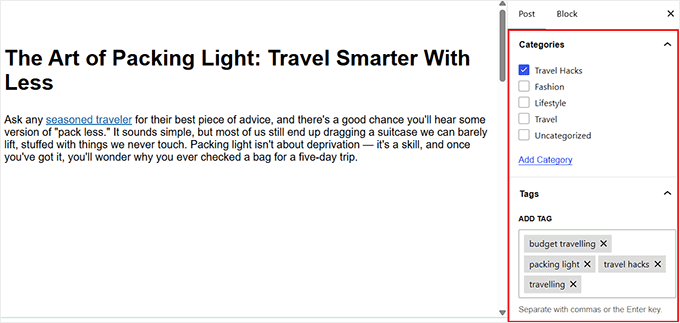
Categories are broad and hierarchical, so a post usually belongs to one or two. Tags are specific and flat, so a post can carry several.
If you are unsure which to use where, our guide on the difference between categories and tags explains how to sort your content without ending up with hundreds of both.
Adding a Featured Image
A featured image, sometimes called a post thumbnail, is the main image that represents your post.
Most themes display it at your blog archive and homepage. It is often the first thing a reader sees.
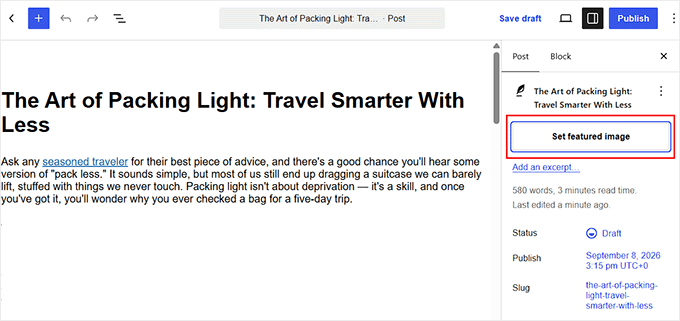
In the settings sidebar on the right, click ‘Set featured image’, and then upload an image file or choose one from your media library.
For step by step instructions, look at our guide on adding featured images in WordPress.
Adding Excerpts
An excerpt is a short summary of your post. Most themes generate one automatically from your opening lines, but an automatic excerpt often cuts off mid-thought.
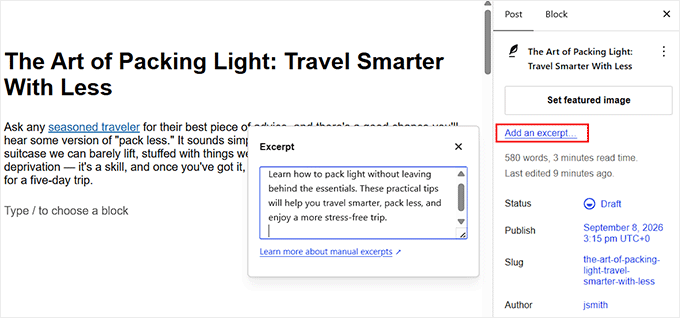
Writing your own gives you control over what readers see on your archive pages. Click ‘Add an excerpt…’ in the sidebar and type your summary into the panel that opens.
Changing the Post URL Slug, Author, and Comment Settings
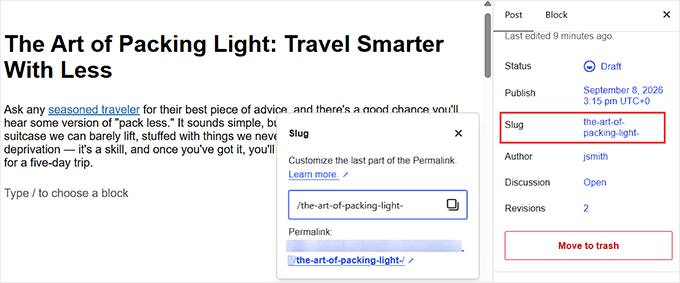
There are a few more settings that you’ll find further down the sidebar. As you save your post for the first time, WordPress creates the post URL from your post title automatically.
If your title is long or contains words you would rather keep out of the link, then edit the ‘Slug‘ option. By customizing the post URL slug, you can ensure that it is short and memorable.
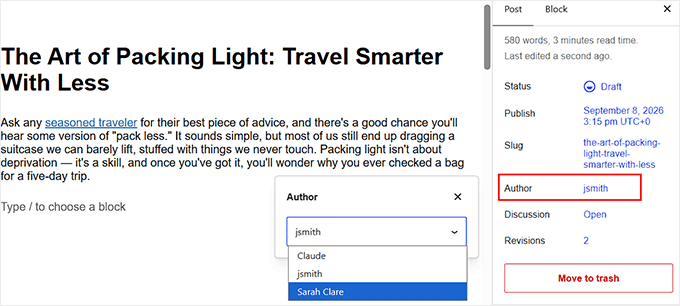
WordPress lets you change the assigned author of your post.
Look for the ‘Author’ option and click on it. Then choose a different author name in the drop down.
Similarly, you can choose to accept or close new comments for your posts.
To turn them off for a single post, click the control next to ‘Discussion’ and select ‘Closed’.
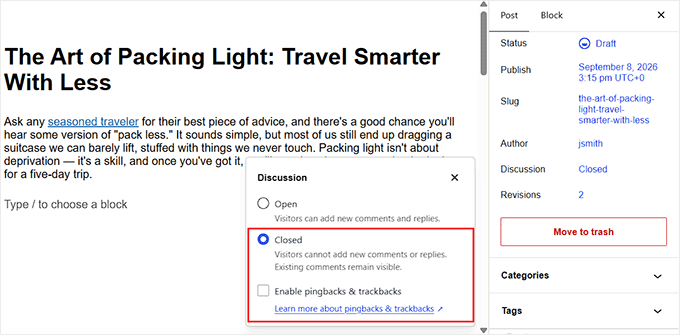
The same panel controls pingbacks and trackbacks, which are notifications between blogs that link to each other.
Spammers abuse them heavily, and legitimate ones are rare now, so we recommend turning them off.
Options Added by WordPress Plugins
Many plugins add their own controls to the post editor, either as blocks inside your content or as panels in the sidebar. Two of the plugins we use ourselves are good examples of each.
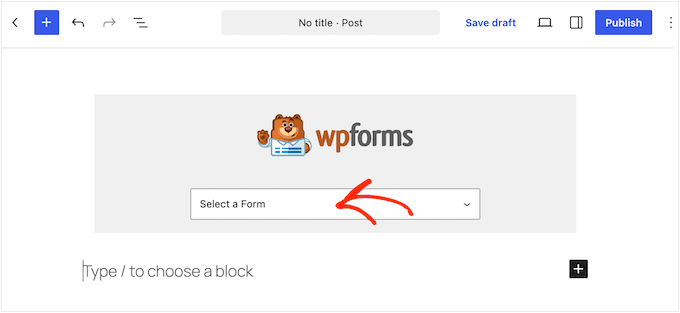
WPForms adds a block that drops a contact form straight into a post or page. You can put a form in the middle of an article without touching any code.
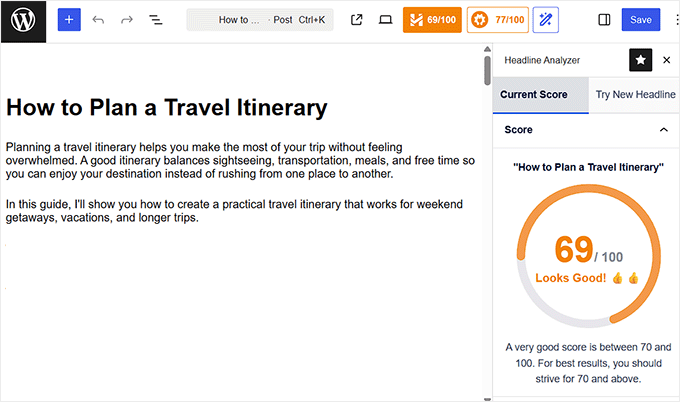
All in One SEO works from the sidebar. Its panel holds your SEO title, meta description, and a live score for the post and headline.
This can help optimize your posts and increase their rankings.
Publishing Options (Save, Preview, Schedule, Visibility)
WordPress makes it easy to change the status of your posts.
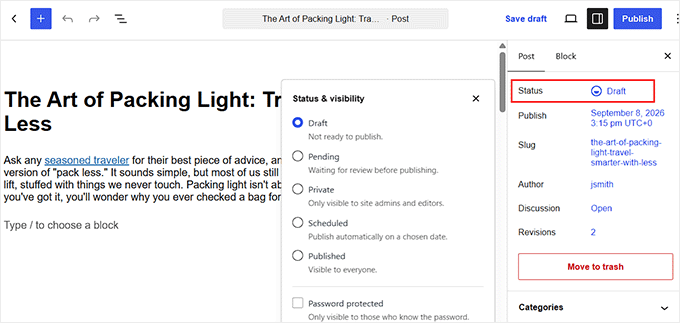
- Status in the sidebar switches the post between draft, pending, and published. Pending helps on multi-author sites, since contributors can hand off work without publishing it themselves.
- Save draft stores your post in the admin without publishing it. When you’re ready to publish the post, click ‘Publish’. If you choose a publish time that is in the future, this button becomes ‘Schedule’ instead.
- View opens a preview of the post so you can check how it looks before anyone else sees it.
- Visibility is set to ‘Public’ by default, which means anyone can access the post. Change the visibility to ‘Private’ to show it to those who can view private posts. Similarly, you can protect the post with a ‘Password’, so visitors will need to enter the password before they can read it.
- Move to trash deletes the post. Trashed posts stay recoverable for 30 days before WordPress removes them permanently.
Options That Make Writing a Post Easy
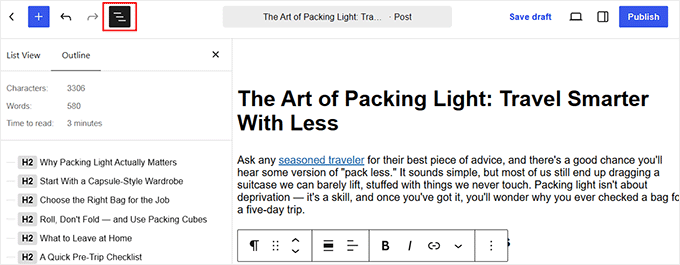
There are a few other options in the editor that are designed to make it easy for you to write a post. On the top left hand side, you can view the ‘Document Overview’ option. It shows your whole post as a list of blocks, which makes it easier to reorder sections or jump to a specific block in a long article.
Click the ‘Document Overview’ button and switch between the ‘List View’ and ‘Outline’ tabs depending on whether you want blocks or headings.
The ‘Outline’ tab also shows your post stats, including the word count, the character count, and how long the post takes to read.
Undo and Redo are the two arrows that sit at the top left and reverse or restore your most recent changes. Pressing Ctrl+Z also undoes a change, and Ctrl+Shift+Z brings it back.
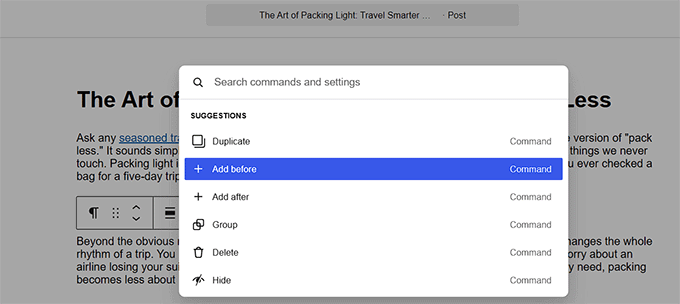
The Command Palette searches every setting and action in WordPress from one box. Press Ctrl+K on Windows or Cmd+K on a Mac, then start typing what you want.
On the top right corner, you can find 3 vertical dots, which opens up a few more options. Click on it and click Distraction free to hide the toolbars and sidebar so only your text remains on screen. To enable Distraction free view, you can also use the shortcut Ctrl+Shift+\ to switch it on and off while writing.
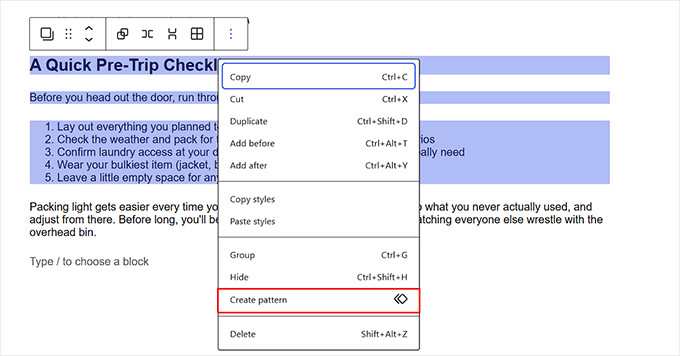
If you frequently reuse the same layouts or groups of blocks, then Patterns can save you time. Patterns are saved groups of blocks you can reuse across posts. Select the blocks you want to keep, open the block options menu, and choose ‘Create Pattern.’
Name it, then decide whether to turn on the Synced option. A synced pattern updates everywhere you have used it as soon as you edit it.
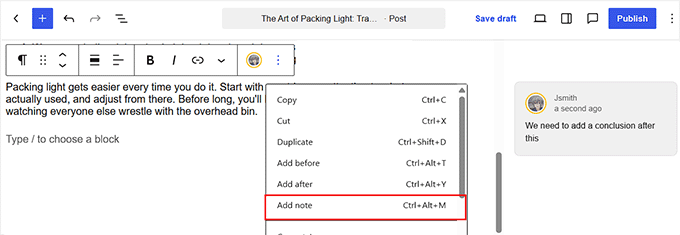
If you’re working with an editor or other team members, you can also use Notes to collaborate directly in the editor. Notes let you leave comments on a block for someone else on your team, which helps when a post passes through an editor before it goes out.
Select a block, open its options menu, and choose ‘Add note’, or press Ctrl+Alt+M. You can mention a specific person with an @ to notify them.
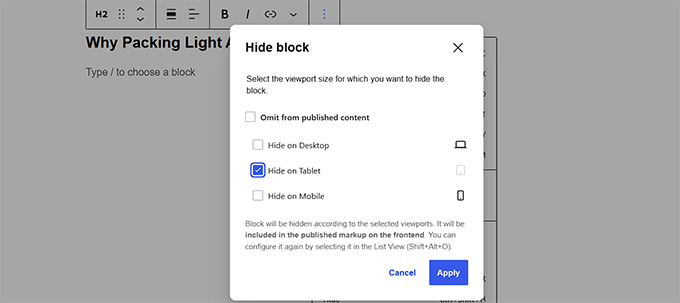
Hide lets you keep a block in the post without showing it to readers, and you can hide it on desktop, tablet, or mobile separately.
Select the block, then click ‘Hide’ in the toolbar above it, or press Ctrl+Shift+H.
Tick ‘Omit from published content’ to hide the block everywhere, or pick the screen sizes you want it gone from.
Using the Classic Editor Instead
If you prefer the old WordPress editing screen, the free Classic Editor plugin brings it back.
It replaces the block editor with the toolbar-based writing area WordPress used before 2019, along with the meta boxes that came with it.
WordPress.org maintains the plugin itself. More than 8 million sites run it, and it still receives updates.
Its official description says it will be supported ‘until 2024, or as long as is necessary’; a deadline WordPress has already passed without ending support.
For installation steps, see our guide on how to disable Gutenberg and keep the classic editor in WordPress.
Troubleshooting: Can’t Add a New Post?
Most problems with the WordPress editor usually come down to one of two things: user permissions or a plugin or theme conflict.
If you don’t see ‘Add New Post’ under ‘Posts’, your user account may not have permission to create posts.
Subscriber accounts cannot publish anything, so ask a site administrator to change your role. See our guide on WordPress user roles and permissions for details.
If the editor loads blank, freezes, or refuses to save, a plugin or theme is conflicting with it. Deactivating your plugins one at a time will find the culprit.
Our guide to common WordPress block editor problems and how to fix them walks through the specific errors and their fixes.
Other Ways to Add Posts (Phone and Email)
You do not have to be at your computer to write and publish WordPress posts.
The official WordPress mobile app for iOS and Android gives you access to the block editor on your phone or tablet, so you can draft, edit, and publish posts while you’re away from your computer.
You can also publish posts by email using two different methods. Jetpack includes a Post by Email feature under Jetpack » Settings » Writing.
It generates a secret address that turns anything you send it into a published post, and it needs your site connected to a WordPress.com account.
The free Postie plugin does the same thing without WordPress.com by checking a mailbox you own over IMAP or POP3 with SSL.
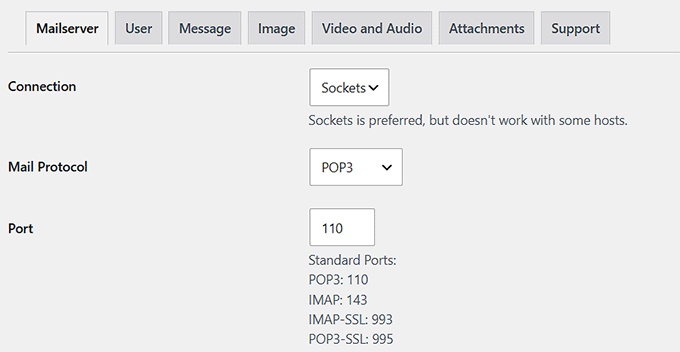
Whichever you pick, treat that email address like a password and never share it. Whatever you email to that address goes live on your site.
Video Tutorial
Adding Posts in WordPress FAQs
What is the difference between a post and a page?
Posts are timely content that appears in reverse chronological order on your blog, which is why people call them blog posts. Pages are static content that does not change often, like your about page or contact page.
The process for adding either one is identical, so everything in this guide applies to both. Our comparison of posts vs pages in WordPress goes into the differences that affect SEO.
How do I display my posts on a specific page?
By default, WordPress shows your posts on the homepage, but you can move them to a page of their own. See our guide on creating a separate page for blog posts for instructions.
How do I add a new post type?
Posts and pages are the two post types WordPress includes, and you can register your own for content that does not fit either, such as portfolios, recipes, or reviews. See our guide on how to create custom post types in WordPress for the process.
We hope this guide helped you learn how to add a new post in WordPress and get more out of the editor screen. You may also want to see our WordPress SEO guide and the best WordPress plugins.
If you liked this article, then please subscribe to our YouTube Channel for WordPress video tutorials. You can also find us on Twitter and Facebook.


Soms
hi Wpbeginner,
I would like to know if there’s any tool or AI that help to generate content or help to check grammatical fault while writing a post in wordpress.
thanks.
WPBeginner Comments
The best tool we found for checking grammar and spelling mistakes is called Grammarly. We happen to have a guide on Grammarly here: https://www.wpbeginner.com/plugins/how-to-check-grammar-and-spelling-mistakes-in-wordpress/
Charlie
Hello,
I’m getting an error message (not a valid JSON response) when I try to create a new post on my wordpress site. Any tips?
Thanks
WPBeginner Support
You would want to take a look at our guide on fixing that error below:
https://www.wpbeginner.com/wp-tutorials/how-to-fix-the-invalid-json-error-in-wordpress-beginners-guide/
Admin
Dominick smith
I really love your bog and there is no doubt that it is the very hepful one for us
WPBeginner Support
Glad our guide was helpful
Admin
ogunyinka ezekiel
good and understanding…it is well encouraging as a biginner in website development.
WPBeginner Support
Glad you found our guide helpful
Admin
My Real Name
Doesn’t actually show how to “Add New Post”
WPBeginner Support
Apologies for any confusion, you would want to go under Posts>Add New in the wp-admin area of your site to add a new post.
Admin
Abhijit Bangal
Hi team,
I’m a regular reader of your blog, though, I don’t go much into editing as your posts guide for various querries. But this time, I was looking for a way to make a template/theme so that I can get that particular setting I want. For example, I want to start with a particular font size, or if I add a new paragraph, it automatically gets the alighnment/color/font size, etc. what I have saved somewhere in the setting. Is something like this possible?
I am using the new blocks type. Not the old classic.
Thank you!
WPBeginner Support
That would be determined by your specific theme and the CSS it has applied.
Admin
James Emmanuel
Nice guide, I was wondering, by creating a post, is there a way to add related post on a post automatically?
WPBeginner Support
You would want to look into related post plugins for that.
Admin
Ren Jianjun
thanks for your articles. Can you help me how about my this post writing?
example.com/2019/03/13/name/
if i want to delete the 2019/03/13, how to do next?
WPBeginner Support
That would be determined by your permalinks, you would want to take a look at our guide here: https://www.wpbeginner.com/wp-tutorials/how-to-create-custom-permalinks-in-wordpress/
Admin
Ryan
I appreciate the tips and I’ve got how to publish a post, however how do link “posts” to my “blog” menu?
WPBeginner Support
For what it sounds like you’re wanting, you would want to check our article here: https://www.wpbeginner.com/wp-tutorials/how-to-create-a-separate-page-for-blog-posts-in-wordpress/
Admin
Sue Fone
I’ve been doing fine publishing my Blogs for the past couple of years and all of a sudden I’m lost. I copy and past to get my Blogs in. Now EVERY sentence is in a paragraph box. It won’t let me do paragraphs anymore. EVERY sentence is in a box and the next sentence is double spaced and in a box of it’s own. All my paragraphs are separated into sentences standing alone. Please help me. I’m SO frustrated. sf
WPBeginner Support
It sounds like you are currently in the block editor: https://www.wpbeginner.com/beginners-guide/how-to-use-the-new-wordpress-block-editor/
You can disable the new editor and revert to the classic editor using:
https://www.wpbeginner.com/plugins/how-to-disable-gutenberg-and-keep-the-classic-editor-in-wordpress/
Admin
Rachid
hello
in new editor :
how to add google adsense inside article as a shortcode in new editor .
I tryed to put it as
[/]
Html code
script
but no thing displayed.
by the way I don’t have any problem with my google adsense account every thing is okay .
in old editor I use function to insert ads in article.
thanks
WPBeginner Support
There is a custom HTML block that you can use to add HTML to a post or page
Admin
Sajjad Ahmad
Your tips are helpful . Wordpress website crashes seen after few weeks that damaging the ranking and also needs extra efforts to restore it again. How to manage a clean and media crash free site ?
WPBeginner Support
It would depend on why your site is crashing if it is due to a plugin or theme you would want to reach out to its support. You can clean your database using: https://www.wpbeginner.com/plugins/how-to-clean-up-your-wordpress-database-for-improved-performance/
Admin
Rashmi sangal
Read more of the post overlaps with the contents of the post please help
WPBeginner Support
For an error like that one, you would want to reach out to the support for your specific theme and they should be able to assist.
Admin
Oluwafemi Emmanuel
very good article….learnt quite a few things, but i have an issue with my upload….i cant upload images and neither can i set Featured images. this started yesterday…my blog is just 1 week old. please what can i do?
WPBeginner Support
The most common reason would be you are running into a HTTP error which can be fixed using our article: https://www.wpbeginner.com/wp-tutorials/how-to-fix-the-http-image-upload-error-in-wordpress/
Admin
Vanessa
I have set up my blog now and everything is fine, except that when I go to the site it says “A new wordpress site coming soon.” How do I activate the site to show my posts and pages? Thanks
WPBeginner Support
Hi Vanessa,
This could be a DNS issue with your domain name. Please contact your WordPress hosting provider and they will be able to assist you better.
Admin
RazS
Hi,
I have a website built in WP with Woocommerce. I am trying to allow registered users (email/username) to leave blog comments/entries and comment on other people’s entries WITHOUT DOING IT THROUGH THE WP Admin Panel. Is that possible? What would it take (programming)?
Thanks
vijay
Hi
I want to set featured image below post title in single post page? what should i do.
alihamdan
I totally agree with Jasmine above. My posting experience just completely changed and I don’t know what is going on. Whatever it is, Jasmine didn’t make it up and I have the same problem.
peris
The article is indeed a great resource for newbies using WordPress.
Nonetheless, I have a problem that probably most other newbies are having. Kindly respond to it.
My blog is. And it’s still quite new. I have published several posts, categories and some pages and sub pages up there.
Now, my issue is; I would love to link my posts to those sub pages. For instance on the page Food and subpage recipes , I want by the client of recipes there’s a drop down of all posts related to the same.
I have already linked my posts to categories but still nothing works.
kindly kindly help
emily
I’m having trouble publishing on my blog. Actually, I can’t at all. Your directions here say “The top most meta box in this column is labeled Publish. This is where all the publishing options for your posts are managed.” But when I try it, the top most box is “status.” “Publish” is nowhere to be found. What happened? Am I in wordpress jail for some reason and not allowed to publish? Is there something wrong with my computer or software or browser?
emily
actually, while writing this comment, i got the idea to try a different browser. so the good news is it works in firefox. but i’m still not having any luck with chrome. am i the only one with this problem?
Alberto rosado
Good morning. I want to schedule my post in advance. I have watched every video about scheduling but in my site I don’t have the scheduling button. What I see in my site is a sign with publicize not connected. Could you tell me what the problem is?
Nick
Hello,
Great article here. Am a newbie and been trying to upload post but the problem is, my article has few images example 5 Best Cities to Visit. I don’t know how I can insert the images.
Can you help and show me how ??
Thank you
WPBeginner Support
Hey Nick,
You will need to click on the ‘Add Media’ button to select and upload an image from your computer and then click on insert button to add the image into your post. You can also select multiple images at once and create a gallery.
Admin
Andrew
I’m looking for some advice as to how I can post to my website directly under specific pages. I found a plug in called “Post-in Pages” but it doesn’t seem to offer any help/ guidance as to how to use it.
Essentially, all I want to do is post product links under a “product” page.
Why wordpress doesn’t make it blatantly obvious how to do this, is beyond me!
Any links to videos or a direct message is much appreciated! Thanks
Anis
You can’t post to a page directly, if you already created a page as product, simply remove it and create a category with the same name. After creating the new category, go to menu, click on categories, select the “products” category you just created, and then add to menu.
Finally, refresh your site
Emma Taylor
Great article. Thanks
Shoaib AHmad
Hi dear
What i will do after to publish a blog.i mean what work will remain after publishing to manage the wp blog..thanx
Shoaib ahmad
I am really glad to see ur tutorial. I just a beginner and face some dashboard setting problems. Now many problems are solve so thanx for u
Aman Thakur
how to log in to word press
WPBeginner Support
Please see our guide on how to find your WordPress login URL.
Admin
Justin Mally
Well written and informative.
Justin Mally
Good article. Why has WP changed? It was much easier to use earlier.
Pam Winegar
This is for
What happened to writing a post? It isn’t the same at all. I insert lots of images all the time. I could control size. Now I don’t see how. And to tell you the truth, I don’t even see “save draft” anymore. This happened since my last post 8 days ago. Help!
Pam Winegar
As a follow-up to my comment above, I did find the + and – to make the image big and small. When I made the image smaller, it dropped the caption I gave it and now the two captions for two different pictures are the same. You can look it up yourself in my current draft for Empire State Building. How can I go back to adding posts the way I did before?
Pam Winegar
I found my own answer. In case anyone else has the same problem, I added a new post the regular way by clicking on WP Admin and then adding the new post.
WPBeginner Support
Please see our guide on the difference between self hosted WordPress.org vs free WordPress.com blog.
Admin
Sonam Meena
Hello Wpbeginner
how to add Heading Tags In Post ???????
because there is no Heading tags tab in post section
help me
Jasmine Honey Adams
Could you possibly do a post about using the “new posting experience” that’s unexpectedly been foisted on us all this week? I only ask because it’s all changed and that big “add media” button has vanished, it appears that the only way to put a picture in is to either set it as a featured image or to revert to using the oldest old posting experience which as a previous commenter pointed out, has some formatting issues. I arrived at this tutorial from a web search looking for how to use the newest “posting experience,” and I would bet other people have as well. Having used WP for over a year, I now feel like a total noob again because this “new posting experience” has just arrived and didn’t even come with a “take the tour” or “tutorial” or even “mouseover the ? for help” type explanation. Perhaps you could help out those of us who are bad at figuring it out for ourselves?
Best Wishes,
Jasmine.
WPBeginner Support
We don’t understand what new posting experience you are talking about. You can try this very basic troubleshooting tip. Deactivate all your WordPress plugins and then switch to a default theme. Visit the post editor to see if this resolved the issue. If it does, then this means that the issue was caused by a plugin or your WordPress theme. If it does not resolve the issue, then report back and we can troubleshoot it further.
Admin
Pam Winegar
I totally agree with Jasmine above. My posting experience just completely changed and I don’t know what is going on. Whatever it is, Jasmine didn’t make it up and I have the same problem.
Anil
Many thanks for this post
Sarah
Thank you for this info. I’m a really newbie blogger and am just trying to figure out what I’m doing and how to use Wordpress properly. I think this site is going to be invaluable – just what I need simple clear info for a tech challenged person. I can already see a tonne of things that I can work on.
imon
Is it similar with a new page creation as with new WordPress Post creation?
WPBeginner Support
Yes except that you cannot choose categories or tags for a page by default. When creating a page you can also make it a parent or child page as well. See our guide on the difference between WordPress posts vs pages.
Admin
Andy Clark
I’ve always wondered why they don’t put a more featured calendar control on that form for scheduling posts. I mostly want to post things, “next Friday” or “on Wednesday” without needing to calculate the dates myself.
WPBeginner Support
Have you tried Edit Flow? We use it to visualize our editorial calendar.
Admin
Irene Anum
Many thanks for this post which has taught me things i didnt know or overlooked. ill use them to make my site better.
Connor Rickett
I’m just patiently (less patiently than two versions ago) waiting for them to create an editor which reliably shows what the spacing and formatting will look like in the actual post. And doesn’t override the custom tags you add every time you switch over into the basic visual editor tab.
WordPress is great overall, but that one thing is immensely frustrating; the primary purpose of a blog is to write content. The writing bit should, therefor, be flawless.