


Are you wondering what an XML sitemap is and how to add it to your WordPress website?
An XML sitemap helps search engines easily navigate through your website content. It gives them a list of all your content in a machine-readable format.
In this article, we will explain what an XML sitemap is and how you can easily create a sitemap in WordPress.
What Is an XML Sitemap?
An XML sitemap is a file that lists all your website content in an XML format so that search engines like Google can easily discover and index your content.
Back in the early 2000s, government websites used to have a link on their main pages titled ‘Sitemap’. This page usually contained a list of all the pages on that website.
While some websites still have HTML sitemaps today, the overall usage of sitemaps has evolved over the years.
Today sitemaps are published in an XML format instead of HTML, and their target audience is search engines and not people.
Basically, an XML sitemap is a way for website owners to tell search engines about all the pages that exist on their website.
It also tells search engines which links are more important than others and how frequently you update your website.
While XML sitemaps will not boost your search engine rankings, they allow search engines to crawl your website better. This means they can find more content and start showing it in search results, thus resulting in more search traffic and improved SEO rankings.
Why You Need an XML Sitemap
Sitemaps are extremely important from a search engine optimization (SEO) point of view.
Simply adding a sitemap will not affect your search rankings. However, if there is a page on your site that is not indexed, then a sitemap will let search engines know about that page.
Sitemaps are extremely useful when you first start a blog or create a new website because most new websites don’t have any backlinks. This makes it harder for search engines to discover all of your content.
This is why search engines like Google and Bing allow new website owners to submit a sitemap in their webmaster tools. This allows their search engine bots to easily discover and index your content (more on this later).
Sitemaps are equally important for established popular websites as well. They allow you to highlight which parts of your website are more important and which parts are more frequently updated so that search engines can index your content accordingly.
That being said, let’s take a look at how to create an XML sitemap in WordPress.
Video Tutorial
If you prefer written instructions, just keep reading.
There are several ways to create an XML sitemap in WordPress. We will show you three popular methods to create an XML sitemap in WordPress. We will also show you how to submit your sitemaps to search engines and use them to grow your site.
Method 1: Creating an XML Sitemap in WordPress Without a Plugin
This method is very basic and limited in terms of features.
Before August 2020, WordPress didn’t have built-in sitemaps. However, in WordPress 5.5, they released a basic XML sitemap feature.
This feature allows you to automatically create an XML sitemap in WordPress without using a plugin. You can simply add wp-sitemap.xml at the end of your domain name, like this:
https://www.example.com/wp-sitemap.xml
WordPress will show you the default XML sitemap.
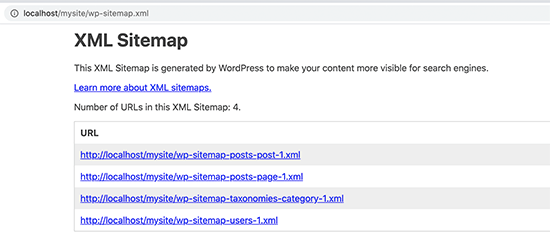
This XML sitemap feature was added to WordPress to make sure that any new WordPress website does not miss out on the SEO benefits of an XML sitemap.
However, it is not very flexible, and you cannot easily control what to add or remove from your XML sitemaps.
Luckily, almost all top WordPress SEO plugins come with their own sitemap functionality. These sitemaps are better, and you can control which content to remove or exclude from your WordPress XML sitemaps.
Method 2: Creating an XML Sitemap in WordPress Using AIOSEO
The easiest way to create an XML sitemap in WordPress is by using the All in One SEO (AIOSEO) plugin for WordPress.
It is the best WordPress SEO plugin on the market, offering you a comprehensive set of tools to optimize your blog posts for SEO.
First, you need to install and activate the All in One SEO plugin. For more details, see our step-by-step guide on how to install a WordPress plugin.
The sitemap feature is also available in AIOSEO Free version. However, to get advanced news sitemaps and video sitemaps, you will need the Pro version.
Upon activation, go to the All in One SEO » Sitemaps page to review the sitemap settings.
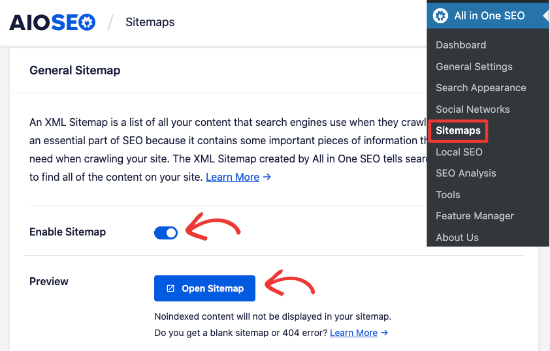
By default, All in One SEO will enable the Sitemap feature for you and replace the basic WordPress sitemaps.
You can click on the ‘Open Sitemap’ button to preview it to see what it looks like. You can also view your sitemap by adding sitemap.xml to your website’s URL, such as:
https://www.example.com/sitemap.xml
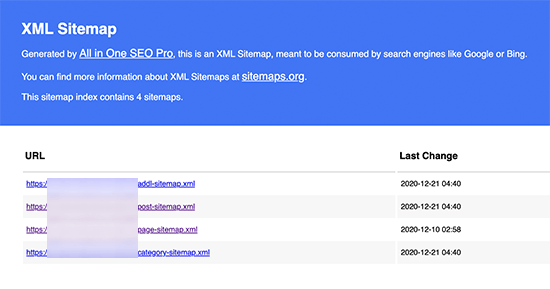
As a beginner, you don’t need to do anything, as the default settings will work for all kinds of websites, blogs, and online stores.
However, you can customize the sitemap settings to control what you want to include in your XML sitemap.
Simply scroll down to the ‘Sitemap Settings’ section.
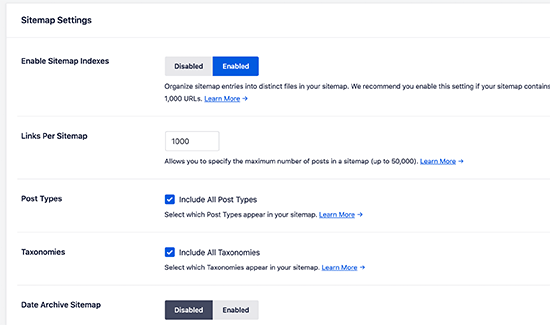
This section gives you options to manage sitemap indexes and include or exclude post types and taxonomies (categories and tags). You can also enable XML sitemaps for date-based archives and author archives.
All in One SEO automatically includes all your WordPress content in XML sitemaps. But what if you have stand-alone pages like a contact form, a landing page, or Shopify store pages that are not part of WordPress?
Well, AIOSEO is the only plugin that lets you add external pages to your WordPress sitemap. Simply scroll to the ‘Additional Pages’ section and turn it on. This will show you a form where you can add any custom pages that you want to include.
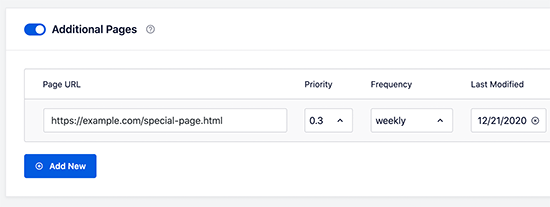
You simply need to add the URL of the page that you want to include and then set a priority where 0.0 is the lowest and 1.0 is the highest. If you are unsure, then we recommend using 0.3.
Next, choose the frequency of updates and the last modified date for the page.
You can click on the ‘Add New’ button if you need to add more pages.
Don’t forget to click on the ‘Save Changes’ button to store your settings.
Excluding Specific Posts and Pages from your XML Sitemap
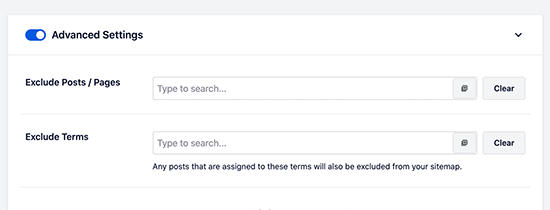
All in One SEO allows you to exclude any post or page from your XML sitemaps. You can do this by clicking on the ‘Advanced Settings’ section on the All in One SEO » Sitemaps page.
You can also remove a post or page from your XML sitemaps by making it no-index and no-follow. This will block search engines from showing that content in search results.
Simply edit the post or page that you want to exclude and scroll down to the AIOSEO Settings box below the editor.
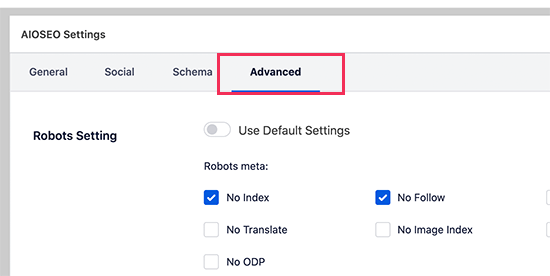
From here, you need to switch to the Advanced tab and check the boxes next to the ‘No Index’ and ‘No Follow’ options.
Creating Additional Sitemaps
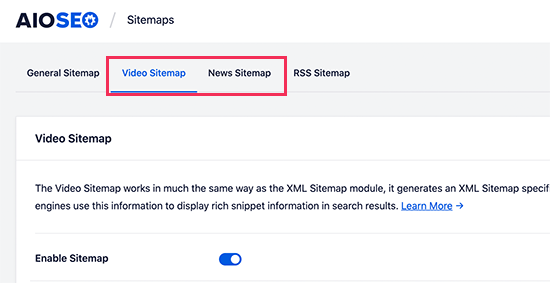
All in One SEO allows you to create additional sitemaps, such as a video or news sitemap.
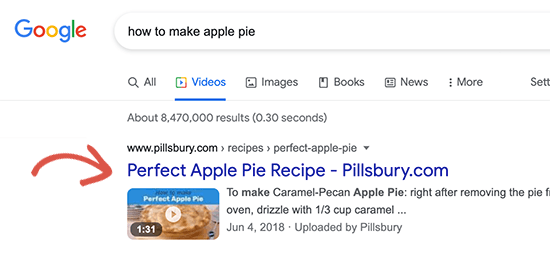
You can create a video sitemap if you regularly embed videos in your blog posts or pages. This will allow search engines to display posts in search and video search results along with a video thumbnail.
You can also create a News sitemap if you run a news website and want to appear in Google News search results.
Simply go to All in One SEO » Sitemaps and switch to the Video Sitemap or News Sitemap tabs to generate these sitemaps.
Overall, AIOSEO is the best WordPress plugin because it gives you all the flexibility and powerful features at a very affordable price.
Method 3: Creating an XML Sitemap in WordPress Using Yoast SEO
If you are using Yoast SEO as your WordPress SEO plugin, then it also automatically turns on XML sitemaps for you.
First, you need to install and activate the Yoast SEO plugin. For more details, see our step-by-step guide on how to install a WordPress plugin.
Upon activation, go to the SEO » General page and switch to the ‘Features’ tab. From here, you need to scroll down to the ‘XML Sitemap’ option and make sure that it is turned on.
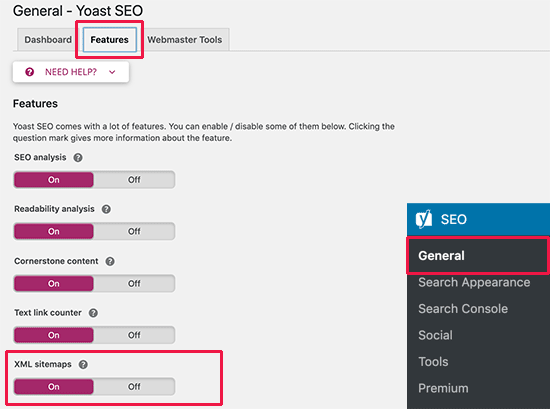
Next, click on the ‘Save Changes’ button to store your changes.
To verify that Yoast SEO has created an XML sitemap, you can click on the question mark icon next to the ‘XML sitemaps’ option on the page.
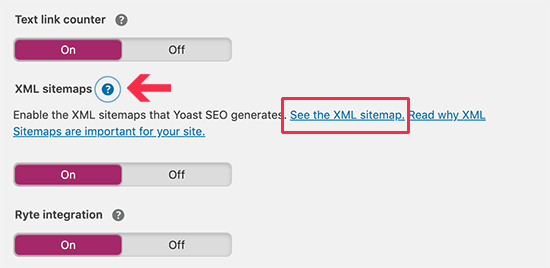
After that, click on the ‘See the XML Sitemap’ link to view your live XML sitemap generated by Yoast SEO.
You can also find your XML sitemap by simply adding sitemap_index.xml at the end of your website address. For example:
https://www.example.com/sitemap_index.xml
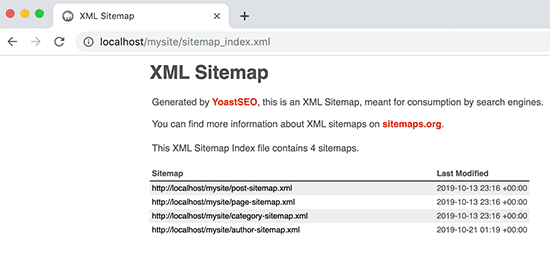
Yoast SEO creates multiple sitemaps for different types of content. By default, it will generate sitemaps for posts, pages, authors, and categories.
Submitting Your XML Sitemap to Search Engines
Search engines are quite smart at finding a sitemap. Whenever you publish new content, a ping is sent to Google and Bing to inform them about changes in your sitemap.
However, we recommend that you submit the sitemap manually to ensure that search engines can find it.
Submitting Your XML Sitemap to Google
Google Search Console is a free tool offered by Google to help website owners monitor and maintain their site’s presence in Google search results.
Adding your sitemap to Google Search Console helps it quickly discover your content, even if your website is brand new.
First, you need to visit the Google Search Console website and sign up for an account.
After that, you will be asked to select a property type. You can choose a domain or a URL prefix. We recommend choosing a URL prefix as it is easier to set up.
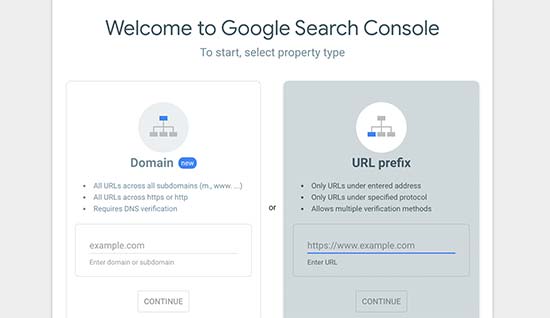
Enter your website’s URL and then click on the ‘Continue’ button.
Next, you will be asked to verify ownership of the website. You will see multiple methods to do that. We recommend using the HTML tag method.
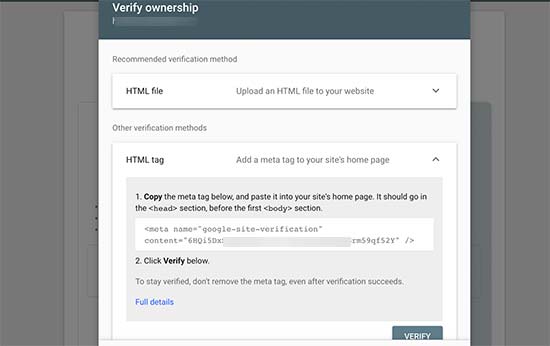
Simply copy the code on the screen and then go to the admin area of your WordPress website.
If you are using AIOSEO, then it comes with easy webmaster tools verification. Simply go to All in One SEO » General Settings and then click the ‘Webmaster Tools’ tab. After that, you can enter the code from Google there.
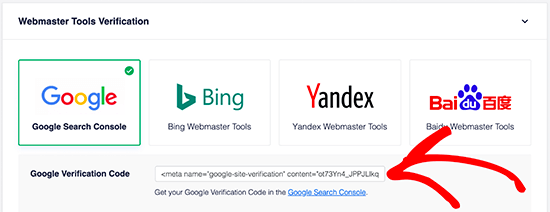
If you are not using AIOSEO, then you can enter the code using the WPCode plugin. This is the safest and easiest way to add code to your WordPress site.
You need to install and activate the WPCode Free Plugin. For more details, see our step-by-step guide on how to install a WordPress plugin.
Upon activation, you need to visit the Code Snippets » Header & Footer page and add the code you copied earlier into the ‘Header’ box.
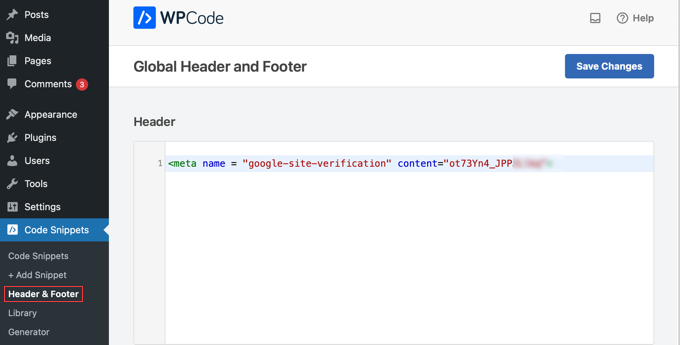
Don’t forget to click on the ‘Save Changes’ button to store your changes.
Now, switch back to the Google Search Console tab and click on the ‘Verify’ button.
Google will check for a verification code on your site and then add it to your Google Search Console account.
Note: If the verification is unsuccessful, then please make sure to clear your cache in WordPress and then try again.
Now that you have added your website, let’s add your XML sitemap as well.
From your account dashboard, you need to click on ‘Sitemaps’ from the left column.

After that, you need to add the last part of your sitemap URL under the ‘Add a new sitemap’ section and click the ‘Submit’ button.
Google will now add your sitemap URL to your Google Search Console.
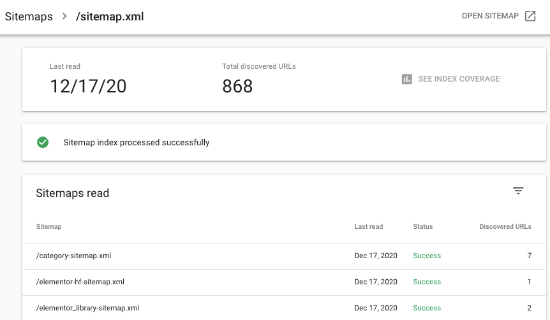
It will take Google some time to crawl your website. After a while, you will be able to see basic sitemap stats.
This information includes the number of links Google found in your sitemap, how many of them got indexed, the ratio of images to web pages, and more.
Submitting Your XML Sitemap to Bing
Similar to Google Search Console, Bing also offers Bing Webmaster Tools to help website owners monitor their website in the Bing search engine.
To add your sitemap to Bing, you need to visit the Bing Webmaster Tools website.
Here, you will see two options to add your site. You can either import your site from Google Search Console or add it manually.
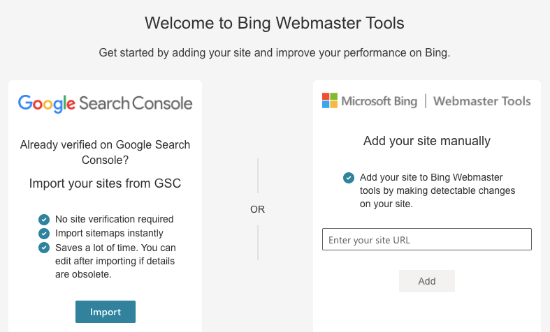
If you’ve already added your site to Google Search Console, we suggest importing your site. It saves time as your sitemap will automatically be imported for you.
If you choose to add your site manually, you need to enter your site’s URL and verify the site.
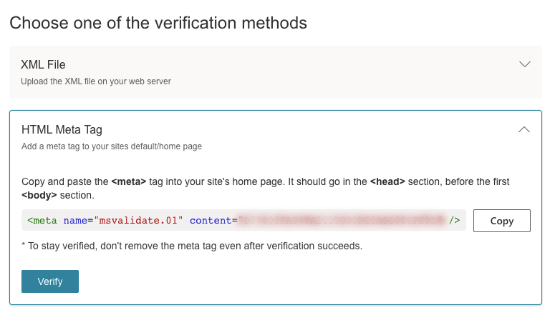
Bing will now ask you to verify the ownership of your website and will show you several methods to do that.
We recommend using the Meta tag method. Simply copy the meta tag line from the page and head over to your WordPress admin area.
Now, install and activate the WPCode Free Plugin on your website
Upon activation, you need to visit the Code Snippets » Header & Footer page and add the code you copied earlier into the ‘Header’ box.
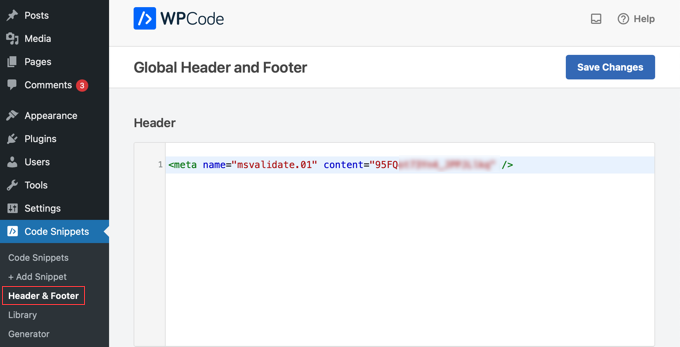
Don’t forget to click on the ‘Save Changes’ button to store your changes.
Using XML Sitemaps to Grow Your Website
Now that you have submitted the XML sitemap to Google and Bing, let’s take a look at how to utilize it for your website.
First, you need to keep in mind that the XML sitemap does not improve your search rankings. However, it does help search engines find content, adjust crawl rate, and improve your website’s visibility in search engines.
You need to keep an eye on your sitemap stats in Google Search Console. It can show you crawl errors and the pages excluded from search coverage.
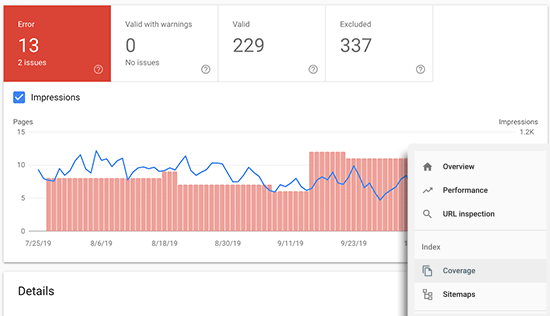
Below the charts, you can click on the different tables.
Here, you can view which actual URLs have been excluded or not indexed by Google.
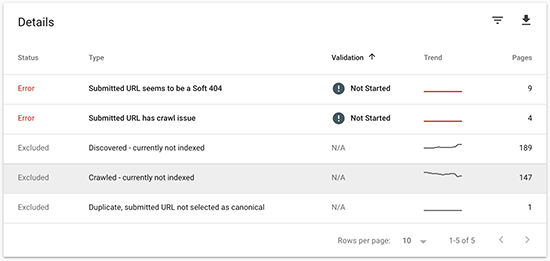
Normally, Google may decide to skip duplicate content, pages with no content or very little content, and pages excluded by your website’s robots.txt file or meta tags.
However, if you have an unusually high number of excluded pages, then you may want to check your SEO plugin settings to make sure that you are not blocking any content.
For more details, see our complete Google Search Console guide for beginners.
We hope this article helped you learn about XML sitemaps and how to create an XML sitemap for your WordPress site. You may also want to see our guide on how to quickly increase your website traffic with step-by-step tips and our expert picks for the best keyword research tools to write better content.
If you liked this article, then please subscribe to our YouTube Channel for WordPress video tutorials. You can also find us on Twitter and Facebook.





Syed Balkhi says
Hey WPBeginner readers,
Did you know you can win exciting prizes by commenting on WPBeginner?
Every month, our top blog commenters will win HUGE rewards, including premium WordPress plugin licenses and cash prizes.
You can get more details about the contest from here.
Start sharing your thoughts below to stand a chance to win!
Mrteesurez says
This article is helpful to me.
But I don’t normally create a site map manually, I heard search engines crawl WordPress sites automatically without a need to manually submit your sitemap.
Am I right or wrong ??
WPBeginner Support says
Search engines can crawl your site without a sitemap but we recommend adding a sitemap as it helps tell search engines the content available to crawl on your site instead of waiting for search engines to find the content.
Admin
Ahmed Omar says
thank you for the valuable helpful post
I liked the video as it made it more easy and step by step, Actually when I find a video in the post, I feet comfortable that I will finish the issue
I am using Yoast for site mapping and it is working fine with me
Thank you
WPBeginner Support says
You’re welcome, glad you found our post helpful
Admin
szymon majewski says
Hi. I have a problem with my sitemap. I’m trying to add my sitemap to google search console and unfortunately I’m getting the error site cannot be added. After checking the url of the map, search console tells me the error: Is indexing allowed
error
No: The tag “noindex” was detected in the “X-Robots-Tag” http header.
I tried to find this tag in many ways but I don’t see it anywhere.
Please help me, best regards.
WPBeginner Support says
The error looks like your robots.txt is blocking Google, you would need to check your robots.txt file. Our guide below should be able to help with finding and editing your robots.txt file.
https://www.wpbeginner.com/wp-tutorials/how-to-optimize-your-wordpress-robots-txt-for-seo/
Admin
Donny says
Thank for this article it was very helpful
WPBeginner Support says
Glad to hear our guide was helpful!
Admin
Viany Sole Cruz says
Thank You. This was so helpful!
WPBeginner Support says
Glad our article was helpful
Admin
Wajid Khan says
I am a beginner, I have new sitemap and want to update new sitemap in AIOSEO Lite plugin but I couldn’t find option to update or add new or remove sitemap in the plugin, please guide me how to update sitemap in AIOSEO Lite plugin.
WPBeginner Support says
The sitemap should automatically update over time at the moment
Admin
Shyam says
Can I submit more than one sitemap? I have submitted a sitemap created by yoast seo and the one created by jetpack. Does this affect any?
WPBeginner Support says
We would recommend only submitting one sitemap and not using multiple plugins for creating sitemaps as that can cause issues.
Admin
Felicity says
Thank you, this was really concise and helpful
WPBeginner Support says
Glad our article was helpful
Admin
Govind says
this was all I needed, thank you
WPBeginner Support says
Glad our guide was helpful
Admin
Joanne Tjahyana says
When I submitted it to Google Search Console, it says “couldn’t fetched”.
So what should I do now?
WPBeginner Support says
The most common solution would be to clear your caching and resave your permalinks.
Admin
Anil says
I have shifted my website from blogger.com to wordpress. Do I need to resubmit xml sitemap in Google search console?
WPBeginner Support says
To be safe you would want to resubmit the sitemap
Admin
Zohaib says
Very informative. Thank you!
WPBeginner Support says
You’re welcome
Admin
Aditaya says
can we delete the pugin after use or its will important for that.
WPBeginner Support says
The plugin is generating your sitemap so you would want to keep the plugin active on your site.
Admin
Ari says
Hello, thank you very much for the great information, your website is very helpful! I got a question about sitemap, I follow all the steps but in the end when I add the last part of your sitemap URL to ‘Add new sitemap’ section and click Submit, it doesn´t show me an amount of links, it shows that I have 0 links. What could be the problem?
Thank you in advance)
WPBeginner Support says
You would want to visit the address on your site to check if there are any errors. You may also want to resave your permalinks for a common solution.
Admin
onyenucheya Chinecherem says
Hello admin thanks for this article, but I’m confused to an extent and here is my question; is there any negative effect of submitting both www and non www sitemap to webmasters?
WPBeginner Support says
It could cause some reporting issues, it is normally best to submit the sitemap with the URL you would like to have appear on Google’s search
Admin
Anisha Shrestha says
I was Struggling to verify my sitemap in google before. Now i added It. Very Useful article. Thank you for Sharing.
WPBeginner Support says
Glad you found our article helpful
Admin
sibasis says
Very infirmative as I was struggling to verify mt site with goggle and bing.
THANK YOU
WPBeginner Support says
Glad our guide was helpful
Admin
Rituparna says
Very very useful post. I was struggling with the sitemap and its submission to Google Search Console. Now sorted. Thank you.
WPBeginner Support says
Glad our guide was helpful
Admin
saba says
very helful guide. thanks for sharing
WPBeginner Support says
You’re welcome
Admin
Metodi says
I find this article very helpfull, but I want to ask you something. I use Yoast SEO, but now need to generate separate XML sitemap for images. Could you reccomend me a plugin for that. Thanks
WPBeginner Support says
Yoast currently has the option of including images in the sitemap so you shouldn’t need an additional plugin
Admin
Liv says
This article was very helpful. I used the Yoast SEO method. Thank you
WPBeginner Support says
You’re welcome, glad our guide could help
Admin
Suzanne says
Thanks so much for this it was a massive help! Because I verified and uploaded to Google Console first, I managed to verify and import my website/sitemap to Bing by just connecting my google account (Bing gives you an option for this when you click on sign up) – it was done in less than 30 seconds! I wouldn’t have thought to do Bing, so thank you so much for covering that too!
WPBeginner Support says
You’re welcome, glad our guide was helpful
Admin
Tasha says
This is honestly the most helpful article I’ve ever seen. I’m not a developer (just new home business owner trying to figure out the rabbit hole that is web dev) and this guided me through all the unknowns I’d had about importance of a sitemap, let alone how it would benefit my site. THANK YOU SO MUCH!
WPBeginner Support says
You’re welcome, glad our guide was helpful
Admin
Brittney Gage says
I rarely write comments on articles but this was easily one of the most helpful I’ve ever read. Thank you!
WPBeginner Support says
Glad our article was helpful
Admin
Harish Nemade says
I have my site with only one post published, so is it necessary to submit a sitemap each time when I added a new Article/Post?
And how often should I submit sitemap?
WPBeginner Support says
You only need to submit your sitemap once unless there is an error, it will update as you add posts.
Admin
Image Earth Travel says
Great article!
Yt’s a pain that the Yoast plugin (as with all plugins) are only offered on the WP’s Business Plan. I’ve been on the Premium Plan and not allowed to install plugins.
WPBeginner Support says
Thank you, part of the confusion may be due to our articles being for WordPress.org sites which require hosting instead of the business plan on WordPress.com https://www.wpbeginner.com/beginners-guide/self-hosted-wordpress-org-vs-free-wordpress-com-infograph/
Admin
Sarah says
I am using the free Yoast SEO plugin but I am not seeing SEO » XML Sitemaps. Any ideas? Thanks
WPBeginner Support says
Yoast has updated their interface so you should find it under SEO>General>Features at the moment.
Admin
flyingvan says
Thanks for this tutorial, I could activate the sitemap on my website thanks to you.
Mat
WPBeginner Support says
You’re welcome, glad our article could be helpful
Admin
Sara says
Hello,
Recently I added the sitemap for my website. But, while checked with the tool, it’s showing, no sitemap is added. Why it’s showing like this. I added Yoast SEO plugins.
WPBeginner Support says
It could be their caching or if your site has caching that you haven’t cleared it could be part of the issue.
Admin
Jishnu.M says
Hi,
I have a problem with sitemap submitting….I am using Yoast SEO when I submit a sitemap to google webmaster it says “couldn’t fetch”…….. but i have successfully submitted sitemap to bing and Yandex without any errors …what to do please help me
WPBeginner Support says
For an error like this, you may need to reach out to Yoast’s support to see their recommended troubleshooting for specifically Google not being able to crawl your sitemap.
Admin
Sajol Fuad says
I am really happy to get this article about sitemap.
I am using Yoast SEO for sitemaps. Some SEO auditor is saying that I should improve it immediately. But Google search console is showing a green success and assuring that all is ok.
Can you please suggest me what should I do right now?
Thanks for the article..
WPBeginner Support says
We’re using the Yoast sitemap without any issues at the moment. If you would prefer what the auditor wants then you could certainly try that if you wanted.
Admin
Charles Harris says
I have Yoast SEO but XML sitemaps does not appear on the menu, which indeed looks very different from yours. Any suggestions as to how to find it?
WPBeginner Support says
For the current Yoast interface, the Sitemap options are under SEO>General>Features
Admin
Charles Harris says
Thanks – got it now.
Joseph says
I need some help please,
some pages on my website are not showing on sitemap.xml
I entered it manually to google console, It showed an error that the sitemap format is HTML and that I should change the format
how do I change sitemap format, please?
WPBeginner Support says
If you’re using a caching plugin you may want to try to disable it to see if it could be a conflict between Yoast and the caching plugin you’re using.
Admin
Ravi says
Hi, awesome tutorial, I did same as your instruction and working fine. But there’s a problem with this, check out the details.
my website is yahoonewsz.com and when I type “www.example.com/sitemap_index.xml”, it works fine but it says page not found when typed “example.com/sitemap_index.xml”.
Why?
WPBeginner Support says
You may want to check with your hosting provider that there is not a setting preventing the non www version from redirecting properly
Admin
Arun Dixit says
Thanks for your best tutorial!
I recently have a wordpress blog and have created xml sitemap using yoast seo, according to this tutorial in previous month. Yesterday I happend to see my xmlsitemap file at my wp-admin. There are only 5-6 lines which covers my new posts only. What about my old posts? Is there any problem? And how come I know that there is any problem? Because I have more than dozen posts till now.
Kindly let me know.
Arun Dixit
WPBeginner Support says
You may want to clear your caching and reach out to Yoast if your sitemap is refusing to update your older posts if you’re not excluding them.
Admin
Darko Loncar says
I am using All in One SEO pack Plugin. If I download Yoast’s WordPress SEO plugin should I use both?
WPBeginner Support says
No, we would not recommend having multiple SEO plugins active as they can conflict with each other.
Admin
Kirti Goyal says
THANKS FOR SHARING THIS INFORMATION!
one thing I want to know is that whether after every single update in pages, posts or change within a post, we need to submit the sitemap???
Looking forward to hearing from you.
WPBeginner Support says
You should not need to resubmit your sitemap as long as Google does not run into any errors with your sitemap and with the method from our article it should over time update your sitemap.
Admin
Viraj says
Please guide me to make a news sitemap for google news submission.
Luke says
I followed these steps but search console is giving me a 404 on the sitemap. I never had such problems submitting sitemaps
Mohammed says
In my website, I generated sitemap using this tutorial, however I want to remove one particular non-existent URL from the sitemap as it’s giving 404 error and google adsense is showing crawl error. How do I remove one particualr URL from sitemap and ask google to stop crawling that URL?
Ernest says
I see some websites have multiple sitemaps. Is it really necessary?
Dibyajyoti says
not really. But some large website for multiple purpose .
greeshma says
is sitemaps still relevant in 2018?
WPBeginner Support says
Hi Greeshma,
Yes, they are.
Admin
PRANITA DESHPANDE says
My site has been verified but can’t find site map near to it .What to do for it ?
cher says
I did your step for the sitemap. Awesome! Also, for my robots.txt file I have the following, should I change that first line of sitemap to what yoast says? I am not even sure where I got that old sitemap from but don’t want to mess anything up.
WPBeginner Support says
Hi Cher,
Yes, if you are using Yoast SEO, then you should add Yoast SEO sitemap.
Admin
Jude says
Hi.
Very helpful information.
I want to ask if it is okay to submit my site to other webmasters like bing, yandex and others.
Thanks so much.
WPBeginner Support says
Hi Jude,
Yes, it is OK.
Admin
jude says
Thanks so much.
I can’t find my sitemap code in yoast.
I also can’t verify my site on other search console like yandex and bing. (i got cannot verify)
daguah says
which social plugin do you use to show the number of shares?
jude says
hi. you can use share count or sassy social share
Anshuman Konwar says
Thank you Sir, this article is very helpful
William says
Is there any one who can help me to change sitemap.xml to some new url like sitmap_page_xml
Leo August says
Yoast SEO must have been updated because the check boxes are now sliders – at least on my site. When I enable the stiemap function, then click the link to view the site map, I get a 404 Not Found error. Did I do something wrong?
Rachael says
Really helpful article! I have just having trouble when it comes to viewing my site map, it’s coming up with 404 error and I’m not sure why?