


As a blogger, you might have seen the orange RSS feed icon. It’s a way for your readers to get updates on your latest posts without visiting your site manually.
RSS is a powerful tool for delivering your content to your audience.
In this article, we’ll explain what RSS is, its benefits, and how to use it effectively in WordPress. You’ll learn how to set up RSS feeds to grow your audience and keep them engaged with your content.
What Is RSS?
RSS is a type of web feed that allows users and applications to receive regular updates from a website or blog of their choice. The acronym RSS stands for Really Simple Syndication or Rich Site Summary. It is sometimes referred to as the feed or RSS feed.
In the early days of the internet, if you wanted to keep track of updates on your favorite website, then you had to bookmark the site and then manually visit to see if there were any updates.
RSS feed solved that problem by allowing users to keep track of their favorite websites without having to manually visit the website each time.
RSS allows bloggers and publishers to automatically syndicate their content so people can read it in their email, feed readers, and other devices.
How Does RSS Feed Work?
RSS feeds work by publishing your latest content in a structured XML document. This feed contains your full articles or the summary, along with metadata for each item like the date, author, category, etc.
This XML document can be fetched and read with an RSS feed reader. There are many RSS feed reader software available for all operating systems, desktop, and mobile devices.
Here is what an example RSS feed looks like:
<?xml version="1.0" encoding="UTF-8"?>

<channel>
<title>WPBeginner</title>
<link>https://www.wpbeginner.com</link>
<description>Beginner's Guide for WordPress</description>
<lastBuildDate>Tue, 02 Dec 2018 14:13:37 +0000</lastBuildDate>
<language>en-US</language>

    <item>
        <title>How to Fix WordPress Posts Returning 404 Error</title>
        <link>http://feeds.wpbeginner.com/wpbeginner/</link>
        <pubDate>Tue, 02 Dec 2018 11:58:18 +0000</pubDate>
        <dc:creator>Editorial Staff</dc:creator>
        <category><![CDATA[Tutorials]]></category>
        <guid isPermaLink="false">https://www.wpbeginner.com/?p=10968</guid>

        <description><![CDATA[<p>Description of post goes here...]]></description>
        <content:encoded><![CDATA[<p>Post goes here....]]></content:encoded>
        </item>
All WordPress websites come with built-in support for RSS feeds. By default, each WordPress site page contains a meta tag pointing to your website’s RSS feed location.
You can disable RSS feeds in WordPress, but continue reading, and you might change your mind about disabling them.
What Are the Benefits of RSS?
RSS makes it easy for users to subscribe to your content. Using an RSS feed, people can receive updates from your blog or website directly in their feed readers, desktop applications, and many other devices.
Subscribers don’t have to remember your website URL because they can bring the content into a central location where they like to read all of their favorite websites.
Your content becomes portable, and your subscribers can even take it with them for offline reading.
RSS feeds help you build and nurture a loyal following around your blog. RSS subscribers are more likely to share your content on social media. Many of our readers automatically tweet every new WPBeginner article using an RSS feed and IFTTT.
RSS feeds are published using XML, which is a machine-readable format. This enables you to use automation tools for a lot of things.
For instance, you can set up automated workflows to perform certain actions when a new article is published or a new product is added to your online store.
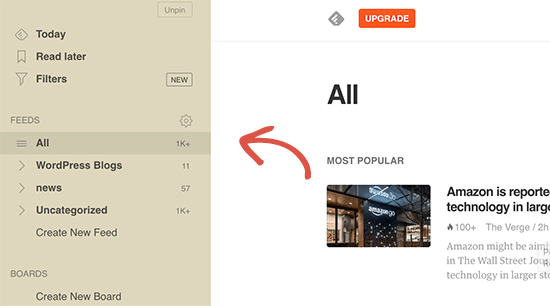
As an end-user, you can subscribe to your favorite websites and read them all in one place. This allows you to scan through your favorite news and blog sites quickly. If you want to leave a blog comment, then you can easily visit the individual article and leave your comment.
Most modern feed readers allow you to sort your reading lists into categories and groups. By using RSS efficiently, you can maximize your reading time.
How to Use RSS Feeds to Read Your Favorite Websites
You can subscribe to RSS feeds by using apps called feed readers. There are many free feed readers available on the market for all popular operating systems and devices.
Here are just a few of the top RSS feed reader apps that you can use:
- Feedly – (Web, Browser Add-ons, iOS, Android, Kindle)
- Inoreader – (Web, Android, iOS)
- The Old Reader (Web, Mac, Windows, Android, iOS, and more)
- Bloglovin’ (Web, Android, iOS)
We recommend using Feedly. It is available as a browser add-on as well as a mobile app for iOS, Android, and Kindle devices.
In our experience, Feedly’s cross-platform availability makes it an excellent choice for most users.
By using Feedly, you can sync your RSS subscriptions across your devices and resume reading wherever you left it. Adding your favorite websites to Feedly is really simple. Just enter the URL of the website and click the ‘Follow’ button to subscribe.
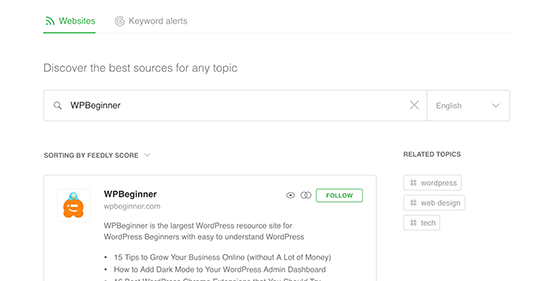
In most feed readers, you can search for topics that interest you and subscribe to popular sources on those topics. You can also categorize your favorite sites into topics.
Feed readers such as Feedly come with features to print, share, and email articles that you find interesting.
How to Promote Your WordPress RSS Feed
As a WordPress user, your website already publishes an RSS feed. You can find your RSS feed by simply adding /feed/ at the end of your website’s address. For example:
https://www.wpbeginner.com/feed/
Don’t forget to replace wpbeginner.com with your own domain name.
You can encourage visitors to subscribe to your RSS feed by adding an RSS icon to your sidebar or another prominent location.
You can also connect your RSS feed to an email marketing service and allow your users to receive your blog posts directly in their inboxes.
For instructions, see our guide on how to add email subscriptions to your WordPress blog.
Take Your WordPress RSS Feed to the Next Level
RSS feeds are extremely powerful, and with little effort, you can use them to build a loyal following.
1. Use RSS Feed for Faster Indexing in Search
RSS feeds contain the latest updates from a website, and they are in XML format. That’s why they can also be submitted as a sitemap to search engines.
You can let search engines know where to find your RSS sitemap by using the All in One SEO for WordPress plugin.
It is the best SEO plugin for WordPress that allows you to easily optimize your website for search engines.
First, you need to install and activate the All in One SEO for WordPress plugin. For more details, see our article on how to install a WordPress plugin.
Upon activation, you need to visit the All in One SEO » Sitemaps page and switch to the ‘RSS Sitemap’ tab.
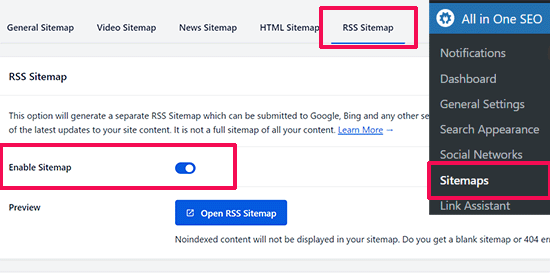
Simply switch the toggle next to the ‘Enable Sitemap’ option.
After that, don’t forget to click on the ‘Save Changes’ button to store your settings.
You can now go ahead and submit the RSS sitemap in Google Search Console. For more details, see our tutorial on how to add an RSS sitemap in WordPress.
2. Use RSS Feed to Build an Email List
If you are not already building an email list, then you need to start immediately. See our guide on why you should start building your email list right away.
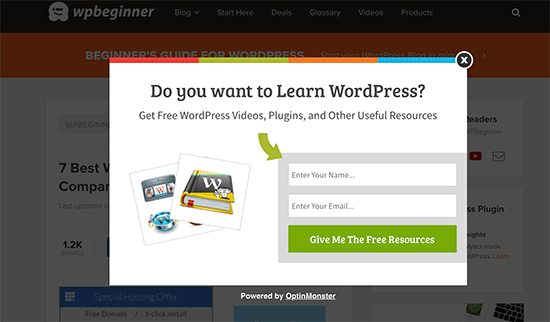
This is where you will need OptinMonster. It is the best lead-generation software on the market and allows you to convert website visitors into subscribers.
3. Use RSS Feed to Grow Social Media Following

Social media websites like Facebook and Twitter can help you grow your website traffic. However, to keep your social media profiles active, you need to regularly post content.
Using RSS feeds with IFTTT, you can automatically share your new blog posts to all your social media profiles.
4. Cross Promote Your Blog Using RSS Block / Widget
WordPress comes with a default RSS block that you can add to your posts, pages, and sidebar areas.
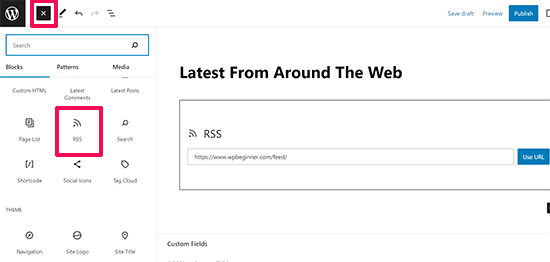
After inserting the block, simply add the feed URL that you want to show and click on the ‘Use URL’ button.
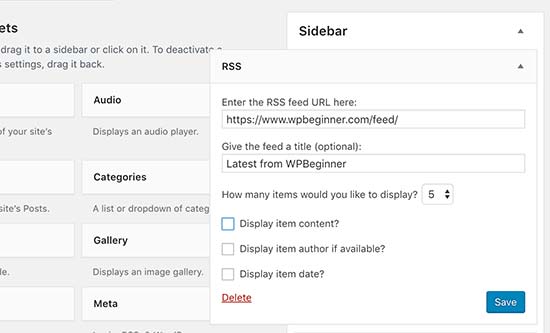
If you are using classic widgets, then you can use the default RSS widget, which works the same.
5. Disable Some RSS Feeds to Improve Search Crawling
WordPress creates RSS feeds for not just your posts but also for categories, tags, author archives, comments, and more. All these feeds are discoverable by search engines, which means search crawlers will spend time crawling them.
Google allocates each website a certain crawl budget, and letting search engines crawl unnecessary RSS feeds wastes your site’s crawl budget. For more information, see our article on the WordPress SEO crawl budget problem.
The easiest way to fix this is by using All in One SEO for WordPress. Simply go to the All in One SEO » Search Appearance page and switch to the ‘Advanced’ tab.
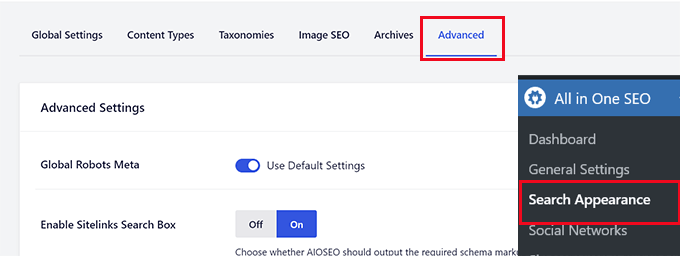
Scroll down to the bottom of the page, and you’ll see the ‘Crawl Cleanup’ option there.
Click the toggle to enable the ‘Crawl Cleanup’ feature.
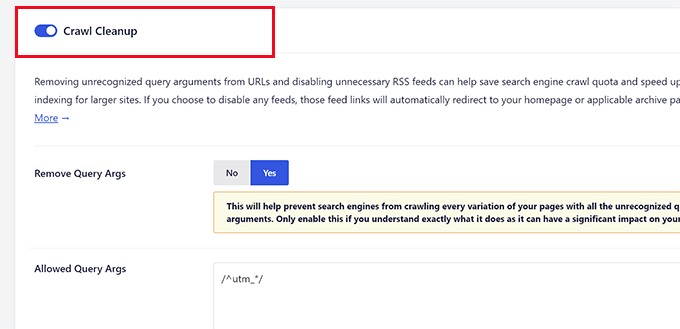
Below that, you will see the RSS feeds generated by WordPress.
You can turn off the unnecessary feeds by clicking disable next to them.
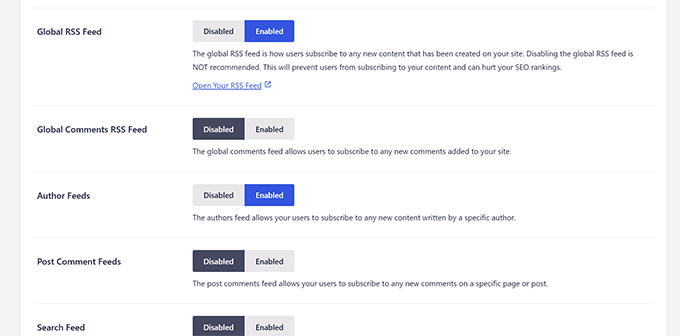
Once you have disabled all the unwanted RSS feeds, don’t forget to click on the ‘Save Changes’ button to store your settings.
6. Customize Your RSS feed
There are some advanced hacks and tricks that you can use to customize your WordPress RSS feeds:
- Add content to manipulate your RSS Feed
- Add featured images to your RSS feed
- Use RSS feeds for categories
- Use RSS feeds for custom post types
Need even more tips? See our list of the best tips to optimize your WordPress RSS feed.
We hope this article explained what RSS is and how you can use RSS in WordPress. You may also want to see our guide on how to get more visitors to your WordPress site and our expert picks for the best WordPress RSS feed plugins.
If you liked this article, then please subscribe to our YouTube Channel for WordPress video tutorials. You can also find us on Twitter and Facebook.




Jiří Vaněk
If I use an RSS aggregator on my site to display excerpts from blogs I read myself, can that hurt my SEO for duplication? I thought about it, but I’m a little afraid of not being penalized. It would not be full articles, only excerpts.
WPBeginner Support
If it is only excerpts linking back to the original content, there is normally no problem in terms of duplicate content for SEO.
Admin
Mrteesurez
Honestly, I don’t really know what RSS feed is to this extent till I find this post.
It’s good as it allows easy access to one’s blog contents.
But I have heard that web scrapper can scrape the content, copy and autoblog them in their websites resulting to plagiarism and may seems as content duplication to Google.
WPBeginner Support
We would recommend taking a look at our article below for blog scraping for the options available:
https://www.wpbeginner.com/beginners-guide/beginners-guide-to-preventing-blog-content-scraping-in-wordpress/
Admin
Mark Brigden
The blog on my website has additional articles not added by me, thus cannot be deleted in my admin section. Could this be because of an RSS feed that a developer or someone else added to my site at some stage? How do I fix this problem and delete these?
WPBeginner Support
Any post on your site should be able to be deleted if you are an admin on your site. You may want to check your user role for a starting point
Admin
Deba
Hi Wpbeginner
Isn’t RSS feed already outdated? Is it necessary?
Or can’t I use a push notification plugin such as ‘subscribers’ as an alternative to RSS feeds?
WPBeginner Support
WordPress currently has RSS feeds by default, you are not required to use them but you can use the RSS for different tools.
Admin
Arto BD
your site is very good.so much logical blog,and lots of information,which is provide a lot of knowledge and we can learn as much we want.
Please carry on so that we can learn more from here.
Thank You So Much!!
WPBeginner Support
You’re welcome, glad you like our content
Admin
WPBeginner Support
By default, pages are not included in your RSS feed, you would need to add custom code to include pages in your feed. To do so, you would want to take a look at our article here: https://www.wpbeginner.com/wp-tutorials/how-to-add-custom-post-types-to-your-main-wordpress-rss-feed/
Admin
Donna
What if my website doesn’t have an RSS feed? Where can I learn to set up that feed? Using mywebsitename.com/feed, my site just refreshes back to the home page. Using Google Feedburner confirms it: “The URL does not appear to reference a valid XML file…”
I’ve searched everything I can think of to sort this out. Do you have any advice, please?
WPBeginner Support
You could try the URL /feed/rss to see if that gets you to your RSS, otherwise, you may want to try resaving your permalinks under Settings>Permalinks.
Admin
Alex
Your awesome and user-friendly site is my first go-to for tutorials/tips on anyrything WP, so naturally I landed on this article My site was recently migrated to wordpress from another CMS and doesn’t have posts or categories, only pages. I followed your instructions here and typed my site’s URL followed by /feed but it doesn’t show the list of my pages.
Is there a way to create a RSS feed for my site?
Any suggestion is greatly appreciated! Thanks
Tammy
I’m not clear how using RSS allows you to build an email list. It seems to me if a person can get your blog post updates through RSS they don’t need to subscribe to your email list.
WPBeginner Support
Not everyone uses RSS but if you can use your RSS feed to send your email list your post as most providers have an integration that can handle that.
Admin
Lindsay Doyle
I am trying to make an MRSS feed for our Wordpress site to feed to our Roku channel. Any help on this? Can this be done? Thank you
WPBeginner Support
We do not have a recommended method at the moment but we will certainly take a look for options
Admin
Ravi Chandra
Thanks for sharing this information. You explain step-by-step on RSS. Now I have got a clear idea about RSS.
WPBeginner Support
You’re welcome
Admin
Magdy Kameel
Thank you so much for this good article
Your language is so clear and make things easy to understand
Christine
I’m new to this so maybe I’m not understanding how people subscribe. I’ve added RSS category subscribe links to my website using plugin. Why do the links open the feed url which shows an xml file. Is that how this woks? Do subscribers manually add that url to their reader?
Thanks.
BASANTA
RSS feeds always show an xml file. Some browsers will open it as a feed but chrome and some other browsers will show the xml file. If you have a chrome extension that offers the feature to subscribe to RSS feeds, they will give you the option to subscribe whenever you open the RSS feed page.
ali
Thank you for your article. I have one problem. I use the feed of another website and show it on my website. At first, everything was fine but the problem is that when the source website post new article it would not show on my website. Their RSS is updated but I think my website made a Cach of RSS and it does not check updated RSS. Can you help me?
Mary
Hi Ali, Curious if you solved your problem regarding RSS feed and adding it to you website. Did you find a solution to make sure it updates correctly ? If so please may I know what solution you used. Infact woudl like to know who you added RSS feeds as content to you site and then how did you ensure that everything stayed current. Did the previously displayed content still stay on the site or did the content get replaced as RSS was updated. Any help you be great.
Nancy
Hi. My feed is being delayed by 2 days and I do not know why. What is in the feed is not what is currently on the blog. Any ideas? Thanks.
John
Hey there, I was curious if you could point me to where in wordpress I can go to make changes and manipulate my feed? Also I run a website with serveral different authors and several podcasts. Can I create a feed just off of one of my authors or podcast shows through wordpress? Any help you can provide would be awesome! Thanks so much!
WPBeginner Support
Hey John,
Please see our guide on how to add content and completely manipulate your WordPress RSS feeds.
Admin
lovet
Thanks for the very helpful post. I have had difficulties with the RSS Feed but the sample code helped a lot.
Joy
Please disregard my earlier comment. I tried many variations several times and finally got it to work. Again, thank you for posting so many helpful articles!
Eytan
Hi
you got recommended to me by a Go daddy support guy and I find you informations useful. once I get more into it I can give you more specific feedback.
For now all I can say is that i was looking of this topic in order to locate and utilize the blog rss feed off my own site and couldn’t find any information on this topic in the article or anywhere else on your site.
could you elaborate the article in this direction
Thanks
Eytan
WPBeginner Support
Hy Eytan,
This article is exactly about RSS feed. You can find your blog’s RSS feed at a url like this:
http://www.example.com/feed/
Replace example.com with your own domain name.
You may also want to see these tips to optimize your WordPress RSS feed.
Admin
Megan
I have a self-hosted Wordpress site (which should have an RSS feed automatically created as part of Wordpress). When I try to go to mysite/feed, I don’t see any of the code everyone else keeps talking about. Nothing happens. It would be example.com/feed. I get a Safari pop-up that says it will add it to my shared links. Any advice?
WPBeginner Support
Hi Megan,
We were able to see your site feed and its working fine. You should try viewing it in Firefox or Google Chrome.
syed ali
awesome post really thanks i have a wordpress website and i need to find a rss address link of my wordpress website help me out how can i get my rss feed link of my website thanks if possible please find rss address for my websites
WPBeginner Support
Hi Syed,
You can find your website’s RSS feed by simply adding /feed at the end of your website’s address.
http://example.com/feed/Replace example.com with your own domain name.
Admin
Konrad Smit
Hey there,
Thanks for the great article on RSS feeds, i think this article covers all the basics and really get you in understanding how everything comes together to actually give you the feed.
Once again, Great job and thanks for the info
Regards
Lisa Gibson
Hi,
Thanks for the helpful video. It was short and on point. I have a question about RSS feed as it relates to duplicate content. Recently I had someone steal my content and post it on their site verbatim. I wanted to know if RSS can somehow be used to stop this kind of thing? If no, what’s the best approach to stop others from stealing my content in the future? Any help would be appreciated.
WPBeginner Support
Hi Lisa,
First, you need to go to Settings » Reading page and scroll down to option ‘For each article in a feed, show’ and then select ‘Summary’. Don’t forget to click on save changes button.
Now RSS feed will only show a summary of your article and if someone is stealing your content through RSS feed they will only get the summary.
Next if you are using Yoast SEO then go to SEO > Advanced > RSS and then add content to put after each item in your RSS Feed. By default Yoast SEO will add a link back to your own site. This way content scrappers will be forced to link back to original article.
Admin
Jessica thomson
Thanks for the article i just want to confirm that through RSS feed it also easy for search engine to understand your site easily or just it is good for users point of view ?
Steven Denger
Hello – great post –
I have been trying to work out a problem getting my RSS feed to show uip in readers. I already read wp beginners posts on this. My site is the latest version of wordpress.org and is created by using just pages. Since the wordpress RSS just displays posts, I installed the “improved include RSS” to include pages in the feed. But it seems there is a problem. I have tried 4-5 readers and none of them will display any content from my feed. It just comes up “no content”. When I use a validator to check these feed url’s, each time it comes up with a “404” – not found. I am totally lost now and I am beginning to think I will never have an RSS feed that can be useable.
Any suggestions?
Thanks for your time,
Steven
WPBeginner Support
See our tutorial on how to add custom post types to your main RSS feed. Your pages are also a post type and you can add them using the code snippet in the article. Pages post type is called
page.Admin
Rebeca
Hello,
I have a problem. I’m trying to use my feed in mailchimp but it says that it is not useful. I have verified my feed and the page says that the problem is that there is a blanc space in line 1, before an XML text, you can see the document here:
I cannot add my feed in mailchimp due to that blanc space and I don’t know how to quit it.
Could you help me?
Thank you.
WPBeginner Support
Please see our guide on how to fix WordPress RSS feed errors.
Admin
Yatharth Singh
Thanks for the Help ! was searching for category wise feed and landed here.
thanks again ! syed
Amobi chuks
Please, this shows anytime i want to check my feed URL :
Client doesn’t support feeds.
WPBeginner Support
URLs with www and without www are not the same. If your WordPress url has www in it then you need to use that in your feed URL too, like this:
http://www.example.com/feed
Admin
Danny
I want to place on the site backlink , which began edit CSS code that I comment is. Can you help me?
360jamz
Please I knw this before but my example.com.ng/feed says u can’t connect to the server how can fix the issue
wiziwiz
It can also be used to populate the subcriptions to newsletters
Harshad Patankar
How to I find my RSS subscribers to my blog
Sheryl Opie
Very helpful thank you.
Leo
FeedBurner has been deprecated a few years ago. Take a look at Better RSS Feeds, it’s a WordPress plugin that styles your RSS feed and adds subscription links.
Kerrie Redgate
I am still very confused by all this. Everywhere I go on the net I am told Wordpress sites already have RSS and I just have to put a button somewhere. I don’t get this at all. Surely the button needs some code behind it for my particular site, or a plugin or something. It is nowhere to be found.
I really just want to know how to *set up* an RSS button on my blog. This has been the most challenging thing I have ever encountered in Wordpress. There is no basic instruction on this. It is always about how other people access the feed, but not how I set it up.
PLEASE! HELP!!
WPBeginner Support
Here is a sample code that you can paste in a Text Widget on your site.
1-click Use in WordPress
Replace example.com with your own domain name. Also replace /wp-content/uploads/your-rss-feed-icon.png with the RSS feed icon you want to use. You can upload the icon by visiting Media » Add New. Hope this helps.
Admin
Kerrie Redgate
Thank you!
Pam
I am SO lost. I am non-techy and then some. I’m trying to figure out the RSS feed thing and add the RSS icon, but I don’t know where to go or what to add.
Gaurav Singh
Hello Everyone,
A problem with not followed feed links is showing in my google webmaster tool and if i going to open mysite.com/feed then nothing showing.
Please help me…
Matt
Hello, this is usefull article, but I still have an issue.
Is there a way to block certan twitter user from being subscribed to my blog feed?
This guy pretends to be me, and my posts are automatically posted on his twitter.
How can I protect myself from such people?
(I have reported this to twitter but they do not respond)
This guy have even my domain listed like he is the owner.
Is there some plugin or htaccess code to block just one twitter account from accessing my feed/rss or however he is doing this?
Thank you WP beginner
Sirisha
My site is have issues with RSS, which I am not able to figure out. My site is not producing any RSS feed. In the widgets, when I use RSS feed URL this is showing an error message “RSS Error: WP HTTP Error: Too many redirects.”. There are two problems:
1) RSS feed is empty.
2) RSS URL is showing the error message “RSS Error: WP HTTP Error: Too many redirects.”
Can you please help me, if you can figure out what the issue is.
Settings=>General=> both site URL and Wordpress URL is point to the following URL:
Thanks In Advance,
Sirisha
Murphy233
Your guides are helpful, but they would be better if you avoided all the options. Like many others I much prefer a single simple set of instructions for a simple basic setup. After that you can add all the extra flavors and choices. that you are promoting. Otherwise I just give up and look for guidance elsewhere
Hyip
Nice article. Just wonder how to sort the imported feed not by the date but by a specific content inside. For instance the feed include word “I am the 1st” then it will be shown as the 1st position. Thanks for your advise..
Kenneth Brosas
Before my site would show the rss feed when I tried to visit www . yoursite . com / feed .. Now it always says redirect loop
Vera
Hello,
I am not embarrased to say I didn’t know what RSS meant. Thank you, now I have some order in it.
However, I still do not understand how to MAKE the site I am managing to send RSS. You put a code piece here of what it looks like. Where should it be found? Did I miss you directing to it?
Also, I seem to have some sort of RSS feed running (as I said, I do not know how it does it, or how to control it). It just sends one line of text over the mail to all members, stating that there is a new entry, no links, no theme, nothing.
How can I control what and when it sends? for instance, not to send on post edit?
This stuff is really confusing to me.
Thank you,
Vera
Chase
Hi Vera,
I was wondering if anyone responded to your questions. I had many of the same questions you had. If you were able to get some answers, would you mind passing them along? Thanks!
Chase
Stephanie
What is my RSS address?
Editorial Staff
Usually it is yoursite.com/feed/
Admin
Vishesh Kachheda
I thought i knew what is RSS very well, but actually knew what is RSS after reading the post!
Thank YOU
Peter Beal
Let’s face it – having knowledge does not in anyway guarantee the ability to pass that knowledge on! In other words, there are so many ‘tech’ people who always assume that everybody in the world speaks their language (techno-babble) – wrong.
You people on the other hand, make sure you speak in a manner that novices and newbies like me can easily understand – Praise Be!
Please keep up the VERY good work and never forget that your current style of explanation makes it possible for everyone to enjoy learning WordPress.
Editorial Staff
Thanks for the very kind words Peter.
Admin
David Tolbert
Thanks for this article. I’m embarrassed to say that I didn’t know what RSS meant. I’ve been feeling frustrated and overwhelmed by the difficulty of developing a website to market my practice, but reading your articles is overcoming all that and helping me see the light at the end of the tunnel.