


Do you want to know how to create categories and subcategories in WordPress?
In WordPress, your posts can be organized into different categories and tags. You can even create subcategories for further organization. Using categories and subcategories can help your readers find the content they’re most interested in and improve your website’s SEO rankings.
In this article, we’ll show you how to add categories and subcategories in WordPress, step by step.
Understanding Parent and Child Categories in WordPress
Categories are a powerful tool. They’re not just a way to sort your content. They also help you develop a proper site structure that is meaningful and semantic. This is great for your WordPress SEO.
Note: If you’re not clear about the difference between categories and tags, take a look at our guide on categories vs tags. This explains why categories and tags are different, and how to use them correctly.
Now you might be wondering, why and when would someone need to use child categories (subcategories) on their WordPress website?
Let’s say you’re creating a travel blog for different destinations around the world. You might want users to be able to find articles by both country and city.
For example, you might have an article about the best waterparks in the United States. It would make sense to use ‘United States’ as the category for that post.
However, you might also have articles about the best places to eat in New York City, Los Angeles, Chicago, and more. This is where you can use child or subcategories. Then ‘United States’ can become a parent category and the cities can become child categories.
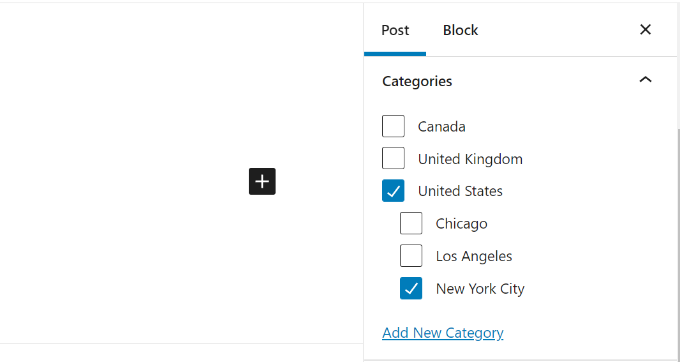
A post filed under a child category doesn’t need to also be filed under the parent category. In our example, we could have left ‘United States’ unchecked and just put the post in the ‘New York City’ category.
If you file a post under the child category but not under the parent category, then your post will appear only on the archive pages of the child category.
Having said that, let’s take a look at how to add both regular categories and child categories in WordPress.
Adding a Category in WordPress
You can easily add a new category in WordPress when writing a post.
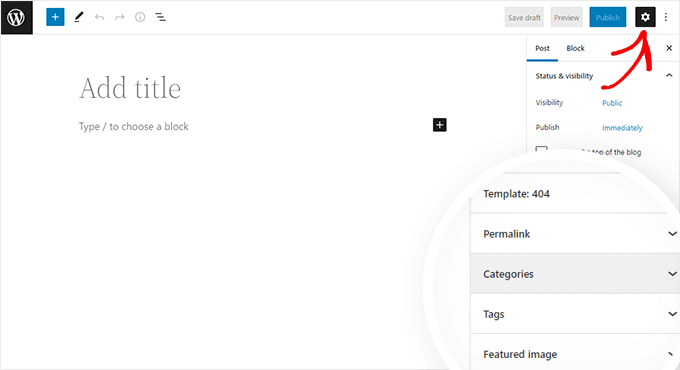
First, if the sidebar isn’t showing when you’re editing a post, you’ll need to click on the gear icon on the top right.
Then, in the Post panel on the right-hand side, open up the Categories tab.
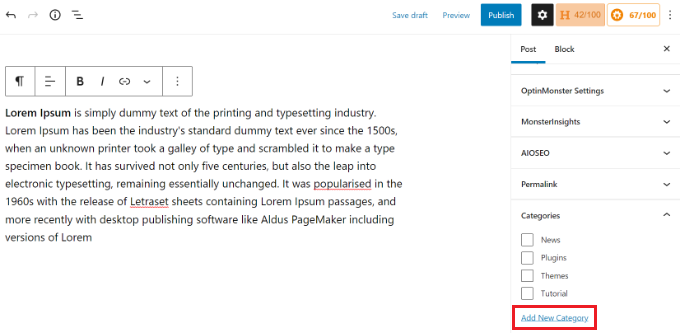
You’ll see different categories that you’ve already created.
However, to create a new category, you can simply click the ‘Add New Category’ link.
Once you click the link, two new boxes will appear where you can add your category.
For a regular category, you don’t need to select anything from the Parent Category dropdown.
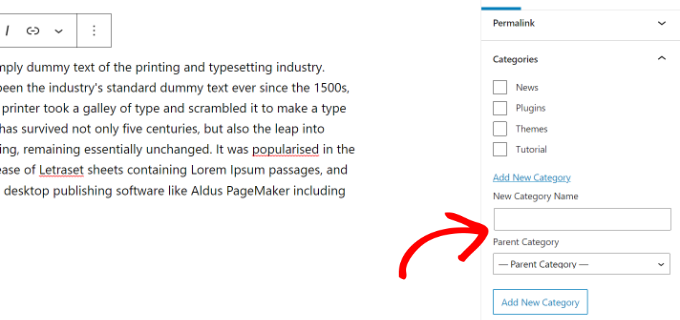
Once you’ve typed in the name for your category, simply click the ‘Add New Category’ button.
The box for that category will then be automatically checked for your current post. You can uncheck it if you want.
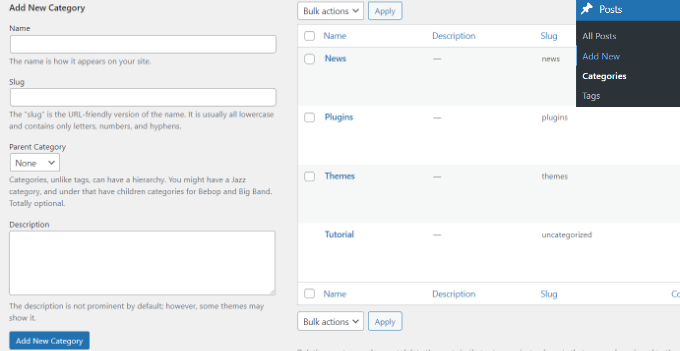
You can also add a new category without editing a post.
Simply go to Posts » Categories and add your new category. This is handy if you want to create all your categories before adding content.
This method also lets you edit the slug (URL) for your categories. You can delete and rename categories and give them a description. See how to add SEO keywords and descriptions in WordPress.
Adding a Child Category (Sub Category) in WordPress
You can add and edit child categories in exactly the same way you added your parent categories.
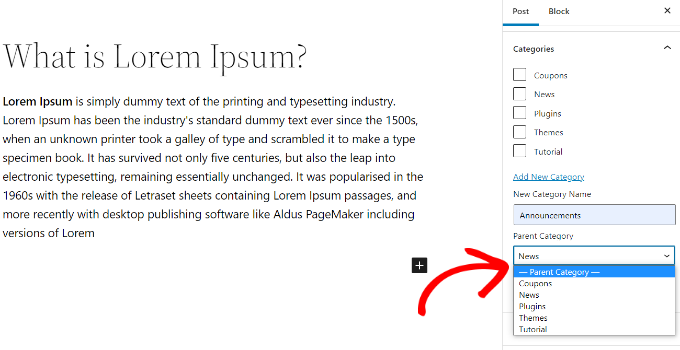
When you’re editing a post, open the settings panel and scroll down to the Categories tab.
Next, click the ‘Add New Category’ option and type in the name for your child category. Then select the category that you want to use as the parent from the dropdown list.
Similarly, you can also go to Posts » Categories to add child categories.
Just type in the name for your child category and select the parent category from the dropdown menu.
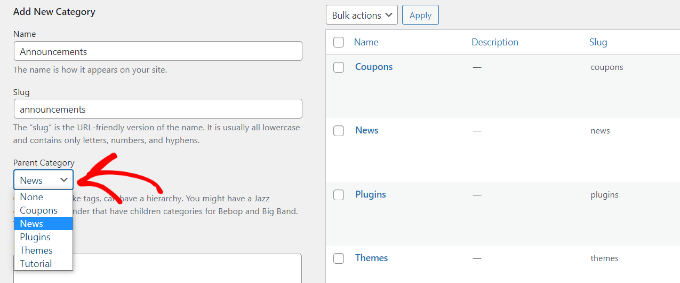
Your child categories can also have their own child categories if you want.
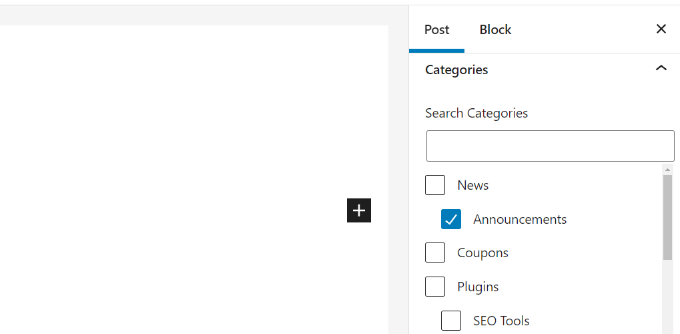
For instance, we might decide to develop a category structure that is used to group multiple types of content together, like this:
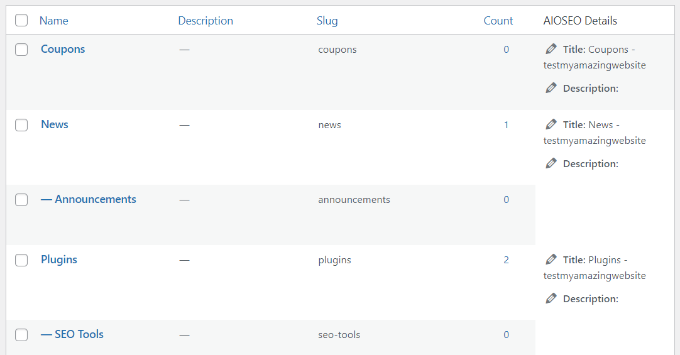
Here, News is a category, with the Announcements as child categories.
Categories on the same level within a parent category are sometimes called ‘sibling’ categories. For instance, the Announcements and SEO Tools are sibling categories here.
Categories can only have one parent. You can’t add one sub-category under two different parent categories.
SEO Benefits of Category Based Site Structure
Your category URLs will look something like this:
https://example.com/category/united-states/new-york-city/
This is meaningful and helps search engines and visitors understand what your page is about. You also get a chance to add keywords to your URL. Keywords help people find content on search engines.
WordPress also allows you to easily change the /category/ prefix of your category URLs. You can even remove it completely if you want.
Simply go to the Settings » Permalinks page from the WordPress admin panel and scroll down to the ‘Category base’ section.
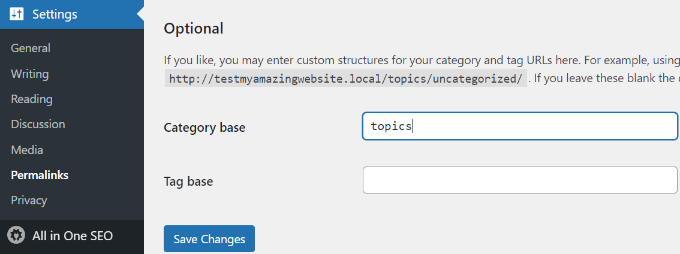
Here you can enter the prefix you would like to use and click on the ‘Save Changes’ button to store your changes.
The ‘category’ prefix in your category URLs doesn’t add any benefit to your SEO.
This is why some website owners prefer to remove the remove the word ‘category’ from their WordPress category archive pages’ URLs. You can easily do this by using the All in One SEO plugin, so your category URLs look like this:
http://example.com/united-states/new-york-city/
Simply go to the Search Appearance menu for AIOSEO and then select the Taxonomies tab. Under the Advanced settings for Categories, you will see the option to remove category base prefix.
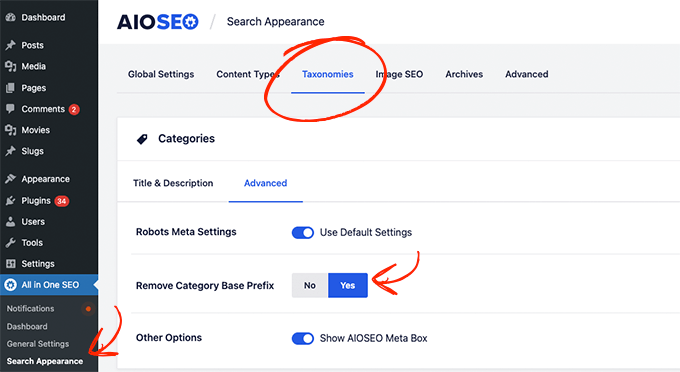
Alternatively, you can also use the FV Top Level Categories plugin. Simply install the plugin and it will remove the word ‘category’ from your category archive pages’ URLs.
Important: If you decide to change the category base on an existing WordPress site, then you’ll need to set up redirects to avoid 404 errors for search engine visitors. For more detailed instructions, please follow our guide on how to change the category base prefix in WordPress.
How to Display Categories and Child Categories in WordPress Sidebar
You can add a widget block to your WordPress sidebar or footer to show a list of categories. In your WordPress dashboard, go to Appearance » Widgets.
If you haven’t changed your widgets from the ones that WordPress puts there by default, you should see the Categories widget block already in place. If not, then you can click the ‘+’ button and add a ‘Category’ block to your widget area.
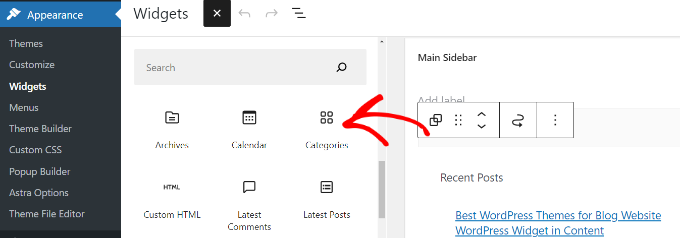
By default, the widget will show all your categories in a flat list, in alphabetical order.
Here’s a preview of how they looked on our test website:

Tip: Categories will only display on the list if you’ve assigned at least 1 published post to them.
You can change it to show the child categories (subcategories) beneath their parent categories if you want. Simply enable the ‘Show hierarchy’ option in the widget settings like this. Don’t forget to click the ‘Update’ button.
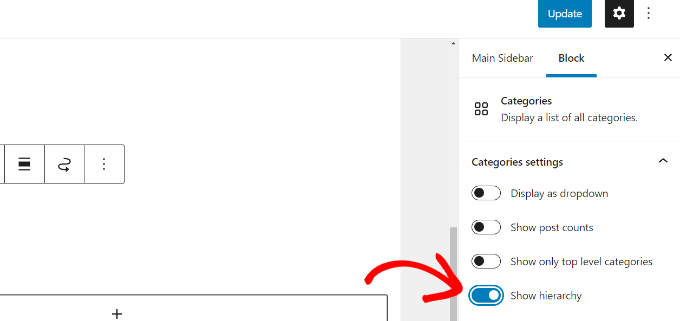
On your site, you should now see your parent categories with the child categories nested beneath them.
Tip: If your sidebar changes don’t show up, you might need to clear your WordPress cache.
Aside from the default category widget block, you can also create custom category menu links using the WordPress navigation menu. After that, you can add that menu to your header menu, sidebar, footer, or other menu locations.
We hope this tutorial helped you learn how to add categories and child categories in WordPress. You may also want to take a look at our article on how to create an email newsletter to grow your website traffic, and our comparison of the best WordPress page builders to create custom layouts.
If you liked this article, then please subscribe to our YouTube Channel for WordPress video tutorials. You can also find us on Twitter and Facebook.




Syed Balkhi says
Hey WPBeginner readers,
Did you know you can win exciting prizes by commenting on WPBeginner?
Every month, our top blog commenters will win HUGE rewards, including premium WordPress plugin licenses and cash prizes.
You can get more details about the contest from here.
Start sharing your thoughts below to stand a chance to win!
Atul Tanna says
I have a Buying Guide, Review, and Categories and Under Categories I have several sub categories
When I Review Amazon Products I would like them to appear under Reviews and at te same time time I would like them to appear in one of the sub categories How do I get started and what do I do
Thanks
WPBeginner Support says
Unless your theme specifically hides them, your category pages should include any subcategories in the list of posts. You can create the category pages by linking to your category in your menu and our guide below should help create your menu!
https://www.wpbeginner.com/beginners-guide/how-to-add-navigation-menu-in-wordpress-beginners-guide/
Admin
Alaba says
Hi, my site has some categories that don’t have any parent category. However, these were created a long time ago. Can I just assign them one?
WPBeginner Support says
You can but if you have any posts under the categories, be sure to redirect any posts that had their URLs changed
Admin
Ayo says
Hi, How can I have a parent category that covers all the posts of its subcategories like the one on this web (https://www.wpbeginner.com/blog/)?
WPBeginner Support says
That would be your posts/blog page that you can set under Settings>Reading
Admin
Imran khan says
When using child categories, should I check the parent category also checked, or keep it unchecked?
WPBeginner Support says
If you mean when adding a post to the category, you would only need to check the child category
Admin
Imran khan says
I have my permalink structure set to “/%category%/%postname%/” and I want to show the parent category in my URL.
1. If I checked the child category my post URL’s are showing: “www.my-site.com/parent-cat/child-cat/post-name/”
2. If I checked both child and parent categories, my post URL’s are showing: “www.my-site.com/parent-cat/post-name/” that I want. So now should I check the parent category also checked, or keep it unchecked? If i checked both then it would not be an issue to have duplicate content that will negatively affect on SEO.
WPBeginner Support says
Your URLs are like that as your parent category would be used first. It should not affect your SEO but you can use both categories if you wanted. Otherwise, we would recommend taking a look at the recommendations from our article below:
https://www.wpbeginner.com/wp-tutorials/how-to-change-the-category-base-prefix-in-wordpress/
Terry says
Can subcategories be used for products?
WPBeginner Support says
Yes, as long as your eCommerce plugin allows.
Admin
Sade says
Hi,
I have made my catergory showing at the top a drop down, but when I put category in my primary sidebar when I click it says ‘select category’ and doesn’t show my sub categories. How do I fix this?
Thanks
WPBeginner Support says
You would normally need to manually add subcategories if we’re understanding what you’d want correctly.
Admin
Ebi says
Hi
Can I generate multiple articles for the main category without selecting a subcategory for it (with a few subcategories), is this SEO desirable?
WPBeginner Support says
You can have multiple posts in one category if you wanted and not use subcategories, it would depend on the overall organization of your site for how useful it would be and if it would have any SEO effect.
Admin
usman says
hay i need to know how i display sub-category show in menu when i add new show auto into the menu
WPBeginner Support says
For customizing your menu, you would want to take a look at our guide below:
https://www.wpbeginner.com/beginners-guide/how-to-add-navigation-menu-in-wordpress-beginners-guide/
Admin
Candy says
I have six categories on my homepage. When you click the image on the homepage, it takes you to that category page. I am having an issue with blog posts. How do I get the blog post to automatically appear on the correct category page? I’m been doing this manually and I know there has to be another way. Thanks in advance!
WPBeginner Support says
You should be able to link to the category page for WordPress to automatically list the posts in a category. You can get the link to your category page by adding a category to your menu. You should not be manually creating your category pages.
Admin
Stef says
You mentioned if you don’t attach the item to the parent and only the child that it wouldn’t show up in the parent. This is incase you don’t want duplicate content.
If left attached to both would this create an SEO issue of having duplicate content then? I know Google frowns upon duplicate content, but you didn’t say.
Thanks in advance.
WPBeginner Support says
It should not cause a duplicate content issue either way.
Admin
Muhammad Salman says
Good. It helped me a lot thanks wpbeginner
WPBeginner Support says
You’re welcome, glad our article was helpful
Admin
Julie says
Thanks,
I was told I was creating my categories incorrectly as they had the word ‘category’ in the URL. I read several posts on how to create categories and yours was the only one explaining this.
That said, how bad is it to have this? I hate to add in yet another plugin. It really doesn’t bother me…unless it should for some reason.
Julie
WPBeginner Support says
There is a large amount of personal preference as search engines don’t specify their preference other than being easy for users to understand. You can always update your category names if you wanted but it is not a hard requirement. For adding more plugins, for the most part, you shouldn’t worry. For our guide on plugins you would want to take a look at our article here:
https://www.wpbeginner.com/opinion/how-many-wordpress-plugins-should-you-install-on-your-site/
Admin
Steve says
Is there a way to filter the categories? Id like to show the categories related only to this page topic.
WPBeginner Support says
For what it sounds like you’re wanting, you may want to take a look at our guide on adding conditional logic to menus: https://www.wpbeginner.com/plugins/how-to-add-conditional-logic-to-menus-in-wordpress/
Admin
Anna Tang says
Thank you for the tutorial. It was clearly written and I solved my category/subcategory issues within 5 minutes.
Best,
Anna
WPBeginner Support says
Glad our article could help
Admin
Kelly Quek says
Hi I need help.. I have accidentally click on make a default.. How to undefault it back?
WPBeginner Support says
You can change which category is the default under Settings>Writing but you must have at least one default category
Admin
Michael Taylor says
Is it possible to create a hierarchy with lets say parent, child, grandchild , and great grandchild? in other words…
United States > California > San Francisco > Hotels
United States > Nevada > Las Vegas > Hotels
United States > New York > New York City > Hotels
Canada > British Columbia > Vancouver > Resturantrs
WPBeginner Support says
Yes you can have multiple subcategories beneath a subcategory if you wanted
Admin
dinesh says
How can I represent woocommerce categories, subcategories, and products in the form:
1) A form consists of 3 fields categories, subcategories, and products
2)If we select one category the related subcategories should be displayed in subcategories feild.
3)Select Subcategory , such that the product should be displayed by related categories and subcategories
4) And if we submit the form It should redirect to checkout page
WPBeginner Support says
Rather than in a form, you may want to take a look at the plugin in our article: https://www.wpbeginner.com/plugins/how-to-let-users-filter-posts-and-pages-in-wordpress/
Admin
sera says
Hi
i have a problem
i want to associate one subcategory to a few parents
for example:
outdoor > panel
indoor > panel
outdoor & indoor is parents and panel is a child
can you help me please??
thaks a lot
Usama Ahmed says
That is the most basic example of many to many relationship inside categories. One Category with multiple parents.
Unfortunately WordPress is a pile of garbage and till this date this feature is not available.
Sunshine Vaughn says
I don’t want all of my posts to show when i click on the parent. How do i go about fixing this?
I only want to see the posts directly placed in each category and then list out each sub category just like you would in using Windows Explorer.
Thank you,
Sunshine
Mike says
I’m helping a friend switch update their website, and upon investigation they built it mainly from categories and sub-categories, with only four (unfinished and unlinked) pages and the reading setting as show recent posts, instead of having a static homepage. The main menu displays categories with sub categories highlighted underneath.
My question is, what’s the best way to update the site, by adding a static homepage and other primary pages for the posts to be listed with without messing with the overall organization of the content?
Denis says
How can we add a third level of subcategory in Woocommerce ?
Bhat Muzamil says
It was very helpfull to me thanks for such a awesome article
Bel says
Hello, awesome site. Thank you you have helped me to build my website.
I have question hoping you can help – is there an plugin to place small images left side of post summaries on landing page.? I have looked and searched and even paid for a plugin that did not operate. Any help would be great.
Steven Denger says
Very helpful like all your tutorials are. I always come here to learn the best practices as well as great plugin resources. Thanks for this tutorial.
Stefan says
So… what is a sub-category good for?

I can just have “United States” and “New York” — both as categories, and simply drag “New York” under “United States”. They’ll be displayed the same, as category / subcategory, only that they’re both categories.
I can choose if an article goes to both, or just one of the categories.
So, what is the use of having a subcategory?
WPBeginner Support says
Hey Stefan,
Subcategories allow you to add subtopics to a category. An article, filed in a sub-category is also displayed in the parent category. However, an article filed in a sibling category will not be displayed on other sub-categories that are also part of the same parent category.
Admin
Vijeesh Vijay says
Duplicate content is the major issue when assigning posts to both parent categories and child categories. For example, I want the same post to show up under “united states” parent category and “New York” child category. However I need more than 1 post in each child category to avoid duplicate content.
The problem occurs when you have a menu or website navigation made of categories. You have to wait until the blog is big enough to have a few articles in each sub categories to make a proper menu. Is there a way around this ?
Anja says
Hi VIJEESH,
It shouldn’t be a problem. The url of the page/post remains the same, it is mentioned in the category page and Google recognizes this, their bots are really intelligent To avoid it even better I suggest you install YOAST SEO, a free plugin, which is great for your SEO and they offer the option to avoid duplicate content from categories as well in the settings menu.
Hope this helps!
Anja
rose says
hi guys!
I’ve been working on my website and for days I’m trying to figure out on how to work the sub menus on my two blog categories namely lifestyle and tv series- the 1st submenu is working out fine but the 2nd level up to fourth level- I can’t click it al all.
i’ve tried plugins and all
is there anyone can help me with this please? Thanks so much
sincerely,
rose
Jill says
Great article. This was a HUGE help!
Question:
You explained how to get the child categories to show on the blog sidebar but how do I get them to show on the top bar as drop downs?
vivek says
To do this go to Posts -> All Posts. Next, select the posts you want to add to a category, click on the Bulk Actions tab, select Edit and finally press the Apply button. Once you do that, you will few options you can adjust for those posts. One of them is the Categories section.
Harish Negi says
I am using category and subcategory, but they are not reflecting in my URL. is there any reason for that in wordpress. Please answer..
evan says
I would like my category pages to show the sub-category PAGES that belong to that post. Currently, my category pages are show the subcategory POSTS.
How do I fix this?
Alex says
Great read, thanks!
I am creating a website with the exact same example you gave. I am wondering if it’s better to have the permalink structure set to:
1. /continent/country/destination/%postname% or to
2. /%postname%
I am not sure if the first option is better, since it is becoming quite long.
Thank you for your help!
Nicole says
What if you want the category’s to be going across the top of the page and not on the side?
Mikey says
Thanks for the help!
Urooj says
Thank you for this post. I understand the category and the sub categories you explained. There si something I want for the my website. I make a category for a course with the course name now for the sub-categories, say, I want books, audios, videos and flashcards also I want a page which shows all the books from all the categories I have on a single page. Same for the audios, videos and flashcards. Is that possible without duplication?
Jason says
Is it possible to have multiple subcategories with the same name? For example, to categorize counties in the United States as State -> County. I would like Mississippi -> Jackson but also Alabama -> Jackson. Jackson county exists in both states, but should be entirely unrelated. Any way to accomplish this?
Rolfa Stol says
I add category per easy instructions above ( visit POSTS–add new category..) and the added show up to the right, correctly as far as i can see, but not on main page under categories. Impossible to get it there, only the default “uncategorixed” show up there. Really strange, as i need to use Kudani and make a post on distance, but it also seems to think i have no category…..
WPBeginner Support says
Simply creating a category is not enough. You may also need to assign atleast one post to that category. By default, WordPress sometimes does not display empty categories.
Admin
Anca says
Great info! Thank you very much!! I finally managed to create a sub-category
WPBeginner Support says
Glad you found it helpful.
Admin
Suzy says
Dear staff,
What if I want to display my 2 subcategories on their parent category page?
I know that there is some sort of code, but where exactly should I paste this code, in the functions.php?
Thank you
evan says
I have the same question. Please let me know if you found an answer
Ian Anderson says
Hiya, thanks for the tutorial.
Any tips where categories overlap? For example my DIY site often features stuff made from wood but also repairing or maintaining stuff made from wood. Do I categorize ‘wood’ or ‘repair’ / ‘maintain’.
Plus different materials (metal/tile/fabric etc) so I’m really struggling to know what to put first, material or action?! Either way it looks like I’m going to have duplicate subcategories…
Sometimes wish I had a needle narrow skillset lol!
Kaye says
Is there a limit on categories? I currently have 10 displayed but have 12 listed so two is not showing up. Is there a way to add more so that the last two will show up. When going to my site live I see the two space on the third row but they are not showing up. What am I doing wrong
WPBeginner Support says
By default, WordPress does not show empty categories in the category lists. Please see our guide on how to show empty categories in WordPress widgets
Admin
Elliot says
Is there a limit to the amount of categories enabled on word press?
I have a large amount of subcategories and wordpress won’t allow me to add anymore, it seems to just boot an old category out in order to make space for the new one?
Can anybody help?
Rahul Choudhary says
Hi Syed
Thanks for this article. The example you have given here is exactly the same scenario i am dealing with. Now here is situation I have Categories
Parent Category : Australia
Child Category: NSW
Child Child Category : Sydney
I also have three more Parent categories at same level as Australia
Apple
Microsoft
Other
Now when I create a post I assign Parent & child categories because I am using ajax search to filter the result on hierarchy based. I also select one of those parent categories as well : Apple, Microsoft or Other.
Now I have a search box where I sort the result based on country city or town. I would like to have a one more search box where I could sort based on Apple, Microsoft or others where once I select apple then it should display Australia -> NSW -> Sydney.
Its like country (parent) category will be a child category in this search.
Is this possible?
Thanks
Rahul
WPBeginner Support says
Take a look at SearchWP plugin. It has a taxonomy filter that might work for your scenario.
Admin
francis okoye says
Thanks for d tutorials was really helpful. How can I make my subcategory to appear when the mouse is hovered on the category. I don’t want the subcategory to show beneath the category. I want it to show on hovering the category…. Any help please
Rahul says
Hi
I am having real problem sorthing this category issue. I want to display hotels & Car Rental in various countries so:
Country
-> US -> Alabama -> Montgomery
-> Australia -> NSW -> Sydney
Country is the ultimate parent category I would like to have.
Then I would like to display either all the hotels or Car Rental in that particular city.
So basically countries will have both hotels and car rentals but I would like to display hotels only in Sydney if user decided to display hotels only or car rental.
Help Needed.
Cheers
claude apetse says
hello admin , i found very interesting post in your tag. but in my , the first day after hosting the site (wordpress) i added some category but after a while ( some days after) i could no longer add new category . it is adding of course in the category form when i fill it but not showing in the homepage of the site
WPBeginner Support says
A category will not appear on your site until you publish a post in that category.
Admin
Chris says
Are the categories you mention in this post only applicable to POSTS, or can categories be added for PAGES as well? I don’t see an option for creating a category for PAGES.
WPBeginner Support says
By default pages cannot be categorized. See our guide on the difference between posts and pages. However, you can use a plugin to make categories and tags available for pages as well.
Admin
Ruby says
I really needed this tutorial! Thank you so much for making it so easy to understand.
sandeep Kumar Dan says
Hi, Sayed
Great article , its really helpful , I was doing an product listing project . Where i was need many category subcategory option , finally I did it with this tutorial. Thanks a lot
sue says
I have added another sub category to an existing list and it does not show up on the blog page?
TIA