


Seeing the “Not Secure” warning pop up on your own website is a scary experience. When this happened to one of my WordPress sites, for a minute, I thought my site had been hacked.
However, that site was too old, and I had forgotten to move it to a secure HTTPS connection, which is now a standard requirement for all browsers.
Luckily, fixing this “Not secure” warning is actually quite straightforward.
In this guide, I’ll walk you through the simple steps to get that reassuring padlock icon back and make sure your site is secure for everyone.
Why Does Google Show “Not Secure” on Your Website?
When I see the “Not Secure” warning pop up on a site, I know it usually means one thing: the site isn’t fully encrypted. Google shows this warning when a website doesn’t use HTTPS or there’s something wrong with its SSL certificate.
For reference, HTTPS (Hypertext Transfer Protocol Secure) is the secure version of HTTP. It uses something called an SSL/TLS certificate to encrypt the connection between your website and your visitors.
Let me walk you through the four most common reasons I’ve seen this warning appear on WordPress websites:
- Your Website Doesn’t Have an SSL Certificate. SSL certificates encrypt the connection between your website and visitors. Without one, browsers assume your site is unsafe because any data people enter, like personal details, could be intercepted. This is the most common reason for the warning.
- Your SSL Certificate Is Expired or Invalid. An SSL certificate can be installed, but it may have expired or may not have been set up correctly. This is one of the first things I check. You can usually spot this SSL issue by clicking the padlock icon in your browser’s address bar.
- Your Website Has Mixed Content Issues. Even with a valid SSL certificate, your site can still display as “Not Secure” if it loads content (such as images or scripts) over HTTP. This happens often when a site is switched to HTTPS, but old links aren’t updated.
- Your Site Has HTTP URLs in WordPress Settings. I always double-check the WordPress Address and Site Address in Settings » General. If these are still set to HTTP, your site may continue to trigger security warnings even if SSL is working correctly.
Now that I’ve covered what causes the “Not Secure” warning, let’s take a look at how to fix it and prevent it from coming back.
How to Fix the “Not Secure” Warning in Google Chrome
Fixing the ‘Not Secure’ warning involves four key steps: installing an SSL certificate, updating your WordPress URLs, fixing mixed content errors, and redirecting all traffic from HTTP to HTTPS.
Luckily, the fix usually isn’t complicated. In most cases, it comes down to enabling an SSL certificate, updating a few WordPress settings, or cleaning up what’s known as mixed content.
I’ve gone through this troubleshooting process on dozens of sites—both my own and for others—and I’ll show you exactly what to do to secure your site and get rid of that warning for good.
Here are the steps I will cover:
- Step 1. Get a Free SSL Certificate for Your Website
- Step 2. Update Your WordPress URLs to Use HTTPS
- Step 3. Fix Mixed Content Issues in WordPress
- Step 4. Set Up an HTTP to HTTPS Redirect in WordPress
- Step 5. Test Your SSL Setup for Security Issues
- Frequently Asked Questions About SSL and WordPress Errors
- Bonus Resources for WordPress Security
Step 1. Get a Free SSL Certificate for Your Website
The first thing I do when fixing a “Not Secure” warning is check if an SSL certificate is installed. This small piece of security tech encrypts data between your website and visitors—and it’s what enables HTTPS.
Years ago, SSL certificates could be expensive. Some companies still charge a premium, but the good news is you don’t need to pay for one, especially if you’re just starting out.
Most WordPress hosting providers now offer free SSL certificates with their plans. I’ve used this option on dozens of websites, and in most cases, enabling it only takes a couple of clicks from your hosting dashboard.
If you’re using Bluehost, just log in to your account and head to your website settings. Then click the ‘Security’ tab.
From there, you’ll see the option to enable the free SSL certificate. Just toggle it on, and you’re good to go.
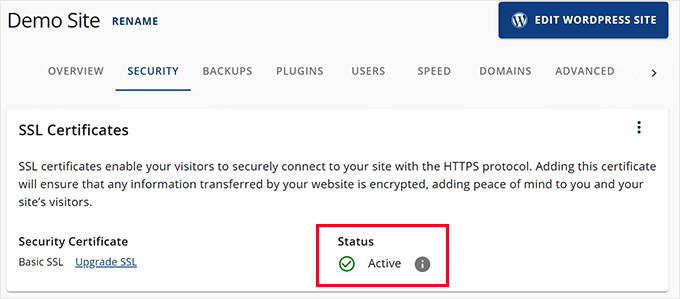
Note: The process is similar for other hosts. If you’re using a different provider, the SSL setting is almost always in the security section of your hosting dashboard.
For hosts that use cPanel, you’ll need to launch it from your hosting dashboard. Scroll down to the ‘Security’ tab and click on the SSL/TLS icon.
And if your host doesn’t offer free SSL, don’t worry—you can still get one through Let’s Encrypt.
We have a detailed tutorial showing you exactly how to do it: How to Add Free SSL in WordPress with Let’s Encrypt.
Step 2. Update Your WordPress URLs to Use HTTPS
Even with an SSL certificate, your site might still load as “Not Secure” if the WordPress settings are incorrect. You can fix this by updating your site’s URL.
Simply go to the Settings » General page in your WordPress dashboard.
Then, make sure both the ‘WordPress Address (URL)’ and ‘Site Address (URL)’ fields use https:// instead of http://.

Don’t forget to click on the ‘Save Changes’ button to store your settings.
WordPress will now start using https:// for all URLs across your website. However, some HTTP URLs may still be stored in your WordPress database, which may cause issues moving forward.
Next, I will show you how to fix those URLs easily.
Step 3. Fix Mixed Content Issues in WordPress
Important: Before you make any changes to your database, I strongly recommend creating a full backup of your WordPress site. A plugin like Duplicator makes this process simple and provides a safety net in case anything goes wrong.
One reason for the ‘Not Secure’ warning is mixed content issues. This happens when some parts of your website load using an HTTP (insecure) URL.
Almost all of these URLs are stored in your WordPress database and added by your WordPress theme or plugins. You may also have http:// URLs in your blog posts and pages.
To fix this, you will need a search and replace plugin to find http URLs and replace them with https://. The best plugin for the job is Search & Replace Everything.
I use Search and Replace Everything because it is fast, efficient, and developed by the WPCode team, the same experts behind the most popular code snippets plugin for WordPress. More importantly, it is super easy to use even for beginners.
Tip💡: There is also a free version of Search & Replace Everything that you can use.
First, you need to install and activate the Search and Replace Everything plugin. For details, you can see this guide on how to install WordPress plugins.
Upon plugin activation, go to the Tools » Search & Replace page to start using the plugin.
In the ‘Search for’ field, you need to enter http:// and in the ‘Replace with’ field, add https://.
After that, you need to click on ‘Select All’ to ensure all tables in your WordPress database are included in the search.
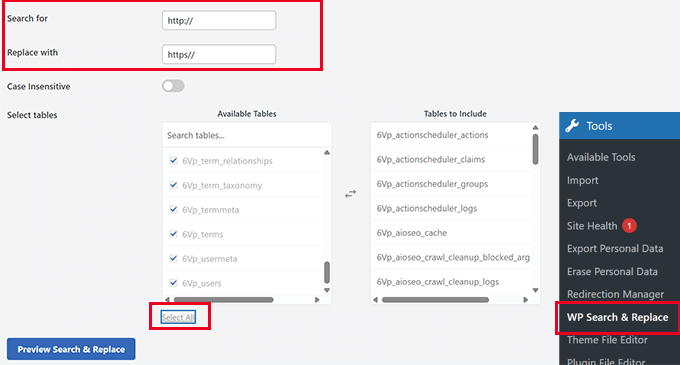
Finally, click on the ‘Preview Search & Replace’ button.
The plugin will then perform the search and show you a preview of the results. This allows you to review the data before it is permanently changed.
Carefully review the results, and once you are satisfied, click on the ‘Replace All’ button.
The plugin will then make changes to your WordPress database and replace all HTTP URLs with HTTPS.
For more details, see this guide on how to fix the mixed content error in WordPress.
Step 4. Set Up an HTTP to HTTPS Redirect in WordPress
After switching a site to HTTPS, one of the steps I never skip is setting up a redirect from HTTP to HTTPS. Without it, people might still land on the insecure version of your site through old links or bookmarks.
Important: Editing server configuration files like .htaccess can break your site if done incorrectly. Before proceeding, I always make a full website backup with a plugin like Duplicator. For a safer alternative, the All in One SEO plugin includes a powerful Redirection Manager that lets you set up redirects from your WordPress dashboard without touching any code.
The most reliable way to create a redirect is by adding a rule to your .htaccess file.
Here’s the snippet I use on most WordPress websites:
RewriteEngine On
RewriteCond %{HTTPS} !=on
RewriteRule ^(.*)$ https://%{HTTP_HOST}%{REQUEST_URI} [L,R=301]
The .htaccess file is located in your site’s root folder. You may need to enable ‘Show Hidden Files’ in your hosting file manager or FTP client to see it.
For details, see this guide on how to fix the WordPress .htaccess file.
If your website is running on Nginx instead of Apache, then you’ll need to set up the redirect differently.
Instead of editing a .htaccess file, you’ll need to update your Nginx configuration.
Here’s the code I would add to redirect all HTTP traffic to HTTPS in Nginx:
server {
    listen 80;
    server_name yoursite.com www.yoursite.com;
    return 301 https://yoursite.com$request_uri;
}
You’ll want to place this block above the existing HTTPS server block in your site’s Nginx config file—usually found in /etc/nginx/sites-available/ or /etc/nginx/conf.d/.
Important: Remember to replace ‘yoursite.com’ in the code above with your actual domain name.
Once you’ve added the redirect, don’t forget to reload Nginx for the changes to take effect:
sudo nginx -s reload
If you’re not sure where to make the change, it’s a good idea to reach out to your hosting provider.
Step 5. Test Your SSL Setup for Security Issues
After making these changes, you should test your website to ensure everything is working correctly.
You can use the SSL Labs SSL Test to check your certificate. It provides a deep technical analysis and a grade (from A+ to F) for your SSL configuration, which is great for a thorough check.
Another alternative tool that I have often used is Why No Padlock? I like this one because it gives a simple, easy-to-understand report that is perfect for quickly identifying any remaining mixed content issues.
Finally, try visiting your site in Incognito mode. If you still see the “Not Secure” warning, you need to clear your WordPress cache or wait a few minutes for changes to take effect.
Frequently Asked Questions About SSL and WordPress Errors
How much does an SSL certificate cost?
While some providers charge for them, you can get a free SSL certificate. Most top WordPress hosting companies include one for free with their plans. You can also get a free SSL from non-profit certificate authorities like Let’s Encrypt.
Can I ignore the ‘Not Secure’ warning on my website?
Ignoring the ‘Not Secure’ warning is not recommended. It erodes visitor trust, which can lead to higher bounce rates and lost sales. Search engines like Google also use HTTPS as a ranking signal, so not having it can negatively impact your SEO.
How long does it take to fix the ‘Not Secure’ warning?
For most WordPress sites, you can fix the ‘Not Secure’ warning in under 30 minutes. The process involves enabling your SSL certificate through your host, updating URLs in your WordPress settings, and setting up a redirect. Using a plugin can speed up the process of fixing old HTTP links in your content.
Bonus Resources for WordPress Security
I follow this WordPress security guide on all websites I work on. This step-by-step guide offers an easy action plan to properly secure your WordPress website.
The following are a few additional resources that I think you’ll find helpful:
- How to Renew SSL Certificate (Step by Step for Beginners)
- TLS vs SSL: Which Protocol Should You Use for WordPress?
- Ecommerce Security Tips: How to Secure Your WordPress Store
- How to Add HTTP Security Headers in WordPress (Beginner’s Guide)
- Most Common WordPress Errors and How to Fix Them
If you liked this article, then please subscribe to our YouTube Channel for WordPress video tutorials. You can also find us on Twitter and Facebook.




Have a question or suggestion? Please leave a comment to start the discussion.