


With nearly half a billion active users, Pinterest is a huge potential source of traffic for your blog. However, a lot of WordPress site owners post amazing content there but fail to get the traffic they deserve.
I discovered the missing piece is usually site verification. I’ve seen many WordPress sites boost their traffic from Pinterest simply by completing this one step.
The good news is that verifying your WordPress site on Pinterest is straightforward and only takes about 10 minutes. Once you’re verified, you’ll unlock better reach in Pinterest’s feed, gain access to powerful analytics tools, and build trust with your audience.
I’ll walk you through the process step by step to improve your Pinterest traffic potential.
TL;DR: Want more traffic from Pinterest? Verifying your WordPress site is a key step that takes less than 10 minutes. Just upgrade to a free Pinterest Business account and use a plugin like All in One SEO or WPCode to add the verification tag.
Why Verify Your WordPress Site on Pinterest
Verifying your WordPress site on Pinterest improves your visibility on the Pinterest platform and gives you access to powerful marketing tools to improve your content strategy.
Pinterest is one of the top platforms for driving traffic through visual content. Unlike other social media platforms where content quickly disappears, Pinterest pins can drive traffic to your website for months or even years after posting.
When you verify your site, Pinterest recognizes you as the official owner of your domain. This means your pins get priority placement in Pinterest’s algorithm, leading to more visibility in user feeds and search results.
Here are the key benefits you’ll unlock after verification:
- Access Pinterest Analytics – Get detailed insights about your pin performance, audience demographics, and which content drives the most traffic to your site.
- Unlock Pinterest advertising programs – Run promoted pins and shopping ads to reach even more potential visitors and customers.
- Build trust with your audience – When your site is claimed, your profile picture and a ‘Follow’ button will appear on all Pins that come from your site. This shows users that the content is yours and helps you grow your audience.
- Helps You Enable Rich Pins – Verification is the first step to using Rich Pins, which display extra information directly on your pins (such as prices or article headlines). After verifying, you’ll still need to ensure your site has the correct code for Pinterest to read.
The verification process only takes a few minutes, but the impact on your Pinterest marketing can be huge. Once you’re verified, you’ll have all the tools you need to turn Pinterest into a major traffic source for your WordPress site.
💡 Pro Tip: Plugins like All in One SEO not only help with verification but also automatically add the special code (called meta tags) needed to make Rich Pins work correctly.
Step 1: Upgrade Your Pinterest Account to Business
Before you can verify your WordPress site, you’ll need to upgrade to a Pinterest Business account. This type of account is completely free and gives you access to the verification tools and analytics features you’ll need.
Start by logging into your existing Pinterest account. If you don’t have a Pinterest account yet, then you can create one at pinterest.com using your email address.
Once you’re logged in, click on the down arrow next to your profile picture in the top-right corner of the screen. In the dropdown menu that appears, you will see whether you have a personal or business account under your name.
If you have a personal account, then you need to click on the ‘Convert to business’ option.
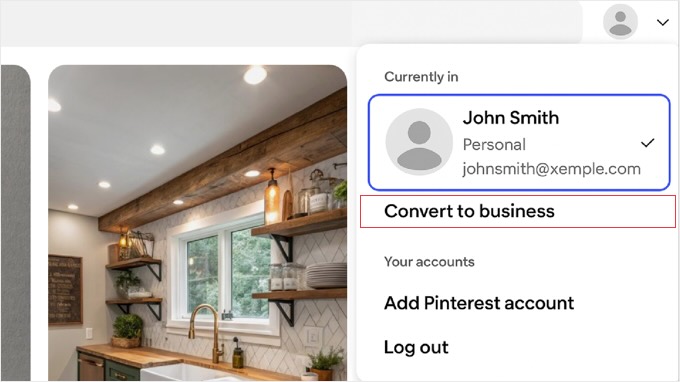
💡 Note: If you don’t see that option directly, then you can also find it by going to Settings » Account management, and clicking the ‘Convert to business account’ button.
Pinterest will then guide you through a few screens to set up your profile. On the ‘Tell us about your business’ step, you’ll enter your Business name and Country.
It’s important to make sure you enter your full website address in the ‘Website’ field. Entering your website here is a key step that makes the verification process much quicker.
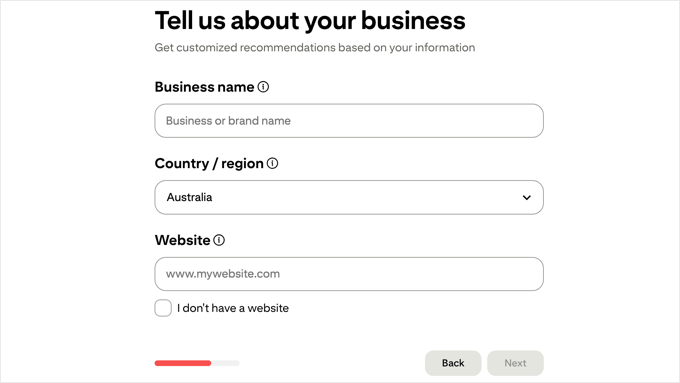
The upgrade to a business account is instant and completely free. You won’t lose any of your existing pins, boards, or followers during this process.
Step 2: Claim Your Website on Pinterest
Now that you have a Pinterest Business account, it’s time to claim your WordPress website. While Pinterest calls this process ‘claiming’ your website, this means verifying that you are the owner.
First, navigate to your ‘Business Hub’ by clicking the Pinterest logo in the top-left corner and selecting ‘Business Hub’ from the menu.
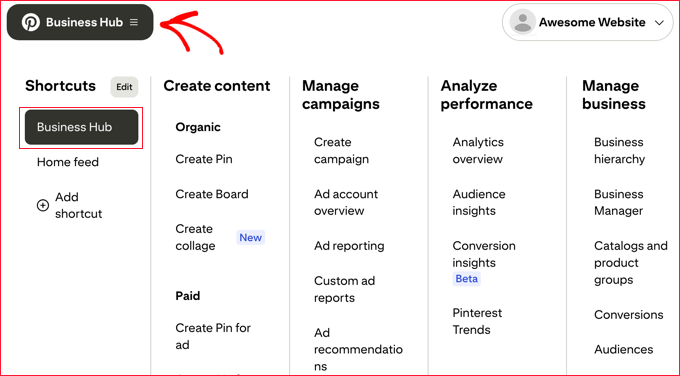
Once you’re there, look in the top-left area of the dashboard.
You should see a section with your profile picture and a prominent, clickable link that says ‘claim [your website name]’. Click this link to begin the verification process.

A popup titled ‘Choose how you want to claim’ will appear. It will present you with three options: ‘Add HTML tag’, ‘Upload HTML file’, or ‘Add TXT record’.
Under the ‘Add HTML tag’ option, you will see a rectangle containing your unique code. When you hover over it, a ‘Click to copy’ prompt will appear.
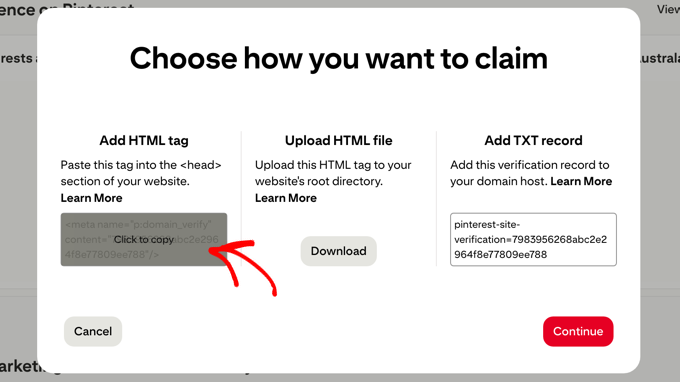
Simply click on this rectangle to copy the entire HTML tag to your clipboard. After you have successfully copied the code, click the ‘Continue’ button.
Keep this Pinterest tab open in your browser, as you’ll need to return here to complete the verification process. Now you’re ready to add this HTML tag to your WordPress website.
Step 3: Add an HTML Tag to Your WordPress Website
The safest and easiest way to add the Pinterest HTML tag to your WordPress site is by using a plugin. This method prevents you from having to directly edit your theme’s code, which can be risky and may get overwritten during theme updates.
Method 1: Use All in One SEO (AIOSEO)
All in One SEO is one of the most popular WordPress SEO plugins, and it includes a built-in feature for adding Pinterest verification tags.
First, you’ll need to install and activate the AIOSEO plugin. You can use either the free or premium version of AIOSEO.
Related: For help configuring the plugin for SEO, see our guide on how to set up All in One SEO for WordPress correctly.
Once AIOSEO is installed, navigate to All in One SEO » General Settings from your WordPress dashboard.
On the General Settings page, click on the ‘Webmaster Tools’ tab at the top of the page. This section is specifically designed for adding verification codes from various platforms.
Scroll down until you find the ‘Pinterest Verification Code’ field. This is where you’ll paste the verification code from Pinterest.
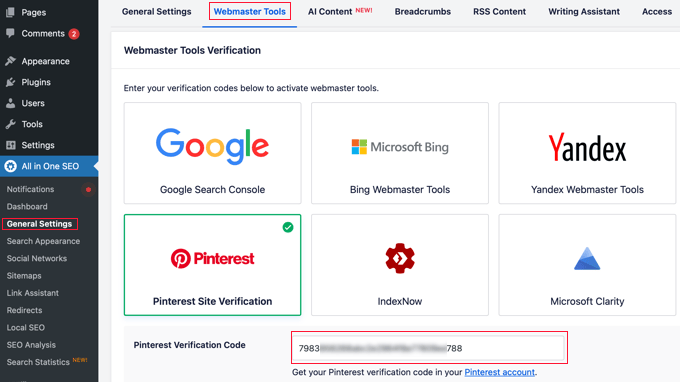
You only need to paste the unique verification code itself, not the entire HTML tag. This is the long string of letters and numbers inside the content="" part of the tag. Don’t worry if you paste the whole tag by mistake. AIOSEO is smart enough to format it for you automatically.
After pasting your Pinterest verification code, scroll down and click the ‘Save Changes’ button to store your settings.
Method 2: Use WPCode
WPCode is a code snippets plugin that makes it easy to add custom code to your WordPress site safely.
Start by installing and activating the free WPCode plugin. If you need help, please see our beginner’s guide on how to install a WordPress plugin.
After activation, go to Code Snippets » Header & Footer in your WordPress dashboard.
In the Header section, paste the complete HTML tag that Pinterest provided. Make sure you paste the entire tag, including the opening <meta and closing /> parts.
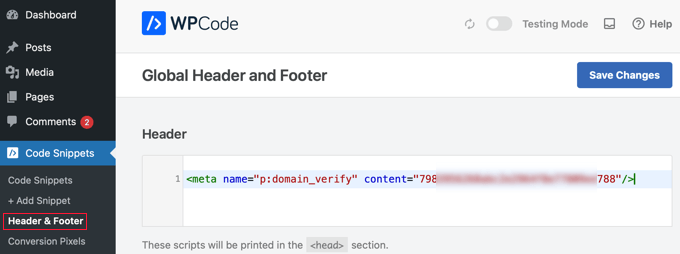
Click the ‘Save Changes’ button to add the verification tag to your site’s header.
Both methods will add the Pinterest verification tag to every page of your WordPress site. This ensures Pinterest can find and verify the tag no matter which page they check.
Step 4: Verify That You Claimed Your WordPress Website on Pinterest
After adding the Pinterest verification tag to your WordPress site, you’ll need to return to Pinterest to complete the verification process.
Now, return to the Pinterest tab you left open. In the popup window, enter your full website URL into the text box, and then click the ‘Verify’ button.
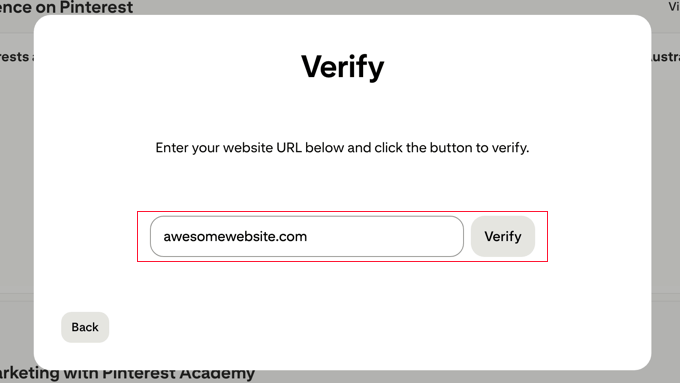
If Pinterest successfully finds your verification tag, then you’ll see a green checkmark and a confirmation message. Your WordPress site is now officially verified on Pinterest.
However, if the verification fails, don’t worry. This is a common issue that’s usually easy to fix.
⌛ Be Patient – Verification Isn’t Always Instant: After you click the ‘Verify’ button, Pinterest may need some time to check your site for the tag. The process could take up to 24 hours in some cases, and you will usually receive a confirmation email once your site is successfully claimed. If it doesn’t verify immediately, wait a little while before assuming there’s a problem.
Troubleshooting and Tips
The most common reason verification fails is due to WordPress caching. If you’re using a caching plugin like WP Rocket or W3 Total Cache, then you’ll need to clear your cache after adding the verification tag.
Also, if you use a Content Delivery Network (CDN) like Cloudflare or Sucuri, then you may need to clear its cache as well. Simply go to your caching plugin’s settings and look for a ‘Clear Cache’ or ‘Purge Cache’ button. Click this button to refresh your site’s cached files.
If you’re unsure whether caching is enabled, you can also try waiting 10-15 minutes before attempting verification again. Sometimes it takes a few minutes for the changes to take effect across all servers.
Another tip is to double-check that you copied the verification tag correctly. Return to your AIOSEO or WPCode settings and ensure that there are no extra spaces or missing characters in the tag.
While Pinterest’s official documentation says you can remove the verification tag after your site is claimed, we strongly recommend leaving it in place using a plugin like AIOSEO or WPCode.
This is the best practice for managing all third-party verification codes, ensuring you won’t have to re-add the code if Pinterest ever needs to verify it again in the future.
Frequently Asked Questions About Pinterest Verification
Here are answers to some of the most common questions we receive about verifying a WordPress site on Pinterest.
How long does Pinterest verification take?
The Pinterest verification process is usually instant once you click the ‘Verify’ button. However, it can sometimes take up to 15 minutes for Pinterest to detect the HTML tag on your website, especially if you’re using caching plugins.
Is a Pinterest business account free?
A Pinterest business account is completely free to create and use. It gives you access to Pinterest Analytics, the ability to run ads, and other verification features without any cost.
Why did my Pinterest site verification fail?
The most common reason Pinterest site verification fails is due to WordPress caching or an incorrectly added HTML tag. To fix this, you should clear your site’s cache, double-check that you copied the tag correctly, and then try verifying again after a few minutes.
Do I have to use a plugin to add the Pinterest verification tag?
You do not have to use a plugin to add the Pinterest verification tag, but it is the recommended and safest method. Using a plugin like AIOSEO or WPCode ensures your verification tag stays in place even when you update or change your WordPress theme.
Will I lose verification if I change my WordPress theme?
According to Pinterest, your site should stay verified even if the tag is removed after the initial check. However, we still highly recommend using a plugin to add the tag.
If you add the verification code directly into your theme’s files, that code will be completely erased when you switch to a new theme. Using a plugin like AIOSEO or WPCode keeps the code separate from your theme.
This makes sure the code remains in place no matter how many times you change your design. It’s the safest method and a WordPress best practice.
Additional Resources for Pinterest Marketing
Now that your WordPress site is verified on Pinterest, you can take your Pinterest marketing to the next level with these helpful guides:
- Learn how to maximize your Pinterest traffic with our comprehensive guide on how to supercharge Pinterest traffic to your blog. This tutorial covers advanced strategies for creating pins that drive more visitors to your WordPress site.
- You can also showcase your Pinterest content directly on your website by following our tutorial on how to show your latest Pinterest pins in WordPress sidebar widgets. This helps keep your website content fresh and encourages visitors to follow you on Pinterest.
- Discover how to add special, hidden images to your posts that are perfectly optimized for Pinterest. Our guide on how to hide Pinterest images in your WordPress blog posts shows you how to encourage shares with beautiful vertical pins without cluttering your article’s layout.
- Stop guessing social media image sizes with our complete social media cheat sheet for WordPress. This technical guide gives you the exact dimensions for profile pictures, cover photos, and shared images on all major platforms, and shows you how to set up your site with plugins to ensure your content looks great when shared.
- Finally, if you want to add social sharing buttons to make it easier for visitors to share your content, then see our roundup of the best social media plugins for WordPress.
If you liked this article, then please subscribe to our YouTube Channel for WordPress video tutorials. You can also find us on Twitter and Facebook.



Dennis Muthomi
The AIOSEO method works great! Quick tip from my experience: make a simple checklist for WordPress sites. The most important thing? Always clear the cache after adding the verification code.
I can’t tell you how many times clients called about failed verifications. A quick cache clear fixed it right away! While the guide mentions a 24-hour verification window (which is true), I’ve seen it work much faster with a cleared cache.
Marian
I did as the article mentioned, and it has not worked. Not even after I cleared my cache.
WPBeginner Support
It would depend on the specific issue you are running into, is it not verifying or are you seeing a different error?
Admin
aga
Thank you so much!! I’ve been trying to do it for weeks and you made it so simple!
WPBeginner Support
Glad our guide could help
Admin
Iruoma
Hey,
Thanks for this info!
I used the AIOSEO and tried going back to my interest to confirm and it says no relevant meta tag was found. Do I have to wait some more to allow for verification?
Thank you.
WPBeginner Support
You would want to check that you’ve cleared any caching on your site as that is the most common reason for that message after adding the verification to your site.
Admin
Kelly Grace
I have Wordfence on my WP.org website and it gives me a warning when I try to add the HTML tag I copied from Pinterest. Is it safe to ignore that and proceed?
Taufiq Azad Siam
Can you please tell me why should I verify my WordPress website on Pinterest?
Please don’t get me wrong. I am a huge fan of this website. I just want to know the benefits.
WPBeginner Support
We would recommend taking a look at the beginning of our article where we cover what is gained from verifying your site
Admin
Eddie Morgan
Can I uninstall AIOSEO verifying pininterest
WPBeginner Support
Once the site is verified you can remove it from your site but AIOSEO is used for much more than only verifying your site on Pinterest.
Admin
Eddie Morgan
Thank you so much, I followed the steps and got the notification verification in progress. How will I know when the website has been successfully claimed? Is it the email they will send? or what changes will I see on Pinterest to know its been successfully claimed.
WPBeginner Support
It is normally an email, as we say in the article above
Salma
Hello!
Thank you for such helpful guides. Your guides are very thorough and helped me through a lot of complications I didn’t think I’d run through while making a blog. So, I just thought I’d thank you for putting in so much work.
WPBeginner Support
Glad our guides have been helpful
Admin
Laura
this was SO helpful. thank you for posting!!
WPBeginner Support
Glad our guide was helpful
Admin
Nesha
This video was so helpful thank you. I have been trying to do this in multiple ways for a while now and never succeeding. Working with your video I managed it in less than 5 minutes. Thank you for sharing!!
WPBeginner Support
Glad our guide was helpful
Admin
Chay
This was a lifesaver!!!! I’ve have been struggling with claiming my website foreverrr. Yoast really is the easiest way and I already had it. Thanks
WPBeginner Support
Glad our guide was helpful
Admin
Miles
I’m great at adventures, not so great at websites… You rock thank you would have never gotten this alone
WPBeginner Support
Glad our guide was helpful
Admin
Ashish Kumar Banchhor
Thankyou dear,
I was looking for this. thanks a lot
WPBeginner Support
Glad our guide was helpful
Admin
John
I was going to add your plugin but it’s saying it’s untested with my version of Wordpress 5.5.1. (which is saying I’m running the latest version).
WPBeginner Support
For that warning, you would want to take a look at our article below:
https://www.wpbeginner.com/opinion/should-you-install-plugins-not-tested-with-your-wordpress-version/
The plugin should still be working and we’ll look into updating the tested number
Admin
John
Great thanks so much, appreciate your response. Thanks for all your guidance and content, it’s been so helpful as I continue to learn Wordpress.
Bryce
Thanks !!
I have tried to do that many times but never succeeded.
WPBeginner Support
You’re welcome, glad our guide can help change that
Admin
Tasia
Your site is super helpful. I’ve come across it many times for answers to questions I’ve googled. Great work!
WPBeginner Support
Thank you, glad our content is helpful
Admin
Lydia
I have been trying to figure this out for a week! I should have come to WPBeginners in the first place, duh. The way you showed it in connection with Yoast was so easy, thanks.
WPBeginner Support
Glad our guide could make it easier for you
Admin
ajumohit
tq for the guidance. my website claimed within 15 minutes
WPBeginner Support
Glad our guide was helpful
Admin
Sanaz
I keep getting “Authorization Failed” after entering my website URL, does anyone know why this is happening?
WPBeginner Support
It would depend on where you are getting the error but the most likely reason would be if you hadn’t cleared all your caching we would recommend doing that to ensure Pinterest can see the tag properly
Admin
Marlene
I have claimed my website already and I accidentally deleted my header and footer plugin and now I’ve lost my meta tag for my claimed Pinterest account. I’m using SEO Yeost now. How do I find that meta tag again so I can input that into my SEO Pinterest section?
WPBeginner Support
Unless you edit the website claim on Pinterest, your site will remain claimed without you needing to include the tag
Admin
Lynn
I have followed the instructions but it never claims my website and after a couple of days I try again! Could there be another reason?
WPBeginner Support
You would want to ensure you’ve cleared all of your caching and that you don’t have a coming soon page up preventing Pinterest from seeing your code.
Admin
Emma
I came across this article when needing more information on getting my Pinterest business account up and running, this was really helpful and easy to follow, thank you very much.
I will be bookmarking your website to return to in the near future as I continue my learning
WPBeginner Support
Glad our article was helpful
Admin
Lungi
Thanks you, this was super easy to follow!
WPBeginner Support
You’re welcome, glad our guide was helpful
Admin
Michelle
Hi
I’ve done this, but after 22 hours or so Pinterest says it can’t find the meta data. Is it be because I have the coming soon page on? Or is security to high or something? If you can help. It happened with confirming gsuite email address aswel.
WPBeginner Support
That would be due to your coming soon page likely not including the meta information
Admin
Tracy Crites
Thank you so much for this!!! I was trying to figure out how to link Pinterest for the 4,000th time, and your tutorial is the first that made sense to me. You are a teacher at heart. It worked!
WPBeginner Support
You’re welcome, glad our guide could help make the process understandable
Admin
Shannon
Thank you so much! I’ve been avoiding this for years because it seemed way too hard!!
WPBeginner Support
You’re welcome, glad our guide could make the process manageable
Admin
Isaac Mutwiri
This made the whole process seem so simple. Thanks a lot.
WPBeginner Support
You’re welcome, glad we could simplify the process
Admin
Jesse
Helpful indeed…..
WPBeginner Support
Glad you found our guide helpful
Admin
Hannah
This was the most helpful walk through I found!
Thank you so MUCH!
WPBeginner Support
You’re welcome, glad our guide was helpful
Admin
Kristen
Thank you for the super simple walk through!
WPBeginner Support
You’re welcome
Admin
Mary
Do you need to have the premium/paid version of the Yoast plug-in? I don’t have the options you refer to in your step by step process. The only place I can input anything regarding social is through the wizard, and this only allows for your social site url.
WPBeginner Support
The method in this guide does not require the paid plugin, you may want to ensure your Yoast SEO is up to date and you should be able to see the options under SEO>Social in your wp-admin area
Admin
Candace Colt
Thanks for this concise video! I went through all kinds of confusing posts and finally found this! This solution worked. Pinterest leaves you hanging!
WPBeginner Support
Glad our guide was able to help
Admin
laura
Awesome, thank you so much for this! The instructions I found through WordPress did NOT work, so this was perfect.
WPBeginner Support
Glad our guide could be helpful
Admin
Nikki
Thank you! The step by step was so easy to follow.
WPBeginner Support
You’re welcome, glad our guide was helpful
Admin
Sharon
thank you so much, really appreciate. This was easy and simple
WPBeginner Support
You’re welcome, glad we could make the process easier for you
Admin
Madelynn
This was helpful. Thank you!
WPBeginner Support
You’re welcome
Admin
Saad Ali
Still having problems claiming my website, when I click save changes button after entering meta tag for pinterest, it directs me to 404 error page
WPBeginner Support
You would want to reach out to your hosting provider to ensure nothing on their end is causing this error.
Admin
Vanessa
This was so helpful and easy!! Thank you so much
WPBeginner Support
You’re welcome, glad our guide was helpful
Admin
Chrystal
Thank you for explaining this is clear, simple terms!
WPBeginner Support
You’re welcome
Admin
Denaye
Hello, could you do the html tag with a personal plan? I don’t have a business plan yet. I do I need a business or a premium plan to install hmtl?
WPBeginner Support
You would need to check with WordPress.com’s support for their currently allowed methods. Our tutorials are for WordPress.org sites:
https://www.wpbeginner.com/beginners-guide/self-hosted-wordpress-org-vs-free-wordpress-com-infograph/
Admin
Sushovita Nelson
I was really so lost and confused. I was going around in circles to get this done. I then found this page that is so beautifully explained, I am so thankful for the support you give others.
WPBeginner Support
Glad our content could be helpful
Admin
Tara
Hi there. I have been trying to claim my website for 3 days with no luck. I have literally tried every single way possible, but I just get a message after many hours telling me that they couldn’t find the HTML meta tag or the verification file. I am waiting on a reply from Pinterest. I don’t know what esle to do.
WPBeginner Support
Have you cleared all caching and reached out to your hosting provider to ensure they don’t have caching that would be showing the old page without the HTML tag?
Admin
Laura
Thank you so much! Very helpful!
WPBeginner Support
You’re welcome, glad our article was helpful
Admin
Abraar
Thanks wpbegineer, you are really helping us beginners a lot. Never stop your work.
WPBeginner Support
You’re welcome, we’ll certainly keep adding more content to our site
Admin
Celina
Thanks so much! This was much easier than uploading the HTML. Your post was very helpful.
WPBeginner Support
Glad our recommendation could help
Admin
Elizabeth
WP Beginner’s text version of how to claim your website helped me get further in the process than any of the similar how-to articles I’ve encountered on the internet. So, many thanks.
When I say I got further in the process, I mean that I nearly completed it but not quite. When I selected the Pinterest tab, entered the meta tag at the Pinterest confirmation window, and hit save changes, no box appeared, pop-up or otherwise. Any idea what I should do next?
WPBeginner Support
There shouldn’t be a popup from Yoast when you save normally but it should be added to your site. Once you clear your cache and give Pinterest 48 hours to recrawl your site it should be able to see the tag.
Admin
Elizabeth
Hi there
I’m not on a wordpress business plan, I think my plan’s called premium or personal (one step before business). Can I still verify my Pinterest account another way? The ways shown here don’t work for me, I don’t have yoast / seo link on my dashboard, and I don’t want to upgrade to a business plan at this stage just to enable plugins for this site verification.
Thanks in advance for any help you can offer.
WPBeginner Support
If you check WordPress.com’s support documentation they should let you know what options they have available currently
Admin
Keith
Hi I tried using both yoast and insert header footer widgets but both didn’t work. For yoast, there weren’t any options for SEO at all. For insert header footer widget, do I have to use it with elementor as I’m using that to build my website? Thanks.
WPBeginner Support
The insert headers and footers plugin is not a widget, it adds code to your header. You could check with Yoast if there is a conflict but the most common issue is if you have a caching plugin that is preventing the required code from being seen.
Admin
Brooke
Thanks so much for this! I’ve been putting off doing this because every time I try and figure out how to, I’m left frustrated! This tutorial was exactly what I needed!
WPBeginner Support
Glad our guide could be helpful
Admin
Corin
Hi, thanks for your post. Very informative! You wrote about claiming a website on Pinterest. Is there a way to unlink it? Thanks in advance.
WPBeginner Support
Unless I hear otherwise, there isn’t a method for unlinking at the moment other than closing the account.
Admin