


You’ve just hit ‘Update’ on an important change, but when you check your live site, nothing is different. It’s a frustrating and surprisingly common problem that can leave you wondering if you did something wrong.
We have dealt with this exact issue many times across our own websites, and the good news is that the fix is usually simple. The delay is almost always caused by a caching system that is working a little too well.
These systems are designed to make your site faster, but sometimes they need a gentle nudge to show your latest content. Luckily, you don’t need any special technical skills to solve this problem.
In this guide, we will show you exactly how to clear those caches and make sure your WordPress site updates instantly. We’ll cover every common scenario so you can get back to what you were doing.

Quick Answer: How to Fix WordPress Website Not Updating
If your WordPress site isn’t showing changes, it’s almost always a caching issue. Do a hard reload in your browser (Ctrl+Shift+R on Windows or Cmd+Shift+R on Mac). If that doesn’t work, clear the cache in your WordPress caching plugin or hosting dashboard.
Why Does Your WordPress Site Not Update Right Away?
Caching stores old “snapshots” of your pages so they load faster, but it can also prevent your latest changes from showing up.
- Multiple caching layers: Your browser, hosting company, and caching plugins can all serve outdated copies at the same time.
- Easy to fix: Clearing the cache at each level takes just a few clicks and won’t delete any of your actual content.
How to Fix the WordPress Website Not Updating Issue
To fix the WordPress website not updating issue, you will need to clear up cache. We’ll start with the quickest fix first. This usually works for many people, so you might not even need to go further.
Step 1. Force Your Browser to Hard Reload or Clear Its Cache
Sometimes, your web browser is the one holding onto an old version of your website. Here’s how to make it show the fresh version.
First, try a “hard reload.” This tells your browser to completely ignore its saved files and download a brand new copy of the page.
- On Windows and Linux: Press Ctrl + Shift + R on your keyboard.
- On Mac: Press Cmd + Shift + R on your keyboard.
For many users, this simple trick does the job. If that doesn’t work, the next step is to completely clear your browser’s cache.
In Google Chrome, click on the three-dot menu in the top-right corner. From the menu, you need to go to More tools » Clear browsing data.
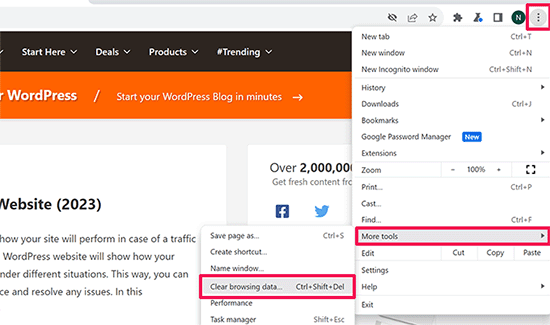
For more details, see our guide on how to clear cache in all major browsers.
Step 2. Clear Your WordPress Cache
If clearing your browser cache didn’t work, the issue is likely with a caching layer on your website itself. This could be from a WordPress caching plugin or your hosting company.
Don’t worry, most of these tools make it super easy to clear the cache with just a click. You may see different terms like ‘Clear Cache,’ ‘Delete Cache,’ or ‘Purge Cache,’ but they all do the same thing.
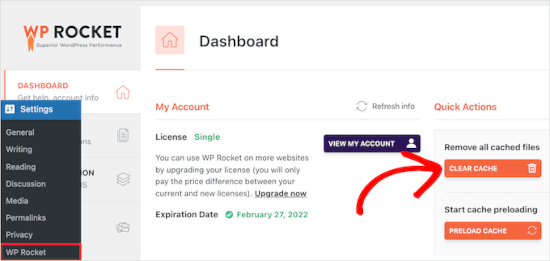
If you are using WP Rocket, which is the caching plugin we use to optimize site speed, simply go to the Settings » WP Rocket page.
Then, click the ‘Clear Cache’ button in the dashboard.
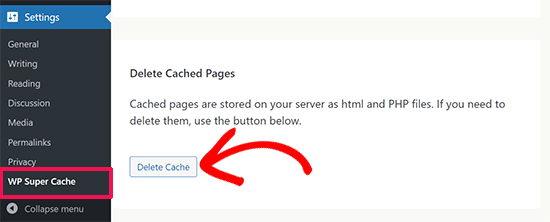
If you are using the WP Super Cache plugin, go to the Settings » WP Super Cache page.
Under the Easy tab, scroll down to the ‘Delete Cached Pages’ section and click the ‘Delete Cache’ button.
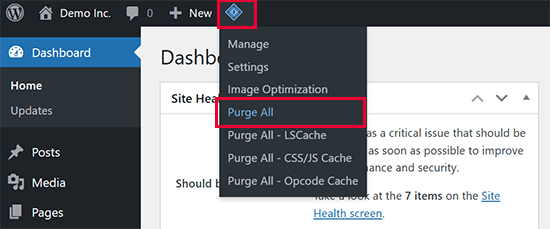
If you are using the LiteSpeed Cache plugin, then simply click on the plugin icon in the toolbar and select ‘Purge All’ to clear the cache.
Even if you don’t have a caching plugin, many hosting companies have their own caching system.
If you use Bluehost, you will notice a ‘Caching’ button in the admin toolbar at the very top of your screen.
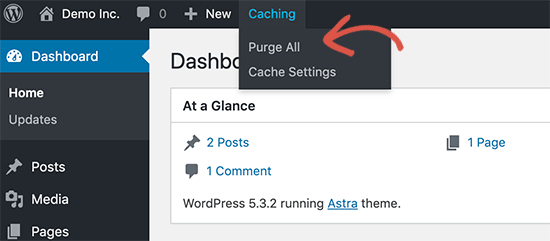
Hover your mouse over it and select the ‘Purge All’ option. This will delete all cached files from your website.
SiteGround is another top hosting company with a built-in caching system. In fact, it’s the hosting provider we use for the WPBeginner website.
You can manage the SiteGround cache by installing and activating their Speed Optimizer plugin. For details, see our step-by-step guide on how to install a WordPress plugin.
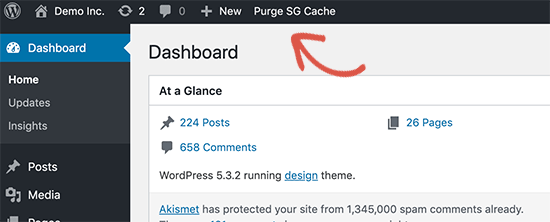
Upon activation, click the ‘Purge SG Cache’ button in the WordPress admin toolbar at the top of the screen. This will clear the SiteGround cache for your website.
For instructions on other hosting companies and caching plugins, see our complete guide on how to clear your cache in WordPress.
Video Tutorial
Prefer to watch and learn? Here’s a quick video tutorial walking you through these steps.
Frequently Asked Questions
Why do I have to clear both my browser and WordPress cache?
Your browser saves a copy on your computer for speed, and your website (via a plugin or host) stores a copy on the server. If either one holds an old version, you won’t see your updates. Clearing both ensures you’re looking at the freshest version of your site.
Will clearing my cache delete any of my content or posts?
No. Clearing your cache is completely safe. It only removes the temporary “snapshot” files saved for performance. Your actual posts, pages, images, and settings in the WordPress database are not affected at all.
How often should I clear my WordPress cache?
Only when you notice changes aren’t appearing. Most modern caching plugins automatically clear the cache when you publish or update content. Manual clearing is usually only needed when something goes wrong.
Does clearing cache affect my website’s SEO or traffic?
No. Clearing your cache has zero impact on SEO rankings or traffic. Search engines crawl your actual pages, not your cached files. After clearing, the cache simply rebuilds the next time someone visits your site.
What if clearing the cache doesn’t fix the problem?
If your site still isn’t updating after clearing both browser and WordPress caches, contact your hosting provider. They may have server-side caching or a CDN layer that needs to be purged separately.
Additional Resources for WordPress Troubleshooting
We truly hope this guide helped you fix your WordPress site update issues. If the problem is still playing hide-and-seek, don’t get discouraged.
Here are some extra resources that might guide you to a solution:
- Beginner’s Guide to Troubleshooting WordPress Errors (Step by Step)
- How to Check and Update to the Latest WordPress Version
- WordPress Form Does Not Work: 7 Troubleshooting Tips
- How to Fix DNS Server Not Responding Error in WordPress (5 Ways)
You may also want to check out our guide on the most common WordPress errors and how to fix them or how to update your WordPress website correctly.
If you liked this article, then please subscribe to our YouTube Channel for WordPress video tutorials. You can also find us on Twitter and Facebook.





Bradd Tuck
Thank you. This has been endlessly frustrating me when I see the changes and others don’t!! Clearing the cache on WPEngine did the trick easy peasy. Now i can not go crazy for half an hour.
WPBeginner Support
Glad our guide was helpful
Admin
kzain
I’ve struggled with outdated content appearing on my website,
and this post perfectly explains the reasons behind it and offers clear solutions. The breakdown of clearing cache from both the website and browser is very helpful
WPBeginner Support
Glad our guide was helpful!
Admin
Afif Khaja
Solution for me was to update cdn cache on hostinger.com (that was my web-hosting site): hpanel.hostinger.com/websites//performance/cdn?redirectLocation=side_menu -> flush cache
WPBeginner Support
Thank you for sharing how to do this on hostinger
Admin
Jiří Vaněk
Deleting all cache may not update WordPress as expected. If the issue persists, check if you’re using any CDN. CDNs often have their own cache that’s separate from WordPress administration. For instance, CloudFlare clears cache on its own platform.
WPBeginner Support
That is something to keep in mind for those using CDNs
Admin
Afrasiab Sajid
I’ve tried everything even different internet connection and devices but still nothing seems to work.
WPBeginner Support
If none of the methods work, please check with your hosting provider to ensure there are no caching issues on your host’s end that could be the problem.
Admin
terra
Thank you! This post helped me so much. I installed the Siteground Optimizer plugin and did the Purge SG cache, and this helped fix my situation. Phew. I was so frustrated and you saved me! Thank you!!!!!
Terra
WPBeginner Support
Glad to hear our post was helpful!
Admin
Alita Pacio
Hello, thank you so much for the post. However, I have already done these but still, my site is not updating. Are there any possible other reasons for my site not updating?
WPBeginner Support
If none of the methods from our guide are working for you, we would recommend reaching out to your hosting provider to ensure they do not have server side caching that is causing a conflict.
Admin
Talha
WP Rocket clear cache helped, phewww!!
WPBeginner Support
Glad the recommendation was able to help!
Admin
Mike B
Thank you! Didn’t realize SiteGrounds was doing that, and that installing the plugin would help!
WPBeginner Support
Glad our guide could help!
Admin
Bri
Thanks so much! The SG Optimizer fix did it!!!!!
WPBeginner Support
Glad our guide could help
Admin
JAMES
Wow I’m so relieved. The SG OPTIMIZER worked for me . Great work guys, thanks alot!!!
MikeP
Wow thank you for this great & concise information! W3 purge & Google Chrome were both not doing it for me, so I tried the Siteground Optimizer and all problems went away! Thank you!!
Cristian
You are best of the best. The cache plugin is the problem.
Anjum Alden
It is rare to find a solution to a problem so quickly and with such great instructions. The Site Ground plugin was what we needed and it worked perfectly. Thank you, so much!!
WPBeginner Support
Glad our guide was helpful
Admin
Rachel
The SG Optimizer plugin immediately fixed the problem. Thank you!
WPBeginner Support
Glad our recommendation was helpful
Admin
kate
SG plugin was a winner – thanks!
WPBeginner Support
Glad our guide could help
Admin
Ruben
The SiteGround plug in worked for me. Thank you so much for the tips!! Cheers!
WPBeginner Support
Glad the recommendation helped
Admin
Cheryl Strachan
I had this problem and clearing the cache fixed it. Will still need to figure out WHY it happened in the first place, but allowed me to get a time sensitive post out there. Thank you!
WPBeginner Support
Glad our recommendation was able to help
Admin
Douglas Kempf
I’ve tried all of the above fixes. Some of them more than once. And none of them worked.
WPBeginner Support
If none of these recommendations are working, we would recommend reaching out to your hosting provider for assistance and they should be able to take a look at the reason.
Admin
Donna F
I have had the issue twice now, where my PC shows the changes I made to the site immediately but my Apple devices still did not show any changes 8 hours or more later. What I noticed was that both times this happened there was a plugin that needed to be updated on my Wordpress site. This time it was the Backup plug in. When I updated the plugin, the information showed up on my Apple devices very shortly afterward.
WPBeginner Support
While it could be that, you may want to ensure you do not have a caching plugin on your site that could also be part of your issue.
Admin