


You’ve just hit ‘Update’ on an important change, but when you check your live site, nothing is different. It’s a frustrating and surprisingly common problem that can leave you wondering if you did something wrong.
We have dealt with this exact issue many times across our own websites, and the good news is that the fix is usually simple. The delay is almost always caused by a caching system that is working a little too well.
These systems are designed to make your site faster, but sometimes they need a gentle nudge to show your latest content. Luckily, you don’t need any special technical skills to solve this problem.
In this guide, we will show you exactly how to clear those caches and make sure your WordPress site updates instantly. We’ll cover every common scenario so you can get back to what you were doing.

Quick Answer: How to Fix WordPress Website Not Updating
If your WordPress site isn’t showing changes, it’s almost always a caching issue. Do a hard reload in your browser (Ctrl+Shift+R on Windows or Cmd+Shift+R on Mac). If that doesn’t work, clear the cache in your WordPress caching plugin or hosting dashboard.
Why Does Your WordPress Site Not Update Right Away?
Caching stores old “snapshots” of your pages so they load faster, but it can also prevent your latest changes from showing up.
- Multiple caching layers: Your browser, hosting company, and caching plugins can all serve outdated copies at the same time.
- Easy to fix: Clearing the cache at each level takes just a few clicks and won’t delete any of your actual content.
How to Fix the WordPress Website Not Updating Issue
To fix the WordPress website not updating issue, you will need to clear up cache. We’ll start with the quickest fix first. This usually works for many people, so you might not even need to go further.
Step 1. Force Your Browser to Hard Reload or Clear Its Cache
Sometimes, your web browser is the one holding onto an old version of your website. Here’s how to make it show the fresh version.
First, try a “hard reload.” This tells your browser to completely ignore its saved files and download a brand new copy of the page.
- On Windows and Linux: Press Ctrl + Shift + R on your keyboard.
- On Mac: Press Cmd + Shift + R on your keyboard.
For many users, this simple trick does the job. If that doesn’t work, the next step is to completely clear your browser’s cache.
In Google Chrome, click on the three-dot menu in the top-right corner. From the menu, you need to go to More tools » Clear browsing data.
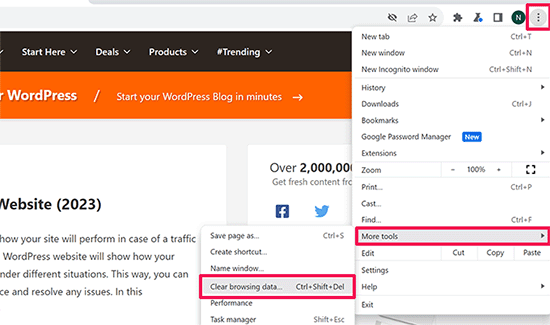
For more details, see our guide on how to clear cache in all major browsers.
Step 2. Clear Your WordPress Cache
If clearing your browser cache didn’t work, the issue is likely with a caching layer on your website itself. This could be from a WordPress caching plugin or your hosting company.
Don’t worry, most of these tools make it super easy to clear the cache with just a click. You may see different terms like ‘Clear Cache,’ ‘Delete Cache,’ or ‘Purge Cache,’ but they all do the same thing.
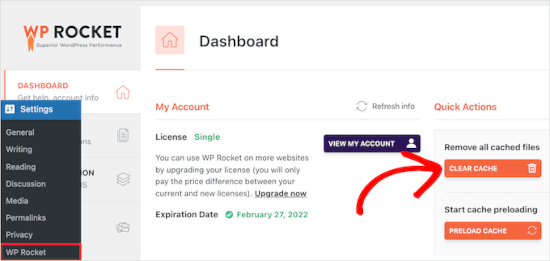
If you are using WP Rocket, which is the caching plugin we use to optimize site speed, simply go to the Settings » WP Rocket page.
Then, click the ‘Clear Cache’ button in the dashboard.
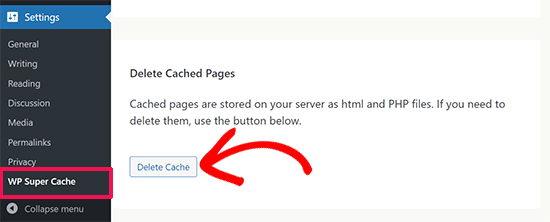
If you are using the WP Super Cache plugin, go to the Settings » WP Super Cache page.
Under the Easy tab, scroll down to the ‘Delete Cached Pages’ section and click the ‘Delete Cache’ button.
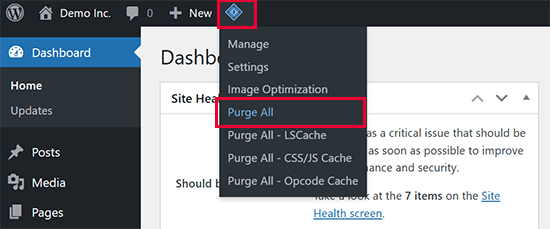
If you are using the LiteSpeed Cache plugin, then simply click on the plugin icon in the toolbar and select ‘Purge All’ to clear the cache.
Even if you don’t have a caching plugin, many hosting companies have their own caching system.
If you use Bluehost, you will notice a ‘Caching’ button in the admin toolbar at the very top of your screen.
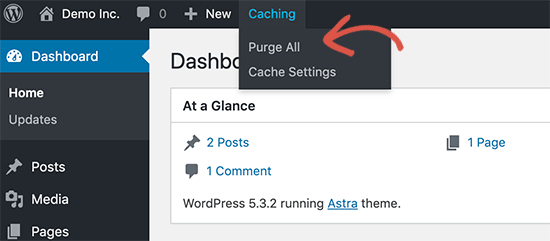
Hover your mouse over it and select the ‘Purge All’ option. This will delete all cached files from your website.
SiteGround is another top hosting company with a built-in caching system. In fact, it’s the hosting provider we use for the WPBeginner website.
You can manage the SiteGround cache by installing and activating their Speed Optimizer plugin. For details, see our step-by-step guide on how to install a WordPress plugin.
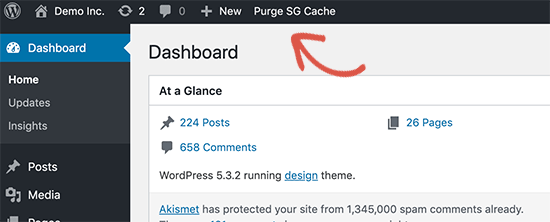
Upon activation, click the ‘Purge SG Cache’ button in the WordPress admin toolbar at the top of the screen. This will clear the SiteGround cache for your website.
For instructions on other hosting companies and caching plugins, see our complete guide on how to clear your cache in WordPress.
Video Tutorial
Prefer to watch and learn? Here’s a quick video tutorial walking you through these steps.
Frequently Asked Questions
Why do I have to clear both my browser and WordPress cache?
Your browser saves a copy on your computer for speed, and your website (via a plugin or host) stores a copy on the server. If either one holds an old version, you won’t see your updates. Clearing both ensures you’re looking at the freshest version of your site.
Will clearing my cache delete any of my content or posts?
No. Clearing your cache is completely safe. It only removes the temporary “snapshot” files saved for performance. Your actual posts, pages, images, and settings in the WordPress database are not affected at all.
How often should I clear my WordPress cache?
Only when you notice changes aren’t appearing. Most modern caching plugins automatically clear the cache when you publish or update content. Manual clearing is usually only needed when something goes wrong.
Does clearing cache affect my website’s SEO or traffic?
No. Clearing your cache has zero impact on SEO rankings or traffic. Search engines crawl your actual pages, not your cached files. After clearing, the cache simply rebuilds the next time someone visits your site.
What if clearing the cache doesn’t fix the problem?
If your site still isn’t updating after clearing both browser and WordPress caches, contact your hosting provider. They may have server-side caching or a CDN layer that needs to be purged separately.
Additional Resources for WordPress Troubleshooting
We truly hope this guide helped you fix your WordPress site update issues. If the problem is still playing hide-and-seek, don’t get discouraged.
Here are some extra resources that might guide you to a solution:
- Beginner’s Guide to Troubleshooting WordPress Errors (Step by Step)
- How to Check and Update to the Latest WordPress Version
- WordPress Form Does Not Work: 7 Troubleshooting Tips
- How to Fix DNS Server Not Responding Error in WordPress (5 Ways)
You may also want to check out our guide on the most common WordPress errors and how to fix them or how to update your WordPress website correctly.
If you liked this article, then please subscribe to our YouTube Channel for WordPress video tutorials. You can also find us on Twitter and Facebook.



Jessie
None of these options worked for me.
WPBeginner Support
If none of our recommendations are able to assist, you would want to reach out to your hosting provider to ensure they do not have a caching or are seeing an error on your site.
Admin
Oliver
Hello! Firstly, always amazing guides! you are 100% my goto!
I have this issue, the changes i am making aren’t updating (partially)
layout changes aren’t updating. i have tested to see if its just a delay, by slightly changing some text. The text updates instantly, but the layout remains unchanged.
WPBeginner Support
If it is not your caching then you would likely want to reach out to your theme’s support to ensure the theme changes aren’t being overridden by a setting in the theme.
Admin
Jack
After i update wordpress version i also update yoast. Then the site won´t load. it just keeping processing and does not show anything but a orange layer that is the main color of the website. Now the same thing is happening when i try to update different plugins but not all of them. I don´t receive any error msg from wordpress or the site. I also clear the cache etc…
WPBeginner Support
It is hard to say the specific cause, for a starting point we would recommend going through our troubleshooting guide below:
https://www.wpbeginner.com/beginners-guide/beginners-guide-to-troubleshooting-wordpress-errors-step-by-step/
Admin
Kathi
Hi, I have updated my entire website’s design but for some reason, it will always show me the wrong front page.
It’s always the front page, also on different devices, as well on my phone. The other pages will be shown completely right.
WPBeginner Support
You may want to try our general troubleshooting steps to see if this is a plugin/theme conflict possibly:
https://www.wpbeginner.com/beginners-guide/beginners-guide-to-troubleshooting-wordpress-errors-step-by-step/
Admin
Javed Iqbal
I have updated my WordPress Version 5.5.I have created a posts after that but my post now showing completely on my site. plz how can I resolved this issue.I used above mentioned method but same result.plz guide me how can i fix this issue.
WPBeginner Support
You would want to reach out to the support for your specific theme and they would be able to assist.
Admin
Junaid
I was the same issue in my WordPress website. But I solved this issue Through Reading This Post.. Thanks Buddy…..
WPBeginner Support
You’re welcome, glad our guide was helpful
Admin
Abhishek Gupta
I have updated the payment method (COD) in my wordpress panel but it is not updating in the website. I don’t know why??
WPBeginner Support
As this article states, you would want to clear any caching on your site, and should that not work you may need to reach out to your ecommerce plugin’s support to ensure that there isn’t an issue with the plugin itself.
Admin
Marelize
Thank you! CTRL + F5 worked perfectly! This was on Chrome.
WPBeginner Support
Glad our recommendation was able to help
Admin
Gman
Great, thanks for the article. ctrl+F5 worked for me.
I had previously tried clearing the cache, but still it didn’t work, but ctrl+F5 worked right away for some reason.
Thanks again
WPBeginner Support
Good to know to check your browser cache as well as the website cache as it sounds like that was your issue
Admin
Octopus
How come all of the Wordpress “solutions” never work?
WPBeginner Support
Our recommended solutions should work unless you have an odd niche error. Feel free to reach out to us using our contact form should none of our recommendations help you
Admin
Archit
Hi, I have updated php version on my host but its not reflecting on wordpress . What to do ??
WPBeginner Support
You would want to reach out to your host to ensure you changed the PHP in the correct location and if you did you may want to try deleting your htaccess file and resaving your permalinks to recreate the file.
Admin
Zeeshan Alam
Thank you for sharing this post, its really Cached plugin I remove the cache and my post update text showing on Homepage
Thanks a lot
WPBeginner Support
Glad our recommendations could help
Admin
Colton
You’re a lifesaver, seriously. Couldn’t figure out why my pages weren’t updating but once I deleted and deactivated my cache, they all appeared. I’m so relieved!
WPBeginner Support
Glad our article could help
Admin
Judith
Thank you, this helped tremendously!
WPBeginner Support
Glad our article could help
Admin
Robin
I have done everything suggested several times and my updates are still not showing on my front page. What else can I do?
Thank you.
WPBeginner Support
You would likely want to reach out to your hosting provider to ensure there are no errors or caching from your host’s end
Admin
Peter
I don’t understand. When I’m on the homepage its empty, then I click “Customise” in the bottom right and it takes me to the version I’ve worked on, but when I go back to the homepge it’s still empty. I can’t see anything anywhere about plugins apart from the download page but it says I need to be on the business plan (I’m on premium).
Is my webpage stuck like this until I upgrade to business? Do I need to install a plugin or does the premium plan come with one already? Clearing the cache on my computer does nothing unfortunately.
WPBeginner Support
From the sound of it you are on WordPress.com: https://www.wpbeginner.com/beginners-guide/self-hosted-wordpress-org-vs-free-wordpress-com-infograph/
our tutorials and workarounds are for WordPress.org sites. You would sadly need to reach out to the WordPress.com support for the problem but you shouldn’t need to upgrade to their business plan to have it display properly.
Admin
Rahul
Really it is a very helpful article.
WPBeginner Support
Thank you
Admin
Arfaan
Great video! however, I do not have any cache plugins of any sort. I have cleared my brower cache and still no luck Any other suggestions? im using Chrome.
WPBeginner Support
Have you checked with your hosting provider to ensure they don’t have caching for your site?
Admin
Adam
I had a problem with my website today and found this solution and it worked perfectly. Thank-you very much. WPBeginner is always the first place that I look whenever I have a problem with my WordPress website and so far I have always been able to resolve it with the material that I find here. Very helpful. Thank-you very much.
WPBeginner Support
Glad our article could help solve the issue
Admin
chinweike onwuchekwa
thank you very much for this. being having problem with my website not updating immediately. after this video. I uninstalled the wp super cache and my website updated immediately. thank you so much.
Kevin
Hello! Great article. Unfortunately it didn’t help me, and I don’t have a caching plugin. Any other solutions? I have cleared cache in Chrome as well.
Bailey
I am also having the same issue. Do you have any solutions?
Heather
I made a few minor changes to our website content. When I test it on my computer using chrome, the updates are there. If I use IE on my computer I do not see the changes and co-workers using IE, chrome or Mozilla do not see the changes. I made the changes and then clicked update on the page in the dashboard. Please help.
WPBeginner Support
Hi Heather,
This could be a caching issue, please see our guide on how to clear cache in WordPress.
Admin
Ashley
Any suggestions for this issue? Wordpress says ‘All themes are up to date’ but my theme is not up to date therefore I can’t install the latest version. My site is broken because the developer says I need the lastest version but I am stuck because Wordpress says all themes up to date. Ever heard of this? My site has been down for 13 months because of this and the developer offers no support once you pay for the theme.
WPBeginner Support
Hi Ashley,
You can use FTP to upload theme files to your server.
Admin
robiul islam
thanks for this post i benefited from it
Christopher
I am having a devilish problem. I changed an image on my home page… (woocommerce storefont) — and also a product image. I have done every variation of purging possible… but the home page keeps reverting to the previous form. I have changed it other times… had a some problems but managed to get it to work. IN fact these times… I purge and reload, etc… and get the correct page. Then I immediately purge everything again… including browser of course… then it seems to work. Then I close and open and it is the wrong page again…. OR I press the top icon which takes you back to the front page and it is the old one. The mobiles show the previous home page… and the old images in other locations. ?? – totally feel like I wasting huge amounts of time over something shouldn’t even happen. I disabled super cache… got it right right… and then boom it reverted again… reenables super cache… purged everything… got it right… one click… back to the old home page… ANY IDEAS??
Raj Trivedi
Hey Team,
I do not have any WordPress caching plugin and the posts do not get updated for at least 2 hours or less. We have cloudfare cdn. We have tried everything in the books to resolve the problem This problem persists with posts and category listing where all the posts are shown of its category, This happens randomly, sometimes it will get updated and sometimes not. When logged in to WordPress we are able to see the updated content but not when we are logged out or as a visitor visiting the website.
Ideally, after 2 hours everything gets updated at once.
WPBeginner Support
Hey Raj,
Have you tried disabling Cloudflare temporarily to see if this resolves your issue. We will also suggest contacting your WordPress hosting provider particularly if they have their own caching solutions in place.
Admin
Vince
No good. I have tried everything and suddenly today NO changes of menus, widgtes, logo ect are reflected on the site, unless I’m logged in to wordpress admin panel.
Lucy
I’ve had so many problems with my updates not showing, and after following every piece of advice I could find online was at my wits end.
However, I think I have solved it – for me, at least.
My hosting is done through Bluehost and there is an automatically installed plugin called Endurance Cache (I’ve since learned this through Googling), which I think defaults to Level 2 setting. In a last ditch attempt, I set this to Level 0 and low and behold my updates appear.
Sommer Arruda
Im have a strange issue. The Wordpress has updated… But only on certain computers. 3 computers have the updated version of my website, where the other 2 do not.
I had a small problem with text randomly fading away and never coming back on my front page, I went to fix it and now Im having the issue with different computers seeing different things. I am not sure if this is a wordpress problem, a plugin problem, or something else.
Anyone else had this problem? And have you fixed it?
Mohamed atef
I don’t have any cache plugin and i have this problem what is should do ?
Please help me
Alex Legard
Unfortunately, I still have this issue even though I never had any caching plugin installed in the first place. The web page isn’t updating even after using ctrl-F5. I installed W3 Total Cache and followed the steps in this article. I don’t know what the issue could possibly be.
mohit
nothing works for me.
this is my website, plz help me out.
June
So I installed W3 cache plugin, and it actually seemed to slow down my site. I uninstalled it, but now my site is not reloading on google chrome no matter what I do. I don’t know how to fix it. Do I need to resinstall W3 cach plugin to fix it? Thanks!
WPBeginner Support
Hey June,
If your website loads correctly on other browsers, then try to clear your browser cache.
Admin
Abhishek Sharma
Thanks a lot. It works.
Mak
Please Help !!
I changed the email address and location of my website in wp editor ..after updating am unable to see the google map and also my email icon not showing on live site .please help
Mark Perkins
Yet again fantastic help
Mister Z
Thank you very much for this post! I was wondering why my date on a post was not updating! It was because of the caching.
Steve
“To resolve this issue, you need to simply hit CTRL + F5 (or Cmd + R in Mac) buttons on your keyboard to reload the page.”
And who’s going to tell my readers this? Why doesn’t anyone answer the obvious question of how to make readers get the latest version? All other websites out there seem to load the latest version so there’s clearly a solution.
Nirdosh
Thank you so much for writing this article. I have been trying all sorts of things to resolve this issue but nothing worked unless I found this article. Thanks once again for helping us out!
Fred Haycock
I wanted to know How to Fix WordPress Website Not Updating Right Away I have been trying all sorts of things within in my admin area for the last 2 days with no luck.
I then came on your site and followed the instructions on the video and within seconds my problem was solved AMAZING. I will bookmark wpbeginner.com and will also recommend as a matter of course, thanks very much for information and help
WPBeginner Support
Hi Fred,
We are glad you found it helpful. Don’t forget to follow us on Facebook for more WordPress tips and tutorials.
Admin
Ecole Maison
Hi, this did not work for me. I deactivate all my plugins, I cleared the cache, I changed my theme, and the 3 together… and my posts/pages still do not update. Even deleted widget stil appear in the sidebar. And it is 3 days now, of searching an answer. Do you have an idea ?
Ecole Maison
You are wrong in our case. It’s been 1 week that we are changing pages which do not change on line. We remove widgets on theses pages / articles and they are still there. We completely remove plugins and widgets on all pages / articles and the pages/articles are still the same. It is really the strangest thing We’ve seen sinc we started 10 years ago.
Rick
We are having a problem where our blog content is showing updates we make but any text links are not being updated. For example, changing text in a headline will show up but changing a link in the text from a location on our dev site to a location on our live site does not show up. The original link to our dev site persists and the update to the link is not reflected in the updated page. One other quirky thing is that when I am logged in as an admin the link update to our live site is shown while regular users see the old link to the dev site.
Arthur Hicken
What if none of the above work. IE I have no cache plugins, browser refresh doesn’t work, loading from a fresh browser on a fresh machine still shows the original page? I’ve copied the .htaccess file from a working wordpress blog I have and there is nothing in the WP section in that file.
Neil Speers
Found an odd cure based on something I read above in one of the other comments. Been fighting with WordPress for about 8 hours trying to get the new site look to appear. It had nothing to do with browser caches – I looked on machines that hadn’t loaded the site yet. Wasn’t the cache plugin in WordPress, I didn’t even have one installed on the site. Tried installing one and deleting the cache to see if that would trick it into fixing things. Tried changing between themes, turning off plugins, and so on.
Finally – after reading about the .httaccess file, I went in by ftp and deleted everything off the file, reloaded the site on my browswer and the new theme and page showed up. Reinserted the text into the .httaccess file and everything seems to be working. But of course, if I change things in the future they are not going to show up.
So now – any suggestion on which line in .httaccess is causing the problem? And what can be done about it.
WPBeginner Support
.htaccess file in WordPress is used for setting up SEO Friendly Urls. Some other plugins may also add code to this file. Generally, it has the same code which starts with #Begin WordPress and ends with #End WordPress lines. If you have just that particular code block, then this can be a bug in your theme or a plugin you are using. Try updating your permalink structure. Simply visit Settings » Permalinks and then click on the save changes button without changing anything.
Admin
Neil Speers
That would make sense, except it happened with several themes including the stock themes with wordpress installs, and no plugins active. The ONLY thing that I did that actually fixed it was the change the .htaccess file. However I didn’t try the permalink change – if I run into this issue again I’ll give that a try.
VicHaunter
Hello and thanks for the explanation. If you disable all caches in the plugins and CDN, and you can see the updates of the website, but in feedburn, ifttt, zapier, gtmetrix, pagespeed, etc continues appearing the cached content what can be happening?
Dheeraj Singh
Somehow I am unable to see the results even after deactivating and deleting the plugin. Tried on multiple devices as well.
I can see the changes when logged in as an admin, however not for non logged in users in WP.
VicHaunter
I had the same problem, was solved changing WP Super Cache from htaccess to php and deleting the rules from the .htaccess file. If you entered some time must delete it if change the configuration. See also if you have any CDN configured like cloudflare and change to development mode in the cdn panel to see if changes occur.
Also can be if you have server cache like varnish or nginx proxie.
Greg Johnson
Thank you so much for the quick video. I have been fighting it for hours and simply deleting my cache helped resolve the issue immediately!
Ali
information was very helping. By Deactivating caches its working properly. Thank You
John
Is there a way to force a browser to load the latest version of my page thus overriding the browser cache? It is all well and good me emptying my browser cache so I can see the updates but that approach does nothing to fix the issue for my readers. Any tips would be appreciated?