


In general, we don’t recommend using the built-in WordPress theme file editor to make changes to your theme files. It is not safe or efficient, and you can even end up breaking your website. However, if you are actively looking for a missing theme file editor, it can be frustrating when you can’t find it where it used to be.
Quick answer: The theme file editor is usually missing for one of three reasons:
- You are using a newer block theme (full site editing), which moved the editor from the Appearance menu to the Tools menu.
- A WordPress security plugin has disabled file editing to protect your site.
- The
DISALLOW_FILE_EDITconstant in yourwp-config.phpfile is set to true.
However, we know many of our users find it convenient and use it to save quick changes. Recently, we have heard from some of those users who can’t seem to find the theme file editor in their WordPress admin area.
In this article, we will explain why the theme file editor might not be where you expected it to be and show you how to easily fix it. We will also discuss safer alternatives for editing your theme files without risking your site’s security.
Here is a quick overview of the topics we will cover in this guide:
- Why is the theme file editor missing in WordPress?
- Method 1: Check the Tools menu (for block themes)
- Method 2: Check your WordPress security plugins
- Method 3: Edit the wp-config.php file to enable the editor
- Method 4: Ensure your WordPress theme is active
- Method 5: Deactivate plugins to find conflicts
- Alternative: How to edit WordPress files using FTP
- Why editing theme files directly is a bad idea
- Frequently asked questions (FAQs)
Why is the theme file editor missing in WordPress?
We’ve seen many WordPress users get confused when they can’t find the theme file editor where it used to be. The good news is that it hasn’t been removed. It is just not where you expect it to be.
If you are using a modern block theme (which uses full site editing or FSE), clicking on ‘Editor’ under the Appearance menu opens the new visual site editor instead of the old theme file editor.
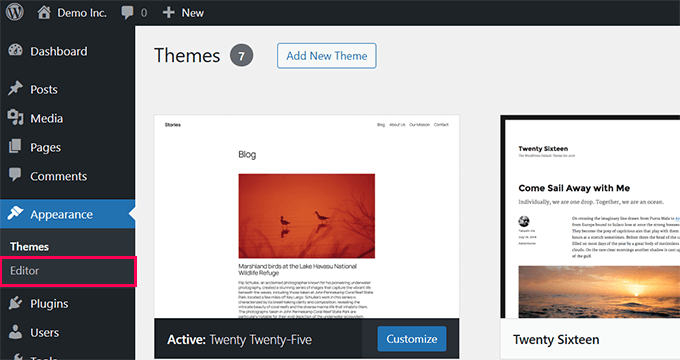
This is because the WordPress core team decided that having two menu items labeled “Editor” with completely different purposes could be confusing.
If you are not using a block theme, your missing editor is likely caused by a security measure. Let’s walk through the different ways you can re-enable it.
Method 1: Check the Tools menu (for block themes)
We have worked with many users transitioning to modern block themes, and one thing we often hear is how different the WordPress admin menu feels.
Block themes use the block editor for almost everything. While they offer flexibility, they can also make familiar features like the theme file editor harder to find.
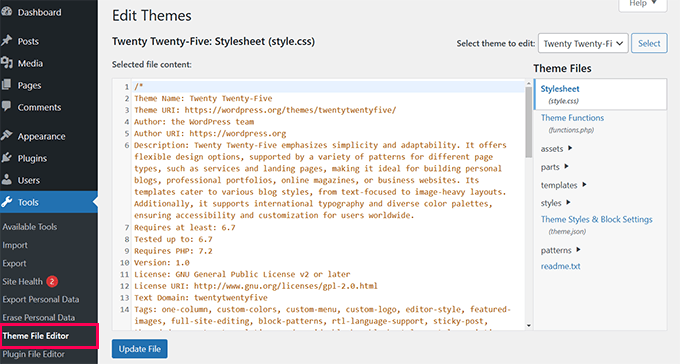
If you are using a block theme, the theme file editor isn’t under the Appearance menu item anymore. WordPress moved it to the Tools menu to match the new way block themes are organized. (If you use a classic theme, it will still be under the Appearance menu).
Simply log in to your WordPress admin dashboard and navigate to the Tools » Theme File Editor menu in the left sidebar.
Pro tip: We recommend backing up your site before making any changes, as it is the safest way to ensure nothing goes wrong.
If you don’t see the editor in the Tools menu, a security setting is likely blocking it. We will walk you through how to fix that next.
Method 2: Check your WordPress security plugins
Often, the theme file editor is disabled because a WordPress security plugin has intentionally hidden it to protect your website from accidental changes or potential hackers.
We have seen this issue many times while troubleshooting for users. Here is how you can re-enable the file editor in the most popular security plugins.
Sucuri
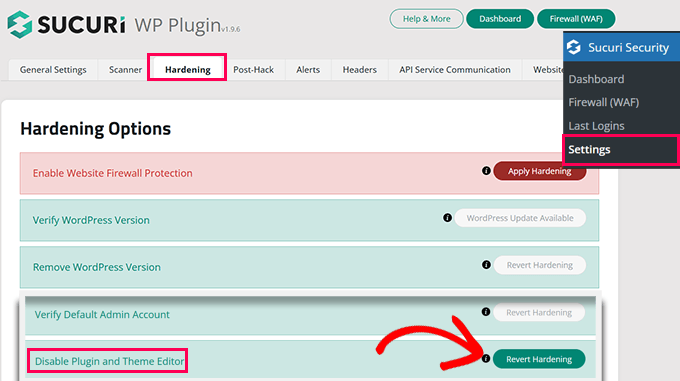
If you are using Sucuri, navigate to the Sucuri Security » Settings page in your WordPress admin dashboard.
Click on the ‘Hardening’ tab, where you will find an option labeled ‘Disable Plugin and Theme Editor’. If this option is enabled, simply toggle it off by clicking the ‘Revert Hardening’ button.
Wordfence
If you use Wordfence, the plugin may restrict access to the file editor for added security. To fix this, navigate to Wordfence » All Options from your WordPress admin panel.
Scroll down to the ‘Advanced Firewall Options’ section and check if there is a setting to disable the file editor. Make sure it is toggled off, and then click the ‘Save Changes’ button at the top right or bottom of the screen.
Solid Security (formerly iThemes)
If you use Solid Security, navigate to Security » Settings and click on the ‘WordPress Tweaks’ section. Look for the ‘File Editor’ option and make sure it is unchecked. Don’t forget to save your settings.
SiteGround Security
For users on SiteGround hosting who use the default SiteGround Security plugin, you can go to SG Security » Site Security. From there, simply toggle off the switch next to the ‘Disable Themes & Plugins Editor’ option.
Once you have made these changes, reload your WordPress admin dashboard, and the theme file editor should reappear.
Method 3: Edit the wp-config.php file to enable the editor
If the theme file editor is still missing, then your wp-config.php file might be responsible.
You will need to access your website files using an FTP client or your hosting control panel’s File Manager.
Open the wp-config.php file in a text editor and search for this exact line of code:
define('DISALLOW_FILE_EDIT', true);If you find this line, you can simply delete it entirely or change its value from true to false.
Don’t forget to save your changes and upload the updated file back to your server. Once that is done, you can refresh your WordPress admin dashboard to see if the editor has been restored.
Note: If you use a managed WordPress hosting provider (like WP Engine or Kinsta), they may restrict the file editor at the server level for security. If this method doesn’t work, you will need to reach out to their support team or use FTP to edit your files directly.
Method 4: Ensure your WordPress theme is active
Sometimes, the missing theme file editor issue occurs because your current WordPress theme is broken or not properly activated. If WordPress cannot detect an active theme, it may hide the editor menu completely.
To check this, head over to Appearance » Themes in your WordPress dashboard. Make sure your preferred theme is listed as ‘Active’.
If you see an error message saying the active theme is broken, or if no theme is activated, simply click the ‘Activate’ button on a default WordPress theme (like Twenty Twenty-Four) to reset it. Once an active theme is recognized, the file editor should reappear.
Method 5: Deactivate plugins to find conflicts
If you have tried the methods above and still have a missing theme file editor, another WordPress plugin might be causing a conflict. Some plugins intentionally or accidentally hide core WordPress menus.
To test this, you will need to temporarily deactivate all of your plugins. Navigate to Plugins » Installed Plugins, check the box to select all plugins, choose ‘Deactivate’ from the ‘Bulk actions’ dropdown menu, and click the ‘Apply’ button.
Now, refresh your WordPress dashboard and check if the theme file editor has returned. If it has, you know a plugin was causing the issue. You can now reactivate your plugins one by one, checking the menu each time, to find out which plugin is responsible.
Alternative: How to edit WordPress files using FTP or file manager
If you still cannot access the theme file editor inside your dashboard, you can bypass the WordPress admin area entirely.
You can securely edit your theme files (like your functions.php or stylesheet) by connecting to your website using an FTP client like FileZilla. Alternatively, you can use the File Manager app located inside your web hosting account’s cPanel.
This method gives you direct access to your site’s files, allowing you to make changes even when the WordPress editor is hidden or restricted by your web host.
Why editing theme files directly is a bad idea
While the theme file editor can be convenient, we have seen many users accidentally break their websites while editing theme files directly. A small error or typo in your code can lead to a critical error, making your site completely inaccessible.
Another major concern is that any changes you make directly to your theme files will be overwritten and lost forever the next time you update your theme.
WordPress security is also a factor. Leaving the built-in editor enabled gives malicious actors an easy way to modify your files if they ever gain access to your admin dashboard.
For these reasons, we highly recommend using a safer alternative for storing custom code: the WPCode plugin.
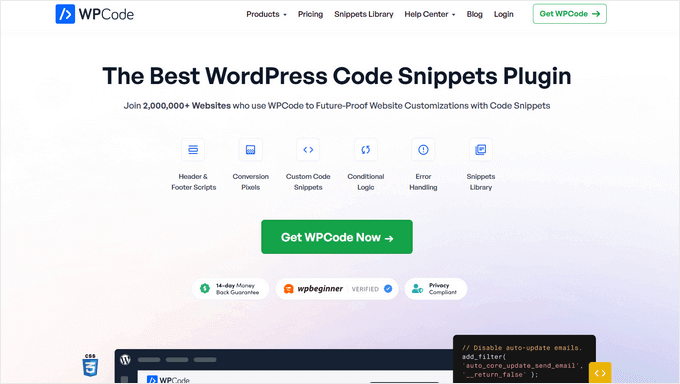
WPCode allows you to safely add and manage custom code snippets without risking your site’s stability. You can easily enable or disable snippets without ever touching your theme’s core files.
Here is a quick comparison of why we prefer WPCode over direct file editing:
- Error handling: WPCode automatically detects faulty code and deactivates it before it can break your site. Direct editing offers no safety net.
- Future-proof updates: Code added through WPCode stays safe when you update your theme. Direct edits get erased.
- Better organization: WPCode lets you label and toggle snippets on or off. Direct editing forces you to dump everything into a messy
functions.phpfile. - Built-in library: WPCode comes with an extensive library of ready-to-use snippets for common WordPress customizations.
We use WPCode to manage custom code on all of our own websites. To learn more, see our full WPCode review.
To get started, simply install and activate the WPCode plugin. For details, see our tutorial on installing a WordPress plugin.
Note: The plugin also has a free version with fewer features called WPCode Lite.
Once activated, go to the Code Snippets » Add Snippet page in your WordPress admin dashboard. From here, you can create custom code snippets or select a pre-made snippet from the library.
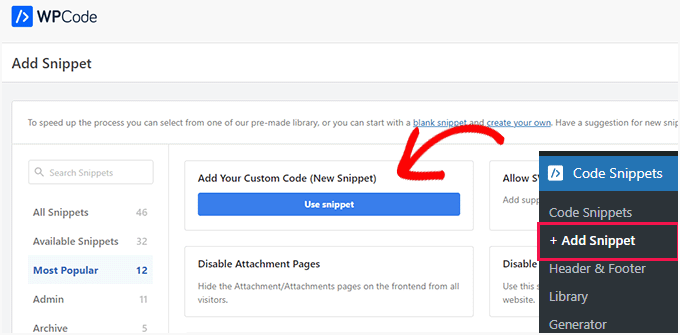
Using WPCode keeps your site safe, organized, and easy to manage. For more details, see our step-by-step tutorial on easily adding custom code to WordPress.
Frequently asked questions (FAQs)
Why is the editor not showing in appearance in WordPress?
If you are using a modern block theme that supports full site editing, the appearance editor has been replaced by the new visual site editor. To prevent confusion, the core WordPress team moved the traditional theme file editor to the Tools menu.
How do I edit theme files in WordPress without the theme editor?
You can edit theme files directly by connecting to your website using an FTP client or the File Manager app in your hosting account’s cPanel. Alternatively, you can use a code snippet plugin like WPCode to safely add custom PHP, CSS, or JavaScript directly from your dashboard.
How do I enable file editing in WordPress?
To enable file editing, you need to access your site’s wp-config.php file and look for the DISALLOW_FILE_EDIT line. Changing its value from true to false will restore the editor in your dashboard, provided that a security plugin isn’t actively blocking it.
Next steps for safely customizing your site
We hope this article helped you figure out how to fix a missing theme file editor in WordPress. Adding custom code to your website can feel intimidating at first, but using the right tools makes a huge difference in keeping your site safe and running smoothly.
As we mentioned earlier, editing your core theme files directly is highly risky and can easily lead to critical errors that lock you out of your own dashboard. That is why we always recommend using WPCode as the safest alternative. It protects your site with built-in error checking and ensures that all of your custom snippets are preserved whenever you update your theme.
By keeping your code snippets organized in WPCode’s centralized dashboard, you eliminate the need to ever search for the built-in theme file editor again. You can easily toggle snippets on or off, add descriptive tags, and safely experiment with new customizations. Plus, the built-in library gives you instant access to dozens of verified snippets for common WordPress tweaks.
If you liked this article, then please subscribe to our YouTube Channel for WordPress video tutorials. You can also find us on Twitter and Facebook.




Have a question or suggestion? Please leave a comment to start the discussion.