


One of our readers recently asked if it’s possible to highlight user roles next to each comment in WordPress. This is a common question, and it makes sense because comments can quickly become hard to follow, especially on busy blogs or community sites.
Displaying a user role label next to each comment helps your visitors instantly see which comments come from trusted users such as authors, editors, or admins. It adds context, builds credibility, and can even encourage more meaningful interactions in your community.
We’ve helped many site owners add this feature, and it’s a simple way to make your comment section more organized and professional.
In this article, we’ll show you how to easily add a user role label next to comments in WordPress, so your readers can quickly recognize who is contributing.
Why Show User Role Label Next to Comment Author Name in WordPress?
If you allow user registration on your website or run a multi-author WordPress website, then displaying user role labels can help visitors quickly understand who is commenting and what their user role is.
For example, a user with the editor user role can have a badge next to their name in the comments, signaling to others that the comment comes from an editor.
This not only builds trust with your audience but also encourages more meaningful interactions and engagement on your site.
Many WordPress themes only highlight comments made by post author. They don’t show labels for any other user roles, even if other comments are made by registered users, administrators, or editors. Adding these labels ensures all key contributors on your site are easily recognized.
Now that you understand the benefits, let’s take a look at how to easily add a user role label next to comments in WordPress.
Adding User Role Label Next to Comment Author Name in WordPress
This tutorial requires you to add code to your WordPress theme files. If you haven’t done this before, then please take a look at our guide on how to copy and paste code snippets in WordPress.
The first thing you need to do is add the following code to your theme’s functions.php file, in a site-specific plugin, or in a code snippet plugin.
if ( ! class_exists( 'WPB_Comment_Author_Role_Label' ) ) :
class WPB_Comment_Author_Role_Label {
public function __construct() {
add_filter( 'get_comment_author', array( $this, 'wpb_get_comment_author_role' ), 10, 3 );
add_filter( 'get_comment_author_link', array( $this, 'wpb_comment_author_role' ) );
}

// Get comment author role
function wpb_get_comment_author_role($author, $comment_id, $comment) {
$authoremail = get_comment_author_email( $comment);
// Check if user is registered
if (email_exists($authoremail)) {
$commet_user_role = get_user_by( 'email', $authoremail );
$comment_user_role = $commet_user_role->roles[0];
// HTML output to add next to comment author name
$this->comment_user_role = ' <span class="comment-author-label comment-author-label-'.$comment_user_role.'">' . ucfirst($comment_user_role) . '</span>';
} else {
$this->comment_user_role = '';
}
return $author;
}

// Display comment author
function wpb_comment_author_role($author) {
return $author .= $this->comment_user_role;
}
}
new WPB_Comment_Author_Role_Label;
endif;
This function code above hooks into WordPress filters used to display comment author name to include user role label.
At WPBeginner, we always recommend adding this code using WPCode, the best code snippets plugin for WordPress.
Using WPCode is safer and easier than editing your theme’s functions.php file directly. It prevents errors that could break your site, keeps your customizations organized, and ensures your changes aren’t lost when you update your theme.
To get started, you need to install and activate the free WPCode plugin. For detailed instructions, see this tutorial on how to install a WordPress plugin.
Note: The free plugin comes with everything you need to add custom code in WordPress. However, if you want advanced features like scheduled snippets, conversion pixels, and more, you can upgrade to WPCode Pro.
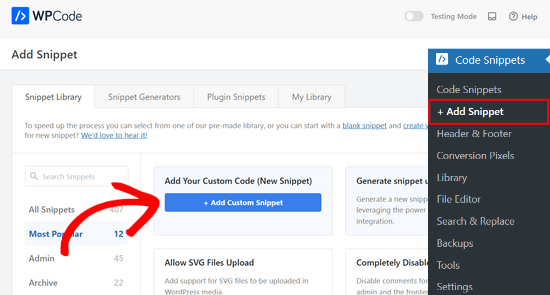
Once the plugin is activated, navigate to Code Snippets » + Add Snippet from the WordPress dashboard.
From there, click the ‘+ Add Custom Snippet’ button under the ‘Add Your Custom Code (New Snippet)’ option.
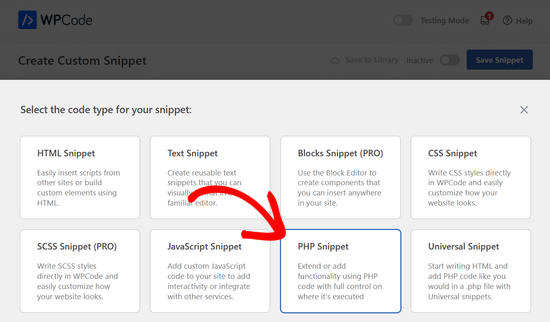
Next, you need to select ‘PHP Snippet’ as the code type from the list of options that appear on the screen.
This will bring you to the Create Custom Snippet page.
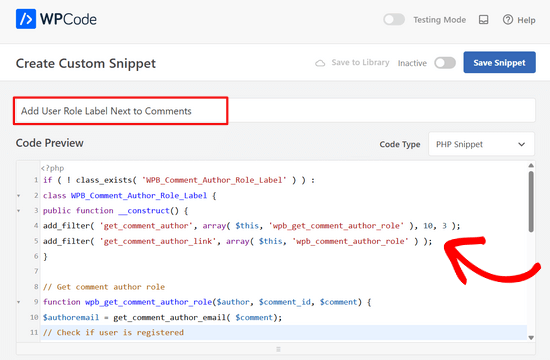
From here, you need to add a title for your code snippet. This can be anything to help you remember what the code is for.
Then, paste the code from above into the ‘Code Preview’ box.
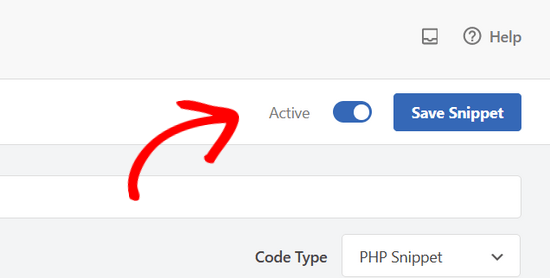
After that, simply move the switch from ‘Inactive’ to ‘Active’ at the top of the page.
Finally, click on the ‘Save Snippet’ button.
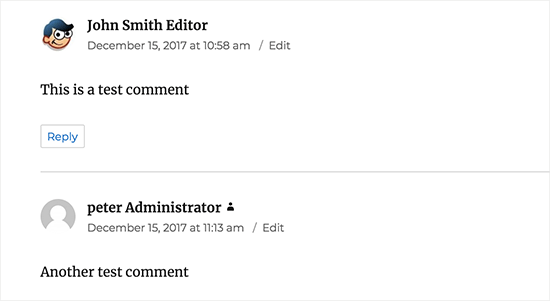
You can now visit any post with comments to see it in action.
Comments made by registered users will display their user role next to the comment author name. Any comment made by non-registered users will only display the comment author name.
Now that we have added the user role, it’s time to style it and make it look clean.
In our code, we have added a CSS class for each user role, so we can use these CSS classes to customize each user badge differently (i.e. use different colors, etc.)
You can use the following sample CSS as a starting point:
.comment-author-label {
    padding: 5px;
    font-size: 14px;
    border-radius: 3px;
}

.comment-author-label-editor {
background-color:#efefef;
}
.comment-author-label-author {
background-color:#faeeee;
}

.comment-author-label-contributor {
background-color:#f0faee;
}
.comment-author-label-subscriber {
background-color:#eef5fa;
}

.comment-author-label-administrator {
background-color:#fde9ff;
}
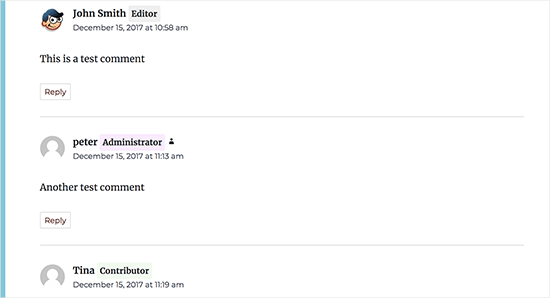
Feel free to adjust the CSS to your liking. This is how it looked on our demo website:
For more details, see our guide on how to easily add custom CSS to your WordPress site.
We hope this article helped you learn how to add user role label next to comments in WordPress. You may also want to check out our guide on how to lazy load Gravatars in WordPress comments and our expert picks of the best plugins to improve WordPress comments.
If you liked this article, then please subscribe to our YouTube Channel for WordPress video tutorials. You can also find us on Twitter and Facebook.




Jiří Vaněk
I would like to ask if the label will also display for roles that are not native to WordPress. For example, if I use AIO SEO to add an SEO manager role, will these roles be displayed even though they are not in the default WordPress settings?
WPBeginner Support
As long as they are properly using the role system it should show your custom role.
Admin
Jack
What if a user has multiple roles? Let say, I have a user with “verified” and “subscriber” roles. I need to put verified badge next to the comment author with “verified” role. How can I do this?
WPBeginner Support
By default WordPress only allows a user to have 1 role at a time, if you’re using a plugin to allow for multiple roles then it would depend on the specific plugin that you are using
Admin
John
How to integrate it in Profile Page or lets say, i want to add a code in about Me widget.
Matt
Hey,
Great tutorial.
Is there anyway to customize the text within the badge?
Instead of the user role, displaying something like “Post Author”? I feel like displaying ‘Administrator’ for some blogs is a bit of a buzz kill and too serious.
Kelly
Instead of saying “Administrator” or whatever their role beside their name, if I wanted to show an icon based on user role, how could I do that? I’ve tried playing with your code but cannot figure out how to display a different icon based on user role.
Eddie
That would be great. I’m looking for this so I can show an icon only for contributors
Mahmudul Hasan
where put the css code..?
WPBeginner Support
Hi Mahmudul Hasan,
Please see our guide on how to add custom CSS in WordPress.
Admin
javad
Hi this code is wrong and when I put it on functions.php my website got 500 error!!!
WPBeginner Support
Hi Javad,
This code is working fine on our test site. 500 internal server error can be caused by many other things.
Admin