


If you’re trying to sell to customers in Belgium, adding Bancontact to your checkout isn’t optional—it’s expected. Nearly every Belgian shopper recognizes it and trusts it.
If they don’t see it, many may simply leave your site without completing their purchases.
We’ve helped a lot of WordPress site owners improve their conversion rates by localizing their payment options. One thing we’ve seen time and again: offering Bancontact in Belgium can make the difference between a sale and an abandoned cart.
What makes Bancontact especially powerful is its connection to local banks. That familiarity gives customers peace of mind, which means more completed orders for you.
In this guide, we’ll walk you through two easy ways to start accepting Bancontact payments on your WordPress site—no technical skills required.
💡Quick Answer: How to Add Bancontact Payments
In a hurry? Here is a quick overview of the two methods we will cover in this guide:
- Method 1: WP Simple Pay (Recommended): This is the best option if you want to create a simple payment form for donations or services. You don’t need to set up a full shopping cart system.
- Method 2: Stripe for WooCommerce: Use this method if you already have an online store powered by WooCommerce. It lets you simply toggle on Bancontact within your existing Stripe settings.
Why Add Bancontact Payments in WordPress?
If you plan to attract customers from Belgium or nearby regions, then adding Bancontact payments to WordPress is a must.
Here are a few reasons why we recommend offering this payment method:
- Better User Experience: Bancontact allows users to make real-time payments directly from their bank accounts. They can use either their physical card or the Bancontact mobile app.
- Increased Security: It supports contactless payments and offers two-factor authentication. This protects both buyers and sellers during transactions.
- Lower Fees: It is often more cost-effective than standard credit card transaction fees. This makes it an affordable option for businesses of all sizes.
Now, let’s see how to easily add Bancontact payments in WordPress.
For this tutorial, we will use two methods. Use the links below to jump to the option that works best for you:
Method 1: Add a Bancontact Payment Form in WordPress
This method is for you if you want to add a Bancontact payment form to your WordPress website without building a full-fledged online store.
It is ideal for accepting Bancontact payments in WordPress for donations or professional services.
To do this, we recommend WP Simple Pay. After trying out several tools, we found it’s the best for the job. It’s easy to use, protects against spam, and works well with various payment options.
And if you need Bancontact payments, they’ve got a template ready to go. To see how it performed and why we recommend it, take a look at our detailed review.
Step 1: Install and Activate WP Simple Pay
To get started, you’ll need to install and activate the WP Simple Pay plugin. For details, see our tutorial on how to install a WordPress plugin.
Note: WP Simple Pay has a free plan. However, you will need the pro version to unlock the Bancontact Payments template.
Step 2: Connect Your WordPress Site to Stripe
Once you activate the plugin, a setup wizard will open on your screen. Here, click the ‘Let’s Get Started’ button.

This will direct you to the next step, where you’ll have to enter your plugin’s license key.
You can get this information from your account on the WP Simple Pay website.

After that, you’ll need to connect your plugin with Stripe, a popular payment gateway, to accept online payments easily.
Keep in mind that since WP Simple Pay is a Stripe plugin, it won’t work on your website until you connect it with a new or existing Stripe account.
To get started, click the ‘Connect with Stripe’ button.
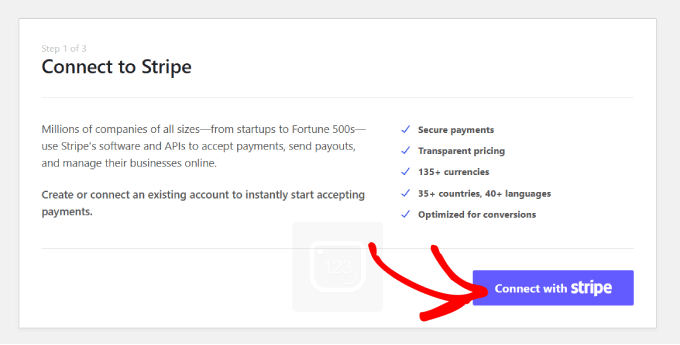
For more information, check out our tutorial on how to accept Stripe payments in WordPress.
Once you connect Stripe and WP Simple Pay, the setup wizard will ask you to configure your emails.
At this point, you can enable options to receive email notifications for payment receipts, upcoming invoices, and payment notifications.

You will also need to enter the email address where you want the plugin to send these messages. Then, click the ‘Save and Continue’ button.
You can now complete the rest of the setup wizard steps according to your preferences.
Step 3: Create a Bancontact Payment Form
After that, visit the WP Simple Pay » Payment Forms page in the WordPress dashboard and click the ‘Create Your Payment Form’ button.
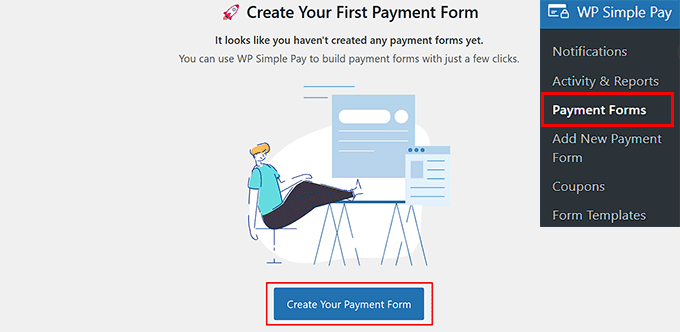
This will take you to the ‘Select a template’ page, where you will see a list of premade templates offered by WP Simple Pay.
From here, locate the ‘Bancontact Payment Form’ template. Once you find it, just click the ‘Use Template’ button under it.
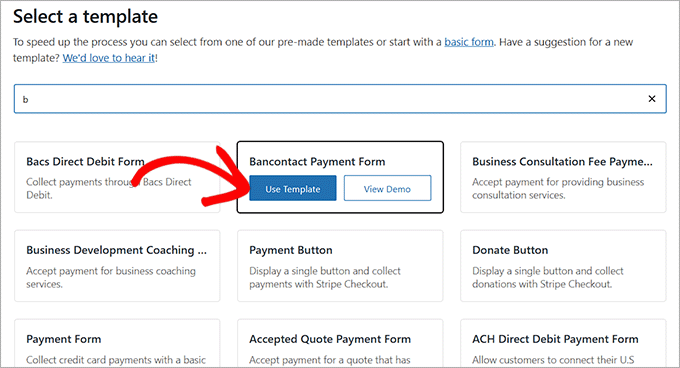
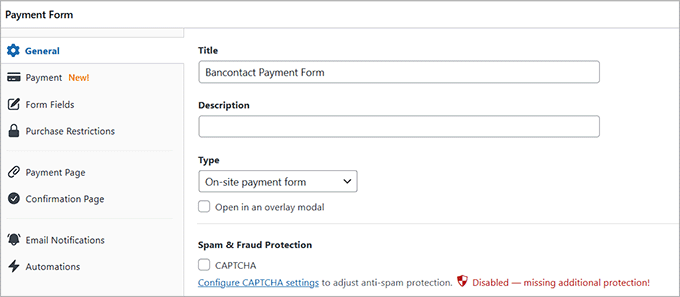
You will now be directed to the ‘Add New Payment Form’ page, where you can change your form’s title and add a description.
After that, you’ll need to select ‘On-site payment form’ as your form type. You can also check the box under it to turn on spam protection.
Step 4: Configure Pricing and Currency
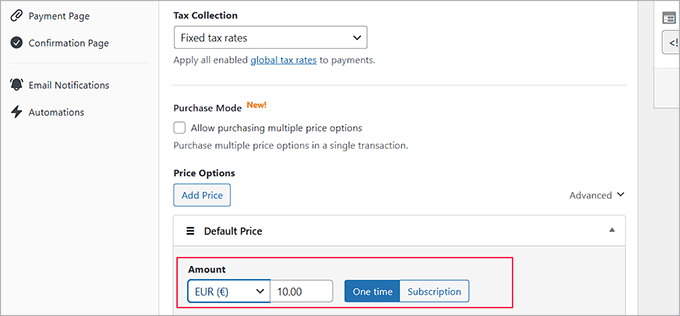
Next, switch to the ‘Payment’ tab in the left column and choose your preferred tax collection rates under the ‘Tax Collection’ option.
You can also set the price for the product or service you want to sell through the form. If you are offering a subscription-based service, then choose the ‘Subscription’ option. Once you do that, click the ‘Add Price’ button to create and include multiple subscription tiers.
📌Note: You must choose the Euro (EUR) as your preferred currency in this section. The Bancontact payment form will not work if you select any other currency.
Step 5: Add Bancontact to the Payment Methods
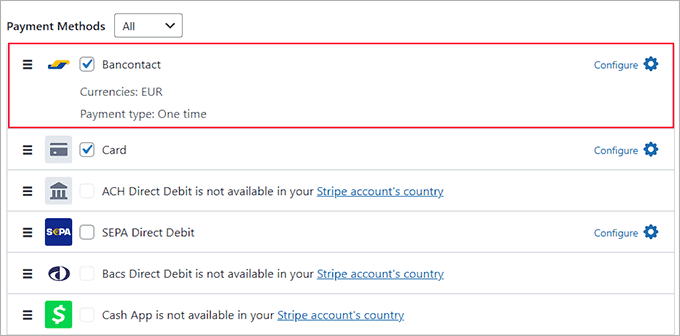
Now, scroll down to the ‘Payment Methods’ section and select the ‘All’ option from the dropdown menu.
Here, you will see that the Bancontact payment option has already been selected. You can also add other payment options, such as Klarna, AliPay, or Card if you like.
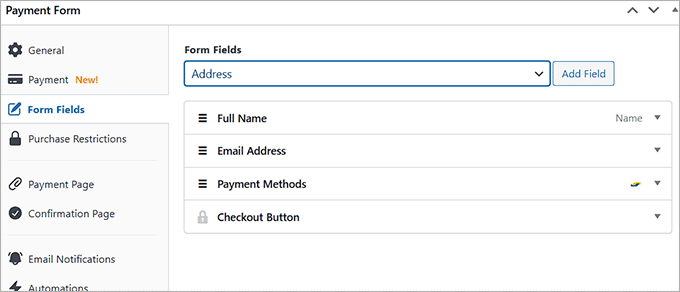
Next, go to the ‘Form Fields’ tab. You can add a form field from the dropdown menu and configure its settings by expanding the tab. Additionally, you can rearrange the existing fields by dragging and dropping them.
For instance, if you plan to sell a physical product that needs to be delivered, you’ll need to add an address field to your form. This will allow customers to easily provide their location when they make a purchase.
Step 6: Publish Your Payment Form
After that, head over to the ‘Payment Page’ tab and check the ‘Enable a dedicated payment page’ box. This way, you can create a custom payment form page without manually building a new page on your website.
The plugin makes it super easy to set a permalink, pick a color scheme, add your logo, and display footer text.
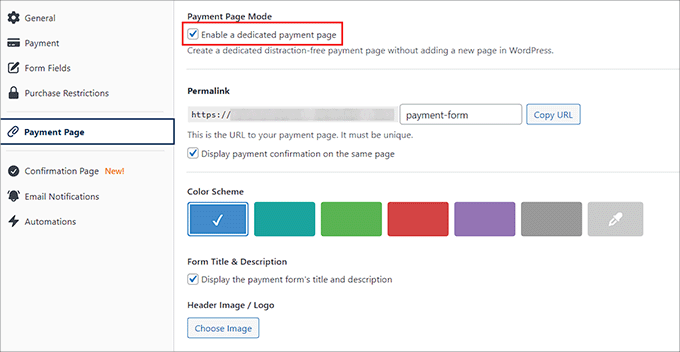
When you’re happy with your customizations, click the ‘Publish’ button to store your changes.
Now, visit your WordPress site on the front end to check out your new Bancontact payment form.
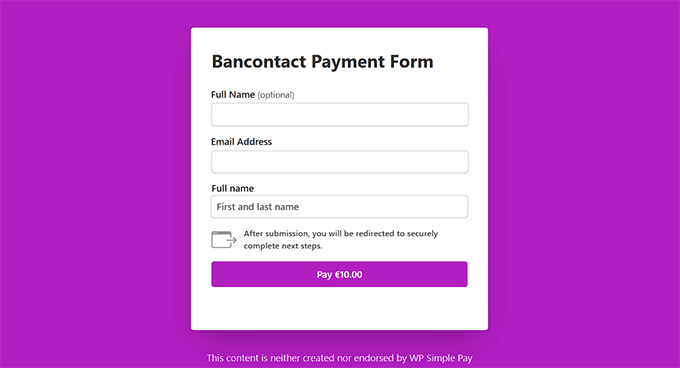
Step 7: Add the Payment Form to Your Website
Alternatively, you can add the Bancontact form to an existing page on your website. To do this, click the ‘Publish’ button after adding form fields.
Then, open the page or post you want to use in the WordPress dashboard and click the ‘Add Block’ (+) button in the top left corner. This will open the block menu, where you can search for the WP Simple Pay block.
After you add the block to your page, go ahead and select the payment form you created from the dropdown menu within the block.
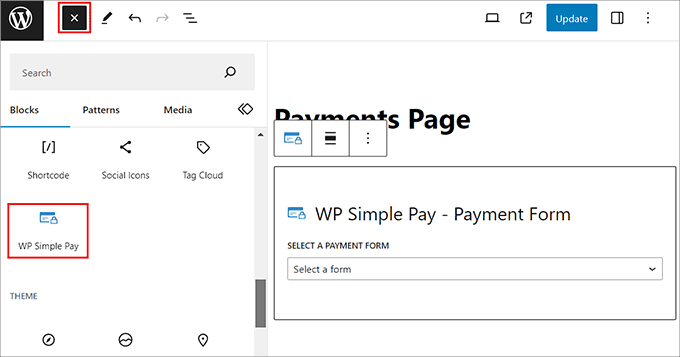
Now, click the ‘Update’ or ‘Publish’ button to store your settings.
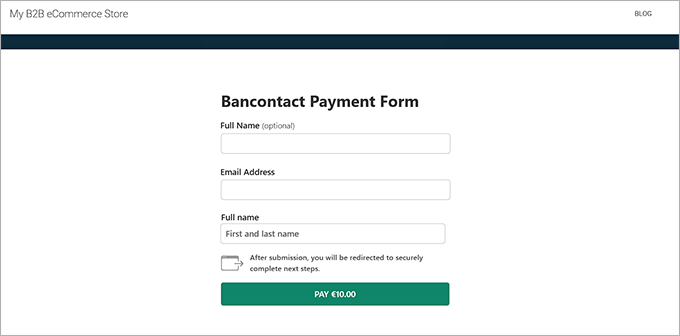
Then, feel free to visit your website to view the Bancontact payment form in action.
Method 2: Add Bancontact as a Payment Option in WooCommerce
If you want to add the Bancontact payment option to your WooCommerce store, then this method is for you.
Step 1: Install Stripe Payment Gateway for WooCommerce and Enable Stripe
The first step is to install and activate the Stripe Payment Gateway for WooCommerce plugin. For detailed instructions, see our beginner’s guide on how to install a WordPress plugin.
Upon activation, you need to visit the WooCommerce » Settings page from the WordPress dashboard and switch to the ‘Payments’ tab.
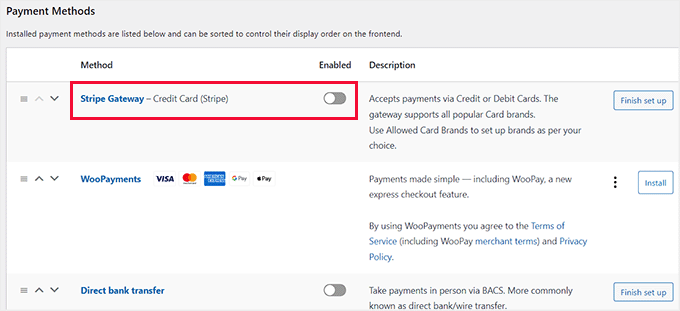
Then, enable the ‘Stripe Gateway’ option and click on ‘Finish set up’ to the right of the description.
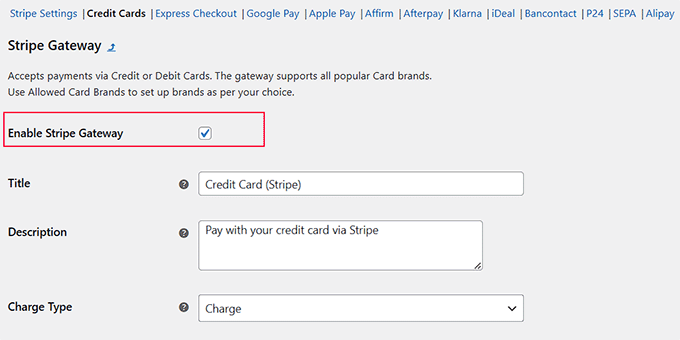
This will take you to a new screen, where you have to check the ‘Enable Stripe Gateway’ box. You can also add a title and description for the payment gateway.
After that, click the ‘Save Changes’ button to store your settings.
Step 2: Connect WooCommerce to Stripe
Once the page reloads, click on the ‘Stripe Settings’ link at the top.
On the settings page, click the ‘Connect with Stripe’ button to link the payment gateway to your online store.
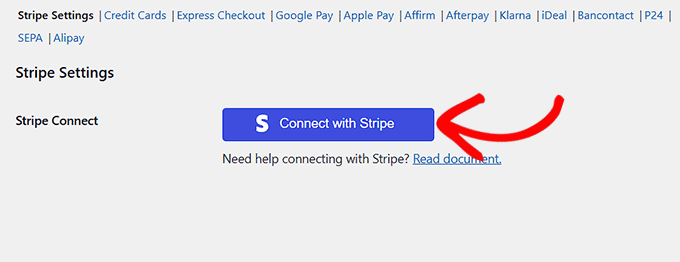
This will take you to a new screen where you can log in with your Stripe username and password. If you don’t have an existing account, then you can create a new one from here.
For more details, see our tutorial on how to accept payments with Stripe in WordPress.
Step 3: Enable Bancontact Checkout
After you have connected your WooCommerce store with your Stripe account, go ahead and click on the ‘Bancontact’ link at the top.
Once you do that, check the ‘Enable Stripe Bancontact Gateway’ option and add a title, description, company name, and selling locations where this payment method can be displayed.
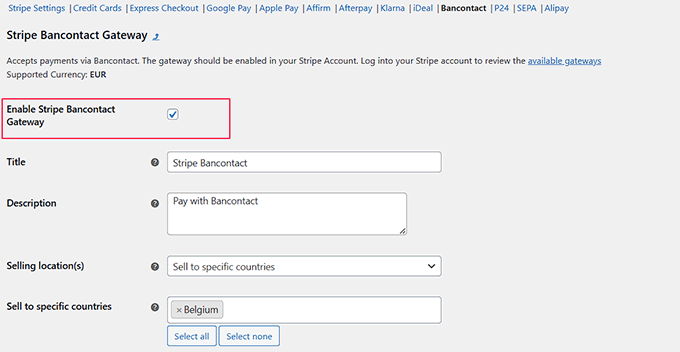
Finally, click the ‘Save Changes’ button to store your settings.
Now, visit your online store to view the Bancontact payment option.
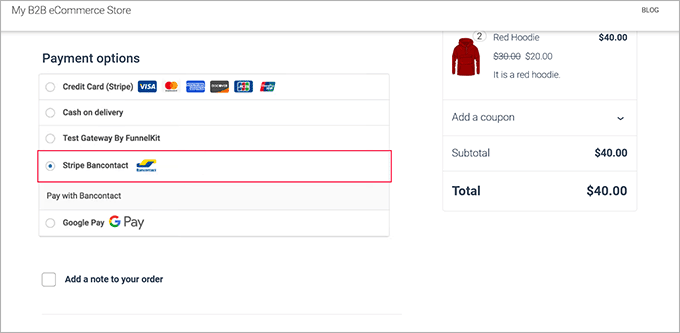
It’s as simple as that!
Frequently Asked Questions About Bancontact
Here are some questions that our readers have asked before adding Bancontact as a payment method on their websites:
What is the best payment gateway for a website?
In our experience, Stripe is the best payment gateway for most WordPress websites. It is beginner-friendly, supports major credit cards, and integrates with almost every eCommerce plugin.
Can I create my own payment link?
Yes, you can easily create a custom payment link using a plugin like WP Simple Pay. This allows you to accept payments without building a full online store or shopping cart.
Does Visa have a payment gateway?
Yes, Visa owns a payment gateway called Cybersource (often branded as “Authorize.net” for small businesses). However, most users prefer modern aggregators like Stripe or PayPal for easier setup.
Which country uses Bancontact payment method?
Bancontact is the most popular payment method in Belgium. While it is primarily used by Belgian shoppers, it is trusted across the Benelux region for secure online transactions.
Is Bancontact like PayPal?
No, Bancontact is not a digital wallet like PayPal. Instead, it is a direct bank transfer system that connects your bank account to the merchant instantly using a card or mobile app.
We hope this article helped you learn how to add Bancontact payment in WordPress. You may also like to see our beginner’s guide on how to accept Google Pay in WordPress and our top picks for the best Square WordPress plugins.
If you liked this article, then please subscribe to our YouTube Channel for WordPress video tutorials. You can also find us on Twitter and Facebook.





Have a question or suggestion? Please leave a comment to start the discussion.