


Your skills deserve to be paid for before the work begins, not after everything is done. But many service providers still find it hard to ask clients for payment upfront.
The good news is that there’s a simple and professional way to do this.
Taking deposit payments doesn’t just protect your business – it can actually lead to a better client experience.
When clients pay something in advance, they’re usually more engaged, give better feedback, and value your time more. We’ve seen this work well for hundreds of WordPress site owners.
In this guide, we’ll show you two easy ways to start accepting deposit payments on your WordPress site. Both methods are client-friendly and give you the financial confidence to focus on doing your best work.

💡Quick Answer: How to Accept Deposits in WordPress
If you are in a rush, here are the two best ways to accept deposit payments:
- Method 1: Use WP Simple Pay (Best for Services). This is the easiest method for freelancers, consultants, and agencies. You can create a simple payment form that charges a “Setup Fee” as the upfront deposit without setting up a shopping cart.
- Method 2: Use WooCommerce Deposits (Best for Stores). If you already run an eCommerce store, this extension lets you add a deposit option directly to your product pages.
Why Accept Deposit Payments in WordPress?
Accepting partial payments and deposits on your WordPress site offers clear advantages for growing businesses. This is especially true if you sell high-value products or personalized services.
In our experience helping service providers, we have found that requiring an upfront payment can reduce last-minute cancellations by significant margins, often up to 80%.
Here are the main benefits of accepting deposit payments:
- Financial Security: Deposits ensure your time and resources aren’t wasted on cancellations or no-shows. You get immediate cash flow to cover initial expenses like venue bookings or materials.
- Client Commitment: When clients pay a deposit, they have “skin in the game.” This makes them far more likely to show up and engage with your process.
- Professionalism & Trust: Offering flexible payment options makes high-ticket items more accessible. It also signals that you run a legitimate, professional operation.
For example, a wedding planner might ask for a 25% to 50% deposit. This covers consultations and vendor fees while ensuring the date is reserved exclusively for serious clients.
Having said that, let’s take a look at how to easily accept deposit payments in WordPress. We will be discussing two methods in this tutorial. You can use the links below to jump to the method of your choice.
Method 1: Accept Deposit Payments for Services
In this method, we will walk you through making a simple payment form for receiving partial payments in WordPress. You can use it to accept deposits for subscription services, a single high-end product, in-home services, bookings, and more.
For this, you can use WP Simple Pay, which is the best WordPress Stripe plugin.
We like that it comes with numerous premade payment templates, an intuitive builder, and integrations with many payment providers. To learn more about our experience, view our WP Simple Pay review.
To collect a deposit, we’ll take advantage of the ‘Setup Fee’ option on one of WP Simple Pay’s subscription form templates.
Step 1: Install And Activate WP Simple Pay
First, you need to install and activate the WP Simple Pay plugin. For details, see our tutorial on how to install a WordPress plugin.
Note: WP Simple Pay also has a free plan. However, you will need the pro version to set up deposit payments.
Step 2: Configure the Setup Wizard
Upon activation, a setup wizard will appear on your screen. Here, click the ‘Let’s Get Started’ button.

Then, you must enter your plugin’s license key.
You can get this information from your account on the WP Simple Pay website.

After that, you have to connect your Stripe account with the plugin. Keep in mind that since WP Simple Pay is a Stripe plugin, it won’t work properly unless you connect it with a new or existing account.
To start the process, click the ‘Connect with Stripe’ button.
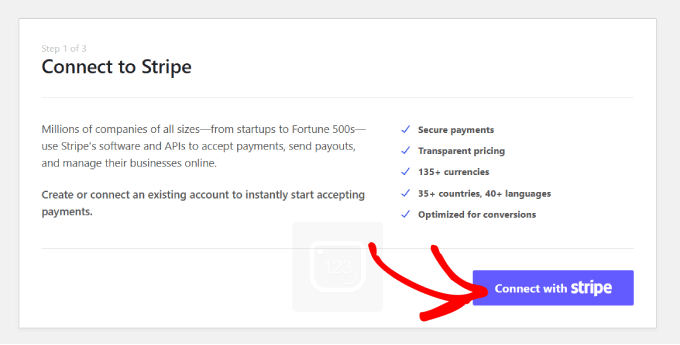
You will now be able to log in to your account. For detailed instructions, see our tutorial on how to accept Stripe payments in WordPress.
Upon a successful connection, the setup wizard will ask you to configure your emails.
You can enable options to receive email notifications for payment receipts, upcoming invoices, and payment notifications. You’ll also need to add the email address where you want to receive these messages.
Then, click the ‘Save and Continue’ button. You can now complete the other steps according to your liking and exit the setup wizard.

Step 3: Create a Payment Form
Now, head over to the WP Simple Pay » Payment Forms page from the WordPress admin sidebar.
Go ahead and click the ‘Create Your Payment Form’ button.
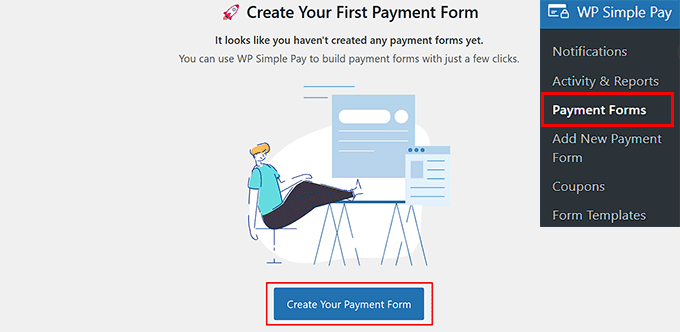
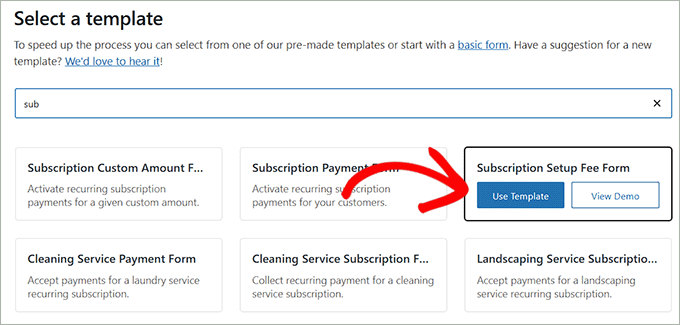
This will take you to the ‘Select a template’ page, where you will see a list of premade payment form options.
Simply locate the ‘Subscription Setup Fee Form’ template and click the ‘Use Template’ button under it.
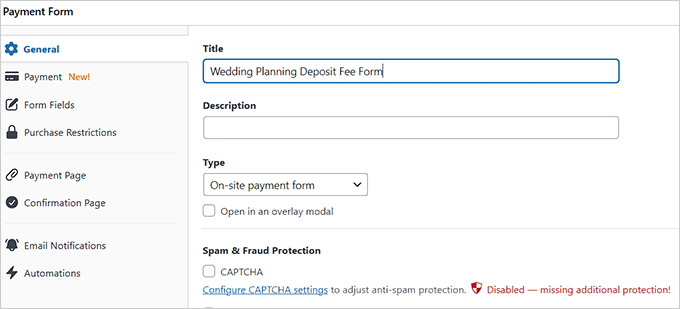
The form builder will now open up on your screen.
Here, you can change your form’s title and add a description. For instance, if you are a wedding planner and want to accept a deposit fee before the event, then you can change your form’s name to ‘Wedding Planning Deposit Fee.’
Then, choose ‘On-site payment form’ as your form type. You can also check the box under it to turn on spam protection.
Step 4: Price Your Product/Service in the Form
After that, switch to the ‘Payment’ tab from the left column and select your preferred tax collection rates under the ‘Tax Collection’ option.
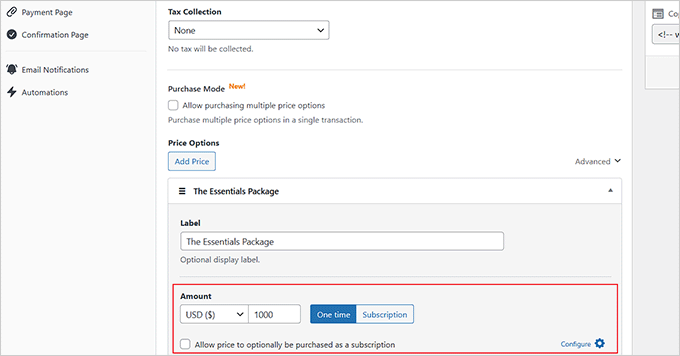
Then, you need to add a price for the product or service you want to sell through the form.
Important: Since you are setting up a deposit with a subscription, you should enter the recurring amount or the remaining balance here, not the full project cost. If you enter the full cost here, the customer will be overcharged.
If you’re offering a subscription-based service, choose the ‘Subscription’ option and click the ‘Add Price’ button to include different subscription tiers.
For instance, you can create multiple wedding packages with different pricing.
Step 5: Activate the Recurring Subscription in the Form
Once you are done, just click the ‘Configure’ link next to the ‘Automatically activate a recurring subscription’ option.
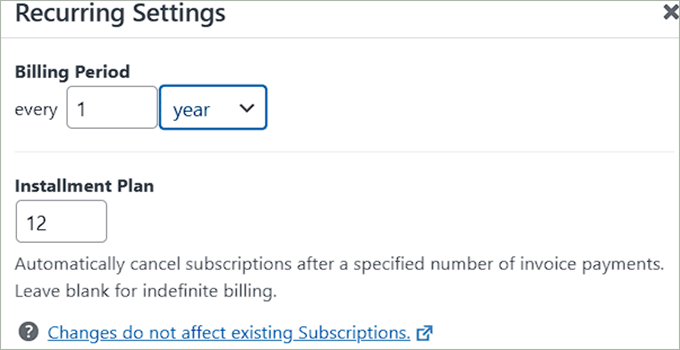
This will open a prompt where you can start by choosing a billing period. This refers to the length of time for which a customer is billed for a product or service.
Note: Unless you set a trial period, the customer will typically be charged the ‘Setup Fee’ (deposit) plus the first billing period amount immediately at checkout.
You can also set an installment plan that allows customers to pay for a product or service over time rather than all at once. If you are selling a product for $1,200, you might offer an installment plan where the customer pays $100 every month for 12 months.
Step 6: Set a Deposit Fee
Now, you can add a deposit fee for your services or products by adding the required amount in the ‘Setup Fee’ field.
For this form, the Setup Fee acts as the non-refundable deposit that the user pays to secure your services.
For example, if you are an event or wedding planner, this is the deposit fee users will pay before the consultation and/or before you start organizing their event.
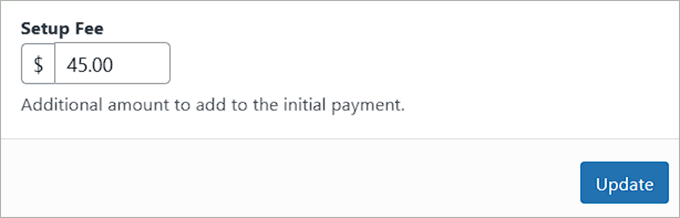
Then, click the ‘Update’ button.
If you have set up multiple price tiers, you will have to repeat this setting for each tier.
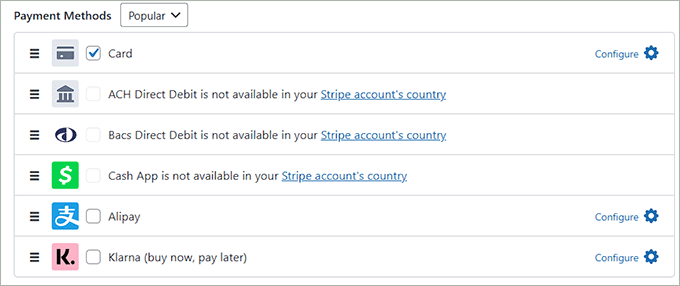
After that, scroll down to the ‘Payment Methods’ section and choose the payment gateways you like.
From here, you can add a card, ACH, AliPay, Klarna, CashApp, and more as a payment option.
Step 7: Configure Form Fields
Next, switch to the ‘Form Fields’ tab to add a form field from the dropdown menu. You can also expand the tab to configure each field’s settings and rearrange them using the drag-and-drop editor.
We highly recommend adding a ‘Terms and Conditions’ checkbox here. This ensures users agree to your deposit policy, which helps protect you against chargebacks if the deposit is non-refundable
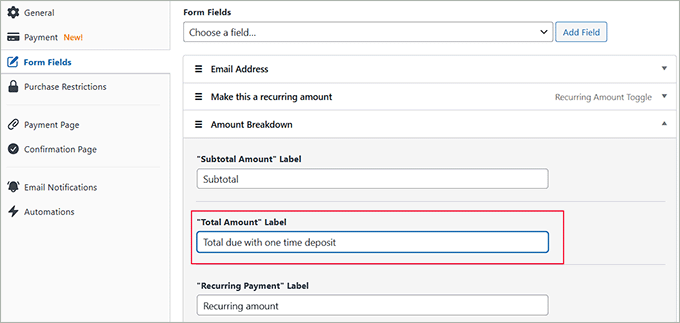
You will notice that the Amount Breakdown field has already been added to your form. This field will clearly display the deposit fee, installment fee, and processing fee to your customers, ensuring transparency.
However, be sure to change the ‘Total Amount’ label to ‘Total due with one time deposit.’
WP Simple Pay will automatically add the deposit amount (Setup Fee) to the recurring price (Subscription) to calculate the total. By updating the label, you will make it clear to users exactly what they are paying today.
Step 8: Publish the Payment Form
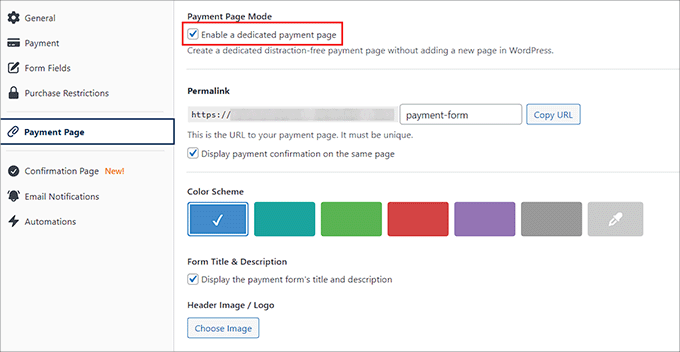
Now, go to the ‘Payment Page’ tab and check the ‘Enable a dedicated payment page’ box. This will allow you to build a custom page without manually adding a new page to your website.
The plugin lets you customize the form by setting a permalink, color scheme, image, footer text, and more.
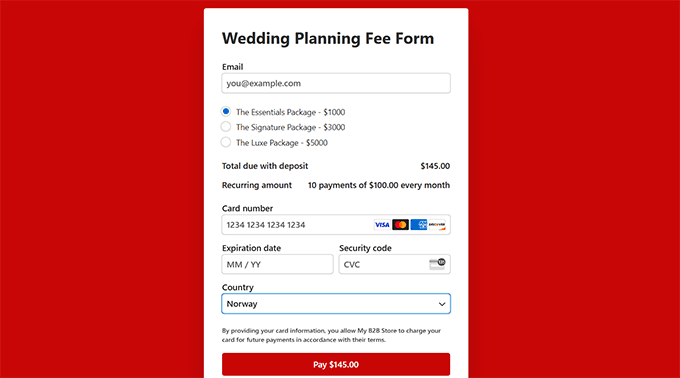
Finally, click the ‘Publish’ button to store your settings.
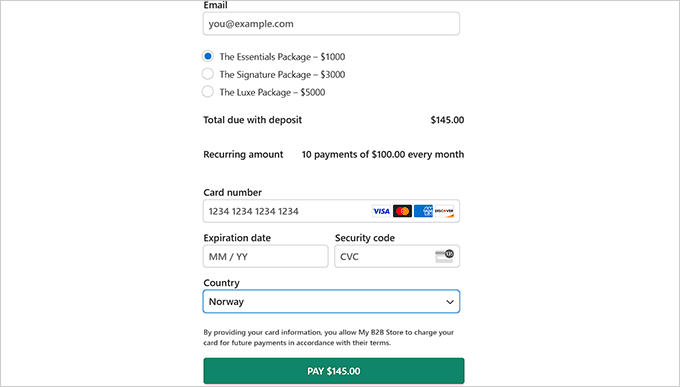
Then, visit your website to see the form accepting deposit fees.
However, if you want to add the form to an existing page, then you would have to click the ‘Publish’ button after adding the form fields instead.
Next, open the page/post you prefer from the WordPress dashboard and click the ‘Add Block’ (+) button. This will open the block menu from where you must find and add the WP Simple Pay block.
Next, choose the form you created from the dropdown menu.
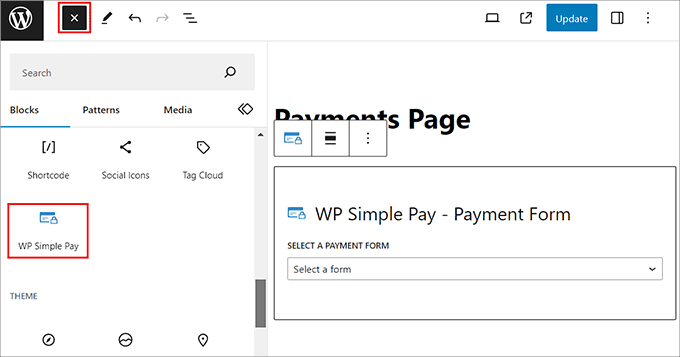
After that, click the ‘Update’ or ‘Publish’ button to save your settings.
Now, visit your website to see the form in action.
Method 2: Accept Deposit Payments in WooCommerce
If you want to accept deposits for products in your WooCommerce store, then this method is for you. This can be helpful if you have high-priced items, custom items, or are simply looking to boost your sales.
Step 1: Install And Activate WooCommerce Deposits
For this, you need to install and activate the WooCommerce Deposits plugin. For details, see our step-by-step guide on how to install a WordPress plugin.
Note: WooCommerce Deposits is a premium plugin without a free plan.
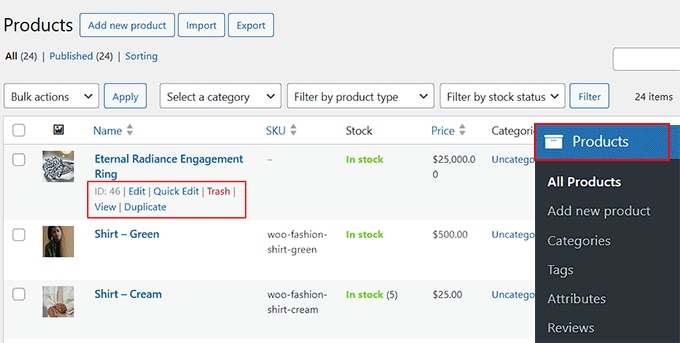
Upon plugin activation, you need to open the Products page from the WordPress dashboard and click the ‘Edit’ link for your preferred product.
Step 2: Add a Deposit Fee For a Product
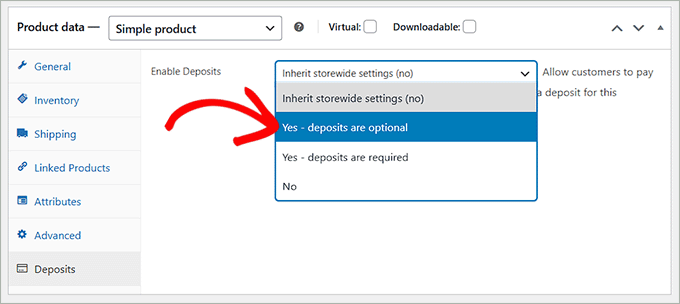
This will open the WooCommerce editor, where you must scroll down to the ‘Product Data’ section and switch to the ‘Deposits’ tab.
Here, select ‘Yes- deposits are optional’ in the ‘Enable Deposits’ dropdown menu.
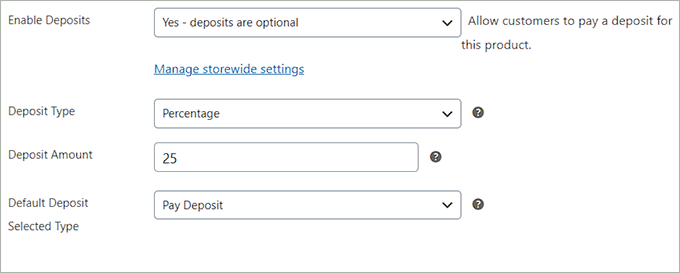
This will open a tab with some extra settings. You can start by choosing the deposit type: percentage, fixed amount, or payment plan.
Once you do that, simply add the deposit amount in the section below. Then, choose ‘Pay Deposit’ as the ‘Default Deposit Selected Type’ to allow users to be able to pay the amount.
Step 3: Preview Your Changes
Finally, scroll back to the top and click the ‘Publish’ or ‘Update’ to save your changes.
Now, you can visit the product page. Here, you can see that customers can either pay in full or choose to pay the deposit.

Once the customer pays the deposit, it will create an order in WooCommerce. You can collect the remaining balance later by sending an invoice or having the customer log in to their account to pay the rest.
Bonus Tip: You can also use the WooCommerce Deposits plugin to set up installment plans for your products. To learn more, see our tutorial on how to set up installment payments in WooCommerce.
Bonus: Offer “Buy Now, Pay Later” to Make Purchases More Accessible
Besides accepting deposits, another way to make your products and services more affordable is by offering a ‘Buy Now, Pay Later‘ (BNPL) option like Klarna.
Unlike a deposit that you collect directly, Klarna is a service that pays you the full amount upfront, while allowing your customer to pay them back in installments.
It’s a great way to boost conversions on high-ticket items.
When customers select Klarna as their payment method, they can choose from several options.
For example, “Pay Later” allows customers to make a purchase and pay for it within a set period, such as 14 or 30 days. Alternatively, “Pay in Installments” lets customers break the total amount into equal payments over a few months.
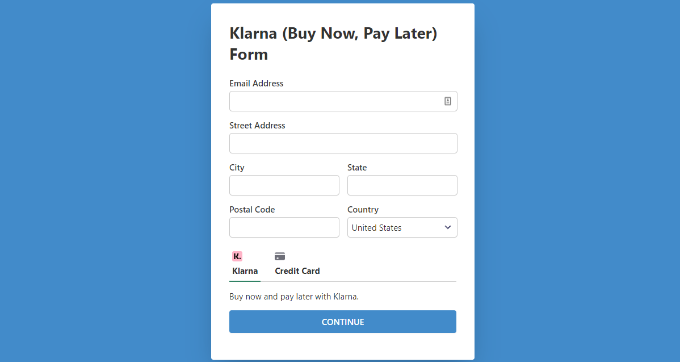
Klarna often offers these services with no interest or fees as long as payments are made on time, though this depends on the specific payment plan and region.
To accept Klarna payments in WordPress, you can use WP Simple Pay, which is the best Stripe plugin on the market.
For details, see our tutorial on how to add Klarna payments in WordPress.
Frequently Asked Questions About Deposit Payments
Here are some common questions we get from our readers about accepting payments in WordPress.
How to accept payments on a WordPress site?
The easiest way to accept payments is by using a plugin like WP Simple Pay or WPForms. These tools allow you to connect payment gateways like Stripe and PayPal to your site without needing to write any code.
How to integrate GPay in WordPress?
You can integrate Google Pay (GPay) by using a Stripe plugin like WP Simple Pay. Once you connect your Stripe account within the plugin settings, Google Pay is usually enabled automatically for customers using supported devices.
For more information, see our tutorial on accepting Google Pay in WordPress.
What is the best payment gateway for WordPress?
For most users, Stripe is the best payment gateway because it is secure, flexible, and allows customers to pay with credit cards directly on your site. PayPal is also a top choice due to its high level of user trust and ease of use.
How do I accept payments on my website?
You can accept payments by adding a secure payment form or a simple Buy Now button to your pages. Plugins like WP Simple Pay let you embed these payment blocks anywhere on your site, allowing you to collect money for services, products, or donations instantly.
Does WordPress accept PayPal?
Yes, WordPress accepts PayPal easily through plugins. While the core WordPress software doesn’t process payments, you can use tools like WPForms or WooCommerce to add a “Pay with PayPal” button to your checkout flow.
For more details, take a look at our top picks for the best WordPress PayPal plugins.
How to add a payment gateway in WordPress without WooCommerce?
You do not need a full shopping cart like WooCommerce to accept money. You can use a standalone payment plugin like WP Simple Pay to accept credit cards, Apple Pay, and ACH transfers using simple payment forms.
We hope this article helped you learn how to accept deposit payments in WordPress. You may also want to see our beginner’s guide on how to add a PayPal payment form in WordPress and our top picks for the best credit card processing plugins.
If you liked this article, then please subscribe to our YouTube Channel for WordPress video tutorials. You can also find us on Twitter and Facebook.




Have a question or suggestion? Please leave a comment to start the discussion.