


Have you ever tried to log in to your WordPress site only to see the error message ‘Cookies are blocked due to unexpected output’? This is a common WordPress error that prevents you from logging in or accessing the WordPress dashboard.
In this guide, we will show you how to fix the ‘Cookies are blocked due to unexpected output’ error in WordPress. We will walk you through several troubleshooting methods so you can quickly get back into your site.
Quick Answer: How to Fix ‘Cookies Are Blocked Due to Unexpected Output’ in WordPress
This error happens when extra whitespace, a plugin, or your theme sends output before WordPress can set login cookies. To fix it, check your wp-config.php and functions.php files for blank lines before <?php or after ?>, then remove them. If that does not work, deactivate all plugins and switch to a default theme to find the culprit.
Why Does the ‘Cookies Are Blocked’ Error Happen?
WordPress needs to set a browser cookie to keep you logged in. If anything sends output before WordPress can set that cookie, the login process breaks.
- Extra whitespace or code output – Blank lines in PHP files send data too early, blocking cookie headers.
- Plugin or theme conflict – A faulty plugin or theme can output content before WordPress is ready.
What Causes ‘Cookies Are Blocked Due to Unexpected Output’?
This error appears when a custom code snippet, WordPress plugin, or theme produces an output that prevents WordPress files from loading in the correct order.
To understand this, you need to know how WordPress works behind the scenes.
WordPress runs a specific sequence of background instructions to generate a web page. When something interrupts this process, WordPress may behave unexpectedly.
In this case, the error occurs because WordPress is unable to set the login cookie despite the rest of the code loading correctly.
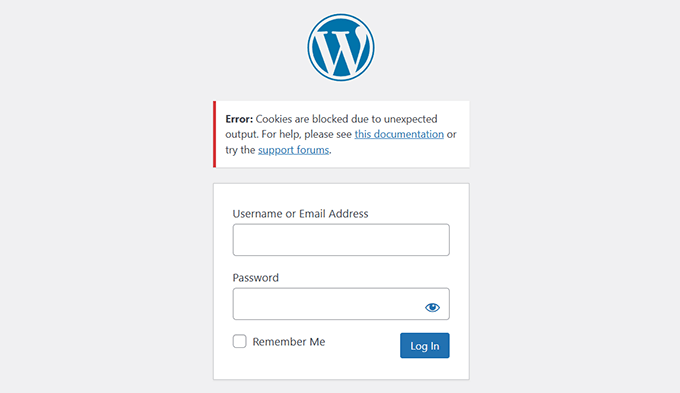
This is a common WordPress error and is usually caused by one of the following issues:
- Extra Whitespace in PHP Files: Unintended spaces or blank lines before the opening
<?phptag or after the closing?>tag in files likewp-config.phporfunctions.php. - Plugin Conflicts: A plugin may output unexpected content that interferes with the cookie-setting process.
- Outdated WordPress Core, Plugins, or Themes: Running older versions can cause compatibility issues that trigger this error.
- Custom Code: Recently added custom code snippets may produce output before WordPress sets cookies.
- Hosting Environment Issues: Rare server misconfigurations can also interfere with cookie handling.
That being said, let’s take a look at how to troubleshoot and fix this error.
1. Check for Extra Whitespace in PHP Files
This is the most common cause of the ‘Cookies are blocked due to unexpected output’ error, and fixing it will resolve the issue for most users.
You need to use an FTP client or the File Manager app in your hosting account dashboard to access your website files.
Once connected, you need to locate and edit the wp-config.php file.
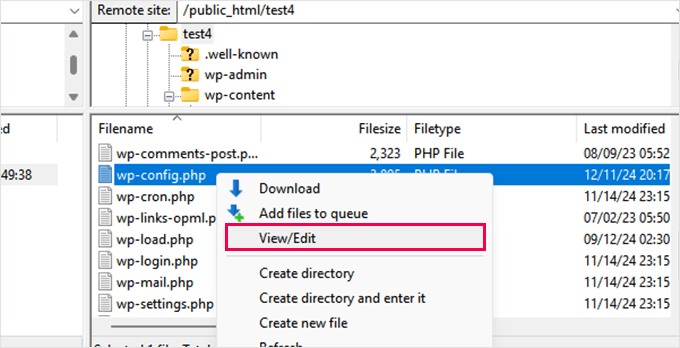
You need to look for any blank lines or spaces before the opening <?php tag or after the closing ?> tag. You will need to remove any extra spaces or blank lines.
After that, save your changes and upload the file back to your server.
If the error persists, then you will need to repeat the above process for your theme’s functions.php file and any other PHP file you may have recently edited.
2. Deactivate All Plugins Temporarily
If removing extra whitespace did not fix the error, then a plugin is likely causing the issue.
For more details, see our guide on how to deactivate all WordPress plugins.
If you can access the WordPress dashboard:
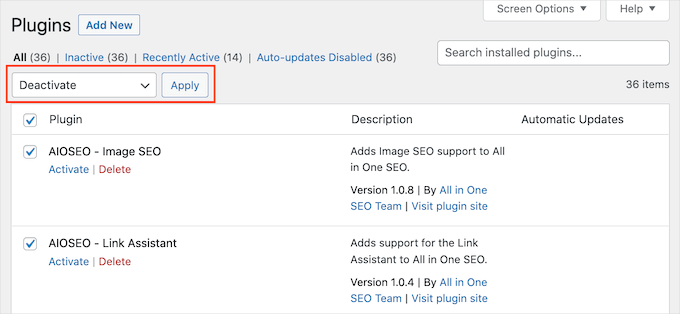
Navigate to Plugins » Installed Plugins. Select all plugins, choose ‘Deactivate’ from the bulk actions dropdown, and click ‘Apply.’
If you cannot access the dashboard:
Use FTP or the File Manager to navigate to the /wp-content/ folder.
Then, rename the plugins folder to plugins.deactivated.
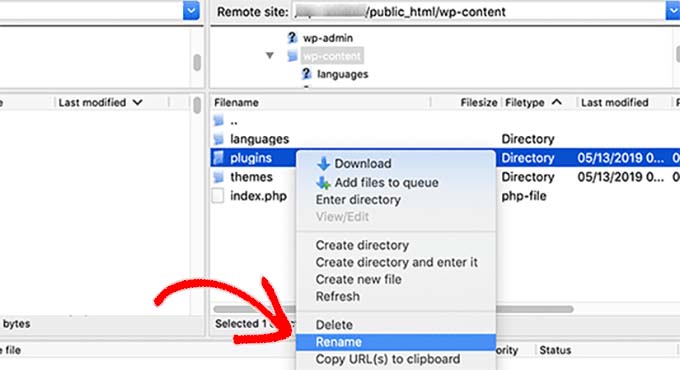
WordPress automatically deactivates all plugins when it cannot find the plugins folder.
If the error disappears after deactivating all plugins, then one of your plugins is causing the issue. Reactivate them one by one to figure out which plugin is the culprit.
Once you identify the problematic plugin, you can contact the plugin’s developer for support or find an alternative plugin.
3. Switch to a Default WordPress Theme
If deactivating plugins did not fix the problem, then your WordPress theme could be causing the issue.
Via the Dashboard:
Go to Appearance » Themes and activate a default theme like Twenty Twenty-Five or Twenty Twenty-Four.
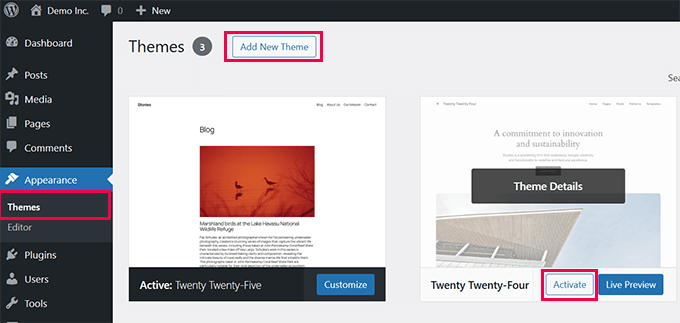
Via FTP or File Manager:
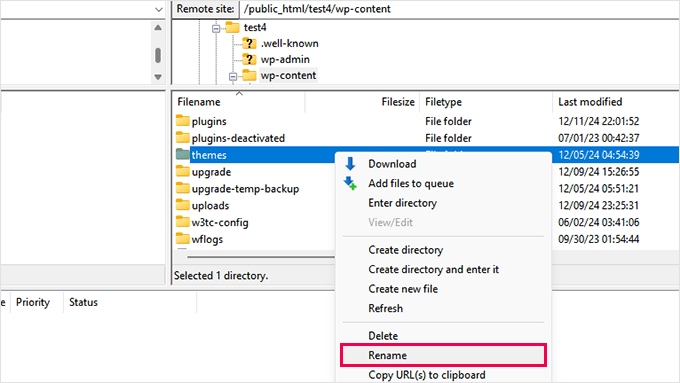
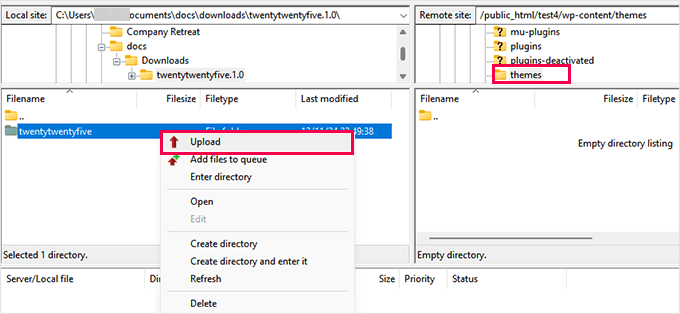
Navigate to the /wp-content/ folder and rename the themes folder to themes-deactivated.
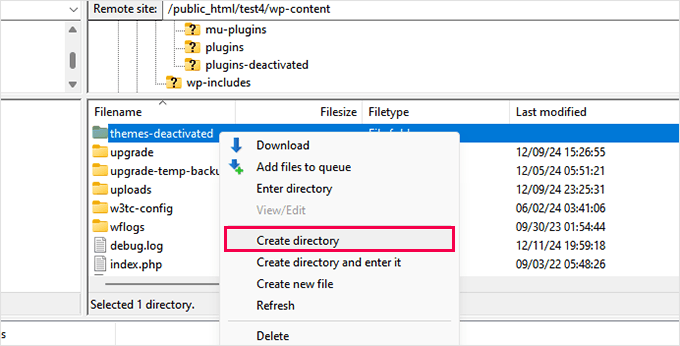
Next, create a new folder and name it themes.
Now you need a default theme to upload.
Visit the WordPress.org themes directory and download a default theme like Twenty Twenty-Five.
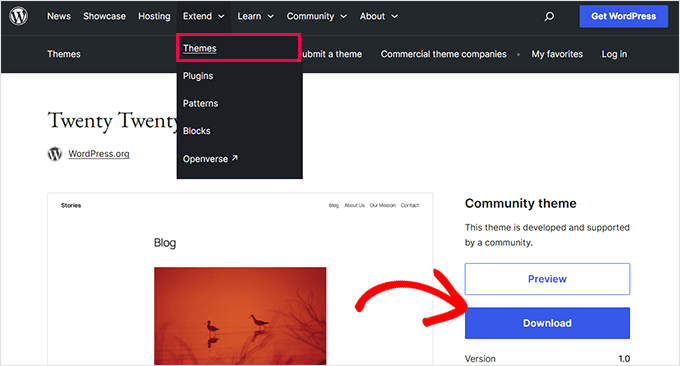
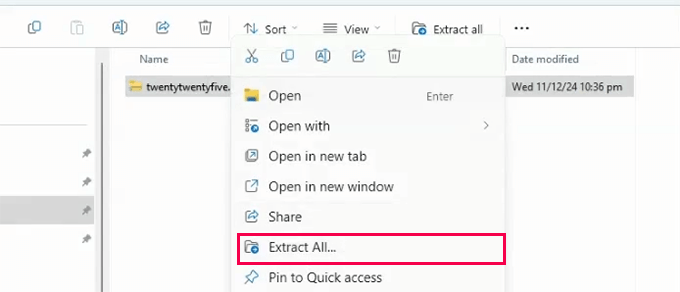
Once downloaded, extract the zip file on your computer.
Then, upload the extracted theme folder to the new themes directory on your server.
WordPress will automatically activate the only available theme. If the error is gone, then your previous theme was the problem.
For more details, see our guide on how to install a WordPress theme.
4. Debugging With WP_DEBUG Mode
If none of the above solutions worked, then you can enable WordPress debugging to see what is causing the error.
Access the wp-config.php file and add the following lines before the comment that says ‘That’s all, stop editing!’:
define( 'WP_DEBUG', true );
define( 'WP_DEBUG_LOG', true );
define( 'WP_DEBUG_DISPLAY', false );
Save the changes and upload the file.
WordPress will now generate a debug log file at /wp-content/debug.log.
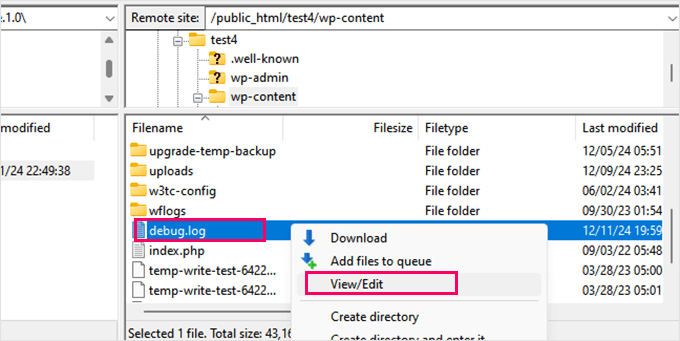
You can review this file to identify the specific errors causing the issue. For more details, see our guide on how to easily enable WordPress debug mode to fix site errors.
After troubleshooting, remember to disable WP_DEBUG by setting it to false.
Preventing the Error in the Future
Once you have fixed the error, here are some best practices to prevent it from happening again:
1. Use Automated Backups: Set up scheduled backups using a plugin like Duplicator. If something goes wrong, you can quickly restore your site. For more details, see our Duplicator review.
2. Manage Custom Code Safely: Use a code snippet manager like WPCode instead of editing theme files directly. It includes error handling that automatically disables problematic code. See our WPCode review for more information.
3. Keep Everything Updated: Regularly install updates for WordPress core, plugins, and themes. This helps prevent compatibility issues that can trigger errors. See our guide on safely updating WordPress.
If you want someone to handle all of this for you, consider hiring a professional WordPress maintenance service.
Frequently Asked Questions About WordPress Troubleshooting
What does ‘unexpected output’ mean in the cookies blocked error?
‘Unexpected output’ means something in your WordPress files is sending data to the browser before WordPress is ready. This is usually extra whitespace, a blank line, or a stray character in a PHP file like wp-config.php. Removing it fixes the error.
Can I fix this error without FTP access?
Yes, most hosting providers offer a File Manager tool in their control panel (like cPanel or hPanel). You can use it to edit files, rename folders, and deactivate plugins the same way you would with FTP.
Will deactivating all my plugins delete their settings?
No. Deactivating plugins is a temporary troubleshooting step. Your plugin settings and data are saved in the WordPress database and will still be there when you reactivate them.
How do I know which plugin is causing the error?
After deactivating all plugins and confirming the error is gone, reactivate them one at a time. Test your login after each reactivation. The plugin that brings the error back is the one causing the conflict.
Is it safe to enable WP_DEBUG on a live website?
Yes, as long as you set WP_DEBUG_DISPLAY to false and WP_DEBUG_LOG to true. This logs errors to a file instead of showing them to visitors. Just remember to turn debugging off after you finish troubleshooting.
Bonus Resources for WordPress Troubleshooting
Here are some additional guides that can help you resolve other common WordPress errors:
- Beginner’s Guide to Troubleshooting WordPress Errors (Step by Step)
- Most Common WordPress Errors and How to Fix Them
- How to Fix Pluggable.php File Errors in WordPress
- What to Do When You Are Locked Out of WordPress Admin (wp-admin)
We hope this article helped you fix the ‘Cookies are blocked due to unexpected output’ error in WordPress. You may also want to see our WordPress security guide and our expert picks for tips on protecting the WordPress admin area.
If you liked this article, then please subscribe to our YouTube Channel for WordPress video tutorials. You can also find us on Twitter and Facebook.


Have a question or suggestion? Please leave a comment to start the discussion.