


If you’re selling to customers in Poland, then not offering payments through Przelewy24 (P24) is likely costing you sales. It is the most trusted local payment method, but many site owners find the integration confusing.
I’ve seen many businesses lose Polish customers at the final step because they didn’t offer a familiar local bank transfer option.
In this guide, I’ll walk you through the two easiest ways to accept Przelewy24 payments in WordPress. Whether you need a simple payment form or a full WooCommerce setup, I’ll show you how to get it done without a developer.
💡Quick Answer: How to Accept Przelewy24 Payments in WordPress
TL;DR: To accept Przelewy24 payments in WordPress, I recommend using WP Simple Pay for simple payment forms or FunnelKit for WooCommerce stores. Both methods use Stripe to handle Polish bank transfers, providing a familiar and fast checkout experience for your customers.
Why Accept Przelewy24 (P24) Payments on Your WordPress Site?
Adding Przelewy24 to your WordPress site is a smart move if you’re selling to customers in Poland. It makes checkout faster, smoother, and more trustworthy for local buyers.
So, what exactly is Przelewy24? Simply put, it’s a popular Polish payment gateway that lets people pay instantly through their bank accounts or local digital wallets.
It’s trusted by millions across Poland and is supported by Stripe, making it ideal for eCommerce stores, service payments, or any site targeting Polish customers.

Here’s what makes it so useful for your site:
- Builds Trust with Polish Customers: People feel confident paying with a familiar, local option.
- Speeds up Checkout: Payments happen instantly, reducing abandoned carts.
- Reduces Extra Transaction Costs: Using Przelewy24 through tools like WP Simple Pay can help you avoid higher fees charged by some other payment gateways.
- Boosts Conversions: A smoother, relevant checkout means more completed sales.
Now that you know why Przelewy24 works so well, let’s look at the two easiest ways to set it up in WordPress.
✅ What You’ll Need Before You Start Accepting Przelewy24 Payments
Before I jump into the tutorial, here’s what I recommend having ready to make the setup smooth:
| Requirement | Why You Need It |
|---|---|
| Active WordPress Site with SSL & Reliable Hosting | Payments require a secure (HTTPS) site and hosting that can handle transactions safely. |
| Stripe Account | Stripe processes Przelewy24 payments, so it’s essential for both setup methods. |
| Valid Bank Account Connected to Stripe | Stripe will process the Przelewy24 payment and automatically convert and deposit the funds into your local bank account. |
| A WordPress Payment Plugin | Choose the method that fits your site: • WP Simple Pay – great for non-WooCommerce sites and simple one-off payments. • FunnelKit Payment Gateway for Stripe – perfect for full WooCommerce stores with multiple products.. |
If you haven’t set up your WordPress site yet, I recommend checking out our guide on starting a WordPress website.
Now, let’s get Przelewy24 working on your site. You can use the links below to jump to the method of your choice:
Method 1: Accept Przelewy24 Payments with WP Simple Pay (Easy Payment Form Creation)
If you have service pages, subscriptions, donations, or any site that doesn’t run a full online store, then WP Simple Pay is the best Stripe plugin for accepting Przelewy24 payments..
It comes with a ready-to-use Przelewy24 payment form template, so you can start accepting payments instantly without setting up a full shopping cart. I’ve tested it thoroughly, and it is a fast and reliable tool that even a beginner can set up.
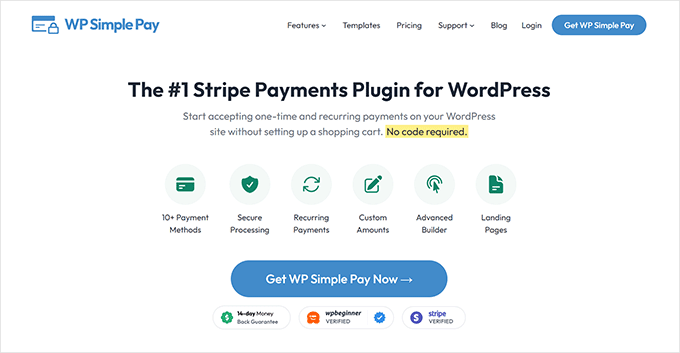
Here are just some of the reasons why I love WP Simple Pay:
- No Extra Transaction Fees – With the Pro version, you only pay Stripe’s standard processing fees. The free version adds an extra 3% fee on top of Stripe’s charges. Upgrading is a big plus if you want to avoid extra costs and maximize your profits.
- Quick, Beginner-Friendly Setup – I was able to get a payment form live in under 15 minutes.
- Customizable Payment Forms – You can adjust fields, styling, and payment options to match your site.
- Supports One-Time and Recurring Payments – Perfect for donations, subscriptions, or service fees.
- Built-in Przelewy24 Template – Everything you need for P24 is ready to go, which makes setup super smooth.
With WP Simple Pay, you get a reliable solution that lets you start accepting P24 payments almost instantly. For more details about it, you can take a look at our complete WP Simple Pay review.
Step 1: Install and Activate WP Simple Pay
The first thing you need to do is install the WP Simple Pay plugin on your WordPress site..
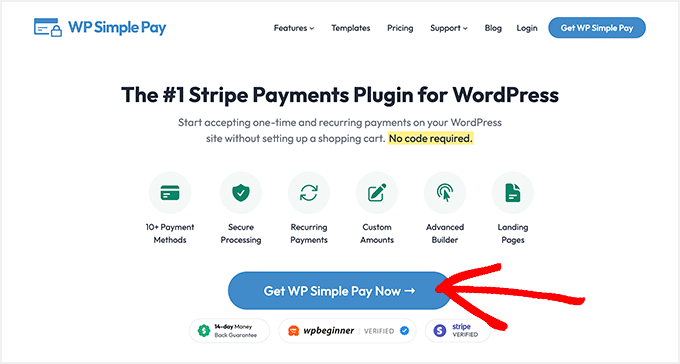
You can start by signing up on the WP Simple Pay website. Just click the ‘Get WP Simple Pay Now’ button and follow the instructions.
📍Note: The Przelewy24 payment form is only available in WP Simple Pay Pro. While the free version is great for testing basic Stripe payments, you’ll need the Pro plan to create a fully functional Przelewy24 form..
I’ve tested both, and the Pro version makes setup faster, smoother, and helps reduce transaction fees.
Once you’ve signed up, you need to install and activate the plugin on your WordPress site. If you need a refresher, our guide on installing a WordPress plugin walks you through it step by step.
After activation, the WP Simple Pay Setup Wizard will launch automatically. Just click ‘Let’s Get Started’ to begin.

Next, you’ll be asked to enter your license key. You can find this key in your WP Simple Pay account dashboard..
Entering it unlocks the Pro features, which are required if you want to accept payments with lower fees or other advanced options like subscriptions or direct debit.

Step 2: Connect WP Simple Pay to Stripe
After installing WP Simple Pay, the next step is to connect it to your Stripe account. Since WP Simple Pay processes Przelewy24 payments through Stripe, your site won’t be able to accept payments until this connection is complete.
If you don’t have a Stripe account yet, don’t worry. You can create one right from the plugin setup.
I went through this myself, and the process is quick and simple.
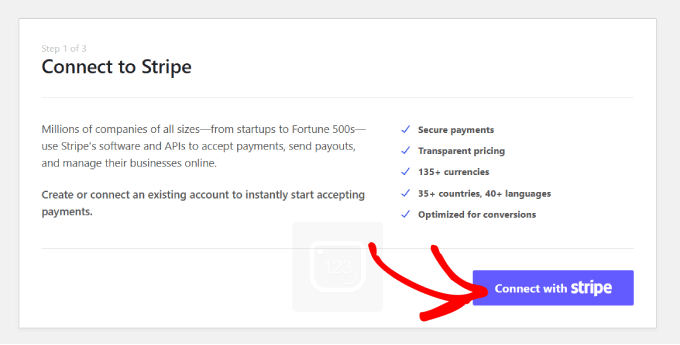
Once connected, Stripe handles all the payment processing behind the scenes, so you don’t have to manage any complex banking setups.
After that, WP Simple Pay will guide you through configuring basic settings like email notifications.
I like setting this up right away because it makes sure I get alerts when a payment goes through or if there’s an issue. You can customize which notifications to receive and choose the email address where they’ll be sent.

Once that is done, you’re ready to move on to creating your first Przelewy24 payment form.
Step 3: Create a Przelewy24 Payment Form
Now that WP Simple Pay is installed and connected to Stripe, it’s time to create your first Przelewy24 payment form. This is the step that lets your customers pay using P24.
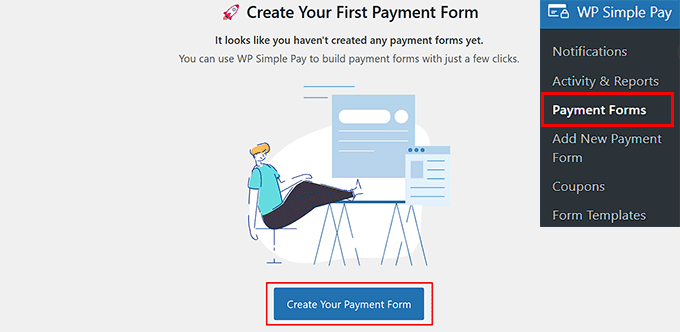
Start by going to WP Simple Pay » Payment Forms from your WordPress dashboard and clicking ‘Create Your Payment Form’..
If you still see the setup wizard, you can also click the button there.
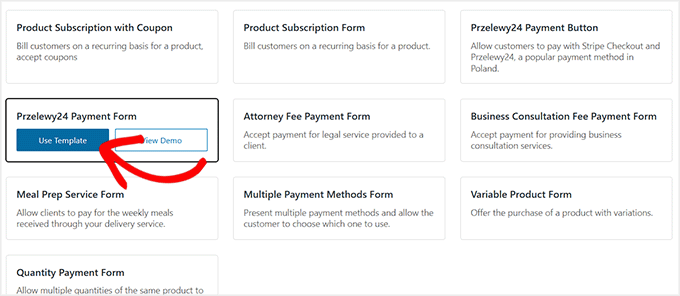
In the template library, look for the ‘Przelewy24 Payment Form’ template..
I like this template because it automatically preselects Przelewy24 as the payment method, so you don’t have to configure it manually.
If you don’t see it immediately, use the search bar to find it quickly.
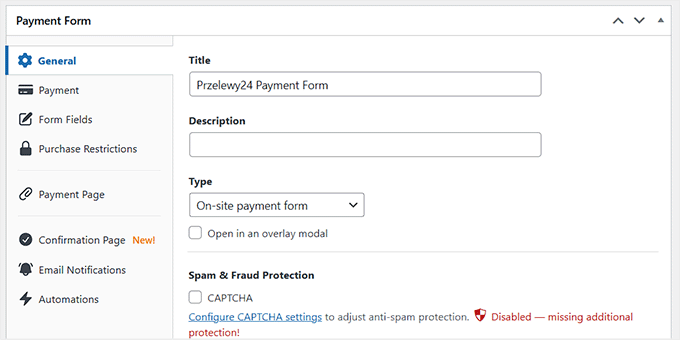
Once you select the template, you’ll land in the form editor. Begin by giving your form a clear title and description. This is what your customers will see at checkout.
Then choose the form type. I usually go with ‘On-site payment form’, which keeps customers on your site to complete payments. But you can also select ‘Stripe Checkout form’ if you prefer an off-site flow.
Then, I suggest checking the ‘Spam & Fraud Protection’ box. It adds CAPTCHA to your form, protecting it from malicious bots.
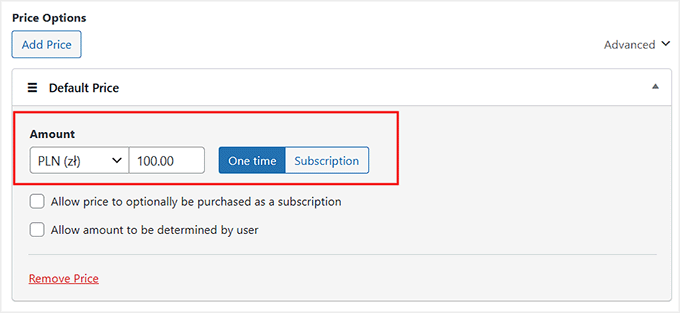
Next, set up the payment details by switching to the ‘Payment’ section from the left..
Here, you’ll enter the price for your product, service, or donation and select the currency. Przelewy24 supports both PLN (Polish Złoty) and EUR, so make sure your currency is set to one of these options.
You can also choose whether this is a one-time payment or a subscription. For subscriptions, you can create multiple tiers. For example, a Basic Plan at one price and a Premium Plan at a higher price.
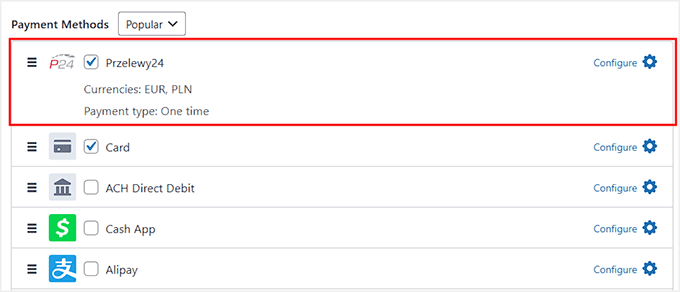
After setting the price, scroll down to the ‘Payment Methods’ section just to verify that ‘Przelewy24’ is checked off.
Since you used the template, it should already be selected for you.
You can also enable additional options, like credit cards, SEPA, Klarna, or Alipay, so your customers have more flexibility in how they pay..
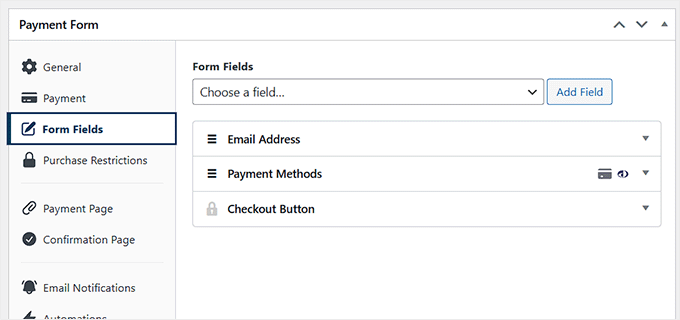
After that, move to the ‘Form Fields’ section. This is where you decide what information to collect from customers.
For a simple service or digital product, name and email may be enough, but for events or services requiring billing info, you can add fields like address.
You can drag, drop, add, or remove fields to customize the form exactly how you need it.
Step 4: Publish Your Przelewy24 Payment Form in WordPress
Once your Przelewy24 payment form is ready, it’s time to make it live on your site.
WP Simple Pay lets you publish the form in two ways: as a standalone payment page or embedded within an existing page or post.
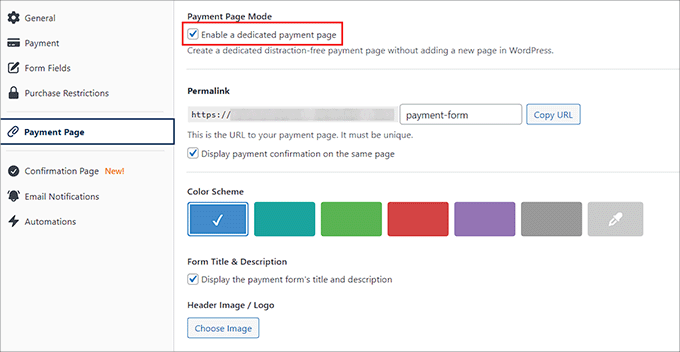
To create a dedicated payment page, switch to the ‘Payment Page’ tab in your form editor and check the ‘Enable a dedicated payment page’ box.
From here, you can customize the page by setting a permalink, choosing a color scheme, adding your business logo, or including footer text.
When you’re happy with the setup, click ‘Publish.’
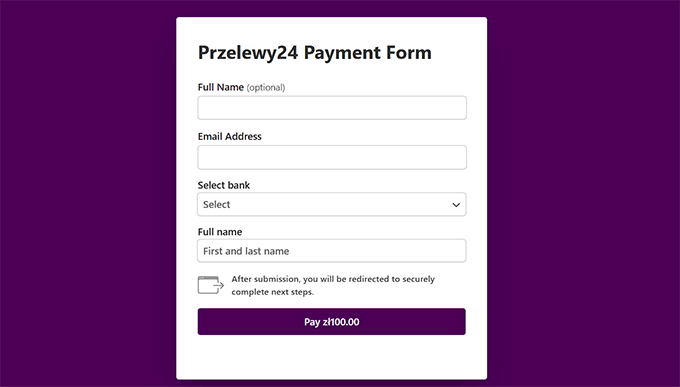
You can now visit your site to see the Przelewy24 payment form live and ready for customers.
If you prefer to add the form to an existing page, that’s easy too. After saving your form, open the WordPress page or post where you want the payment form to appear.
Click the ‘Add Block’ (+) button, search for the ‘WP Simple Pay’ block, and select the payment form you just created from the dropdown.
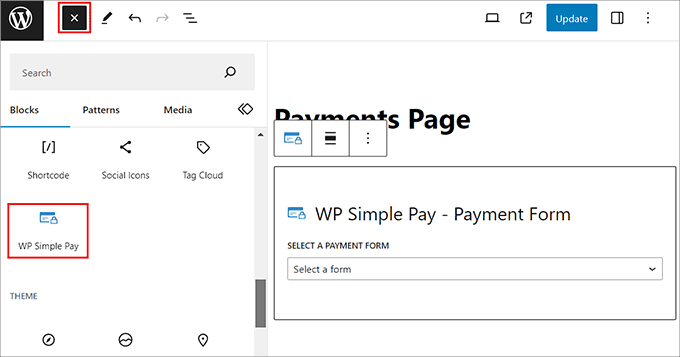
Once added, click ‘Update’ or ‘Publish’ on the page to save your changes.
Whether you use a dedicated page or embed the form in an existing page, your Przelewy24 payment form is now live and ready to start accepting payments immediately.

Method 2: Accept Przelewy24 Payments in WooCommerce with FunnelKit Payment Gateway for Stripe
If you’re running a WooCommerce store and want to accept Przelewy24 payments right at checkout, I recommend using FunnelKit Payment Gateway for Stripe.
I’ve thoroughly tested it, and it works smoothly with WooCommerce, letting customers pay with P24 without leaving your store.

The plugin is completely free, beginner-friendly, and integrates directly with your existing Stripe account, so you don’t need any complicated setups.
Plus, with FunnelKit, your checkout process stays smooth. It gives customers a familiar local payment option while keeping everything secure and reliable.
Step 1: Prepare Your WooCommerce Store
Before you can accept Przelewy24 payments with FunnelKit, your WooCommerce store needs to be set up and ready..
If you haven’t created your store yet, I recommend checking out our complete guide to setting up WooCommerce for step-by-step instructions.
Once your store is active, there’s one key setting to check: the store currency. Przelewy24 supports EUR or PLN (Polish Złoty), so you need to make sure your WooCommerce store is set to one of these.
To set your store currency, go to WooCommerce » Settings » General, scroll to the ‘Currency options’, and select ‘Polish Złoty’ (PLN) from the dropdown.
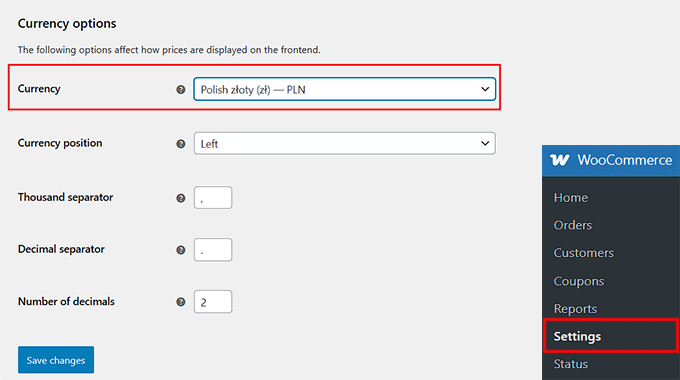
Then, click ‘Save Changes’ to store your settings.
Step 2: Install FunnelKit Payment Gateway and Connect to Stripe
With your WooCommerce store ready, the next step is to install FunnelKit Payment Gateway for Stripe and connect it to your Stripe account so you can accept Przelewy24 payments.
From your WordPress dashboard, go to Plugins » Add New, then search for ‘FunnelKit Stripe Gateway’. Once you find the plugin, click ‘Install’ and then ‘Activate.’
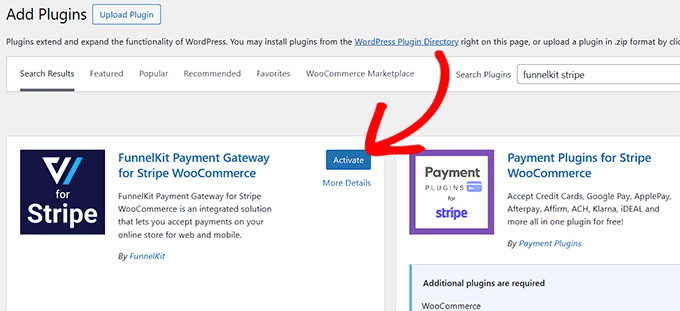
After activation, you’ll see a prompt to connect your Stripe account.
Click the ‘Start Onboarding Wizard’ button to begin the setup.
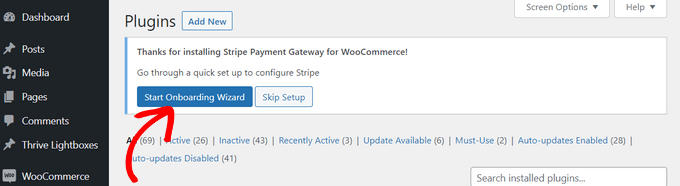
This will open a new window where you can click ‘Connect with Stripe.’
Log in to your Stripe account using your registered email and password.
Then, follow the prompts to verify your account with the 6-digit code Stripe sends to your email or phone.
Once verified, select the Stripe account you want to use and click ‘Connect.’
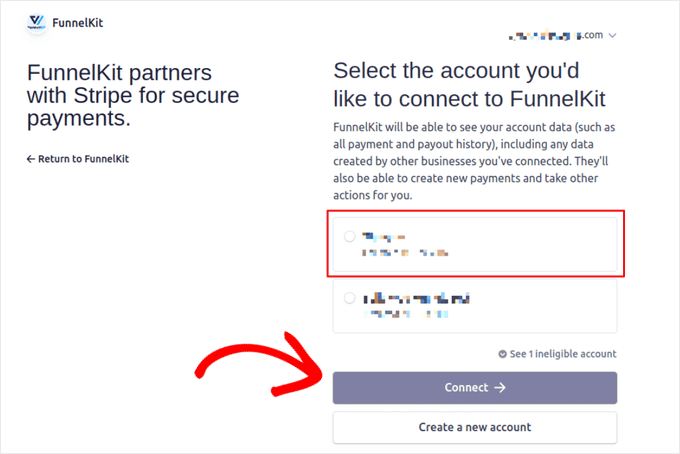
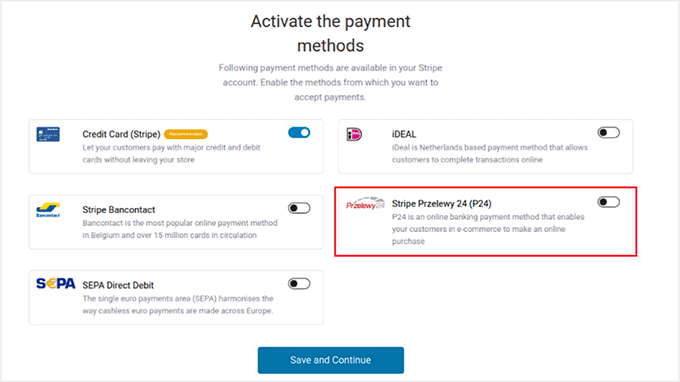
Next, you’ll see a list of available payment gateways.
Make sure ‘Stripe Przelewy24 (P24)’ is enabled, then click ‘Save and Continue.’
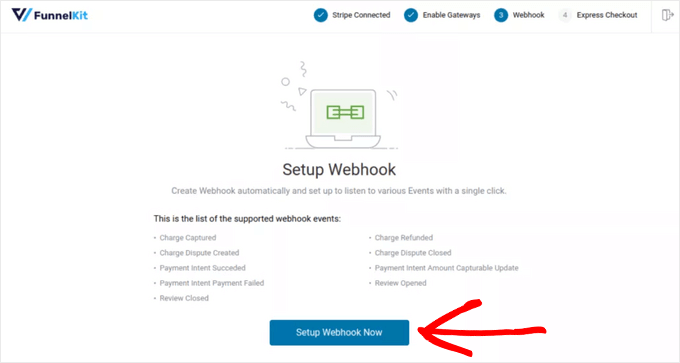
The plugin will automatically set up webhooks to handle notifications from Stripe.
Just click ‘Setup Webhook Now’ and follow the instructions.
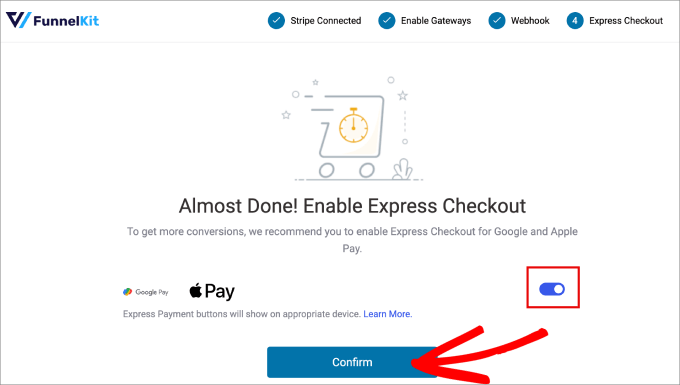
Finally, the plugin may prompt you to enable express checkout options like Apple Pay or Google Pay. These are optional but make checkout faster and easier for customers.
Once everything is connected, FunnelKit will automatically pull in your Stripe account details, including your connection ID, webhook URL, and secret keys.
At this point, your WooCommerce store is ready to start accepting Przelewy24 payments.
Step 3: Enable and Configure Stripe Przelewy24 in WooCommerce
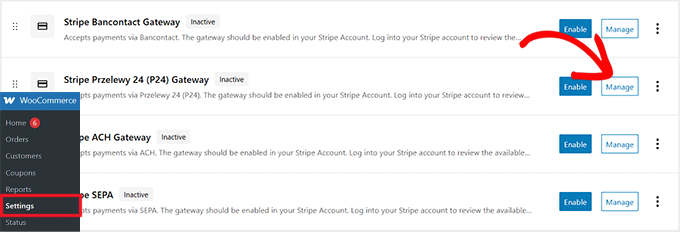
Now that FunnelKit is connected to Stripe, the next step is to enable Przelewy24 at checkout. From your WordPress dashboard, go to the WooCommerce » Settings » Payments page.
Scroll down the list of available gateways and click ‘Manage’ next to ‘Stripe Przelewy24 (P24) Gateway.’
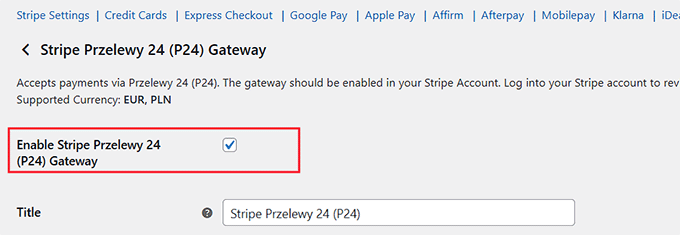
On the next screen, check the ‘Enable Stripe Przelewy24 (P24) Gateway’ box.
This activates P24 as a payment option in your WooCommerce store, letting your customers pay directly at checkout.
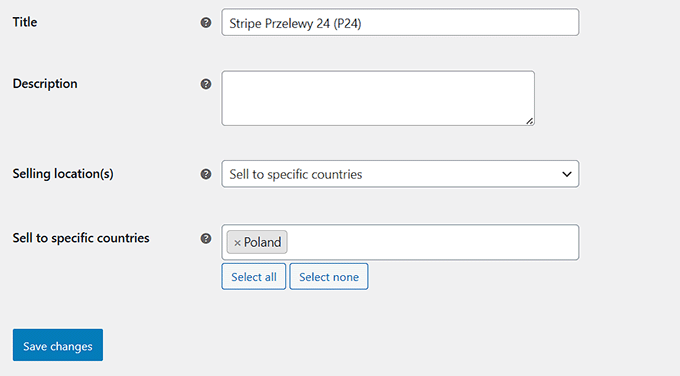
Once enabled, it’s time to configure the settings.
Start by giving your payment option a title—this is what your customers will see at checkout. Then, add a description to provide a little more detail, which appears below the title.
Next, set the ‘Selling location(s)’. If you choose ‘Sell to specific countries’, make sure to select Poland, since Przelewy24 is a local Polish payment method.
After filling in these details, scroll down and click ‘Save changes.’
Step 4: Test Your Przelewy24 Checkout in WooCommerce
Once you’ve saved your changes, it’s time to see the Przelewy24 payment gateway in action. I always recommend testing before going live to make sure everything works smoothly.
Go to your WooCommerce store and open the checkout page with a test product or service. You should now see Przelewy24 listed as a payment option alongside any other methods you enabled.
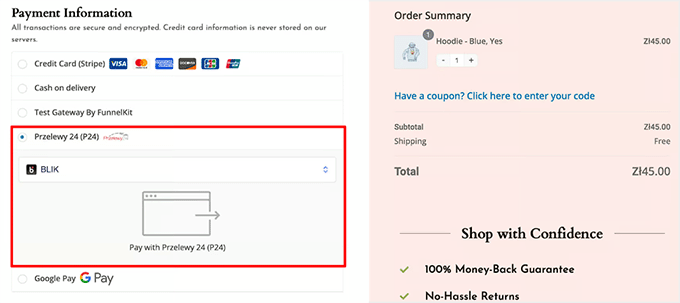
Select Przelewy24 at checkout and place your order..
Doing this helps confirm that payments are processed correctly through Stripe and that the checkout flow is smooth for your customers.
Once the test payment goes through successfully, your WooCommerce store is fully ready to accept Przelewy24 payments in live transactions.
Expert Tip: Since many people in Poland pay using mobile banking apps, I highly recommend testing your checkout on a smartphone. You want to make sure the bank selection buttons are easy to click on small screens so you don’t lose sales.
Bonus Tips to Improve Your Checkout Experience
After you’ve added Przelewy24 to your WordPress site or WooCommerce store, you can do a few extra things to make the checkout process even smoother..
Here are some of the tips I recommend:
- Offer Multiple Payment Options: Let customers pay with P24, credit cards, or other popular methods on the same form or checkout page. This flexibility helps boost conversion rates.
- Safely Switch From Test Mode to Live Mode: Run a few test transactions first to ensure everything works correctly, then enable live payments to avoid any surprises.
- Monitor P24 Transactions in Stripe: Check successful and failed payments, refunds, and other transaction details using Stripe’s dashboard to stay on top of your sales.
- Keep a Post-Setup Checklist: Confirm your forms display correctly. Ensure emails are sent, that currencies are set properly, and checkout flows are smooth. A quick check like this prevents potential issues.
These simple steps help ensure your checkout is fast, reliable, and user-friendly, giving your customers confidence to complete their payments.
Frequently Asked Questions About Accepting Przelewy24 Payments in WordPress
Even after setting up Przelewy24 on your WordPress site or WooCommerce store, I understand that you might still have some questions..
To make things easier, I’ve put together answers to the most common questions I get about accepting P24 payments, so you can troubleshoot quickly and confidently.
Does Przelewy24 work without WooCommerce?
Yes, Przelewy24 works without WooCommerce. You can accept P24 payments on any WordPress site using WP Simple Pay, which provides a ready-made Przelewy24 payment form template.
This method is ideal for service pages, donations, events, or any site that doesn’t run a full online store.
Is Przelewy24 available through Stripe?
Yes, Przelewy24 is available through Stripe. Both WP Simple Pay and FunnelKit for WooCommerce use Stripe to process P24 payments securely. This integration makes sure transactions are fast and reliable while keeping customer payment details safe.
Does WP Simple Pay charge extra fees?
No, WP Simple Pay itself doesn’t add extra fees when using the Pro version—you only pay Stripe’s standard processing fees..
On the free plan, there is an additional 3% fee on top of Stripe’s charges, which can add up over time.
Can I accept P24 on a non-Polish website?
Technically, you can add Przelewy24 to a website outside Poland, but your customers still need a Polish bank account to complete payments. P24 is designed specifically for the Polish market, so it works best when your audience is in Poland.
What currency does P24 use?
Przelewy24 payments are processed in PLN (Polish Złoty) and EUR. Make sure your WordPress or WooCommerce store is set to one of these currencies to avoid any payment errors.
You can adjust this in WooCommerce » Settings » General » Currency options.
Is it safe to accept P24 payments?
Yes, accepting Przelewy24 payments is safe. All P24 transactions go through Stripe, which uses strong encryption and fraud protection. I recommend enabling options like CAPTCHA or other anti-fraud tools in WP Simple Pay for added security.
Which banks support Przelewy24 payments?
Przelewy24 is supported by over 165 major banks in Poland, including mBank, PKO BP, Santander, and ING. It also works with popular digital wallets like BLIK, making it accessible to almost every online shopper in the country.
What is the deadline for requesting a refund on Przelewy24 payments?
You can typically issue a refund for Przelewy24 transactions within 180 days of the original payment date. Refunds are processed through Stripe and sent back directly to the customer’s bank account or original payment method.
I hope this article helped you learn how to accept Przelewy24 payments in WordPress. You may also want to see our tutorial on accepting Bancontact payments and our guide on important online payment statistics.
If you liked this article, then please subscribe to our YouTube Channel for WordPress video tutorials. You can also find us on Twitter and Facebook.



Have a question or suggestion? Please leave a comment to start the discussion.